


Exchange Public Folders to PST Export
Public folders often hold years of shared organizational data: department announcements, shared calendars, discussion threads, and customer correspondence that many teams rely on daily. But that same data can become a liability if it isn't backed up separately from the live Exchange environment. A server crash, a decommissioning project, or a compliance audit can all leave administrators scrambling if the only copy of a public folder lives on production Exchange.
EdbMails Exchange Migration tool includes a dedicated public folder export option that converts public folder items like email, contacts, calendar entries, and tasks into PST files while preserving the original folder hierarchy and permissions structure. The export runs directly against a live Exchange server, so there's no need for PowerShell scripting or manual New-MailboxExportRequest cmdlets.
Exporting Exchange public folders to PST files solves this by creating a standalone, portable copy of the data that can be stored offline, attached to an e-discovery case, reloaded into Outlook, or archived for long-term retention, independent of whether the source server is upgraded, retired, or migrated later.
Why export Exchange public folders to PST
- Litigation hold and e-discovery: Legal and compliance teams frequently need an isolated, exportable copy of public folder content that can be handed over for review without exposing the live production environment. A PST export gives legal teams a self-contained file they can search and produce independently.
- Server decommissioning: When an old Exchange server is being retired (for example, during a hardware refresh or a move away from an unsupported Exchange version), administrators need to preserve public folder content before the server is taken offline. Exporting to PST ensures nothing is lost even after the source server is gone.
- Reducing production server load: Large, rarely-accessed public folders can be exported to PST and archived, freeing up storage and reducing backup windows on the live Exchange database without deleting historical records.
- Pre-migration safety net: Before undertaking a public folder migration to Office 365 or to another Exchange server, many administrators export a PST copy first, so there's a fallback if the migration needs to be re-run or audited afterward.
- Offline access and portability: A PST file can be opened directly in Outlook, copied to removable media, or stored in a separate archive location, useful for branch offices, auditors, or teams that need occasional offline access to shared folder content.
Prerequisites for Exporting Exchange Public Folders to PST Exchange Migration Planning
- Make sure the admin account has full access permissions on the public folders that need to be exported.
- Install Microsoft Outlook with an Outlook profile on the machine on which the export is to be done.
- Check that enough disk space is available at the export destination to accommodate the size of the public folders being exported.=
- '
- Decide in advance whether you need to export the entire public folder hierarchy or only specific folders.
Steps to export Exchange public folders to PST
Step 1: Download and install EdbMails software
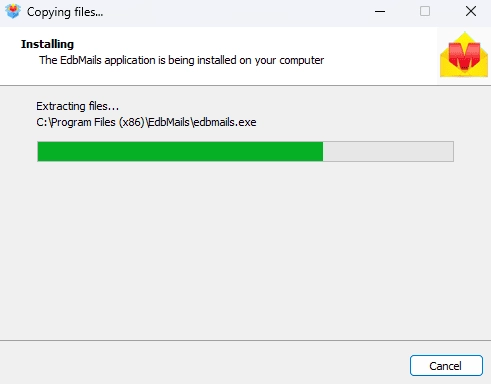
- Download and install the EdbMails application on your computer, ensuring it can connect to your source Exchange server.
System requirements for Exchange public folder migration.
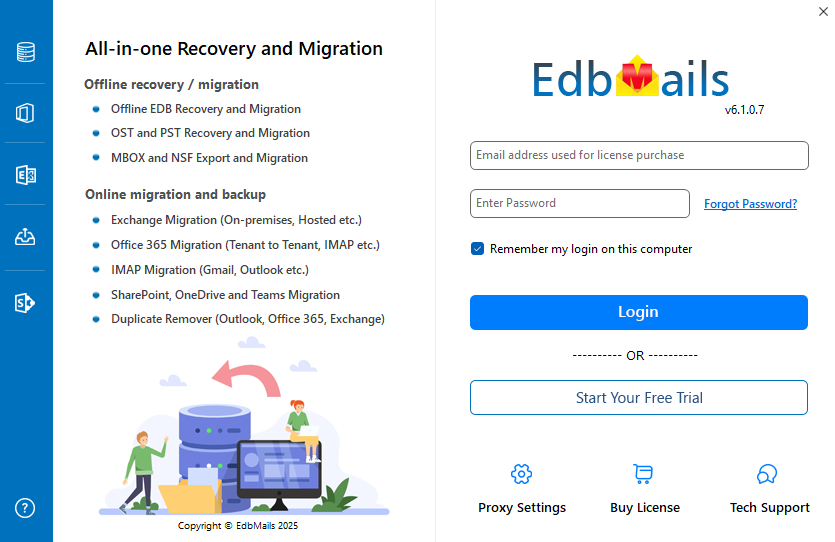
- Launch the application and login with your registered email and password, or select 'Start Your Free Trial' if you don't yet have an account.Note: The trial version allows export of up to 30 items per folder so you can validate the process before purchasing a full license.
View Exchange public folder migration pricing details. Public folder migration consumes 50 mailbox licenses, which lets you migrate unlimited public folders from the same domain.
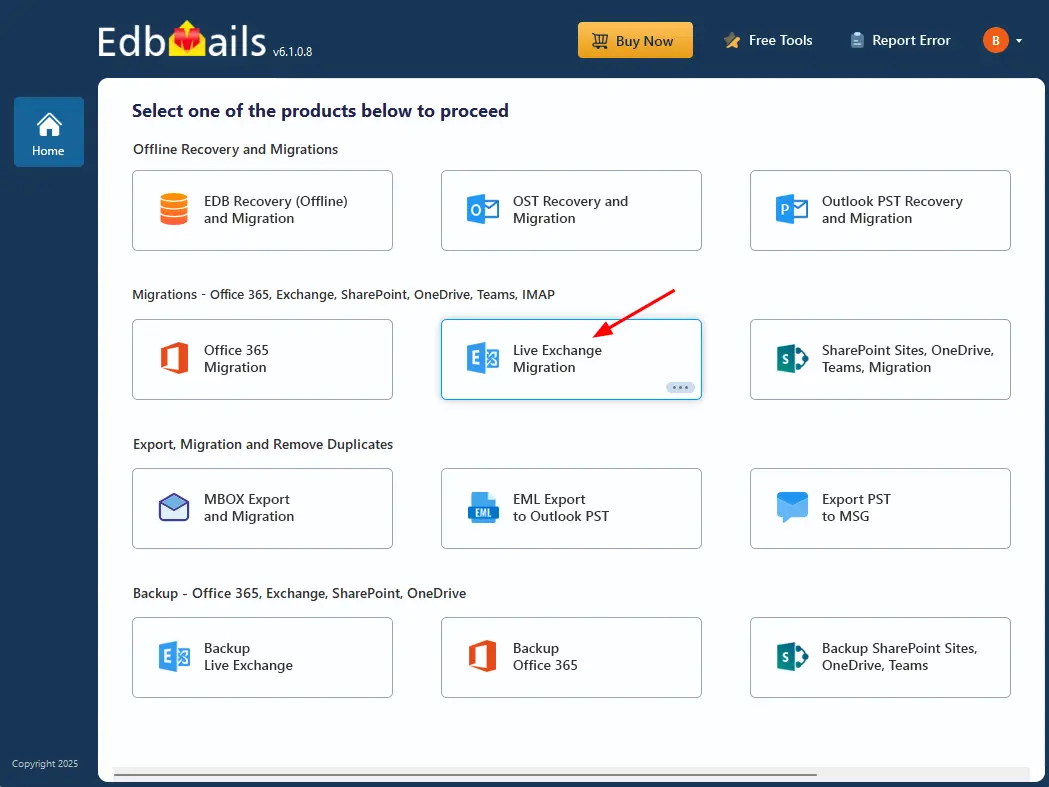
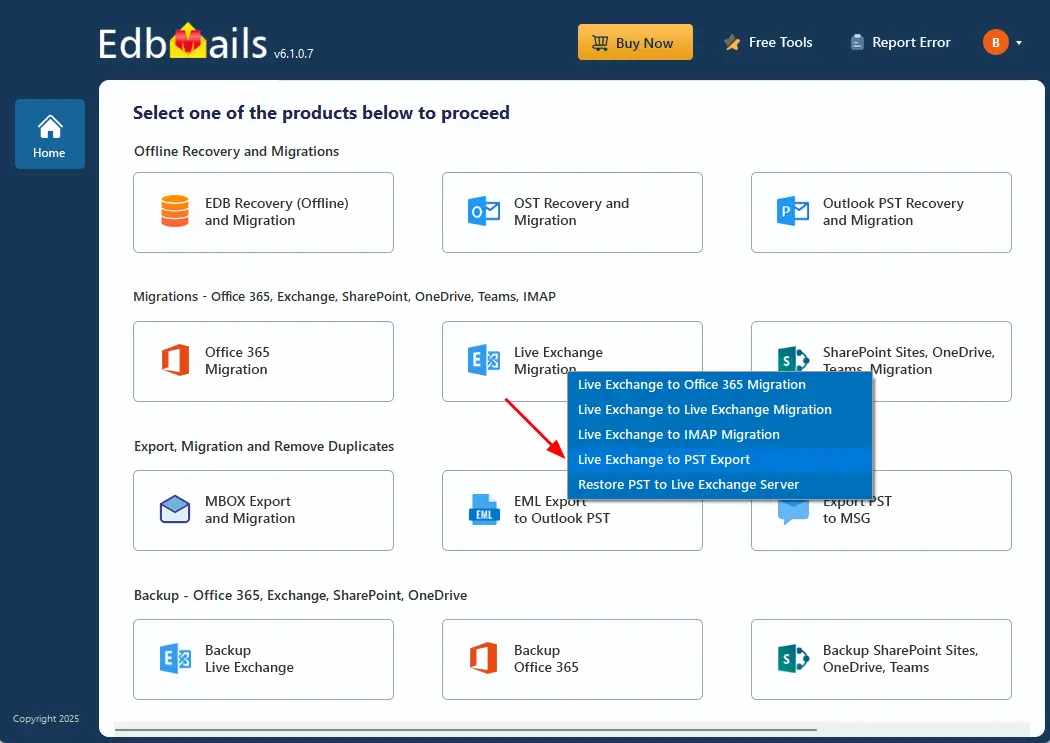
- Select ‘Microsoft 365, Exchange, SharePoint, OneDrive, and Teams Migrations’, and then choose ‘Live Exchange Migration’.
- Select 'Live Exchange to PST Export'
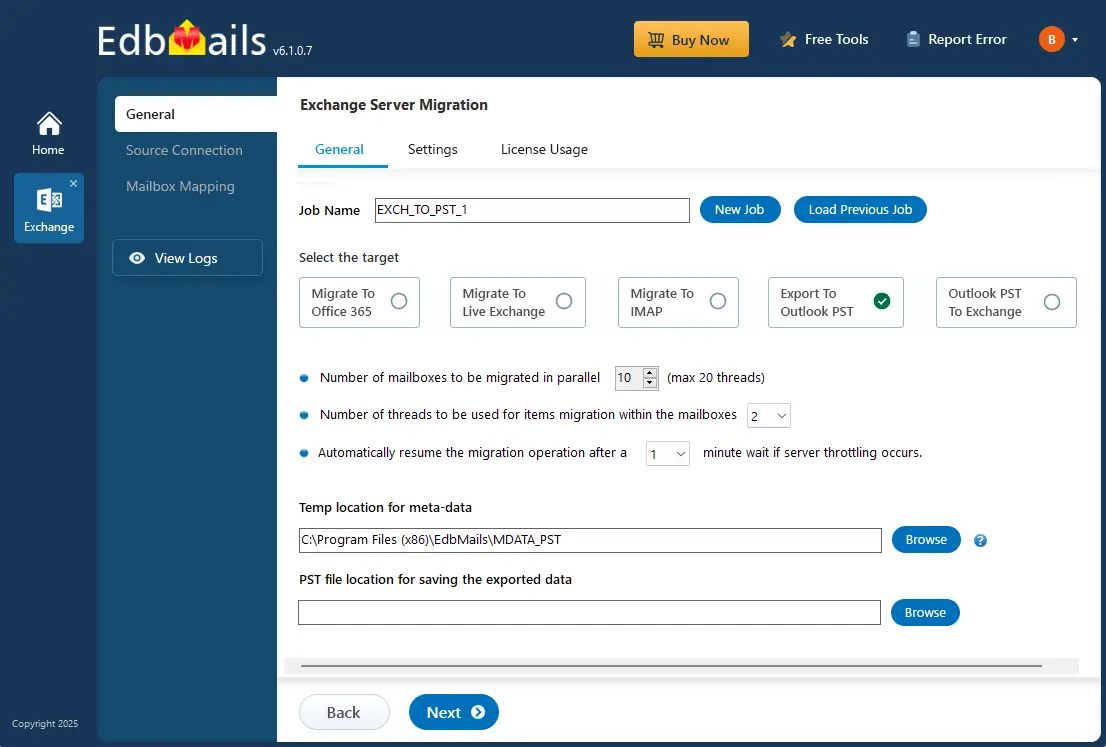
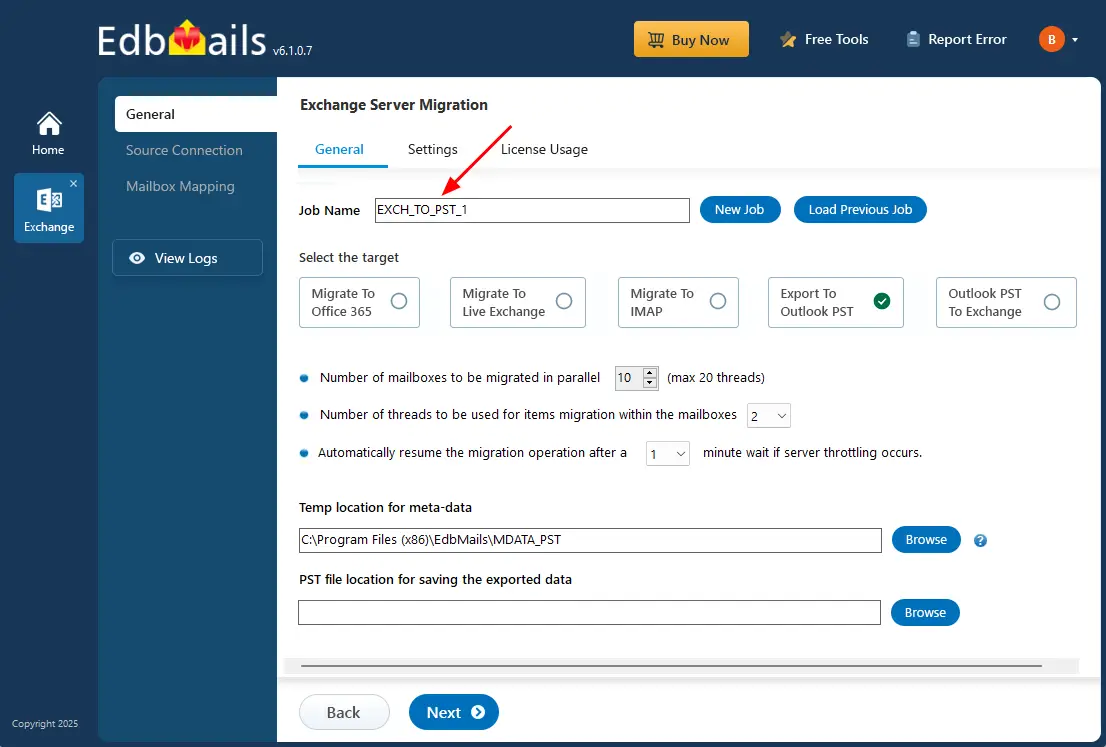
- Click ‘New Job’ and enter a job name, or keep the default name generated by the application.
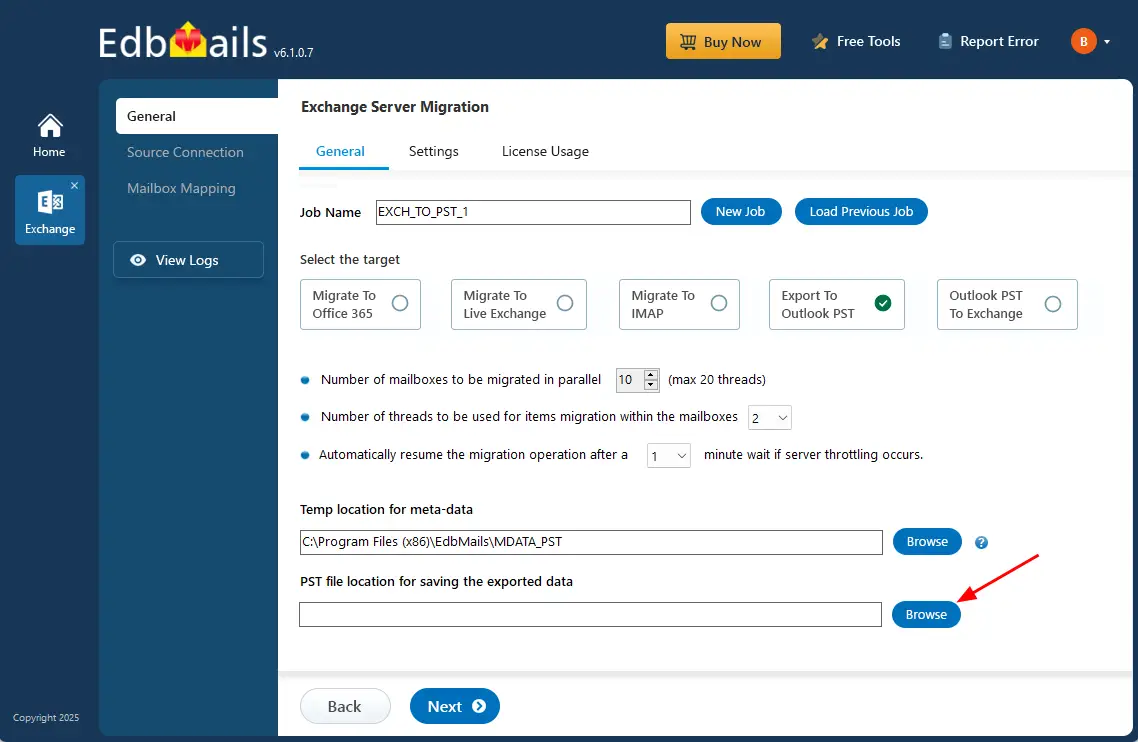
- Click the ‘Browse’ button and select the destination location where the PST file will be saved for the exported data.
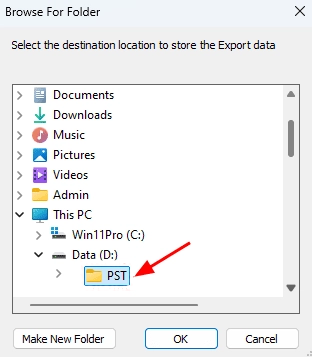
- Choose the destination location to save the PST files. Make sure the selected drive has sufficient storage space to store the generated PST files.
- Download and install the EdbMails application on your computer, ensuring it can connect to your source Exchange server.
Step 2: Connect to the source Exchange server
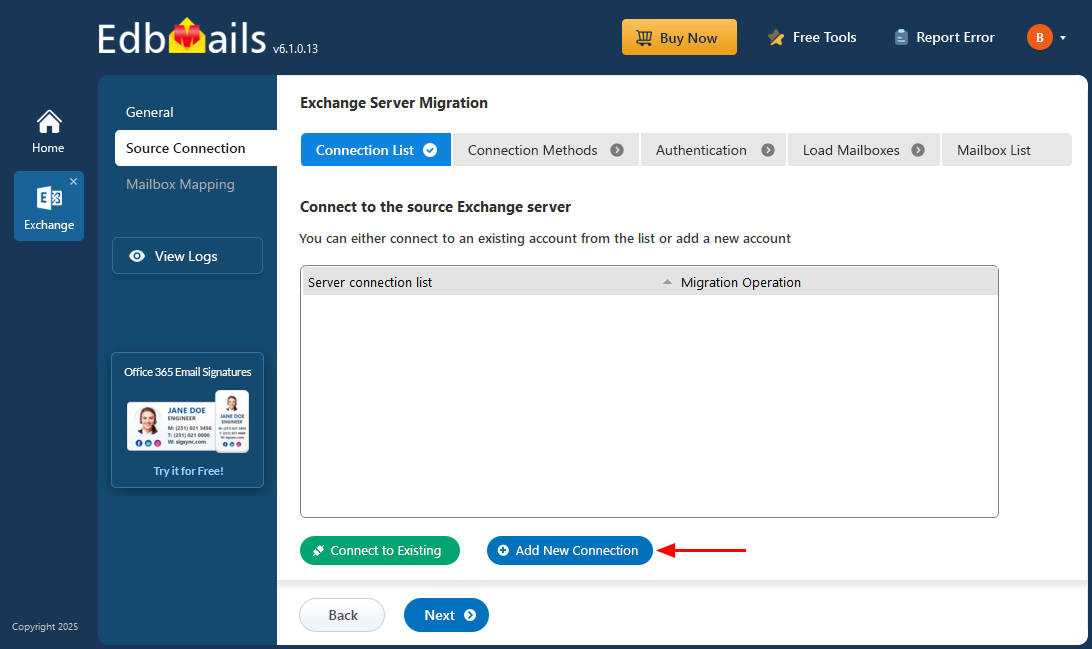
- Click 'Add New Connection' to set up a new connection. If you want to reconnect using a previously configured connection, select it from the connection list and click the ‘Connect to Existing’ button to proceed.
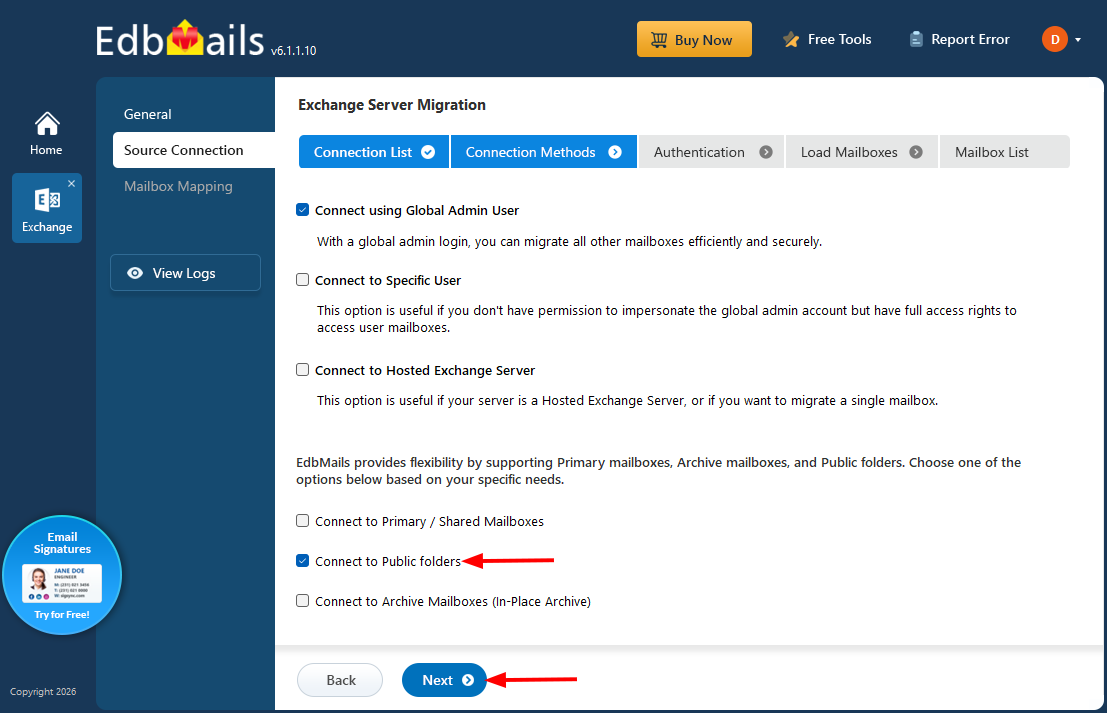
- Select ‘Connect to Public Folders’ as the connection method, and then click ‘Next’ to continue.
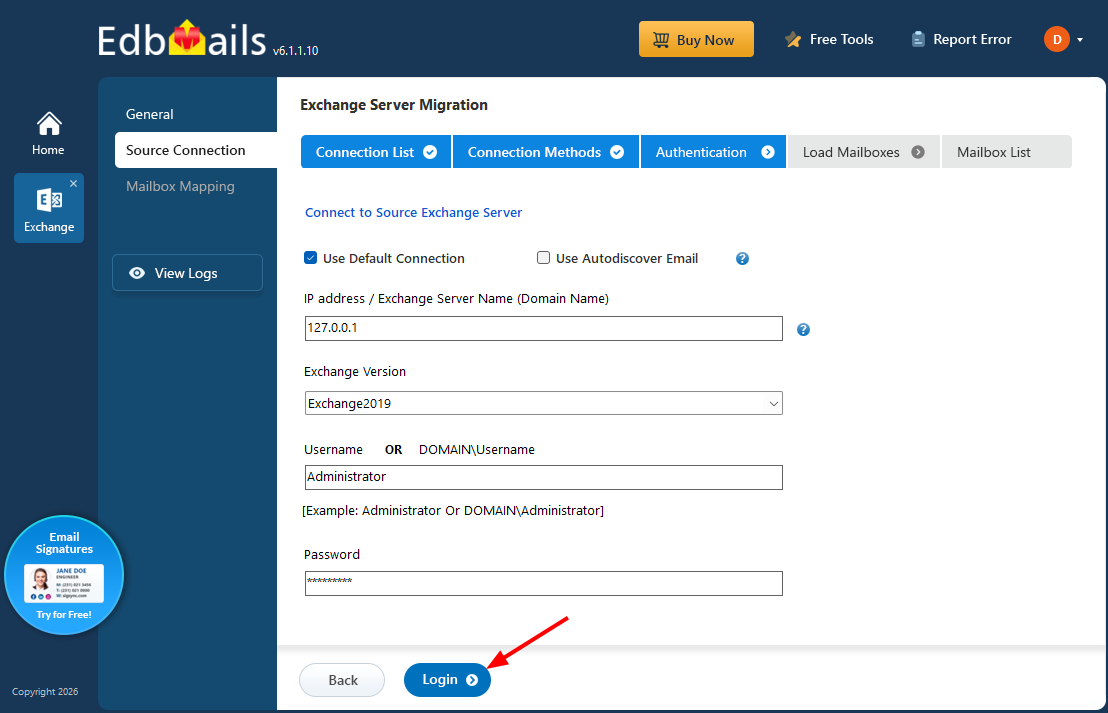
- Enter the Exchange server ip address, version, and admin credentials, then click 'Login'.
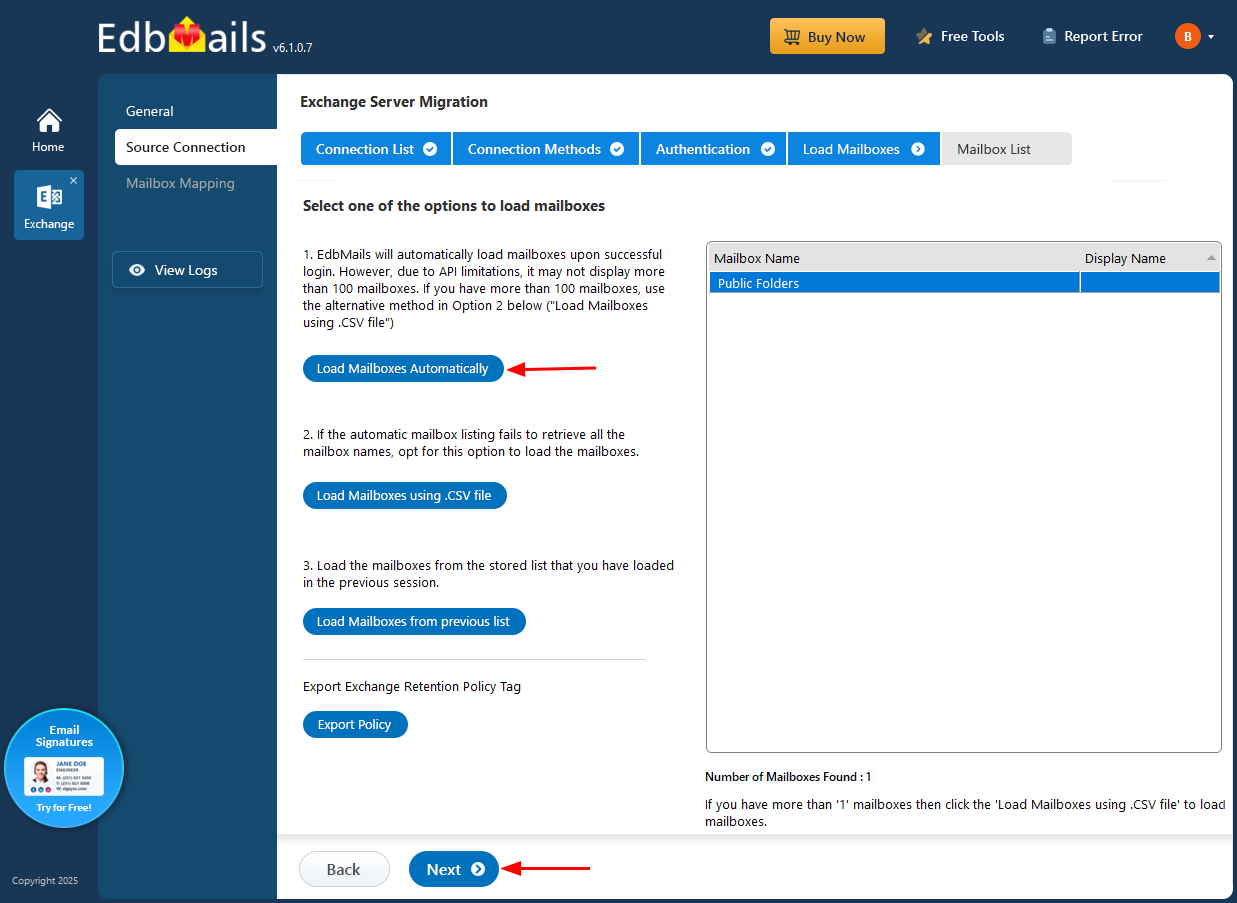
- Select ‘Load Mailboxes Automatically’ to load all available public folders, and then click ‘Next’ to continue.
- Click 'Add New Connection' to set up a new connection. If you want to reconnect using a previously configured connection, select it from the connection list and click the ‘Connect to Existing’ button to proceed.
Step 3: Select the public folders to export
- Expand the folder hierarchy and select the specific public folders or the entire folder tree you want to export, then click ‘Next’ to continue.
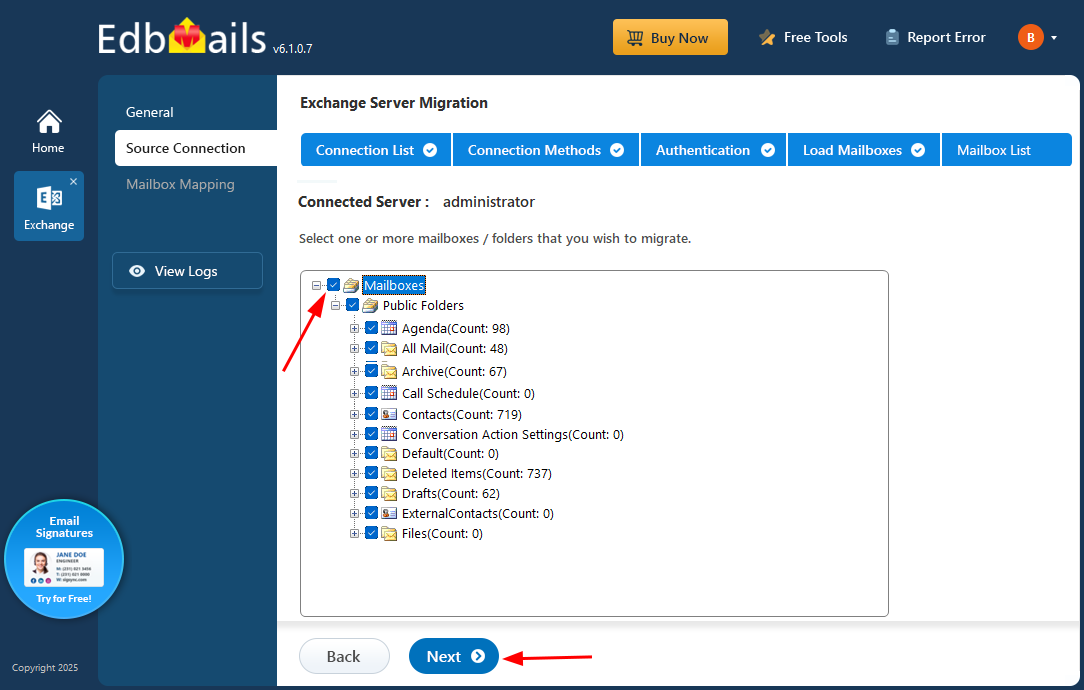
- Expand the folder hierarchy and select the specific public folders or the entire folder tree you want to export, then click ‘Next’ to continue.
Step 4: Start the Export
- Click 'Start Export' to begin exporting the selected public folders.
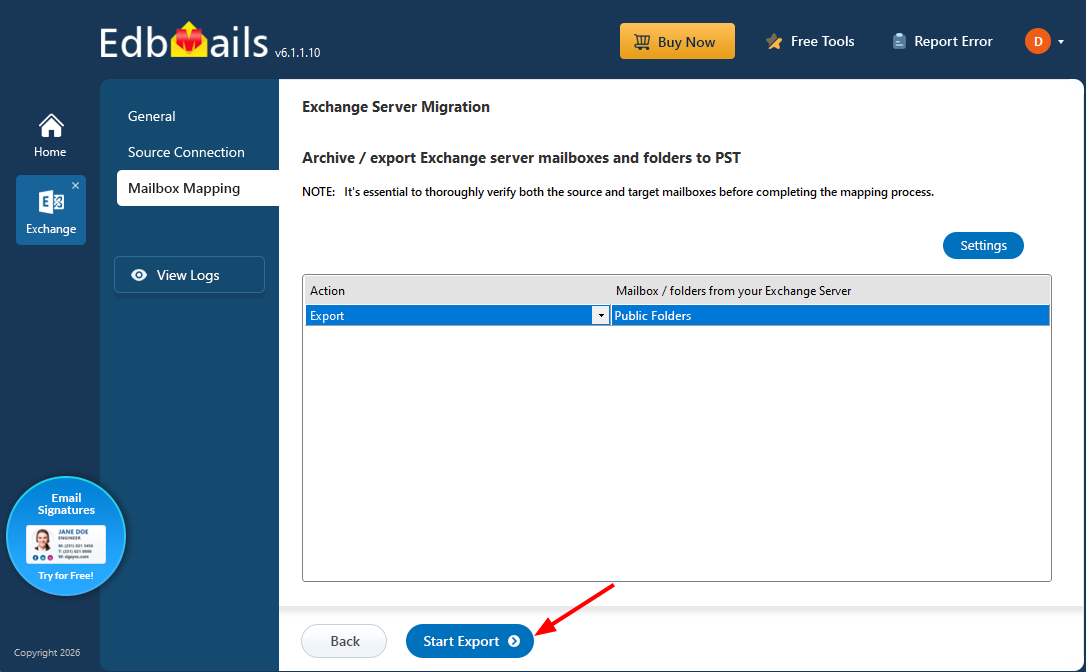
- The export begins and its progress can be monitored using the progress bar. Once the process is complete, a notification will prompt you to review the export results.
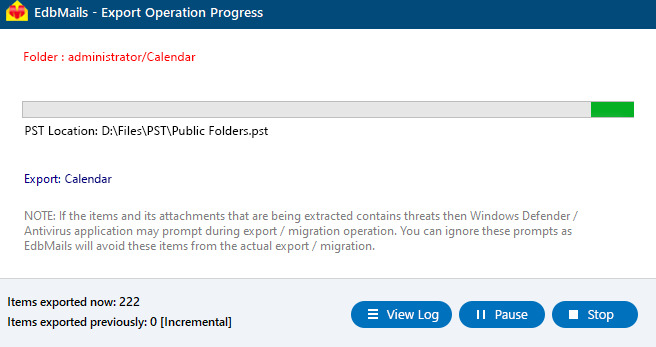
- Click ‘View Logs’ to open the detailed export report.
- Open the exported PST files on your Outlook and verify the data.
- Click 'Start Export' to begin exporting the selected public folders.
Why use EdbMails to export public folders to PST
- No scripting required: Manually exporting public folders to PST through Exchange typically involves New-MailboxExportRequest cmdlets, PowerShell scripting, and manual monitoring of export queues. EdbMails replaces all of that with a guided, point-and-click workflow that any administrator can run without prior scripting knowledge.
- Full hierarchy and metadata preservation: The folder structure, subfolders, and item-level metadata, including timestamps, sender and recipient details, and read/unread status, are retained exactly as they exist on the source server, so the exported PST is a faithful copy rather than a flattened dump of items.
- Selective & granular export: Rather than being forced to export the entire public folder tree, administrators can pick individual folders, subfolders, or apply date-range and item-type filters, which is especially useful when only a portion of the data needs to be archived or handed over for compliance review.
- Pause and resume support: Public folder trees can run into hundreds of gigabytes, and network interruptions or scheduled maintenance windows can get in the way of a single continuous run. EdbMails allows large exports to be paused and resumed without restarting the job from the beginning, which saves considerable time on bulk exports.
- Detailed export report: Public folder trees can run into hundreds of gigabytes, and network interruptions or scheduled maintenance windows can get in the way of a single continuous run. EdbMails allows large exports to be paused and resumed without restarting the job from the beginning, which saves considerable time on bulk exports.
- Automatic PST splitting: For folders that exceed typical Outlook PST size limits, EdbMails can automatically split the output into multiple PST files based on a size threshold you define, avoiding corruption issues associated with oversized PST files.
- Secure by design: Data is transferred over encrypted connections throughout the export process, and EdbMails is ISO certified and built to align with GDPR data-handling requirements, which matters when public folder content includes sensitive or regulated information.

