


IMAP to Office 365 Migration
Migrating from (Remove internal link)IMAP to Office 365 (Microsoft 365) gives organizations a modern and cloud-based platform for communication and collaboration. Unlike traditional IMAP email services, Office 365 combines email, calendars, contacts, and tasks with productivity tools like Teams, SharePoint, OneDrive, Word, Excel, and Outlook. Users receive 50 GB of mailbox storage, which can expand to 100 GB on E3/E5 plans, along with enhanced security, archiving, and compliance features, making it a scalable solution for growing businesses.
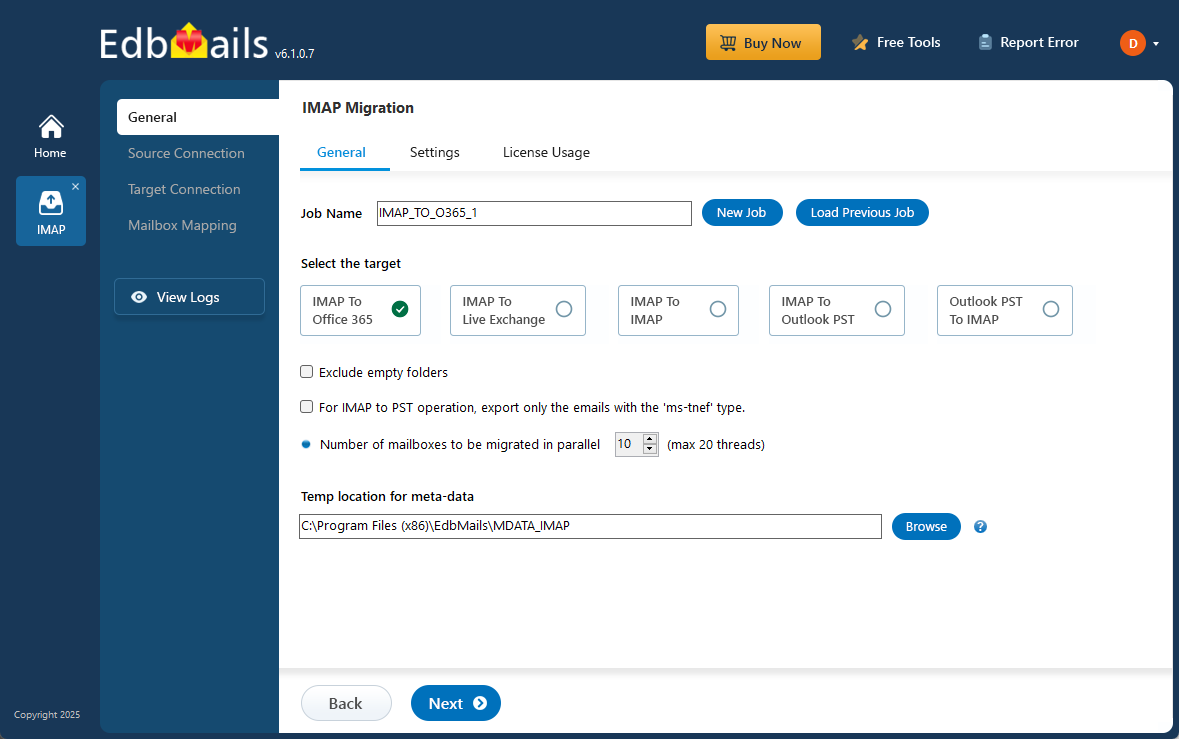
Transferring mailboxes from IMAP servers like Gmail, Zimbra, Zoho Mail, IceWarp, Yandex, or cPanel can be challenging because of varying server protocols, mailbox formats, and authentication settings. EdbMails IMAP to Office 365 migration tool streamlines this process with secure, direct server-to-server migration and zero downtime. It supports parallel mailbox migrations for improved performance and features an intuitive interface that removes the need for manual setup. Whether you’re migrating a few accounts or hundreds of mailboxes, EdbMails delivers a smooth, reliable, and efficient migration to Office 365.
IMAP to Office 365 Migration plan
Planning is one of the most important steps before you begin your IMAP to Office 365 migration. Here is a brief checklist of points to consider before you migrate.- Remove unused mailboxes, mail items and duplicate files from the source.
- Make an inventory of items before you make the move. These should include but are not limited to the following items.
- User accounts, email addresses and login credentials.
- The source and target details, browser and operating systems used.
- Network settings, DNS configurations, MX records, firewall settings.
- Outlook settings and version you are using in your organization.
- Licensing plans on your current source server.
- Active Directory configuration and other dependencies associated with it.
- List of data and permissions from the source server that you want to transfer.
- Determine the size of the data and number of mailboxes you want to migrate.
- Decide if you want to migrate everything at once (cutover migration) or plan to migrate your data in stages (staged migration).
- Decide if you plan to migrate to Office 365 Public folders, In-Place Archive, and Shared mailboxes along with the primary mailboxes.
- Based on the preceding factors, estimate the approximate time that may take for the migration.
- Create appropriate user mailboxes on Office 365 and assign licenses to them.
- Ensure you have enough network capacity and bandwidth to migrate.
- Consider the throttling and message size limits on Office 365.
- Communicate the migration plan and changes to your end users and stakeholders.
- Perform a test migration before you start the actual one.
- Start the actual migration, verify the endpoints and update the MX records.
- Check for correct mail flow and configure Outlook for all the users.
- Plan for decommissioning unused apps and their settings post migration.
IMAP to Office 365 Migration Prerequisites
On source IMAP server:- Ready with your IMAP server hostname, port number, email address, and password.
- To migrate multiple users, download the sample CSV file from the EdbMails application and update the details such as IMAP server hostname, port number, email address, and password for each user's mailbox you want to migrate.
- If you are connecting to Gmail, create an app password and use it instead of your regular password.
See how to find your IMAP server host name.
On Office 365 server:- Prepare your target Office 365 tenant. See tenant roadmap for Microsoft 365.
- Assign the Organization Management role group in Exchange online to the admin user.This is an elevated role required to migrate Public folders.
- Purchase a suitable Office 365 licensing plan. You can also sign up for a 30 day free trial and decide to go with a suitable one later. Compare Office 365 business plans and Compare Office 365 enterprise plans
- Before migrating from IMAP server to Office 365, ensure that you create mailboxes for your user. You can choose EdbMails to automatically create mailboxes on target servers. However, if you want to create the mailboxes manually, refer to the links below
- If you plan to migrate to public folders and shared mailboxes on Office 365, ensure that you create and configure them on the target server.
- Ensure that you have a global admin account with a mailbox for Auto Registration of EdbMails application on your Entra ID (Azure Active Directory). However, you can use either a global admin account or any user account with full access rights in the Manual Registration method.
- If you have a custom email domain to which you want to receive emails after the migration, you must add and verify the domain on Office 365.
Steps to add a custom domain to Office 365 and steps to add DNS records to connect your domain.
- Ensure that you meet the network and bandwidth requirements for the migration. See network and migration planning, performance factors and best practices for Office 365 migration.
- Configure Office 365 to send and receive large messages.
Follow the steps to increase the message size on Office 365 to 150MB. See message size limits on Office 365 for more information.
Step-by-Step Guide for IMAP to Office 365 Migration
Step 1: Download and install EdbMails IMAP migration software
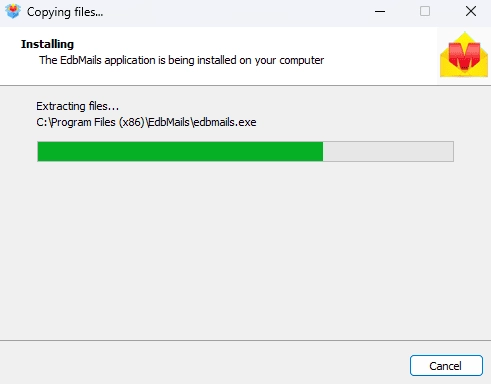
- Download and install EdbMails on any Windows computer.
- Follow the instructions that appear to complete the installation.
See EdbMails system requirements for Office 365 migration
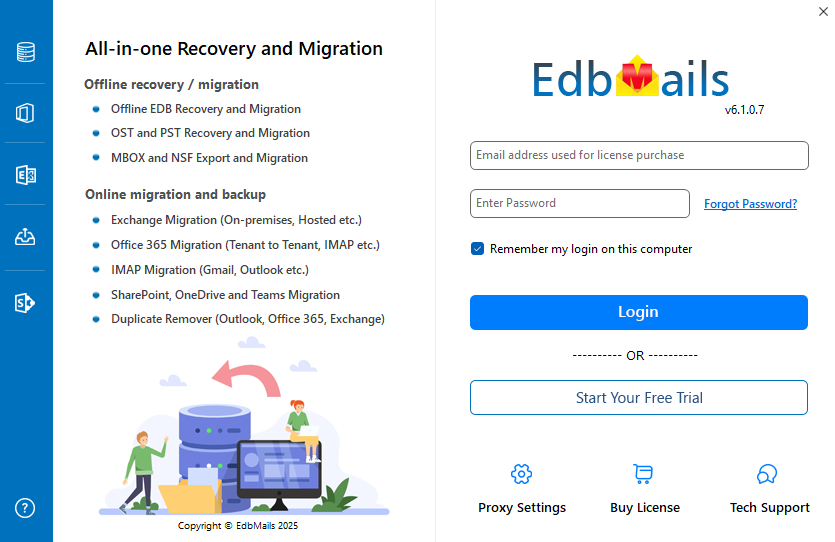
- Open the EdbMails application on your computer.
- Enter your registered email address and password, then click ‘Login’. If you have not created an account yet, choose ‘Start Your Free Trial’ to continue using the trial version.Note: The Free Trial lets you explore all key features and export up to 30 items per folder. To export unlimited items, purchase a valid license from the EdbMails website.
Click here to purchase the license from the EdbMails website.
After completing the purchase, close and reopen the application, then log in with the same email and password used during the purchase to activate your license.
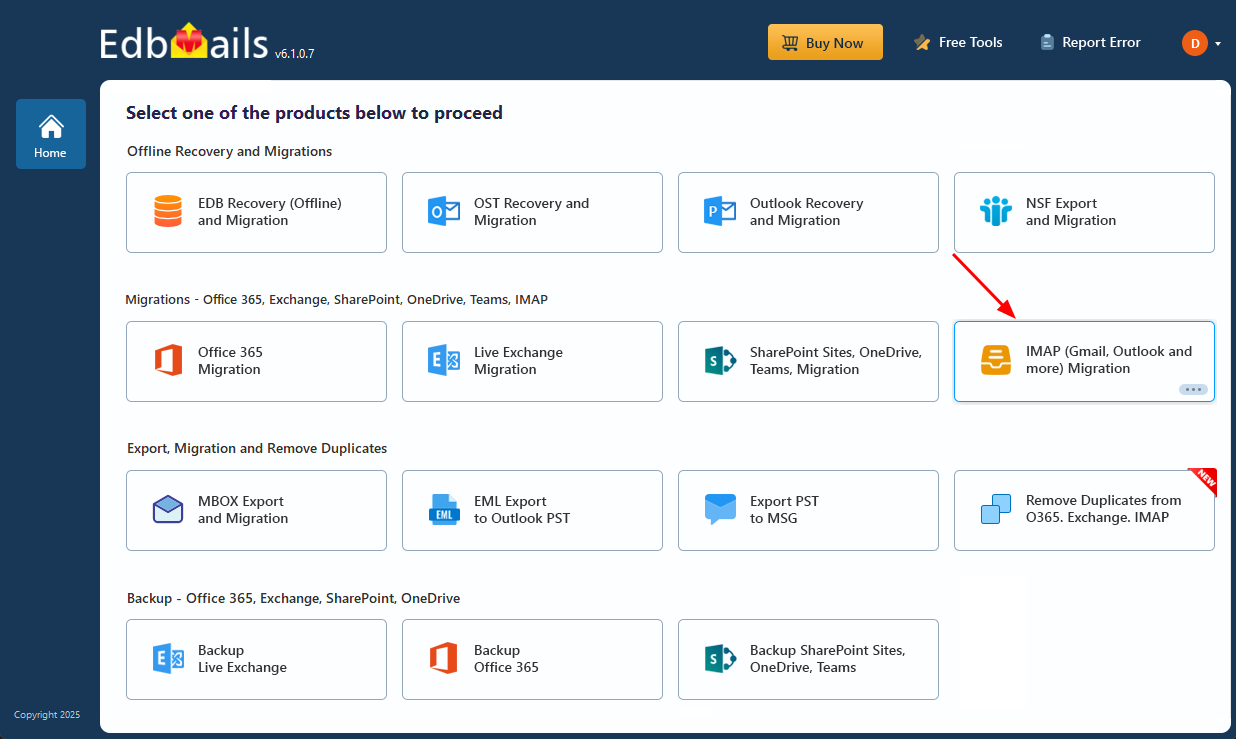
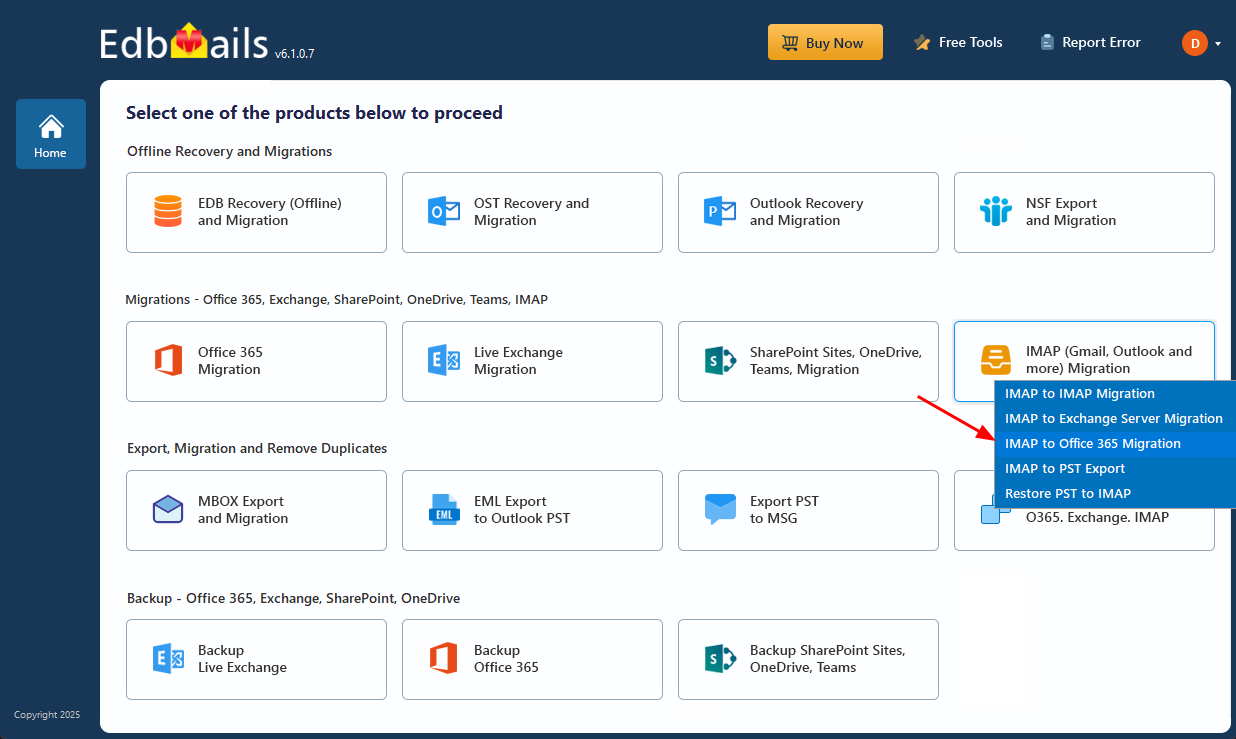
- Select the option ‘IMAP (Gmail, Outlook & more) Migration’
- Select ‘IMAP to Office 365 Migration’.
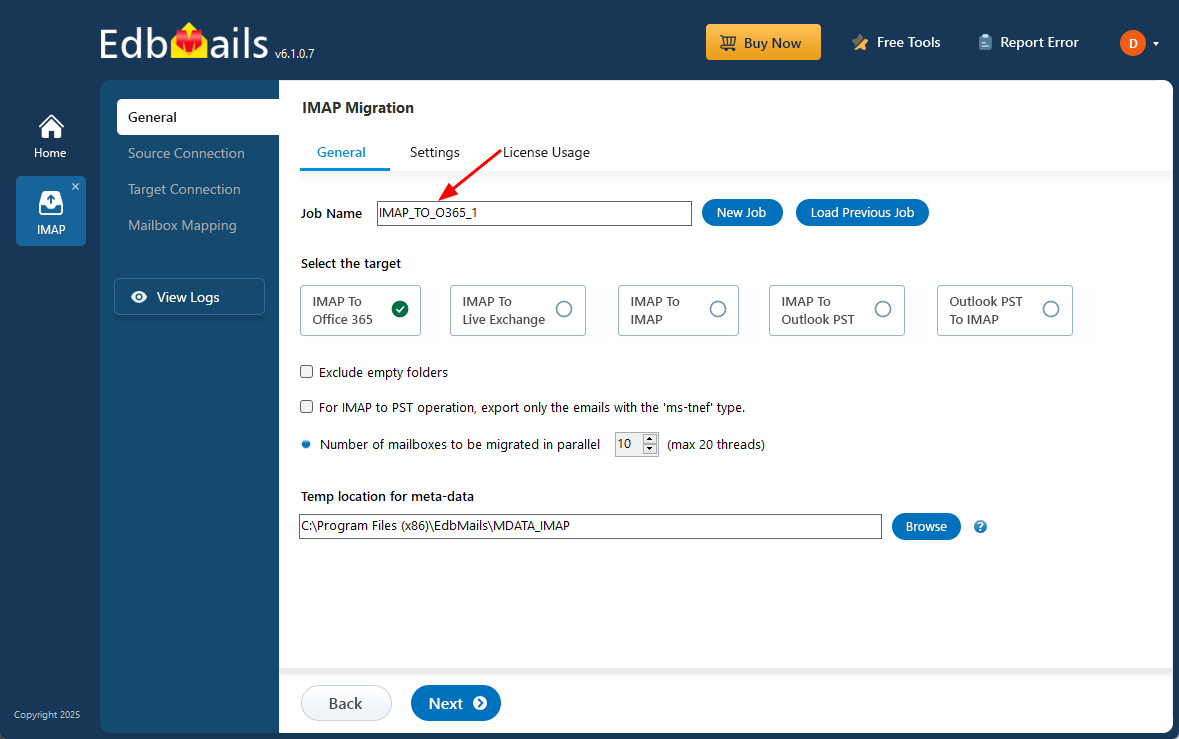
- You can either keep the default job name or select the ‘New Job’ button to assign a different name.
Step 2: Connect to the Source IMAP Server
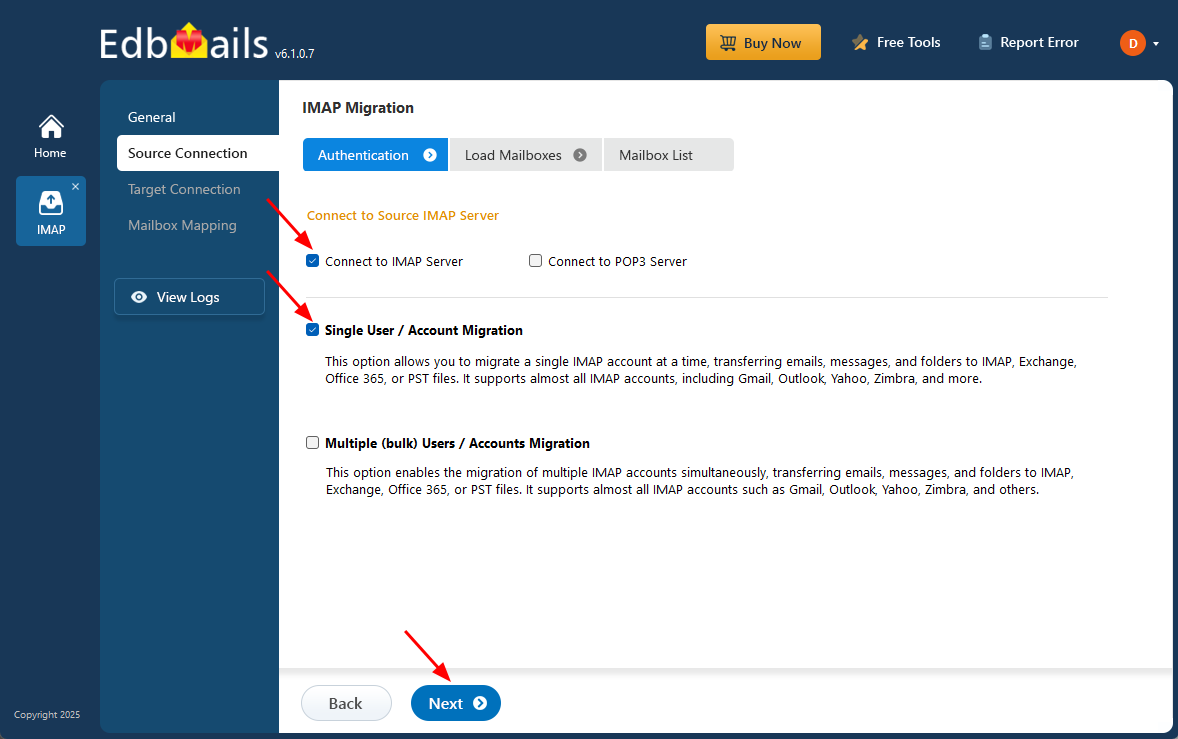
- To connect one user account, select ‘Single User / Account Migration’, choose the desired protocol like ‘Connect to IMAP Server’ or ‘Connect to POP3 Server’, and then click ‘Next’ to continue.
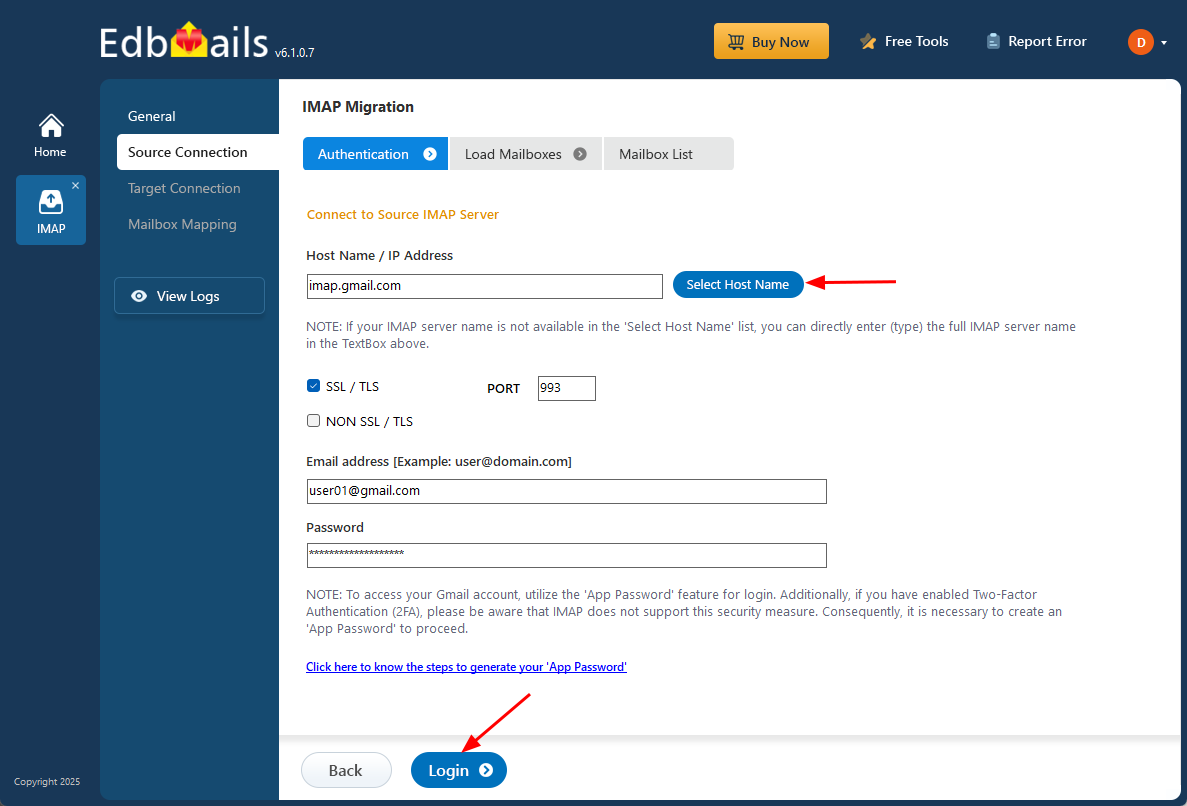
- For a single-user login, choose the appropriate IMAP host name from the list or enter the full IMAP Server name manually. Next, enter your email address and password. If connecting a Gmail account, make sure to create an app password and use it instead of your regular password.
- Click the ‘Login’ button.
- Once the mailbox is loaded, click ‘Next’ to proceed.
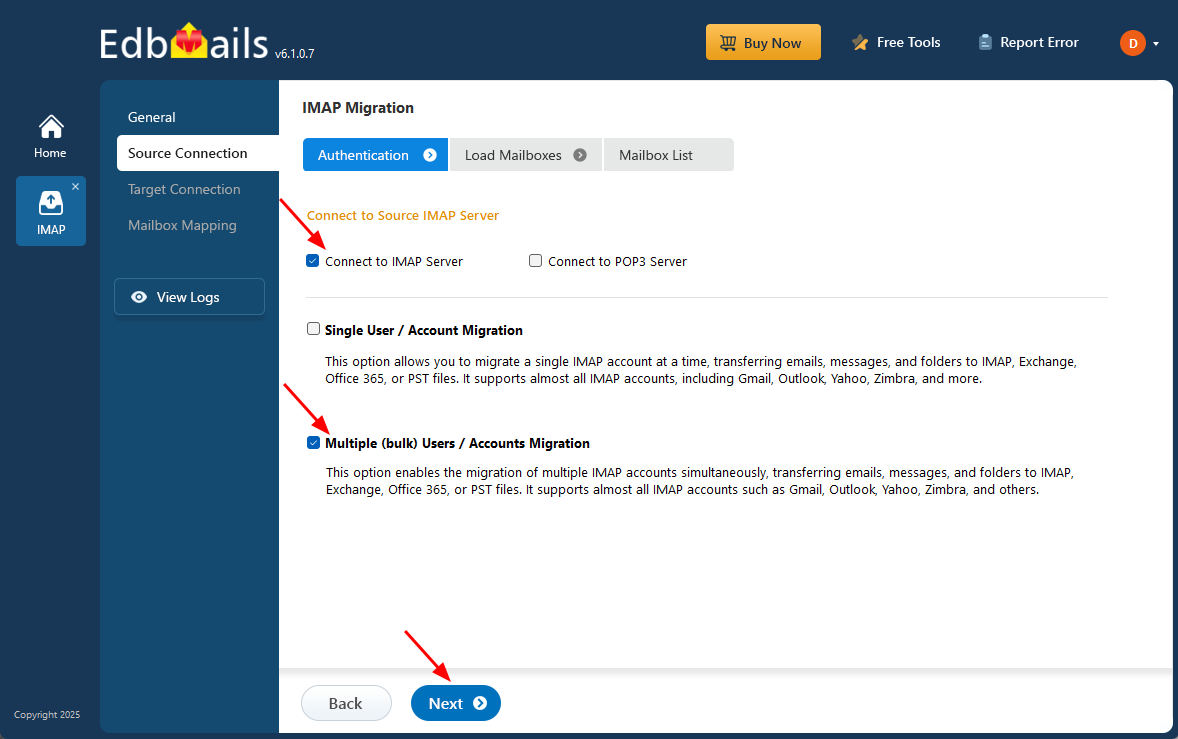
- For enabling the migration of multiple IMAP accounts simultaneously, select ‘Multiple (Bulk) Users/Accounts Migration’ and click ‘Next’.
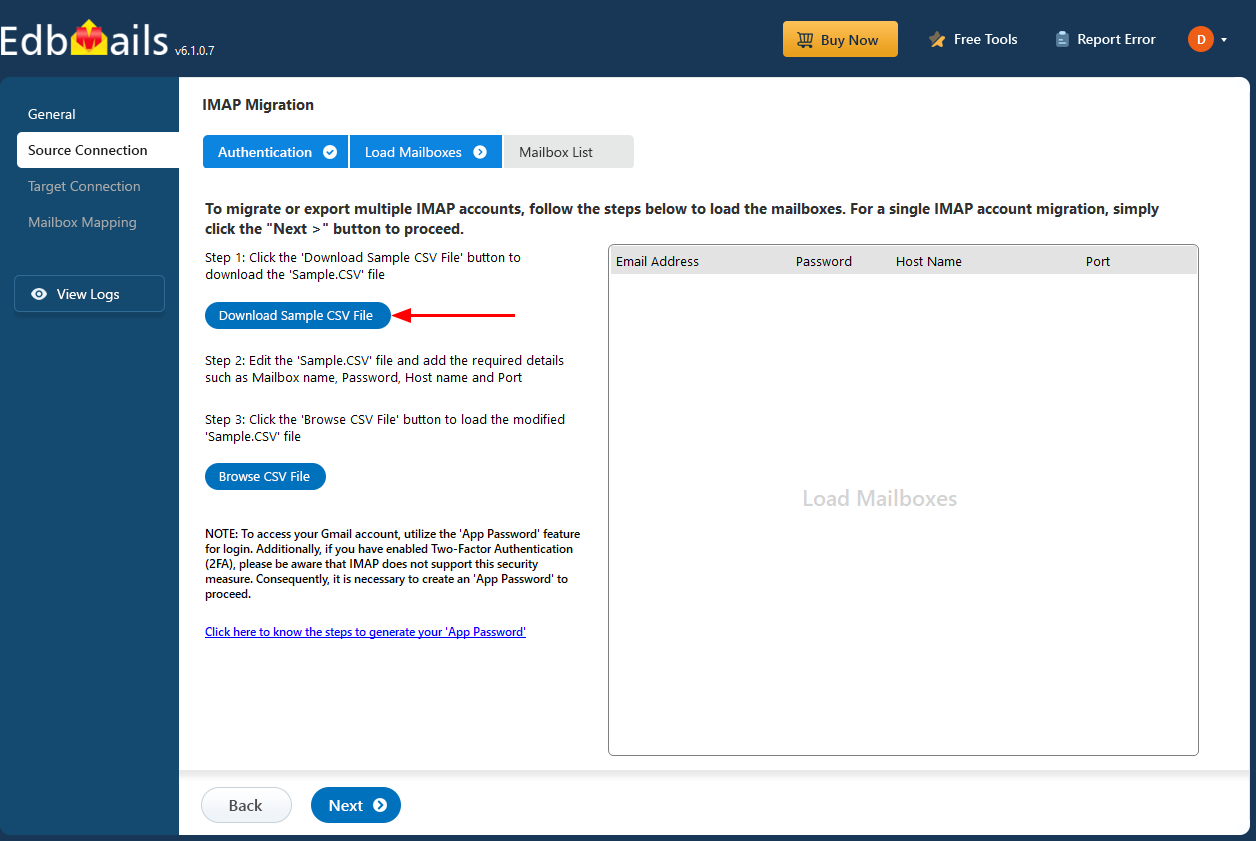
- Click ‘IMAP Migration CSV File’ to download the ‘Sample.CSV’ file.
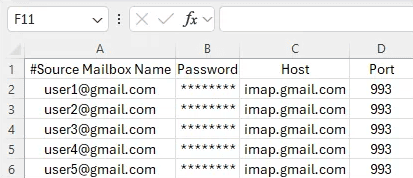
- Modify the CSV file with the required details such as email address, password, host name and port number in the CSV file and save the changes.
- Close the CSV file, click the ‘Load Modified CSV File’ button, select the modified CSV file.
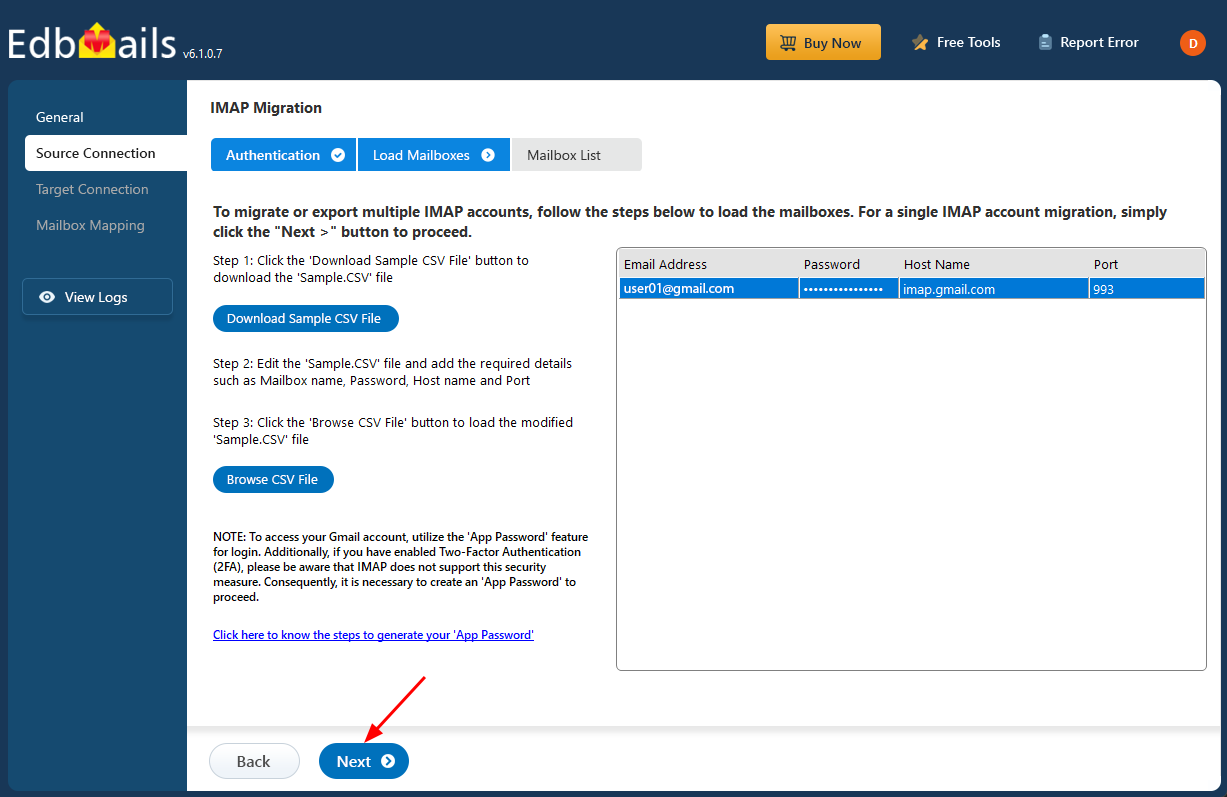
- Verify the mailboxes, and click 'Next'.
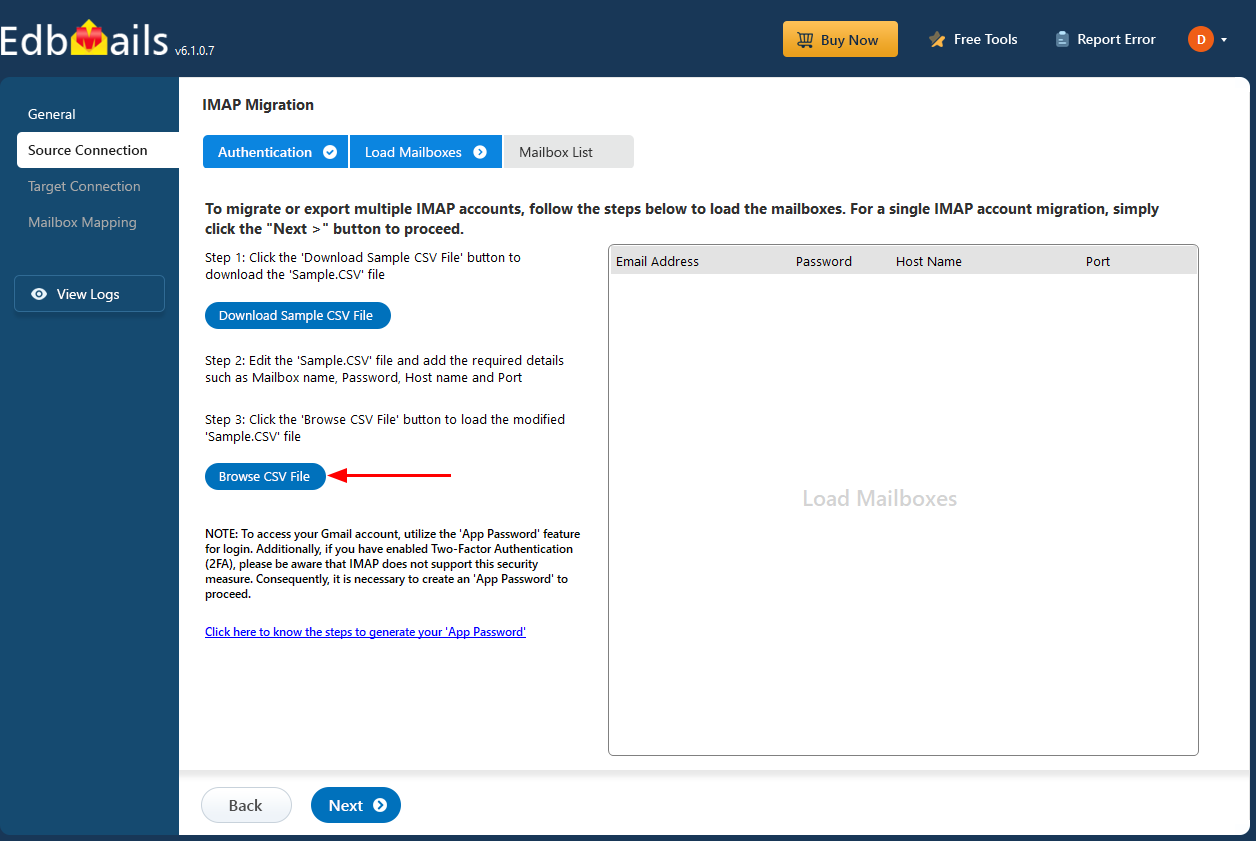
Refer to the EdbMails detailed steps on connecting to single and multiple users during IMAP migration.
- To connect one user account, select ‘Single User / Account Migration’, choose the desired protocol like ‘Connect to IMAP Server’ or ‘Connect to POP3 Server’, and then click ‘Next’ to continue.
Step 3: Select Source IMAP Server Mailboxes
- Select the ‘Mailboxes’ or ‘Folders’ to migrate, then click ‘Next’.
See tips to optimize IMAP migration to Exchange online.
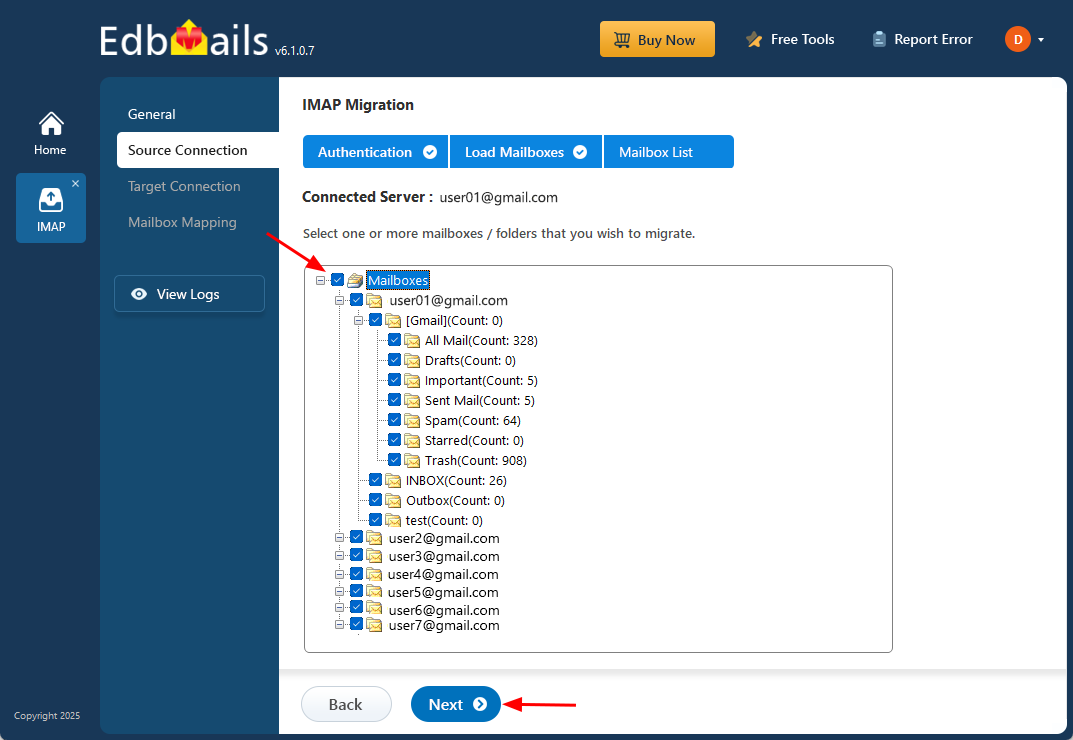
- Select the ‘Mailboxes’ or ‘Folders’ to migrate, then click ‘Next’.
Step 4: Connect to the Target Office 365 Server
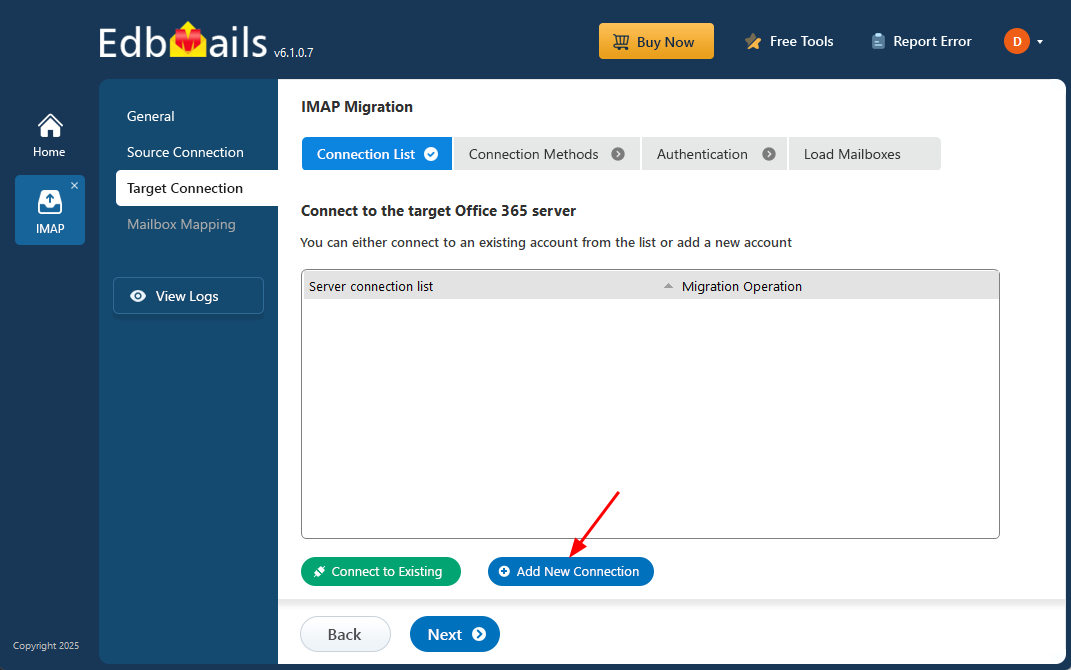
- Click the ‘Add New Connection’ button to establish a new connection to the target Office 365. To use the previous connection, select it from the connection list and click the ‘Connect to Existing’ button to proceed.
- Select the required connection options and click the ‘Next’ button.
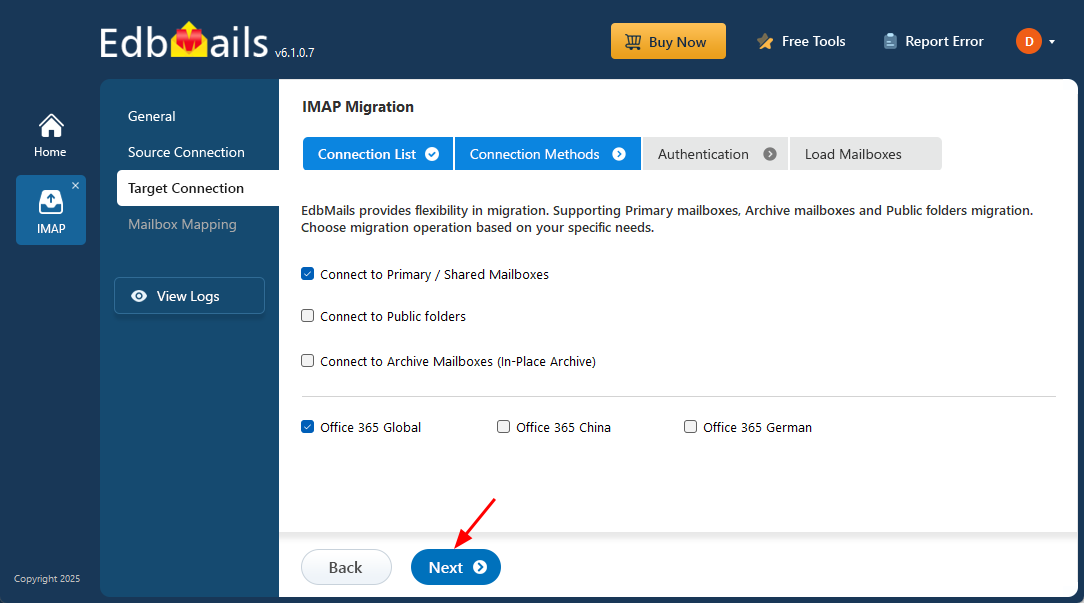
- Select the appropriate target connection method based on modern authentication.
- Click the ‘Login’ button to continue.
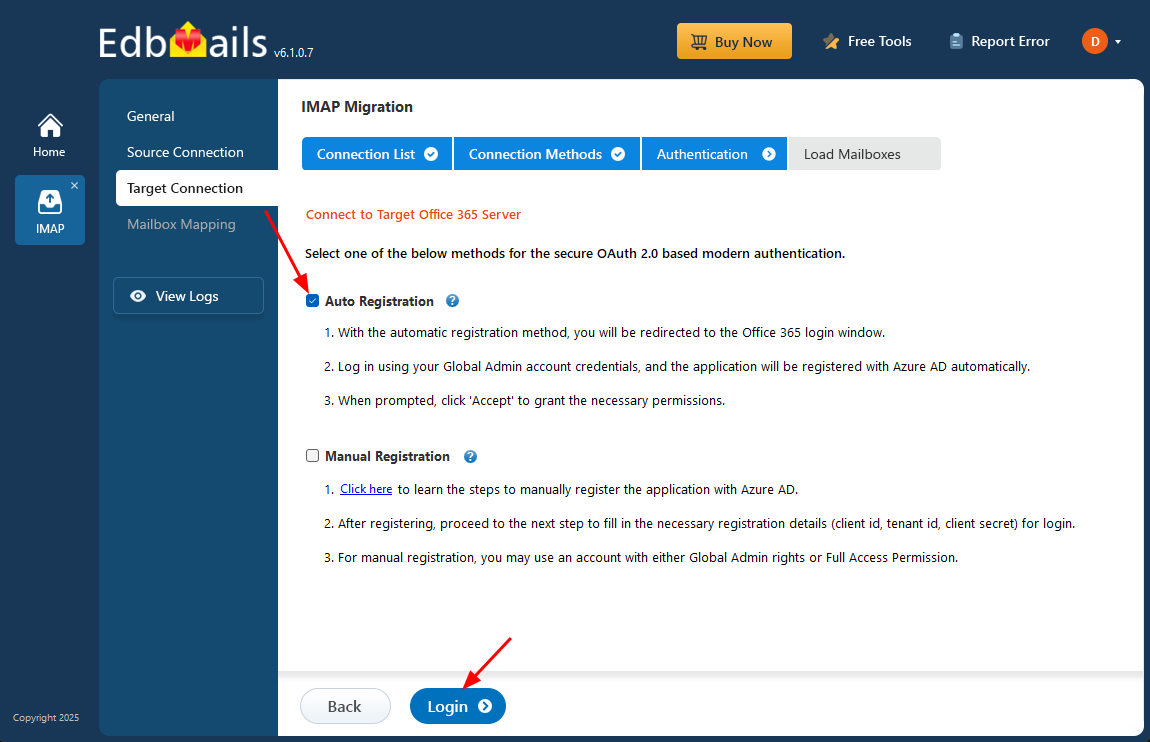
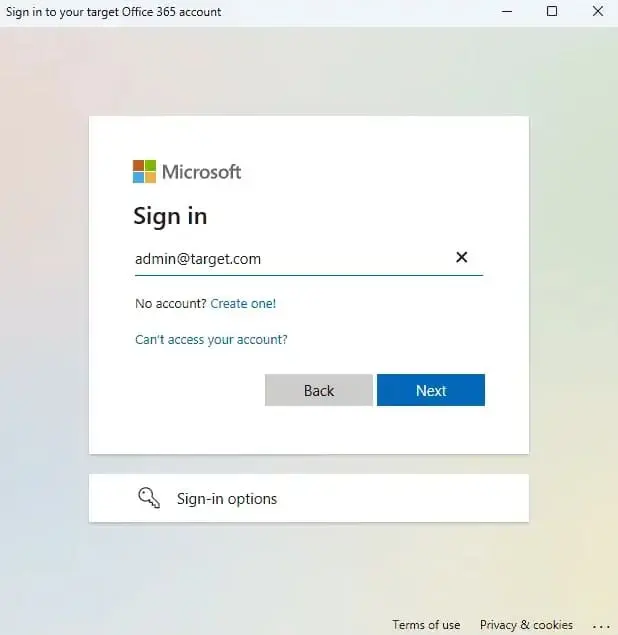
- Authenticating via the Microsoft sign-in page. This ensures a safe and reliable migration, with credentials securely protected using OAuth 2.0 and TLS encryption.
- Select one of the methods to load the mailboxes. You can Select ‘Load Mailboxes Automatically’, Load Mailboxes using .CSV file or ‘Load Mailboxes from previous list’ and click ‘Next’.
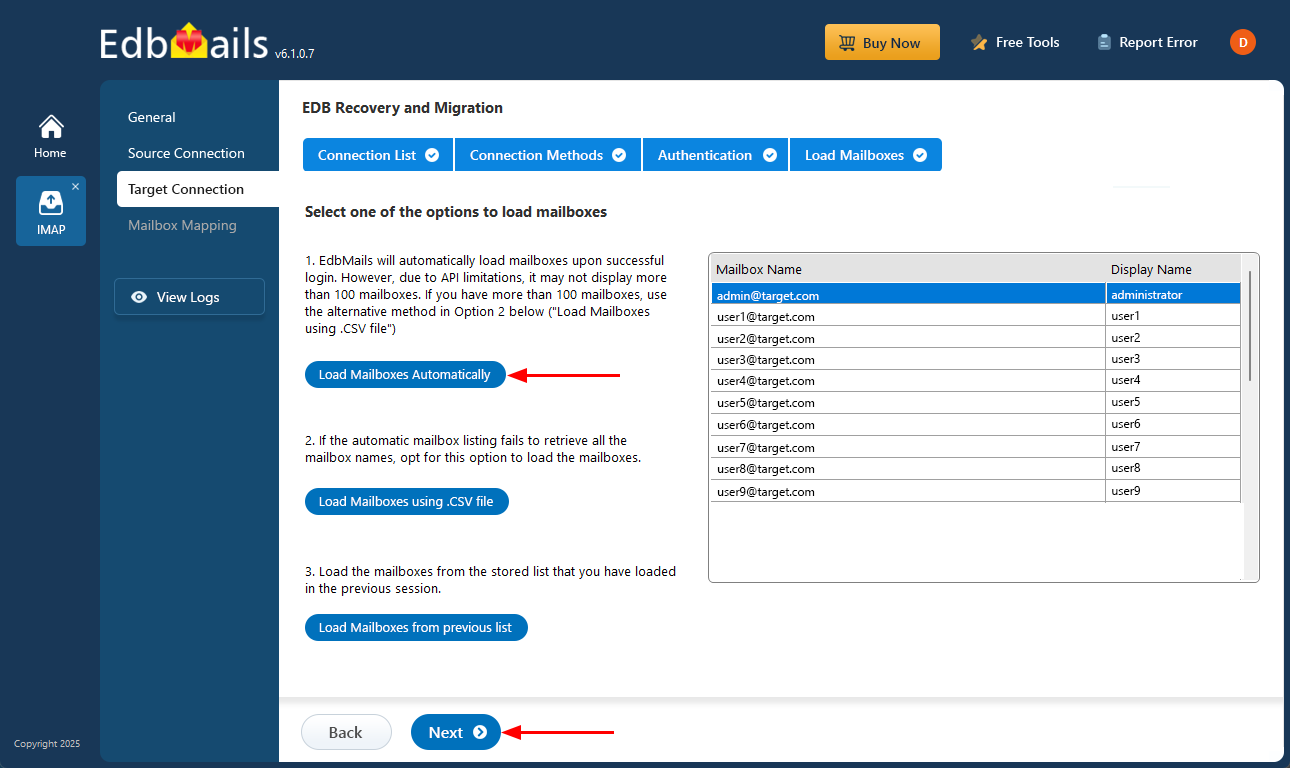
- Click the ‘Add New Connection’ button to establish a new connection to the target Office 365. To use the previous connection, select it from the connection list and click the ‘Connect to Existing’ button to proceed.
Step 5: Map Source and Target mailboxes
- Choose the required mailbox mapping option to map source mailboxes with their corresponding target mailboxes.
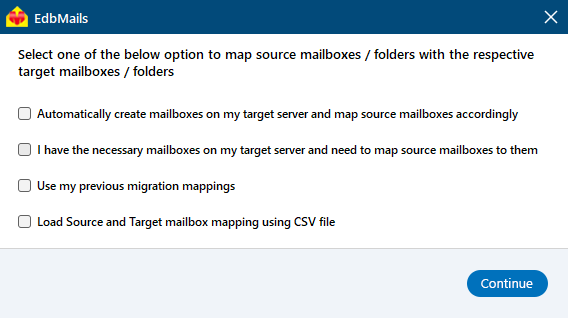
- EdbMails automatically creates target mailboxes in Office 365 and maps source mailboxes and folders in IMAP, simplifying the management of large migrations.
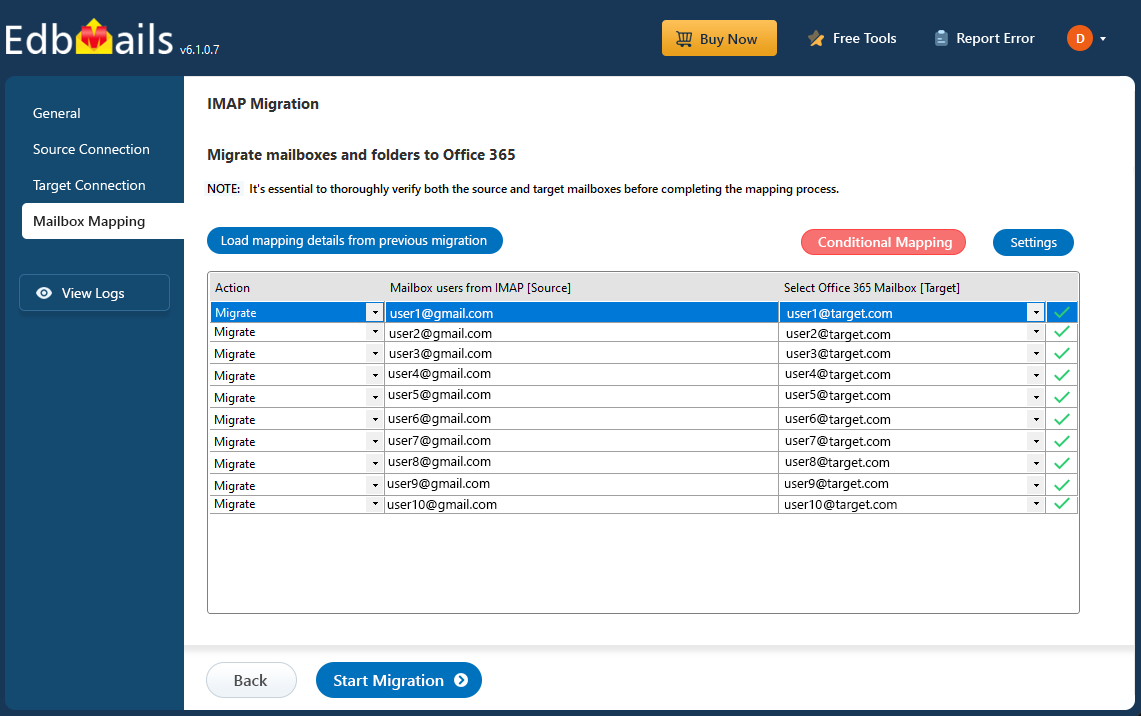
- Choose the required mailbox mapping option to map source mailboxes with their corresponding target mailboxes.
Step 6: Start IMAP to Office 365 migration operation
- After mapping the mailboxes, click the ‘Start Migration’ button and initiate the migration process.
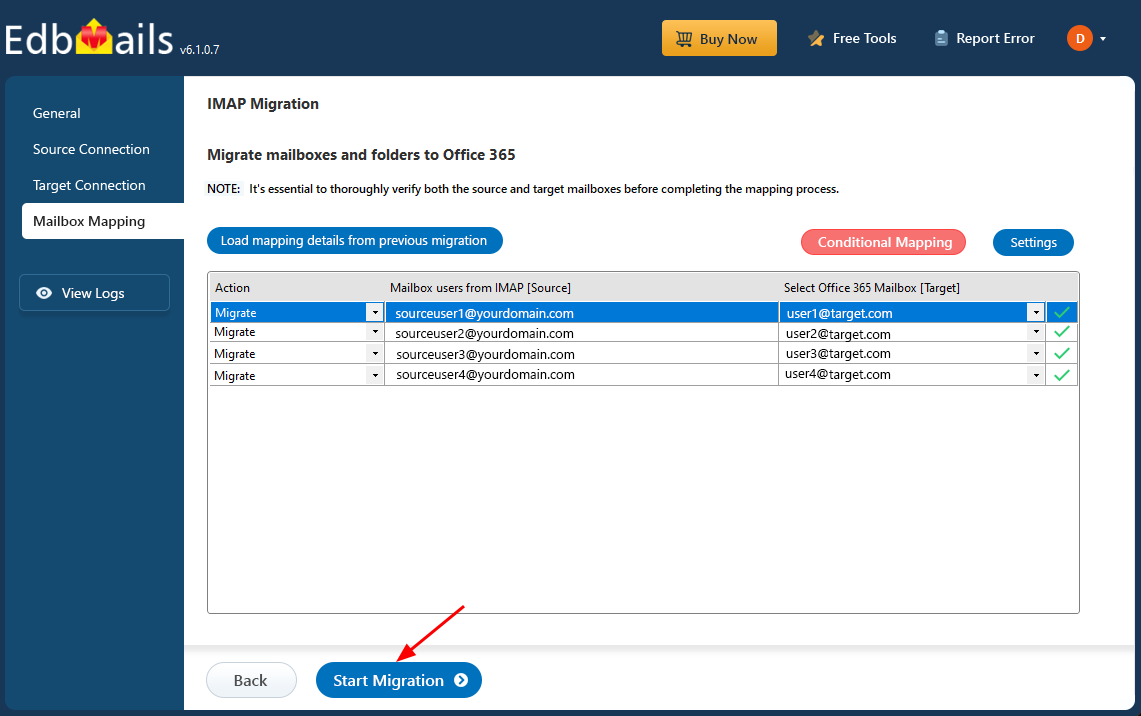
- Click the ‘View Log’ button to access the IMAP Export migration report, which includes a mailbox migration status, errors or warnings, and a summary of migrated items, including the total number of items exported and ensuring clear tracking and evaluation of the process.
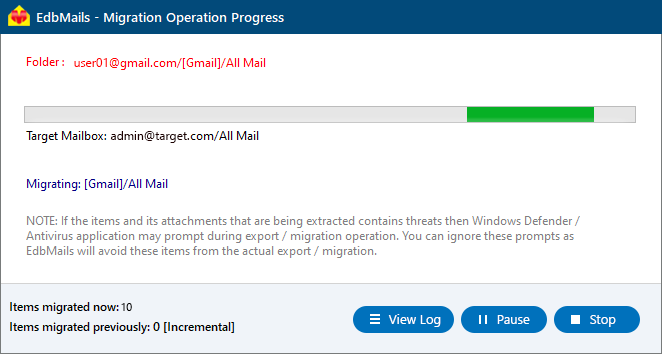
- After mapping the mailboxes, click the ‘Start Migration’ button and initiate the migration process.
IMAP to Office 365 Post Migration Tasks
- Step 1: Update DNS records (MX record) to point to Office 365
If you have not done this step previously, change the MX records to enable and receive email messages on the target Office 365 server. In addition to this setup, configure the Autodiscover record to allow Outlook to connect to the migrated mailboxes.
- Step 2: Create a new Outlook profile for users in the new domain
Remove any previous instances of the email account you may have on Outlook to avoid conflicts with Office 365. Configure and recreate the Outlook profile for each user in your domain after you complete the migration.
- Step 1: Update DNS records (MX record) to point to Office 365
Troubleshooting Guide for IMAP to Office 365 Migration
Refer to the migration troubleshooting guide for solutions to common errors encountered during the process. For additional information on EdbMails IMAP to Office 365 migration, consult the frequently asked questions (FAQs) section

