


Charter email to Office 365 Migration
Charter Communications is a prominent telecommunications provider in the U.S., offering a reliable email service with features such as spam filtering, folder organization, and basic mailbox management. While suitable for everyday use, Charter email lacks the advanced capabilities needed for modern productivity and scalability. Microsoft Office 365 (Microsoft 365), on the other hand, delivers enterprise-level email access, cloud-based storage, enhanced data security, and seamless integration with Microsoft apps like Outlook, Word, Excel, and PowerPoint, accessible across all devices.
Migrating from Charter email to Office 365 not only strengthens security but also introduces automatic updates, centralized management, and powerful collaboration tools such as Teams and SharePoint. For those looking to make this transition smoothly, EdbMails offers a secure and efficient IMAP migration solution. By connecting your Charter and Office 365 accounts, EdbMails automates the entire process - ensuring accurate, error-free data transfer with minimal manual effort.
EdbMails IMAP migration software offers advanced features such as the ability to include or exclude specific folders during migration, giving you full control over what data to transfer. It also ensures complete data integrity, so no emails or attachments are lost or corrupted. Additionally, the pause and resume migration feature allows you to manage the process at your convenience without starting from scratch. Fully compatible with all Windows OS versions including Windows 10, 8, 8.11, and 7, EdbMails makes the migration smooth and hassle-free. Enjoy a fast, reliable transition to Office 365 while taking full advantage of its advanced features with EdbMails.
User Query
"We are looking to migrate from Charter email to Office 365 and have tried a few methods without success. We currently use Charter Mail for email management and want to transition to Office 365 smoothly, without losing any data or emails. Could you please guide us through the migration process and ensure that it is done without any disruption to our users?"- Peter, Germany.
Common Challenges and Solutions in Import Emails from Charter Spectrum to Office 365:
1. Email Sync Delays or Missing Folders:
Challenge: During migration, some emails or folders may not sync properly due to connection timeouts or IMAP throttling.
Solution: EdbMails automatically performs incremental sync, ensuring that all missed or newly added emails are migrated without duplication or data loss.
2. Authentication or Login Issues:
Challenge: Incorrect credentials or outdated authentication methods can interrupt the connection between Import Charter email and Office 365.
Solution: EdbMails uses secure OAuth 2.0 modern authentication and encrypted login methods, preventing unauthorized access and ensuring a stable, secure connection throughout migration.
3. Large Attachments or Mailbox Size Limits:
Challenge: Many IMAP servers restrict the size of attachments or mailbox quotas, causing migration interruptions.
Solution: EdbMails can migrate large emails efficiently while preserving folder hierarchy, attachments, and metadata. It also maintains mailbox size management to optimize large-scale migrations.
4. Internet Speed or Network Disruptions:
Challenge: Unstable network connections can lead to partial data transfer or migration errors.
Solution: With pause and resume capability, EdbMails allows you to continue from where it stopped, ensuring reliability even in case of network interruptions.
5. User Downtime and Data Consistency:
Challenge: Unexpected downtime during cutover migration may affect users’ access to mail.
Solution: EdbMails maintains delta migrations so users can continue working without disruption while data syncs in the background.
Why do users want to Import Charter email to Office 365?
- Enhanced productivity features: Office 365 is integrated with a comprehensive suite of tools like Word, Excel, PowerPoint, and OneDrive, making collaboration and task management more efficient compared to Charter email.
- Superior security: Office 365 provides advanced security features such as multi-factor authentication, threat protection, and data encryption, ensuring better protection for sensitive information than Charter email.
- Cloud-based flexibility: As a cloud-based service, Office 365 allows users to access their email and documents from anywhere, on any device, providing unmatched flexibility and mobility.
- Scalability and storage flexibility: Office 365 offers scalable storage options and better data management for businesses that handle large amounts of information, something Charter email lacks.
- Regular security updates: Microsoft regularly releases security patches and updates, ensuring the protection of user data, while Charter email lacks the same level of consistent updates.
These reasons highlight why Office 365 is a preferred choice for migrating from Charter email. To make this transition seamless and secure, EdbMails offers a reliable solution for Charter email to Office 365 migration.
Charter email to Office 365 Migration Plan
Planning is one of the most important steps before you begin the Charter email to Office 365 migration. Here is a checklist of points to consider before you migrate.
1. Assess Data Size and Number of Mailboxes: Before starting, determine the total volume of emails, attachments, and the number of user mailboxes that need to be migrated. This helps estimate migration time and resources required, ensuring a smoother process.
2. List All Data to Transfer: Make a comprehensive inventory of all emails, folders, and other critical data from Charter email that must be migrated. This ensures that no important information is missed during the migration process.
3. Prepare Office 365 User Mailboxes: Create the required user mailboxes on Office 365 and assign the appropriate licenses. Proper setup of target mailboxes is essential for a seamless transfer and uninterrupted access for end users.
4. Ensure Adequate Network Capacity: Verify that your network has sufficient bandwidth to handle the migration load. A stable and fast connection reduces the risk of errors, delays, or incomplete transfers during the migration.
5. Communicate the Migration Plan: Inform your end users about the migration schedule, expected downtime, and any actions required on their part. Clear communication ensures users are prepared and minimizes disruptions to business operations.
Charter email to Microsoft 365: Pre-migration activities
- Find the IMAP server name of your Charter email server. You can find this information from your server’s dashboard settings or by connecting your email system to Outlook.
- Have the users email address, passwords, IMAP hostname and port number.
- Create mailboxes on your target Office 365 server. You can choose the option to automatically create target mailboxes in EdbMails. If you prefer to create them manually, refer to the links below.
- If you have a custom email domain from your hosting provider to which you want to migrate and receive emails, you must add and verify the domain on Office 365.
Steps to add a custom domain to Office 365 and Steps to add DNS records to connect your domain.
- Configure Office 365 to send and receive large messages.
Follow the steps to increase the message size on Office 365 to 150MB and see tips to optimize IMAP migration to Exchange online.
Steps to import emails from Charter to Office 365 using EdbMails
Step 1: Download and install EdbMails IMAP migration software
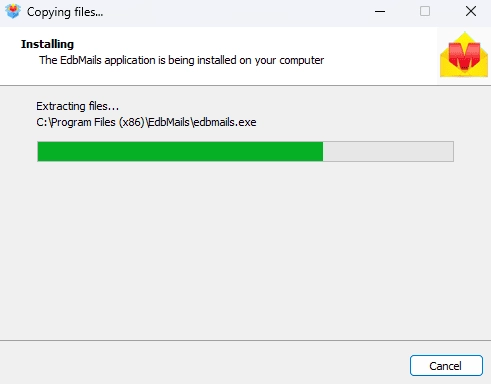
- Download EdbMails and install it on a Windows-based computer to get started with the Charter email to Office 365 migration process.
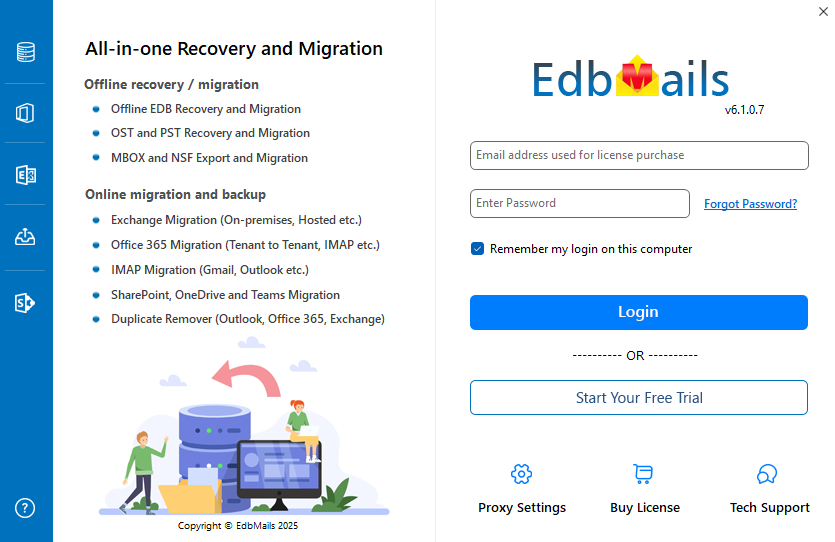
- Start the EdbMails application on your system
- Provide your registered email address and password, then click ‘Login’. If you are a new user, click on ‘Start Your Free Trial’ to continue with the trial edition.
Note: The trial version gives access to all essential features and permits migrating up to 30 items per folder. For unlimited migrations, purchase a genuine license from the official EdbMails website.
Click here to know IMAP Migration Pricing Details.
Once the purchase is finished, exit the application and reopen it. Log in again using the same email address and password used at the time of purchase to complete the license activation successfully.
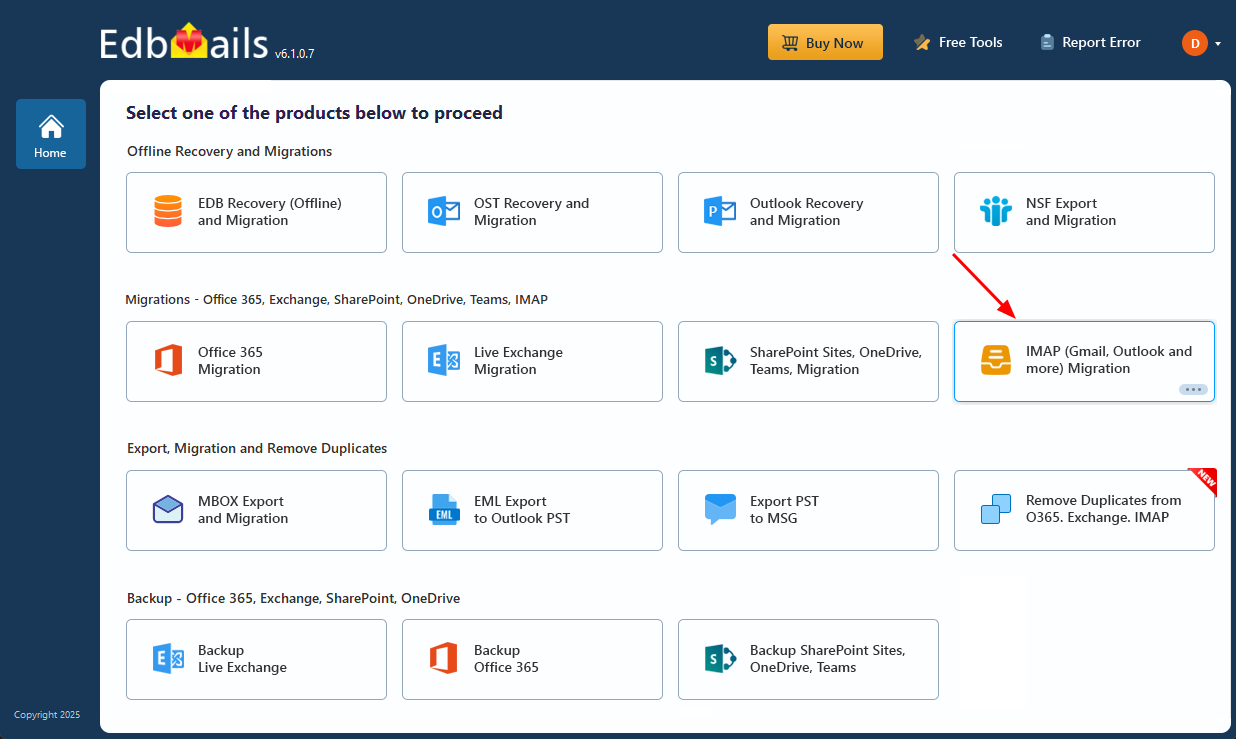
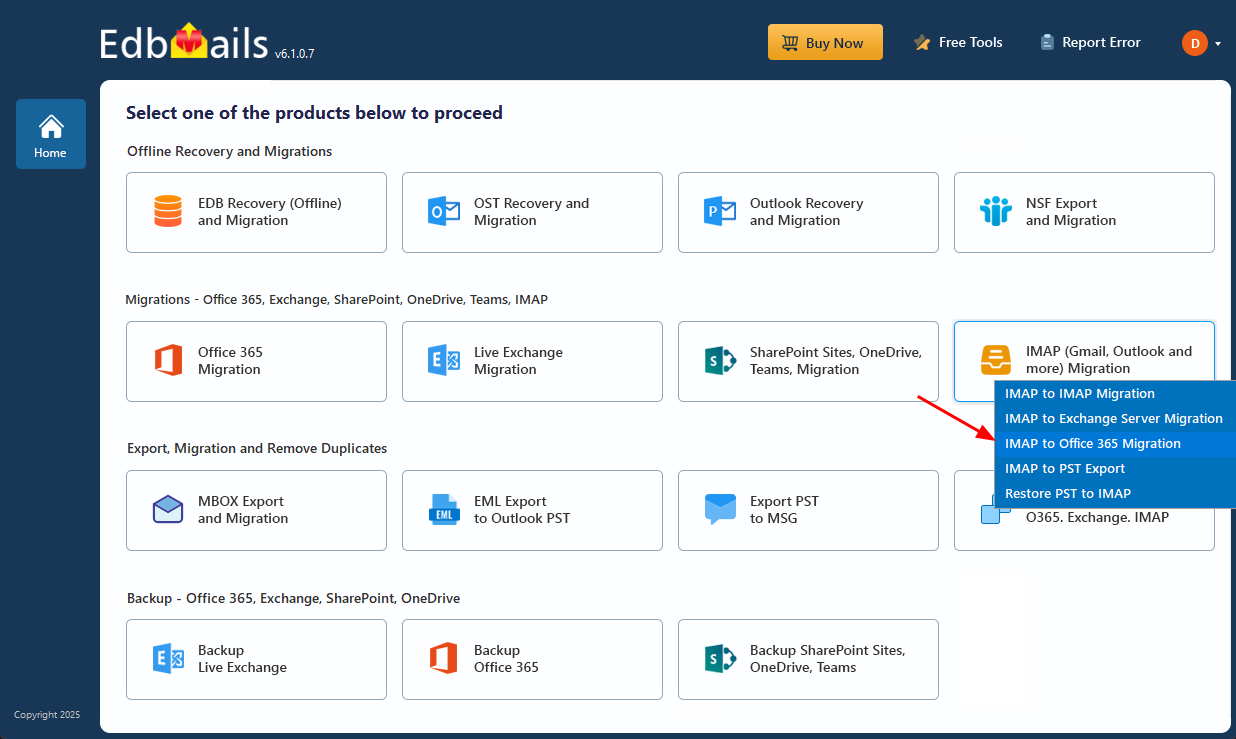
- Select the option ‘IMAP (Gmail, Outlook & more) Migration’.
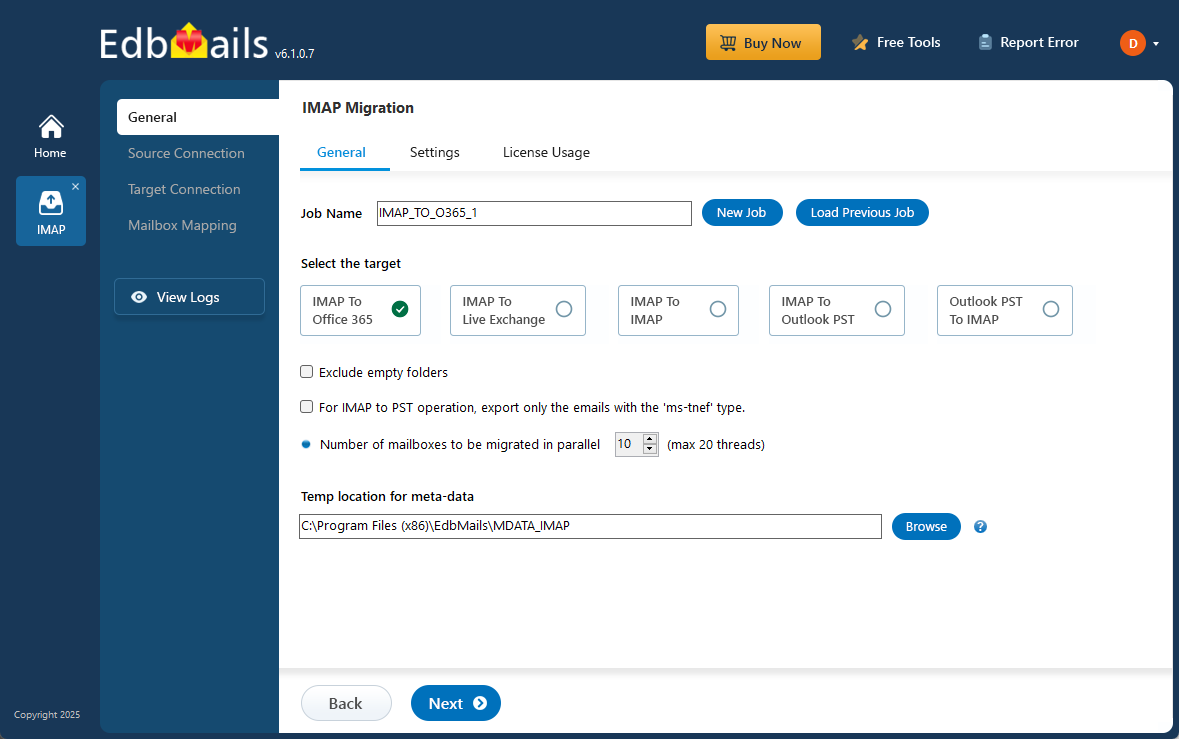
- Select ‘IMAP to Office 365 Migration’.
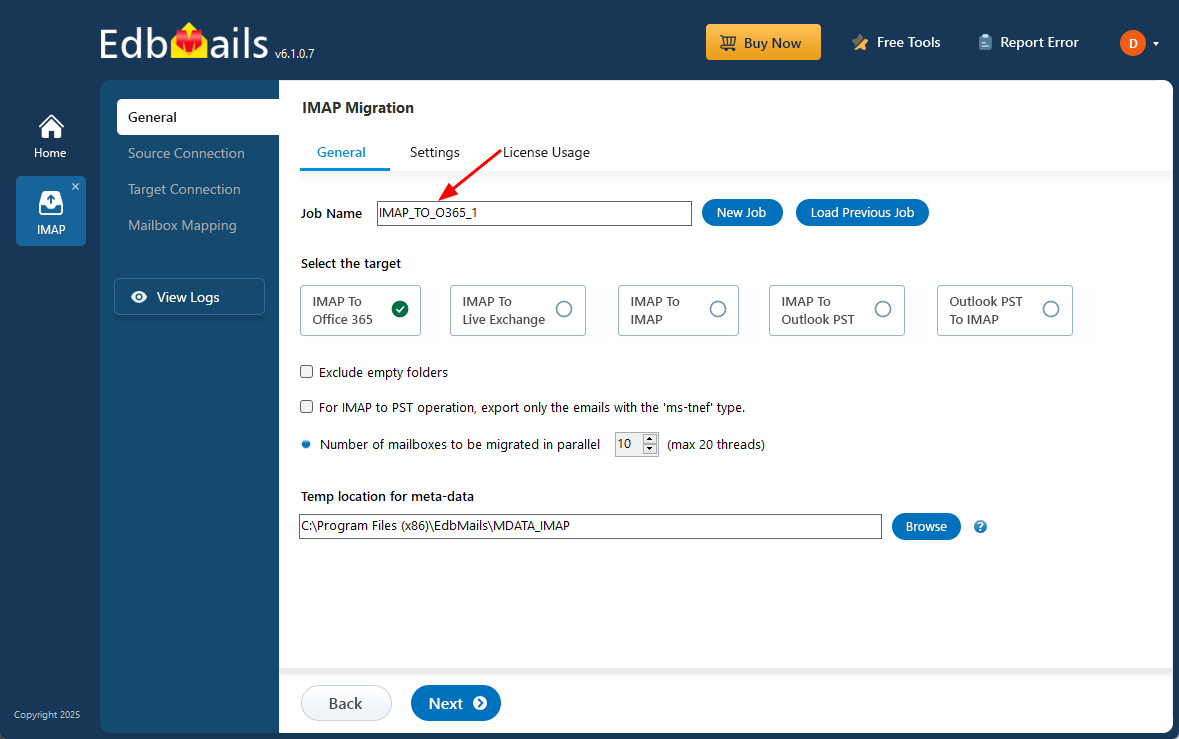
- A default job name is automatically assigned. For easier identification, click ‘New Job’ and enter a custom name that suits your requirement.
- Download EdbMails and install it on a Windows-based computer to get started with the Charter email to Office 365 migration process.
Step 2: Connect to the source Charter email server
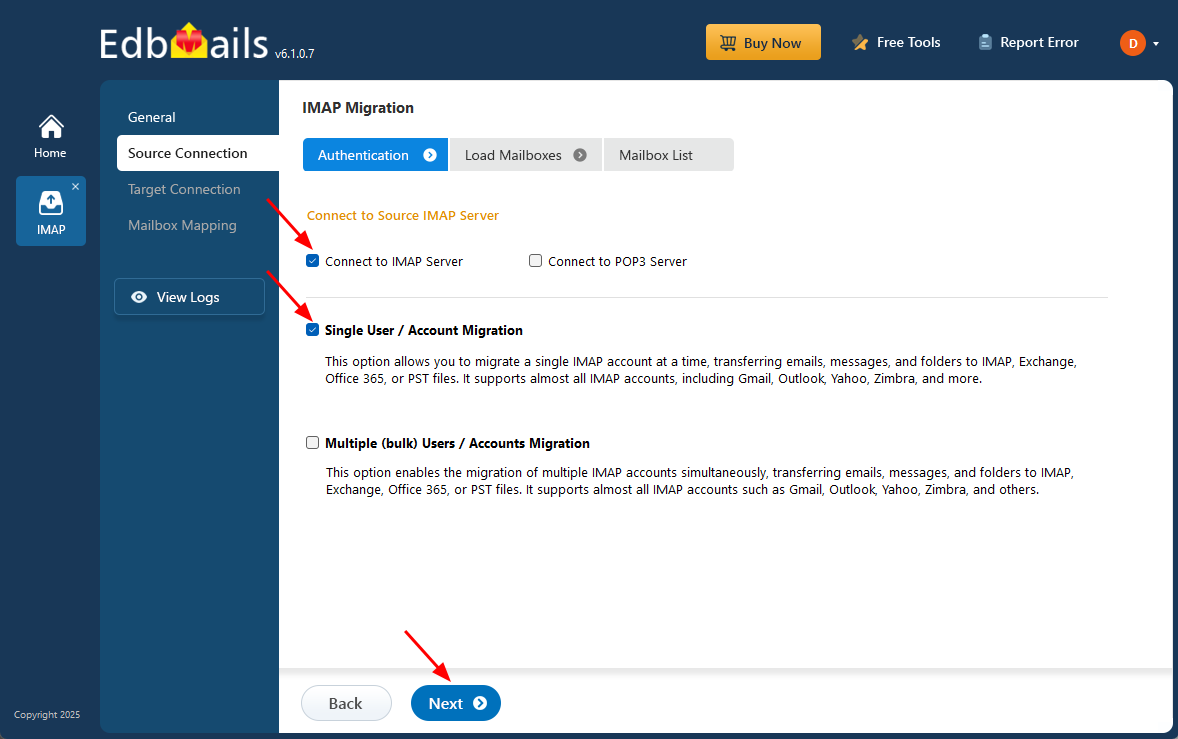
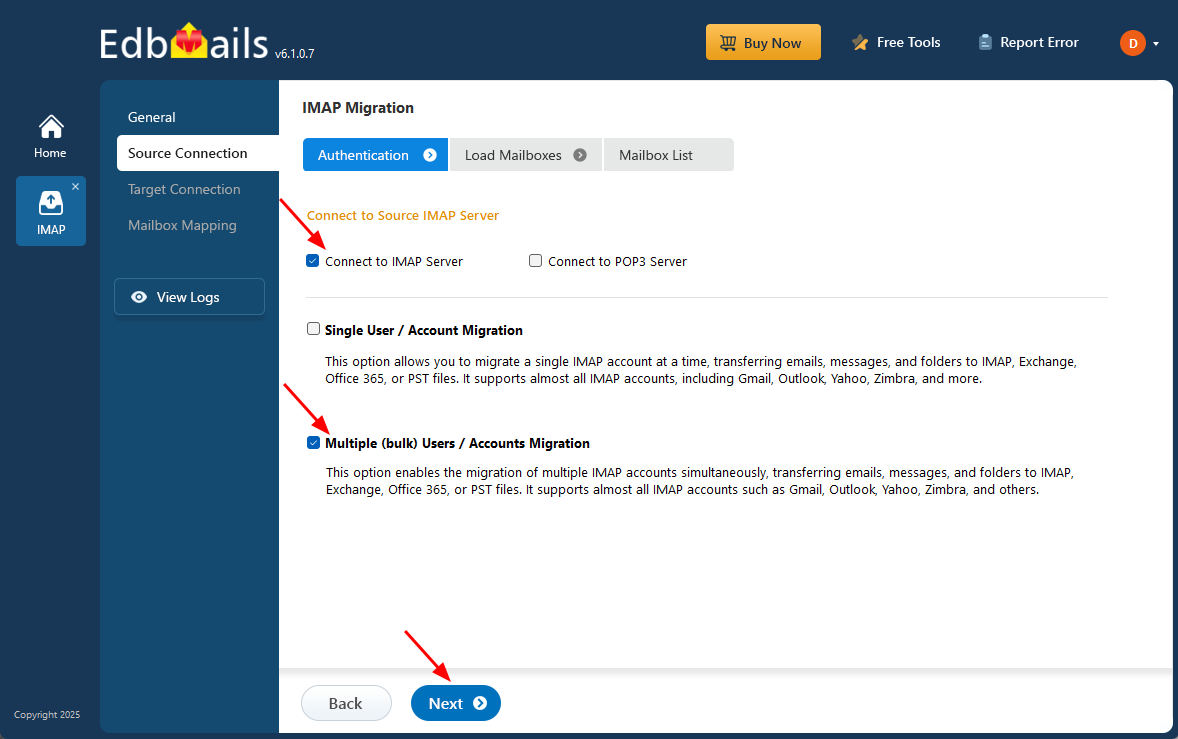
- To connect a single Charter mailbox, click ‘Single User / Account Migration’, choose the suitable connection option such as ‘Connect to IMAP Server’ or ‘Connect to POP3 Server’. Click ‘Next’ to proceed.
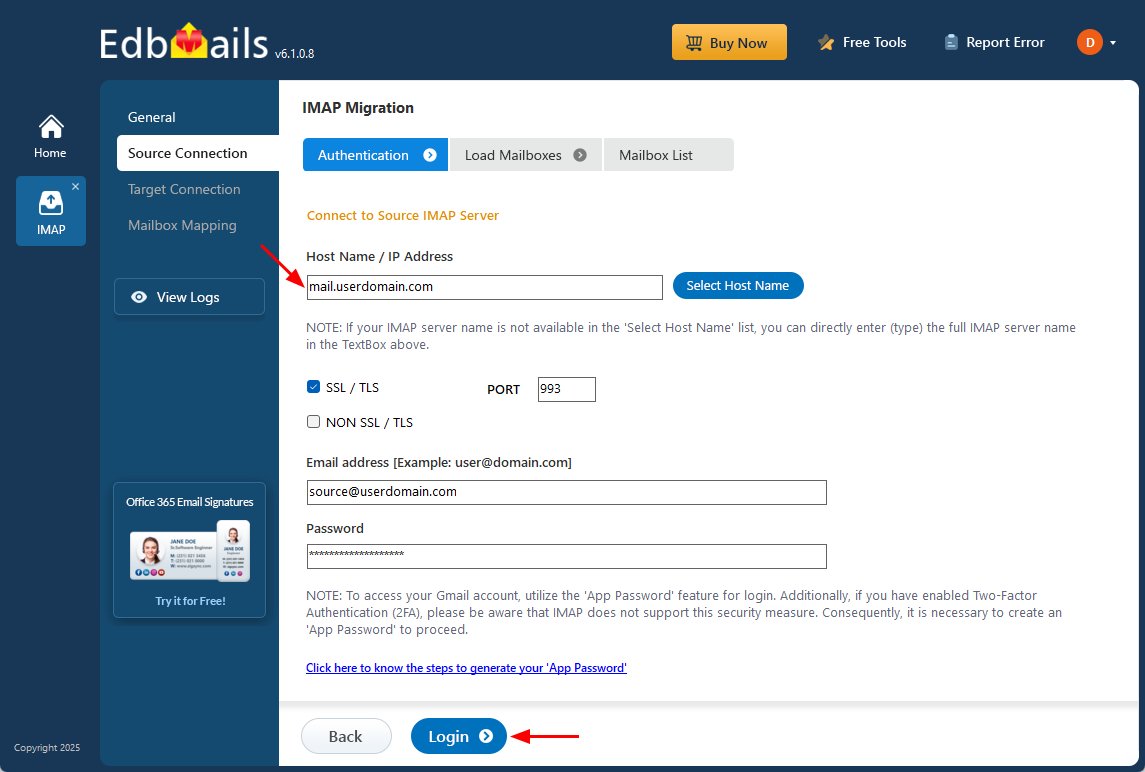
- From the IMAP host list, pick the correct IMAP host name for your Charter email server from the list, or type it in manually if it's not listed.
- Next, provide the necessary login details including your email address, password, and the SSL port number, which is typically 993 when SSL encryption is enabled.
- Click on the ‘Login’ button to establish a secure connection with your Charter email account.
- To connect and migrate multiple Charter user mailboxes at once, select ‘Multiple (bulk) Users/Accounts Migration’, choose the suitable connection method such as ‘Connect to IMAP Server’ or ‘Connect to POP3 Server’.
- Then proceed by clicking ‘Next’.
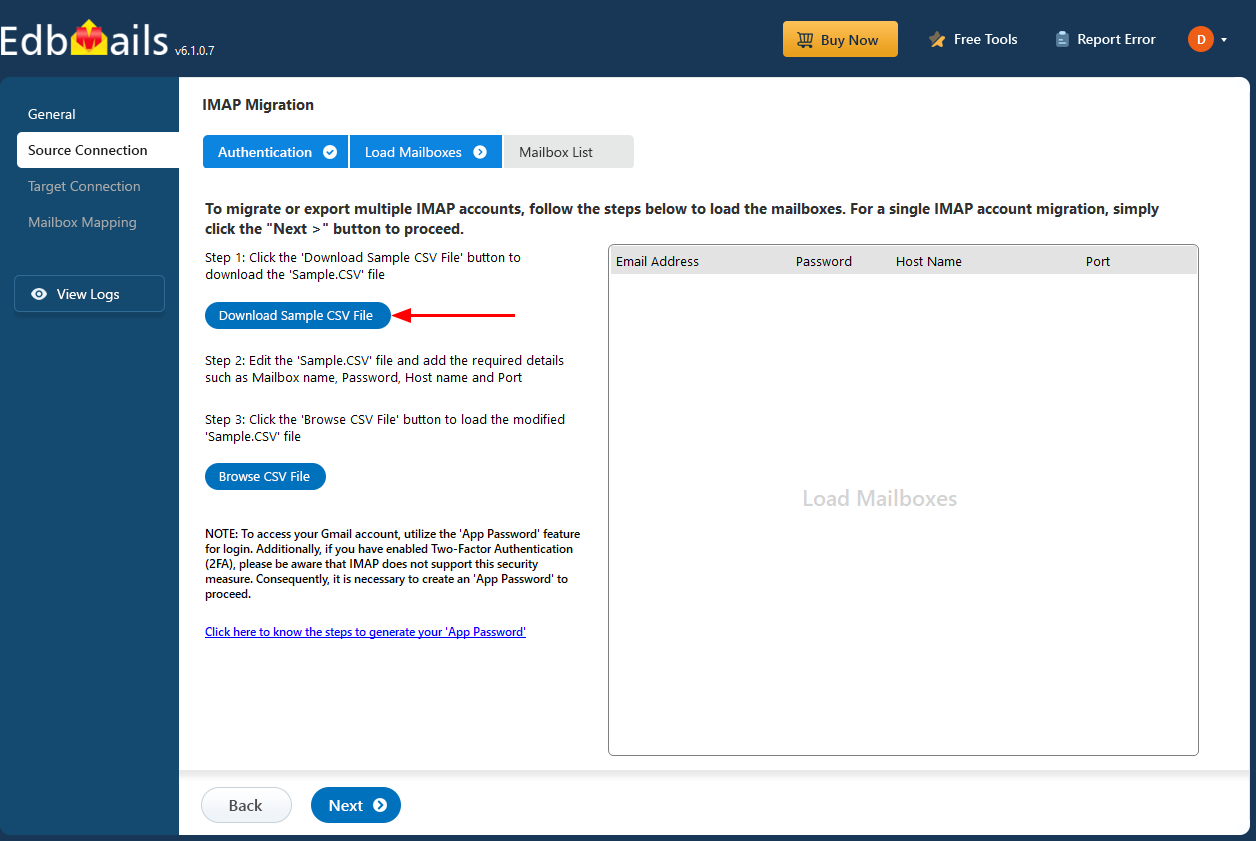
- Click ‘IMAP Migration CSV File’. It will load the sample CSV file to your local drive.
- Open the CSV file and fill in the necessary details, including the email address, password, IMAP server hostname, and port number for each mailbox. After completing the entries, save the file to proceed with the migration.
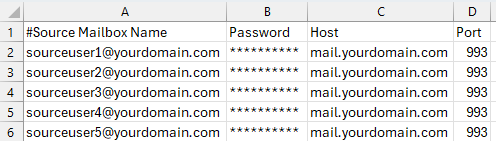
- After entering the required details in the CSV file, save your changes and close the file to continue with the next steps.
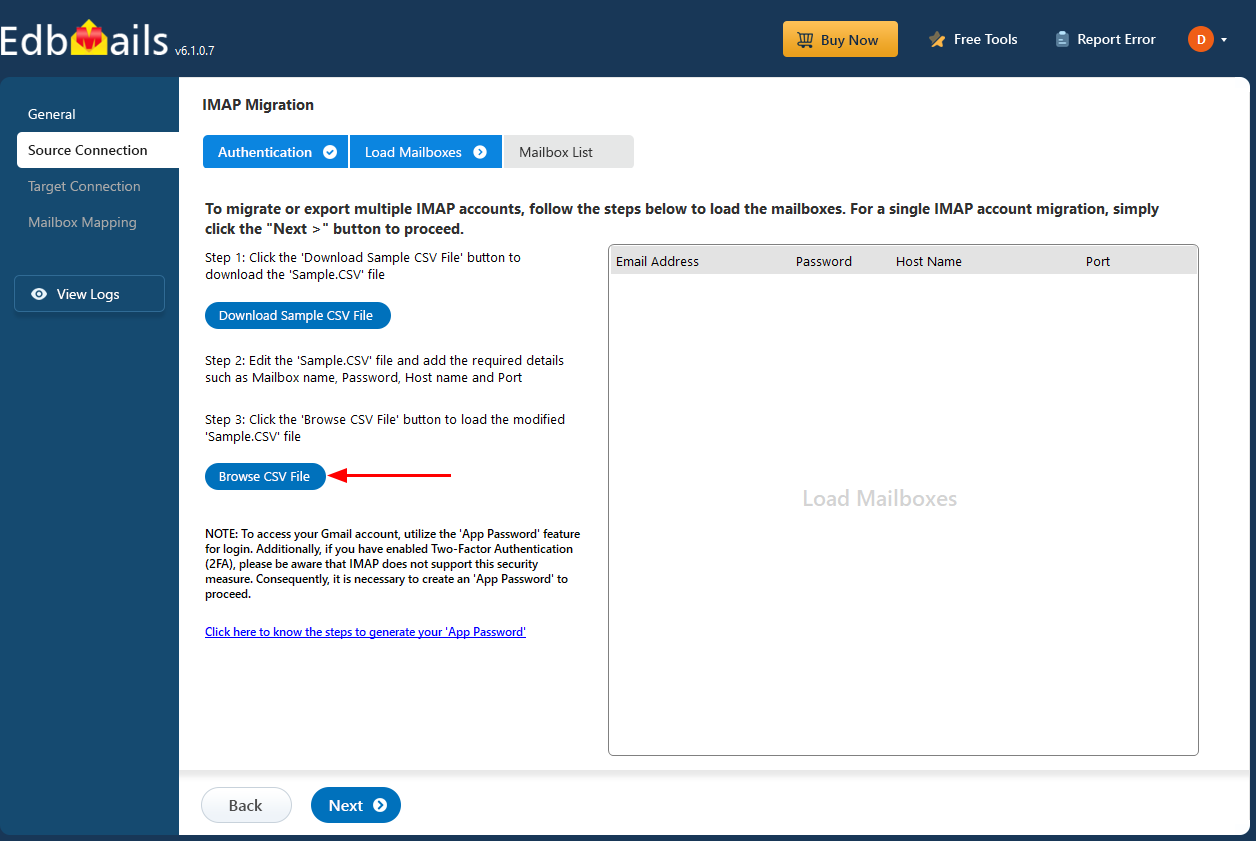
- Then, click the 'Load Modified CSV File' button, open the CSV file and click ‘Next’ to proceed.
- Choose the specific mailboxes or individual folders you wish to migrate. Once your selection is complete, click ‘Next’ to continue.
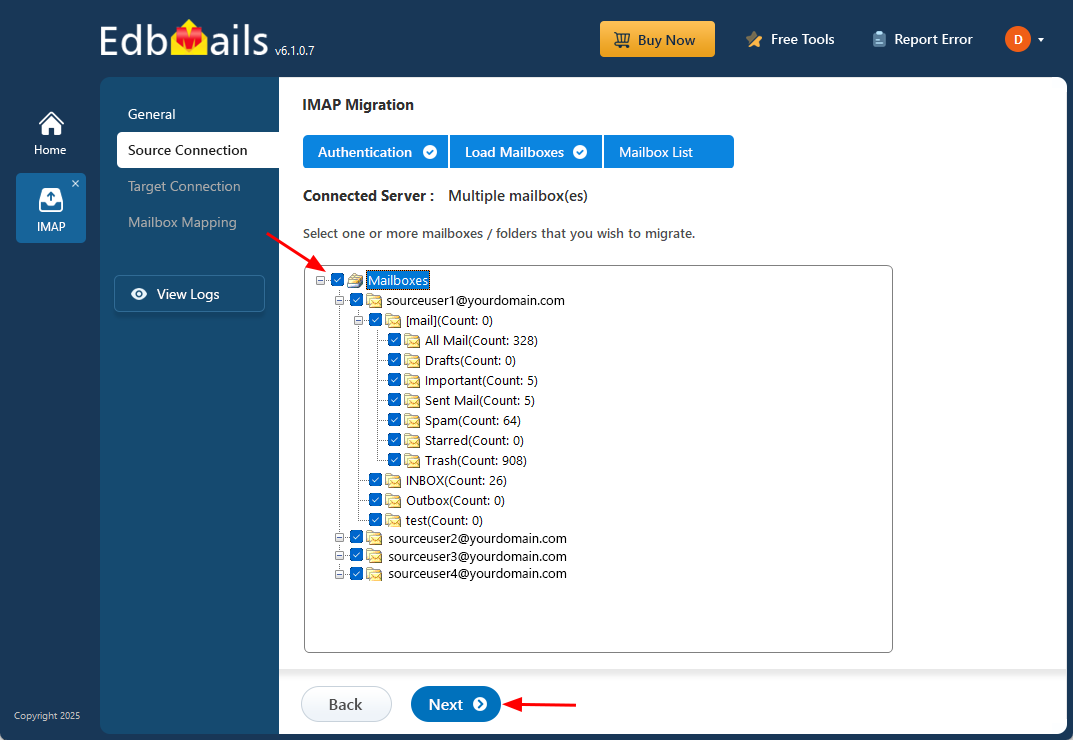
- To connect a single Charter mailbox, click ‘Single User / Account Migration’, choose the suitable connection option such as ‘Connect to IMAP Server’ or ‘Connect to POP3 Server’. Click ‘Next’ to proceed.
Step 3: Connect to target Office 365 server
- Click the ‘Add New Connection’ button to configure a fresh connection to your target Office 365 account. If you have already set up a connection, select it from the list and click ‘Connect to Existing’.
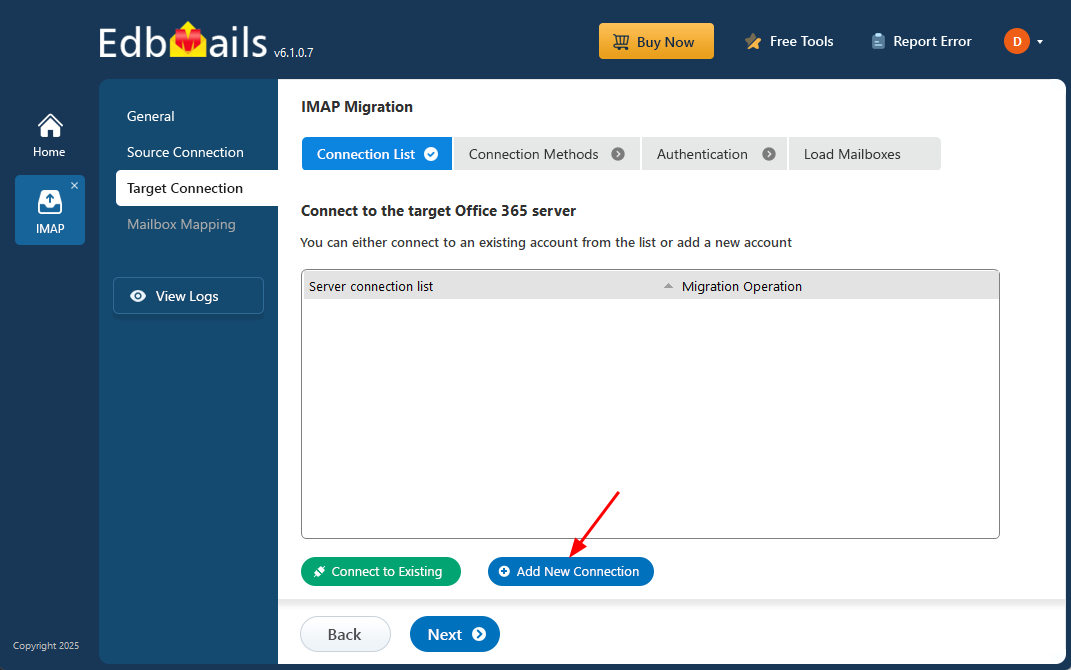
- Choose the desired connection options and click ‘Next’ to proceed.
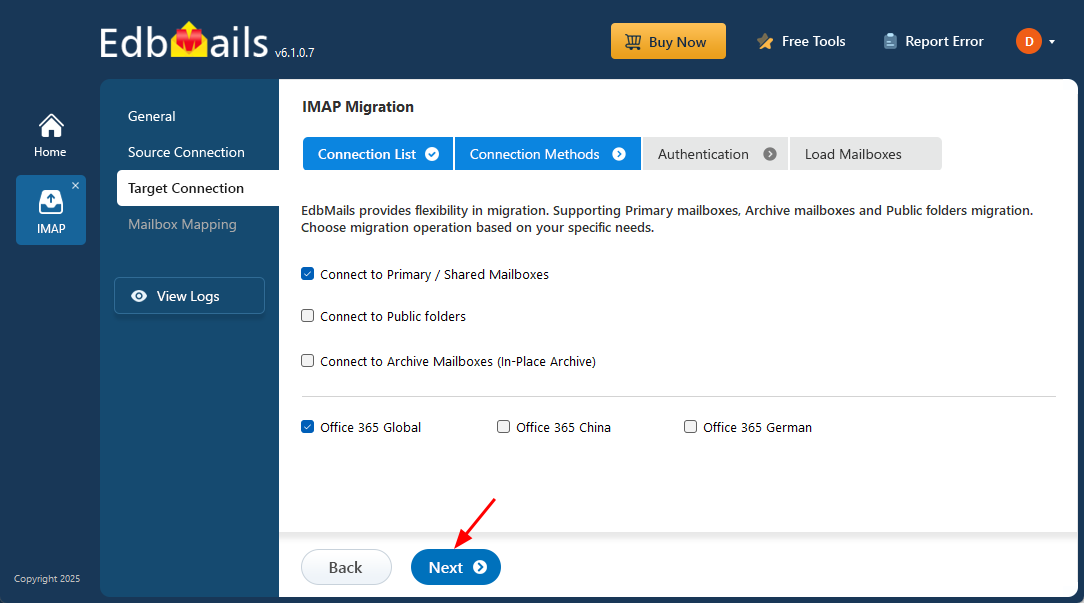
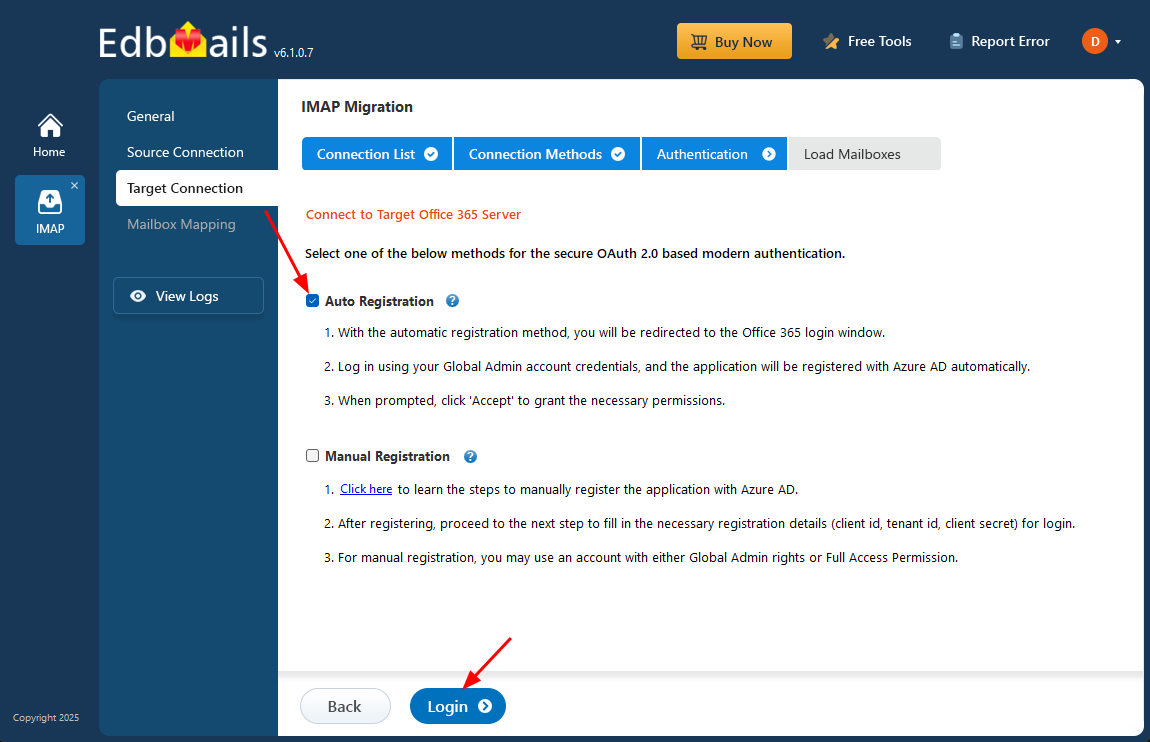
- Choose any of the available options to create a secure connection using OAuth 2.0 modern authentication:
- Select Auto Registration if you prefer a quick and smooth setup. Sign in with a Global Admin account and provide the required permissions to automatically register the application in Azure AD.
- Or choose Manual Registration if you prefer to enter the Azure AD application details yourself. This method supports both Global Admin accounts and accounts with Full Access permissions.
- Click ‘Login’ to proceed.
- Authenticate on Microsoft sign-in page.
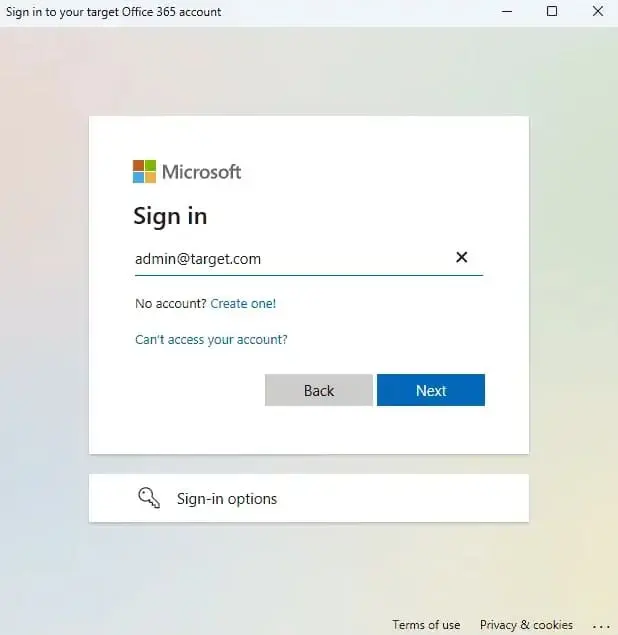
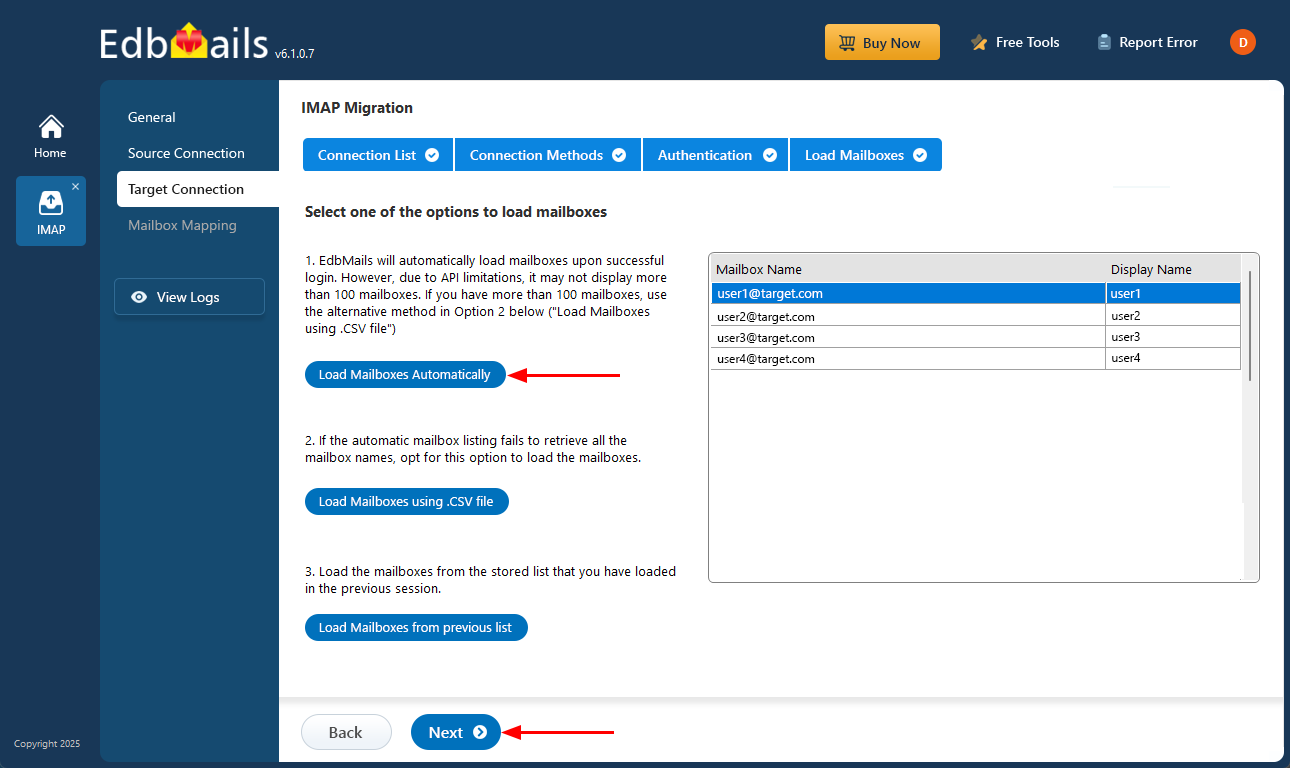
- Once authentication is completed successfully, select any one of the following options to load the mailboxes:
i) Load Mailboxes Automatically: After logging in, EdbMails automatically detects and lists the mailboxes, making the process quick. Due to Microsoft API restrictions, only a maximum of 100 mailboxes can be displayed. If your organization contains more than 100 mailboxes, use the alternative option given below.
ii) Load Mailboxes using CSV file: If the automatic method does not retrieve all mailbox names, choose ‘Load Mailboxes using .CSV file’ to manually upload and load the required mailboxes.
iii) Load Mailboxes from previous list: This option allows you to load mailboxes from a previously saved list imported in an earlier session.
- Choose ‘Load Mailboxes Automatically’ and click ‘Next’ to move forward.
- Click the ‘Add New Connection’ button to configure a fresh connection to your target Office 365 account. If you have already set up a connection, select it from the list and click ‘Connect to Existing’.
Step 4: Charter email to Microsoft 365 mailboxes mapping
- Choose one of the available options to map the source and target mailboxes
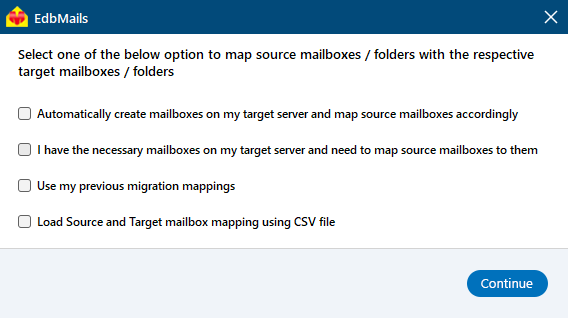
- You can choose the option to let EdbMails automatically create mailboxes on your target Office 365 tenant if they don’t already exist, simplifying the setup process.
- EdbMails automatically maps the source and target mailboxes based on matching display names. You can also manually map mailboxes if needed. With manual mapping, the target mailbox folders are fetched and listed, giving you the option to match the source folders with the corresponding target folders or create custom folder mappings as required.
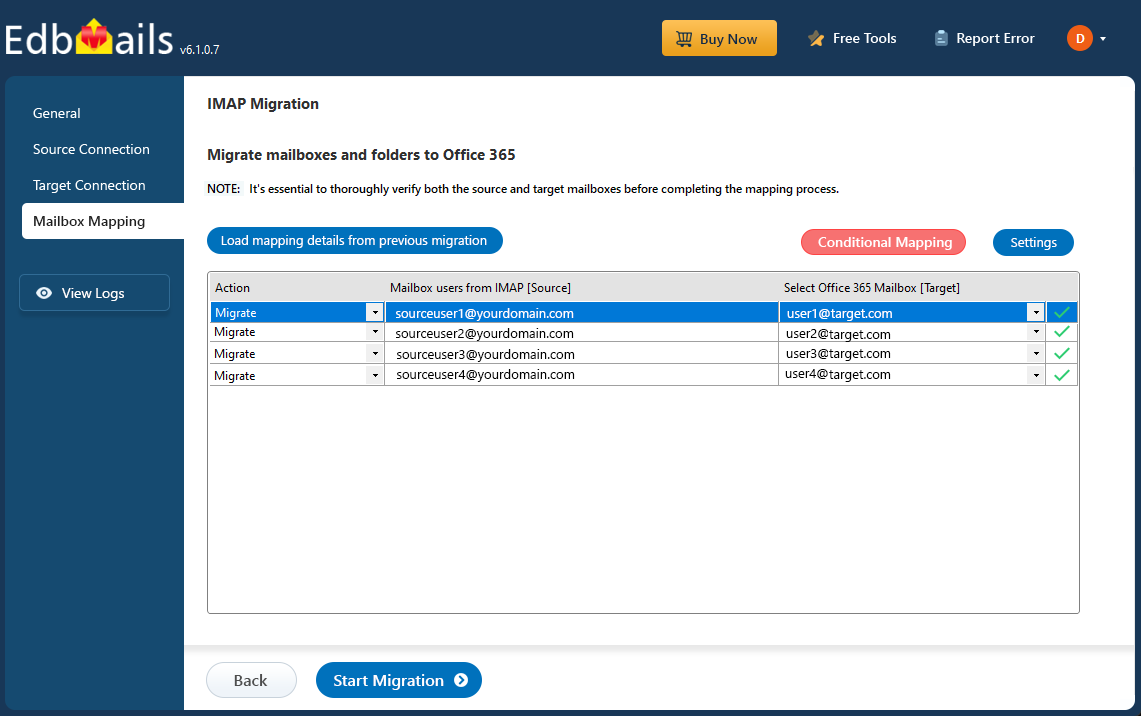
- Choose one of the available options to map the source and target mailboxes
Step 5: Start the Charter email to Office 365 migration
- Once the mailboxes are mapped, click the 'Start Migration' button to begin the migration process.
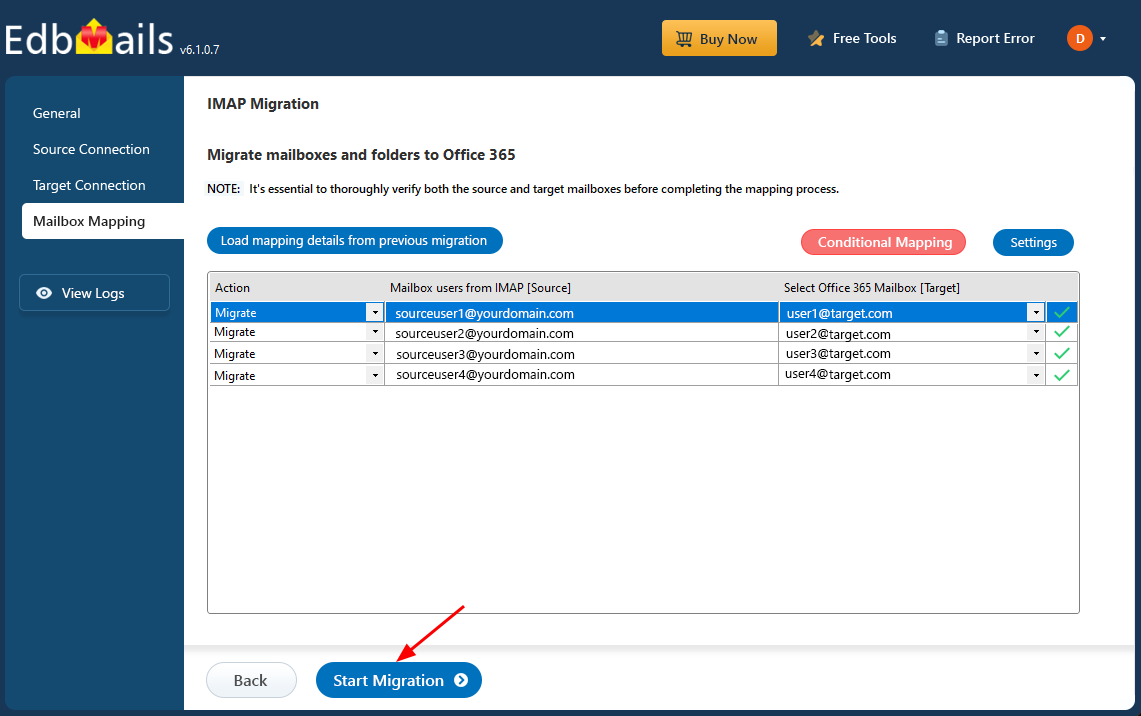
- Click the 'View Logs' button to access the migration report, which provides detailed information on the items migrated from each folder and mailbox. The report includes mapping details, the number of emails migrated, and any issues encountered during the migration process, helping you track and verify the migration of your data.
- Also log into your target server to verify the migrated items.
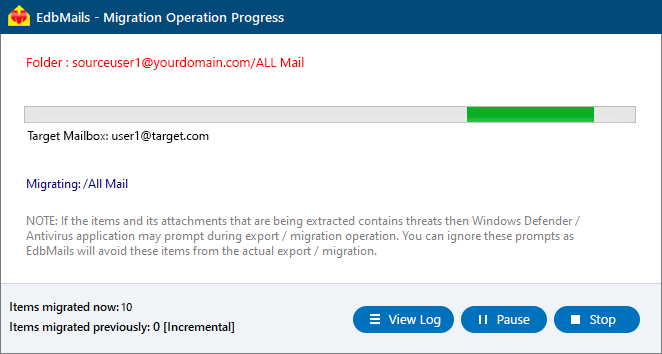
- Once the mailboxes are mapped, click the 'Start Migration' button to begin the migration process.
Charter email to Microsoft 365 post-migration tasks
- Step 1: Update the MX records to point to Office 365
Update the MX records to route your email traffic to the target Office 365 server, ensuring seamless email delivery. Additionally, configure the Autodiscover record to enable Outlook to connect automatically to the migrated mailboxes, providing users with uninterrupted access to their email.
- Step 2: Create a new Outlook profile for users in the new domain
Configure and recreate the Outlook profile for each user in your domain if Outlook has problems connecting to Office 365 mailboxes.
- Step 1: Update the MX records to point to Office 365
Troubleshooting Guide for Charter email to Office 365 Migration
For troubleshooting, check out our knowledge base articles. If you have additional questions, browse the FAQs or contact our dedicated support team for personalized assistance.
Benefits of EdbMails for Charter email to Office 365 Migration
- Bulk Migration
EdbMails simplifies the migration process by enabling bulk migration of Charter email to Office 365. It allows you to transfer multiple mailboxes at once, significantly reducing the time and effort involved. This feature is ideal for large organizations with numerous email accounts to migrate.
- Quick Preview
Before starting the actual migration, EdbMails offers a quick preview of the data to be transferred. This helps you confirm that the selected emails, folders, and other items are accurate. The preview ensures a seamless migration and avoids potential data discrepancies during the process.
- Selective Migration
With EdbMails, you can select specific folders or emails for migration rather than transferring everything. This selective migration option gives you the flexibility to only move relevant data, saving time and preventing unnecessary clutter in your Office 365 mailbox.
- Cost-effective Solution
EdbMails offers a cost-effective solution for Charter email to Office 365 migration. The tool is affordable while delivering high-quality performance. It eliminates the need for expensive third-party services or complex manual migration procedures, making it the ideal choice for budget-conscious businesses.
- Automatic Mailbox Mapping
EdbMails features automatic mailbox mapping, streamlining the migration process. The tool automatically matches source and destination mailboxes, ensuring that emails are accurately transferred. This feature eliminates the need for manual mapping and reduces the chances of errors during migration.

