Steps for Automatic registration of EdbMails in Azure AD
Automatic Registration Method
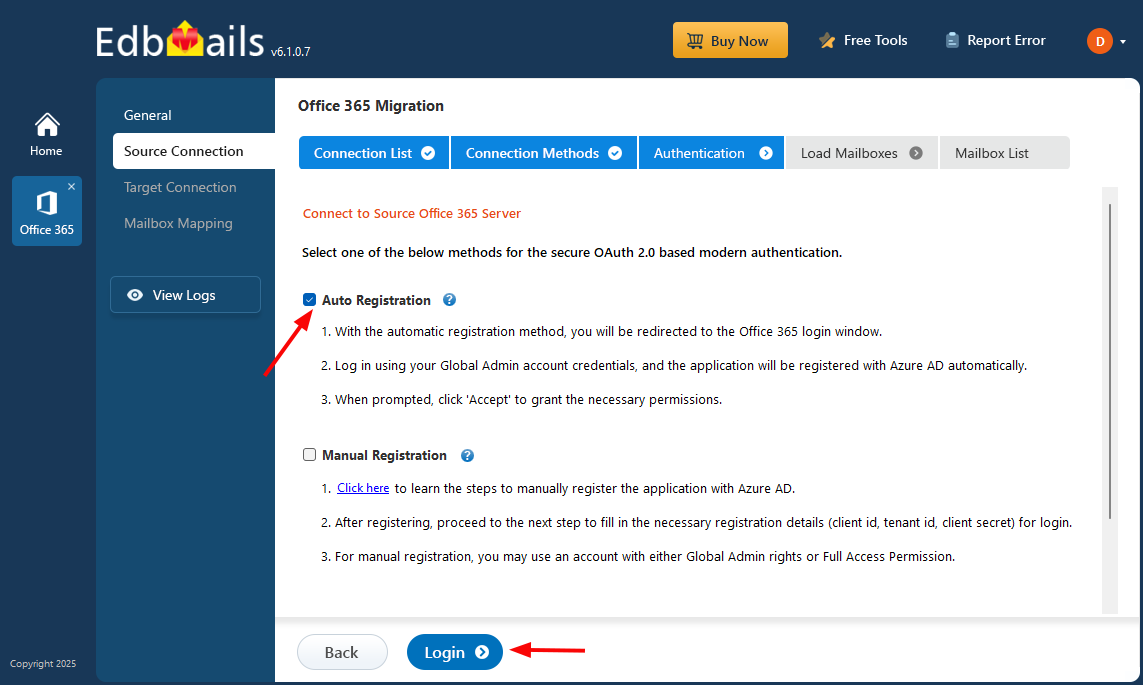
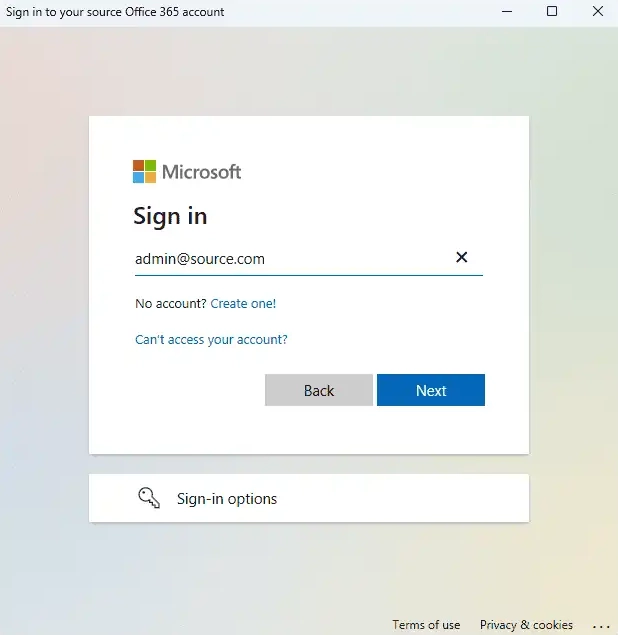
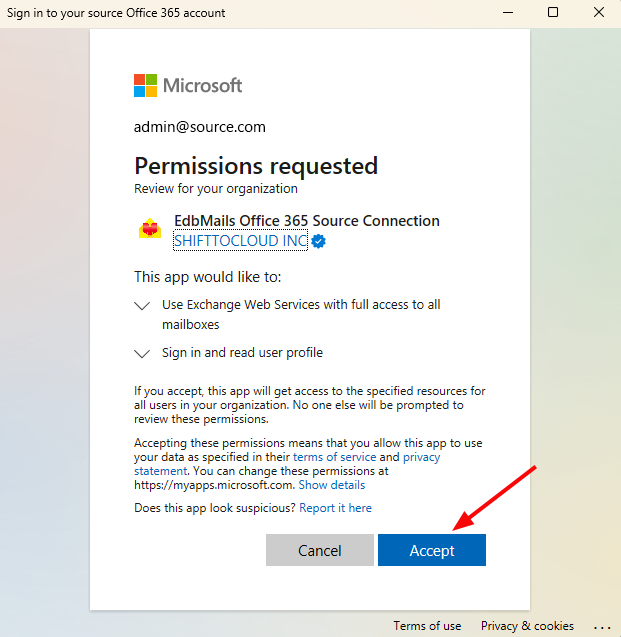
In the automatic registration, you will be redirected to Office 365 login window wherein you need to login with Global admin account credentials. The application will be registered with Azure AD automatically and click Accept to grant requested permissions when prompted.
Check the option Auto Registration in the wizard and click the Login button at the bottom.
Enter the required credentials in the Microsoft login window and sign in
Check the consent on behalf of your organization and click on the Accept
Frequently Asked Questions
What should I do if Microsoft 365 asks for administrator approval during automatic registration?
EdbMails requires the appropriate Microsoft 365 administrator permissions to complete automatic application registration and grant the requested access. If Microsoft displays a 'Need admin approval' message, verify that you are signing in with a Global Administrator account for the correct Microsoft 365 tenant, as specified in the automatic registration steps.
If you do not have the required access, contact your organization's Microsoft 365 administrator to review the requested permissions and grant the necessary consent. After the required approval is granted, return to EdbMails and complete the registration process.
Why might automatic application registration fail in EdbMails?
Automatic registration may fail because of insufficient administrator permissions, incomplete consent, Microsoft 365 sign-in restrictions, or Conditional Access policies.
First, verify that you are using the correct Microsoft 365 tenant and an account with the required permissions. Check whether the Microsoft sign-in and consent process completed successfully. If the issue continues, review the reported error and the applicable Microsoft Entra sign-in or policy information before retrying.
For additional troubleshooting instructions, see Fix Modern Authentication Failures.
How can I verify that the EdbMails application has been registered successfully in Microsoft Entra ID?
Sign in to the Microsoft Entra admin center and navigate to Entra ID > Enterprise apps > All applications. Locate the application registered for the EdbMails connection and open its details.
Select Permissions and open the Admin consent tab to review the permissions granted for your organization. Confirm that the required administrator consent has been provided for the Microsoft 365 connection. You can also return to EdbMails and verify that the connection completes successfully.
Can I use manual registration instead of automatic registration in EdbMails?
Yes. EdbMails supports both automatic and manual application registration for Microsoft 365 authentication. Automatic registration allows you to sign in with a Global Administrator account and approve the required permissions through the Microsoft sign-in window.
Manual registration allows administrators to configure the application registration, API permissions, and authentication credentials directly in Microsoft Entra ID. To use this option, select Manual Registration in EdbMails and provide the required application details after completing the configuration in Microsoft Entra ID.
For step-by-step instructions, see Manual App Registration in Microsoft Entra ID.