


Google Workspace to IMAP Migration
Migrating from Google Workspace to an IMAP server allows organizations to move their email data to a wide range of email hosting platforms that support the IMAP protocol. Many businesses choose this approach to gain greater control over mailbox data, use their preferred hosting providers, or reduce dependency on a single email ecosystem. IMAP-based email services are widely supported and enable users to access their mailboxes across multiple devices and email clients while maintaining centralized email storage on the server.
EdbMails provides a reliable Google Workspace migration software that helps administrators migrate Gmail mailboxes to various IMAP-enabled email servers. The application connects to Google Workspace using secure API-based communication with domain-wide delegation, allowing administrators to access and migrate users’ mailboxes without requiring individual user credentials. The software supports migration to platforms including Outlook, Gmail, Zoho, and Zimbra, as well as other IMAP environments such as IceWarp, cPanel, Plesk, GoDaddy, Rackspace, AWS WorkMail, Bluehost, and DreamHost. During the migration process, EdbMails preserves folder hierarchy and email attachments while ensuring accurate and secure data transfer.
With support for bulk mailbox migration, advanced filtering options, and incremental migration, administrators can migrate large numbers of mailboxes efficiently while avoiding duplicate data transfers. These help simplify the migration process and ensure minimal disruption to ongoing business communication.
Google Workspace to IMAP migration scope
This direction is primarily an email migration. IMAP transfers supported email messages, attachments, folders or labels exposed through IMAP, and common message properties. Contacts, calendars, tasks, Drive data, and other Google Workspace workloads are not part of a standard IMAP transfer and require a separately supported method.
Prerequisites for Google Workspace to IMAP Migration
Before starting the migration from Google Workspace to an IMAP server using EdbMails, ensure the following requirements are completed to guarantee a smooth and secure transfer:
Step 1: On the Source Google Workspace Side
- An active Google Workspace admin account with Super Administrator privileges.
- API access is enabled in the Google Workspace Admin console.
- Service account with domain-wide delegation configured for secure mailbox access.
Step 2: On the Target IMAP Server Side
- Get your IMAP server host name, port number, email address, and password required for login.
- If migrating multiple mailboxes, prepare a CSV file with columns such as email address, password, IMAP server host name, and port number.
- If you are migrating to a Gmail account, ensure that you create an App Password for the Gmail account.
Click here for steps to create an App Password for a Gmail account
Step-by-Step Migration Process: Google Workspace to IMAP
Follow these steps to securely migrate your mailboxes from Google Workspace to any IMAP server using EdbMails:
Step 1: Download the EdbMails Application
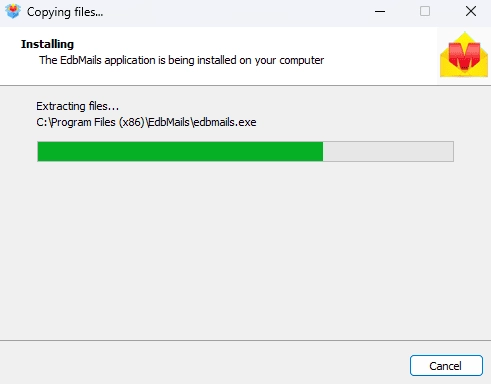
- Download and install the EdbMails application on your computer.
See the EdbMails system requirements for Google Workspace migration.
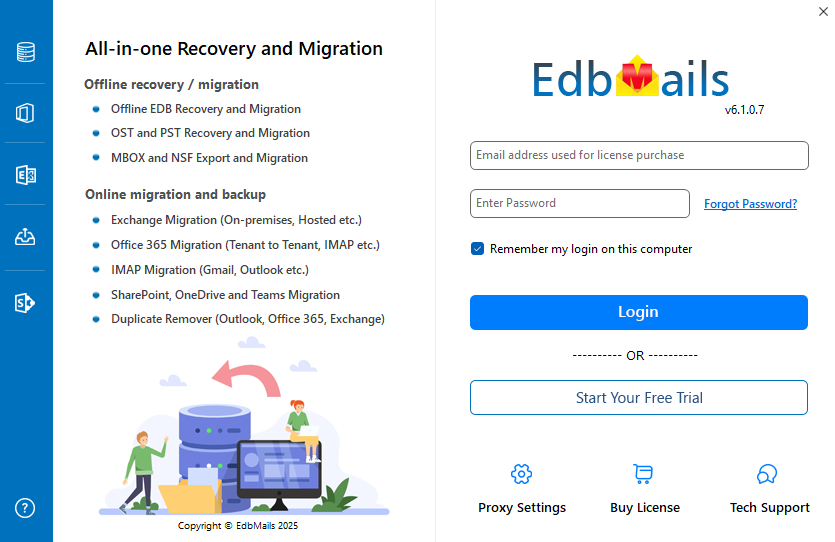
- Enter your registered email address and password, then click ‘Login’. If you don’t have an account yet, select ‘Start Your Free Trial’ to access the trial version.
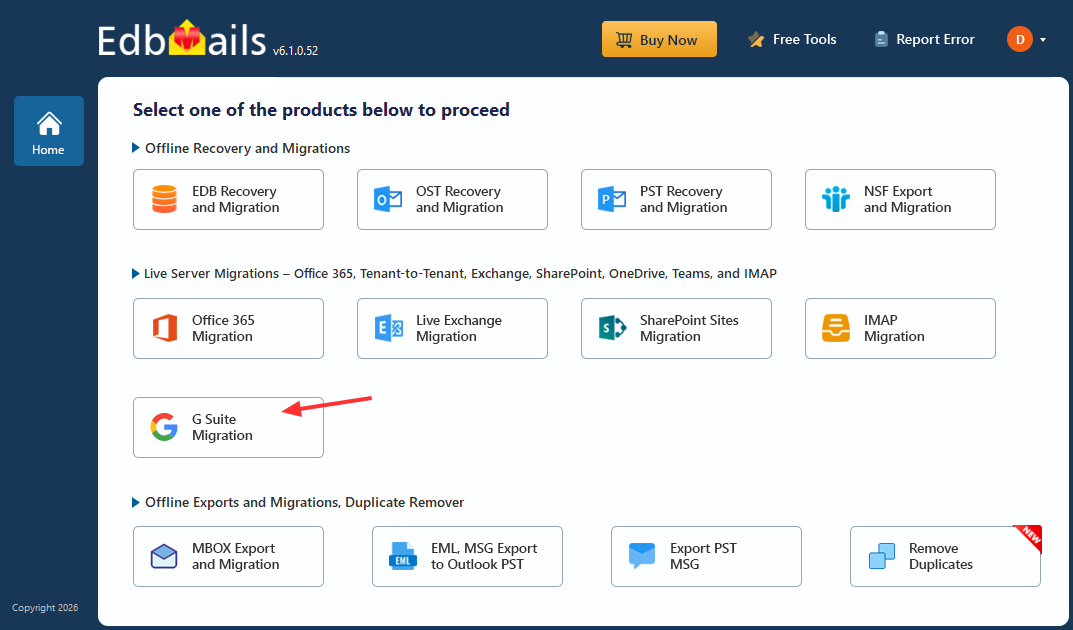
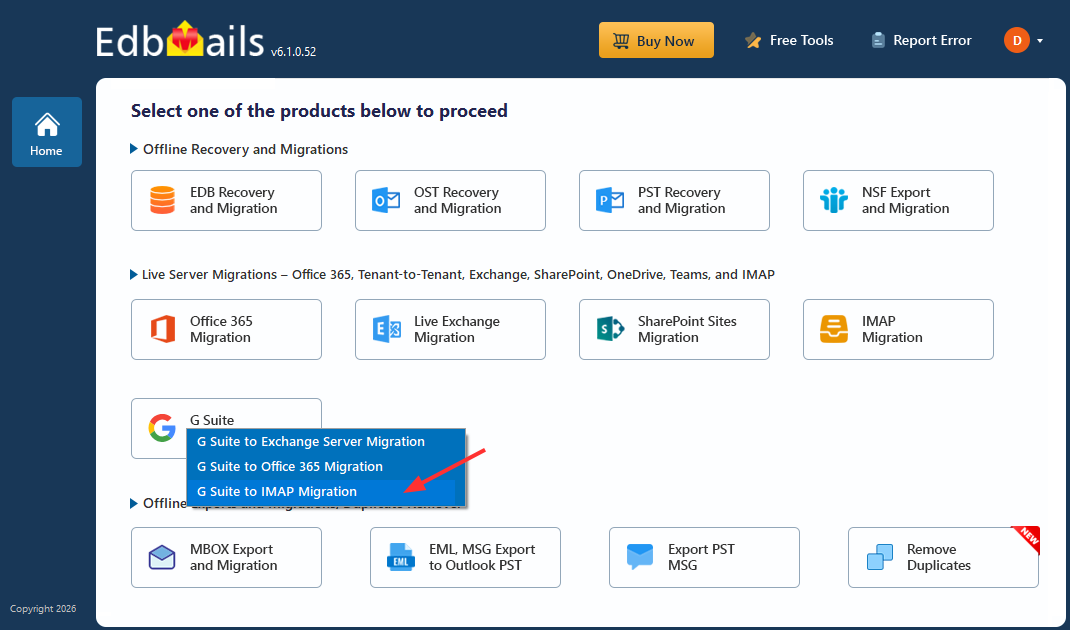
- Select the option ‘Google Workspace Migration’.
- Select ‘Google Workspace to IMAP Migration’.
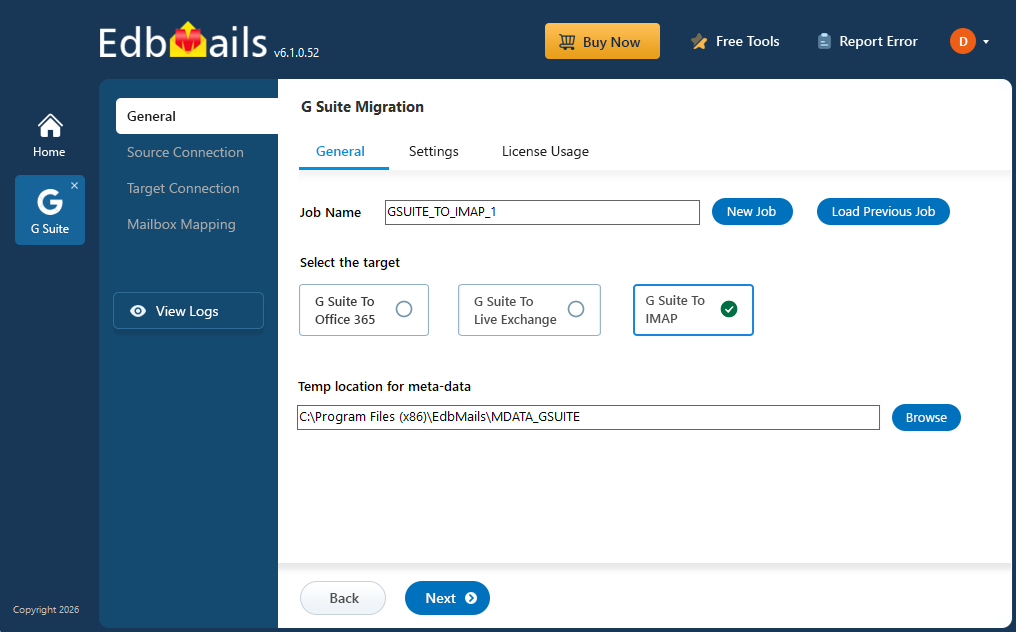
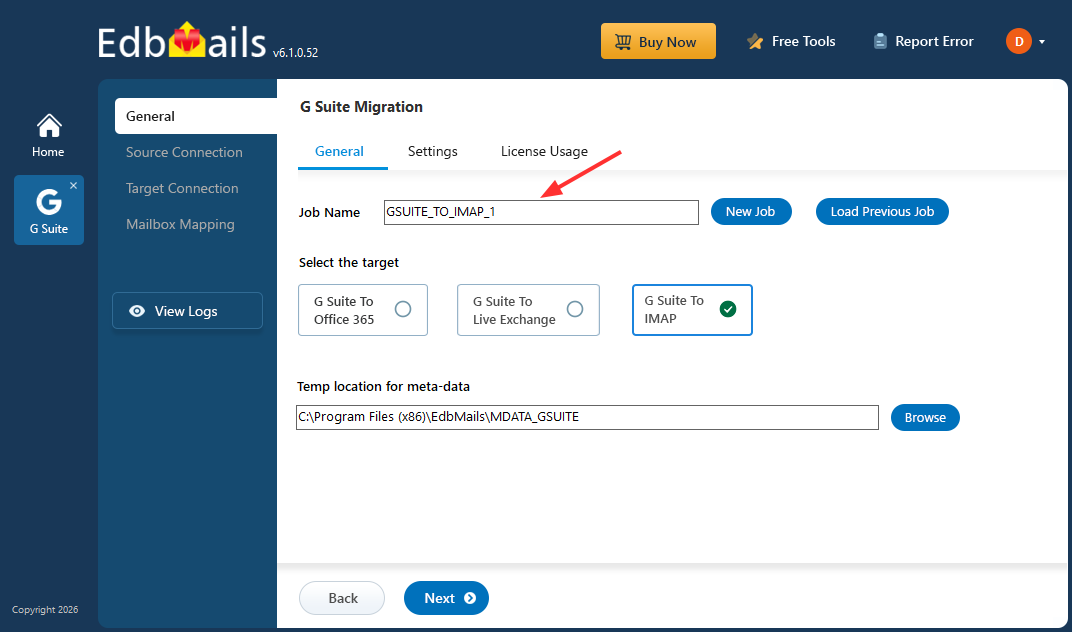
- You may continue with the default job name, or click ‘New Job’ to create and assign a custom name of your choice.
- Download and install the EdbMails application on your computer.
Step 2: Connect to Source Google Workspace Server
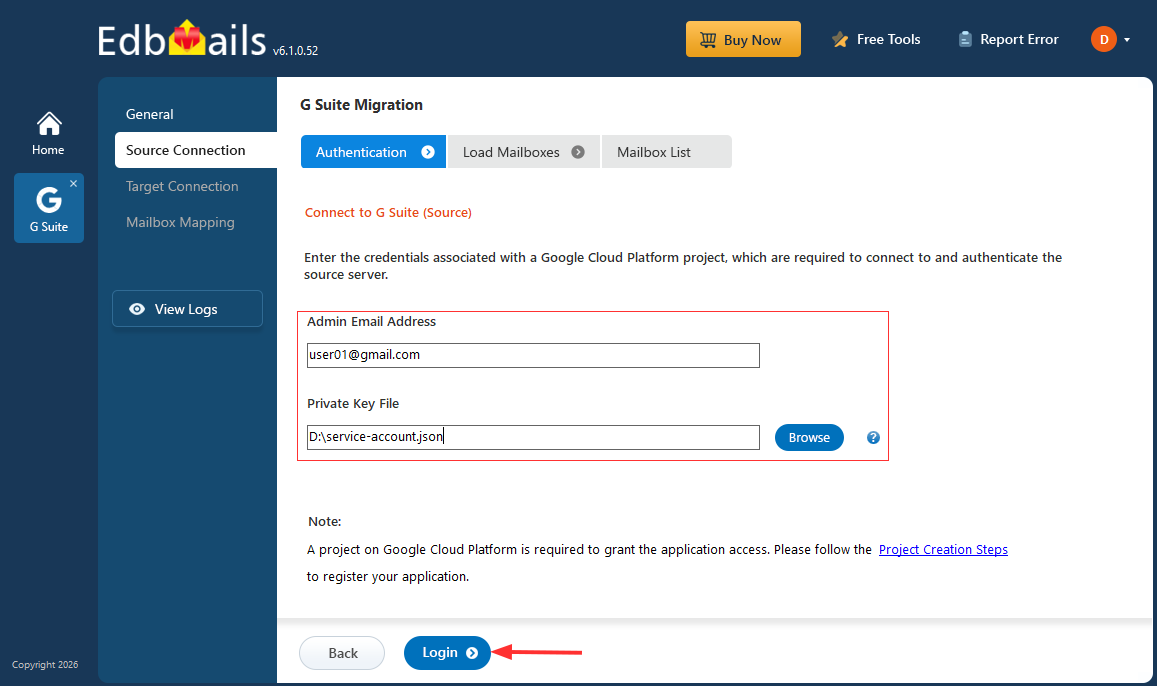
- Enter the ‘admin email address’, click ‘Browse’ to select the JSON file you downloaded from the Google Cloud Console, and then click the ‘Login’ button.
Steps to Create a Google Cloud Project and Download the JSON File
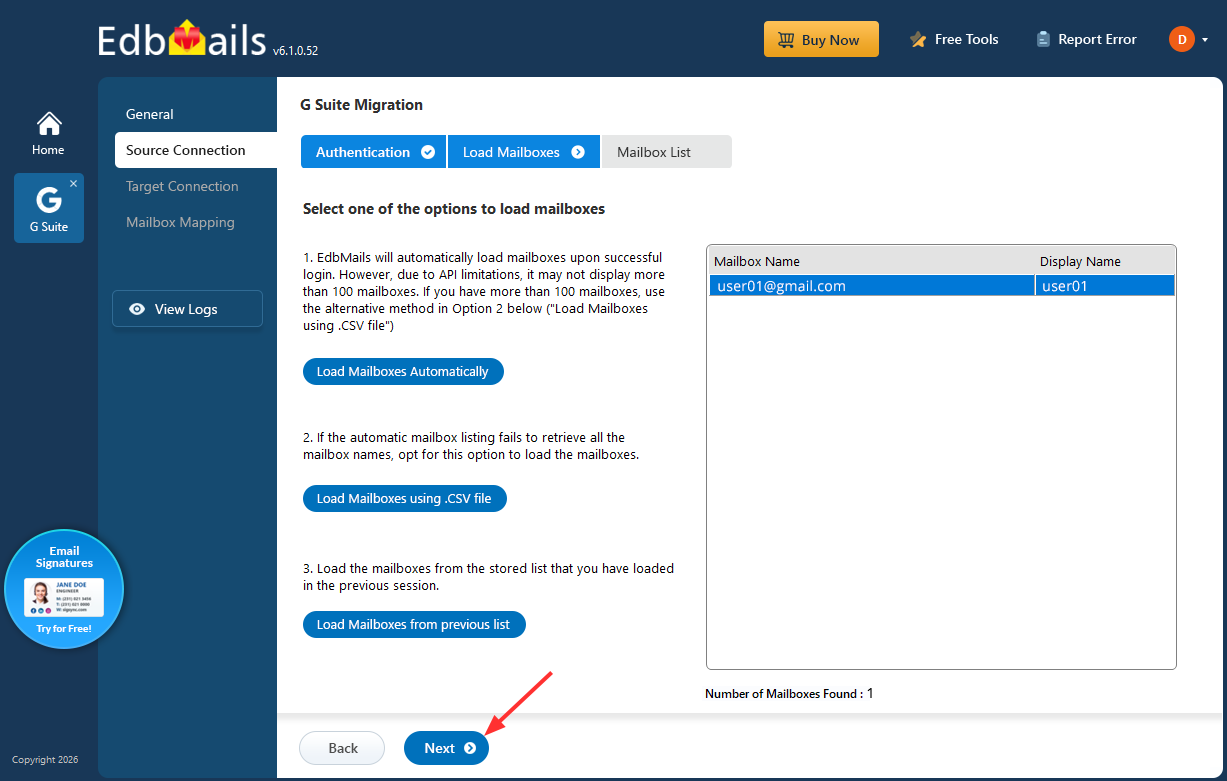
- Select one of the methods to load the mailboxes, then click ‘Next’.
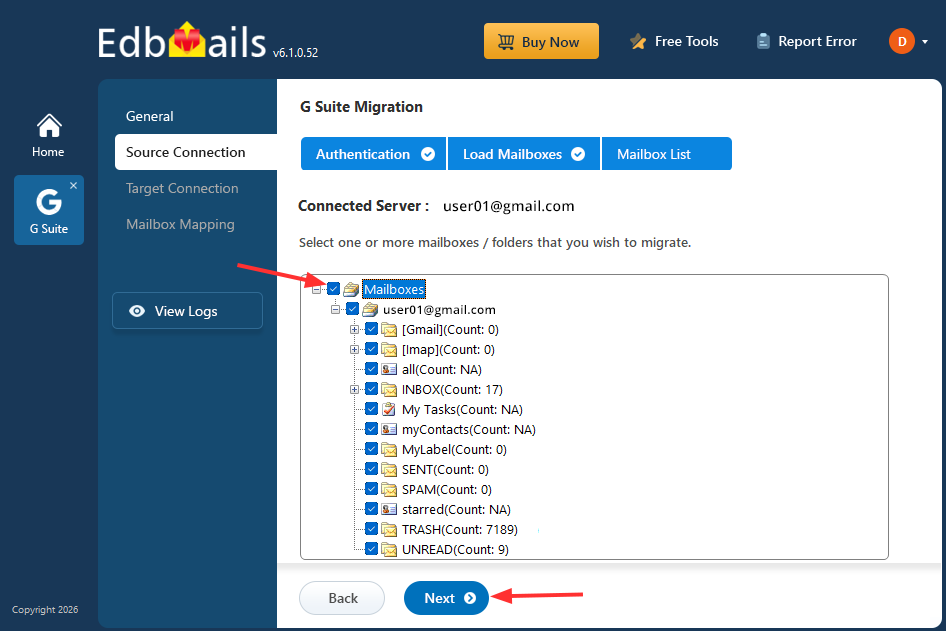
- Select the mailboxes you want to migrate, then click ‘Next’ to continue.
- Enter the ‘admin email address’, click ‘Browse’ to select the JSON file you downloaded from the Google Cloud Console, and then click the ‘Login’ button.
Step 3: Connect to the target IMAP server
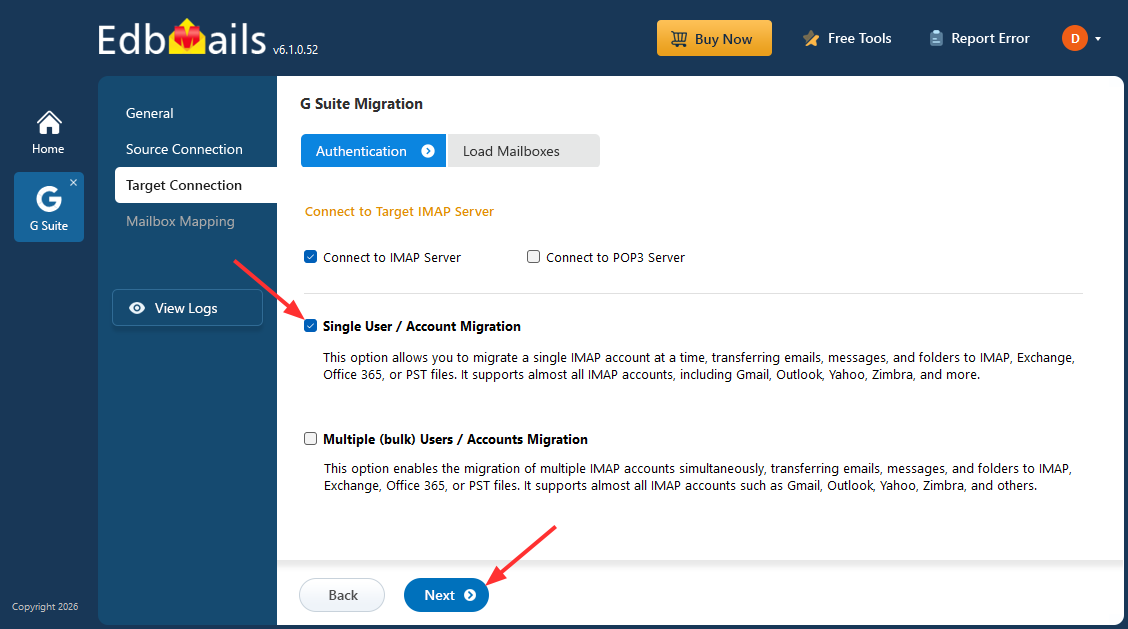
- To connect a single user account, select ‘Single User / Account Migration’. Then choose the required protocol, such as ‘Connect to IMAP Server’ or ‘Connect to POP3 Server’, and click ‘Next’ to continue.
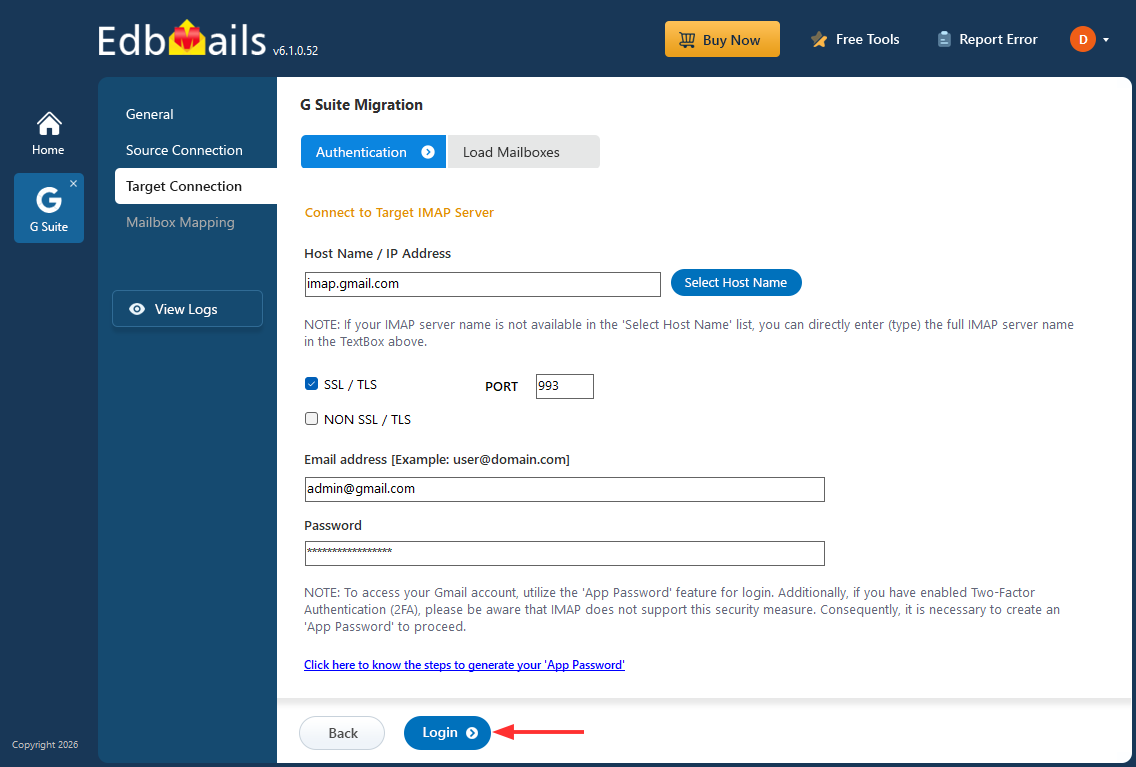
- Select the appropriate ‘IMAP host name’ from the list, or enter it manually. Then provide the ‘email address’ and ‘password’. For Gmail accounts, generate an app password and use it instead of your regular account password.
- Click the ‘Login’ button.
- Once the mailboxes are loaded, click ‘Next’ to proceed.
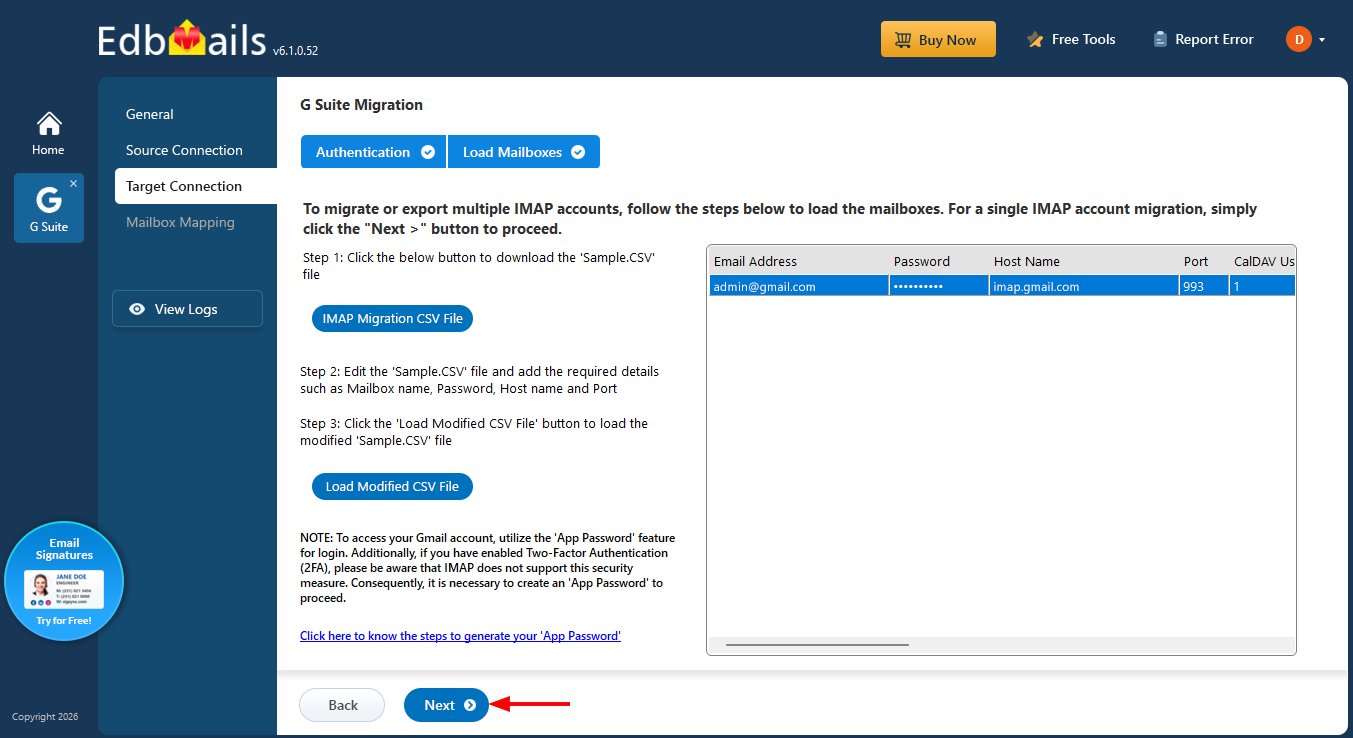
- To migrate multiple mailboxes, select ‘Multiple (Bulk) Users/Accounts Migration’, then click ‘Next’ to continue.
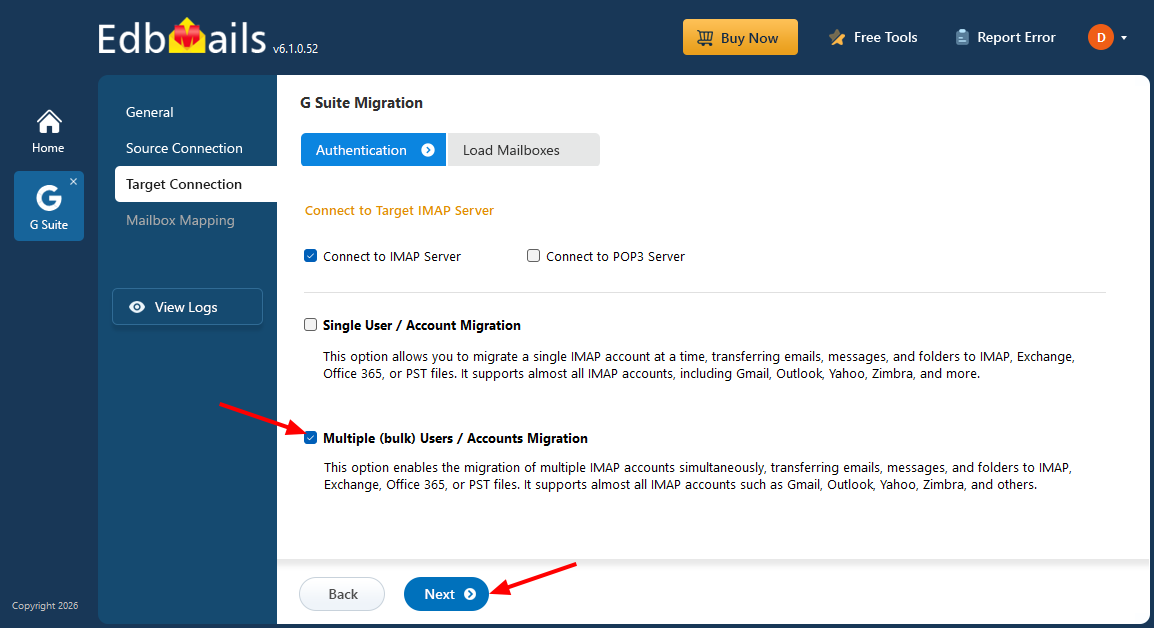
- Click ‘IMAP Migration CSV File’. You will be prompted to download a sample.csv file. Select the destination folder where you would like to save the file.
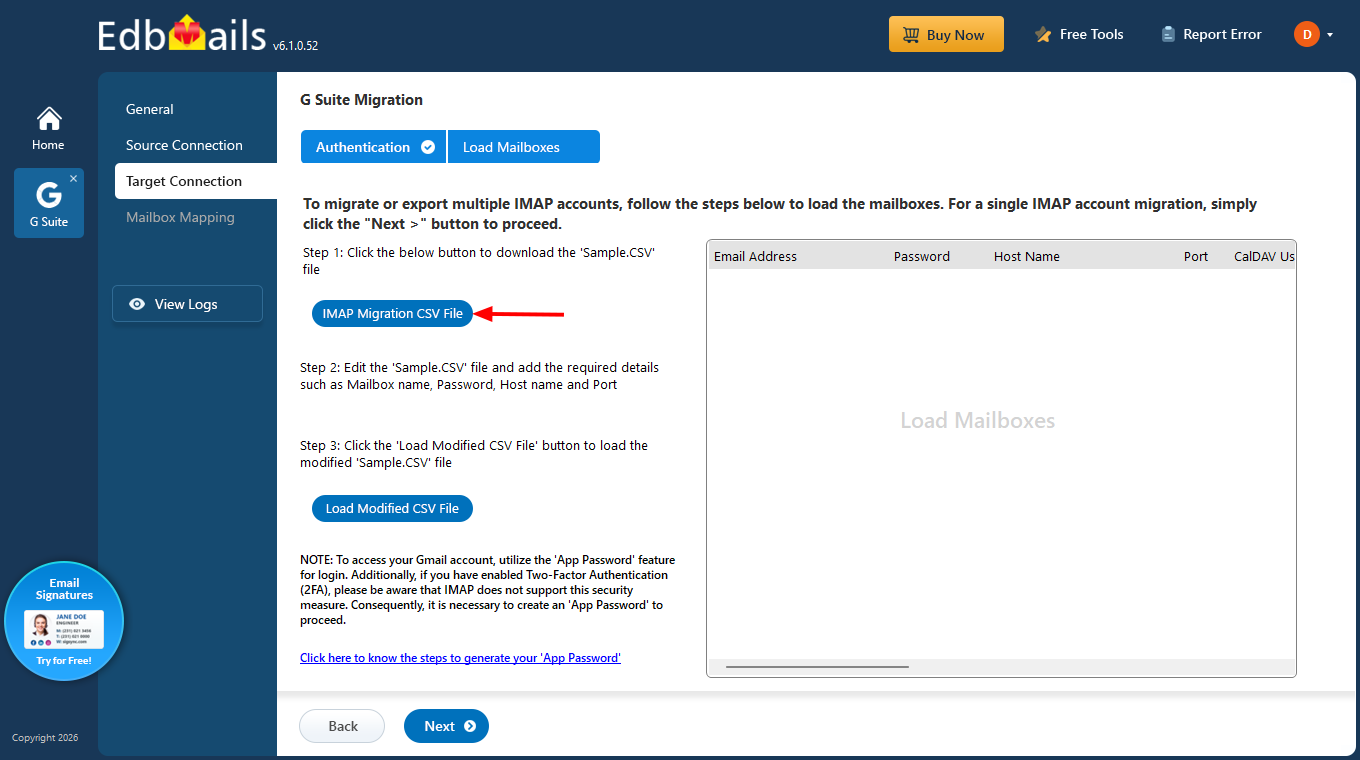
- Open the downloaded CSV file and update it with the required details, including the email address (mailbox name), password, host name, and port number. You may enter ‘NA’ in the remaining fields, as they are not required for email migration. After completing the updates, save and close the CSV file.

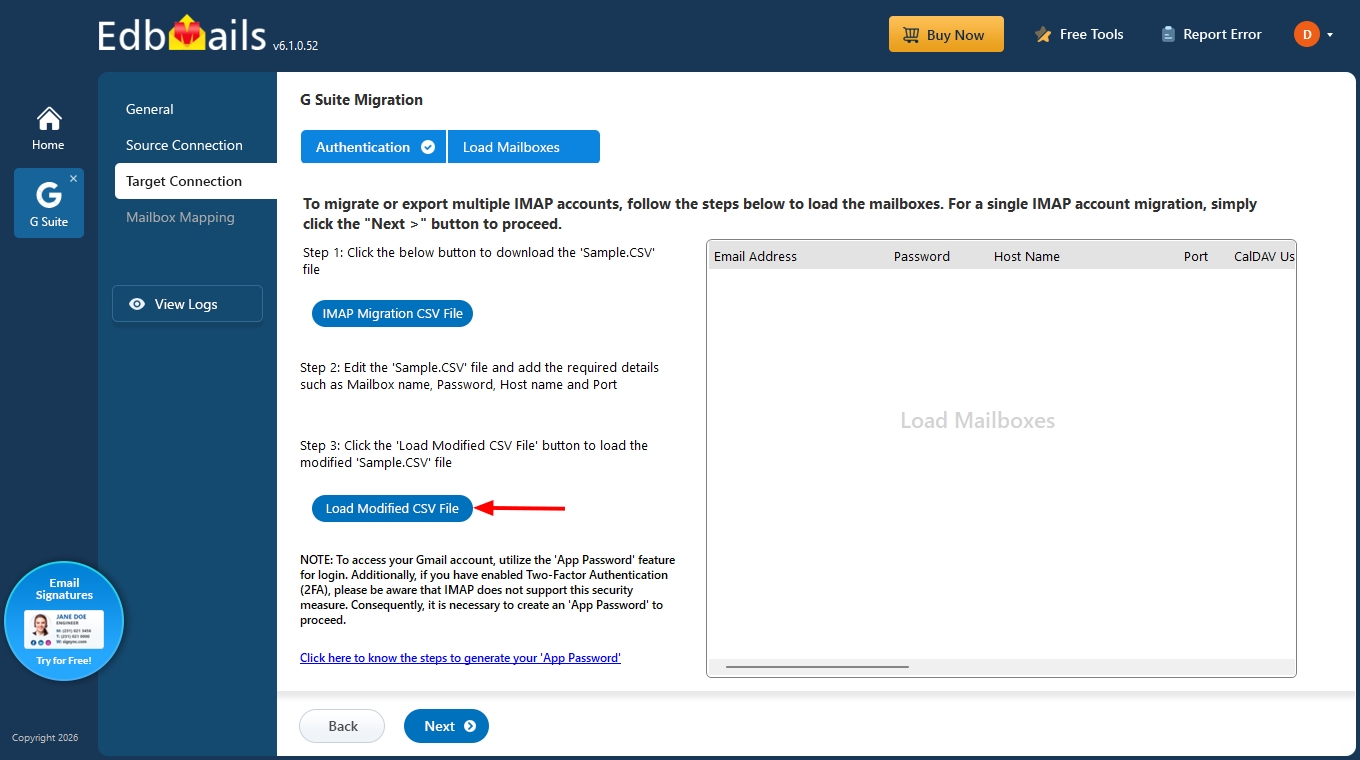
- Click ‘Load Modified CSV File’ to select the updated CSV file, verify the listed mailboxes, and then click ‘Next’ to proceed.
Refer to the EdbMails guide for detailed steps on connecting both single and multiple user accounts during IMAP migration.
- To connect a single user account, select ‘Single User / Account Migration’. Then choose the required protocol, such as ‘Connect to IMAP Server’ or ‘Connect to POP3 Server’, and click ‘Next’ to continue.
Step 4: Map Source and Target Mailboxes
- Choose the required mailbox mapping option.
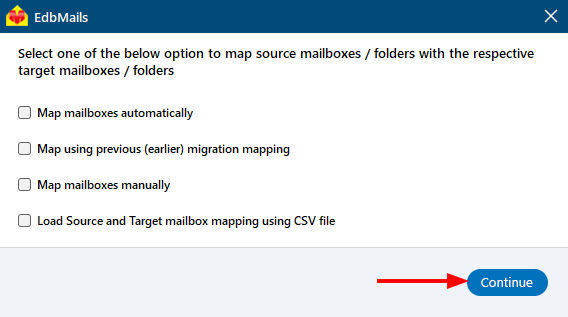
- EdbMails automatically maps source and target mailboxes. You can also manually map the mailboxes.
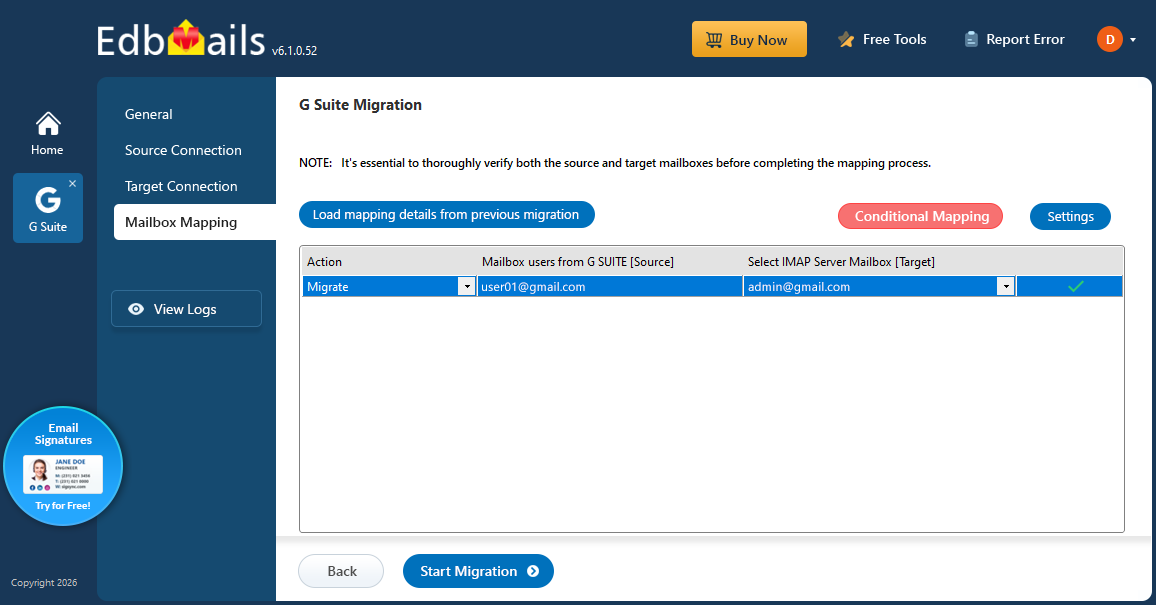
- Choose the required mailbox mapping option.
Step 5: Start Google Workspace to IMAP Migration
- Click the ‘Start Migration’ button and initiate the migration process.
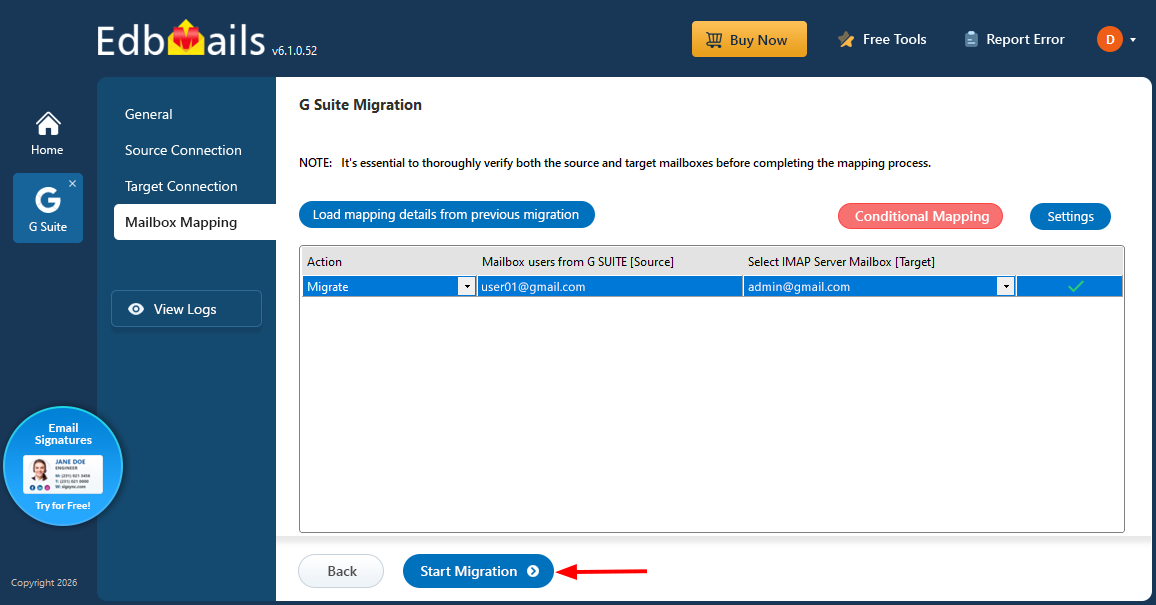
- Click ‘View Logs’ to access the migration report, which provides a detailed summary of the emails, folders, and mailbox items migrated, along with their respective counts.
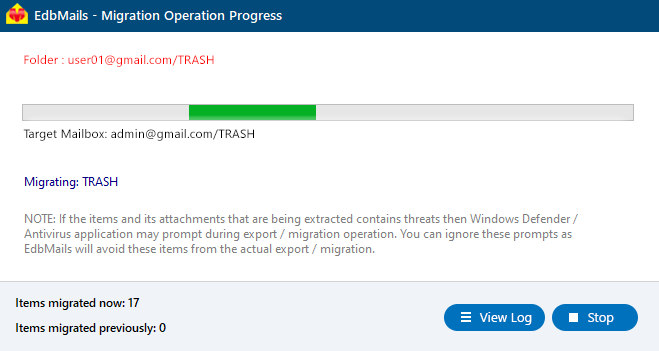
- Click the ‘Start Migration’ button and initiate the migration process.
Google Workspace to IMAP Post-Migration Tasks
After completing the migration from Google Workspace to your IMAP server using EdbMails, perform the following tasks to ensure everything is working correctly:
1. Verify Mailboxes
Check that all emails, attachments, and folder structures have been migrated successfully to the target IMAP server.
2. Check Folder Hierarchy
Ensure that the original folder structure from Google Workspace is preserved.
3. Test Mail Flow
Send and receive emails from the migrated mailboxes to confirm that they are functioning properly.
4. Run Incremental Migration if Needed:
If new emails arrived in Google Workspace during the migration, you can use EdbMails’ incremental migration feature to transfer only the new items.
Related Google Workspace migration paths
For other targets, use Google Workspace to Microsoft 365, Google Workspace to Exchange, Google Workspace to Google Workspace, or Google Workspace to PST.
Advantages of EdbMails for Google Workspace to IMAP Migration
- Complete Mailbox Migration: Transfer emails, attachments, contacts, and calendars from Google Workspace to any IMAP server while preserving the original folder structure and metadata.
- Secure API-Based Access: Uses domain-wide delegation and secure API authentication to access Google Workspace mailboxes safely without requiring individual user passwords.
- Bulk Mailbox Migration: Migrate multiple Google Workspace mailboxes in a single project, saving time and administrative effort for large organizations.
- Incremental Migration: Only newly arrived or modified emails are migrated in subsequent runs, preventing duplicates and enabling staged migration.
- Selective Data Migration: Apply filters by folder, date range, or specific items to migrate only the required data, optimizing bandwidth and time.
- Flexible Destination Options: Migrate to any IMAP-enabled server or mailbox, including Gmail, Yahoo, Outlook, or other custom IMAP servers.
- Real-Time Migration Monitoring: Track migration progress with live status updates and detailed reports for better visibility and control.
- Minimal Downtime: Users can continue working in Google Workspace during migration, ensuring uninterrupted business operations.
- User-Friendly Interface: Intuitive, step-by-step interface makes it easy for administrators to configure and execute migrations without technical complexity.

