
EdbMails EDB Recovery and Migration software
  • Products
    EdbMails
    All-in-one Recovery and Migration
    • EDB Recovery and Migration
    • OST, PST, MBOX, NSF, EML, MSG
    • Office 365, Exchange Migration
    • SharePoint, OneDrive & Teams
    • Google Workspace Migration
    • IMAP Migration
    • Duplicate Remover
    • EdbMails Data Recovery
    • Backup Solutions
    • All ProductsAll Products

    EDB Recovery and Migration

    EdbMails lets you recover corrupted, damaged, and offline Exchange EDB files, convert EDB mailboxes to PST format, and directly migrate mailbox data to Office 365 and live Exchange Server.

    EDB to PST
    EDB to PST
    Recover corrupted, damaged, offline EDB files and convert Exchange EDB mailboxes to PST file format
    Public Folder to Exchange
    Public Folder to Exchange
    Migrate public folders from an Exchange offline EDB file to live Exchange Server
    EDB to Live Exchange Migration
    EDB to Live Exchange Migration
    Directly migrate offline Exchange database (EDB) files to live Exchange server
    Archive Mailbox to Office 365
    Archive Mailbox to Office 365
    Migrate archive mailboxes from offline EDB files directly to Office 365
    EDB to Office 365 Migration
    EDB to Office 365 Migration
    Directly migrate offline Exchange database (EDB) files to Office 365
    Public Folder to Office 365
    Public Folder to Office 365
    Migrate public folders from an offline Exchange EDB file to Office 365

    OST, PST, MBOX, NSF, EML, MSG Export and Migration

    EdbMails lets you to recover OST and PST files, export OST, PST, MBOX, NSF, EML, and MSG files to PST files, and directly migrate OST, PST, MBOX, and NSF mailbox data to Office 365 and live Exchange Server.

    OST Recovery and Migration
    OST Recovery and Migration
    Recover offline OST files, convert OST to PST, and migrate OST to Office 365 and Exchange Server
    PST Recovery and Migration
    PST Recovery and Migration
    Recover Outlook PST files , Export PST to PST, migrate PST to Office 365 and Exchange Server
    MBOX Export and Migration
    MBOX Export and Migration
    Export MBOX to PST, migrate MBOX to Office 365 and Exchange Server
    NSF Export and Migration
    NSF Export and Migration
    Export NSF to PST, migrate NSF to Office 365 and Exchange Server
    EML to PST Export
    EML to PST Export
    Convert EML files to Outlook PST files
    PST to MSG Export
    PST to MSG Export
    Convert Outlook PST file to MSG file format
    MSG to PST Export
    MSG to PST Export
    Export MSG files to Outlook PST files

    Office 365, Exchange Migration

    EdbMails lets you securely migrate mailboxes across Microsoft 365, Exchange, Google Workspace (Google Workspace Migraton), and IMAP-supported servers such as Outlook, Gmail, Zimbra, Zoho Mail, and cPanel, ensuring zero downtime.

    Office 365 Backup
    Office 365 Migration
    Migrate between Office 365 tenants, Office 365 to Exchange, Office 365 to PST, PST files to Office 365.
    Exchange Server Backup
    Exchange Migration
    Migrate between any Exchange Servers, Exchange to Office 365, Exchange to PST, PST files to Exchange.
    Tenant to Tenant Migration
    Tenant to Tenant Migration
    Migrate Mailboxes, Public Folders, Archive Mailboxes between Office 365 Tenants.
    Exchange to Office 365
    Exchange to Office 365
    Migrate Mailboxes, Public Folders, Archive Mailboxes from live Exchange server to Office 365.
    Office 365 to IMAP
    Office 365 to IMAP
    Migrate Office 365 to IMAP, Office 365 to Gmail, Office 365 to Outlook, Office 365 to Zoho etc.
    Exchange to IMAP
    Exchange to IMAP
    Migrate from live Exchange Server to IMAP servers such as Gmail, Outlook, and Zoho Mail.
    Public Folder to Office 365
    Public Folder to Office 365
    Migrate Public Folders between Office 365 tenants with complete folder hierarchy and mailbox data integrity.
    Exchange to PST
    Exchange to PST
    Export live Exchange Server mailboxes, public folders, and archive mailboxes to Outlook PST files.

    SharePoint, OneDrive & Microsoft Teams Migration

    EdbMails lets you migrate SharePoint sites, OneDrive data, Microsoft Teams, teams, channels, chats, permissions, and documents between Microsoft 365 tenants while maintaining the existing folder structure and data integrity.

    SharePoint, OneDrive & Teams Backup
    SharePoint Online Migration
    Migrate documents, lists, files and folders from SharePoint sites.
    OneDrive for Business Migration
    OneDrive for Business Migration
    Migrate documents, lists, files, folders, private chats from OneDrive.
    Microsoft Teams Migration
    Microsoft Teams Migration
    Migrate Teams, chats, channels, documents, files and folders etc.

    Google Workspace / G Suite Migration

    EdbMails offers secure Google Workspace migration to Office 365, Exchange, or IMAP, and export to PST covering emails, contacts, calendars and tasks.

    Google Workspace Migration
    Google Workspace Migration
    Migrate emails, calendars, contacts, tasks from Google workspace to Google workspace, office 365, Exchange and IMAP. Export to PST
    Google Workspace to Office 365
    Google Workspace to Office 365
    Migrate emails, calendars, contacts, tasks from Google Workspace / G Suite to Office 365
    Google Workspace to Exchange Server
    Google Workspace to Exchange Server
    Migrate emails, calendars, contacts, tasks from Google Workspace / G Suite to on-Premise Exchange Server
    Google Workspace to IMAP
    Google Workspace to IMAP
    Migrate emails, calendars, contacts, tasks from Google Workspace / G Suite to IMAP, Outlook, Zimbra, Zoho etc.
    Google Workspace to Google Workspace Migration
    Google Workspace to Google Workspace
    Migrate emails, calendars, contacts, tasks between two Google Workspace / G Suite tenants
    Google Workspace to PST
    Google Workspace to PST
    Export emails, calendars, contacts, tasks from Google Workspace / G Suite to Outlook PST files

    IMAP Migration

    EdbMails IMAP Migration tool lets you easily migrate emails from IMAP servers such as Outlook, Gmail, Zoho Mail, Zimbra, cPanel, and more. Supports IMAP to IMAP, Office 365, Exchange Server, PST, and bulk PST to IMAP migration.

    IMAP Email Backup & Migration
    IMAP Email Backup & Migration
    Backup and migrate emails from IMAP servers to PST, Office 365, and On-Premises Exchange Server
    IMAP to Office 365
    IMAP to Office 365
    Migrate emails, folders, and attachments from IMAP servers to Office 365
    IMAP to Exchange
    IMAP to Exchange
    Migrate emails, folders, and attachments from IMAP servers to on-premises Exchange Server
    IMAP to PST
    IMAP to PST
    Export emails, folders, and attachments from IMAP servers to Outlook PST files for backup
    PST to IMAP
    PST to IMAP
    Migrate emails, folders, and attachments from bulk PST files to IMAP servers

    Duplicate Remover

    EdbMails Duplicate Remover lets you easily remove duplicate items from Office 365 and Exchange Server, and from IMAP, Outlook, Gmail, Zimbra, Zoho Mail, etc., ensuring a clean and organized mailbox.

    Remove Duplicates
    Remove Duplicates
    Easily clean up your Office 365, Exchange, Outlook and IMAP accounts by removing duplicate emails.
    Remove Duplicates from Office 365
    Remove Duplicates from Office 365
    Remove duplicate emails, calendars, contacts, journal tasks, etc. from Office 365.
    Remove Duplicates from Exchange Server
    Remove Duplicates from Exchange Server
    Remove duplicate emails, calendars, contacts, journal tasks, etc. from live Exchange Server.
    Remove Duplicates from IMAP, Outlook
    Remove Duplicates from IMAP, Outlook
    Remove duplicate emails, attachments from IMAP, Outlook, Gmail, Zimbra, Zoho Mail etc.

    Exchange, SharePoint, OneDrive, Teams and Office 365 Backup

    EdbMails enables secure, automated backup and recovery for Microsoft 365 services including Exchange Online, SharePoint, OneDrive, Teams, and Live Exchange Server with complete data protection and restore flexibility.

    Office 365 Backup
    Office 365 Backup
    Incremental, Granular, Encrypted and Compressed Office 365 Mailboxes Backup
    Exchange Server Backup
    Exchange Server Backup
    Incremental, Granular, Encrypted and Compressed Exchange Mailboxes Backup
    SharePoint, OneDrive & Teams Backup
    SharePoint, OneDrive & Teams Backup
    Backup Online site collections, Team sites, Office 365 groups, all documents etc.

    EdbMails Data Recovery

    EdbMails Data Recovery Software lets you recover permanently deleted data, including photos, videos, documents, and archived files, from partitions on hard drives, SSDs, USB drives, SD cards, and external storage devices.

    EdbMails Data Recovery
    EdbMails Data Recovery
    Recover and restore permanently deleted data from hard drives, SSDs, USB drives, SD cards, and etc.
    Whitepaper Whitepaper
    Request a Demo Request a Demo
    Sign Up Sign Up
  • Features
  • FAQ
  • Offers
  • Pricing
  • Download
  • Support
  • Sign in
User’s Manual
Google Workspace Migration

User Manual

User Manual

  • Overview
  • System Requirements
  • Migration Scenarios
  • Installation
    • Installation process
    • Reinstall or Upgrade
    • How to uninstall
  • FAQs
    • Google Workspace to Office 365
    • Google Workspace to IMAP
    • Google Workspace to Exchange
    • Google Workspace to Google Workspace
    • Google Workspace to PST Export
  • Videos
  • Screenshots
    • Google Workspace to Office 365
    • Google Workspace to Exchange
    • Google Workspace to IMAP
  • How it works?
    • Google Workspace to Office 365 Migration
    • Migrate Google Workspace to Google Workspace
    • Google Workspace to Exchange Migration
    • Google Workspace to IMAP Migration
    • Export Google Workspace to Outlook PST
  • Google Workspace Admin Configuration
  • Connect to target Office 365
  • Connect to Exchange server for multiple mailboxes migration
    • Connect with Global Admin
    • Connect to Multiple users using CSV file
    • Connect using full access permission
    • Connect individual users for Single / Specific user Migration
  • Connect to Hosted Exchange for its Migration
    • Connect with Full Access permissions
    • Connect to multiple users using CSV file
    • Connect to Individual user for migration
  • Connect to IMAP
    • Connect IMAP Single Server
    • Connect IMAP Multiple Server
  • Knowledge Base
    • Bulk Google Workspace Mailbox Migration
    • Google Workspace Migration
    • Why Choose EdbMails
    • Automatic Mailbox Mapping
    • Best Google Workspace Migration Software
    • Migrate Google Workspace Emails, Contacts & Calendars
    • Fix Google Workspace Migration Issues
    • Avoid Google Workspace Migration Mistakes
    • Mistakes to Avoid During Google Workspace Migration
    • Migrate Large Google Workspace Mailboxes
    • Google Workspace Metadata Preservation
    • Fix Google Workspace API Permission Errors
    • Google Workspace Contacts Migration
    • Google Workspace Tasks Migration
    • Google Workspace Migration Performance
    • Selective Google Workspace Mailbox Migration
    • Batch Google Workspace Mailbox Migration
  • Map the Mailboxes
  • Incremental Migration
  • Exchange Throttling Policy
  • Multifactor Authentication
    • Enable MFA in Office 365
    • Create App password for MFA
    • Disable Security Defaults
  1. Home
  2. Google Workspace Migration
  3. How to Safely Migrate Large Google Workspace Mailboxes
Download Buy Now

Migrate Large Google Workspace Mailboxes

Legal teams, marketing departments, and long-tenured executives tend to sit on mailboxes that nobody wants to touch during a migration. Ten years of case files, campaign assets, design proofs, and PDF contracts pile up until a single Gmail account holds 40, 60, sometimes 100+ GB of data. When it's time to move that account to Microsoft 365, Exchange, or another IMAP platform, the usual "connect and go" migration approach starts to break down.

Large mailboxes fail differently than small ones. They hit Google's API rate limits sooner, they stall on oversized attachments, and a dropped connection three hours into a transfer can mean starting over from scratch. The EdbMails Google Workspace Migration Tool can migrate mailboxes and attachments with zero downtime, and this guide walks through how to move a large Gmail mailbox, attachments included, without losing a single item along the way.
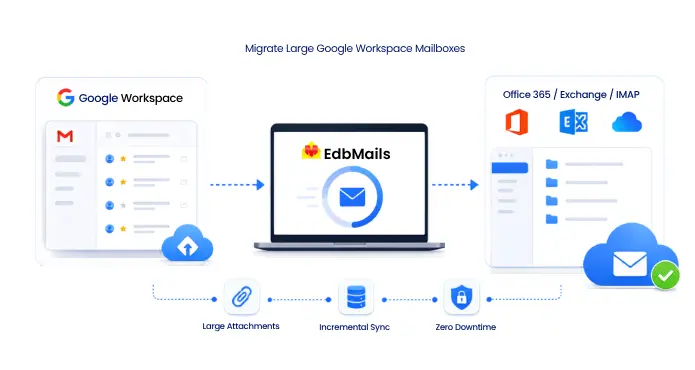

Migrate Large Google Workspace Mailboxes

What Makes a Google Workspace Mailbox "Large" in Migration Terms

Size alone is not the only variable that matters. A 30 GB mailbox made up mostly of plain-text threads migrates faster and more predictably than a 15 GB mailbox packed with 20 MB video attachments or nested folder structures carried over from years of label reorganization. Three factors tend to drive complexity more than raw gigabytes:

  • Attachment density: Mailboxes with a high ratio of large binary attachments (design files, scanned contracts, video assets) consume more API calls and bandwidth per item than text-heavy mailboxes of the same size.
  • Label and folder depth: Gmail's label system does not map one-to-one to folder structures in Exchange or Office 365, and mailboxes with deeply nested or overlapping labels need more careful mapping to avoid duplication.
  • Item count, not just volume: A mailbox with 200,000 small items can take longer to process than one with 50,000 larger items, since each item still requires a discrete API call regardless of its size.

Before starting, it helps to run a scan of the source mailboxes to identify which of these factors apply. EdbMails allows administrators to preview mailbox contents and attachment sizes before committing to a full migration, which makes it possible to flag outliers early rather than discovering them mid-run.

How Large Attachments Affect Migration Reliability

Attachments are usually where large migrations fail, not the email body text. A few specific issues come up repeatedly:

API payload limits

Google Workspace and the destination platform (Office 365, Exchange, or IMAP) each enforce their own limits on message and attachment size. Gmail itself caps individual attachments at 25 MB for sending, but stored mailbox items, especially older ones migrated from other systems, can exceed platform-specific thresholds on the receiving end. Items that exceed the destination's limits need to be flagged and handled separately, either by compressing them, splitting them, or routing them through a shared drive link instead of a direct attachment.

Timeout risk on individual items

A single 20 to 25 MB attachment takes measurably longer to transfer than a handful of small messages, and if a connection drops mid-transfer on a large item, that item needs to be retried rather than the entire batch.

Corruption during interrupted transfers

If a migration job is interrupted while a large attachment is mid-transfer, the item can end up partially written on the destination side. A migration tool needs to detect this and reprocess the item cleanly rather than leaving a corrupted or incomplete copy behind.

EdbMails handles this at the item level; each email and its attachments are treated as a single transactional unit, so a failed or interrupted transfer on one item does not corrupt the destination mailbox or require the whole job to restart. Failed items are logged and can be reprocessed individually during a follow-up incremental pass, described further below.

Recommended Network and Bandwidth Conditions

Migration speed is governed as much by network stability as by raw throughput. A few practical guidelines:

  • Use a wired connection where possible: Wi-Fi introduces packet loss and latency variance that Ethernet does not, and for a migration job running over several hours, that variance adds up in the form of retried requests.
  • Plan for sustained, not peak, bandwidth: A connection rated at 100 Mbps but shared across an office network will not sustain that speed for the duration of a multi-hour migration. Estimate based on available bandwidth during business hours, not the connection's advertised maximum.
  • Account for Google's own API rate limits: Even with unlimited local bandwidth, Google Workspace enforces per-user and per-project request quotas. A migration tool that manages these limits automatically, rather than hammering the API and triggering throttling, will finish more reliably even if it is not the fastest on paper. EdbMails includes automatic request throttling to stay within Google's published limits, which reduces the number of temporary blocks or slowdowns during a run. Organizations running Exchange as the target should also review the Exchange throttling policy, since the destination side enforces its own limits independently of the source.
  • Run large migrations during off-peak hours when the option exists: This reduces contention with other office traffic and generally results in more consistent transfer speeds.
  • Check available disk headroom on the migration machine, even though EdbMails does not cache mailbox content locally during transfer. A small amount of metadata is stored locally to support incremental migration, and around 100 MB of free space is recommended for the application itself. Full system requirements are listed in the system requirements and supported platforms guide.

Staging the Migration With Size and Date Filters

Rather than migrating an entire large mailbox in a single continuous run, breaking it into stages by size or date range gives administrators more control. It makes it far easier to isolate problems.

Filter by date range first

Splitting a mailbox into quarterly or yearly chunks lets you migrate older, less time-sensitive data first and current data last, minimizing the window during which the user's most recent mail is in transition. It also means that if something goes wrong in one date range, only that segment needs to be rerun, not the entire mailbox history.

Filter by folder or label for targeted testing

Migrating a single folder, such as an archive or a specific project label, is a useful way to validate mapping and attachment handling before committing to the full account. This is particularly useful for mailboxes where certain folders are known to contain unusually large attachments.

Combine filters for oversized mailboxes.

For accounts in the tens of gigabytes, combining a date filter with a folder filter can break the job into batches small enough to complete predictably within a single session, rather than running as one long, unbroken transfer that has to be restarted from scratch if it fails near the end.

EdbMails supports both date range and folder-based filtering when configuring a migration job, letting administrators define exactly which data moves in each pass. This is set up during the migration scenario configuration step, before the job is scheduled to run.

Handling Interruptions Without Duplicating Data

Large mailbox migrations that span multiple sessions run into a common problem: restarting from the beginning duplicates everything that already transferred successfully. This is where incremental migration matters.

Instead of comparing entire mailboxes on every run, an incremental pass identifies only the items that were not previously transferred, based on item-level metadata rather than a full mailbox comparison. This makes it possible to:

  • Resume a migration that was paused or interrupted by a network drop, without reprocessing already-migrated items.
  • Run a final sync closer to cutover, capturing only the mail that arrived since the previous pass, which keeps the user's downtime to a minimum.
  • Rerun a failed batch (for example, one containing several oversized attachments that needed manual review) without touching the rest of the mailbox.

For more details, refer to the incremental migration guide.

Validating Migration Completeness After the Run

Once the migration completes, validation confirms there was no data loss, not the absence of error messages during the run. A migration report should account for:

  • Total item count on the source versus the destination, broken down by folder or label.
  • Items that failed to migrate, with a reason (oversized attachment, unsupported format, permission issue).
  • Attachment-specific failures separated from message-body failures, since these usually require different remediation steps.

Administrators should reconcile this report against the pre-migration mailbox scan mentioned earlier. If the counts do not match, the incremental migration pass can be used to close the gap without re-running the entire job.

A Practical Checklist for Large Gmail Migrations

  1. Run a pre-migration scan to identify mailbox size, attachment density, and label structure.
  2. Confirm network conditions can sustain the transfer for the expected duration, and schedule off-peak where possible.
  3. Set up a date range or folder filters to break the mailbox into manageable batches.
  4. Migrate a test batch first to validate mapping and attachment handling before running the full job.
  5. Monitor for API throttling or timeout errors during the run and let the tool's retry logic handle transient failures.
  6. Run an incremental pass to capture any items missed in the initial run and to sync last-minute changes before cutover.
  7. Reconcile the final migration report against the original mailbox scan.

Frequently Asked Questions

  1. What is considered a large Google Workspace mailbox for migration purposes?

    There is no fixed threshold, but mailboxes above 15 to 20 GB, or those with a high proportion of large attachments, generally benefit from a staged migration approach rather than a single continuous migration run.

  2. Can large attachments cause data loss during migration?

    Attachments that exceed the destination platform's size limits, or transfers interrupted without proper retry handling, are the most common cause of incomplete migrations. Filtering, item-level transaction handling, and incremental follow-up passes help prevent these issues.

  3. Does migrating in batches slow down the overall process?

    Not significantly. Batching by date or folder adds a small amount of setup time but reduces the risk of restarting a large migration job after a failure, which usually saves more time overall.

  4. How is duplicate data avoided when a migration is resumed?

    Incremental migration compares item-level metadata with data already transferred, so only new or missing items are processed during resumed or follow-up migration runs.

  5. Does a large mailbox migration cause any downtime for the user?

    No. The mailbox remains online during migration, so users can continue sending and receiving email while data transfers in the background. A final incremental pass near cutover captures any new items that arrived after the main migration completed.

  6. How long does migrating a large Gmail mailbox typically take?

    The duration depends more on attachment volume and item count than on total mailbox size. Mailboxes with many large attachments take longer per gigabyte than text-heavy mailboxes, and running migrations in parallel across multiple mailboxes reduces total project time even though it does not increase the speed of a single mailbox migration.


Additional Resources:

  • Google Workspace Migration Tool overview
  • System Requirements and Supported Platforms
  • Handling Large Mailbox Migration from Google Workspace
  • Migrate Google Workspace Emails, Contacts & Calendars
  • Avoid Google Workspace Migration Mistakes
lady image

 In this manual

IntroductionMigration ReliabilityDate FiltersHandling InterruptionsFAQs

Google Workspace Migration

100 Mailboxes $299 Only

Buy Now

Need help?

24/7 Customer support

Contact us on Live chat

Personalized Demo

Book a personalized demo

Still need help?

Email us / Call us

@edbmails.com All rights are reserved Privacy Policy | Terms of Use | GDPR | Security | Press Releases

hidden msg
Live Chat

Hi, May I help you?

Hide Chat Now
