


Uninstalling the EdbMails Application
If you need to remove the EdbMails software from your computer, you can do so using the standard Windows uninstall process. Uninstalling the application will remove the program files from the system while allowing you to reinstall the software later if required.
Before starting the uninstallation process, ensure that the application is not running and that any ongoing migration or backup operations are stopped.
Preparation before Uninstalling EdbMails
Before uninstalling EdbMails from your system, review the following precautions:
- Complete or temporarily pause any active migration tasks to avoid data loss or duplication.
- Exit the EdbMails application entirely to prevent interruptions or conflicts during the uninstallation process.
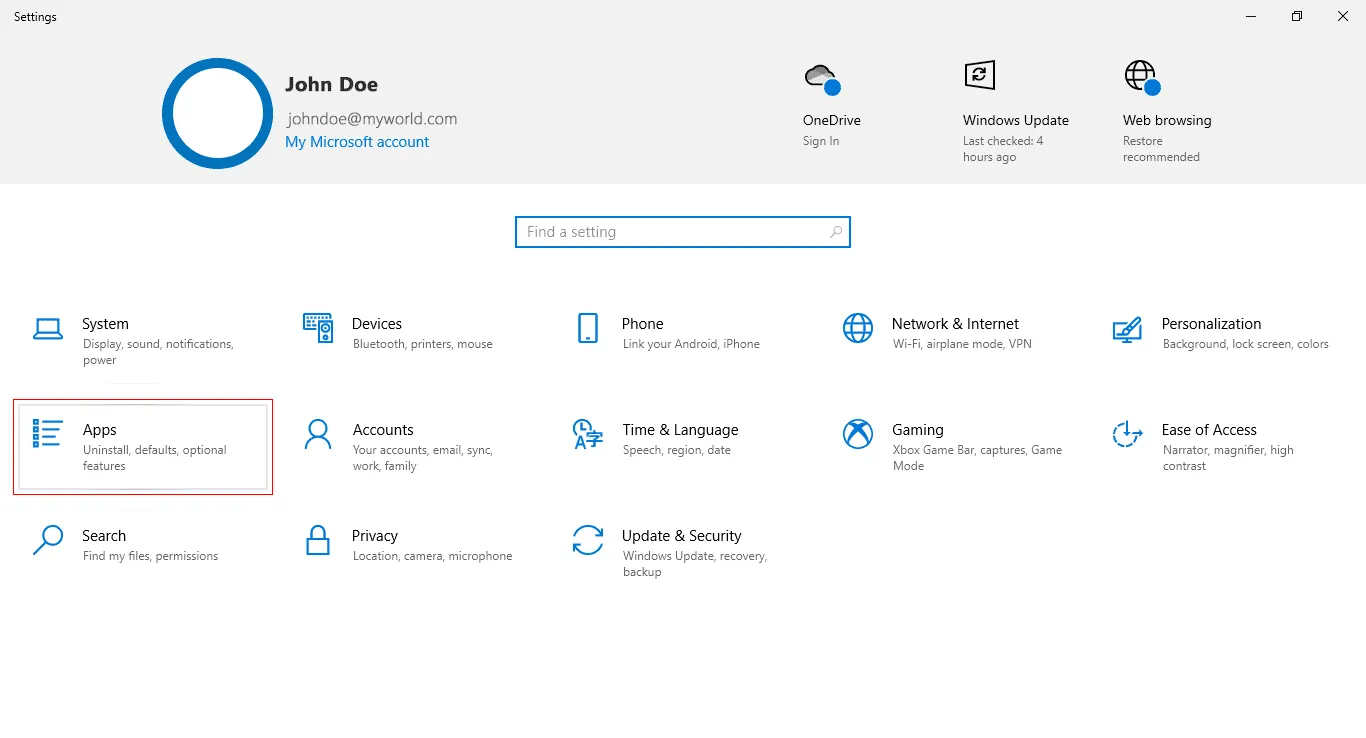
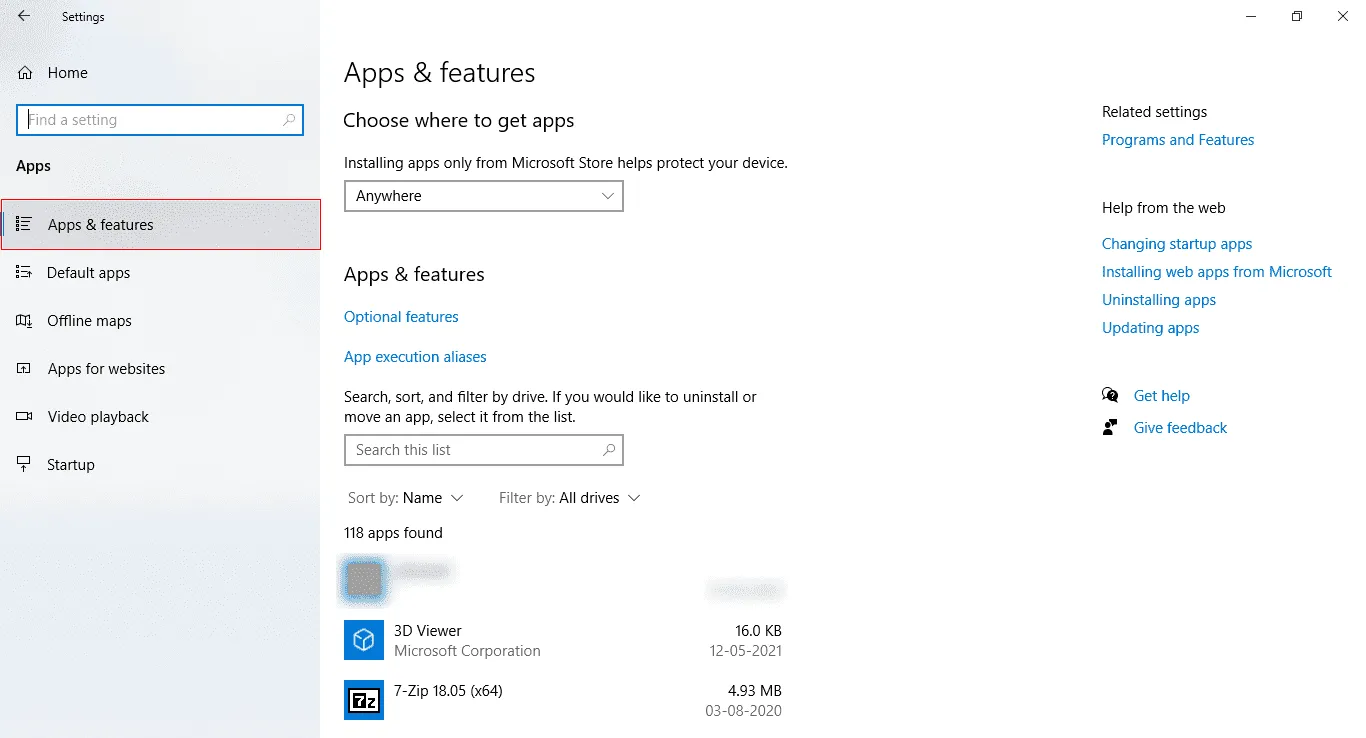
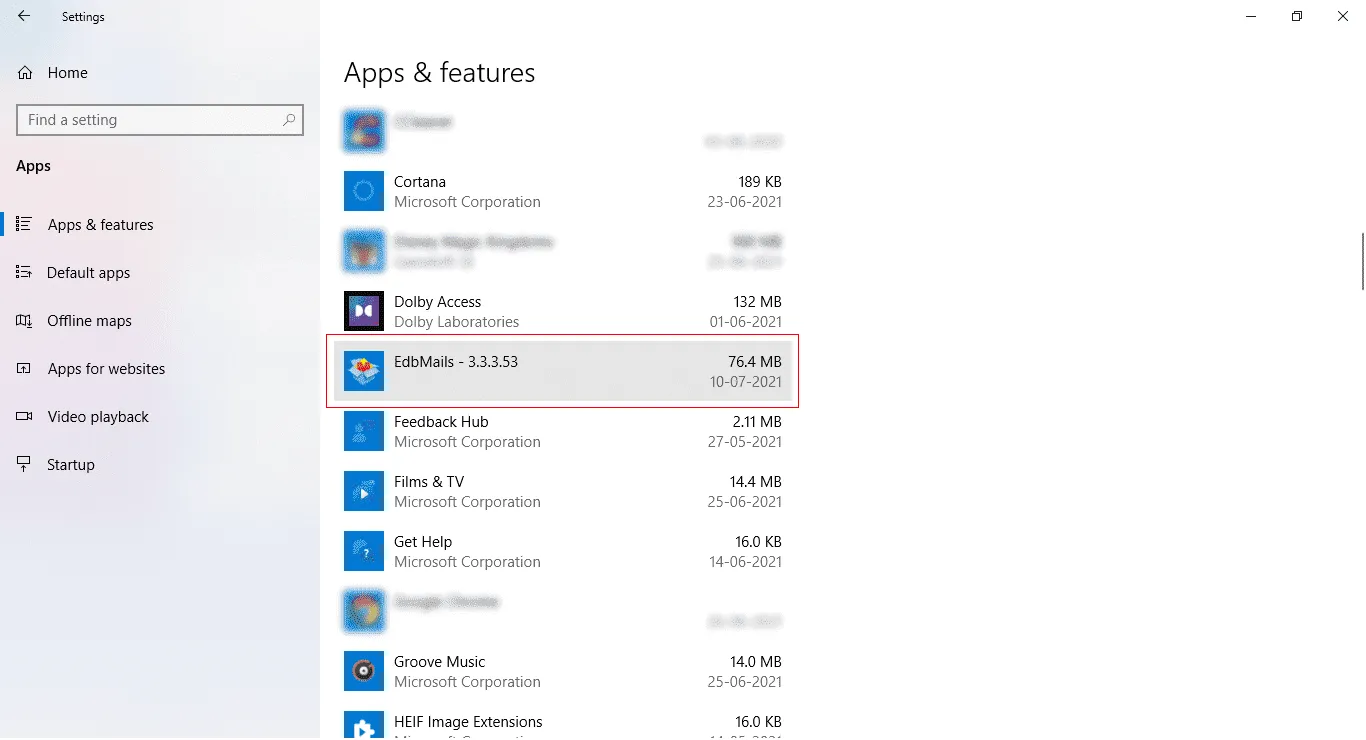
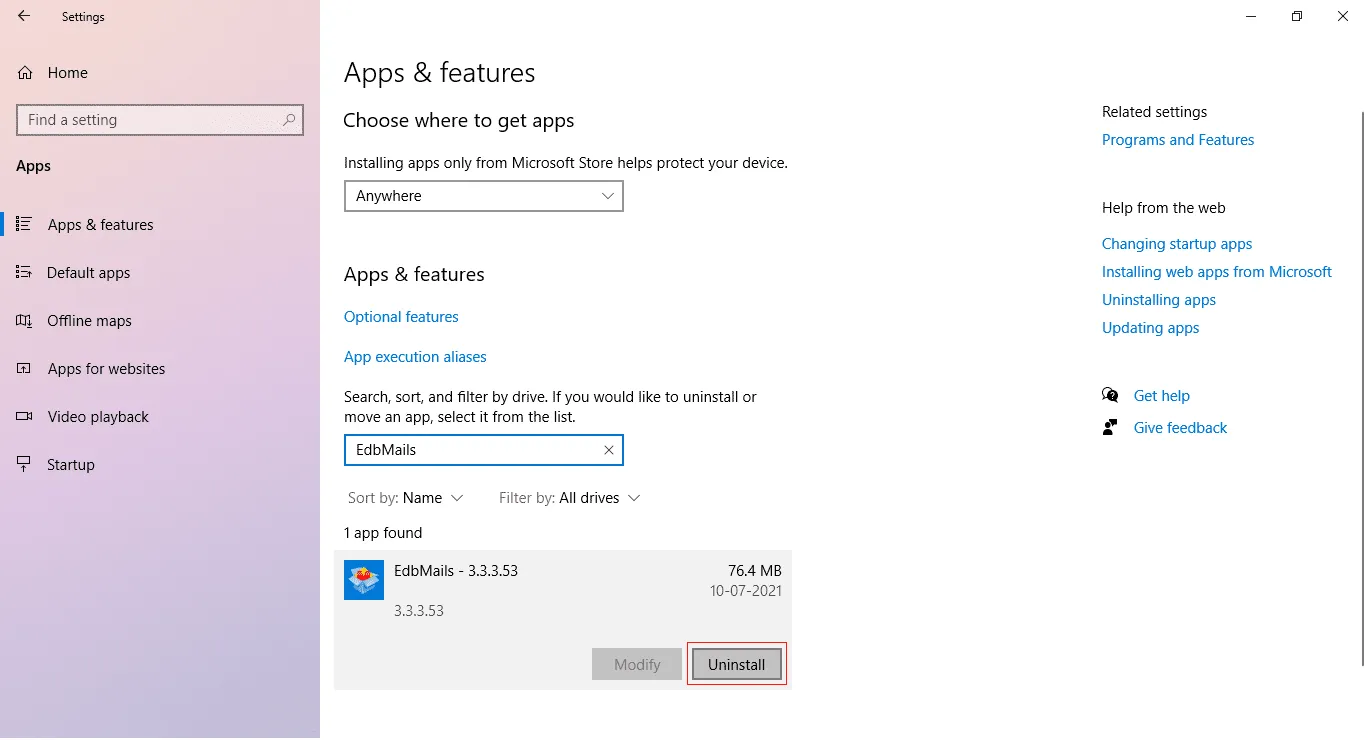
The following instructions describe the standard uninstallation procedure.
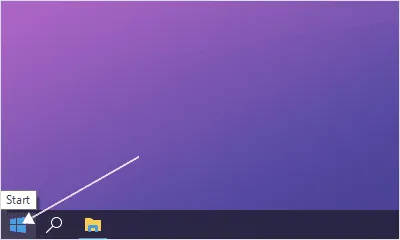
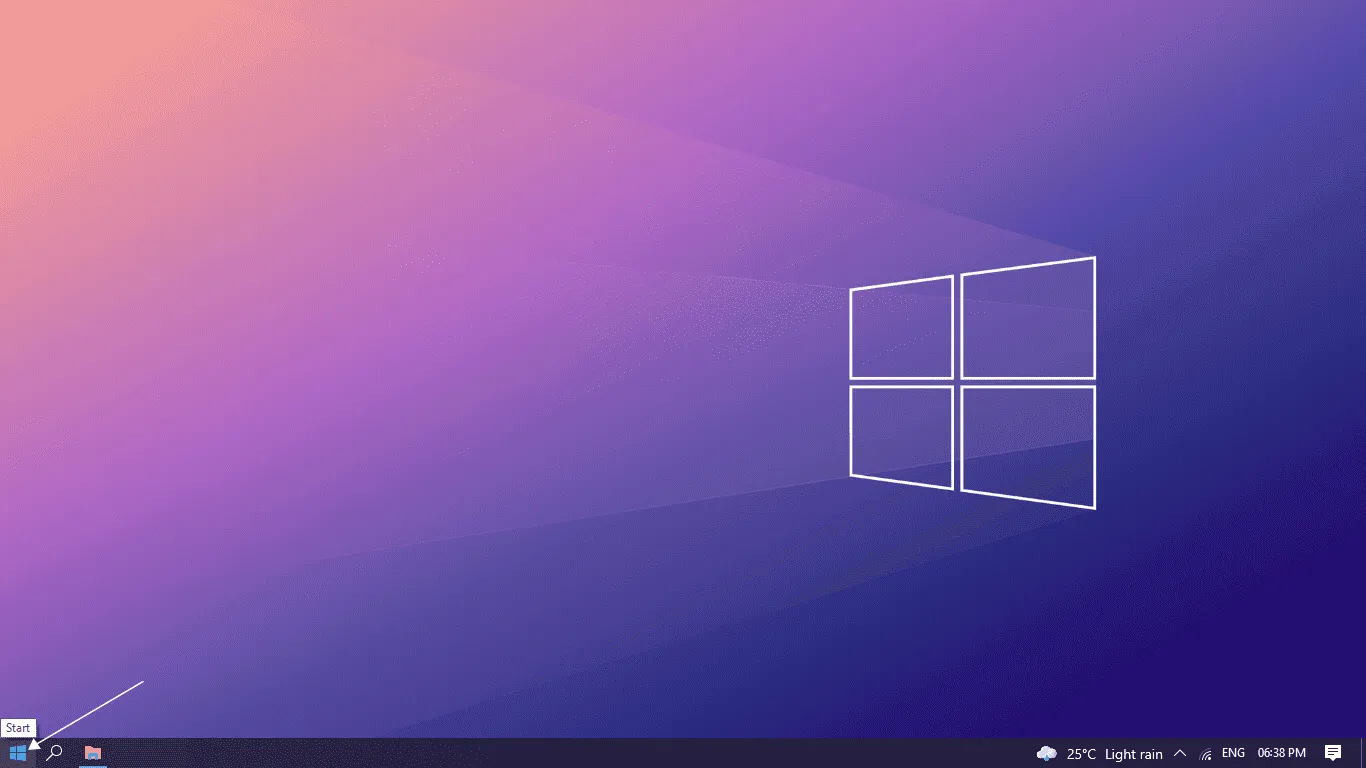
- Click on the ‘Start’ button located in the Windows taskbar.
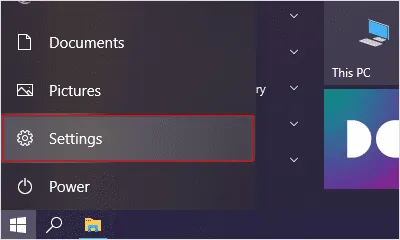
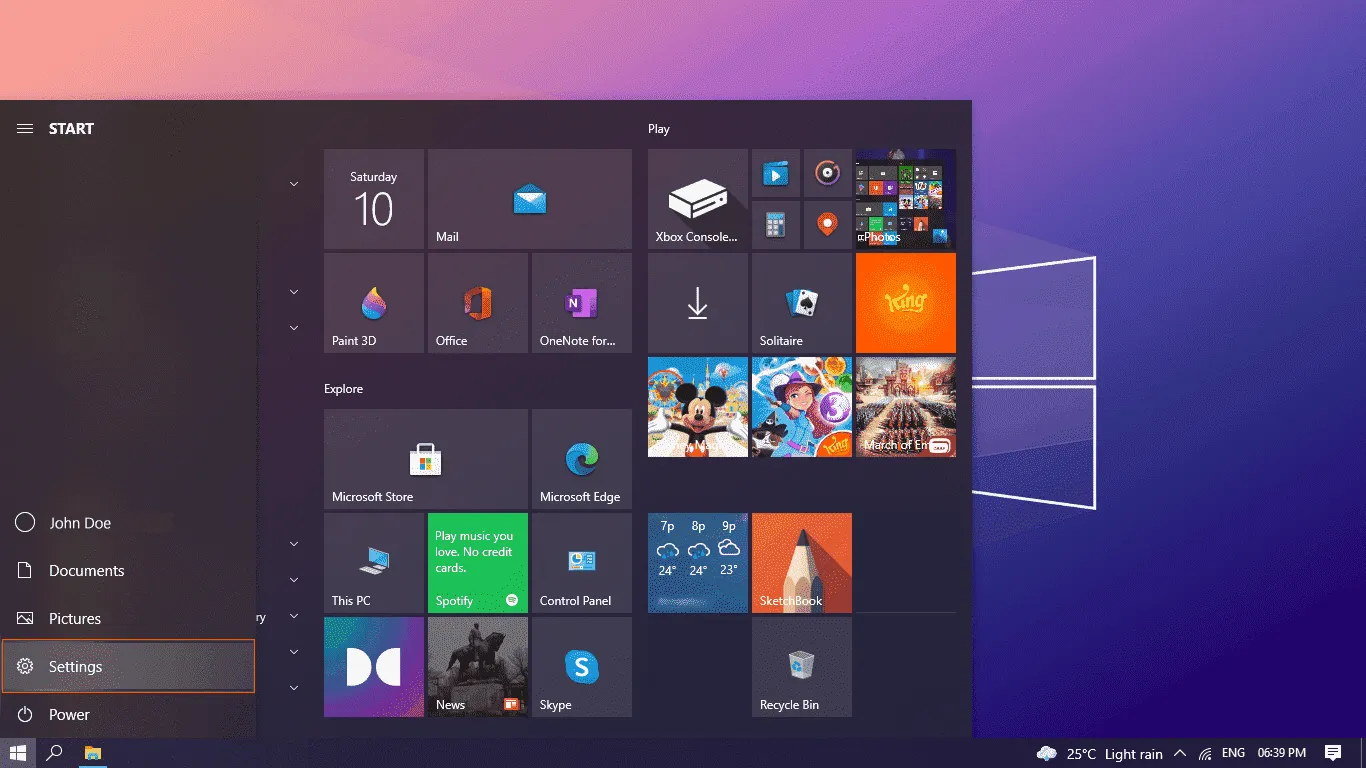
- Select ‘Settings’ from the menu.
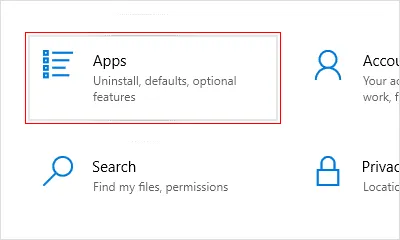
- In the Settings window, click on 'Apps'.
- Choose ‘Installer Apps’.
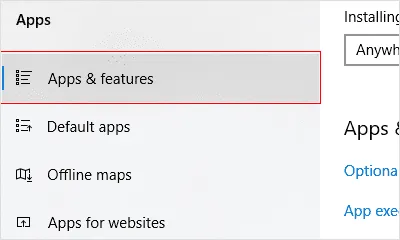
- Locate EdbMails by browsing the list or by entering it in the search bar.
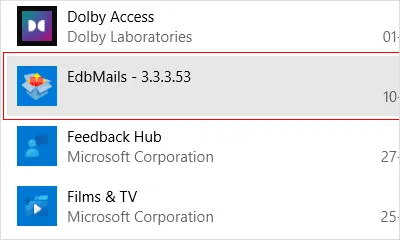
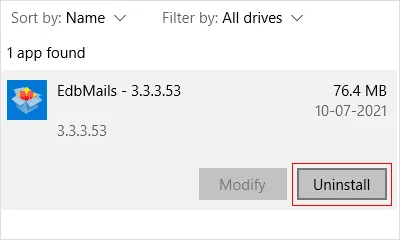
- Click the three dots(...) next to EdbMails, then click 'Uninstall’ and confirm.
How to Uninstall EdbMails Using the Control Panel
To uninstall EdbMails using Control Panel follow the below steps:
- Open the Control Panel on your Windows system and navigate to Programs and Features.
- Locate the EdbMails application in the list of installed programs.
- Select the application and click Uninstall to start the removal process.
- Follow the instructions displayed in the uninstall wizard to complete the process.
- After the process finishes, the application will be removed from your system.
