


Google Workspace (G Suite) Admin Configuration for Migration
EdbMails Google Workspace Migration Tool lets you securely migrate emails, calendars, contacts, tasks, folders, and attachments from Google Workspace (G Suite) using an Admin account—without requiring individual user passwords. To access all user mailboxes across the organization, the Admin account must be configured with a Service Account and Domain-Wide Delegation.
The configuration involves the following steps:
For an explanation of why this setup avoids collecting individual user passwords, see Google Workspace migration using an Admin account.
- Configure Service Account in Google Cloud.
- Grant Domain-Wide Delegation.
- Generate and download a secure JSON key.
Steps to Configure a Service Account
Step 1: Sign in to Google Cloud Console
- Open the Google Cloud Console.
- Sign in using your Google Workspace Super Administrator account.
Note: Super Admin privileges are required to grant Domain-Wide Delegation and approve API access.
Step 2: Create or Select a Google Cloud Project
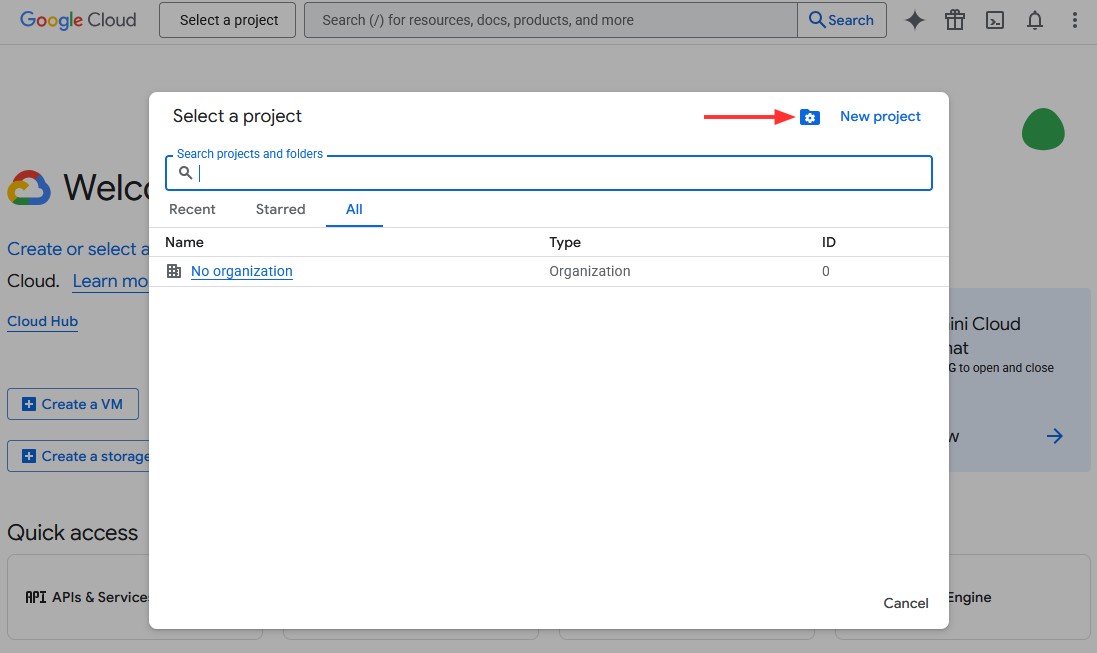
- In the top-left corner, click ‘Select a Project’, then click ‘New Project’.
- Enter a project name and click the ‘Create’ button.
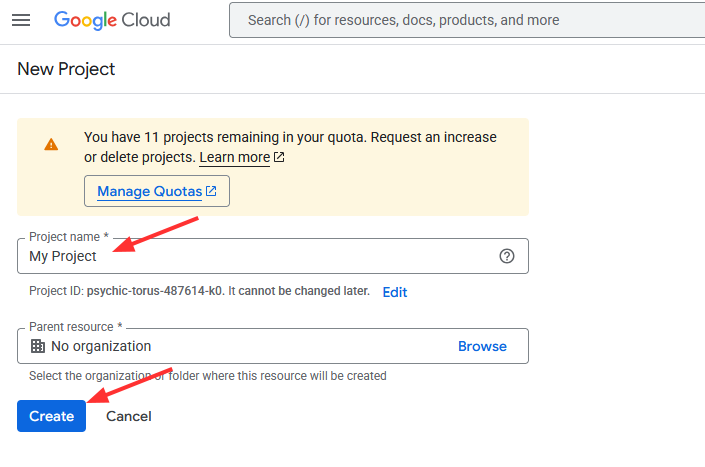
- Wait a few seconds while the project is being created.
Step 3: Enable the Required Google APIs
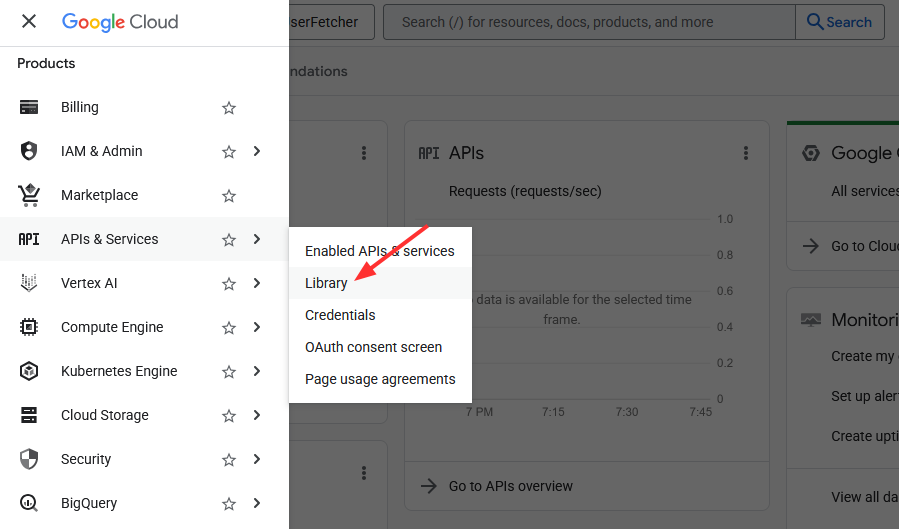
- From the left-hand menu, navigate to ‘APIs & Services’ → ‘Library’.
- Search for and enable the following APIs.
- Admin SDK API
- Google People API
- Gmail API
- Google Calendar API
- Google Tasks API
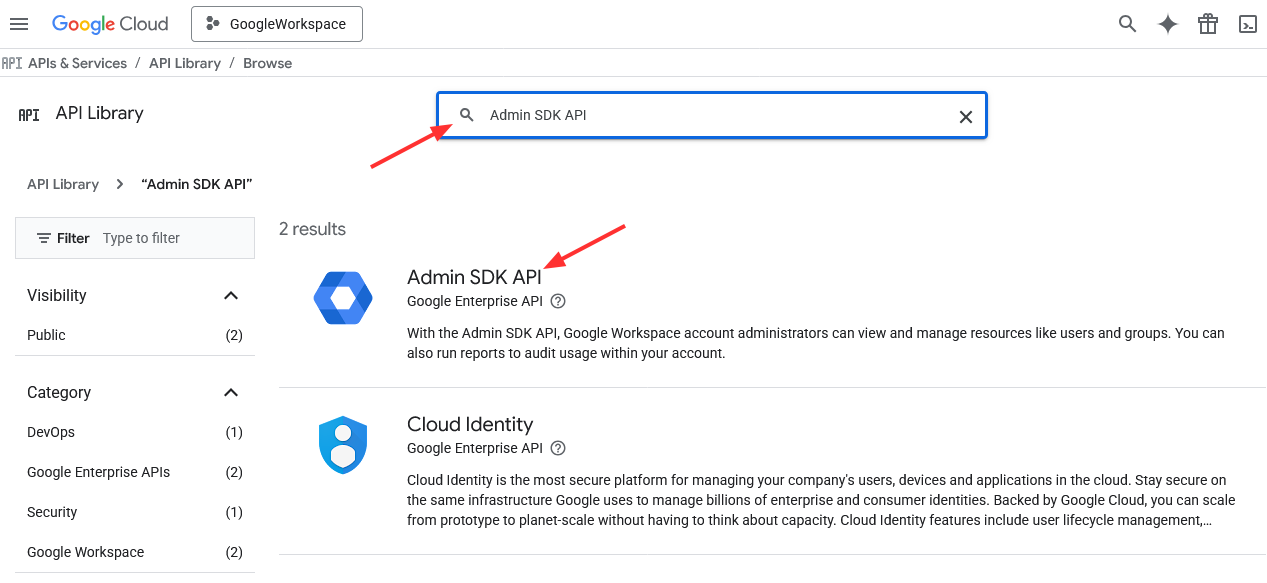
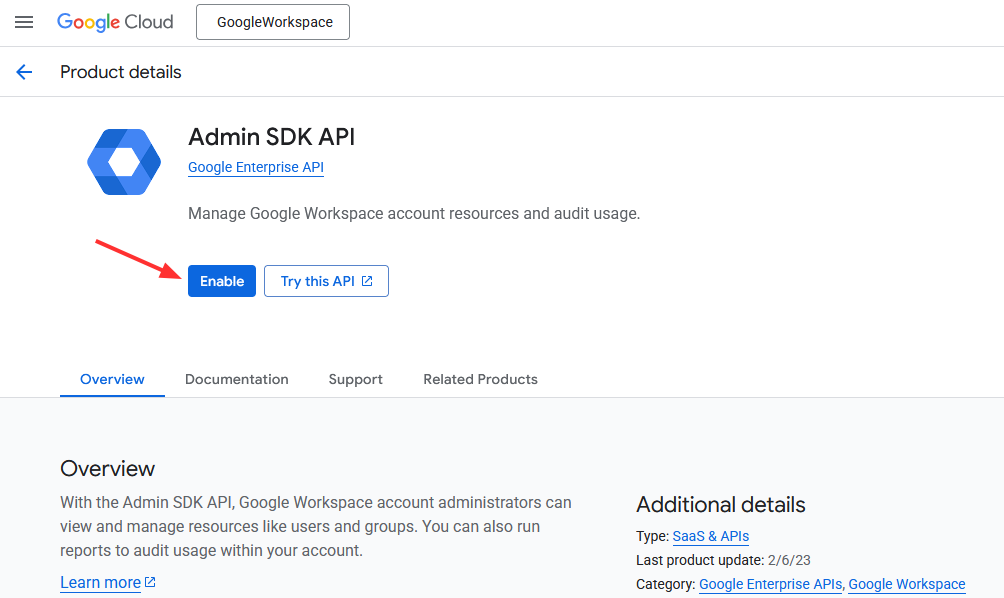
- Wait until each API shows as Enabled before proceeding.
Step 4: Create a Service Account
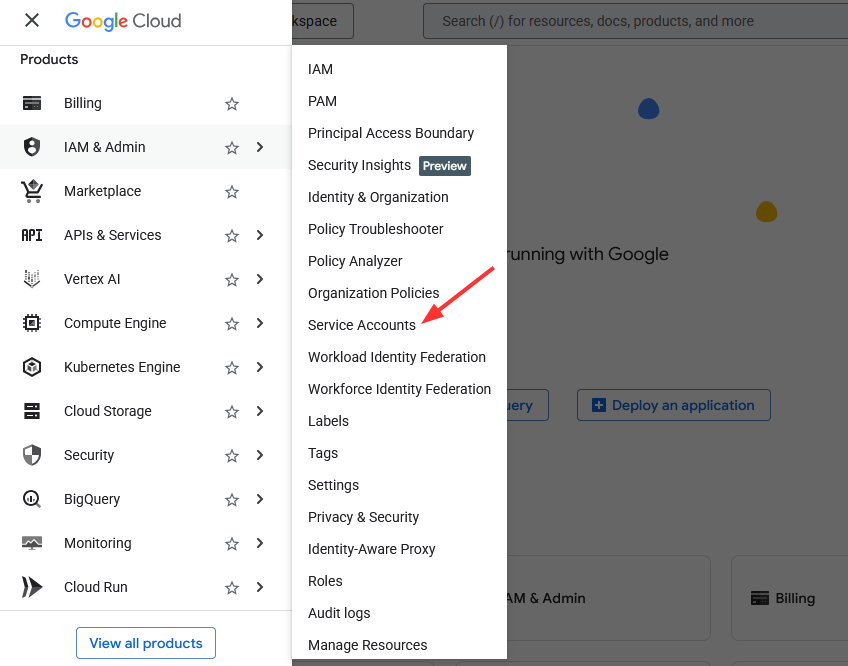
- In the left-hand menu, navigate to ‘IAM & Admin’ → ‘Service Accounts’.
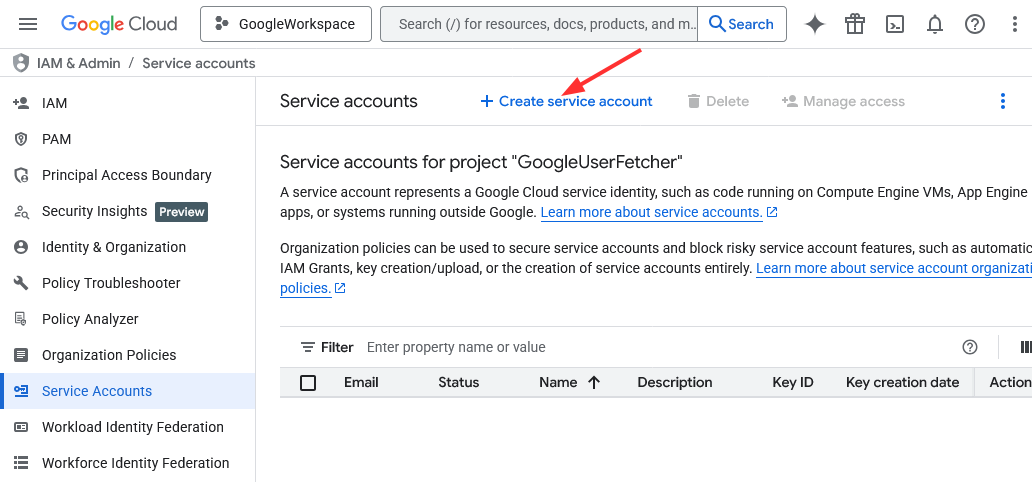
- Click ‘Create Service Account’.
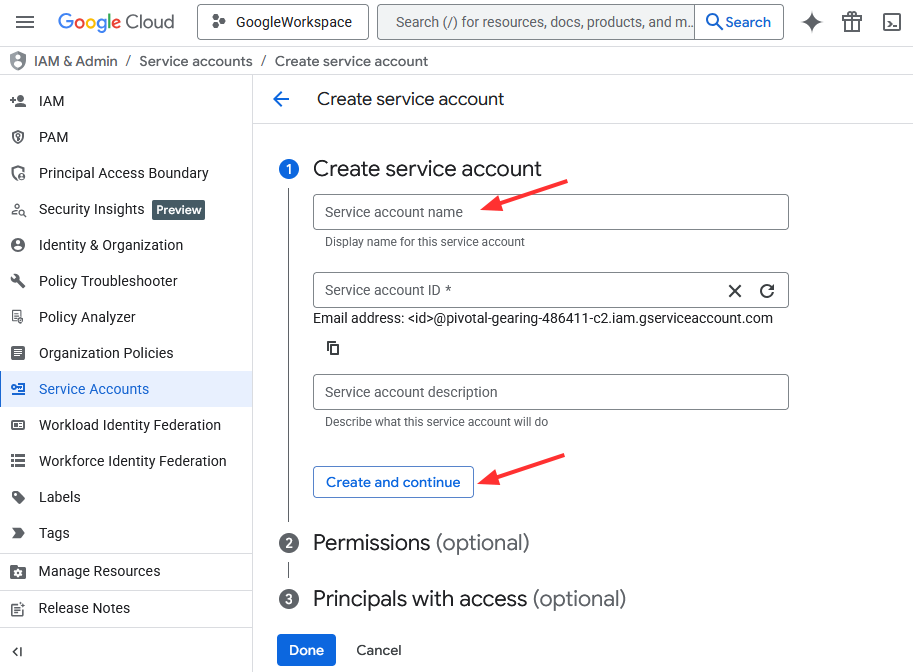
- Enter a service account name. The Service Account ID will be auto-generated.
- Click the ‘Create and Continue’ button.
- Skip the Assign roles step (roles are not required for Domain-Wide Delegation) and click ‘Done’.
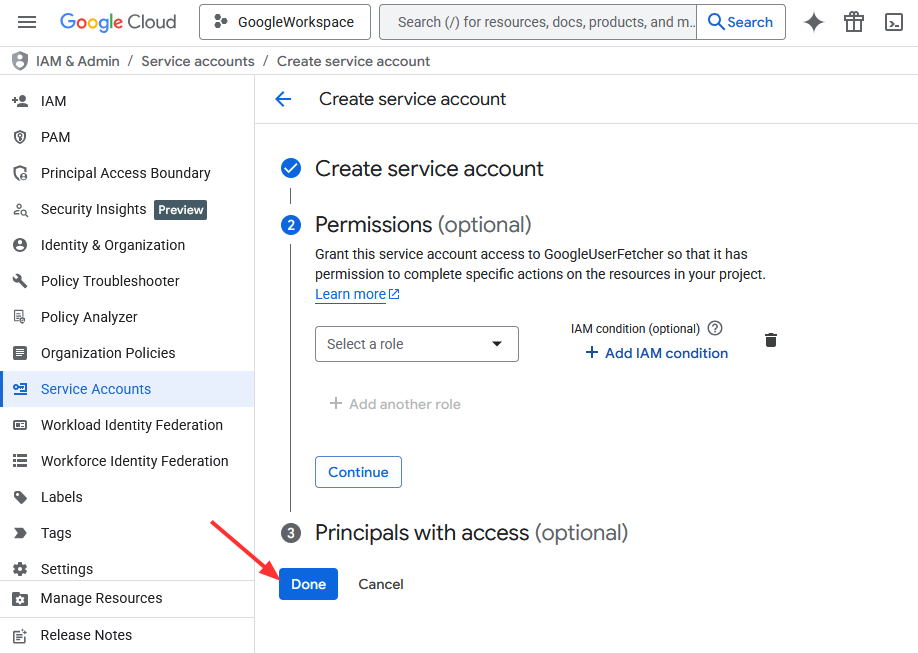
Grant Domain-Wide Delegation in Google Admin Console
This step authorizes the Service Account to access Google Workspace data at the domain level.
- In the Google Cloud Console, open your service account and go to its Details page. Copy the Unique ID (OAuth2 Client ID). Use this Client ID when configuring Domain-Wide Delegation in the Google Admin Console.
- Open the Google Admin Console and log in using your Super Administrator account.
- Navigate to ‘Security’ > ‘Access and data control’ > ‘API Controls’.
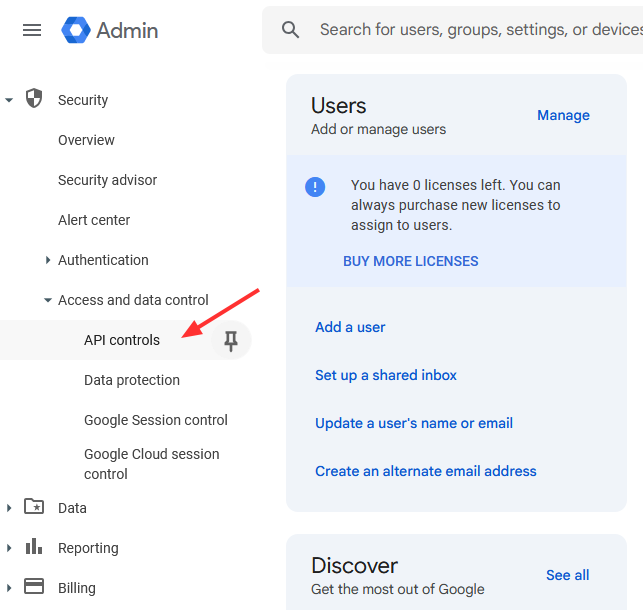
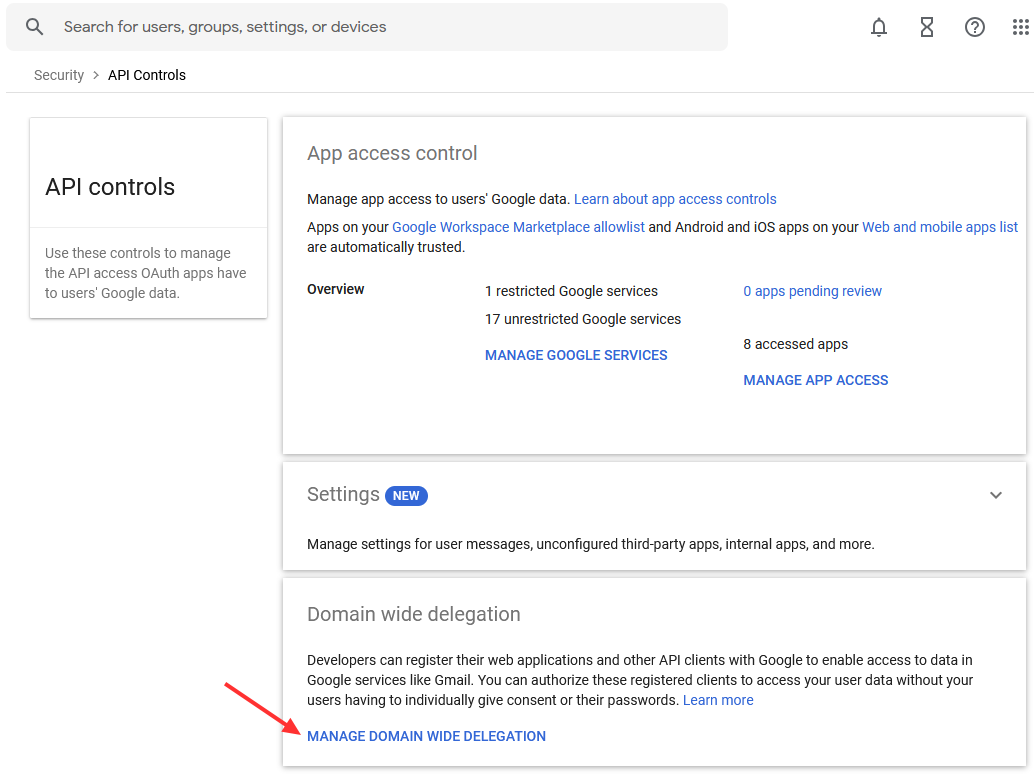
- Click on ‘Manage Domain Wide Delegation’.
- Click on ‘Add New’ and paste the Client ID copied from Google Cloud.
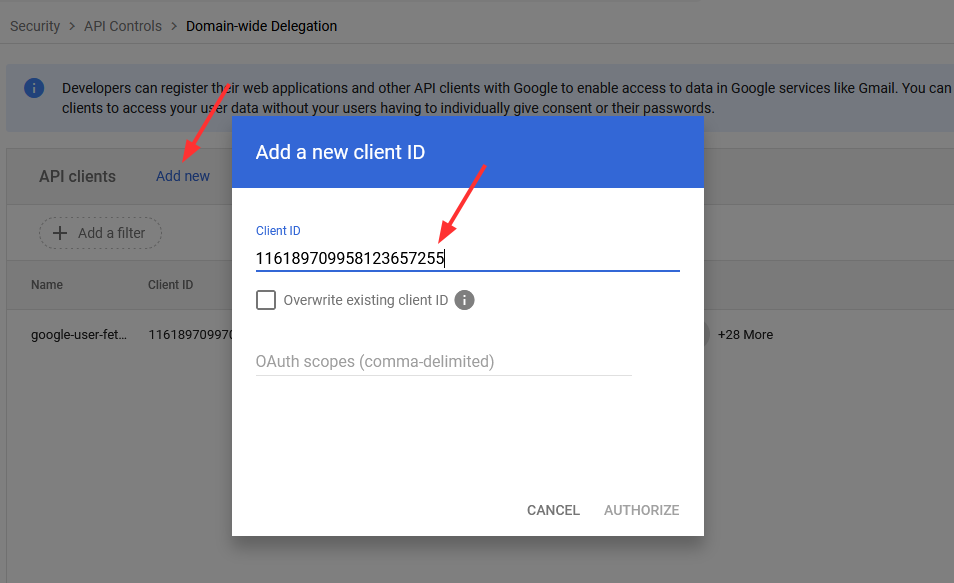
- In the OAuth Scopes field, enter the following scopes
- https://www.googleapis.com/auth/admin.directory.user.readonly
- https://www.googleapis.com/auth/gmail.readonly
- https://www.googleapis.com/auth/calendar.readonly
- https://www.googleapis.com/auth/tasks.readonly
- https://www.googleapis.com/auth/contacts.readonly
- https://www.googleapis.com/auth/admin.directory.group.readonly
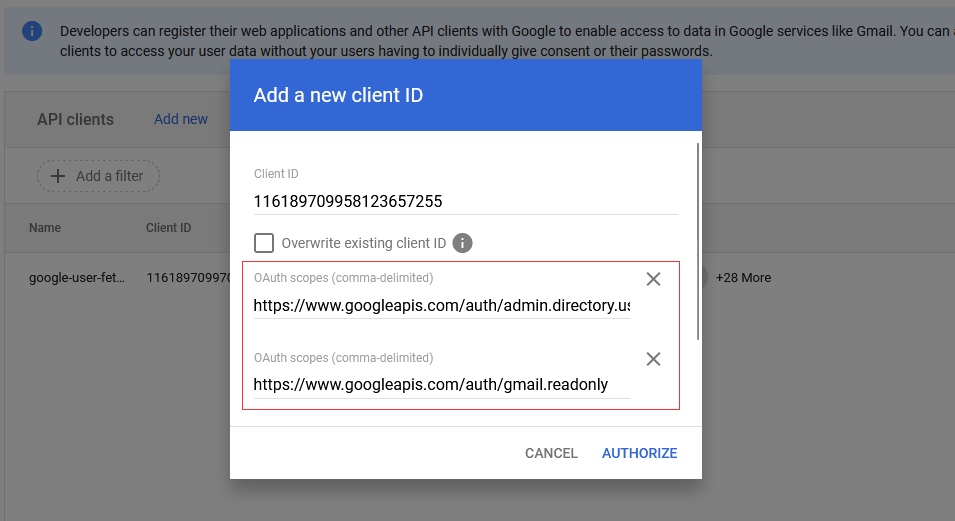
- Click ‘Authorize’, then ‘Save’.
The Service Account is now approved to access Google Workspace data based on the defined permissions.
Download the JSON Key
- Go back to Google Cloud Console.
- Navigate to ‘IAM & Admin’ → ‘Service Accounts’ and click your service account.
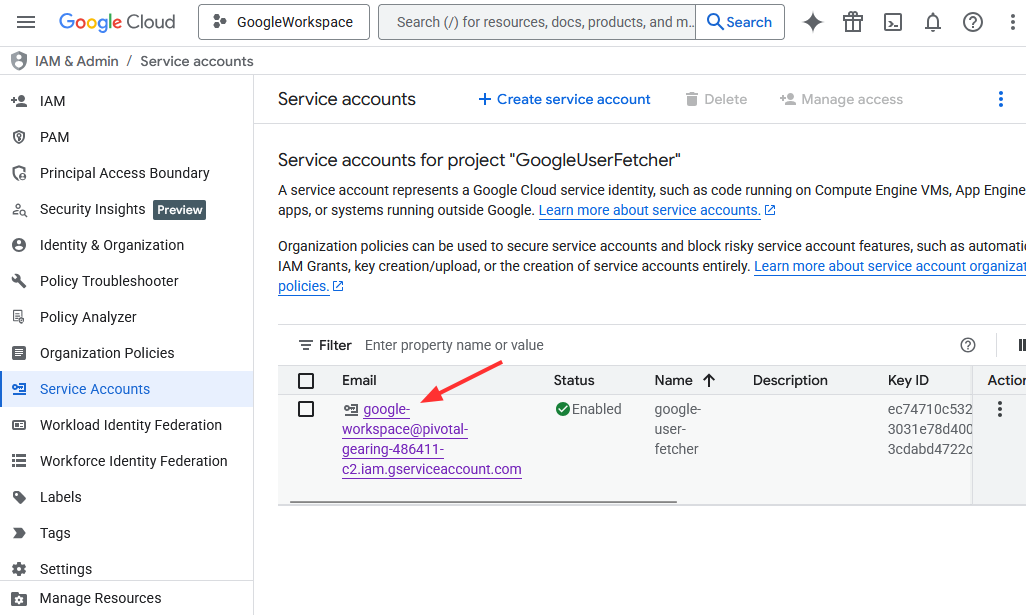
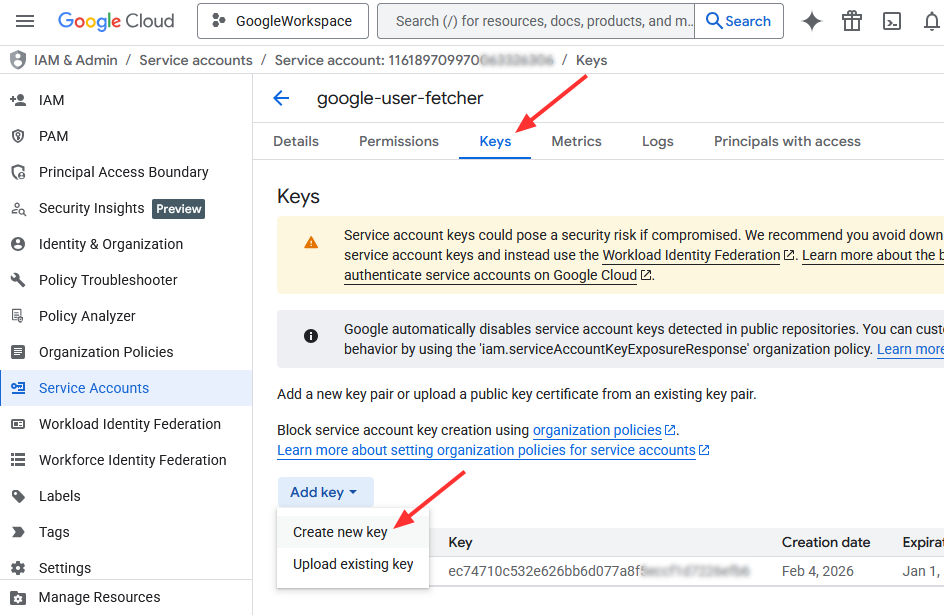
- Go to the ‘Keys’ tab and click ‘Add Key’ > ‘Create New Key’.
- Select ‘JSON’ and click ‘Create’.
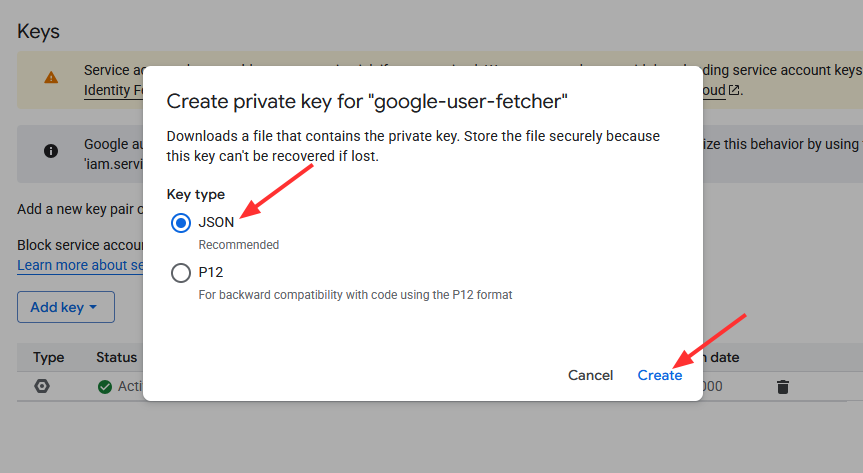
- The JSON key file will download automatically.
Note: This JSON file contains the private key required for secure authentication. It must be uploaded or configured in EdbMails to establish API connectivity.
Why JSON Key Creation Is Blocked?
If JSON key creation is restricted for any account (including administrators or owners), it is typically enforced by the following organization policies in Google Cloud:
- iam.managed.disableServiceAccountKeyCreation
- iam.disableServiceAccountKeyCreation
When these policies are enabled, no one can create service account JSON keys.
How to Allow JSON Key Creation?
To permit JSON key creation:
- The above mentioned policies must be explicitly disabled (set to inactive)
- The change must be made at the organization level
Required Permissions:
You need the Organization Policy Administrator role to:
- View organization policies
- Update or disable constraints
- Manage policy settings across the organization
Steps to assign the Organization Policy Administrator role:
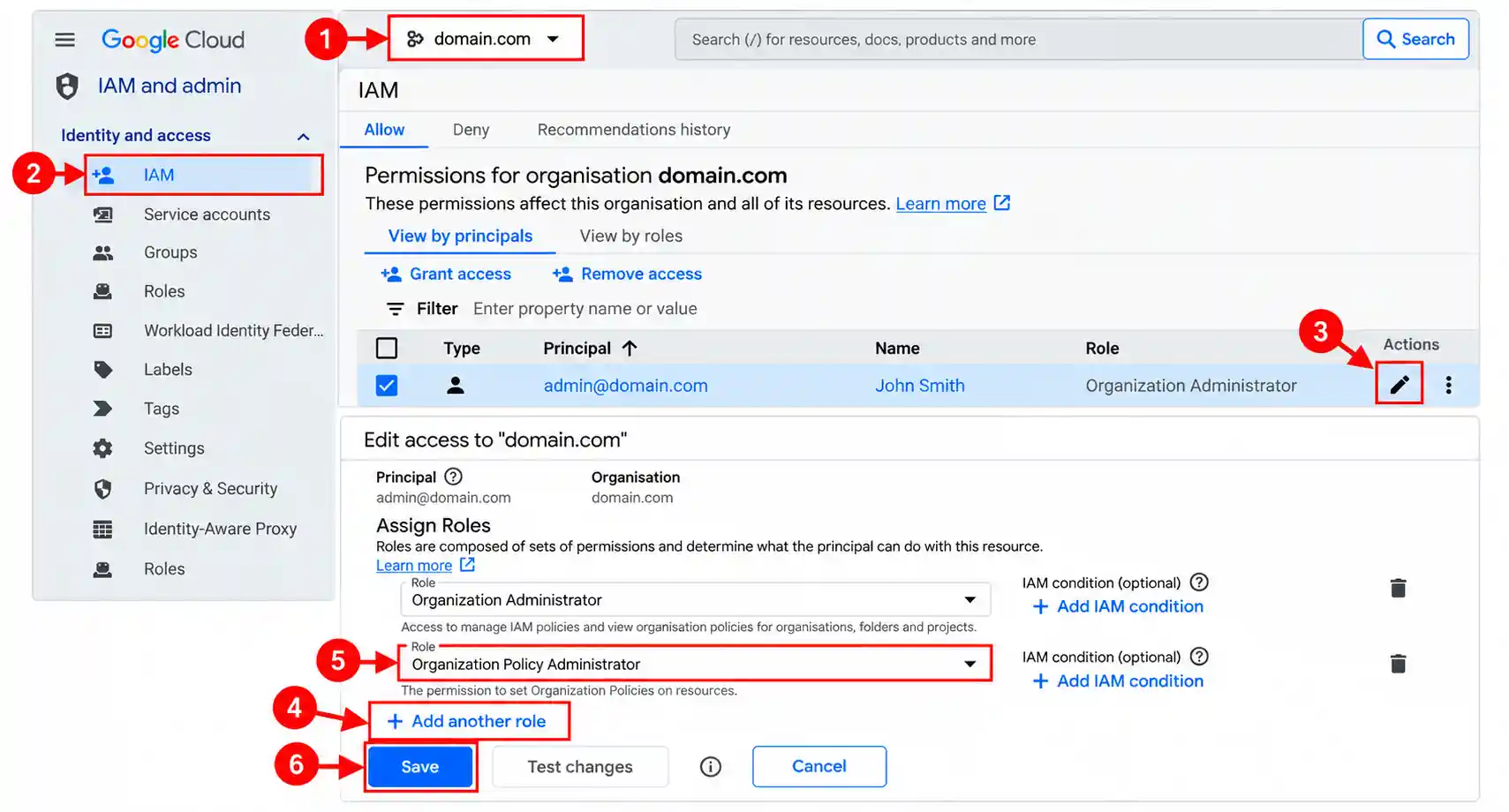
- Sign in to the Google Cloud Console using an account authorized to manage IAM roles for the organization.
- From the resource selector at the top, select your Organization, then navigate to IAM & Admin → IAM. Ensure you are viewing IAM permissions for the organization, not an individual project.
- Under View by principals, locate the appropriate administrator user account, for example admin@domain.com (John Smith), and click Edit.
- In the Edit access panel, click Add another role.
- Search for and select Organization Policy Administrator, then click Save to apply the changes at the organization level.
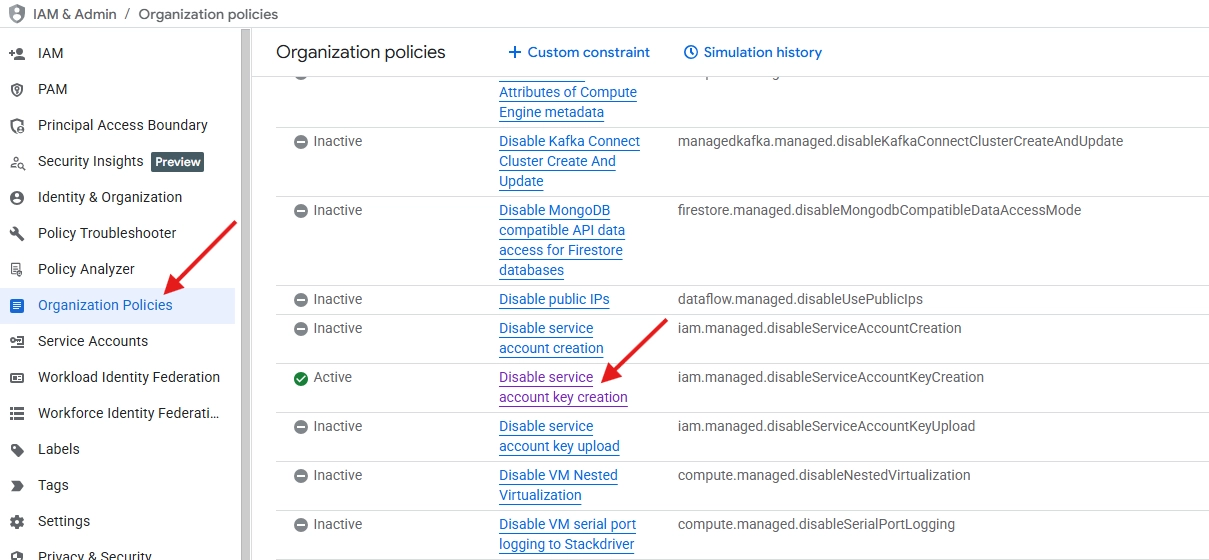
- Select the project, then navigate to IAM & Admin → Organization Policies.
- Set the following policies to inactive:
- iam.managed.disableServiceAccountKeyCreation
- iam.disableServiceAccountKeyCreation
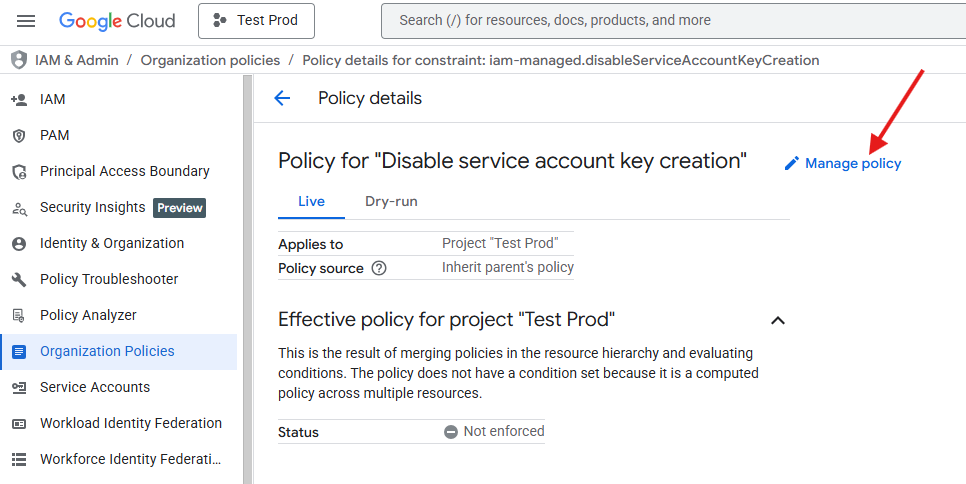
- Click on ‘Manage Policy’.
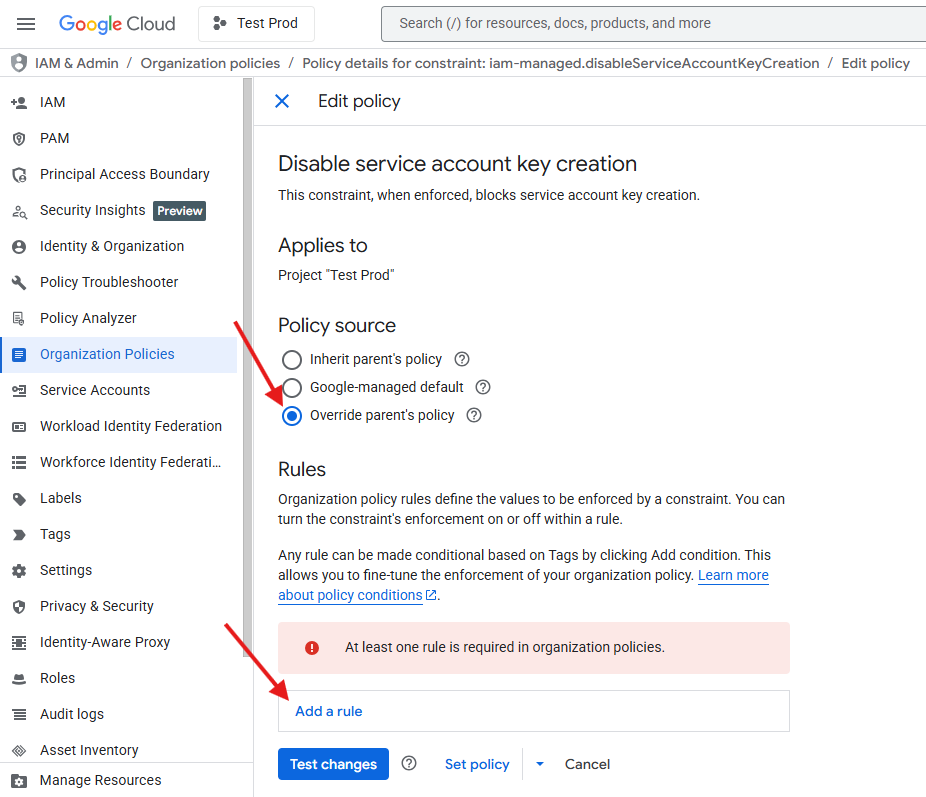
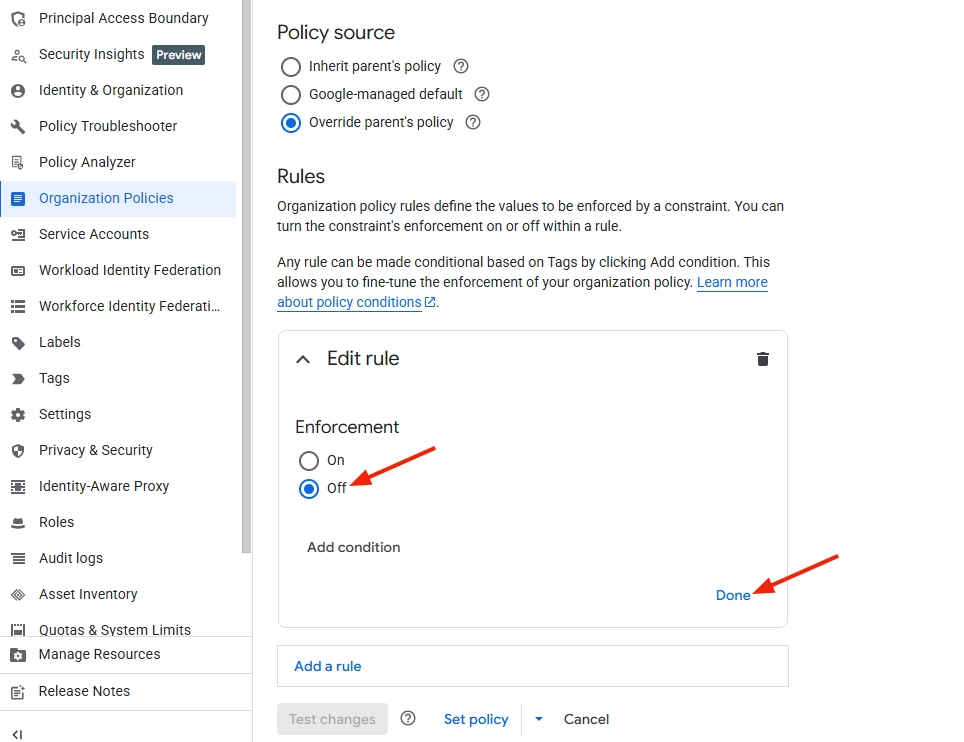
- Select the Override parent’s policy option, then click on Add a rule.
- Keep Enforcement set to Off, then click Done.
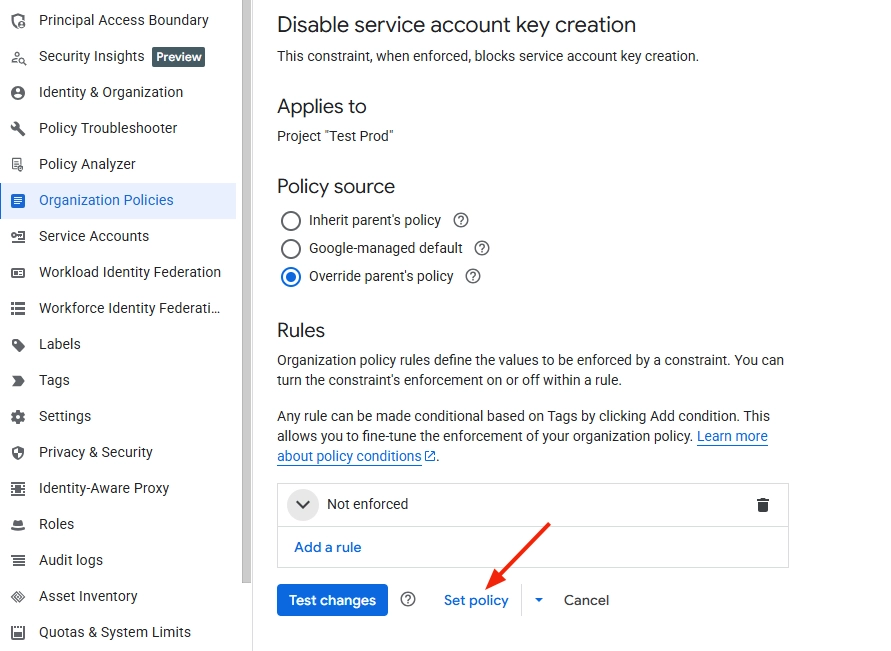
- Click on Set Policy.
- Follow the same steps to set iam.disableServiceAccountKeyCreation to inactive as well.
- Allow 5–10 minutes for the changes to take effect, then download the generated JSON key for use in the EdbMails application.

