


Gmail to Tutanota Migration
Gmail is one of the most widely used email platforms, recognized for its simple interface, efficient email organization, and smooth integration with Google’s productivity ecosystem. Despite these advantages, increasing concerns about data privacy and personalized advertising have encouraged many users to consider more privacy-focused email solutions. Tutanota is an email provider based in Germany that focuses strongly on user privacy. It delivers a secure communication environment with built-in end-to-end encryption, ensuring that only the sender and the intended recipient can read the email content.
Unlike Gmail, which operates using ad-based revenue and scans data to display targeted promotions, Tutanota delivers a completely ad-free environment. It protects user privacy by encrypting emails, contacts, and calendars, making it a reliable platform for individuals and businesses that value secure and private communication. Although Gmail provides a wide range of features, users planning to migrate to Tutanota should be aware of certain considerations. Migrating large volumes of emails, contacts, and attachments requires proper planning to prevent data loss. In addition, Gmail users may need some time to adjust to Tutanota’s simpler interface and independent ecosystem. Despite these factors, Gmail to Tutanota migration is a worthwhile step for users who prioritize stronger data protection, transparency, and digital privacy.
EdbMails IMAP migration software simplifies this transition by streamlining the entire migration process. It ensures a precise, risk-free transfer with advanced capabilities. The batch migration feature allows users to efficiently migrate multiple mailboxes at once, significantly reducing the time and effort required. EdbMails' advanced filtering options give users full control over what data is migrated, allowing them to select specific emails, attachments, and contacts. The automatic mapping feature removes the need for manual configuration, ensuring seamless mailbox mapping between Gmail and Tutanota. With EdbMails, users can enjoy a smooth, uninterrupted migration experience, ensuring data integrity while making the switch to Tutanota with confidence and ease.
Gmail to Tutanota Migration Plan
- Assess your specific needs, including the number of users, data volume, and desired migration timeframe.
- Depending on your requirements, create a Tutanota account. Configure the necessary settings and ensure your Tutanota account is ready to receive the migrated data.
- Configure IMAP migration settings: If you opt for an IMAP migration tool, configure the necessary settings, such as providing the source Gmail Mail server details, target Gmail server details, authentication credentials, and migration options.
- Before migrating all data, perform a test migration to ensure that the process works smoothly. Verify that emails, contacts, and other data are successfully transferred from Gmail to Tutanota.
- Inform all users about the upcoming migration. Provide instructions on how to access their new Tutanota accounts and any necessary setup steps.
- Once you have completed the necessary preparations and testing, initiate the full migration process. Monitor the progress to ensure that all data is transferred correctly.
- After the migration, carefully review the migrated data in Tutanota to ensure that everything is intact and accurately transferred. Cross-check emails, contacts, and other important information to confirm their completeness.
- Once you have verified the successful migration and ensure data integrity, you can proceed to decommission your Gmail Mail accounts.
Pre-migration activities for Gmail to Tutanota Migration
- Ensure that IMAP settings are enabled on both the source (Gmail) and target (Tutanota) servers to facilitate migration.
- Keep a record of the email addresses and passwords for all users you plan to migrate from the Gmail server.
- Confirm that you have the email addresses for all users on Gmail. If using Gmail, create an app password for the account.
Click here for steps to create an app password for a Gmail account.
Steps to Migrate Gmail to Tutanota
Download and install EdbMails IMAP migration software
- Download application on your computer running the Windows operating system.
See the list of EdbMails system requirements to migrate from Gmail to Tutanota.
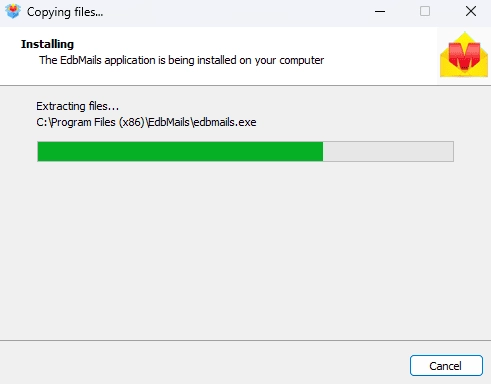
- Launch the EdbMails application on your computer.
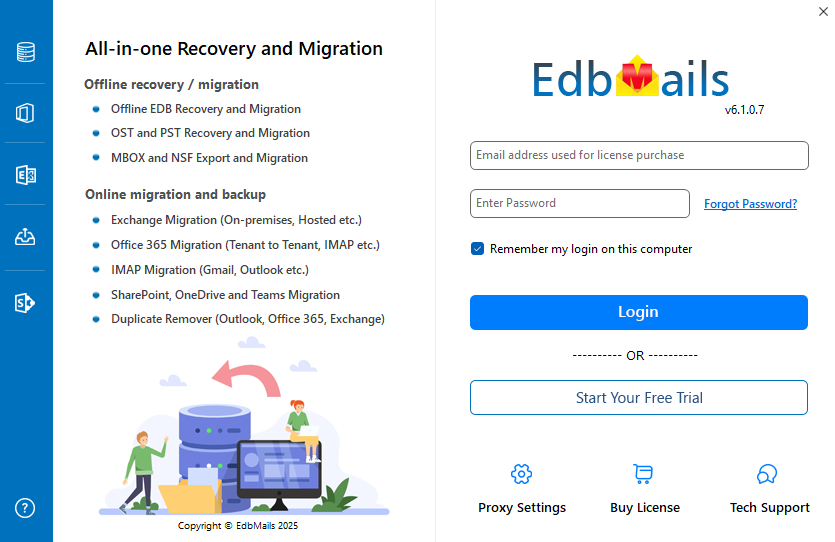
- Enter your registered email address and password, then click ‘Login’. If you don’t have an account yet, select ‘Start Your Free Trial’ to proceed with the trial version.Note: The Free Trial includes all key features and lets you migrate up to 30 items per folder. To migrate unlimited items, purchase an IMAP Migration license from the EdbMails website.
Click here to view IMAP Migration pricing details.
Once the purchase is complete, restart the application and sign in again using the same email address and password used during the purchase to activate the license.
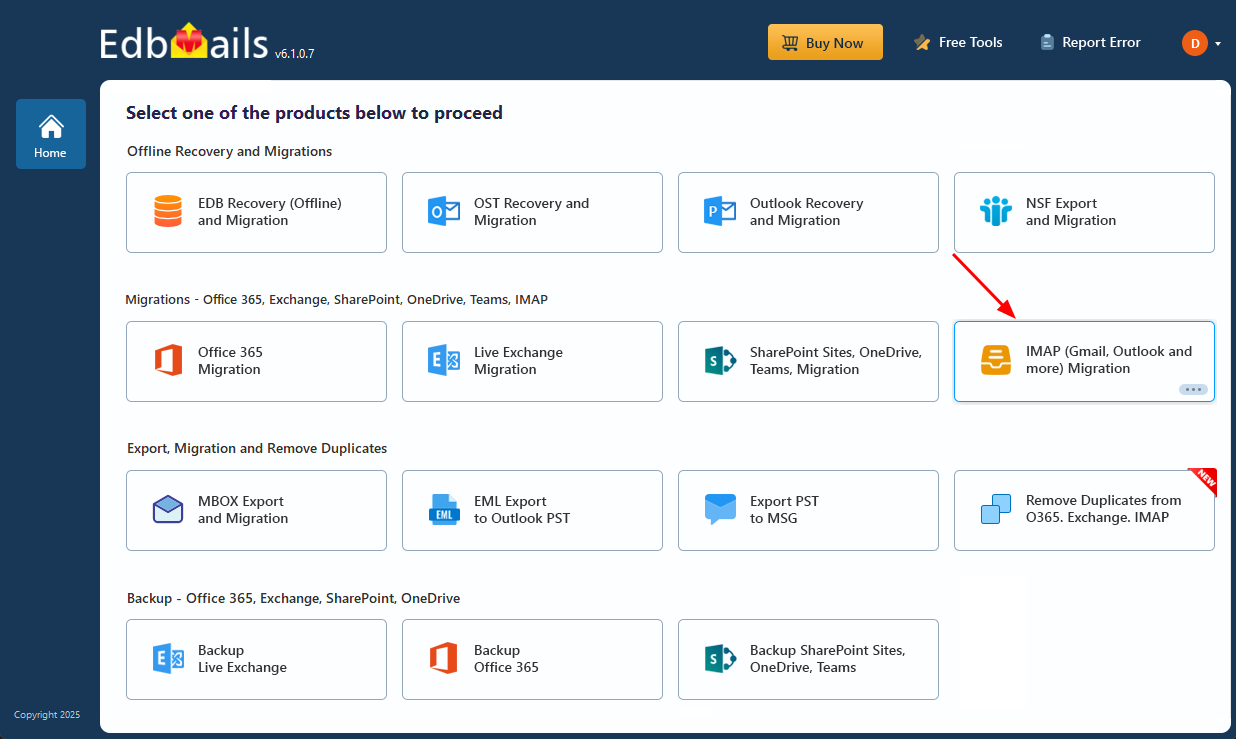
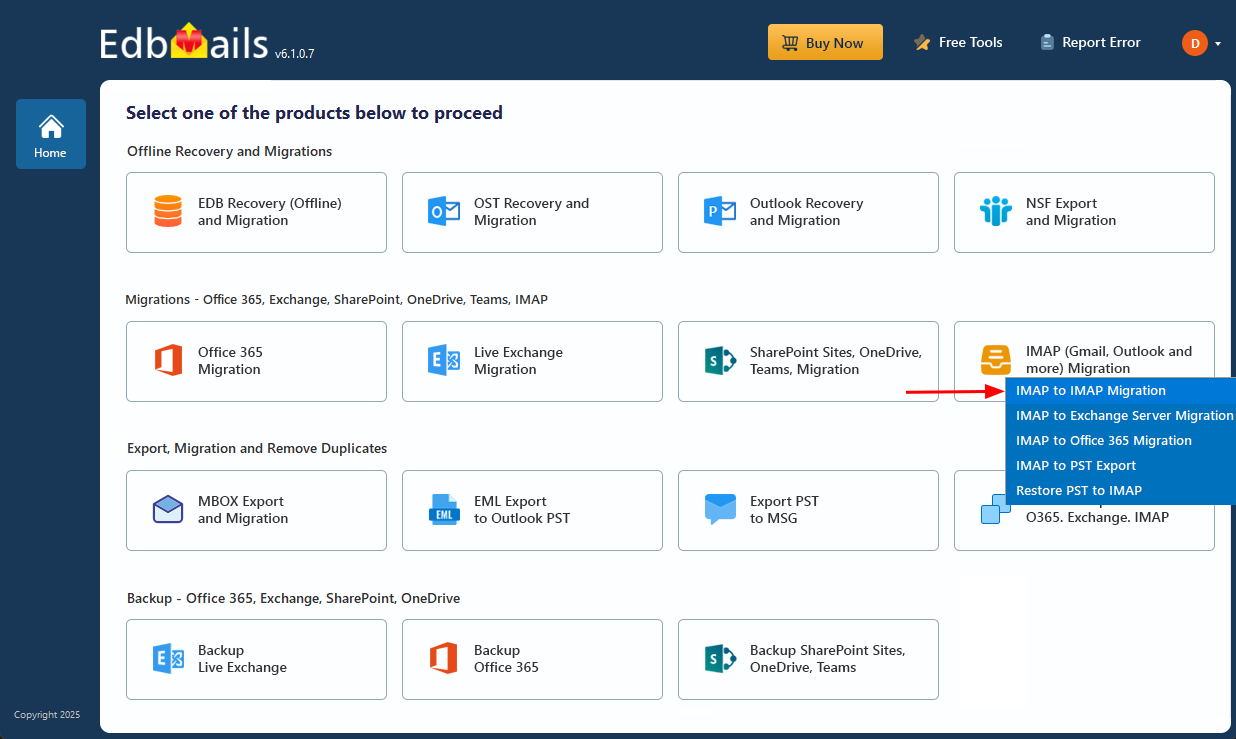
- Select the ‘IMAP (Gmail, Outlook & more) Migration’.
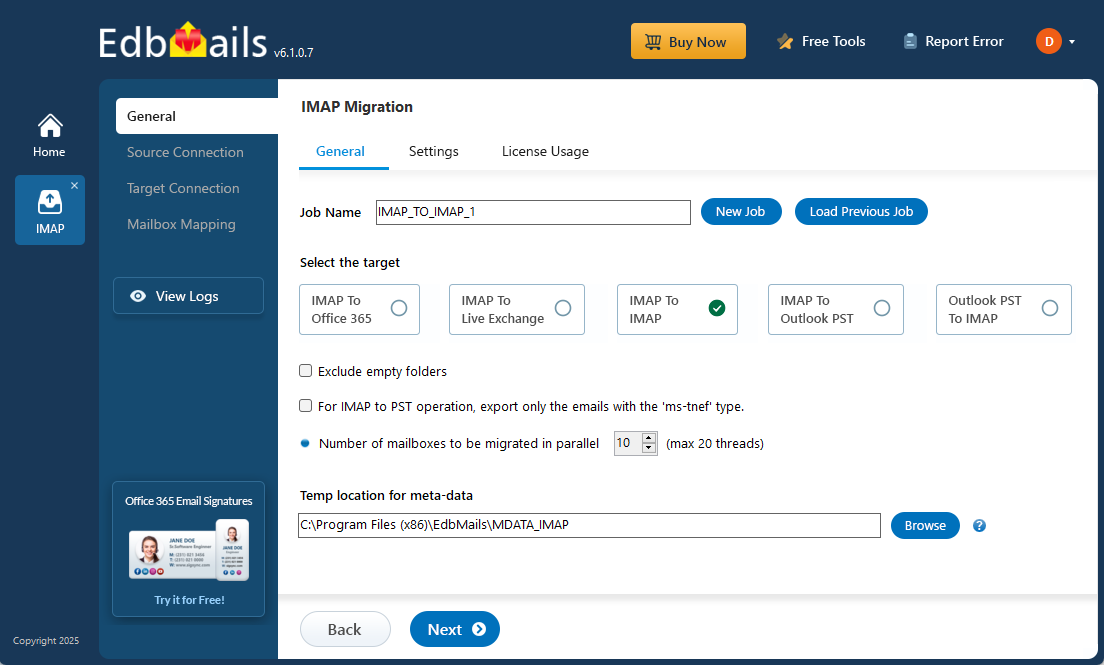
- Select ‘IMAP to IMAP Migration’.
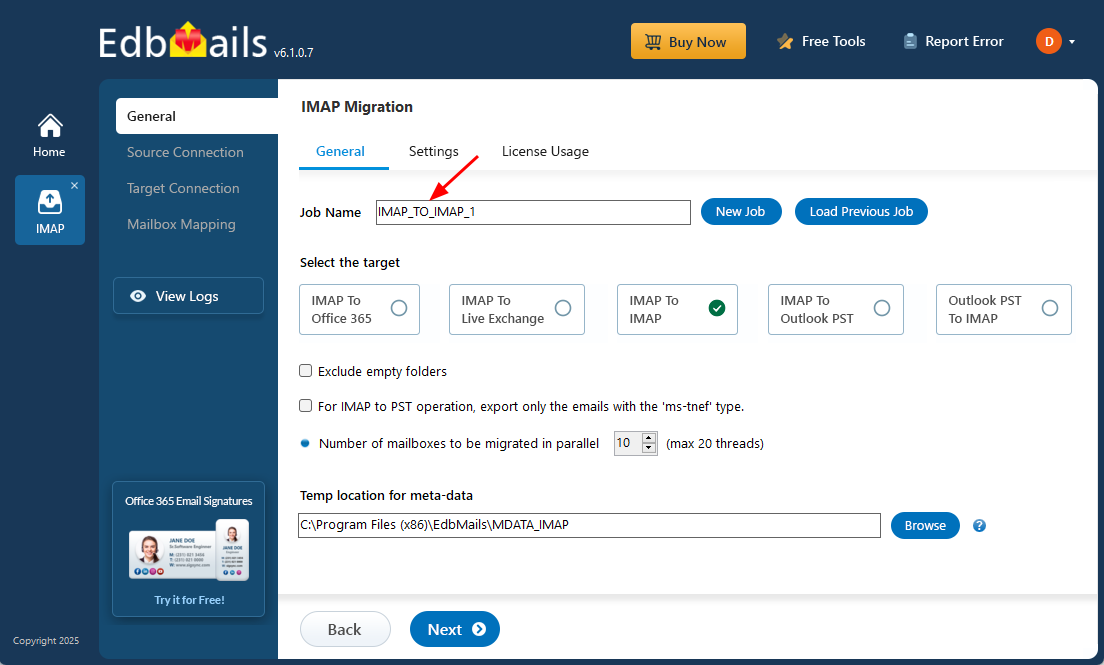
- Proceed with the default job name or click ‘New Job’ to assign a custom name for easier identification before continuing.
- Download application on your computer running the Windows operating system.
Step 2: Connect to the source Gmail server
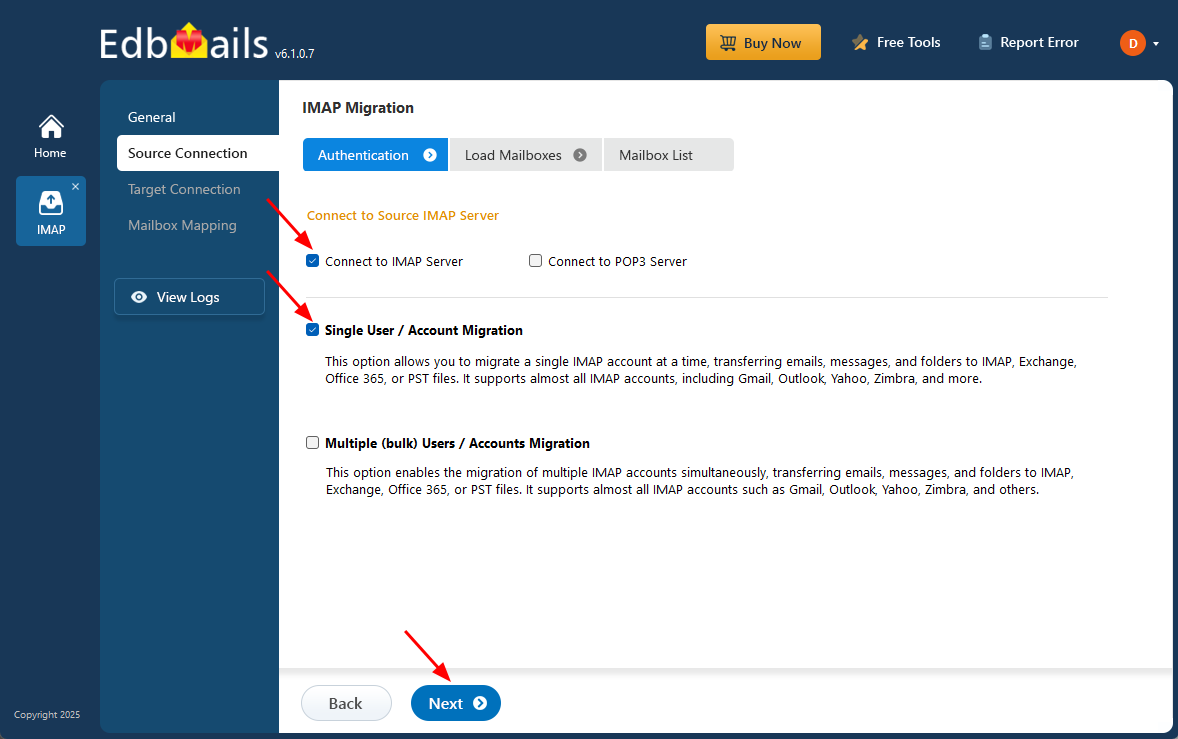
- To migrate a single Gmail account, select ‘Single User / Account Migration’, choose the suitable connection option such as ‘Connect to IMAP Server’ or ‘Connect to POP3 Server’, and click ‘Next’ to proceed.
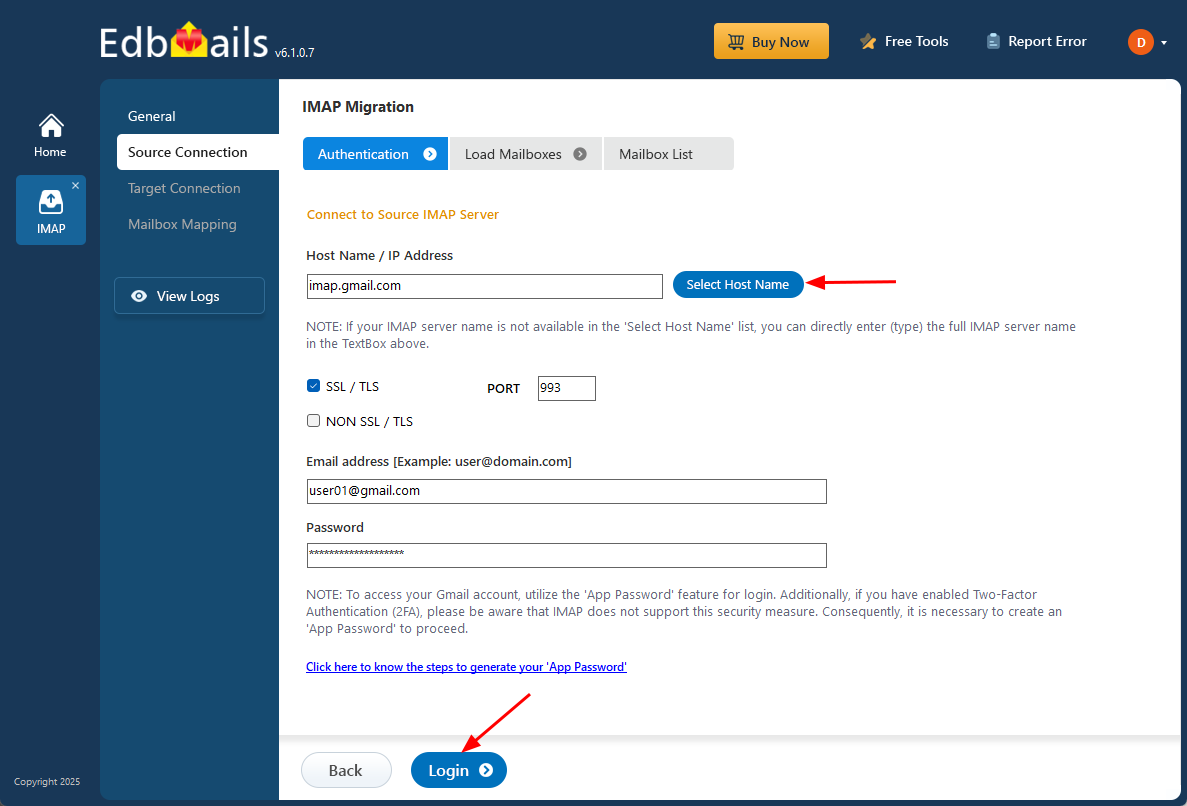
- For a single user login, choose the appropriate IMAP host name (imap.gmail.com) from the list or enter the full IMAP server name manually.
- Next, enter your email address and password to continue.
- If you are adding a Gmail account, create an app password and use it instead of your standard account password.
- Click the ‘Login’ button.
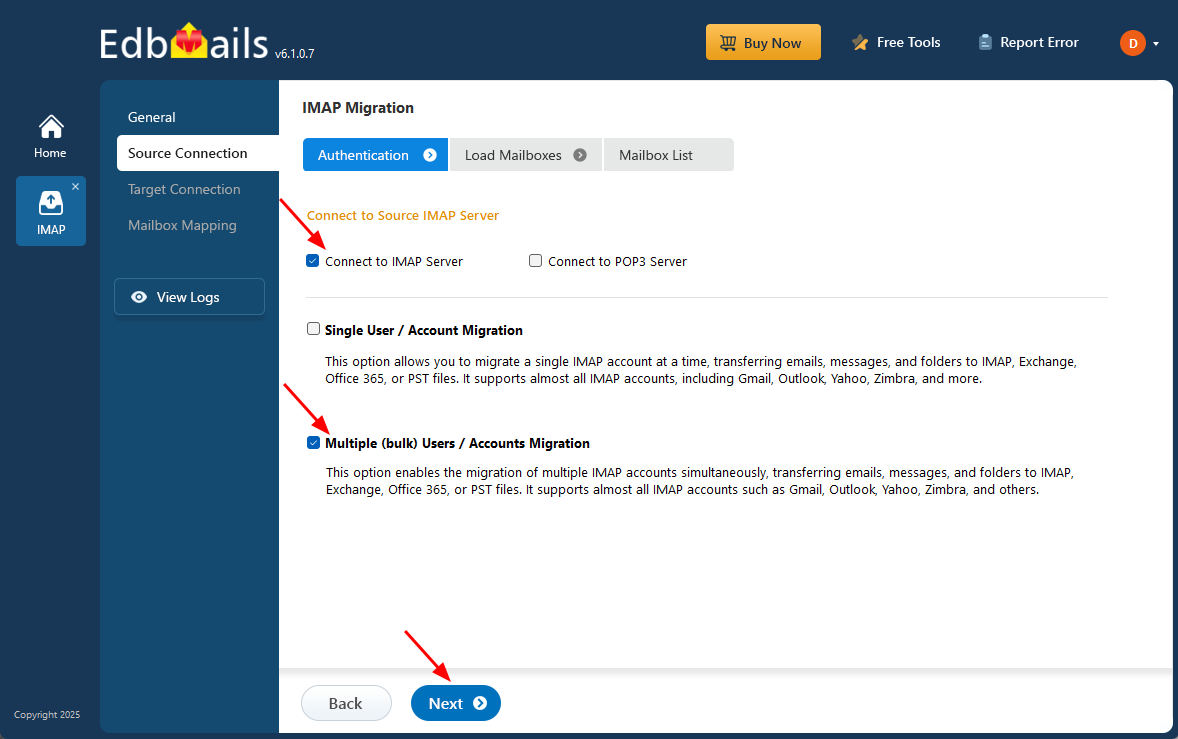
- To migrate multiple Gmail mailboxes at once, select ‘Multiple (bulk) Users/Accounts Migration’, choose the suitable connection method such as ‘Connect to IMAP Server’ or ‘Connect to POP3 Server’, and then proceed by clicking ‘Next’.
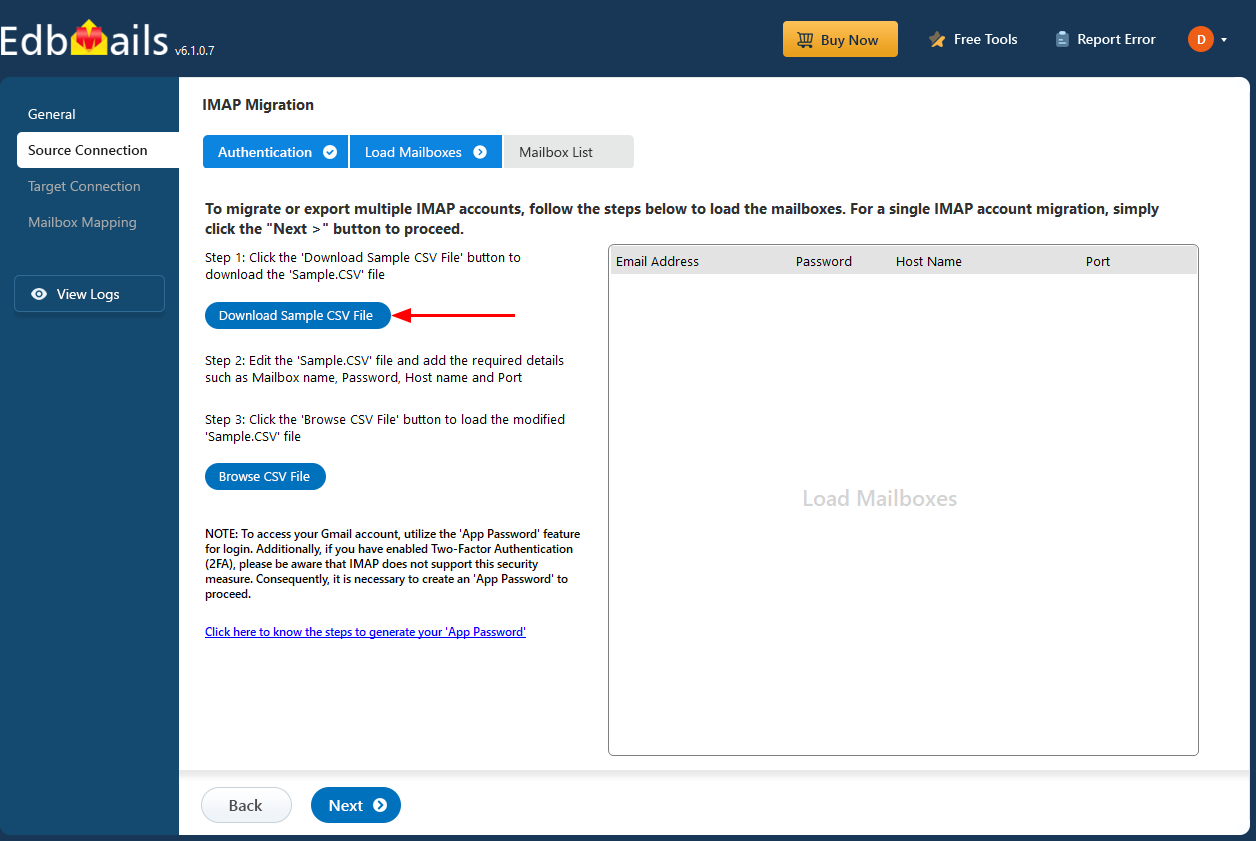
- Click ‘IMAP Migration CSV File’. It will load the sample CSV file to your local drive.
- Open the CSV file and fill in the necessary details, including the email address, password, IMAP server hostname, and port number for each mailbox. After completing the entries, save the file to proceed with the migration.
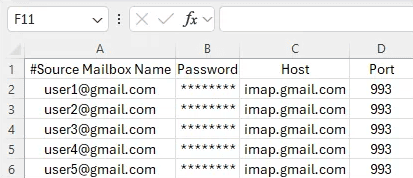
- Save the changes and close the CSV file when you're done.
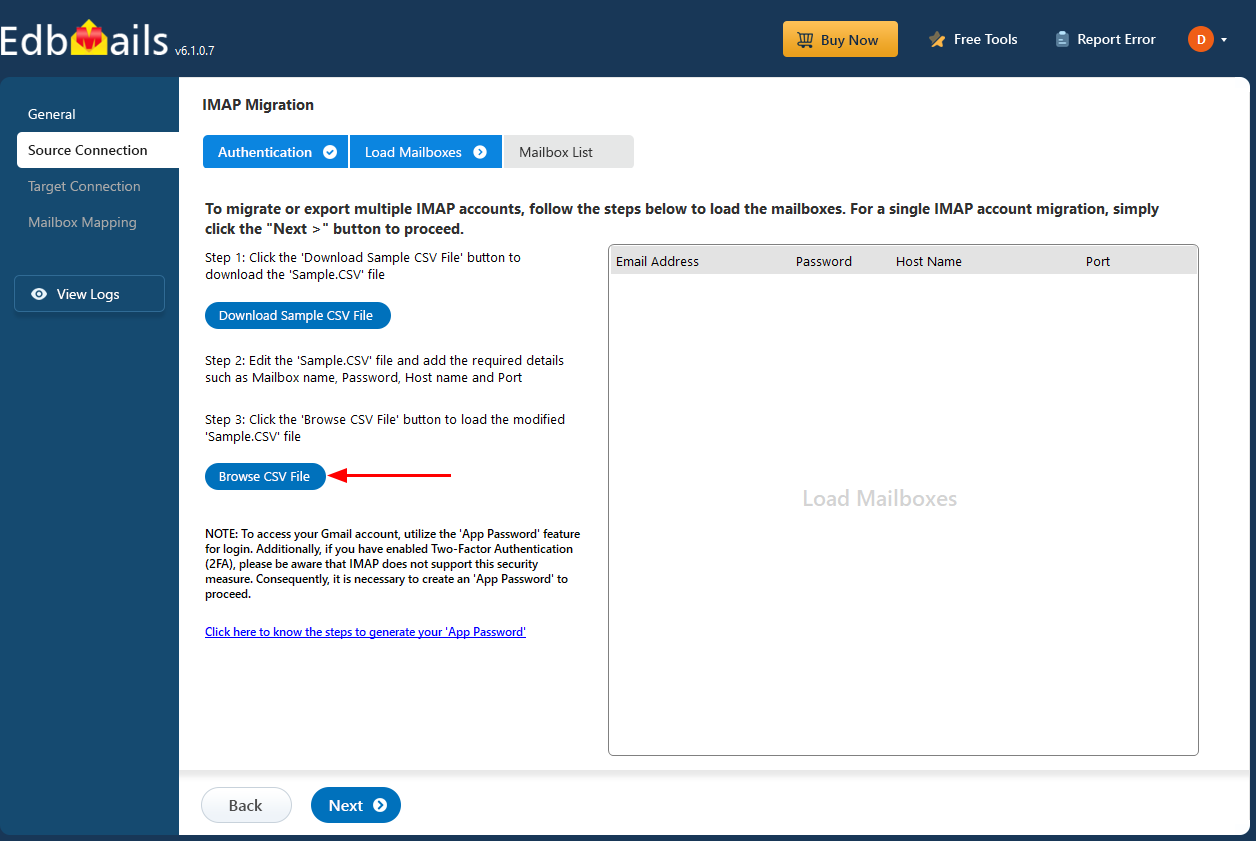
- Then, click the 'Load Modified CSV File' button, open the CSV file and click ‘Next’ to proceed.
- To migrate a single Gmail account, select ‘Single User / Account Migration’, choose the suitable connection option such as ‘Connect to IMAP Server’ or ‘Connect to POP3 Server’, and click ‘Next’ to proceed.
Step 3: Select the source Gmail mailboxes
- Select the Gmail mailboxes or folders to migrate, then click ‘Next’.
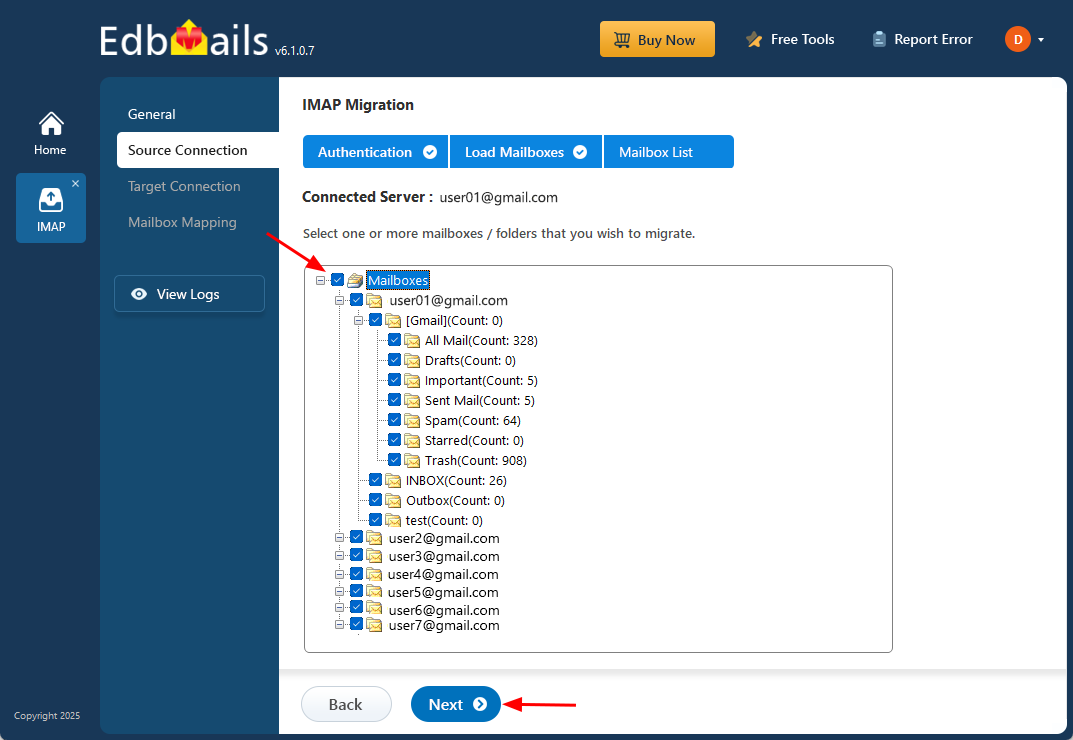
- Select the Gmail mailboxes or folders to migrate, then click ‘Next’.
Step 4: Connect to the target Tutanota server
- To connect a single user account, select ‘Single User / Account Migration’. Then, choose the required protocol, such as ‘Connect to IMAP Server’ or ‘Connect to POP3 Server’, and click ‘Next’ to proceed.
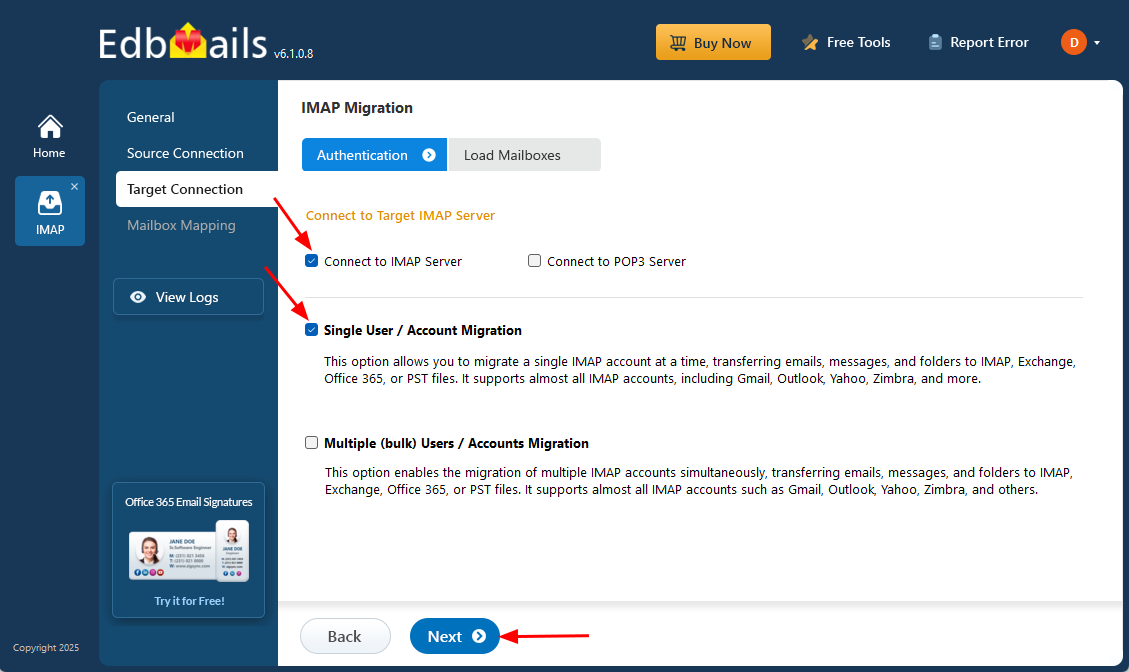
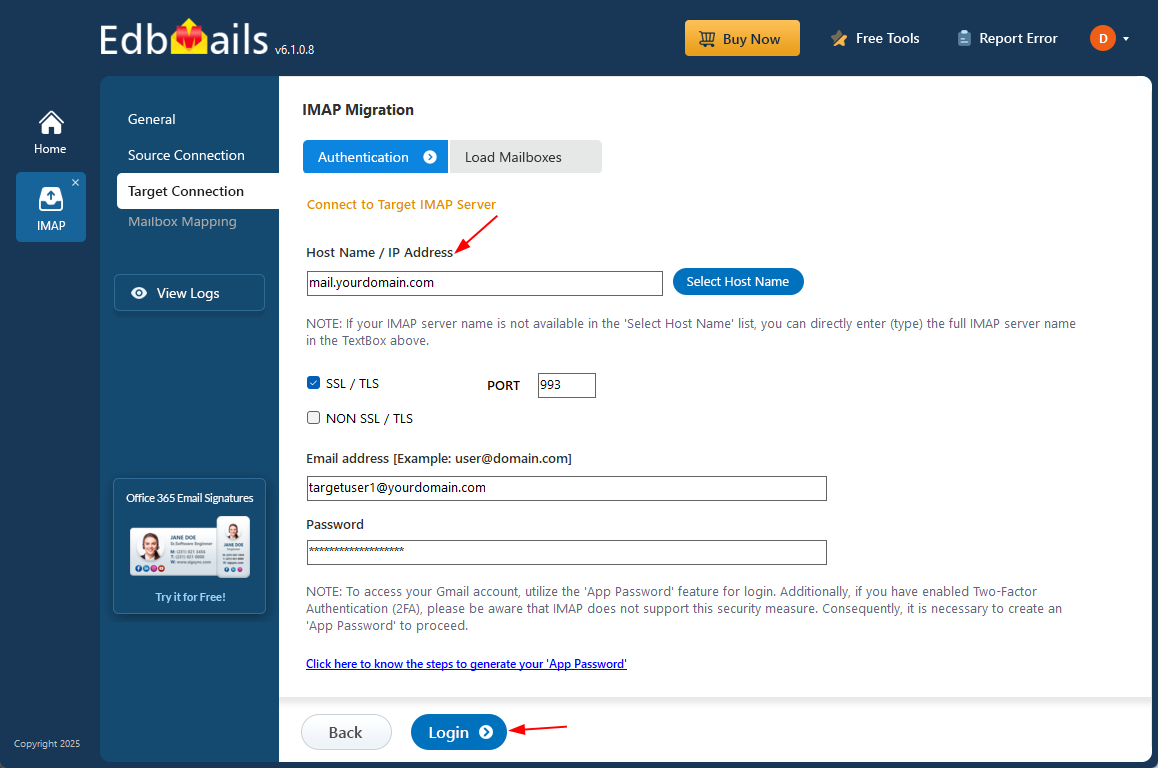
- Choose the correct target Tutanota IMAP server from the list, or type it in manually. After that, enter the email address and its password.
- Click the ‘Login’ button.
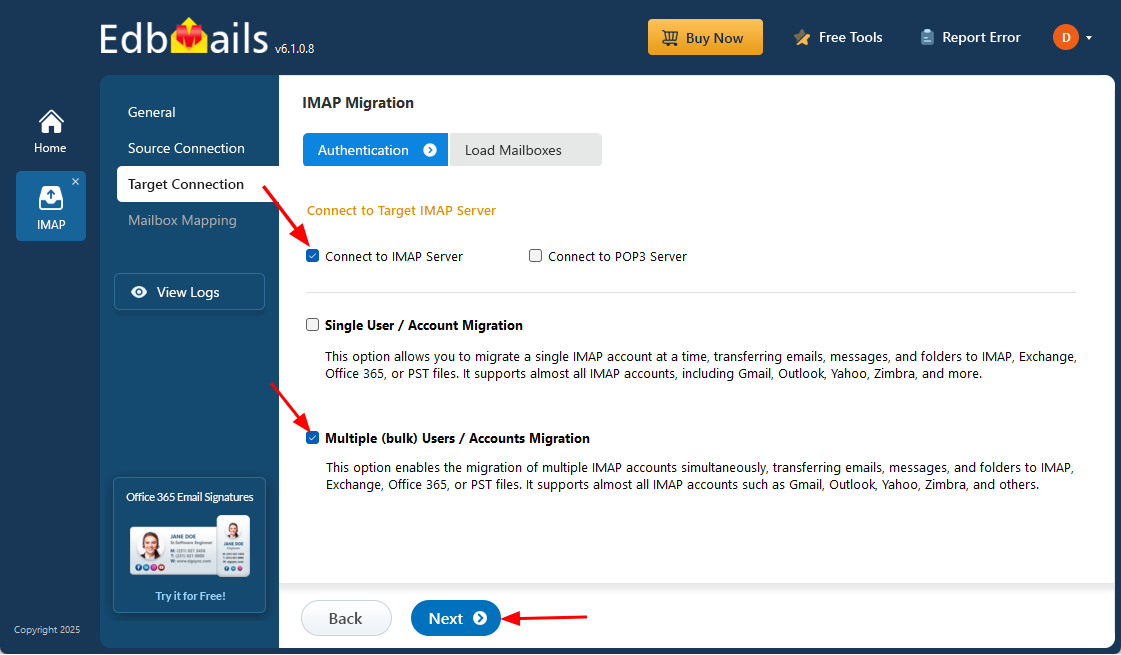
- To set up a connection for multiple target Tutanota mailboxes, choose the ‘Multiple (Bulk) Users/Accounts Migration’ option and click ‘Next’ to continue.
- Close the CSV file and click ‘Load Modified CSV File’ to upload it.
- Then click ‘Next’ to proceed after verifying the listed mailboxes.
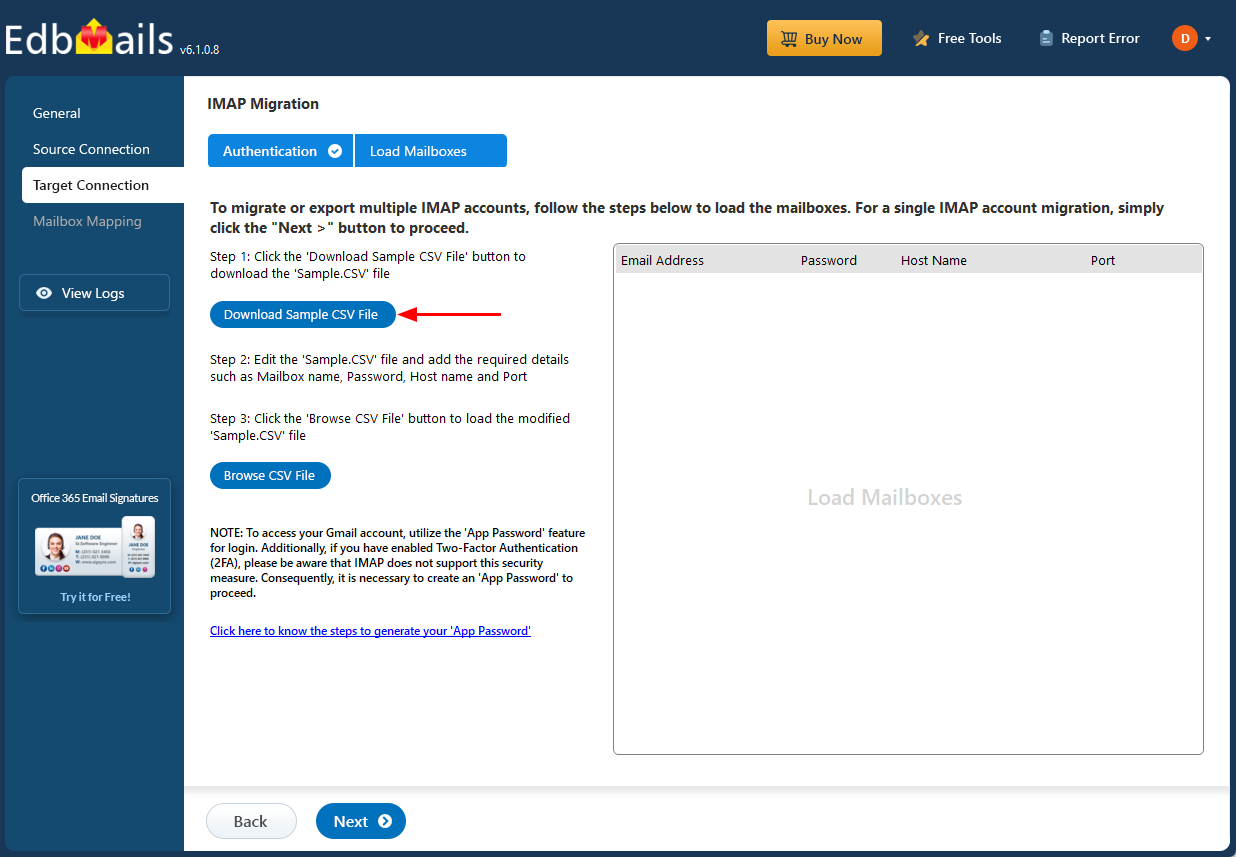
- Open the CSV file and enter the required information for each mailbox, such as the email address, password, IMAP server hostname, and port number. After filling in all the necessary details, save the file so you can continue with the migration process.
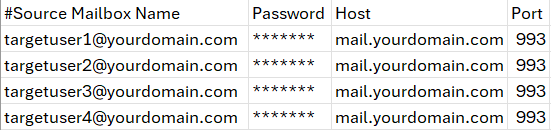
- Once completed, save the CSV file to apply the changes.
- Then, click the 'Load Modified CSV File' button, open the CSV file and click ‘Next’ to proceed.
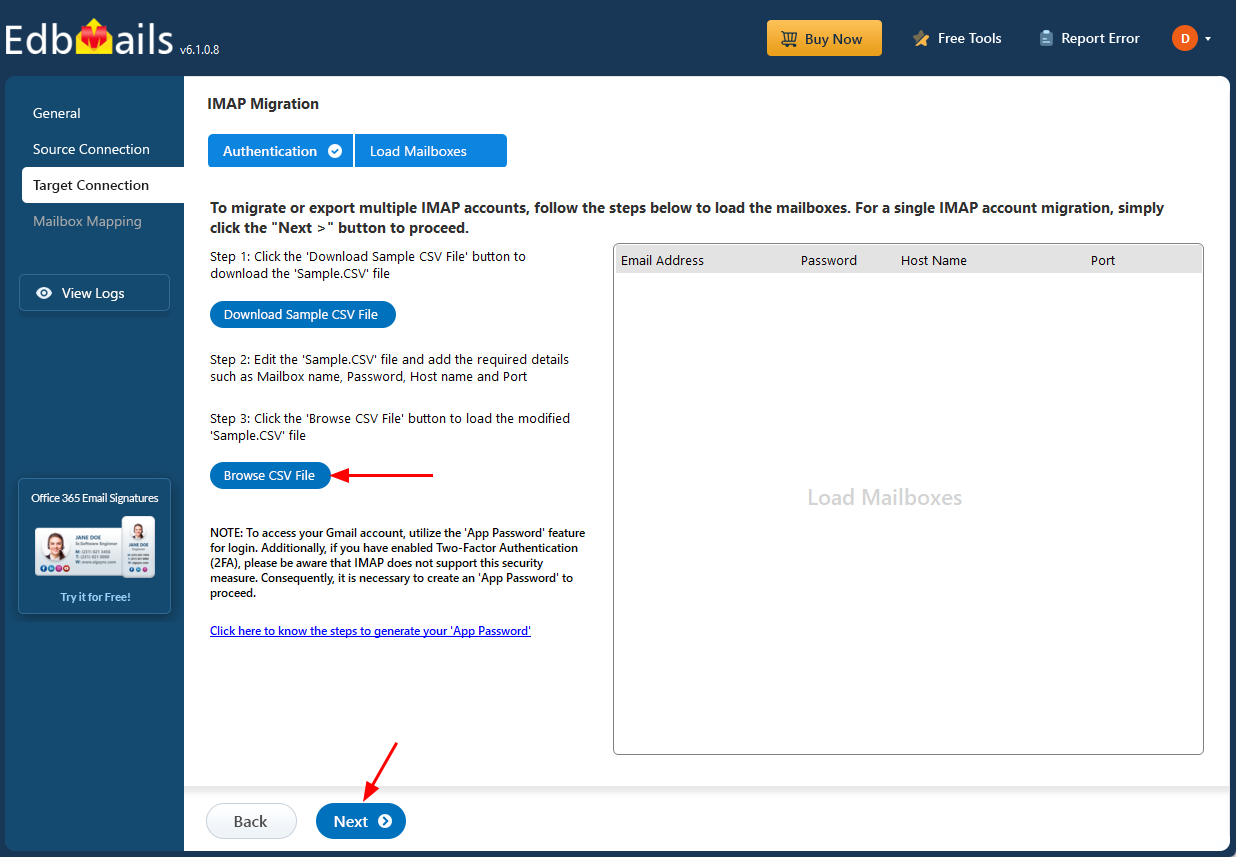
- To connect a single user account, select ‘Single User / Account Migration’. Then, choose the required protocol, such as ‘Connect to IMAP Server’ or ‘Connect to POP3 Server’, and click ‘Next’ to proceed.
Step 5: Gmail to Tutanota mailboxes mapping
- Select one of the mailbox mapping options.
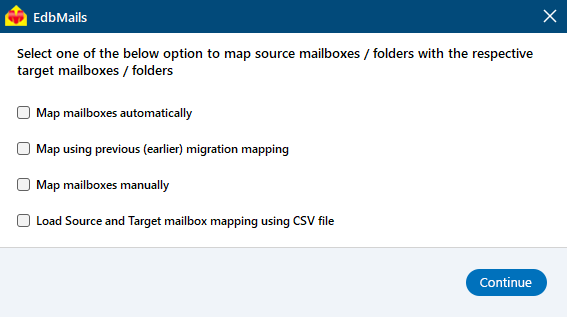
- EdbMails automatically maps mailboxes between the source and target servers. You also have the option to manually map mailboxes if needed.
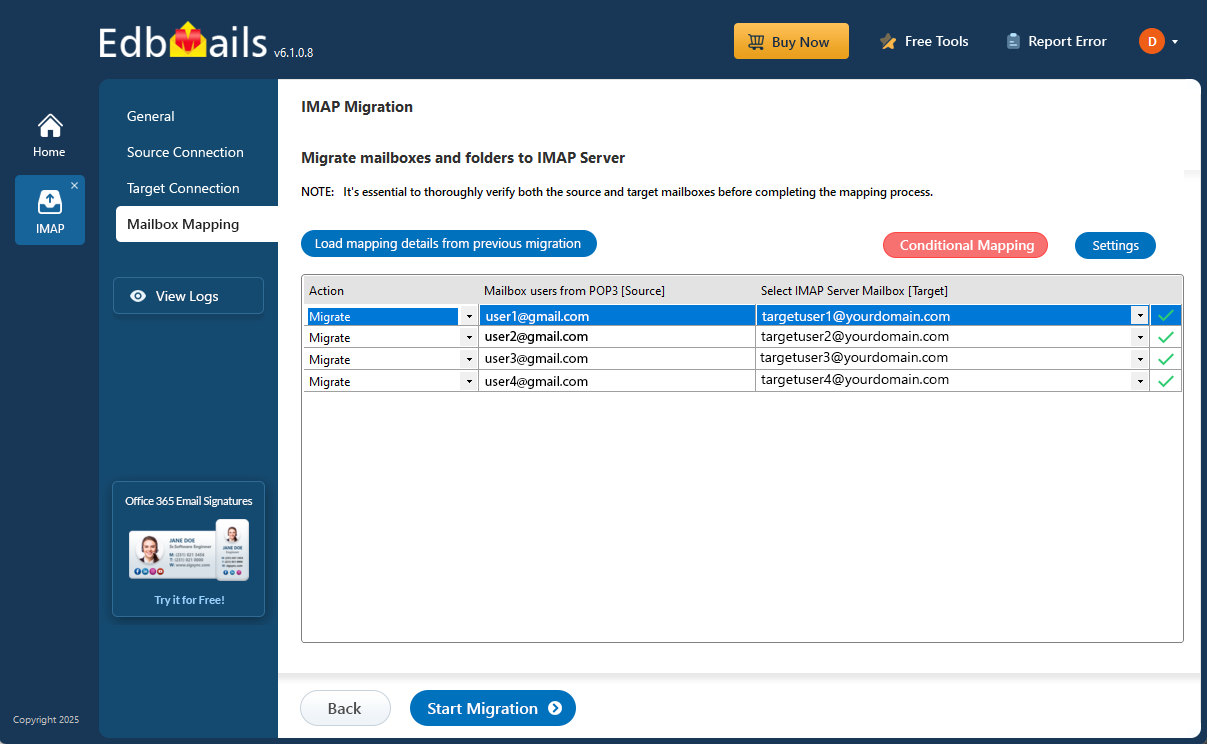
- Select one of the mailbox mapping options.
Step 6: Start the Gmail to Tutanota migration operation
- After mapping the mailboxes, click the ‘Start Migration’ button to initiate the migration process.
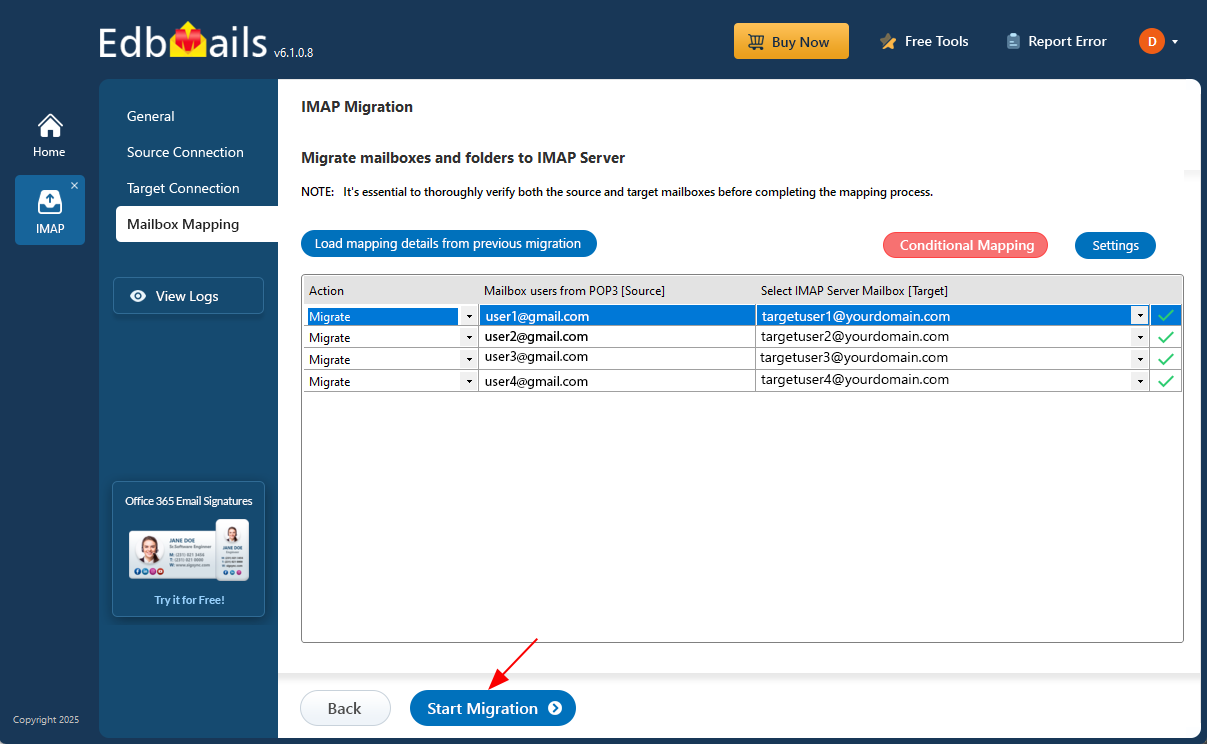
- Click on the ‘View Logs’ button to open the migration report. It gives you a detailed overview of the process, showing how many emails, folders, and mailbox items were migrated.
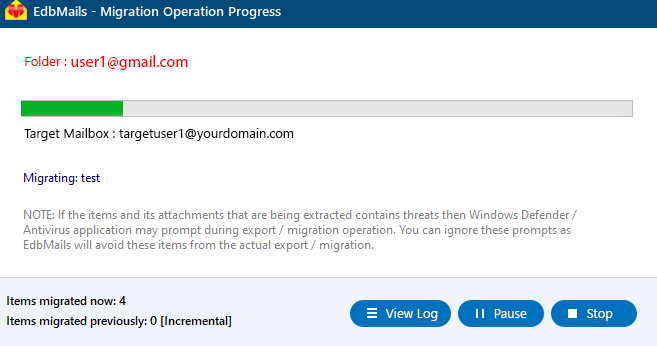
- After mapping the mailboxes, click the ‘Start Migration’ button to initiate the migration process.
Gmail to Tutanota Post-migration Tasks
- Step 1: Update the MX records to point to Office 365
Make the necessary changes to the MX records in your DNS provider's portal. This ensures that incoming email traffic is redirected to Tutanota instead of Gmail.
- Step 2: Create a new Outlook profile for users in the new domain
Include the AutoDiscover (CName) setting in your DNS configuration. This setting helps with the automatic configuration of email clients for a seamless transition to Tutanota.
- Step 3: Set up Gmail Mail Forwarding
To ensure that no emails are missed during the migration process, set up mail forwarding in Gmail. This will forward any incoming messages to your Tutanota account until the transition is complete.
- Step 1: Update the MX records to point to Office 365
Troubleshooting Guide for Gmail to Tutanota Migration
For common migration issues, check the knowledge base articles. For more information on EdbMails IMAP migration, visit the frequently asked questions (FAQs) section or contact our support team.
Common Pitfalls / Migration Challenge with Solution
Migration Issues: Users may face challenges such as large mailbox sizes, partial folder structure migration, or Gmail dependencies like app integrations and forwarding settings. These can cause incomplete or delayed data transfer if not managed carefully
Solution: Before migration, archive older emails to reduce mailbox size, verify data integrity after transfer, and update forwarding or app connections post-migration. EdbMails simplifies this process with features like mailbox filtering, automatic mapping, and incremental migration, ensuring smooth and error-free results.
Migration Options Overview
- Manual vs Automated Migration: Manual migration involves forwarding or exporting/importing emails, which can be time-consuming and error-prone. Automated migration with tools like EdbMails IMAP Migration offers faster, accurate, and secure transfer with minimal manual effort.
- Bulk Migration: Businesses migrating multiple mailboxes or large datasets should use EdbMails for bulk migration or seek professional assistance to save time, reduce errors, and ensure smooth coordination.
- Cost & Time Considerations: Migration time and cost depend on mailbox size and number of users. EdbMails maintains cost-effective pricing, concurrent mailbox migration, and optimized transfer speed which is ideal for both individual users and large organizations.
Advantages of EdbMails for Gmail to Tutanota migration
- Maintain Privacy and Security
EdbMails prioritizes your data’s privacy and security during the Gmail to Tutanota migration. With end-to-end encryption, it ensures your emails and sensitive information remain secure and accessible only to you and the recipient.
- Standalone Interface Platform
EdbMails offers a fully standalone platform for migration. This means you don’t need additional software or tools to transfer your Gmail data to Tutanota. The intuitive interface simplifies the entire process for seamless migration.
- Support for all Microsoft Windows Versions
EdbMails is compatible with all major Microsoft Windows versions, including Windows 7, 8, 10, and 11. This ensures that users can perform Gmail to Tutanota migration smoothly, regardless of their system configuration or setup.
- Concurrent Migration
With EdbMails, you can perform concurrent migration, transferring multiple mailboxes simultaneously. This feature is especially beneficial for users or organizations needing to migrate large volumes of data quickly and efficiently without delays.
- Step-by-step Wizard Instructions
EdbMails offers a clear, step-by-step wizard to guide users through the migration process. Accompanied by tutorials, it ensures even non-technical users can easily follow along, making the entire migration process smooth and error-free.

