Enable Multifactor Authentication in Microsoft 365
Multi-Factor Authentication (MFA) adds another level of security to the standard username/password combination. According to Microsoft, enabling MFA can reduce the risk of account compromise by over 99%, making it a crucial safeguard against phishing attacks and frequent data breaches. If a user's login details were somehow compromised, multi-factor authentication would make it incredibly difficult for a third party to get access to a particular employees device due to the fact that authentication takes place in separate location (at separate times).
With Microsoft 365, MFA provides different ways of authenticating users from a standard phone call/SMS through to a modern, secure authenticator application (Microsoft Authenticator) or hardware key/passkey. This allows firms to secure critical information without making employee login to be difficult.
Why Multifactor Authentication (MFA) Is Essential for Microsoft 365 Security
Multi-Factor Authentication (MFA) is extremely important as it significantly reduces the risk of an account being accessed by unauthorized access. If an administrative account were compromised within your company then what would the likely effect be:
Data breaches: Attackers could have obtained private customer data, intellectual property and private e-mails.
Loss of access: Even with disaster recovery, you could be prevented from accessing crucial resources on the network due to a ransomware or similar attack.
Financial and legal impact: There may be direct financial losses, payment of ransom money, fines and compensation costs incurred by the organization after an incident.
Reputation damage: Security breaches can harm your organization’s image, reduce customer trust, and lead to lost business opportunities.
Operational disruption: Cyberattacks can interfere with IT systems, causing downtime or interruptions in delivering services.
Employee morale: Security incidents can increase anxiety among staff and affect confidence in the organization as a safe and reliable workplace.
Steps to Enable MFA and Enforcing to access from other application
EdbMails supports secure OAuth 2.0 based modern authentication for Office 365. Download and install the latest version to avail this feature. With this modern authentication, EdbMails can directly work with MFA-enabled accounts without any changes.
Proceed by following the steps outlined below
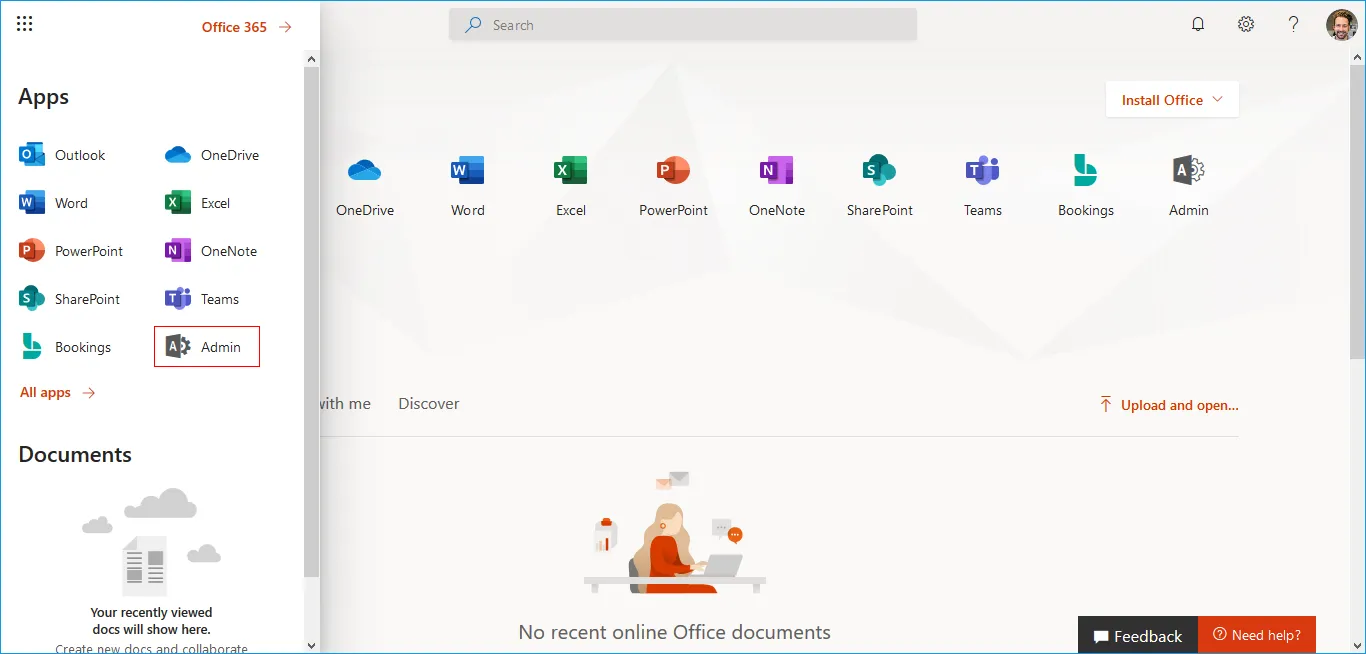
Login to Office.com with your Global admin credentials.
- Step 1: Click the 'Admin' menu as shown below.
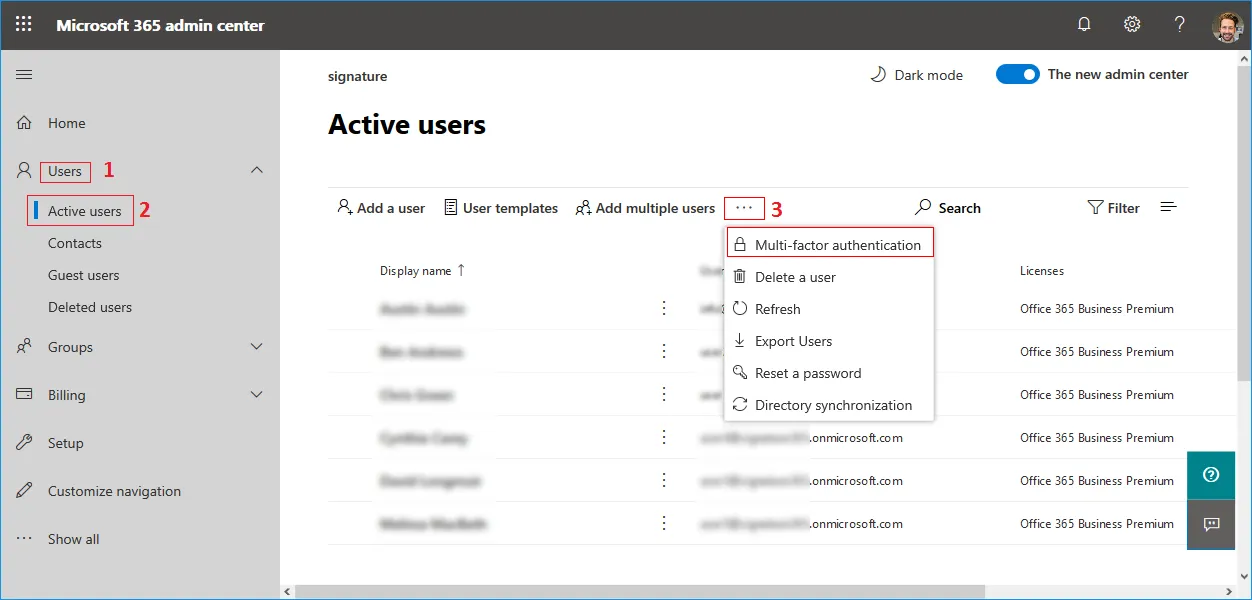
- Step 2: Click the 'Users', then 'Active Users', then 'Multi-factor authentication' menu as shown below.
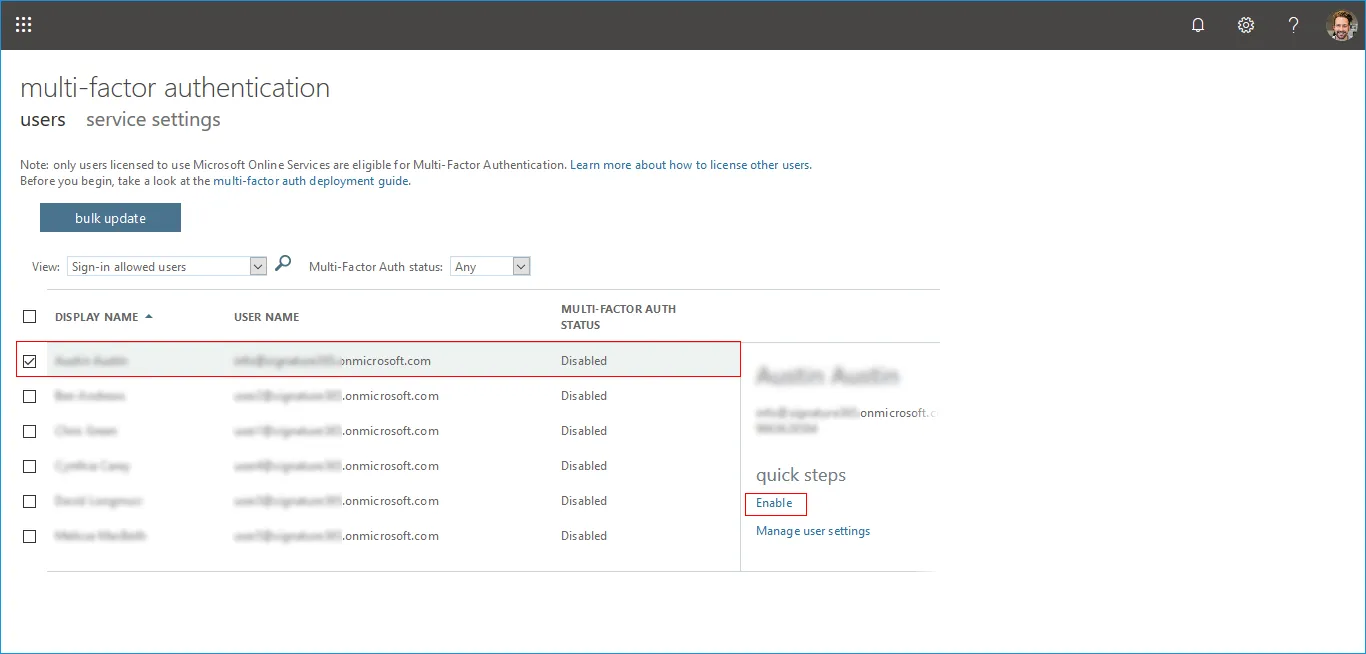
- Step 3: Select the user for which you want to enable the MFA, Click the link 'Enable' as shown below.
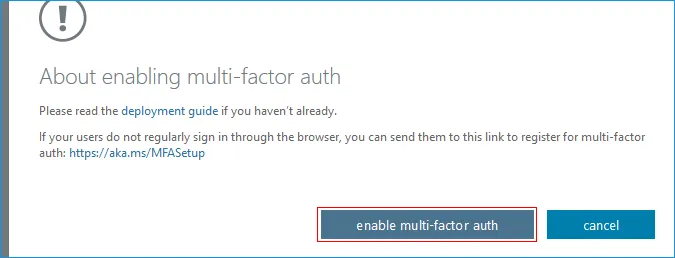
- Step 4: About enabling multi-factor auth.
Click the 'enable multi-factor auth' button as shown below.
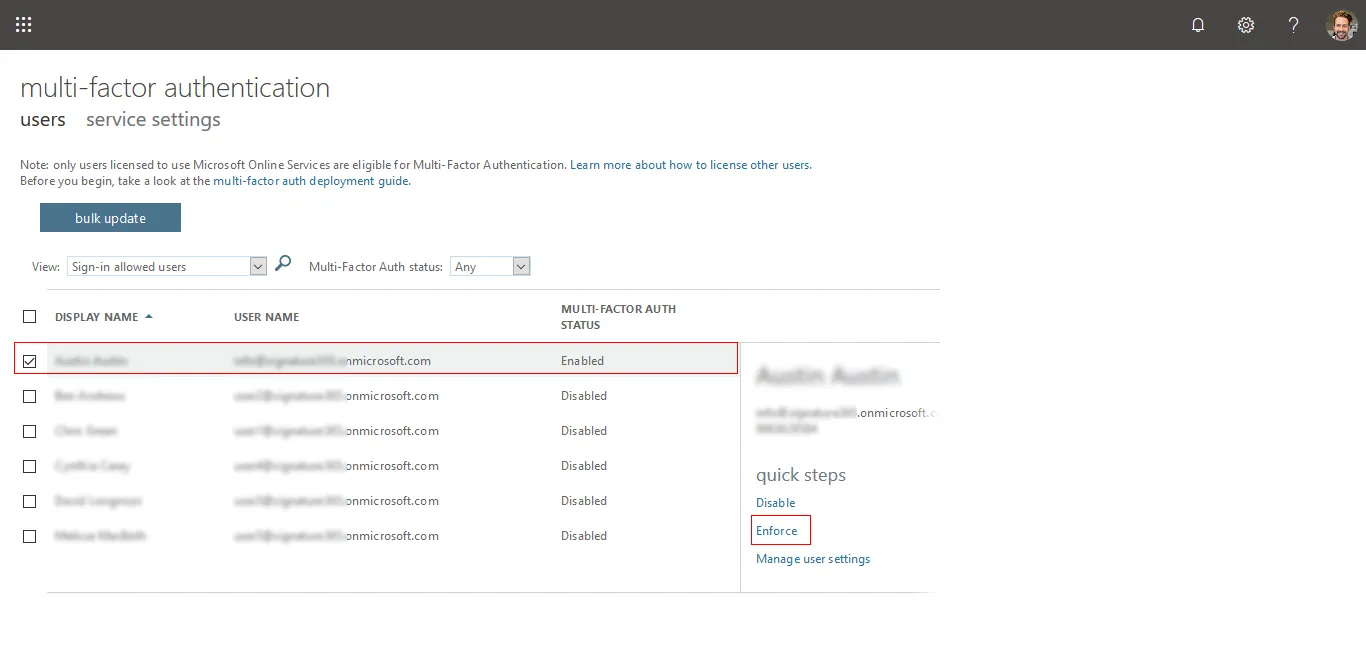
- Step 5: Select the user for which you want to enforce MFA, Click the link 'Enforce' as shown below.
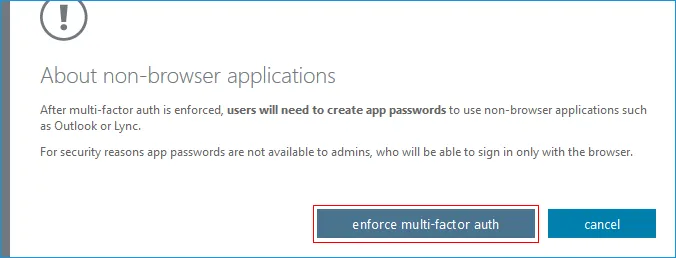
- Step 6: About non-browser applications.
click the 'enforce multi-factor auth' button as shown.