


Public Folder to Office 365 Shared Mailbox Migration
Migrating public folders to Office 365 shared mailboxes is a practical approach for organizations aiming to modernize collaboration and streamline management. Although public folders support structured data sharing, they often become difficult to manage and maintain as the environment grows. Shared mailboxes in Office 365 provide a more efficient alternative by centralizing emails, calendars, and tasks in a single location without requiring separate licenses or heavy administrative overhead.
EdbMails Exchange Migration software simplifies this transition with a secure and reliable approach. It enables the migration of public folders to Office 365 shared mailboxes while preserving data integrity, folder hierarchy, and permissions. With EdbMails, organizations can reduce maintenance efforts, improve collaboration, and complete the migration smoothly with zero downtime, helping teams work more efficiently.
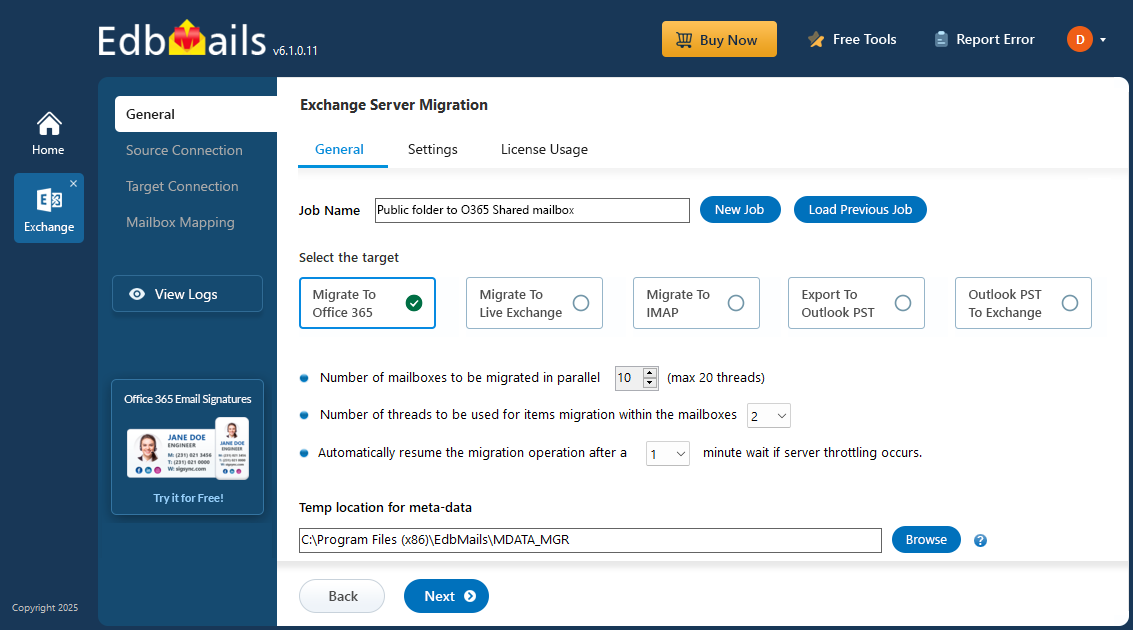
EdbMails provides a reliable and efficient solution for organizations that need to migrate public folders to shared mailboxes in Office 365. It enables direct migration from on-premises Exchange servers such as Exchange 2019, 2016, 2013, and 2010 without requiring complex configurations or additional intermediate steps. EdbMails ensures accurate migration of all public folder data including emails, contacts, calendars, and the complete folder hierarchy while maintaining permissions and metadata throughout the entire process.
Advanced filtering options allow users to selectively migrate specific folders or items using conditions such as date, subject, or item type, providing greater flexibility and control over the process. The software also supports incremental migration, ensuring that only newly added or updated data is migrated during subsequent runs. This approach helps reduce bandwidth usage, saves time, and avoids duplication of previously migrated data, resulting in a smooth and efficient migration experience.
Public Folder to Shared Mailbox Migration Planning
Before initiating public folders to the shared mailbox migration process, it is crucial to evaluate the necessary requirements and prerequisites for a successful transition. Please refer to the following checklist to ensure that your environment is adequately prepared for the migration.
- Assess the total size and quantity of public folders designated for migration.
- Set up shared mailboxes on the destination server.
- Decide whether you prefer to migrate all data at once or in phases.
- Evaluate your internet connection speed and overall network setup.
- Keep in mind that shared mailboxes have a 50GB size limit. If you plan to migrate larger public folders, consider partitioning them or reducing their size beforehand.
- Determine the nature of your current migration environment, whether it is Hybrid or non-Hybrid.
Public Folder to Shared Mailbox : Pre-migration Activities
- Step 1: Set the impersonation role on the source to the admin user
Ensure that you set the ApplicationImpersonation permissions to the admin account on the source Exchange server. Ensure that the mailboxes and folders you migrate are not hidden from the address lists.
- Step 2: Configure shared mailboxes on the target Office 365 server
Ensure that you create and configure the Shared mailboxes on the target Office 365 server.
Create Shared Mailbox on Office 365 and assign the members
Ensure that you have a global admin account with a mailbox for Auto Registration of EdbMails application on your Entra ID (Azure Active Directory). However, you can use either a global admin account or any user account with full access rights in the Manual Registration method.
- Step 3: Add a custom domain to Office 365 (Optional)
If you have a custom email domain from your hosting provider to which you want to migrate and receive emails, you must add and verify the domain on Office 365.
- Step 4: Install cumulative updates (CU) on Exchange server
For migrating Public folders from Exchange to Office 365, ensure that you have the latest cumulative updates installed on the source server
- Step 1: Set the impersonation role on the source to the admin user
Steps to Migrate Public Folders to Shared Mailbox
Step 1: Download and install EdbMails Exchange server migration software setup
- Download the EdbMails application and install it on a computer with access to both the source Exchange server.
List of system requirements for public folder to shared mailbox migration
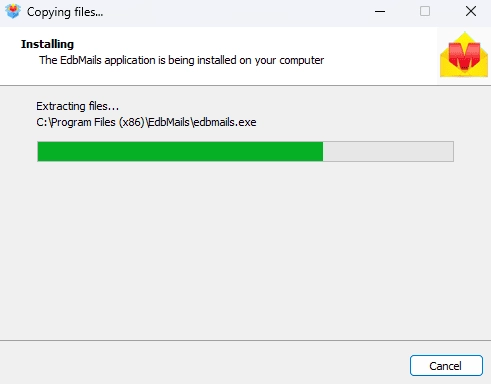
- Start the EdbMails application on your computer.
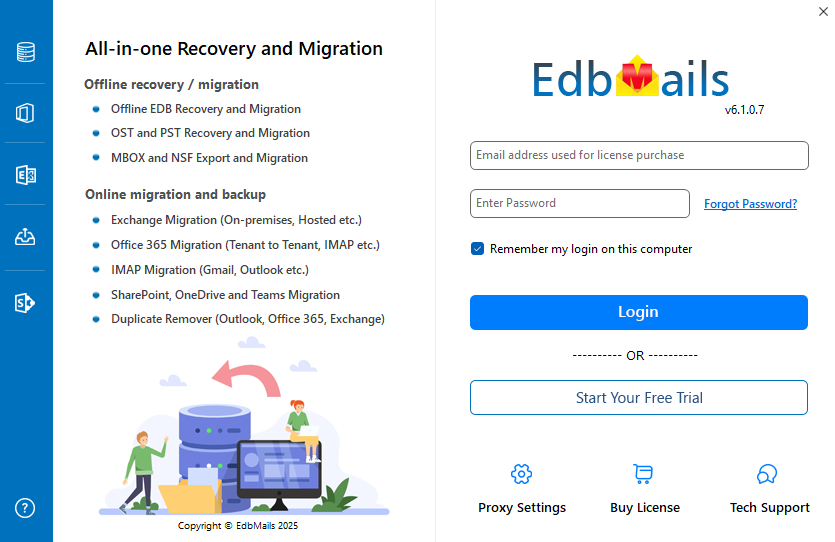
- Enter your registered email ID and password, then click ‘Login’. If you haven’t created an account yet, choose ‘Start Your Free Trial’ to access the trial version.Note: The trial version provides all key features and allows migration of up to 30 items per folder. For unlimited migration, purchase an Exchange Migration license from the official EdbMails website.After purchasing the license, close the application and open it again. Then log in using the same email ID and password used during the purchase to activate the license successfully.
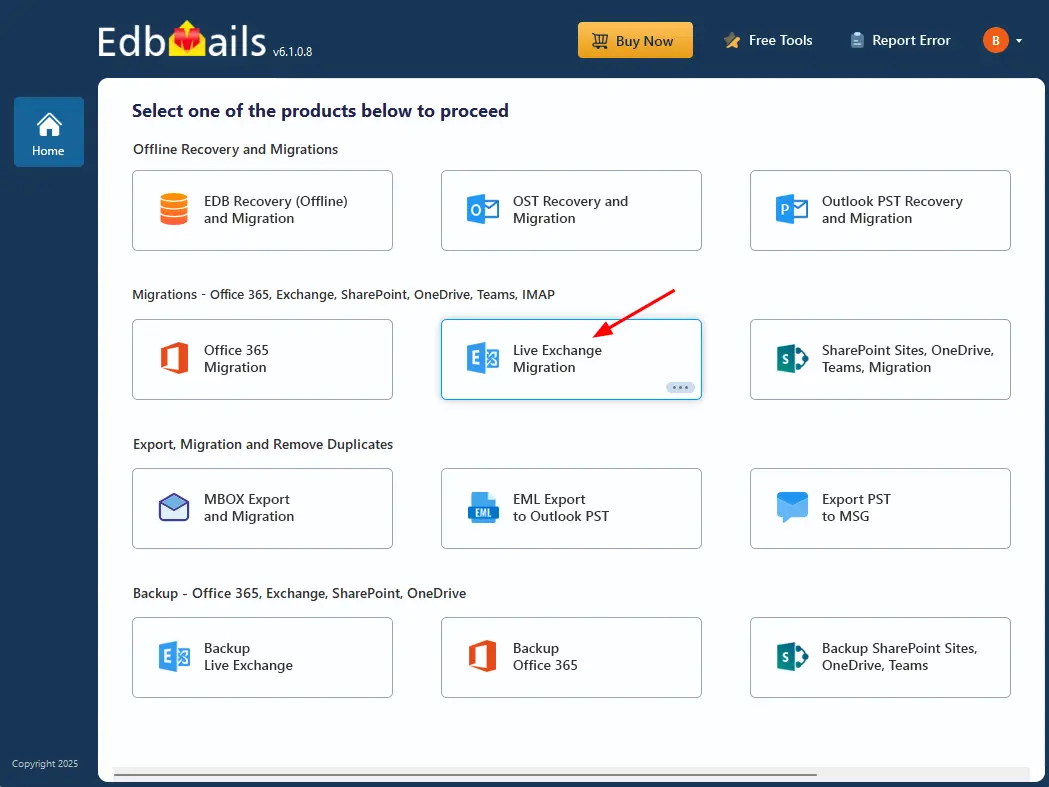
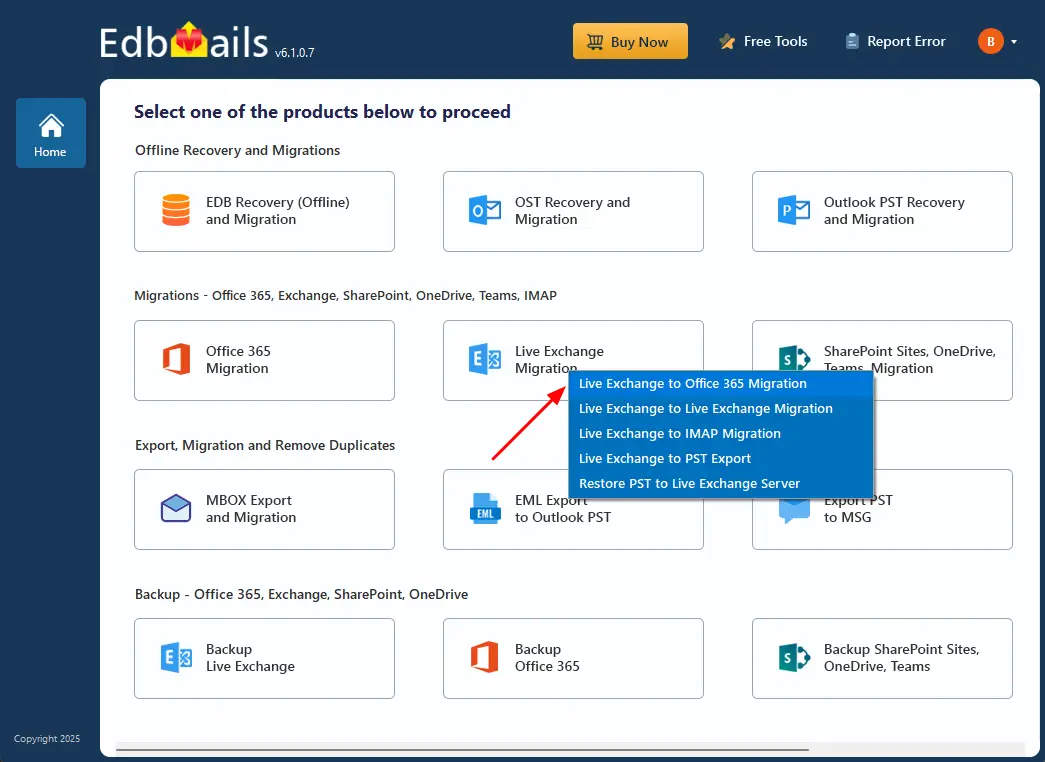
- Select the ‘Live Exchange Migration’ option.
- Select 'Live Exchange to Office 365 Migration'
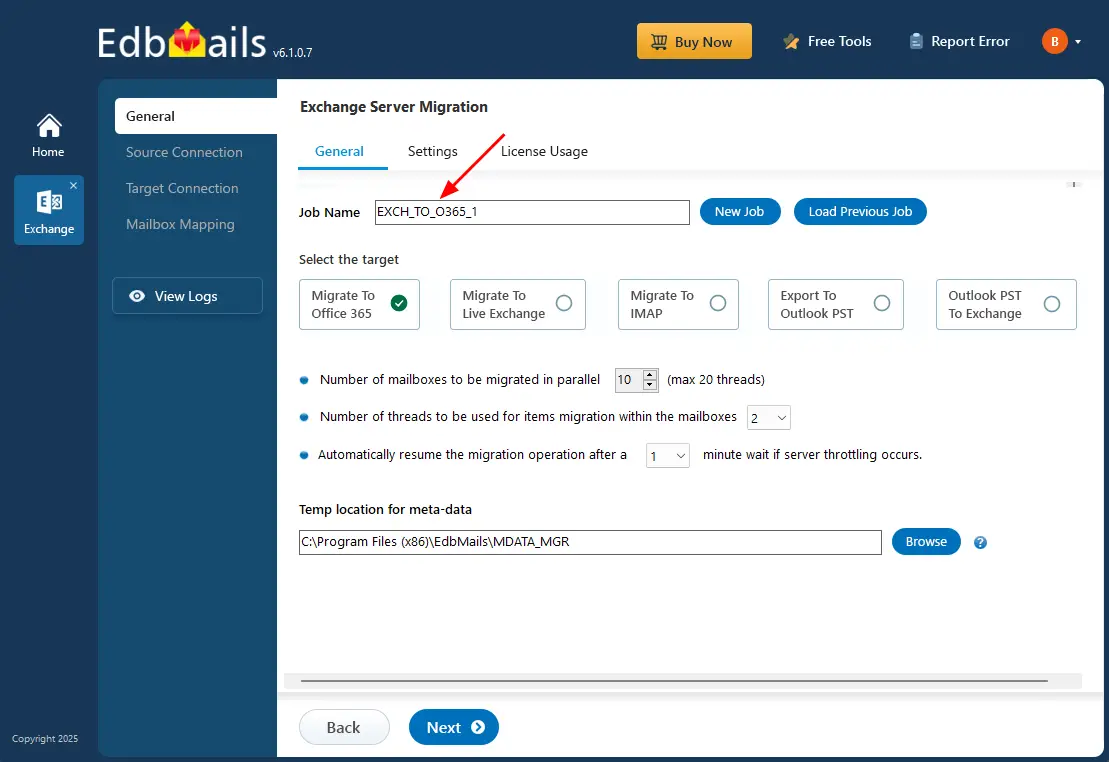
- You can assign any name you want by clicking ‘New Job’, or you can use the default job name.
- Download the EdbMails application and install it on a computer with access to both the source Exchange server.
Step 2: Connect to source Exchange server
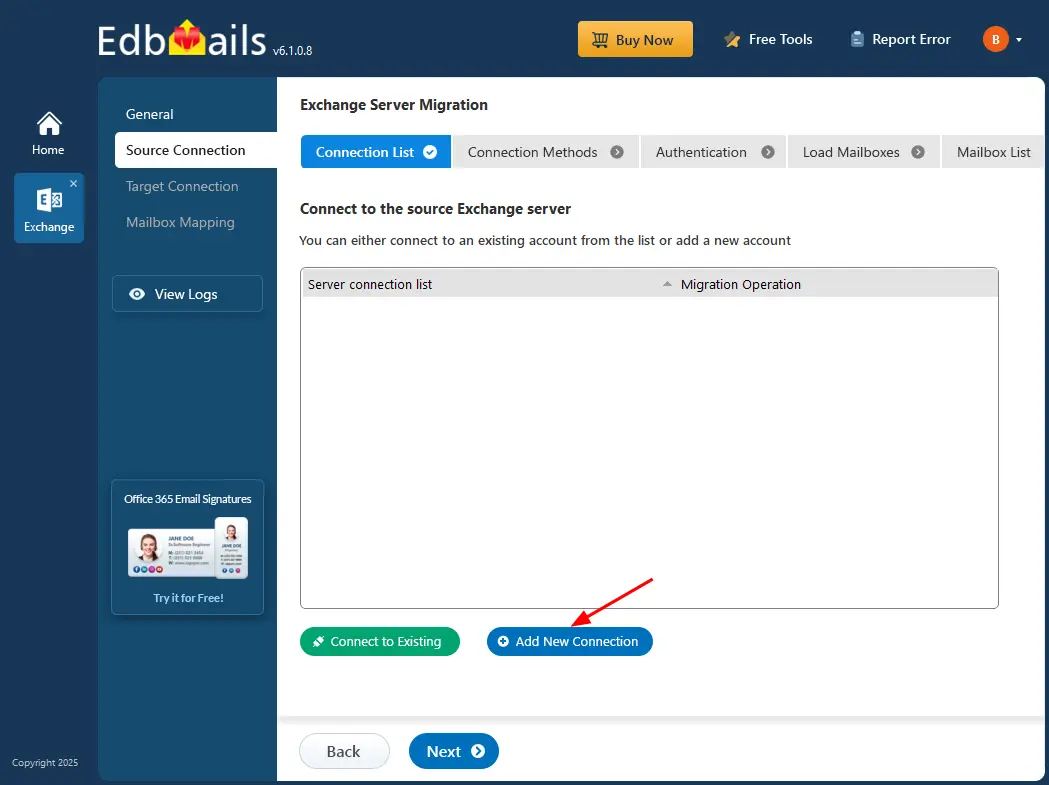
- To connect to the source Exchange server, click on ‘Add New Connection’. If you’ve already created a connection before, choose it from the list and click ‘Connect to Existing’ to proceed.
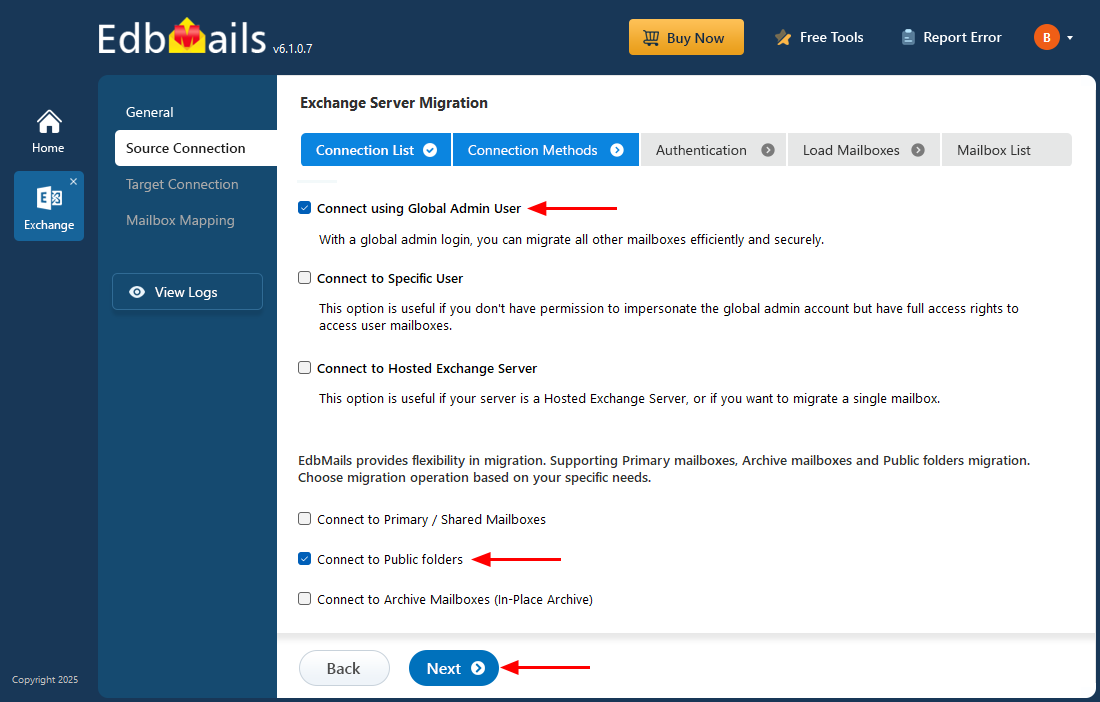
- Select the ‘Connect to Public folders’ option and click the ‘Next’ button
- Enter the source Exchange server details, including the IP address (Domain name), Exchange version, username, and password.
- Click the ‘Login’ button to proceed.
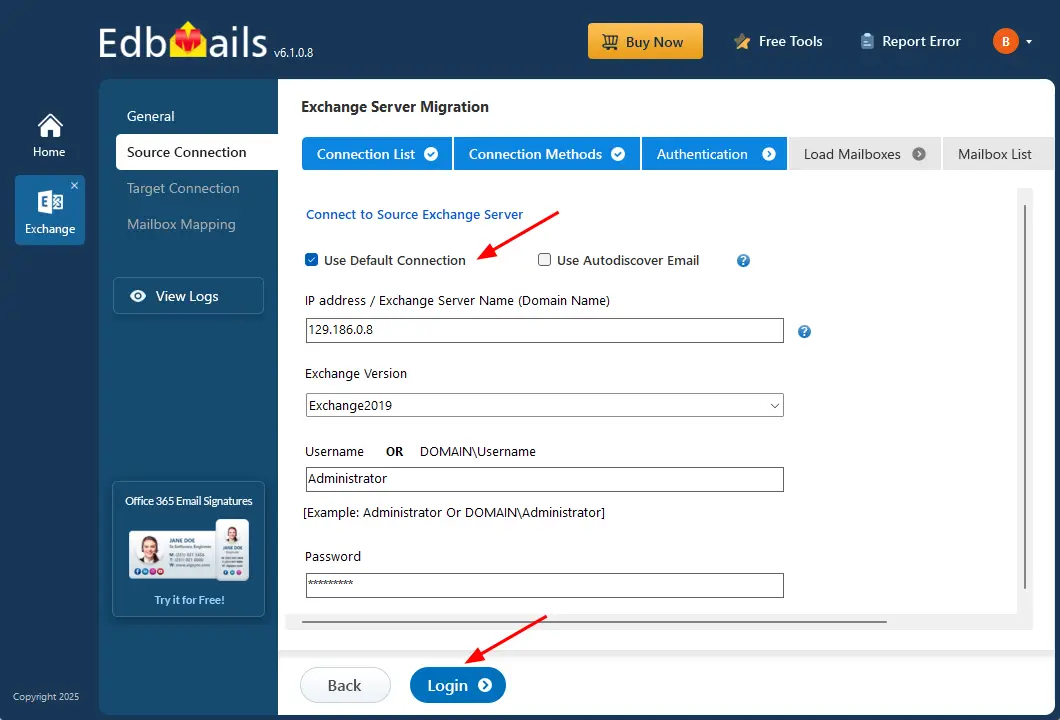
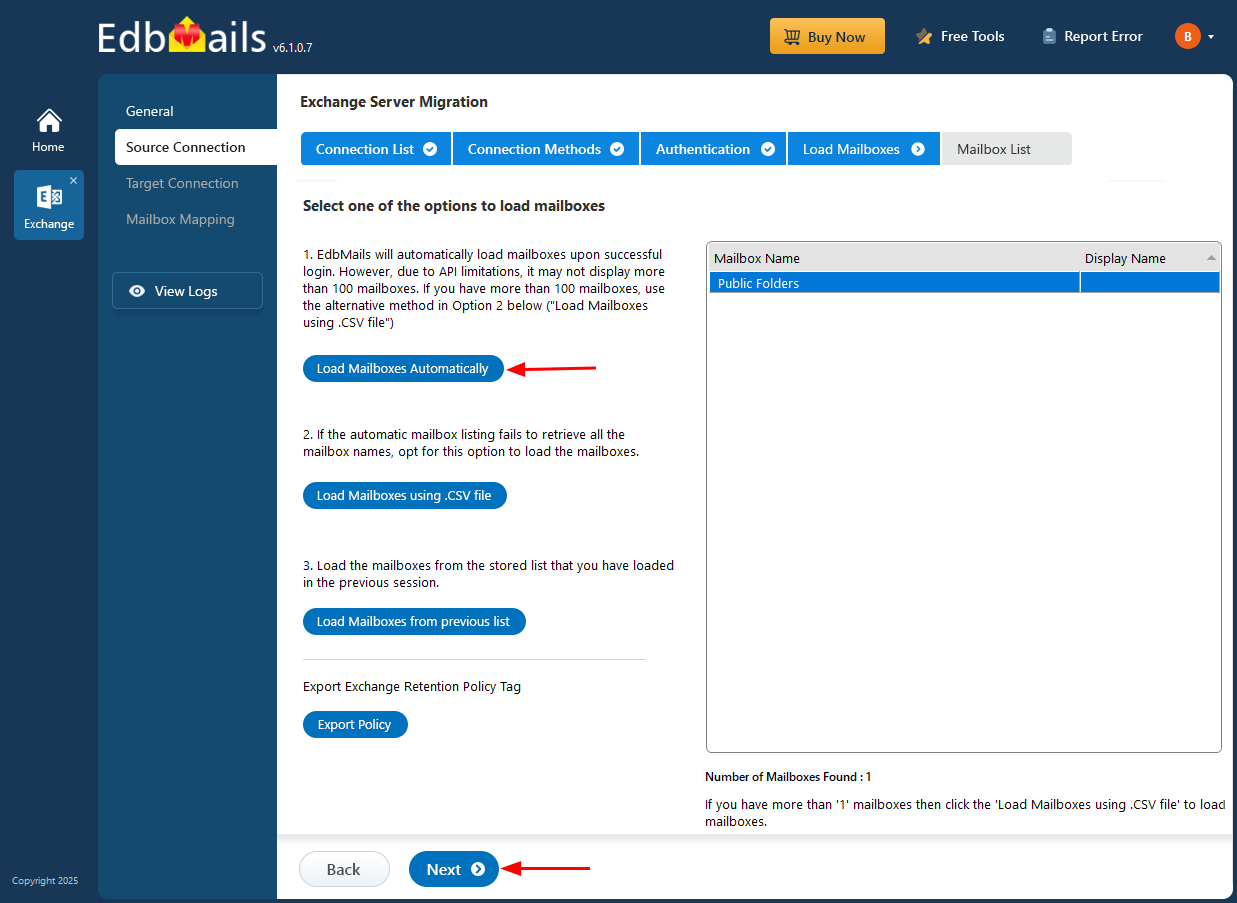
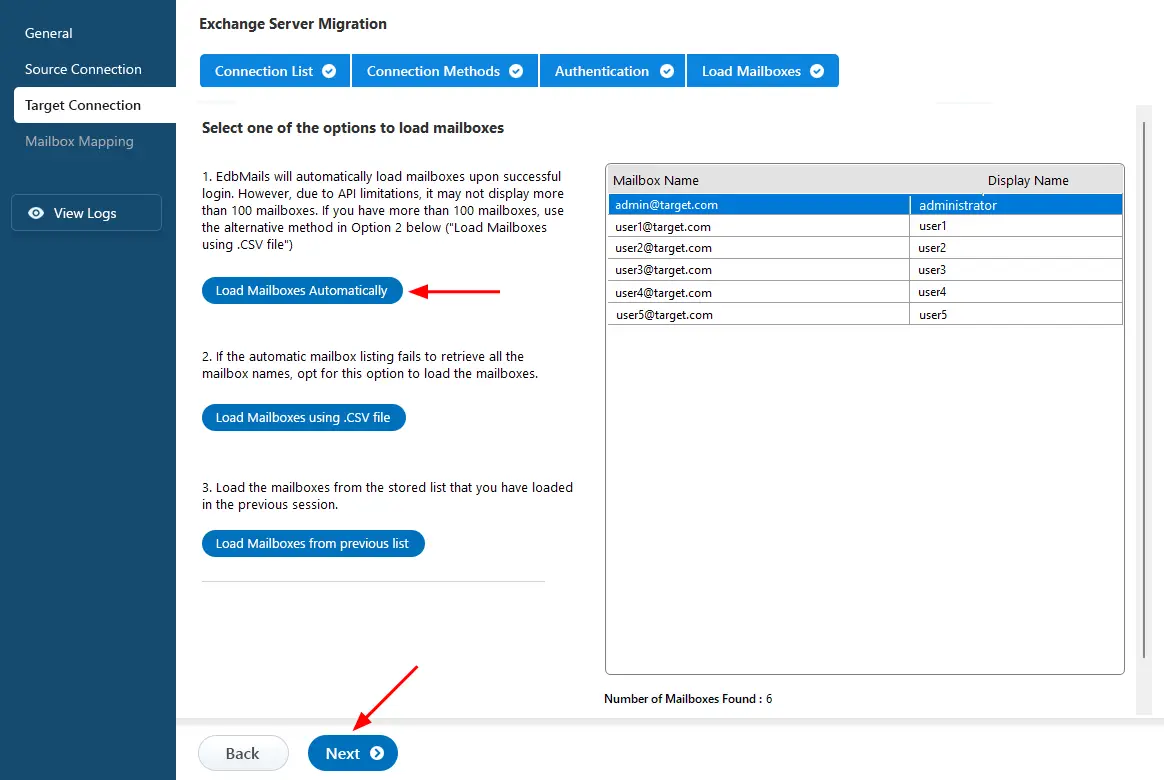
- After successful authentication, select one of the following options to load the mailboxes:
i) Load Mailboxes Automatically: After signing in, EdbMails automatically loads and displays the available mailboxes, making the configuration process simple. Due to Microsoft API limitations, only up to 100 mailboxes may be displayed. If your environment has more than 100 mailboxes, use the alternative option below.
ii) Load Mailboxes using CSV file: If the automatic option does not display all mailbox names, choose ‘Load Mailboxes using .CSV file’ to load the required mailboxes.
iii) Load Mailboxes from previous list: This option allows you to quickly access the mailbox list that was saved and imported during your previous session.
- Select ‘Load Mailboxes Automatically’ and click ‘Next’ to proceed.
- To connect to the source Exchange server, click on ‘Add New Connection’. If you’ve already created a connection before, choose it from the list and click ‘Connect to Existing’ to proceed.
Step 3: Select the Exchange Public folders
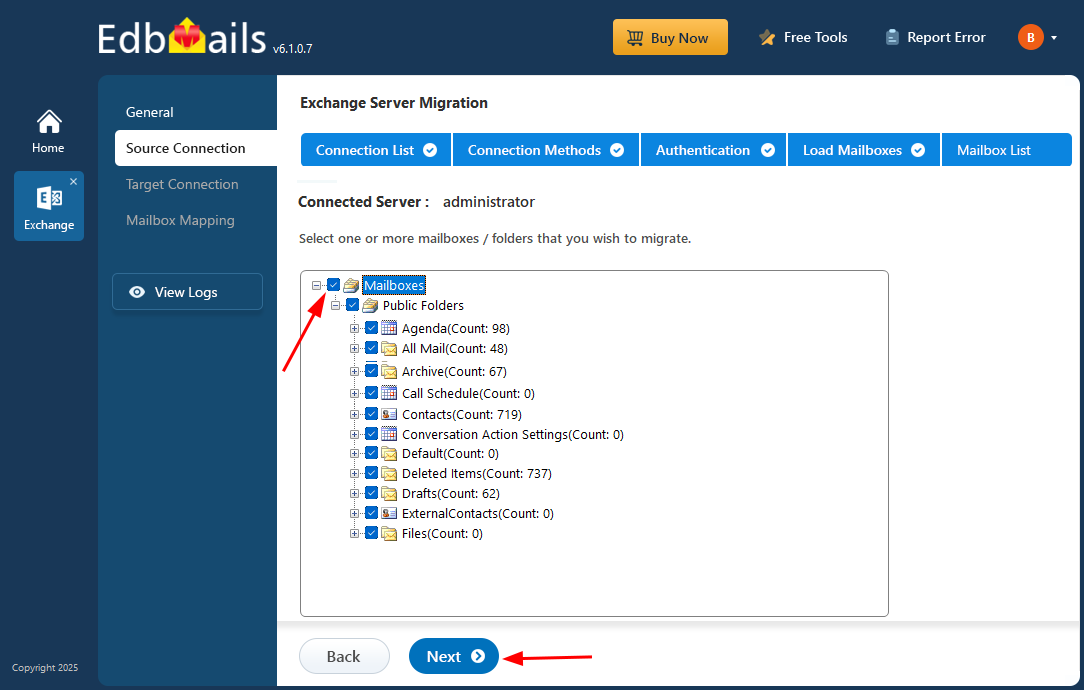
- Select the required public folders on the Exchange server that you wish to migrate or you can migrate all folders.
- Then, click 'Next' to establish a connection with the target server.
Step 4: Connect to target Office 365 server
- Set up a new connection to your target Exchange server by clicking ‘Add New Connection’. If a connection already exists, you can reuse it by selecting it from the list and clicking ‘Connect to Existing’.
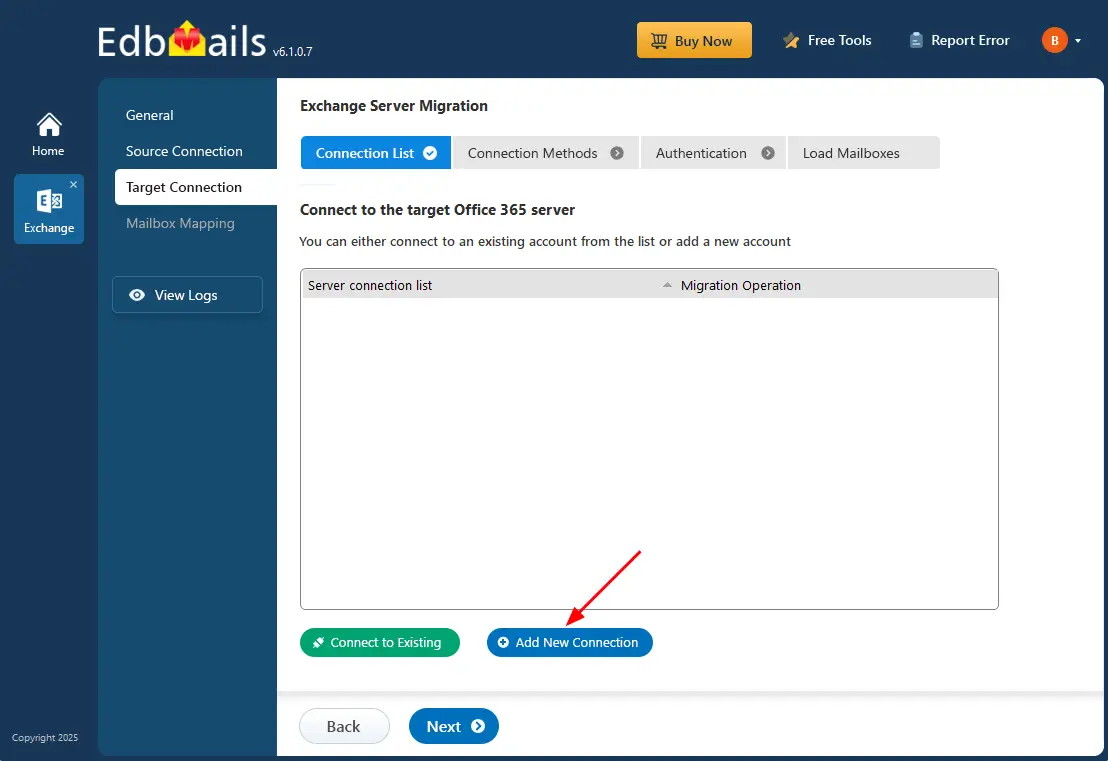
- EdbMails provides flexibility in migration as it supports primary mailboxes, archive mailboxes and public folder migration.
- Select ‘Connect to Primary / Shared Mailbox’ and click the ‘Next’ button.
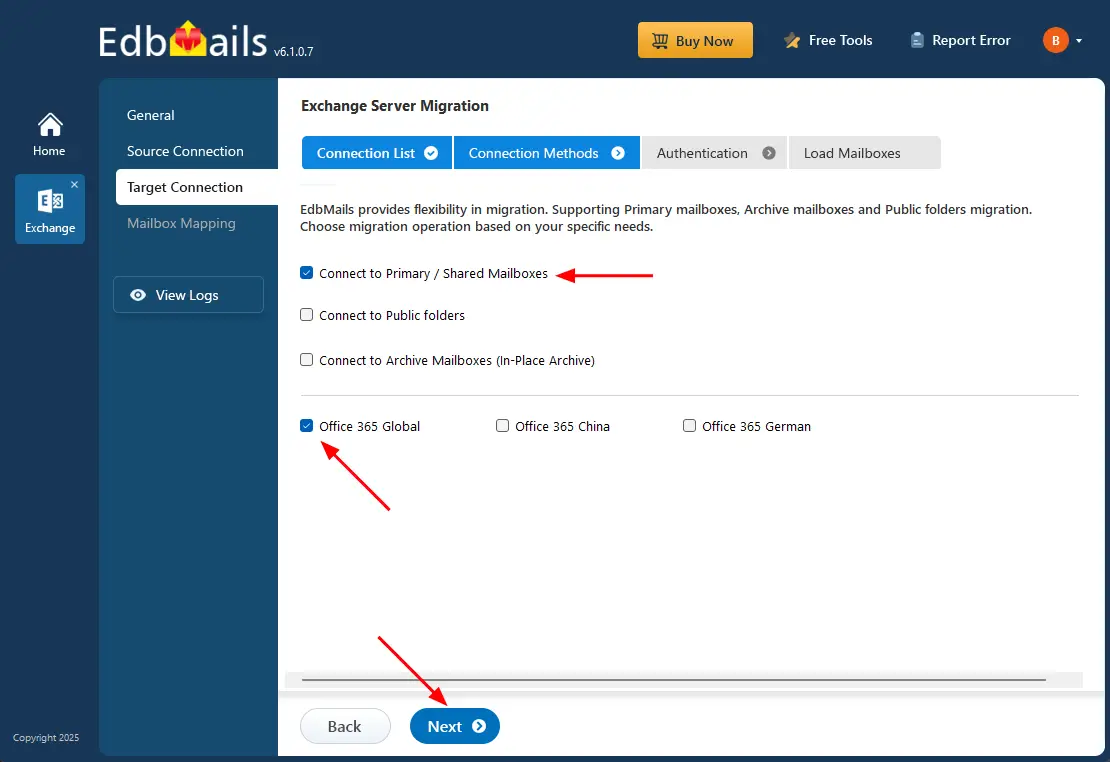
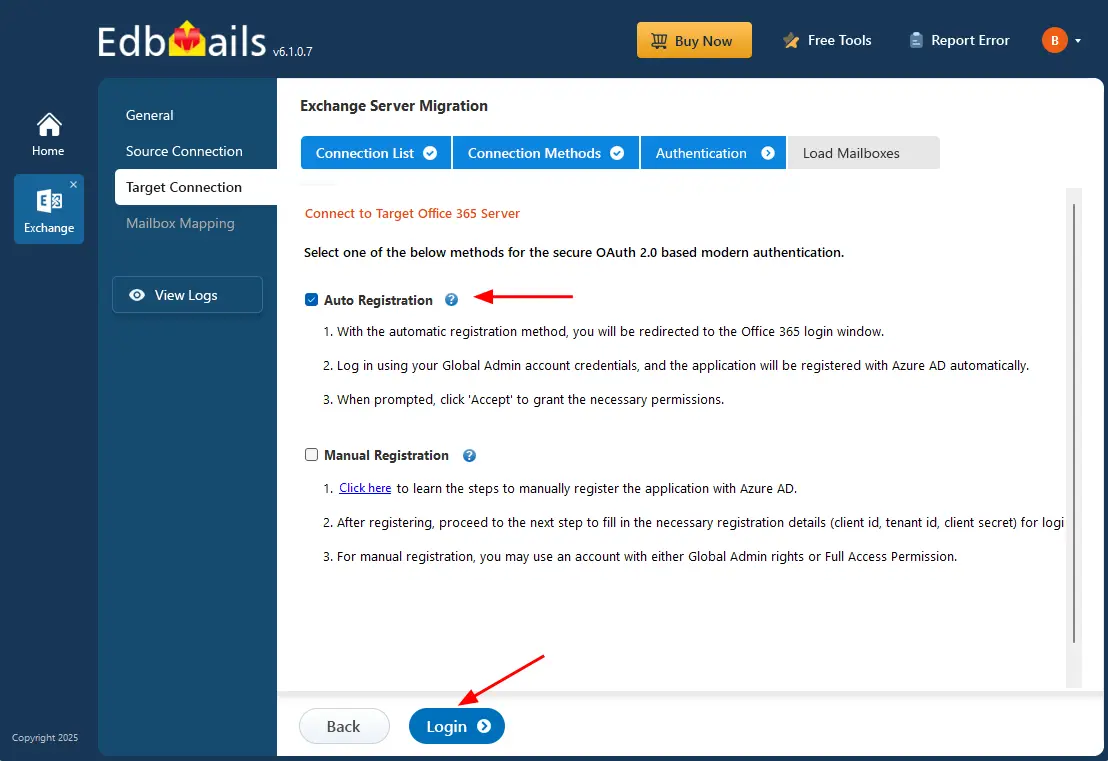
- Ensure you have a Global Admin account with an active mailbox to allow auto registration of the EdbMails application in your Entra ID (Azure Active Directory).
- For the Manual Registration option, you can use either a Global Admin account or a user account that has full access permissions.
- Choose ‘Auto Registration’ to connect with Office 365, then click the ‘Login’ button to proceed.
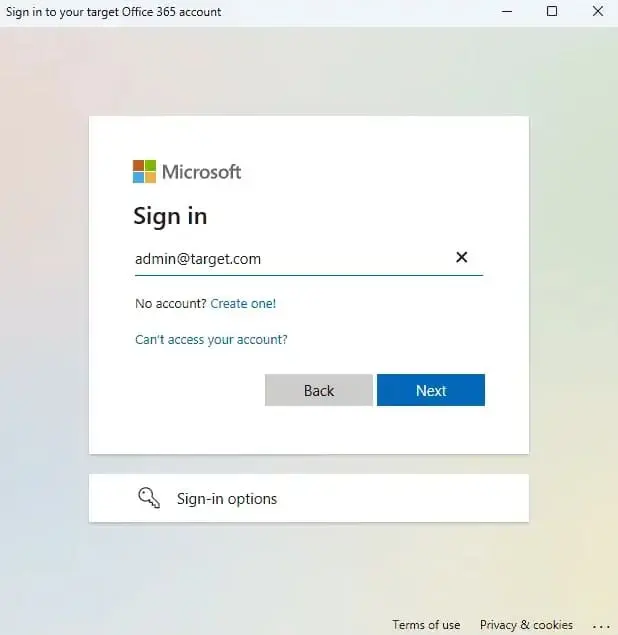
- Authenticate on the Microsoft Sign in page using your Global admin account.
- Choose a method to load the shared mailboxes and click ‘Next’ to continue. If preferred, you can also upload them manually using a CSV file.
- Set up a new connection to your target Exchange server by clicking ‘Add New Connection’. If a connection already exists, you can reuse it by selecting it from the list and clicking ‘Connect to Existing’.
Step 5: Public folders to Shared mailbox mapping
- Choose the required mailbox mapping option
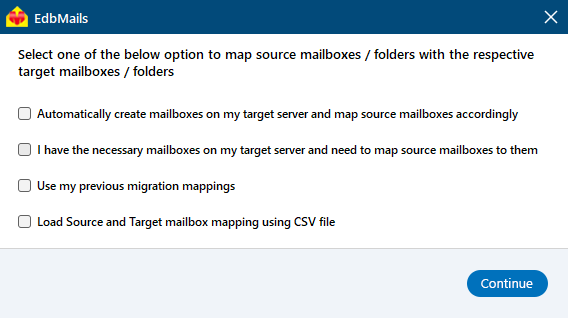
- EdbMails takes care of mapping public folders to shared mailboxes automatically. If needed, you can also perform the mapping manually.
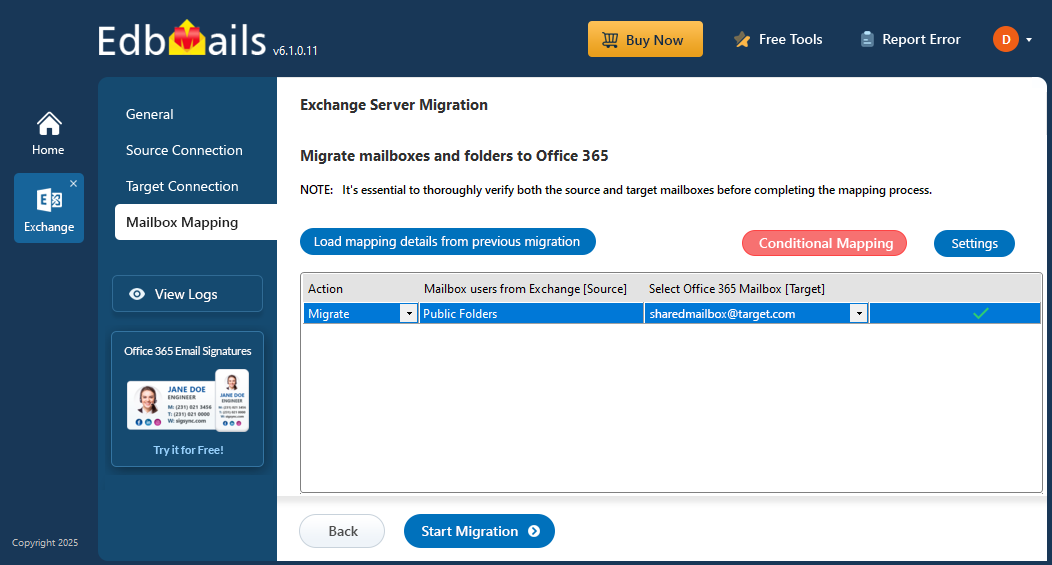
- Choose the required mailbox mapping option
Step 6: Start Public folder to Shared mailbox migration
- To initiate the migration, simply click on the ‘Start Migration’ button.
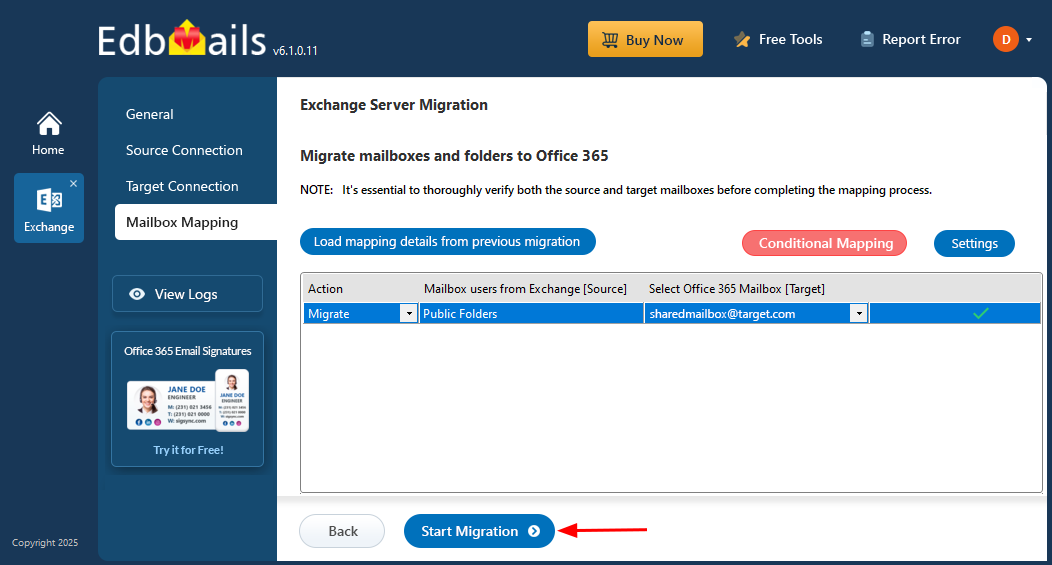
- Track the migration using the progress bar. When everything is successfully migrated, EdbMails notifies you with a completion alert. You can then click ‘View Logs’ to see the migration report.
- To initiate the migration, simply click on the ‘Start Migration’ button.
Public Folder to Shared Mailbox Post-Migration Tasks
After completing the migration from Exchange public folders to shared mailboxes, it’s important to verify data integrity and configure the new environment properly. The following post-migration checklist will help ensure everything functions smoothly:
- Verify that all emails, folders, and data have migrated correctly by reviewing shared mailboxes and migration reports.
- Set appropriate permissions (Full Access, Send As) for users who need access to shared mailboxes.
- Inform users about the new shared mailboxes and provide usage instructions.
- Ensure users can access shared mailboxes in Outlook and other supported email apps.
- Confirm that mail delivery to shared mailboxes is working correctly. Set mail rules or forwarding if needed.
- Configure Office 365 archiving and retention policies for compliance and storage management.
- Monitor Office 365 performance to ensure smooth operation after migration.
- Remove old Exchange public folders once the migration is confirmed successful.
Troubleshooting Guide for Public Folder to Shared Mailbox Migration
Refer to the Exchange migration troubleshooting guide and the public folder troubleshooting resources for potential solutions to any errors you may encounter during migration. For additional details on EdbMails Exchange migration, refer to the frequently asked questions.
Solution for failure in migration of public folders due to insufficient permissions.
Advantages of Using EdbMails to Migrate Public Folder to Shared Mailbox
- Direct Migration: Migrate any Exchange Server public folders directly to shared mailboxes without requiring intermediate steps or additional tools.
- No Downtime: Perform the migration while keeping your Exchange Server fully operational, ensuring uninterrupted access for users.
- Free Demo and Support: Get a free personalized demonstration and 24/7 technical support throughout the migration process.
- Granular Control: Benefit from brick-level migration options that allow you to select specific folders or items for transfer.
- Broad Compatibility: Supports all Exchange versions, including Exchange 2007, 2010, 2013, 2016, and 2019..
- User-friendly Interface: An intuitive design eliminates the need for PowerShell scripts or manual PST imports.
- Detailed Migration Report: Generate comprehensive migration reports to verify data transfer accuracy and completion status.

