


Google Workspace to Office 365 Migration
Page intent: This page is the step-by-step implementation guide for Google Workspace to Microsoft 365 migration. For the commercial product overview, features, and purchase-oriented evaluation, see the Google Workspace to Office 365 Migration Tool.
EdbMails Google Workspace Migration Tool offers a comprehensive solution for complete Google Workspace to Microsoft 365 migration, enabling organizations to transfer Gmail emails, tasks, calendars, contacts, and other mailbox data without data loss. The application connects to Google Workspace using secure API-based communication with domain-wide delegation, allowing administrators to access and migrate organizational mailboxes in a controlled and authorized manner.
The software supports modern authentication using OAuth 2.0 when connecting to Microsoft 365. The software allows migration to any Microsoft 365 destination, including primary mailboxes, shared mailboxes, archive mailboxes, and public folders. During the migration process, EdbMails preserves the original Gmail folder structure, ensuring users experience a seamless transition without the need for mailbox restructuring.
For organizations managing multiple user accounts, EdbMails supports bulk migration of Google Workspace mailboxes, allowing administrators to migrate multiple mailboxes without requiring individual user credentials. This significantly reduces manual effort and migration timelines. Advanced Filter Settings enable administrators to migrate only the required data based on date range, subject, from address, cc address, bcc address, and more. helping optimize the migration scope and reduce unnecessary data transfer. Additionally, incremental migration ensures that only newly added or modified items are transferred in subsequent migration runs. This prevents duplicate data migration and is useful for staged or large-scale migration projects.
This guide provides the complete step-by-step procedure to configure the required permissions and perform a successful migration using EdbMails.
Prerequisites for Google Workspace to Office 365 Migration
Before initiating the migration from Google Workspace to Office 365, ensure the following requirements are completed to guarantee a secure, uninterrupted, and successful data transfer.
Step 1: Source Google Workspace Requirements
- An active Google Workspace Admin account with Super Administrator privileges
- API access is enabled in the Google Workspace Admin console
- A Service Account created in Google Cloud Console
- Domain-wide delegation enabled for the Service Account
- Required API scopes configured for Gmail, Contacts, and Calendar access
Steps to Configure a Google Workspace Admin Account
Step 2: Target Office 365 Tenant Requirements
- Prepare your target Office 365 tenant before starting the migration process.
- A suitable Office 365 license assigned to all target mailboxes ( Business or Enterprise plan as required)
- Ensure that you have a global admin account with a mailbox for Auto Registration of the EdbMails application on your Entra ID (Azure Active Directory). However, you can use either a global admin account or any user account with full access rights in the Manual Registration method.
- Ensure that your network and bandwidth capacity are sufficient to support the migration process. Review Microsoft 365 network planning guidelines, performance factors, and migration best practices to avoid delays and ensure smooth data transfer.
Step-by-Step Guide to Migrate from Google Workspace to Office 365
Follow the steps below to migrate mailboxes, contacts, and calendars from Google Workspace to Office 365 using EdbMails.
Step 1: Download the EdbMails Application
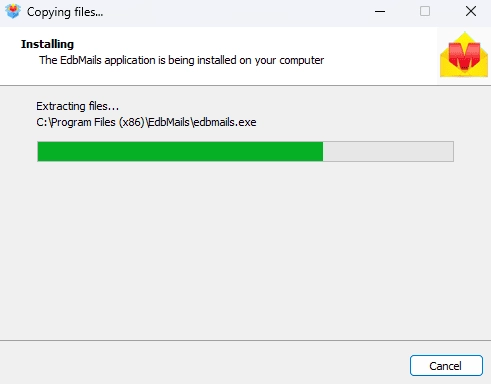
- Download and install the EdbMails application on your computer.
See EdbMails system requirements for Google Workspace migration.
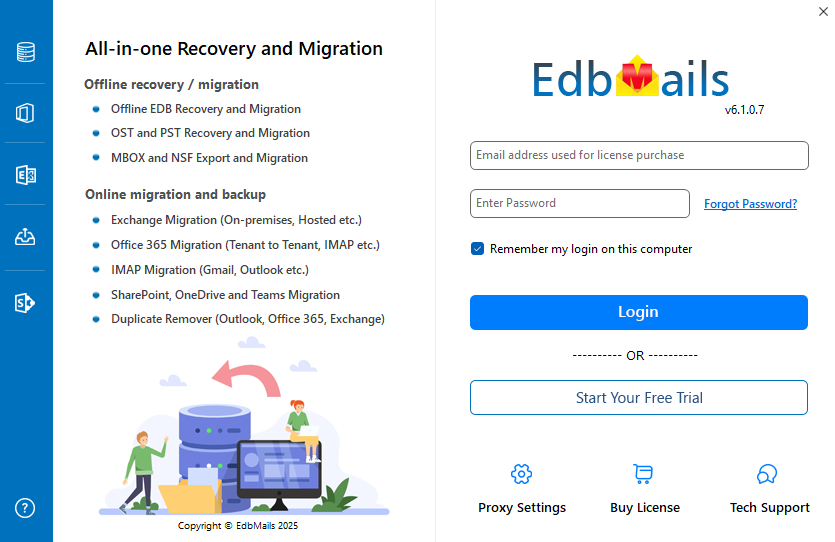
- Enter your registered email address and password, then click ‘Login’. If you have not created an account yet, choose ‘Start Your Free Trial’ to continue using the trial version.
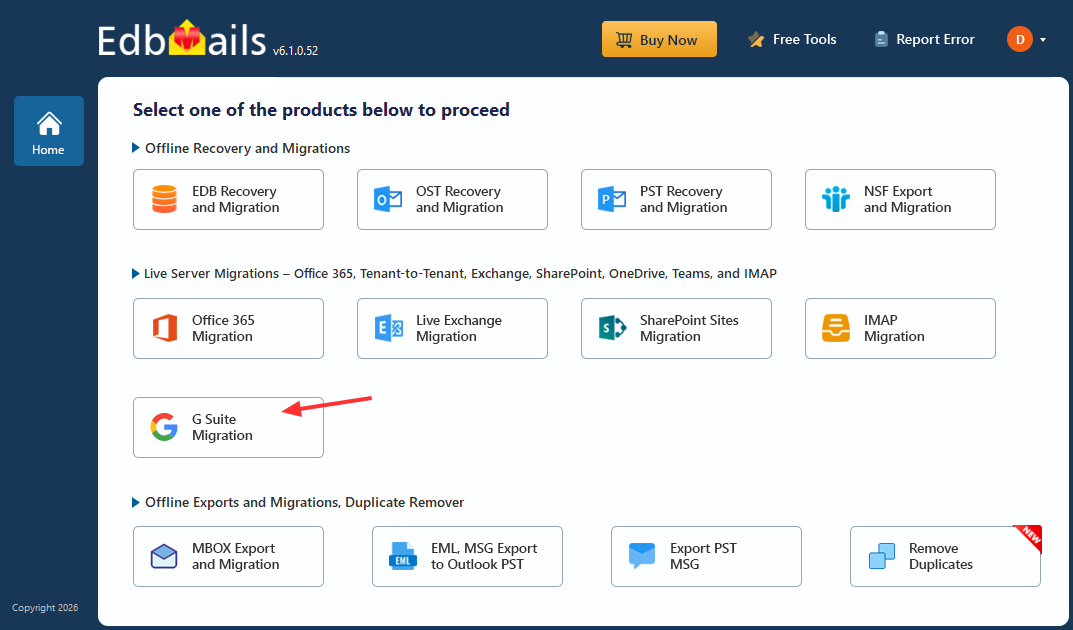
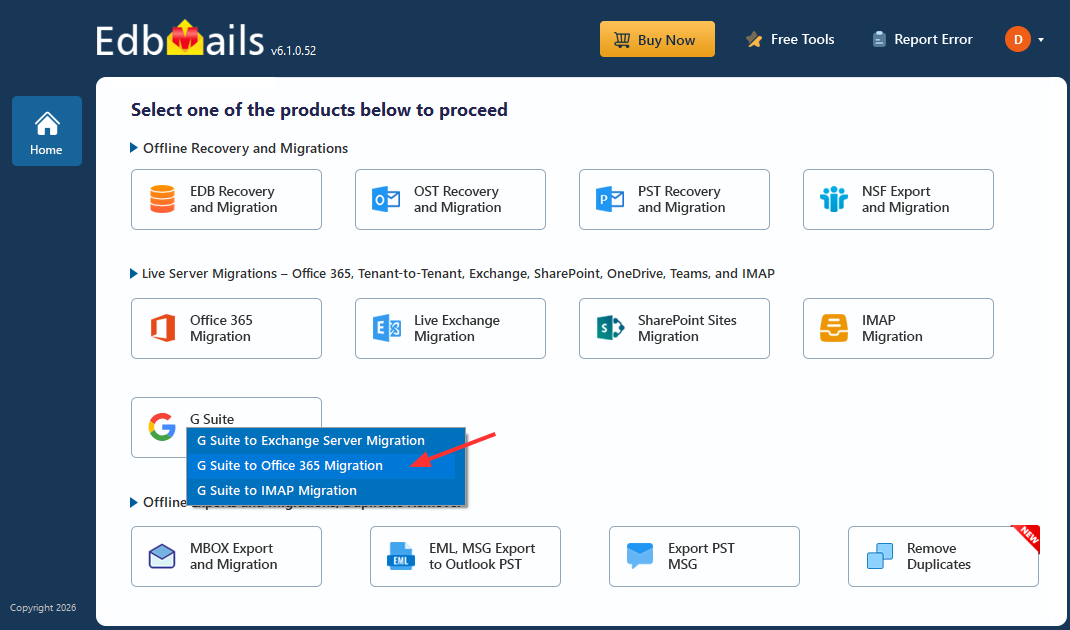
- Select the option ‘Google Workspace Migration’.
- Select ‘Google Workspace to Office 365 Migration’.
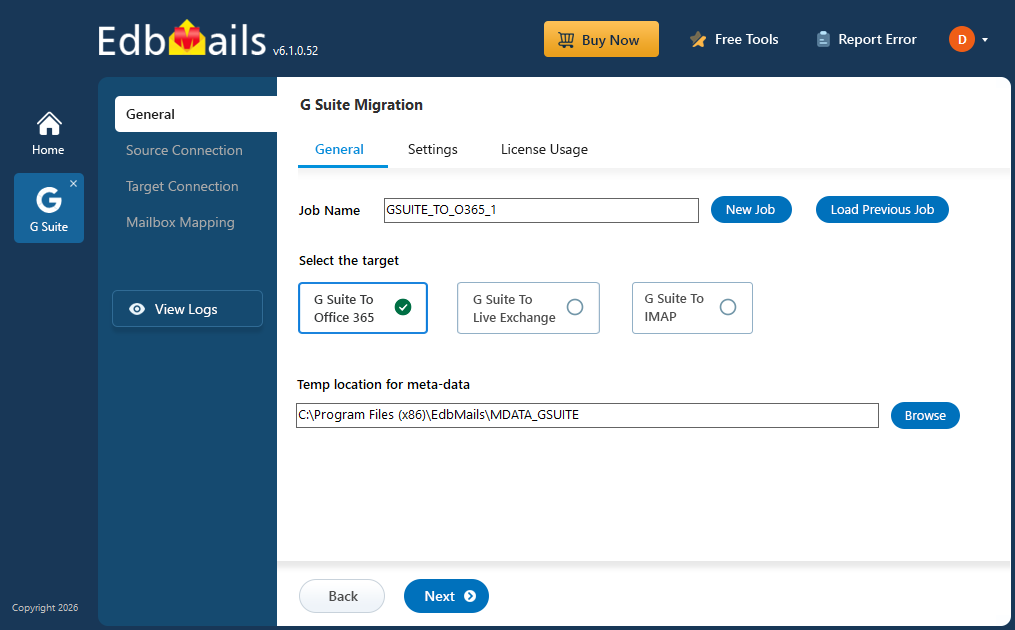
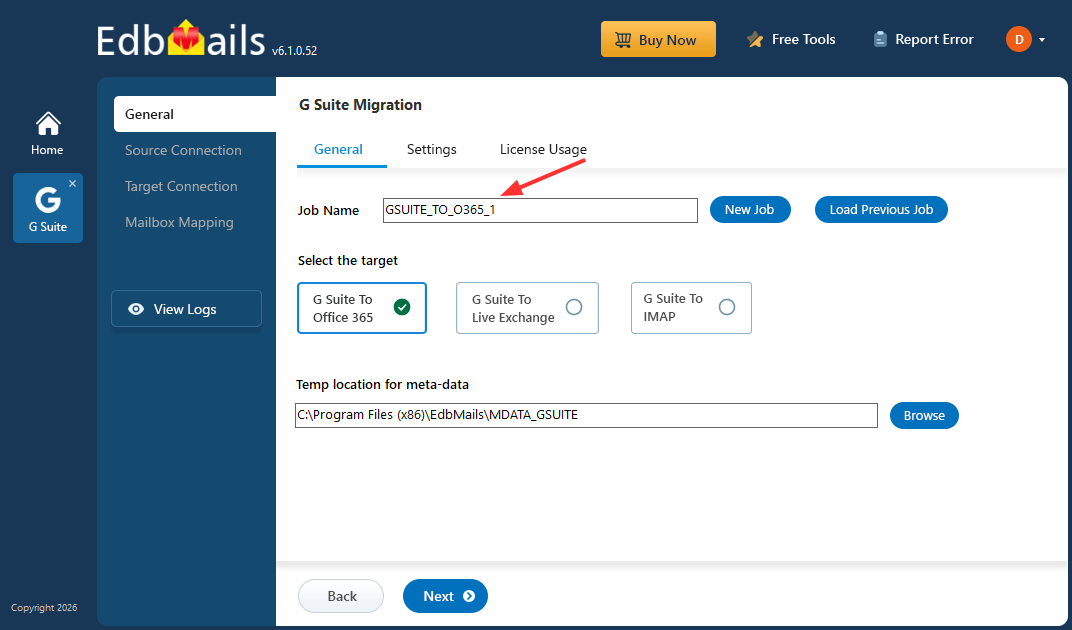
- You can proceed with the default job name, or click ‘New Job’ to create and assign a custom name of your choice.
- Download and install the EdbMails application on your computer.
Step 2: Connect to Source Google Workspace Server
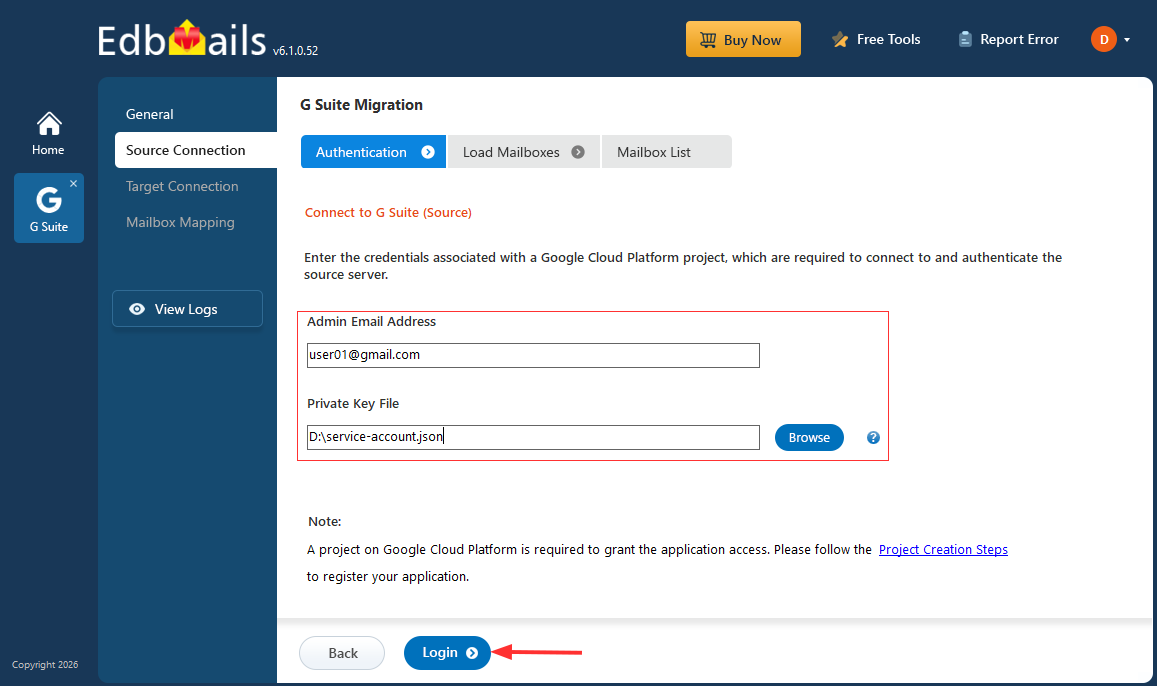
- Enter the admin email address, click ‘Browse’ to select the JSON file you downloaded from the Google Cloud Console, and then click ‘Login’.
Steps to Create a Google Cloud Project and Download the JSON File
- Select one of the methods to load the mailboxes, then click ‘Next’.
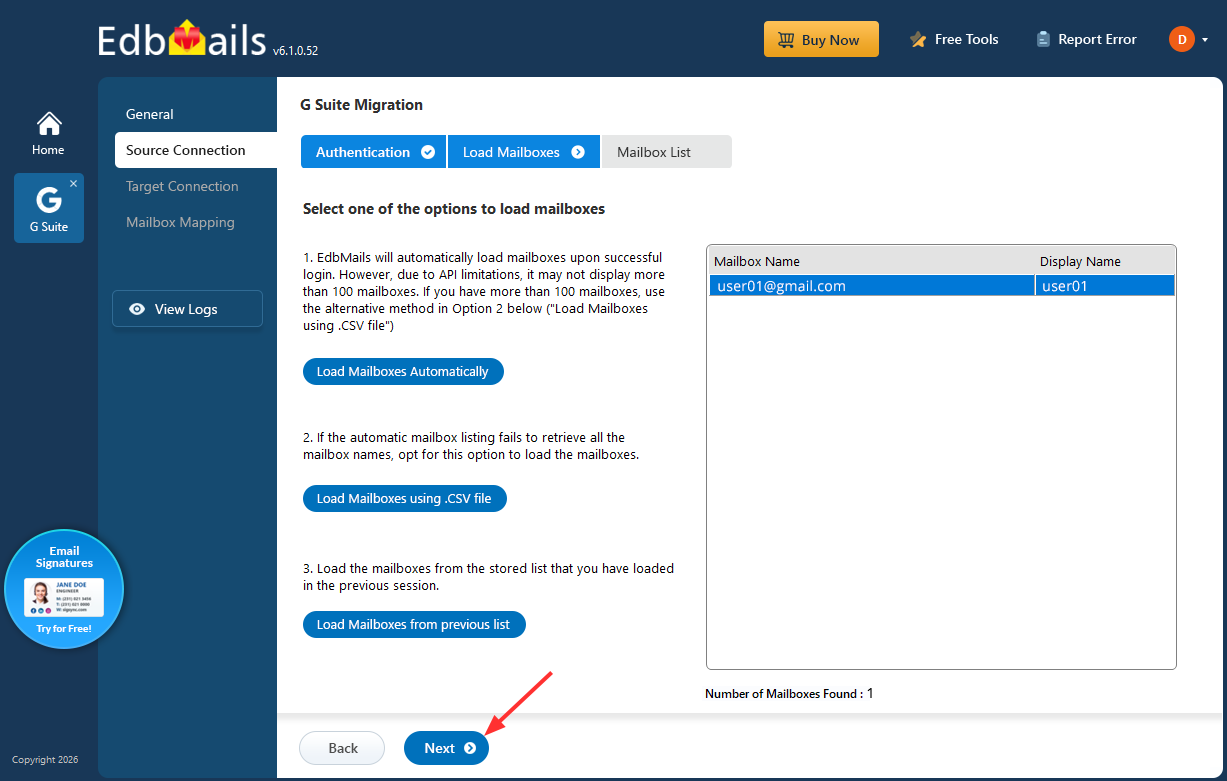
- Select the mailboxes you want to migrate, then click ‘Next’ to continue.
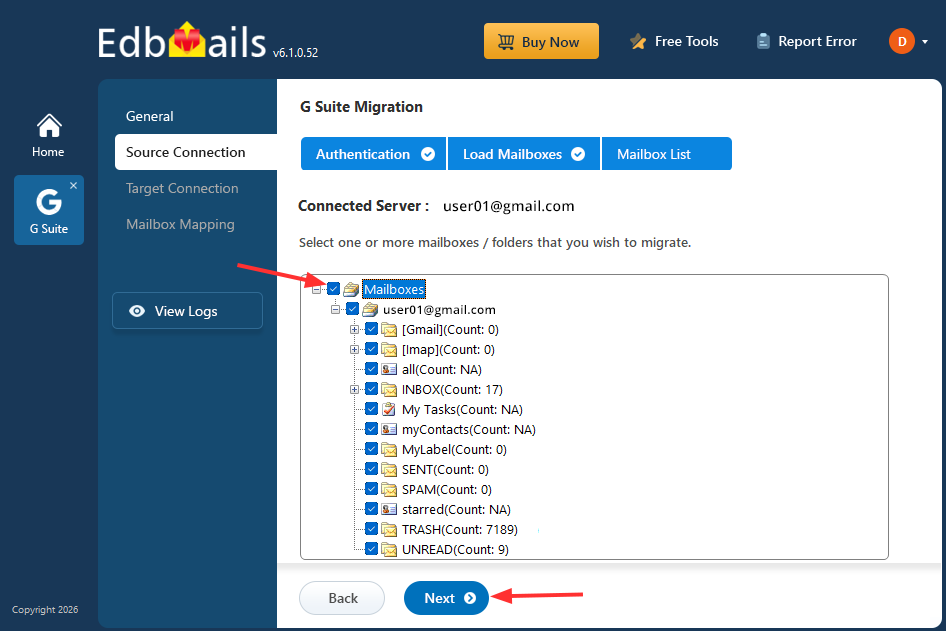
- Enter the admin email address, click ‘Browse’ to select the JSON file you downloaded from the Google Cloud Console, and then click ‘Login’.
Step 3: Connect to the target Office 365 server
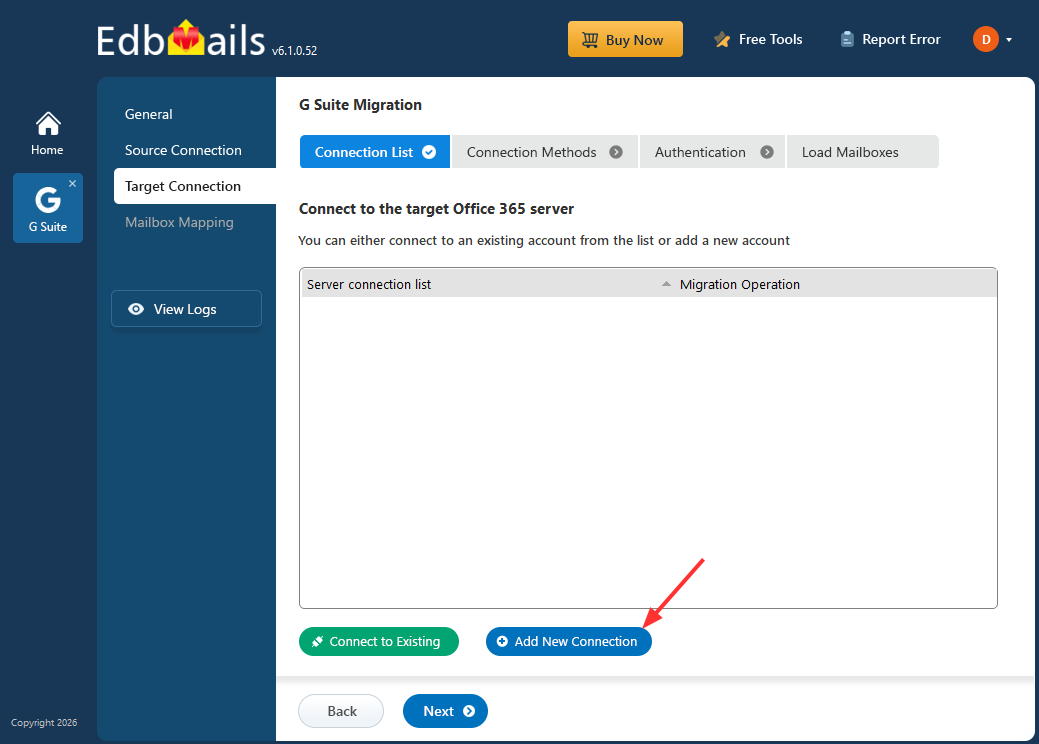
- Click the ‘Add New Connection’ button to establish a new connection to the target Office 365. To use the previous connection, select it from the connection list and click the ‘Connect to Existing’ button to proceed.
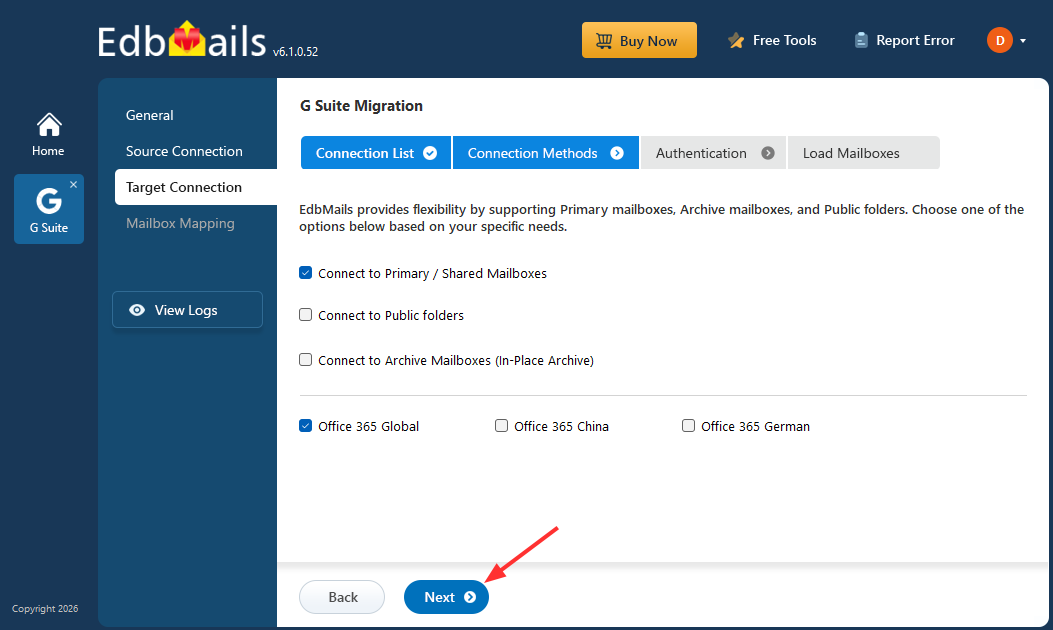
- Select the required connection method and click the ‘Next’ button.
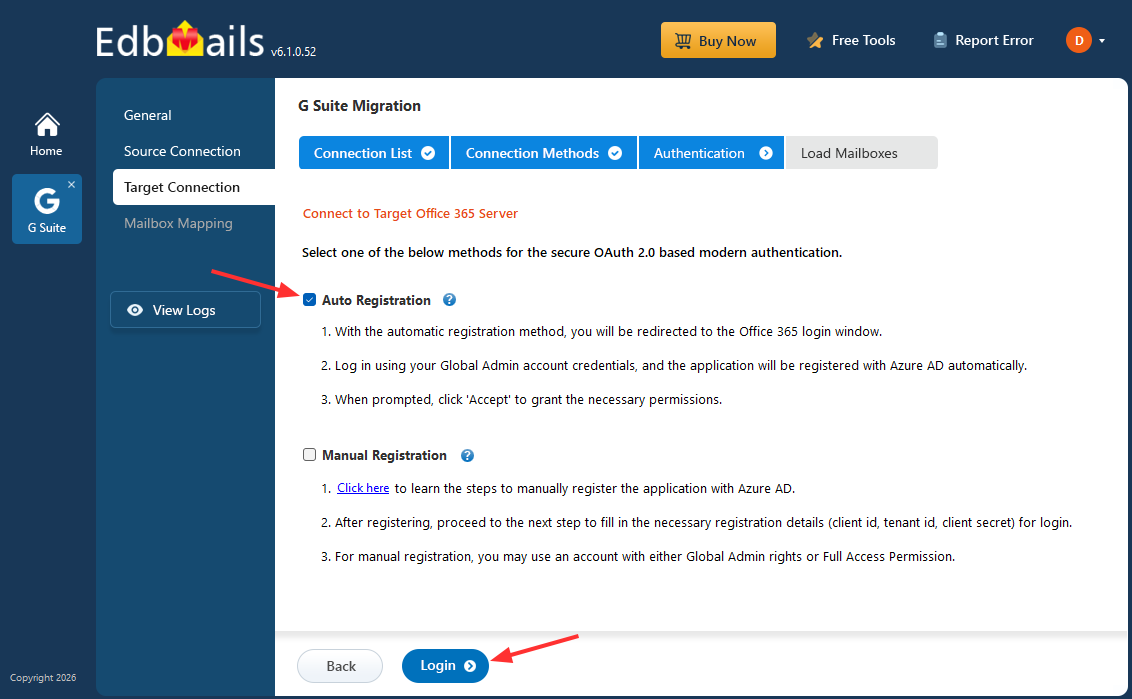
- Select one of the authentication methods, then click the ‘Login’ button to continue.
Connect to Office 365 server using secure modern authentication
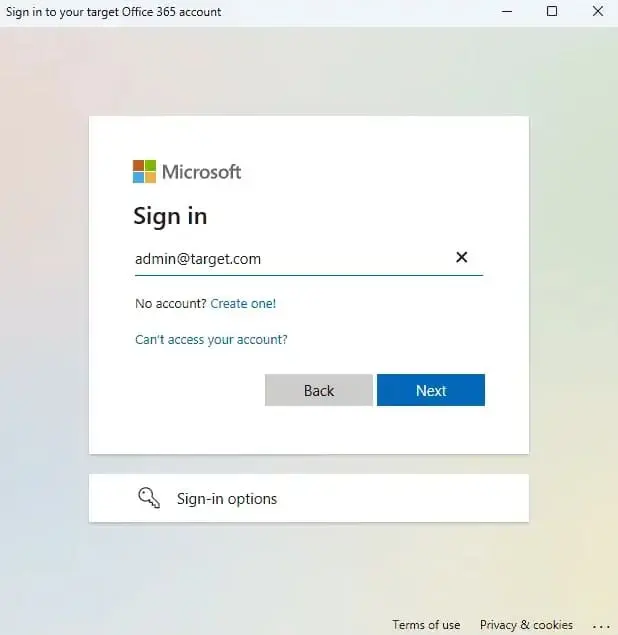
- Authenticate on Microsoft sign-in page.
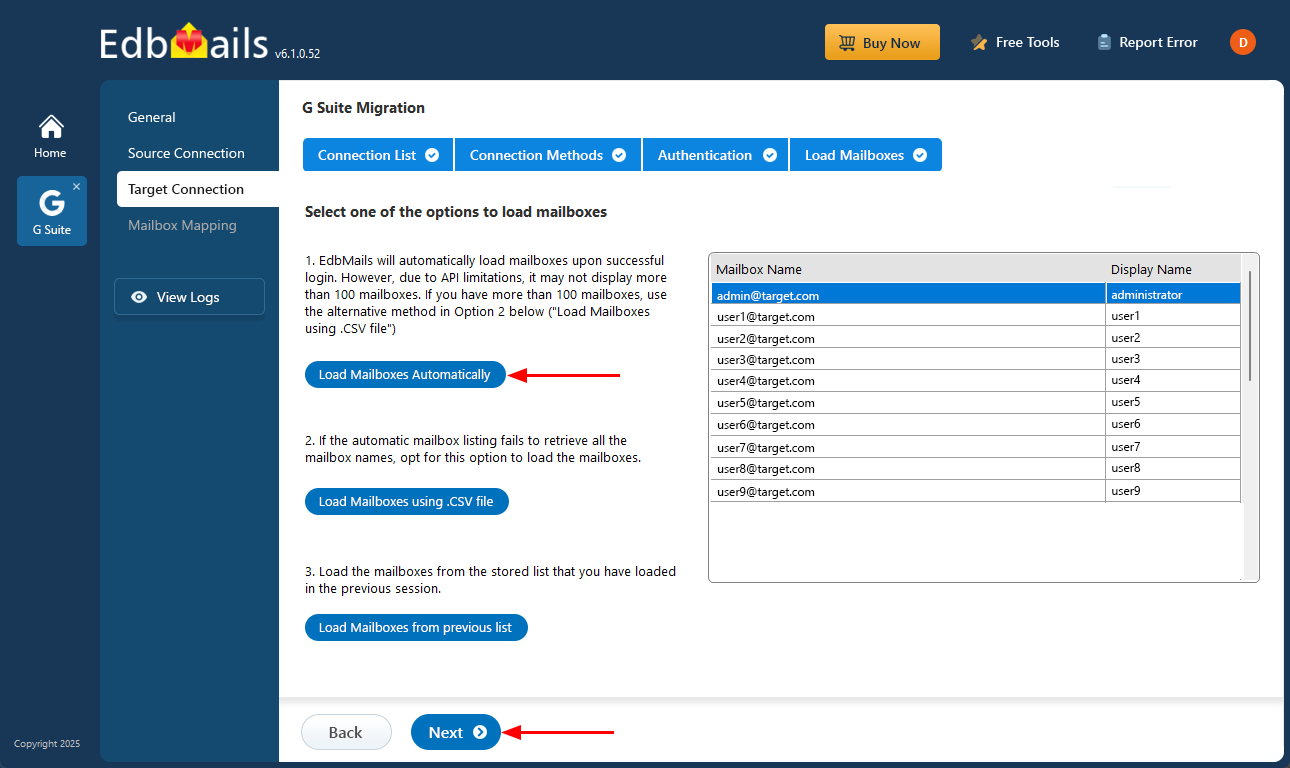
- Select one of the methods to load the mailboxes. You can choose ‘Load Mailboxes Automatically’ or load them using a CSV file, then click Next.
- Click the ‘Add New Connection’ button to establish a new connection to the target Office 365. To use the previous connection, select it from the connection list and click the ‘Connect to Existing’ button to proceed.
Step 4: Map source and target mailboxes
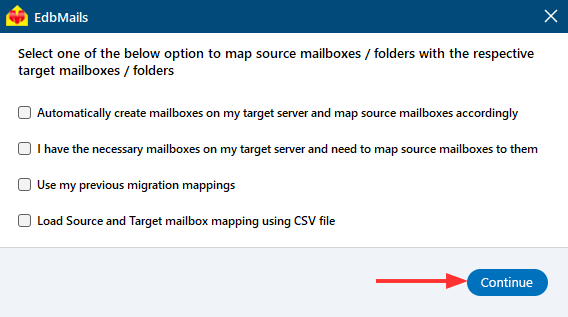
- Choose the required mailbox mapping option, then click ‘Continue’.
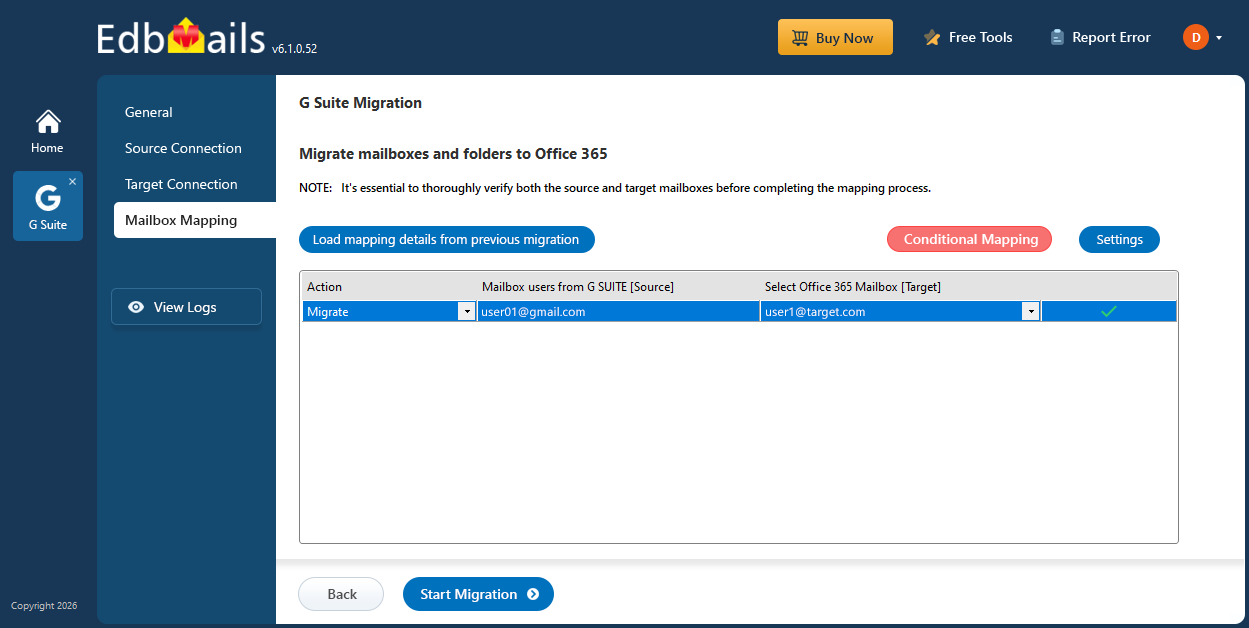
- EdbMails automatically creates the required mailboxes on your target Office 365 server and assigns the necessary licenses.
Learn more about automatic mailbox creation in the target Office 365 server.
- Choose the required mailbox mapping option, then click ‘Continue’.
Step 5: Start Google Workspace to Office 365 Migration
- Click the 'Start Migration’ button to initiate the migration process.
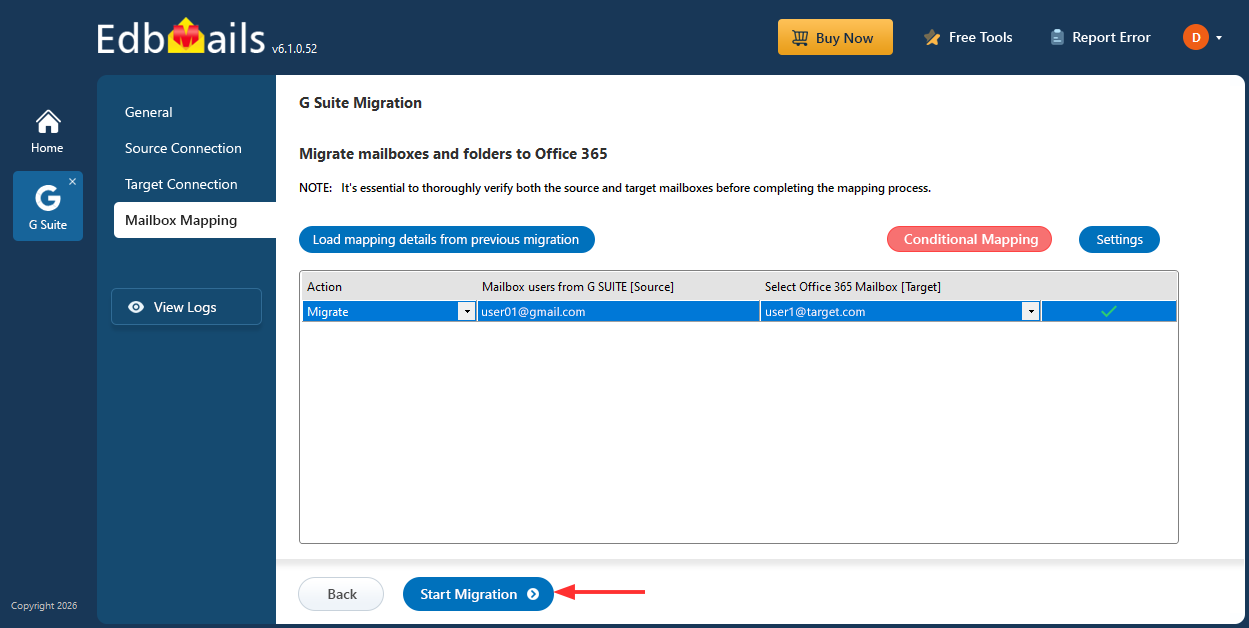
- Track the migration progress using the progress bar. Once the migration is complete, EdbMails prompts you to review the migration status. Click the ‘View Logs’ button to access the migration report, then log in to the target server to verify the migrated items.
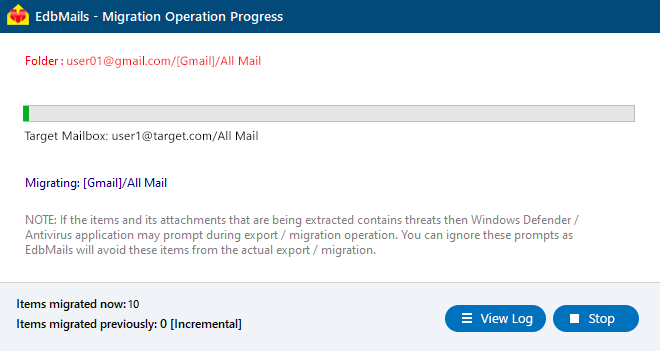
- Click the 'Start Migration’ button to initiate the migration process.
Google Workspace to Office 365 Post-Migration Tasks
Once the Google Workspace to Office 365 migration is complete, perform the following steps to finalize the transition and ensure that users can access their mailboxes in the new environment:
1. Update MX and DNS Records
Modify your domain’s MX records to point to Office 365 so that new incoming emails are routed to the migrated mailboxes. Additionally, configure the Autodiscover DNS record to enable Outlook and other clients to connect seamlessly to the Office 365 environment.
2. Create or Update Outlook Profiles
Ensure each user has the latest version of Outlook installed. Create a new Outlook profile or update existing profiles to point to the Office 365 server. This ensures Outlook connects correctly to the migrated mailboxes with the appropriate settings.
3. Verify Mail Flow and Functionality
Confirm that users can send and receive emails, access calendar entries, and view contacts in Office 365. Validate that shared mailboxes, archive mailboxes, and other migrated items are accessible and functional.
Related enterprise migration scenarios
For organization-wide restructuring rather than a standard source-to-destination project, use the dedicated guides for Google Workspace migration during mergers and acquisitions, Google Workspace consolidation migration, and Google Workspace domain migration.
Benefits of EdbMails for Google Workspace to Office 365 Migration
- Complete Mailbox Migration: Migrate emails, attachments, contacts, and calendars from Google Workspace to Office 365 without data loss while preserving folder hierarchy and metadata.
- Secure API-Based Migration: Uses secure API authentication with domain-wide delegation to ensure authorized access and compliance with Google Workspace security policies.
- Incremental Migration Support: Transfers only newly added or modified items in subsequent migration runs, preventing duplicate data and enabling staged migration.
- Bulk Mailbox Migration: Migrate multiple Google Workspace mailboxes in a single project, reducing manual effort and saving time for large organizations.
- Selective Data Migration: Apply filters based on date range, folders, or specific items to migrate only required data and optimize bandwidth usage.
- Flexible Destination Options: Migrate data to primary mailboxes, archive mailboxes, shared mailboxes, or public folders in Office 365.
- Automatic Mailbox Mapping: Automatically map source and target mailboxes to simplify configuration and reduce errors.
- Real-Time Migration Monitoring: Track migration progress with live status updates and detailed reports for better control and validation.
- Minimal Downtime: Allows users to continue working in Google Workspace during migration, ensuring business continuity.
- User-Friendly Interface: Simple step-by-step workflow designed for administrators without requiring complex PowerShell scripts or technical expertise.

