


Migrate Multiple Google Workspace Mailboxes
Managing a growing Google Workspace setup eventually makes single mailbox migration inefficient, especially when moving to Microsoft 365, merging domains, or switching email platforms, so handling multiple mailboxes at once becomes essential. The good part is bulk Google Workspace migration doesn’t have to be complex or time-consuming, as with the right plan and a reliable solution you can migrate multiple mailboxes together while keeping data secure, preserving folder structure, and allowing users to continue working without disruption.
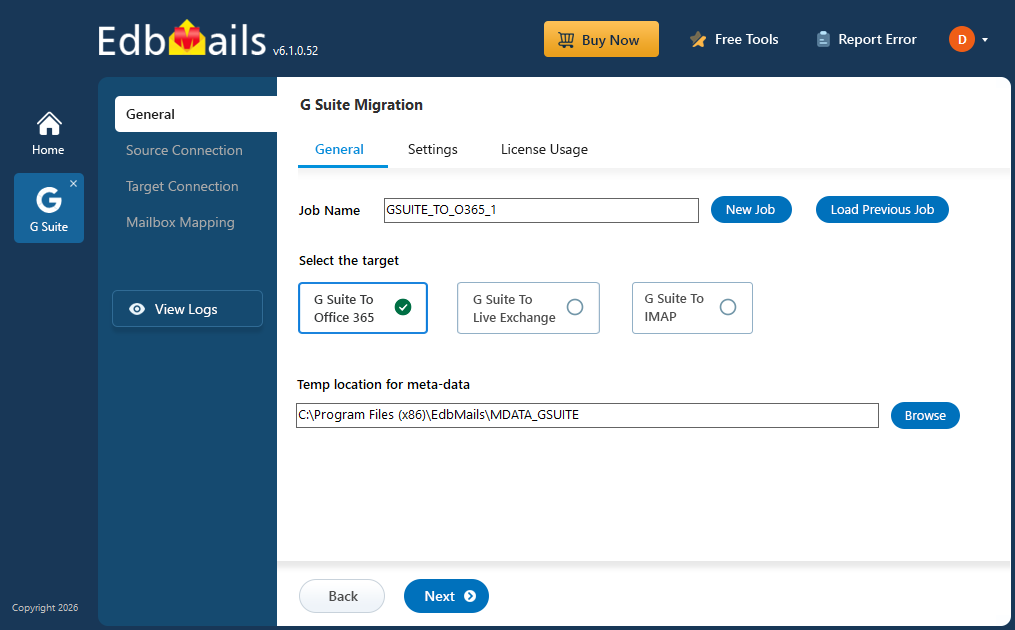
EdbMails Google Workspace Migration Software is designed to simplify large-scale mailbox migration with better control and accuracy. This guide explains the complete process in a clear way, from what bulk migration involves to how to carry it out step by step. It also highlights the limitations of native methods and how EdbMails make the overall migration more efficient and manageable.
Common Scenarios that require Multiple Mailbox Migration
Understanding why organizations perform bulk mailbox migration helps set clear expectations for the process. Here are some common scenarios:
- Switching from Google Workspace to Microsoft 365: Many organizations move from Google Workspace to Microsoft 365 to benefit from better integration with tools like Teams, SharePoint, and OneDrive. This makes bulk mailbox migration a frequent requirement.
- Migrating from Google Workspace to Exchange Server: Businesses may choose to migrate to on-premises Exchange Server for greater control over their email environment, security policies, and data management.
- Migrating from Google Workspace to IMAP-based Systems: Organizations that use alternative email platforms supporting IMAP often need to migrate multiple mailboxes from Google Workspace while maintaining data accessibility.
- Subscription Changes or Decommissioning Google Workspace: If a business plans to discontinue Google Workspace, migrating all mailbox data in advance is essential to prevent data loss and ensure continuity.
- Compliance and Data Archiving Requirements: Certain regulatory or business requirements may require email data to be migrated and stored in a different platform for compliance, backup, or long-term archiving.
Steps to Migrate Multiple Google Workspace Mailboxes
Use the steps below to migrate mailboxes, contacts, and calendars from Google Workspace to Office 365 with EdbMails.
Step 1: Download the EdbMails Application
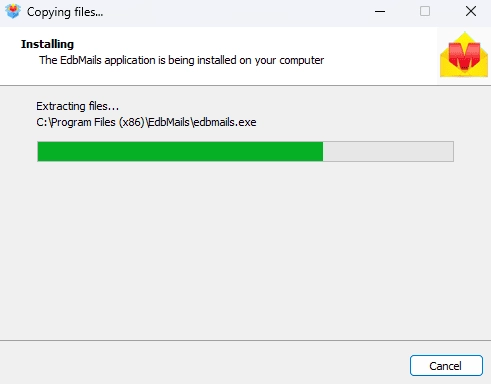
- Download and install the EdbMails application on your system with reliable internet access to begin the setup.
Before you proceed, check the system requirements for Google Workspace migration.
- Start the EdbMails application on your computer.
- Enter your registered email ID and password, then click ‘Login’. If you haven’t created an account yet, choose ‘Start Your Free Trial’ to access the trial version.Note: The trial version provides all key features and allows migration of up to 30 items per folder. For unlimited migration, purchase Google Workspace Migration license from the EdbMails website.
Click here to check Google Workspace Migration pricing details.
After purchasing the license, close the application and open it again. Then log in using the same email ID and password used during the purchase to activate the license successfully.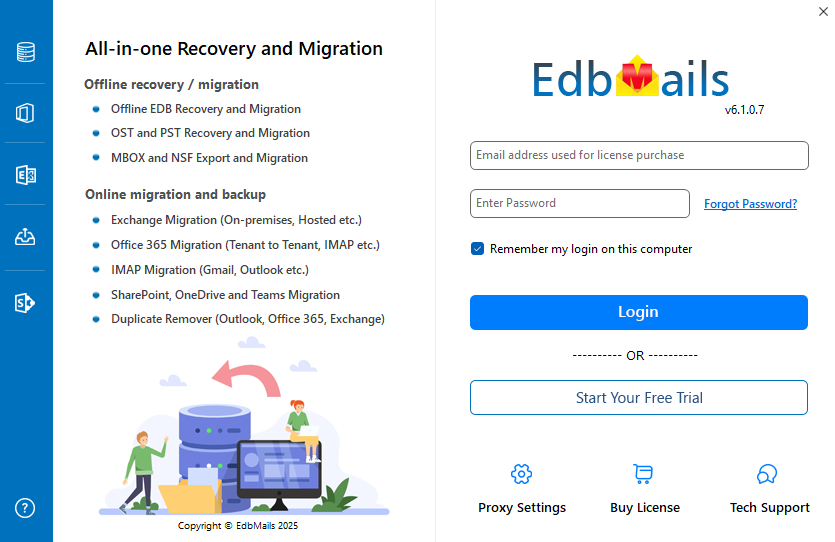
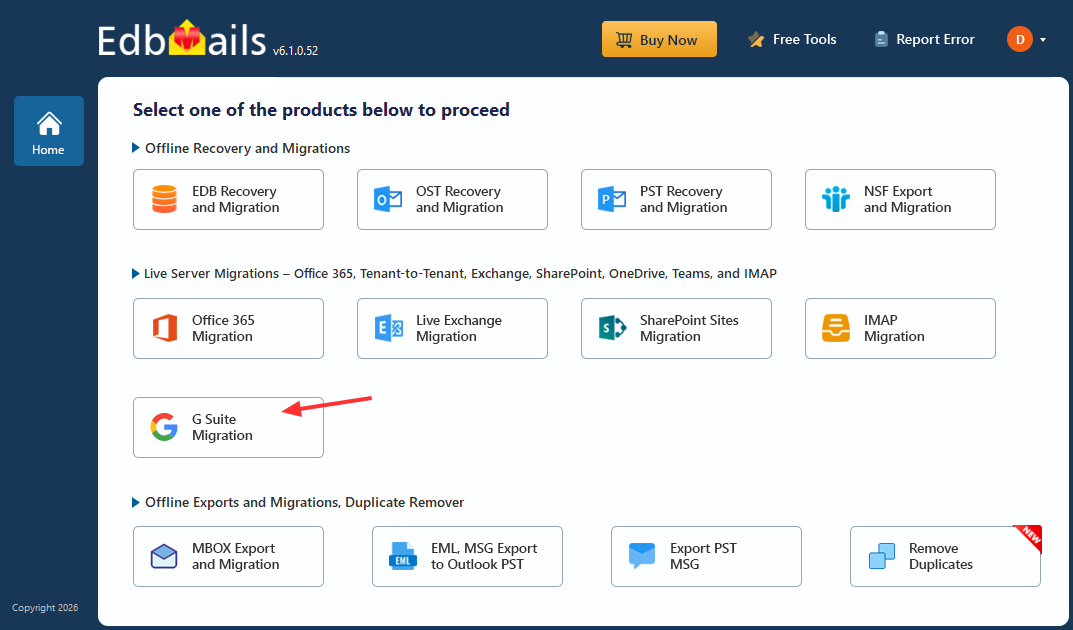
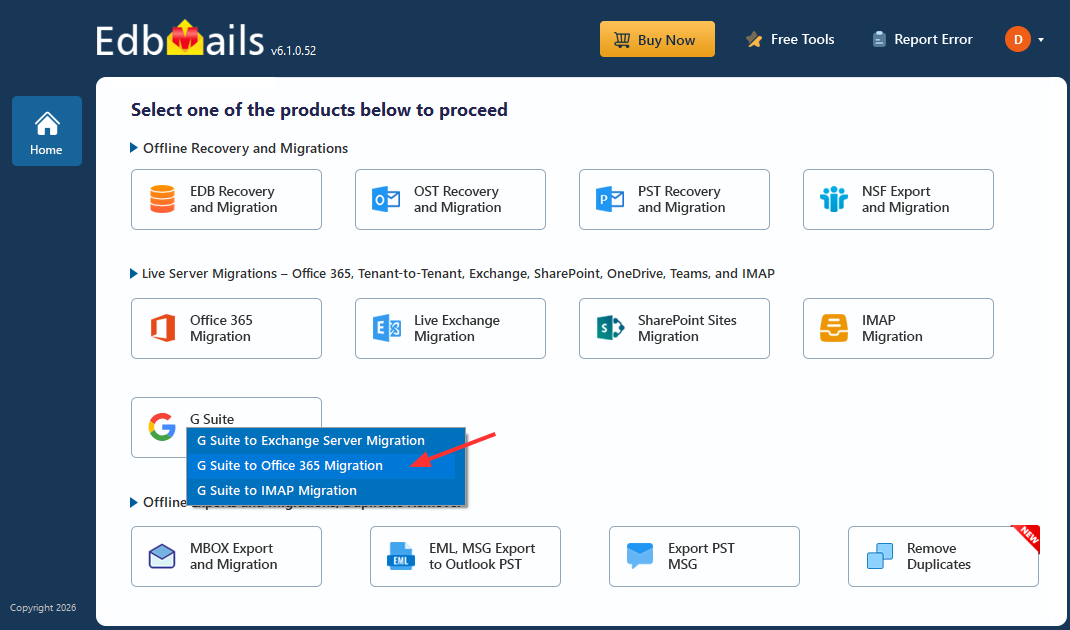
- Select the option ‘Google Workspace Migration’.
- Select ‘Google Workspace to Office 365 Migration’.
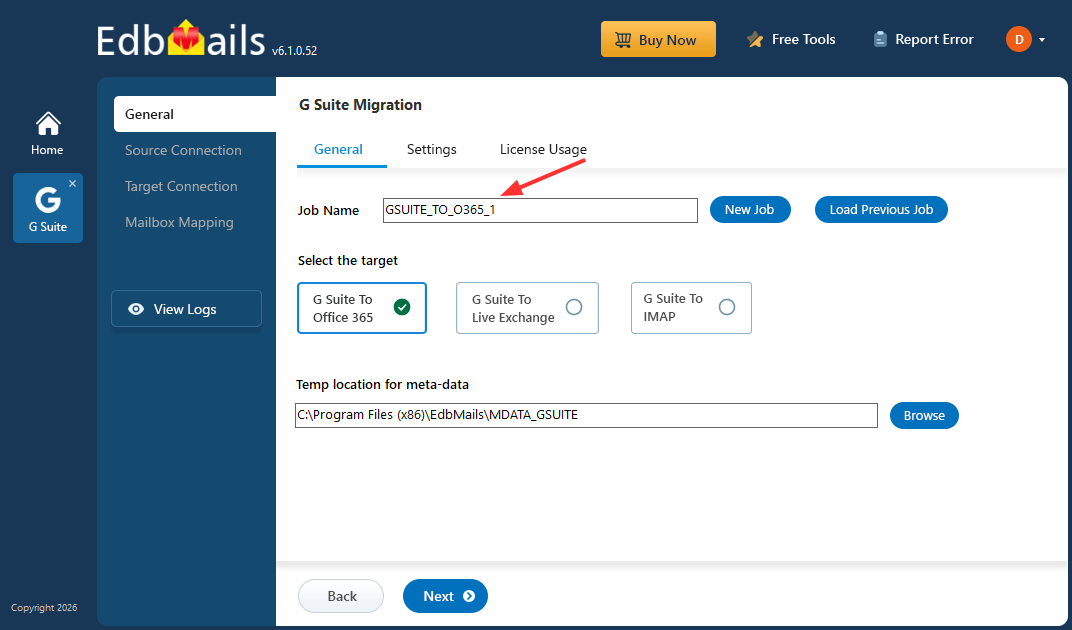
- You can continue with the default job name, or select ‘New Job’ to create and assign a custom name based on your preference.
- Download and install the EdbMails application on your system with reliable internet access to begin the setup.
Step 2: Connect to the Source Google Workspace Server
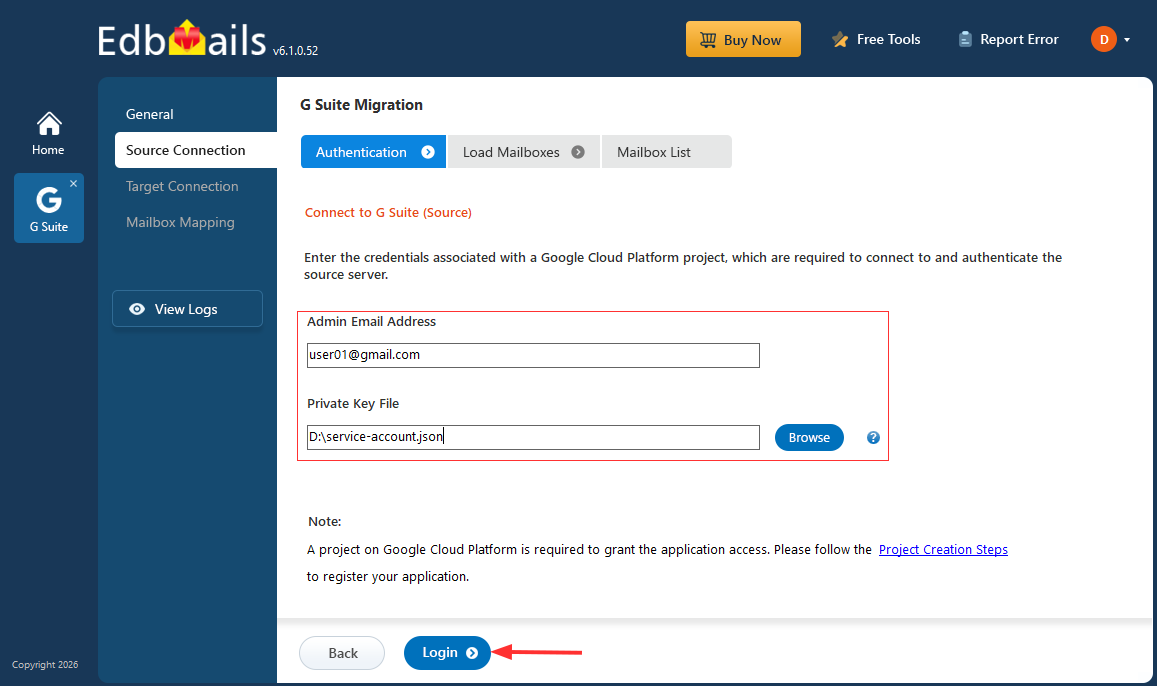
- Enter the admin email address, then click ‘Browse’ to upload the JSON key file downloaded from the Google Cloud Console. After adding the file, click ‘Login’ to establish the connection.
Steps to create a Google Cloud project and download the JSON key file.
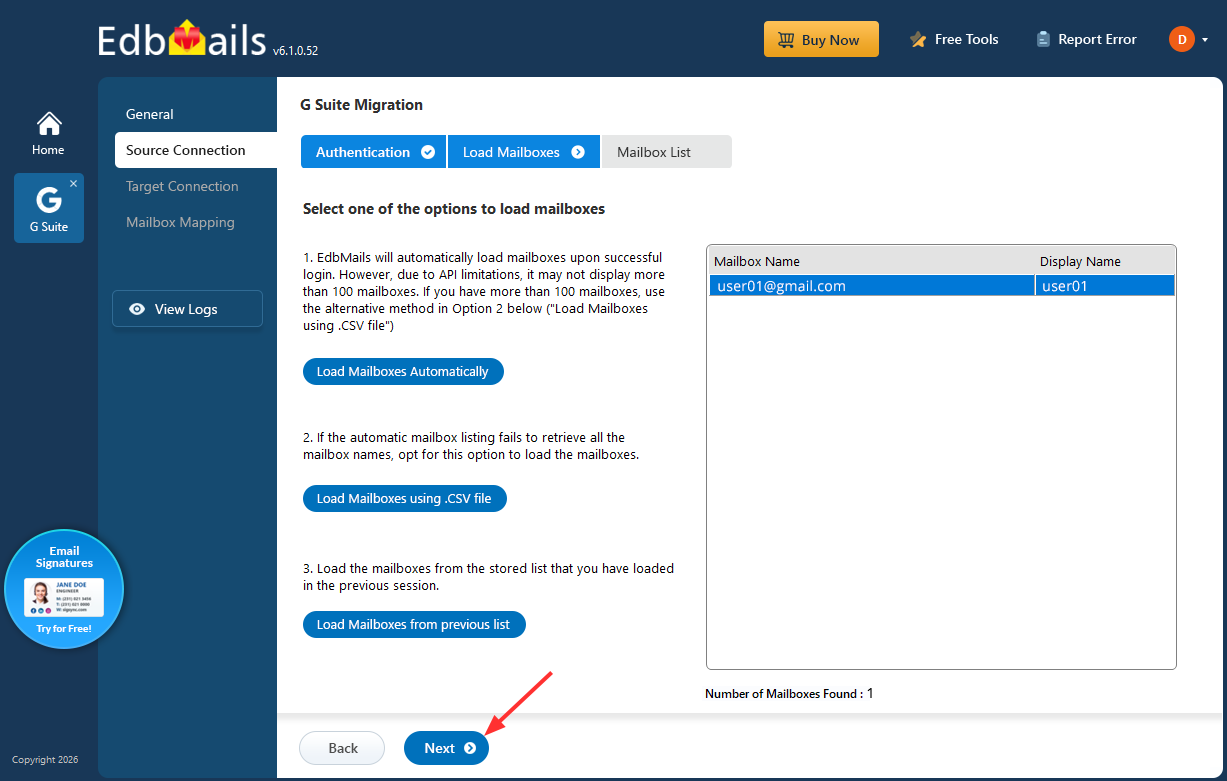
- Once authentication is completed, choose how you want to load the mailboxes:
i) Load Mailboxes Automatically: After signing in, EdbMails loads and displays available mailboxes automatically, making setup quick and simple. Due to Microsoft API limits, only up to 100 mailboxes may appear. If you have more, use the next option.
ii) Load Mailboxes using CSV file: If all mailboxes are not listed, choose ‘Load Mailboxes using .CSV file’ to load the required mailboxes.
iii) Load Mailboxes from Previous List: This lets you reuse a previously saved mailbox list, saving time in repeated migrations.
- Click ‘Next’ to continue.
- Select one or more mailboxes / folders you want to migrate, then click ‘Next’ to continue.
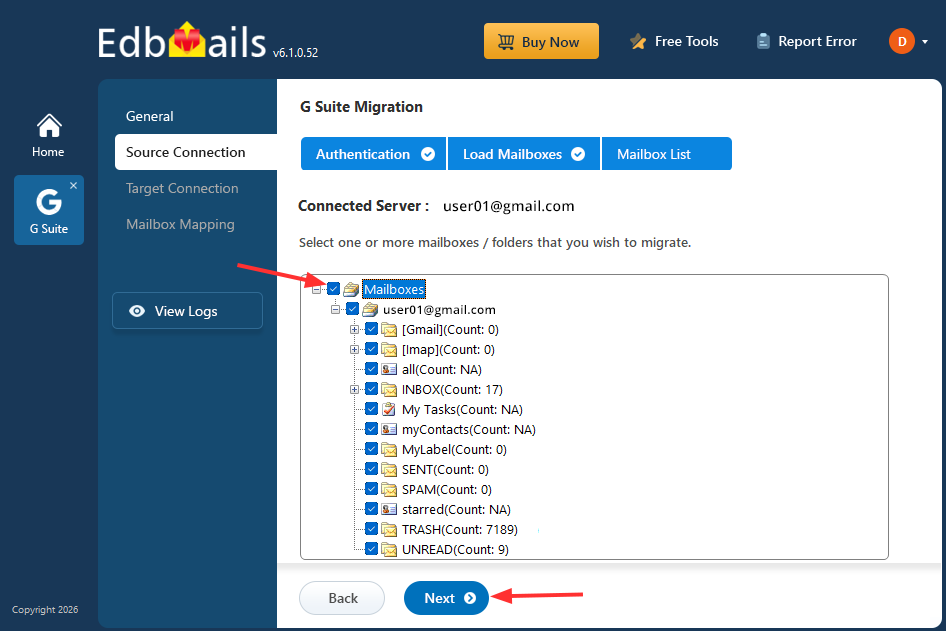
- Enter the admin email address, then click ‘Browse’ to upload the JSON key file downloaded from the Google Cloud Console. After adding the file, click ‘Login’ to establish the connection.
Step 3: Connect to the target Office 365 server
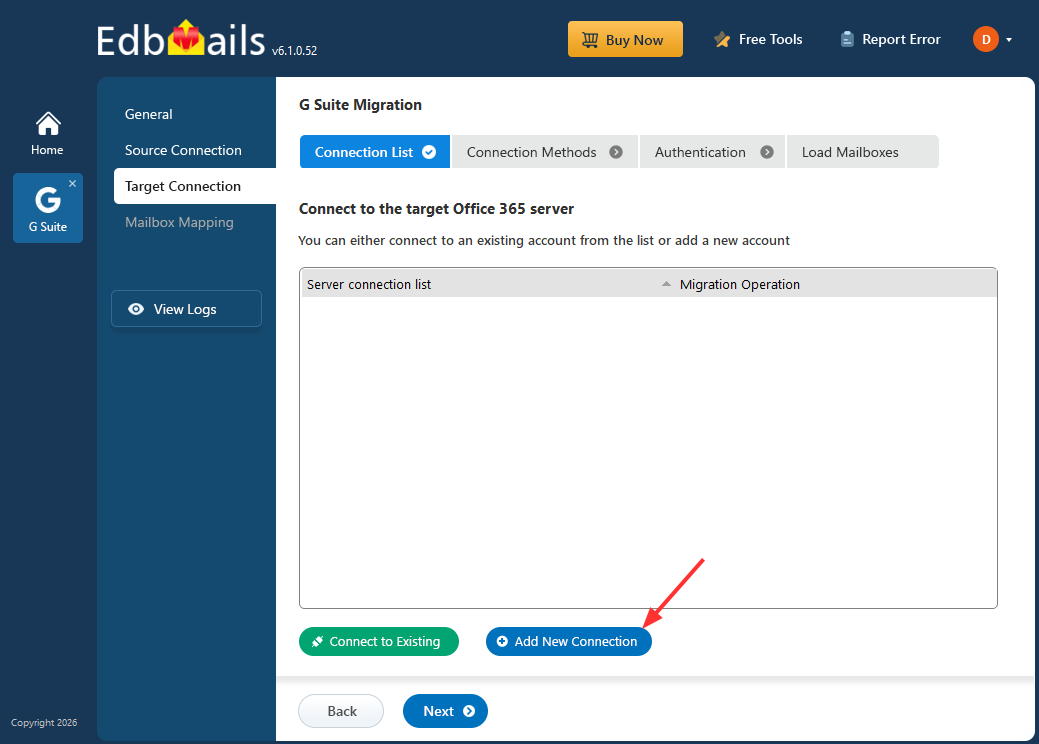
- Click ‘Add New Connection’ to create a new connection with the target Office 365 account. If you’ve already connected before, simply choose it from the list and click ‘Connect to Existing’ to continue.
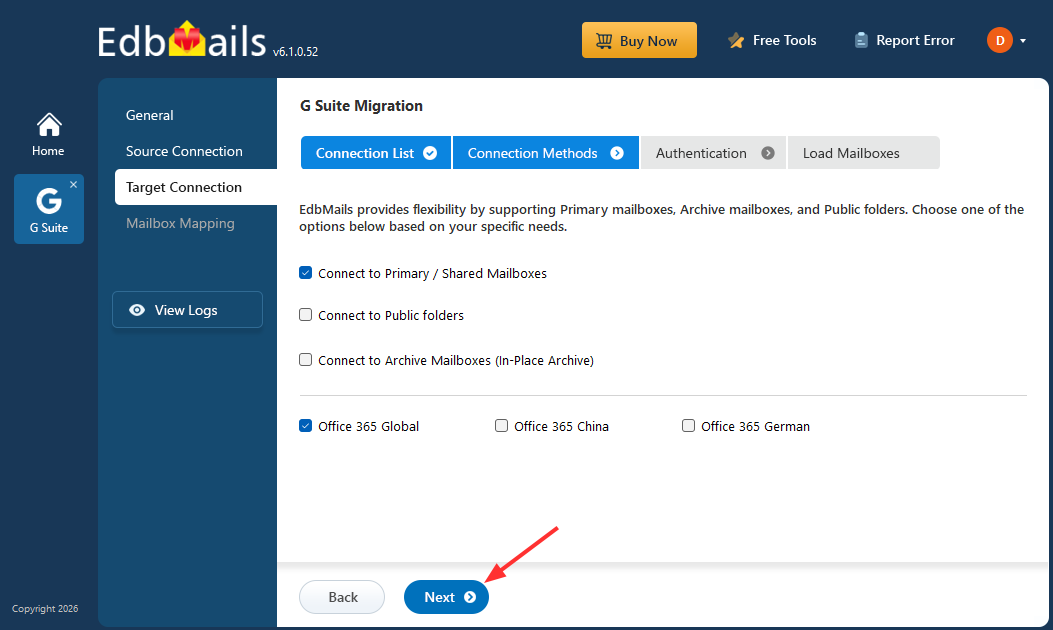
- EdbMails provides flexible migration options by supporting primary mailboxes, archive mailboxes, and public folder migration.
- Choose the ‘Connect to Primary / Shared Mailbox’ option and proceed by clicking ‘Next’.
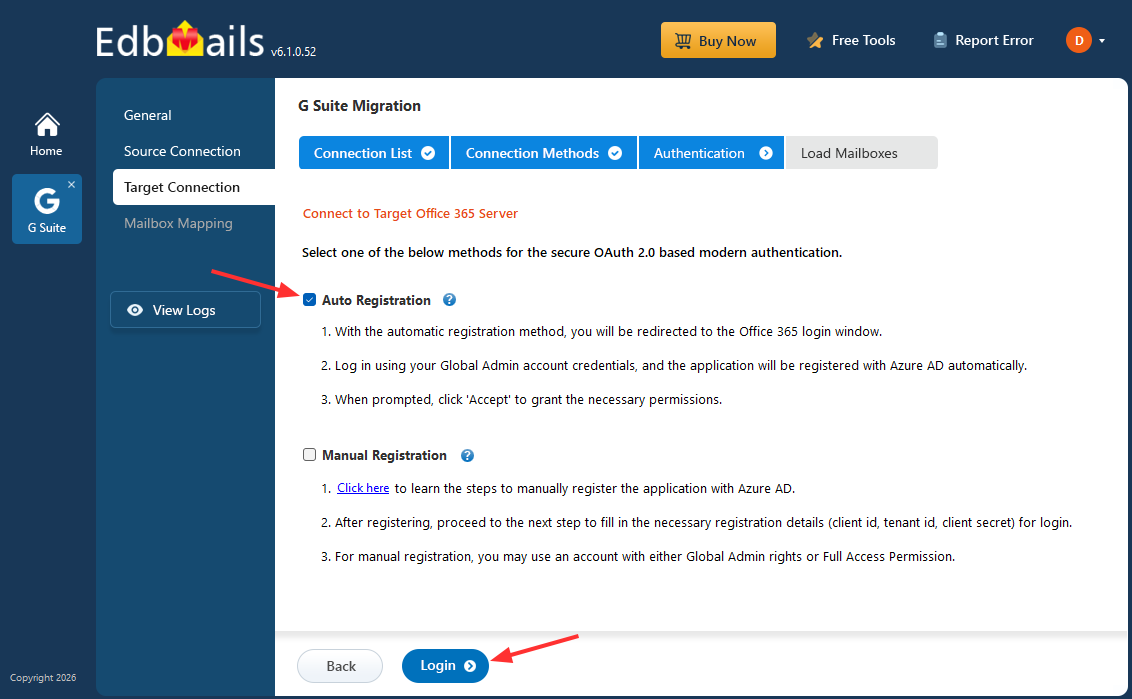
- Make sure you’re using a Global Admin account with an active mailbox, as it’s required to auto register the EdbMails application in Entra ID (Azure Active Directory).
- If you prefer the manual registration option , you can use either a Global Admin account or a user account with full access permissions.
- Click ‘Login’ to continue.
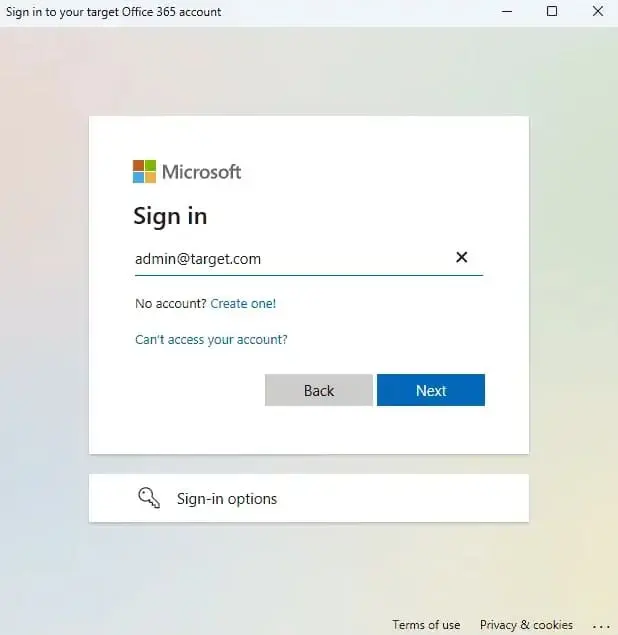
- Authenticate on Microsoft sign-in page.
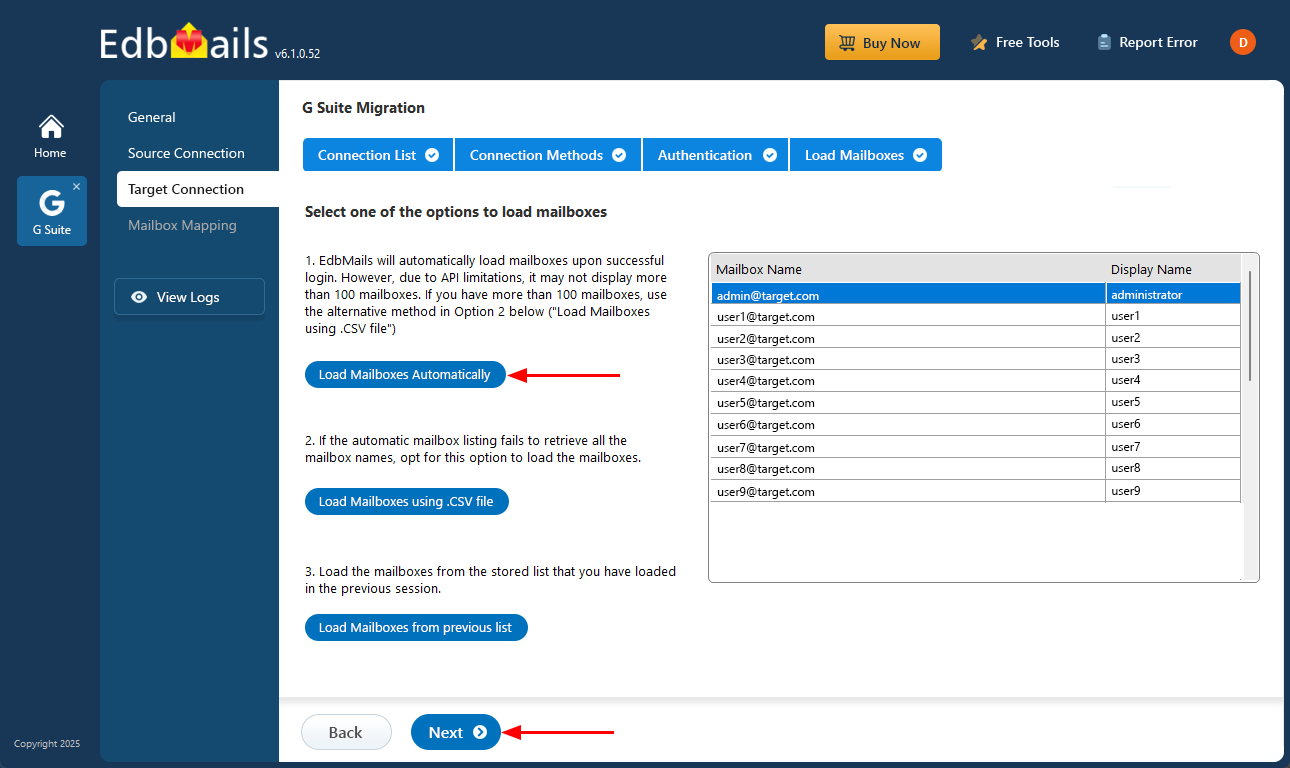
- Select one of the methods to load the mailboxes. You can choose ‘Load Mailboxes Automatically’ or load them using a CSV file, then click ‘Next’.
- Click ‘Add New Connection’ to create a new connection with the target Office 365 account. If you’ve already connected before, simply choose it from the list and click ‘Connect to Existing’ to continue.
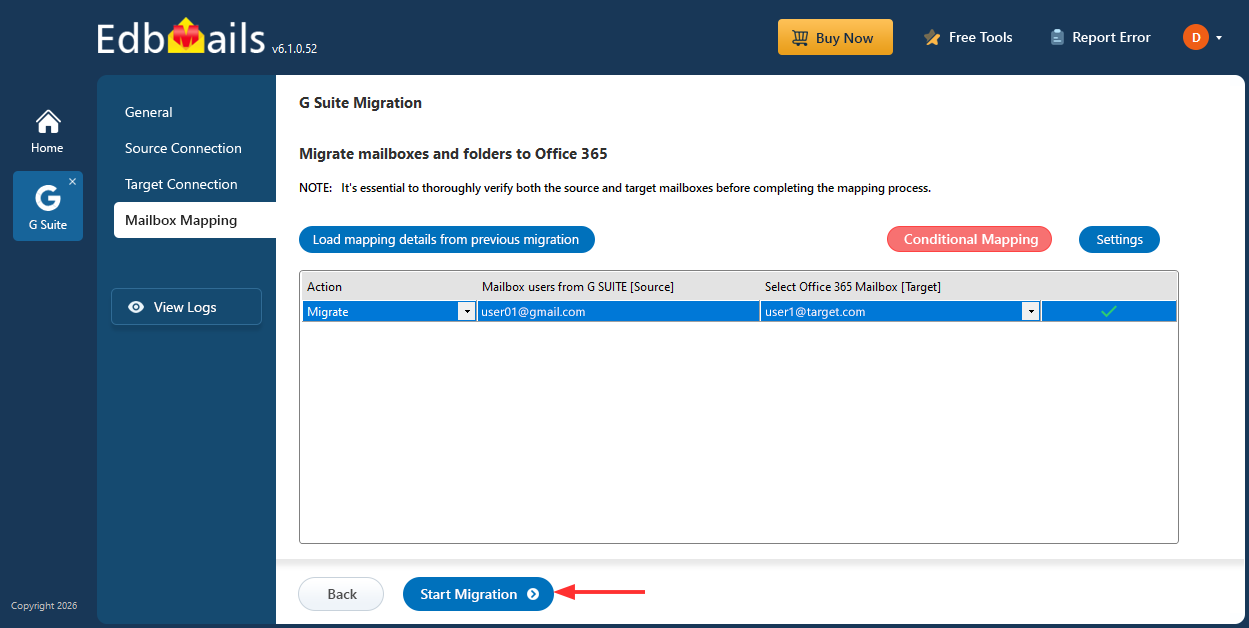
Step 4: Map source and target mailboxes
- Choose the required mailbox mapping option, then click ‘Continue’.
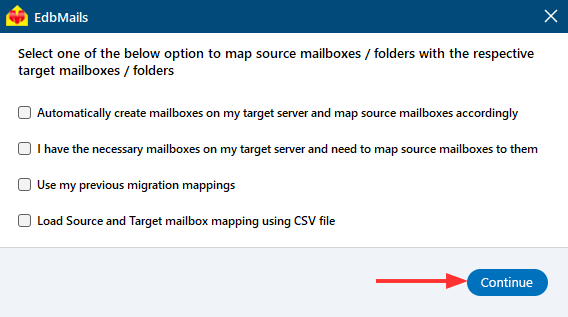
- EdbMails automatically creates the required mailboxes on your target Office 365 server and assigns the necessary licenses.
Learn more about automatic mailbox creation in the target Office 365 server.
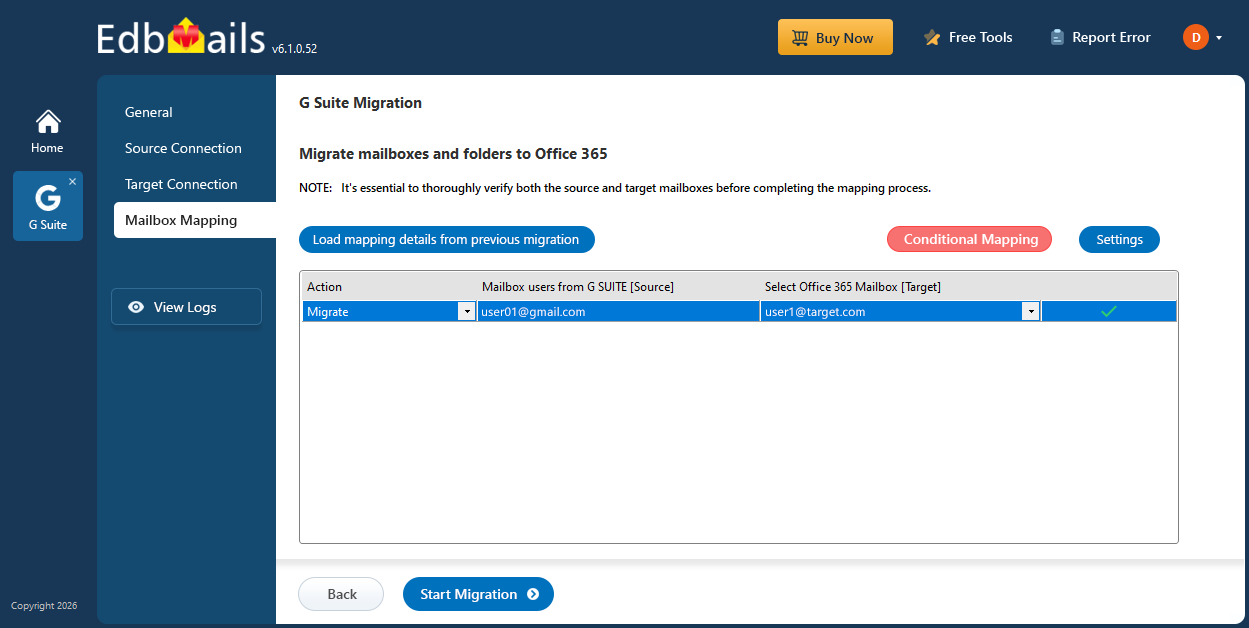
- Choose the required mailbox mapping option, then click ‘Continue’.
Step 5: Start Google Workspace to Office 365 Migration
- Click the 'Start Migration’ button to initiate the migration process.
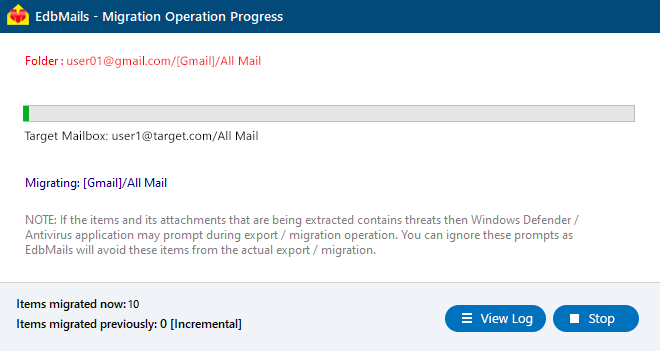
- Track the migration status in real time using the progress bar. After the migration completes, EdbMails prompts you to review the results. Click ‘View Logs’ to open the migration report, then sign in to the target server to verify the migrated data.
- Click the 'Start Migration’ button to initiate the migration process.
Tips to Improve Bulk Migration Performance
- Ensure a Reliable High-Speed Network: A stable and fast internet connection helps maintain steady migration speed and avoid delays during migration.
- Schedule Migration During Off-Peak Hours: Running migration when user activity is low reduces system load and supports smooth execution with zero downtime.
- Allocate Sufficient System Resources: Ensure your system has enough CPU and memory to handle large mailbox migration without performance issues.
- Track Migration Progress: Regular monitoring helps quickly identify and resolve any issues and keeps the process on track for better results during migration.
- Maintain Source and Target Readiness: Ensure both source and destination servers are responsive and properly configured before starting migration.
Advantages of EdbMails for Google Workspace Bulk Mailbox Migration
- Concurrent Mailbox Migration
EdbMails supports concurrent mailbox migration by processing multiple mailboxes simultaneously instead of migrating them individually. EdbMails helps complete large-scale Google Workspace migration faster while reducing overall migration time and maintaining consistency throughout the process.
- Incremental Mailbox Migration
EdbMails supports incremental Google Workspace to Office 365 migration, allowing it to handle newly added or modified mailbox data after the initial migration. In the subsequent runs, only these changes are migrated, which avoids duplication and improves efficiency, reduces migration time, and ensures accurate data updates.
- Automatic Mailbox Mapping
Mailbox mapping for large migrations can be complex and error-prone when done manually. EdbMails simplifies this with automatic mailbox mapping, where source mailboxes are matched with their corresponding destination accounts based on email addresses, reducing errors and speeding up the migration process.
- Zero Downtime Migration
EdbMails allows the migration to run while users continue working in the source environment. Final cutover and mail-flow changes should be planned separately after the required migration and validation steps. It ensures a smooth transition while maintaining full productivity without service disruptions.
- Detailed Migration Report
Detailed migration reports are generated after each migration, providing clear insights into processed mailboxes, item counts per folder, and any errors or warnings, helping administrators track progress. This migration log report is essential for tracking and monitoring migration progress.
- Advanced Filter Settings
EdbMails provides advanced filter settings allow you to control Google Workspace migration by selecting specific criteria such as date range, folder name, sender, recipient, and subject, making it easier to migrate only the required data while excluding unnecessary folders
- Throttling Management
Google Workspace and Microsoft 365 both apply service throttling during heavy data transfers. EdbMails detects throttling conditions automatically and adjusts its migration speed to stay within limits, preventing failed batches and reducing the need for manual restarts.
Bulk migration planning and validation
For larger projects, use the Google Workspace migration project plan to define pilot users, migration waves, and cutover. After the transfer, use post-migration verification to review mailbox mapping, representative content, migration logs, and incremental follow-up runs.
Frequently Asked Questions
- 1. Can I migrate Google Workspace mailboxes without individual user passwords?Yes. EdbMails uses a Google service account with domain-wide delegation, allowing administrators to access all user mailboxes through a single secure API connection. Individual user passwords are not required.
- 2. How long does a bulk Google Workspace migration take?The duration depends on the total data size, number of mailboxes, and network performance. EdbMails runs multiple mailbox migrations at the same time, which significantly reduces the overall timeline.
- 3. Will users experience any downtime during migration?
No. EdbMails provides zero downtime, so users can continue working without any interruption during migration. It runs in the background, allowing users to send and receive emails as usual on their existing accounts.
- 4. Does EdbMails support migration from Google Workspace to Exchange Server on-premises?
Yes. In addition to Microsoft 365, EdbMails supports migration to on-premises Exchange Server and to any IMAP-enabled mail server, giving organizations flexibility in choosing their target platform.
- 5. Is a trial option available to evaluate EdbMails before purchase?
Yes. EdbMails offers a free trial that allows you to test the migration tool and verify its compatibility with your environment before purchasing a license.

