


Migrate Google Workspace to Google Workspace
Page intent: This is the procedural guide for moving data between Google Workspace organizations. For the main commercial source-to-target page, see Google Workspace to Google Workspace Migration.
Migrating mailboxes between two Google Workspace (G Suite) environments is often required during domain consolidation, company restructuring, acquisitions, rebrandings, or other organizational changes. While Google Workspace provides robust cloud email services, native tools do not offer a direct or fully automated way to transfer mailbox data between two separate Google Workspace domains. This can make manual migration complex, time‑consuming, and prone to data loss or configuration errors.
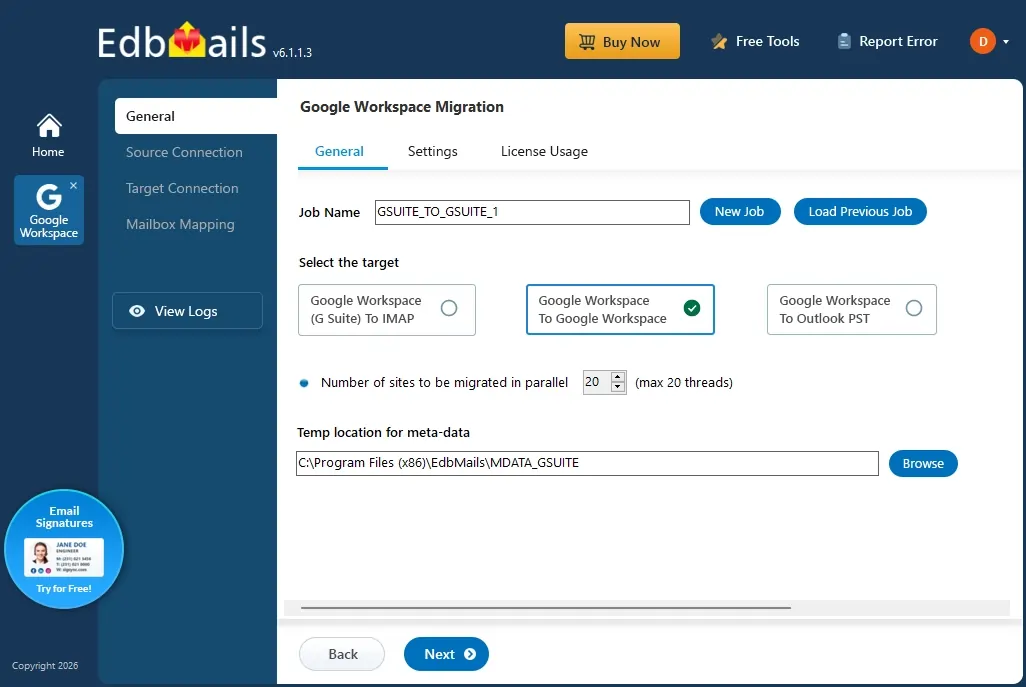
EdbMails provides a secure and efficient solution for Google Workspace migration. By leveraging Google's official APIs and secure authentication methods, EdbMails enables seamless transfer of emails, attachments, calendars, contacts, and tasks with complete preservation of folder hierarchy and metadata. The tool supports bulk mailbox migration, advanced filtering options, and incremental data sync, ensuring accurate and uninterrupted migration even in large‑scale enterprise environments.
This step‑by‑step guide explains the prerequisites, configuration, and the detailed migration process to help administrators successfully migrate from Google Workspace to Google Workspace using EdbMails.
Why Migrate Between Google Workspace Organizations?
Organizations may need to move data from one Google Workspace (G Suite) environment to another due to business requirements, domain changes, or administrative needs. A Google Workspace to Google Workspace migration helps transfer mailbox data while maintaining access to important business information.
Common scenarios where organizations migrate between Google Workspace environments include:
Company Merger or Acquisition
When organizations merge or acquire another company, administrators often need to consolidate users, emails, calendars, contacts, and other Google Workspace data into a unified environment.
Domain Change or Rebranding
Businesses changing their primary domain can migrate existing mailboxes to a new Google Workspace organization while retaining historical emails and important mailbox data.
Google Workspace Tenant Consolidation
Organizations managing multiple Google Workspace domains can combine users and mailbox data into a single environment to simplify administration and improve management efficiency.
Moving to a New Google Workspace Organization
Businesses may migrate to a new Google Workspace tenant due to changes in ownership, organizational restructuring, or the need for better control over their cloud environment.
Improved Security and Administratio
Migrating to a new Google Workspace organization allows administrators to implement updated security policies, access controls, and management practices.
Data Preservation During Migration
A properly planned Google Workspace migration ensures that emails, attachments, calendars, contacts, and tasks remain available after moving to the target organization.
Choose the correct Google Workspace migration scenario
- Google Workspace to Google Workspace migration - general organization-to-organization migration.
- Google Workspace tenant-to-tenant migration - users moving between separately managed tenants.
- Google Workspace domain migration - rebranding, domain changes, or address restructuring.
- Google Workspace consolidation migration - combining multiple environments into one target.
- Google Workspace divestiture migration - separating a defined group of users into another environment.
Prerequisites for G Suite to G Suite Migration
Before starting the migration between Google Workspace (G Suite) domains using EdbMails, ensure the following requirements:
Step 1: Source Google Workspace Requirements
- A Google Workspace Super Administrator account with active admin credentials.
- API access is enabled in the Google Workspace Admin console.
- A service account is created and configured with domain-wide delegation.
- Mailboxes to be migrated are active and accessible.
- If the source organization contains more than 100 mailboxes, prepare a CSV file listing the source email addresses.
Steps to Configure a Google Workspace (G Suite) Admin Account.
Step 2: Target Google Workspace Requirements
- A Google Workspace Super Administrator account with active admin credentials.
- API access is enabled in the Google Workspace Admin console.
- A service account is created and configured with domain-wide delegation.
- All destination mailboxes are created before starting the migration.
- If the target organization contains more than 100 mailboxes, prepare a CSV file listing the target email addresses.
Steps to Configure a Google Workspace (G Suite) Admin Account.
Step-by-Step Google Workspace Migration Process
Follow these steps to securely migrate mailboxes between Google Workspace (G Suite) domains using EdbMails:
Step 1: Download the EdbMails Application
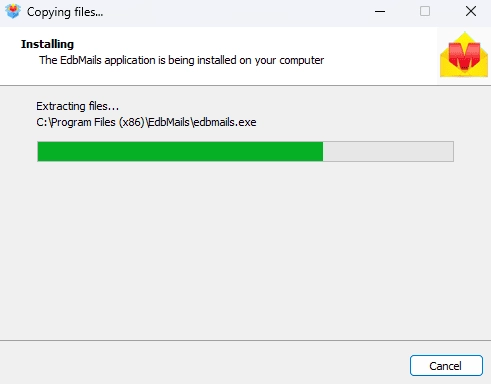
- Download and install EdbMails on your computer.
See EdbMails system requirements for Google Workspace migration.
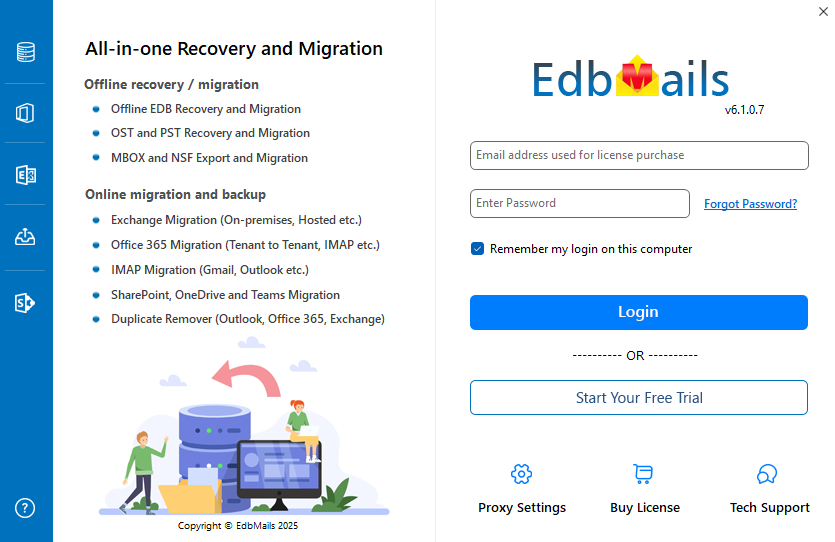
- Enter your registered email address and password, then click 'Login'. If you have not created an account yet, choose 'Start Your Free Trial' to continue using the trial version.
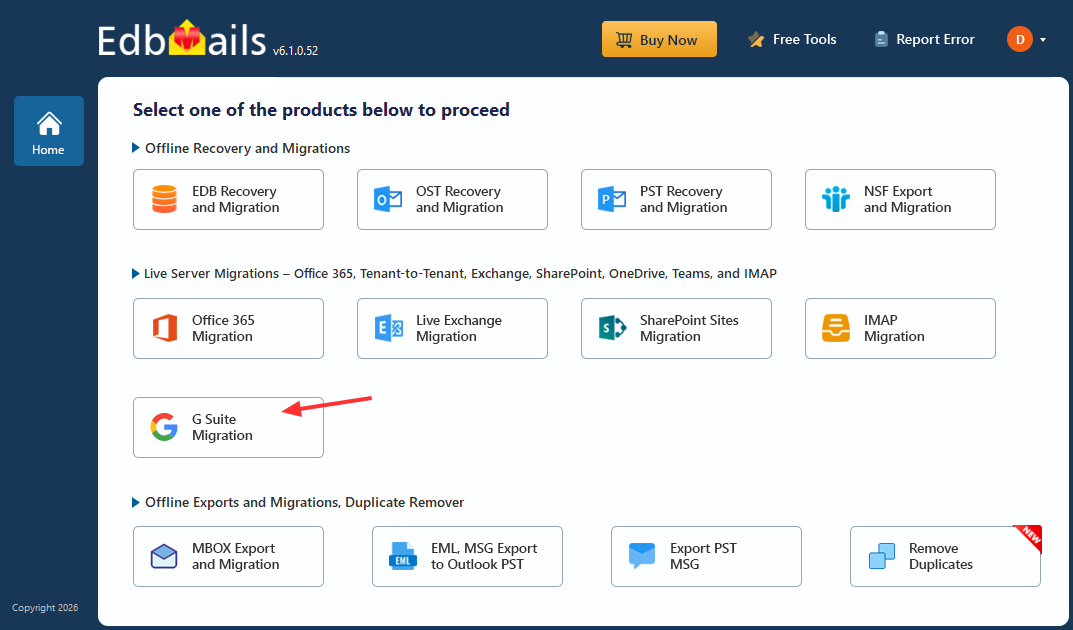
- Select the option 'Google Workspace (G Suite) Migration'.
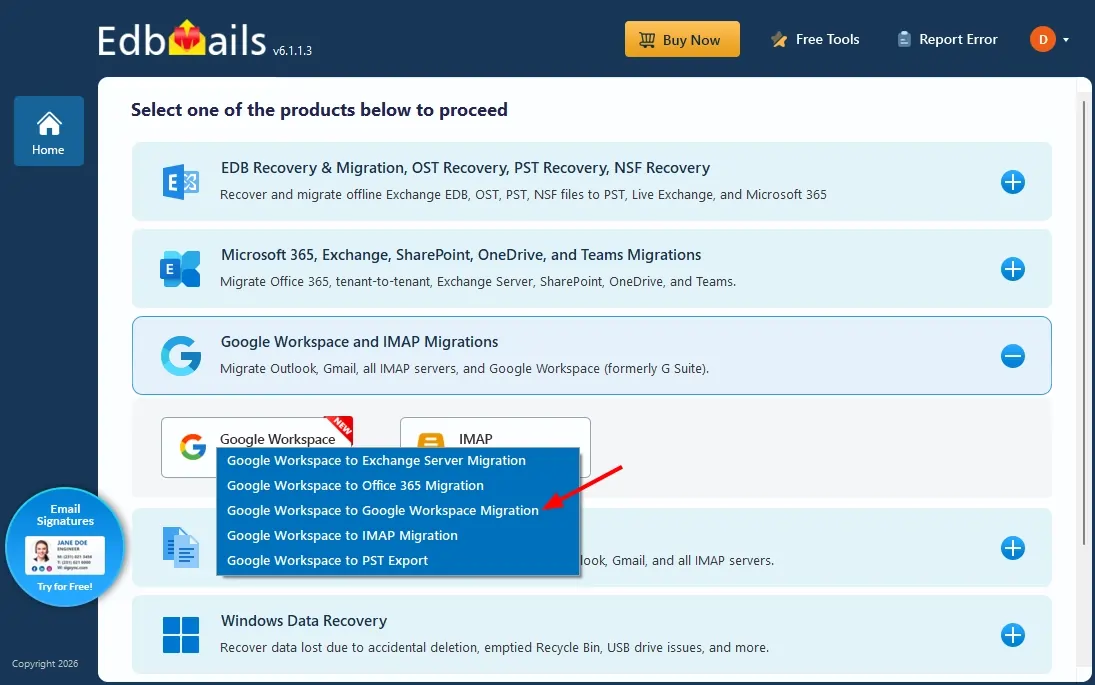
- Select 'Google Workspace to Google Workspace Migration'.
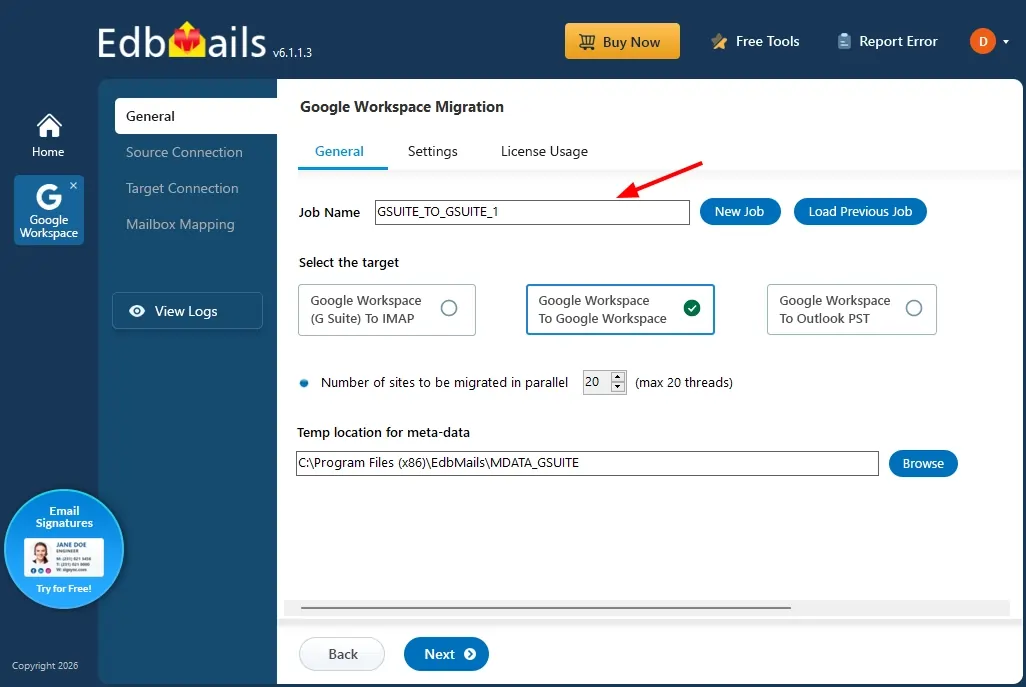
- You can proceed with the default job name, or click 'New Job' to create and assign a custom name of your choice.
- Download and install EdbMails on your computer.
Step 2: Connect to the Source Google Workspace Server
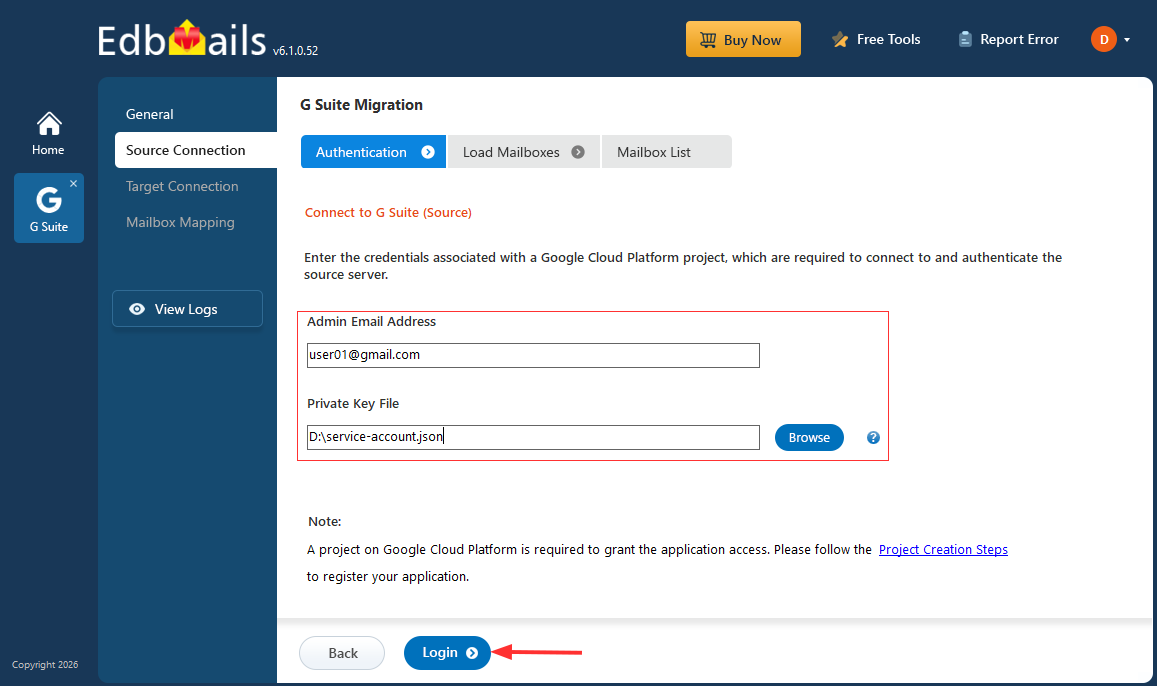
- Enter the admin email address, click 'Browse' to select the JSON file you downloaded from the Google Cloud Console, and then click 'Login'.
Steps to Create a Google Cloud Project and Download the JSON File.
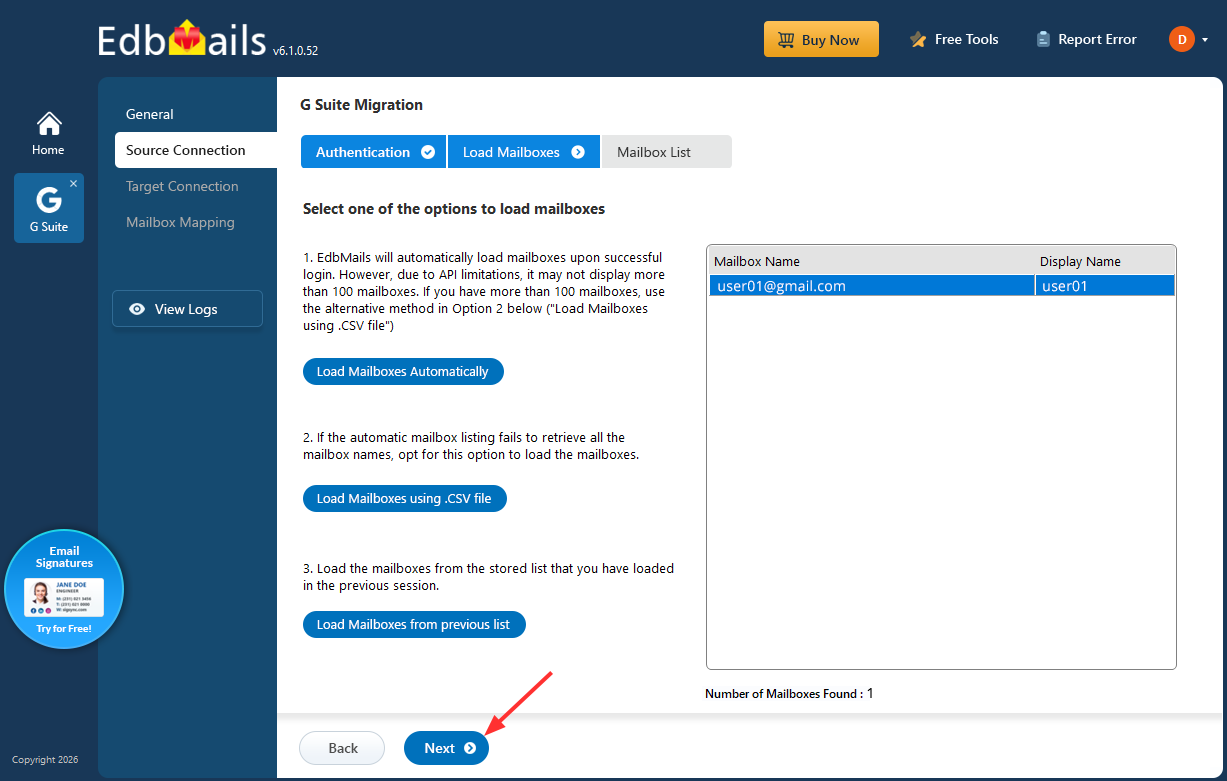
- Select one of the methods to load the mailboxes, then click 'Next'.
- Select the mailboxes you want to export, then click 'Next' to continue.
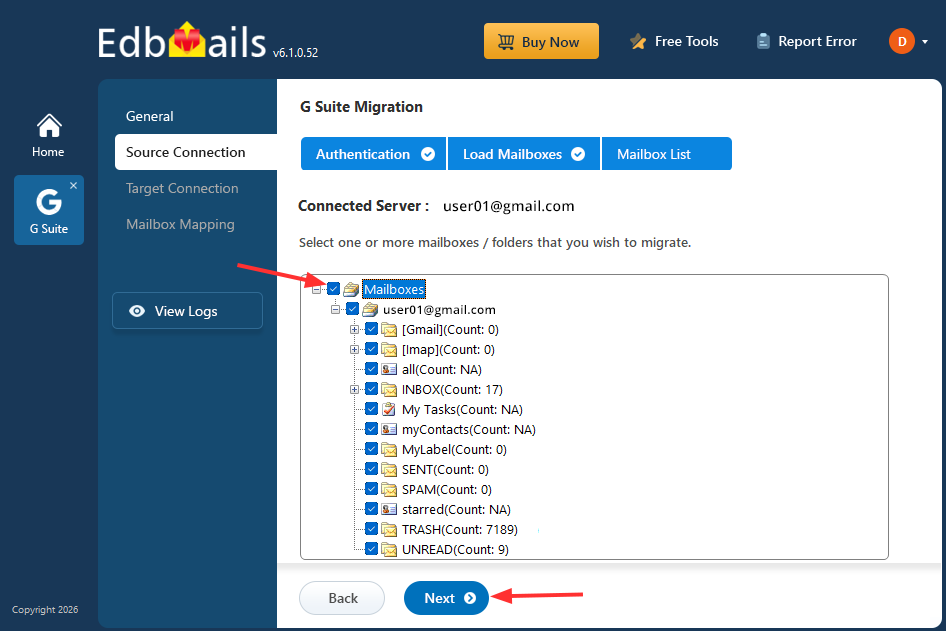
- Enter the admin email address, click 'Browse' to select the JSON file you downloaded from the Google Cloud Console, and then click 'Login'.
Step 3: Connect to the target Google Workspace
- Enter the admin email address, click 'Browse' to select the JSON file you downloaded from the Google Cloud Console, and then click 'Login'.
Steps to Create a Google Cloud Project and Download the JSON File.
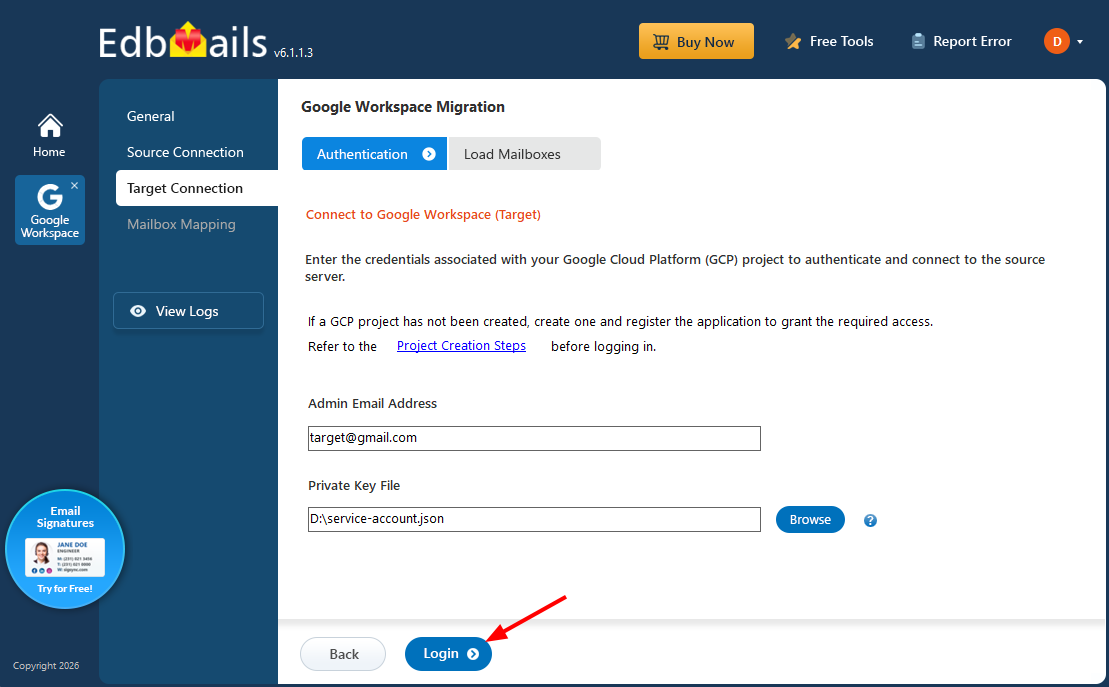
- Select one of the methods to load the mailboxes, then click 'Next'.
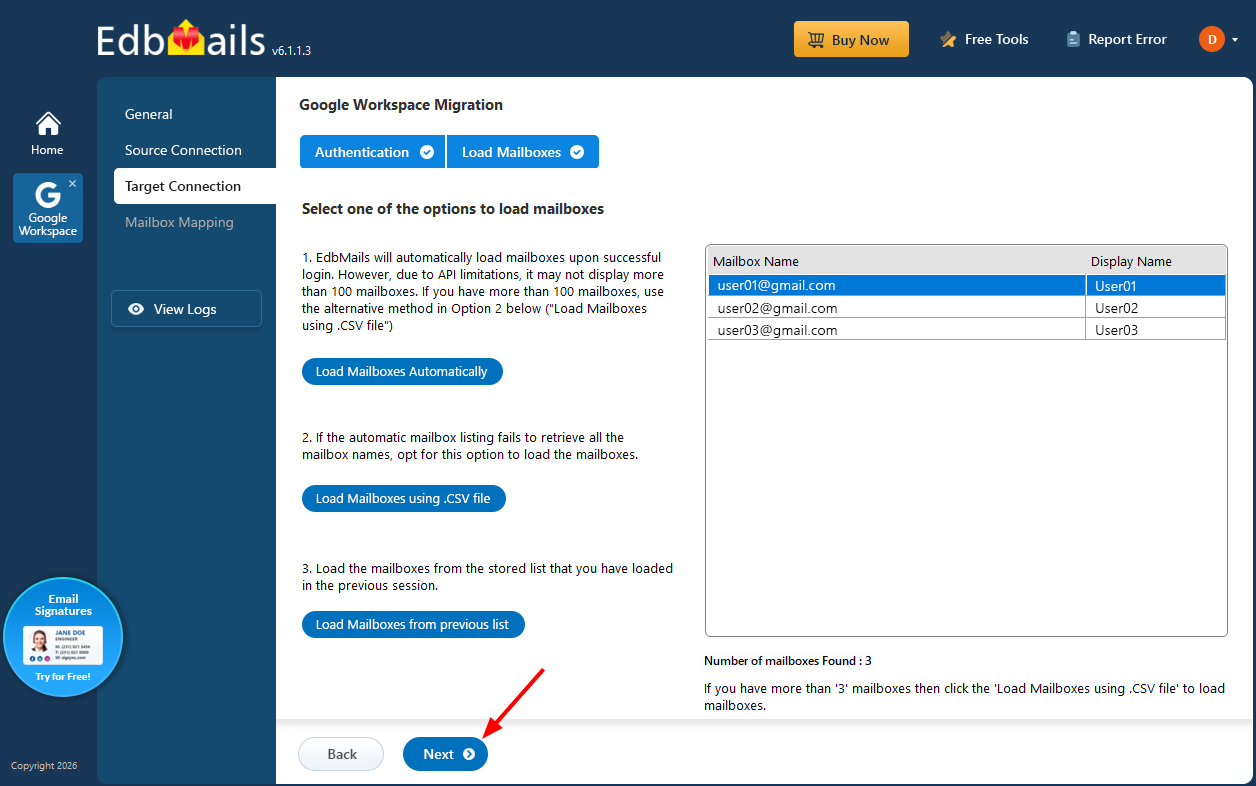
- Enter the admin email address, click 'Browse' to select the JSON file you downloaded from the Google Cloud Console, and then click 'Login'.
Step 5: Map Source and Target Mailboxes
- Select the required mapping option.
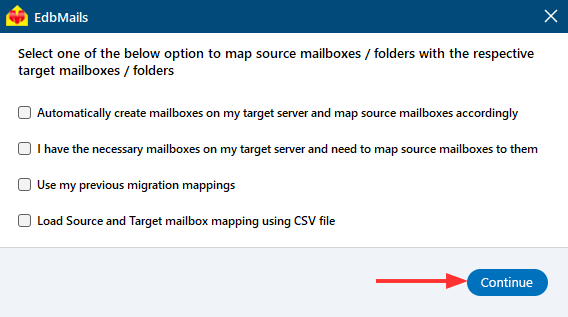
- EdbMails automatically maps mailboxes between the source and target mailboxes, eliminating the need for manual mailbox mapping. This feature is particularly beneficial when migrating a large number of mailboxes, as it streamlines the the migration process, reduces administrative effort, and saves valuable time.
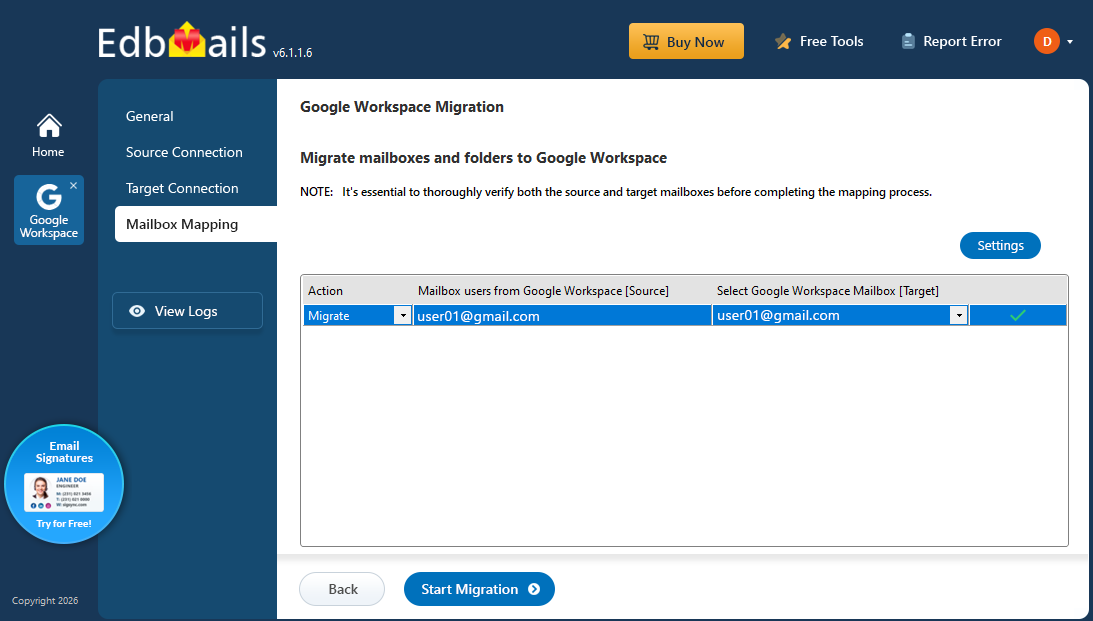
- Select the required mapping option.
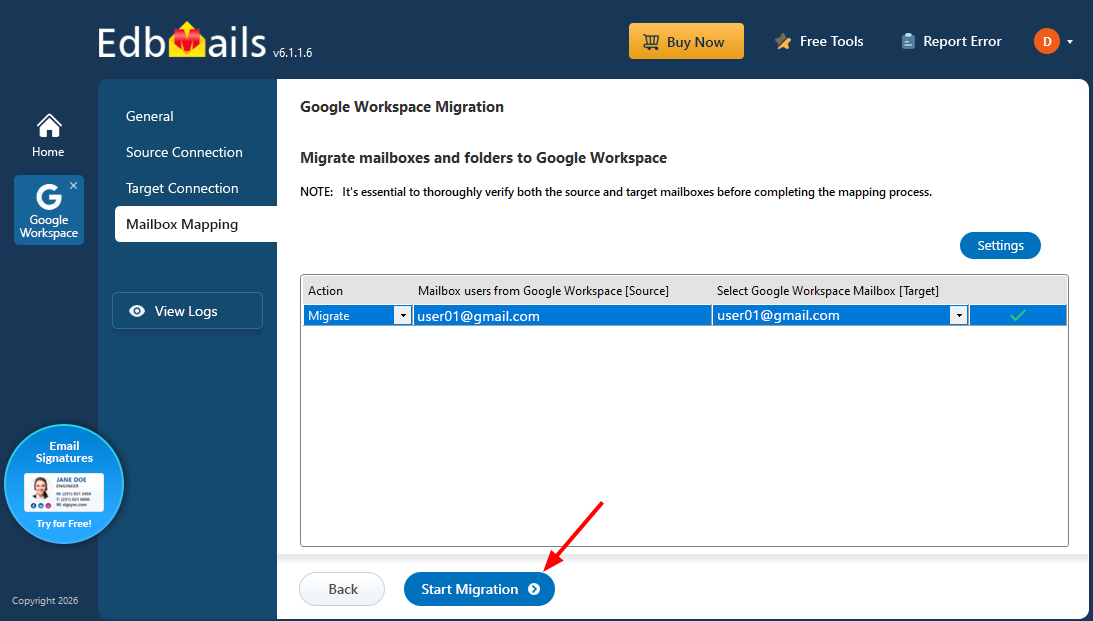
Step 6: Start Google Workspace Migration
- Click the 'Start Migration’ button to initiate the migration process.
- Track the migration progress in real time using the progress bar. Once the migration is complete, EdbMails displays the migration summary for your review. Click 'View Logs' to access the detailed migration report. Finally, sign in to your target Google Workspace account and verify that the migrated emails, contacts, calendars, and other mailbox items are available as expected.
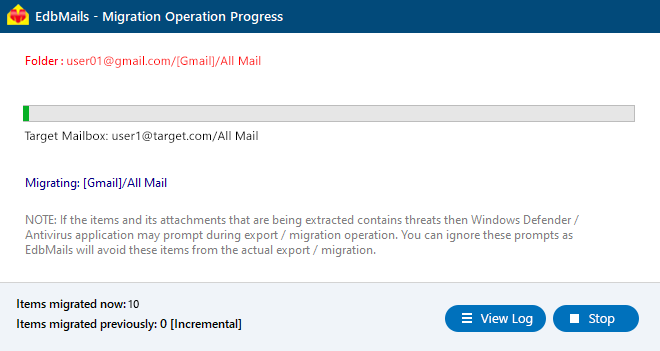
- Click the 'Start Migration’ button to initiate the migration process.
Post-Migration Tasks
After completing the migration between G Suite domains, perform the following tasks to ensure a smooth transition:
- Verify Migrated Data
- Log in to the target G Suite mailboxes and confirm that all emails, attachments, folders, contacts, calendar, and task items are migrated correctly.
- Ensure the folder hierarchy from the source domain is preserved.
- Test Mail Flow
- Send and receive emails from the migrated accounts to verify proper email functionality.
- Run Incremental Migration (If Needed)
- If new emails or items were added to the source domain after the initial migration, use incremental migration in EdbMails to transfer only the new items, avoiding duplicates.
- Verify Migrated Data
Advantages of Using EdbMails for Google Workspace Migration
- Secure Gmail API‑Based Migration: Uses Google’s official API with domain‑wide delegation for secure and compliant access — avoiding legacy protocols.
- Complete Mailbox Content Transfer: Migrates emails, attachments, contacts, calendars, labels, and other mailbox data with full fidelity.
- Bulk Account Support with CSV Import: Easily migrate large numbers of users at once by importing CSV mappings for source and target accounts.
- Preserves Folder Structure and Labels: Maintains original mailbox folder hierarchy, nested labels, sent items, drafts, and other structures.
- Advanced Filtering and Selective Migration: Migrate specific folders or date‑range items using powerful filters to reduce unnecessary data transfer.
- Incremental & Delta Sync: Run multiple migration passes and transfer only newly arrived items without duplication.
- Detailed Migration Report: Provides real‑time progress, detailed logs, success/failure counts, and detailed migration reports for auditing and compliance.
- Scalable for Enterprise Needs: Supports large‑scale migrations with minimal downtime, making it suitable for medium and enterprise environments.
- User‑Friendly Interface: Simplifies complex migration tasks with intuitive UI and step‑by‑step guidance, reducing admin effort and errors.
Frequently Asked Questions
- How do I migrate from one Google Workspace organization to another?
Migrating from one Google Workspace organization to another requires configuring both the source and target environments, authenticating administrator accounts, mapping mailboxes, and transferring mailbox data. EdbMails simplifies the process by allowing administrators to migrate emails, attachments, calendars, contacts, and tasks between Google Workspace organizations.
- Can I migrate multiple Google Workspace mailboxes at once??
Yes, EdbMails supports bulk Google Workspace migration. Administrators can migrate multiple mailboxes simultaneously and use CSV files to manage mailbox mapping when migrating a large number of users.
- Do I need administrator access to migrate between Google Workspace organizations?
Yes, administrator access is required in both the source and target Google Workspace organizations. The migration requires Super Administrator privileges, API access, and service account configuration with domain-wide delegation for secure mailbox access.
- Can I migrate Google Workspace mailboxes without downtime?
Yes, EdbMails allows administrators to migrate mailbox data with minimal disruption to users. The source Google Workspace environment remains available during the migration process, and incremental migration can be performed to transfer newly added data after the initial migration.
- How long does a Google Workspace to Google Workspace migration take?
The migration duration depends on factors such as the number of mailboxes, mailbox size, internet speed, and the amount of data being transferred. EdbMails supports bulk migration and incremental sync to help complete large migrations efficiently.

