Cart
CartOffice 365 Migration Log Reports
After every migration operation, EdbMails Office 365 Migration software generates a detailed log report. Administrators can review the reported migration status, migrated item counts, warnings or errors, and mailbox-level details to monitor a migration and investigate issues. Reports are available at different levels, including the migration summary, job-specific report, cumulative report, and individual mailbox report. The sections below explain what each report contains and how to view it.
How to View the Office 365 Migration Log Report
To view the migration log report in EdbMails follow the steps below:
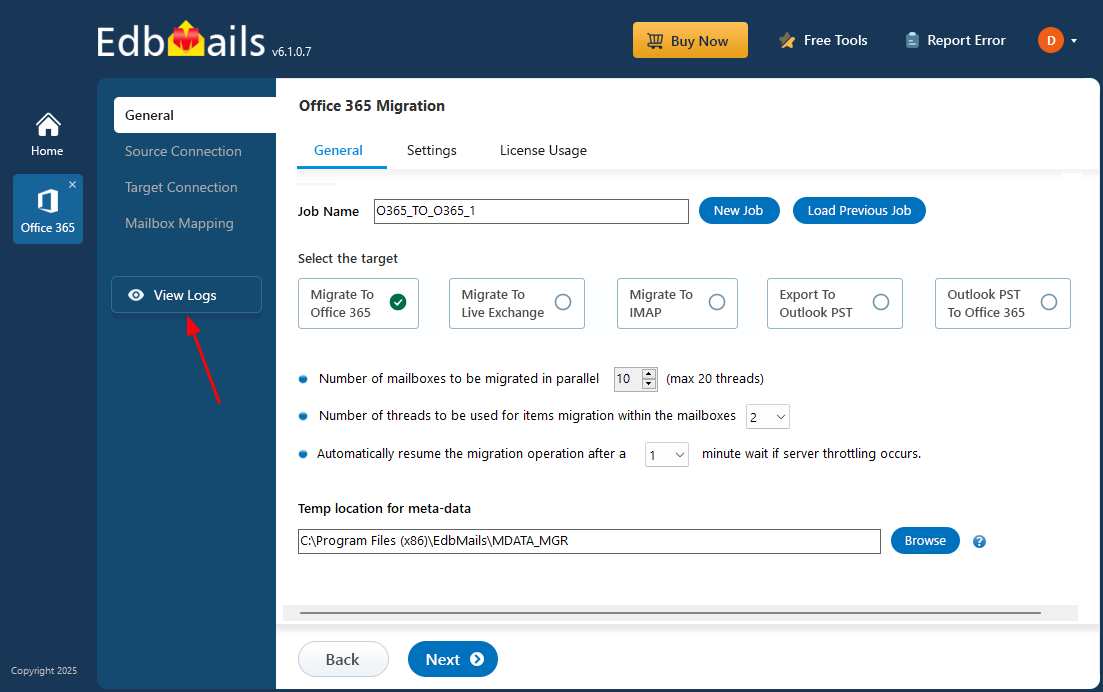
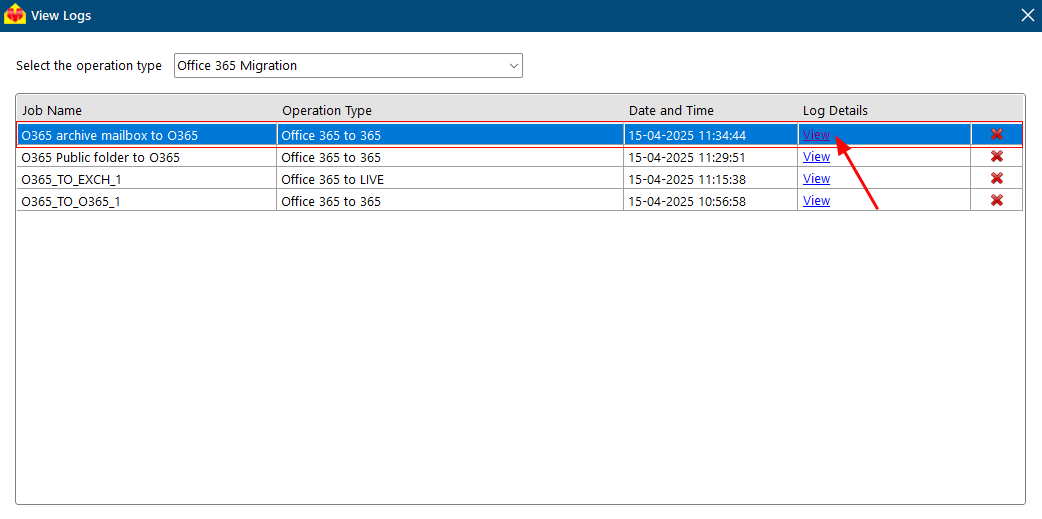
Click the ‘View Log’ button from the left navigation pane of the main migration window.
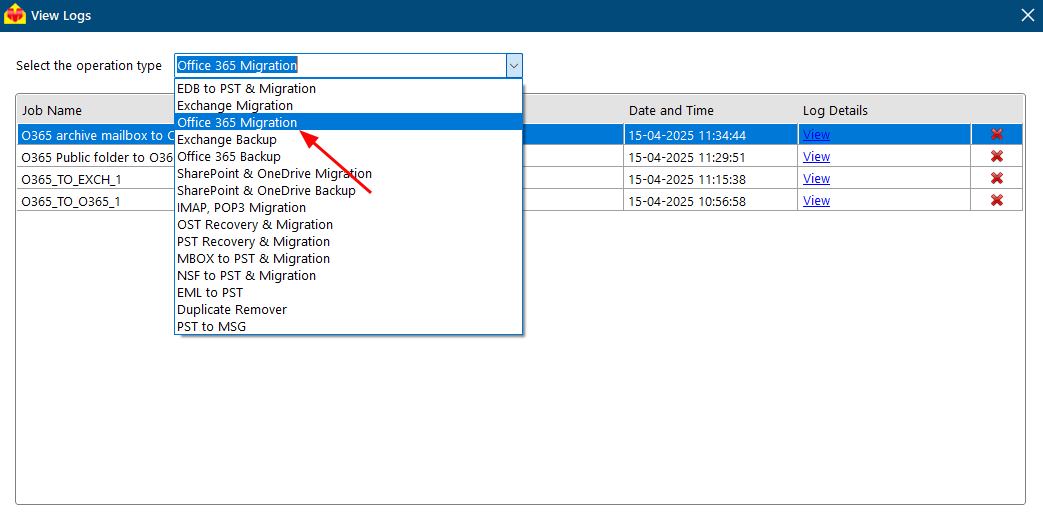
Select the operation type.
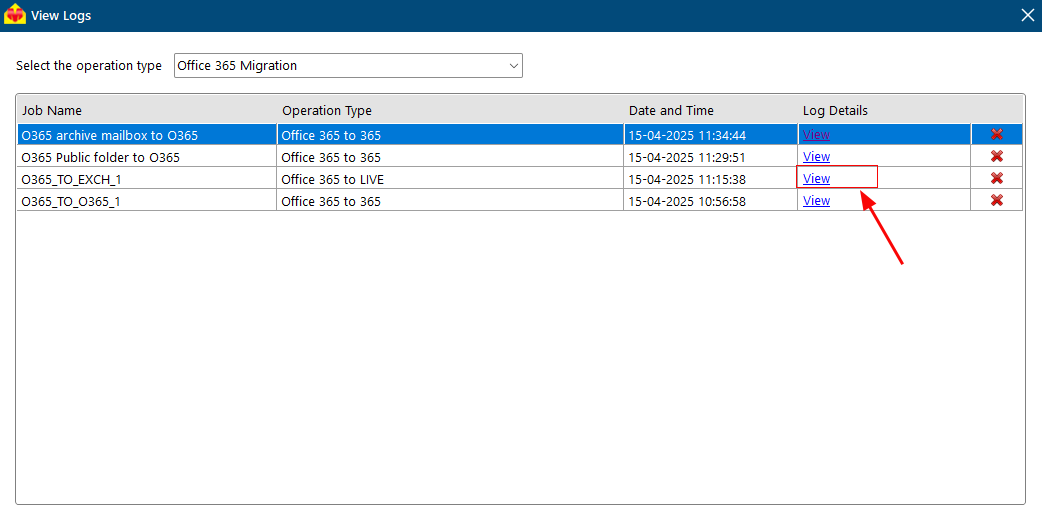
Click ‘View’ under the ‘Log Details’ column.
Migration Summary and Operational Details
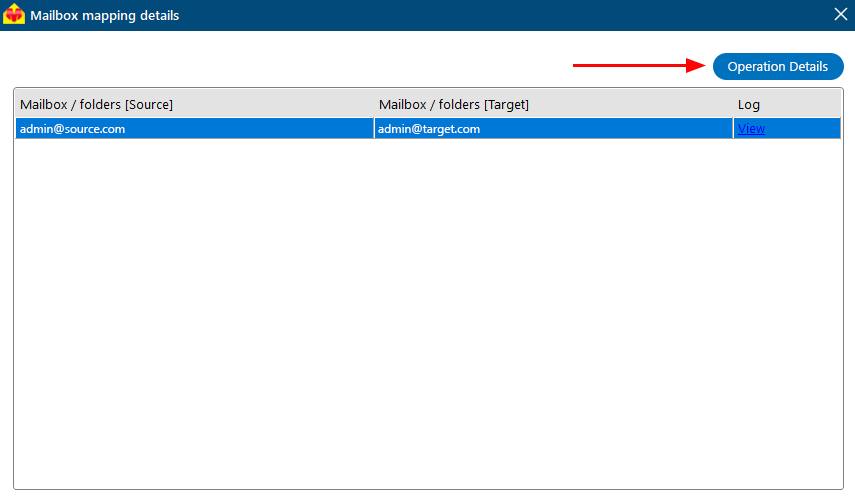
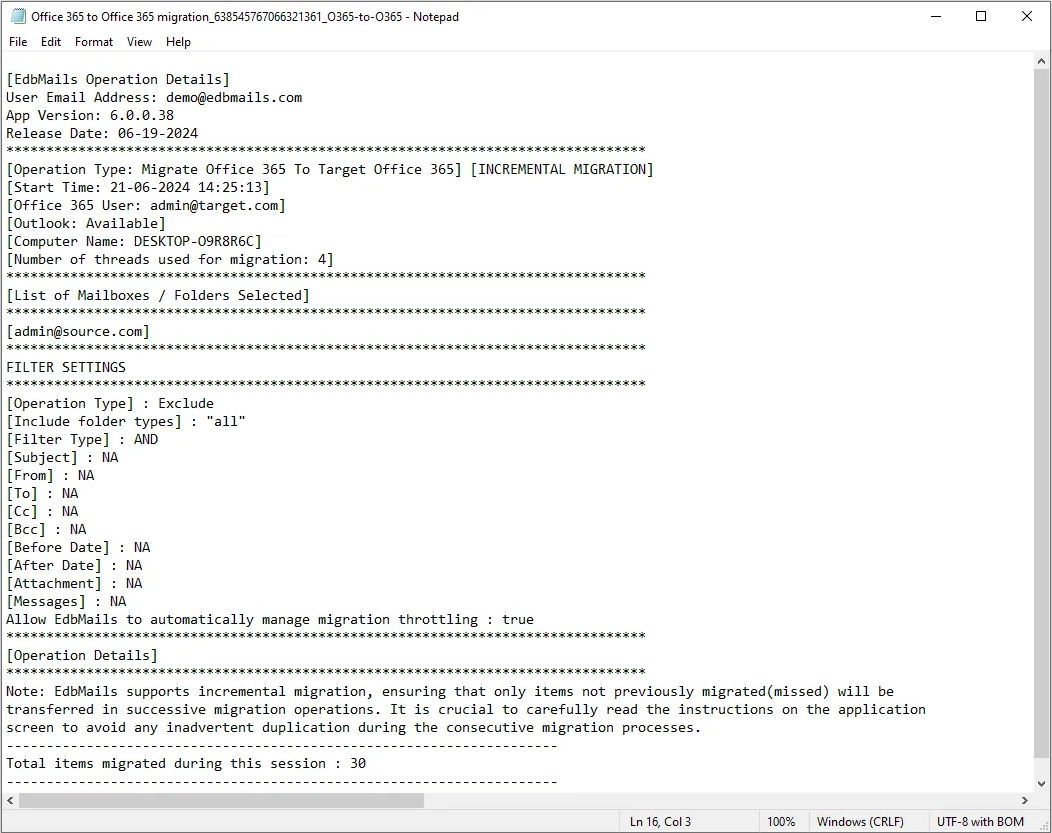
The migration summary provides operational details recorded for the migration job. Depending on the operation, the report can include the application version, login email address, source mailbox and folder information, export or migration thread number, include or exclude filter settings, and the reported number of migrated items. Use this summary for a quick review of the job before opening more detailed mailbox-level information.
Job-Specific Office 365 Migration Report
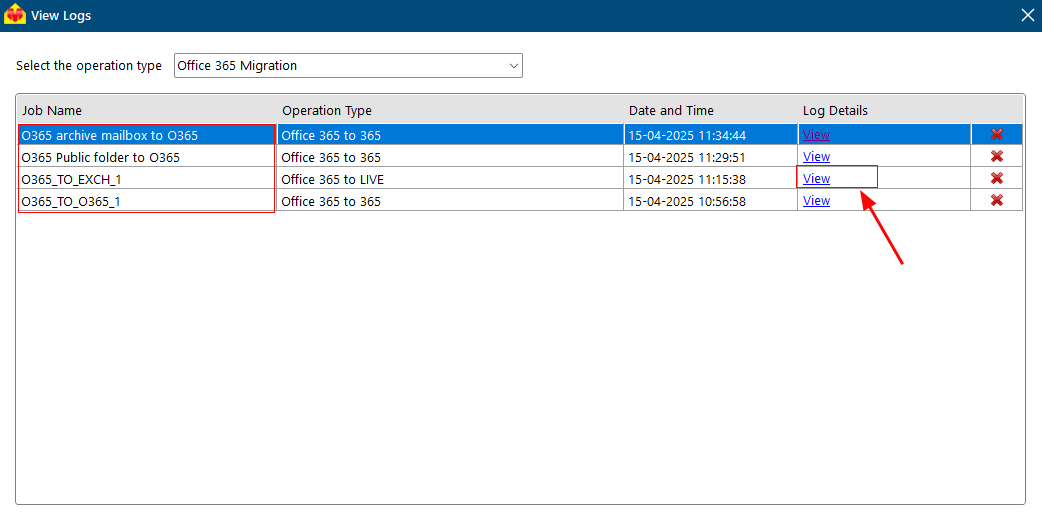
EdbMails organizes migration reports by the job names assigned during the migration. The job name appears in the left column of the log table, making it easier to locate a specific migration job and review its recorded status and details. This helps administrators investigate a particular job without mixing its results with other migration jobs.
Cumulative Office 365 Migration Report
The Cumulative Report brings recorded migration information from multiple mailboxes and sessions into one report. It can show the source and target mailbox names, migrated item counts, excluded folders, timestamps for migration sessions, and item counts from earlier sessions. Administrators can use this report to follow migration progress across repeated runs and compare the results recorded for each session.
For EdbMails, the initial migration from a source to a target is a full migration. Subsequent migrations using the same source and target from the previous migration on the same computer are incremental and process supported new or changed items according to the selected migration settings. Before final cutover, run the migration again with the existing mapping to capture supported changes made since the previous pass, and review the migration report before proceeding.
- Click ‘View’ in the ‘Log Details’ column for the specific job row.
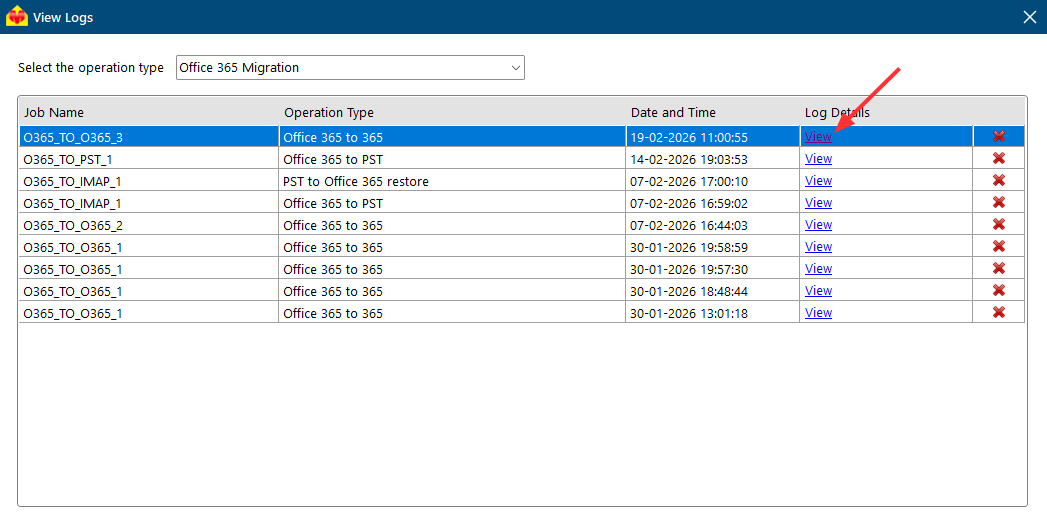
- Click the ‘Cumulative Report’ button.
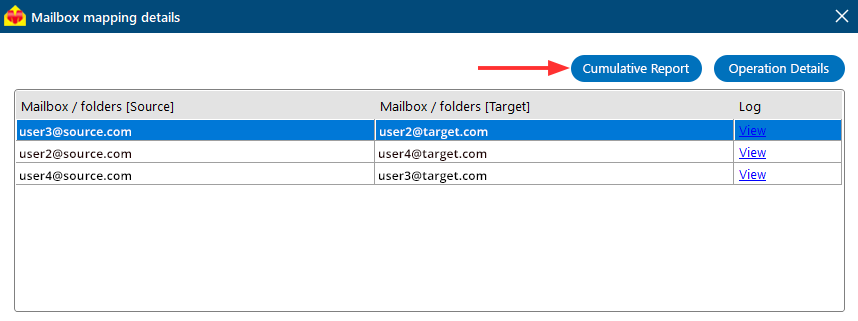
- View the complete, detailed Cumulative Report file.
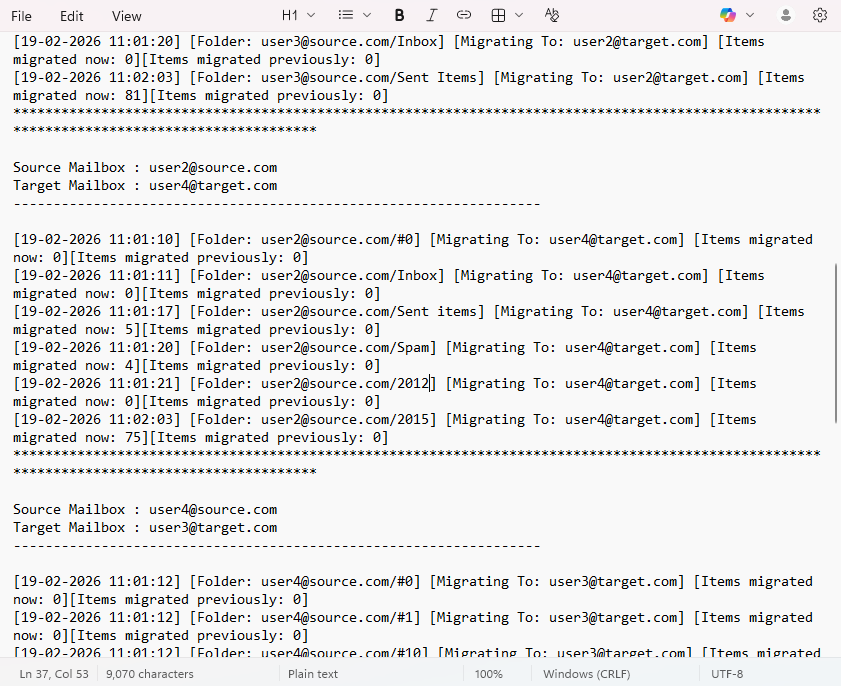
Individual Mailbox Migration Report
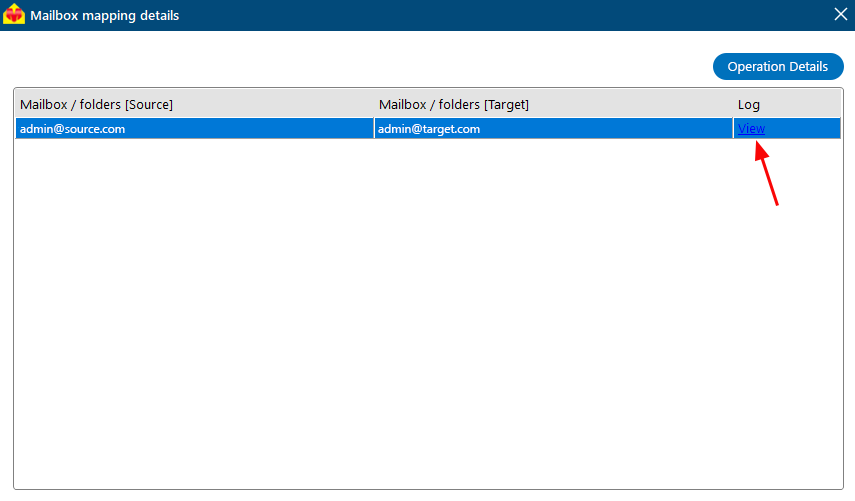
The Individual Mailbox Migration Report provides mailbox-level details such as the source and target mailbox names, reported migrated item counts, excluded folders, timestamps, items recorded in previous migration sessions, and migration errors when present. Use this report to review the result for a specific mailbox and identify entries that may require investigation. The screenshots below show how to open the individual mailbox report:
Click ‘View’ under the ‘Log Details’ column in the specific job name row.
Click ‘View’ from the required mailboxes row.
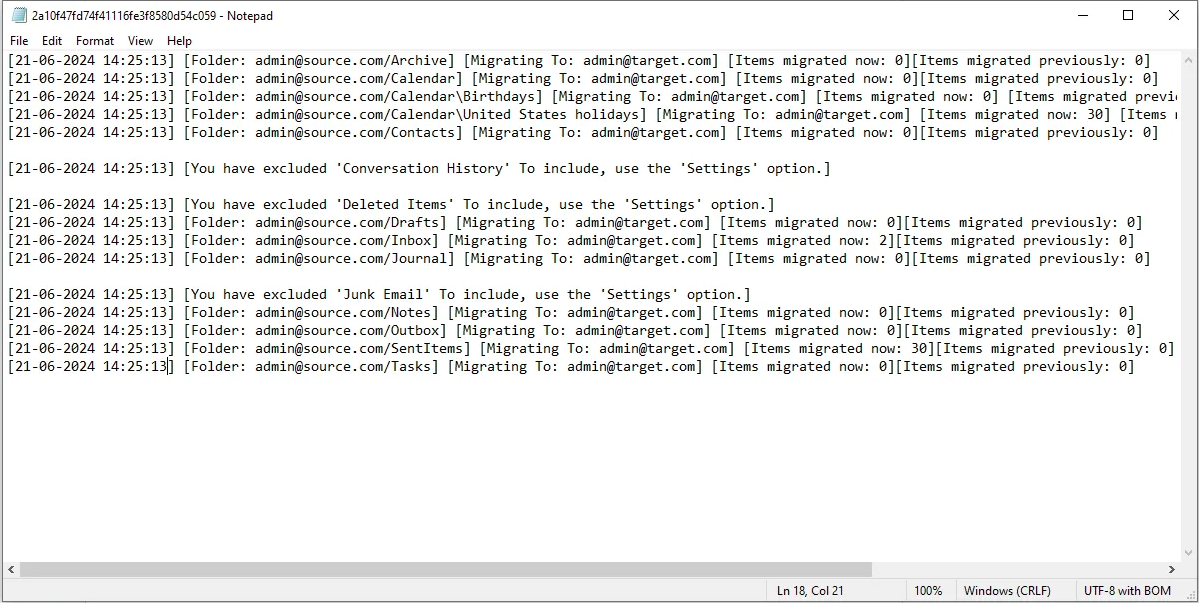
Note: The migration report records the results reported by the migration operation. After reviewing the logs, validate the expected data in the target Microsoft 365 mailboxes before completing the migration project. For broader pre-migration, in-progress, and post-migration checks, see the Office 365 migration health checks and validation guide. For any help or concerns, contact the EdbMails technical support team.