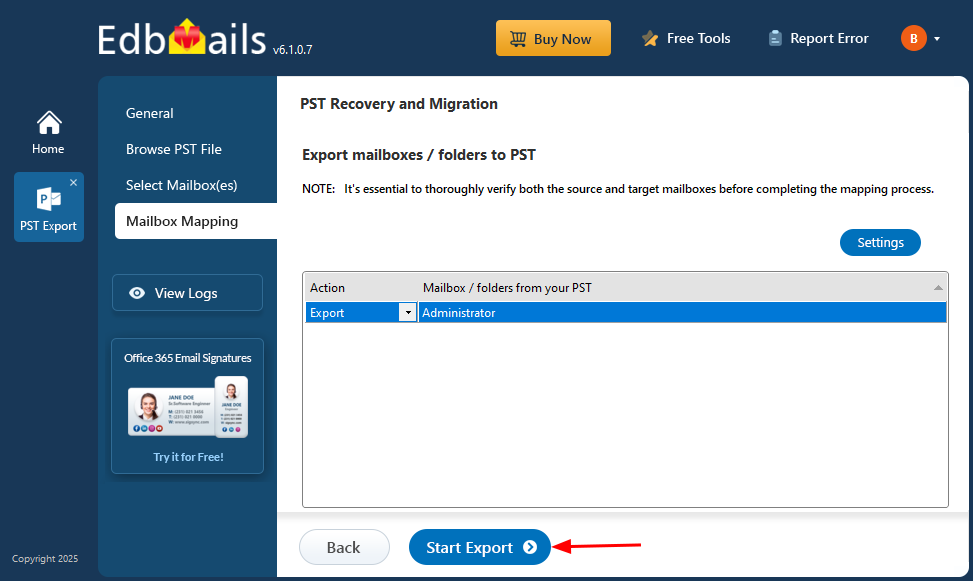
Outlook PST Recovery and Export Screenshots
These screenshots show the EdbMails PST Recovery Tool recovery-and-export workflow for opening an Outlook PST, selecting PST to PST in the application, choosing an output location, selecting recoverable folders, and exporting the selected data to a new PST.
For prerequisites, recovery planning, filtering, and post-export verification, use the EdbMails PST Repair Tool step-by-step guide. For broader product capabilities, see the EdbMails PST Recovery Tool.
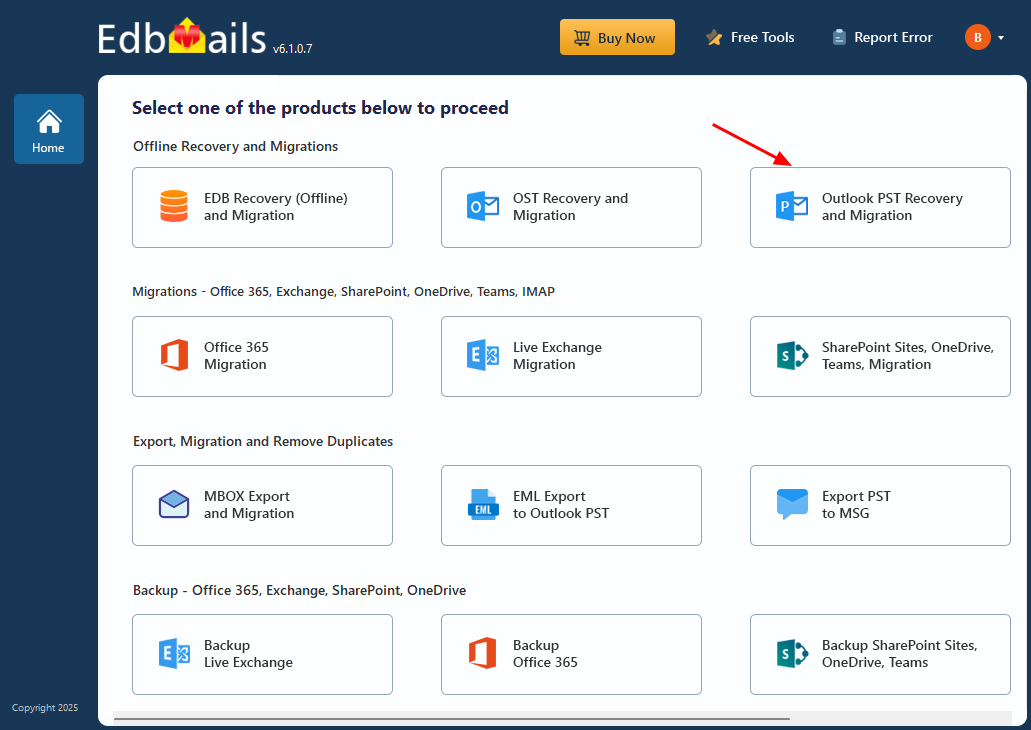
Select ‘Outlook PST Recovery and Migration’
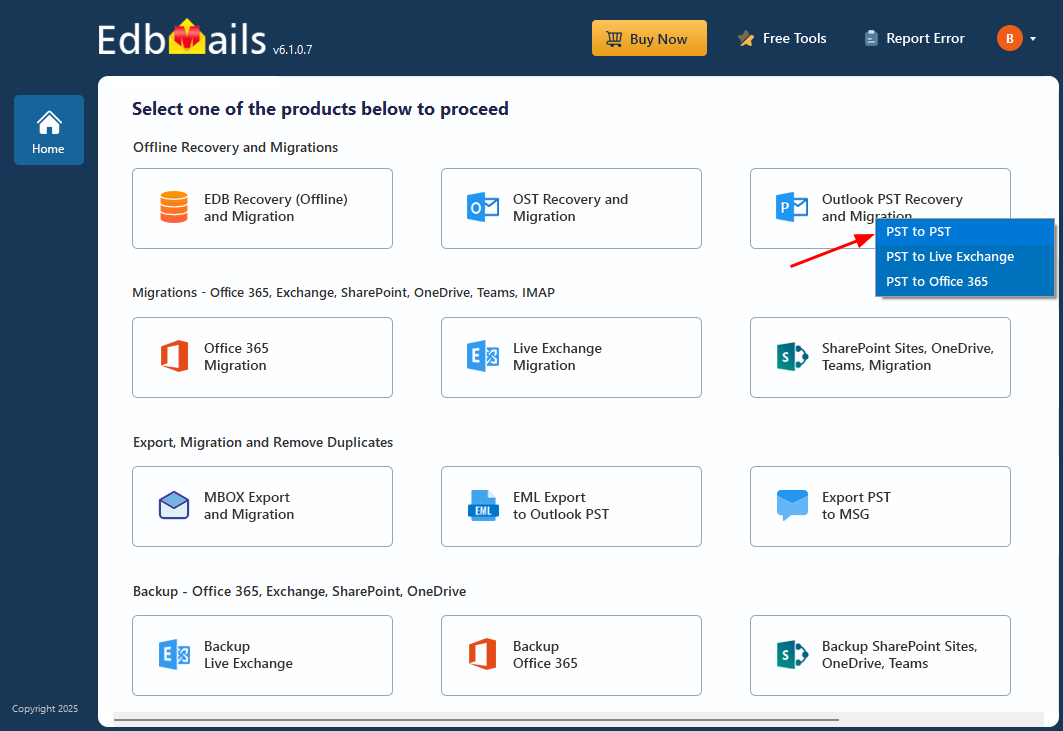
Select ‘PST to PST’
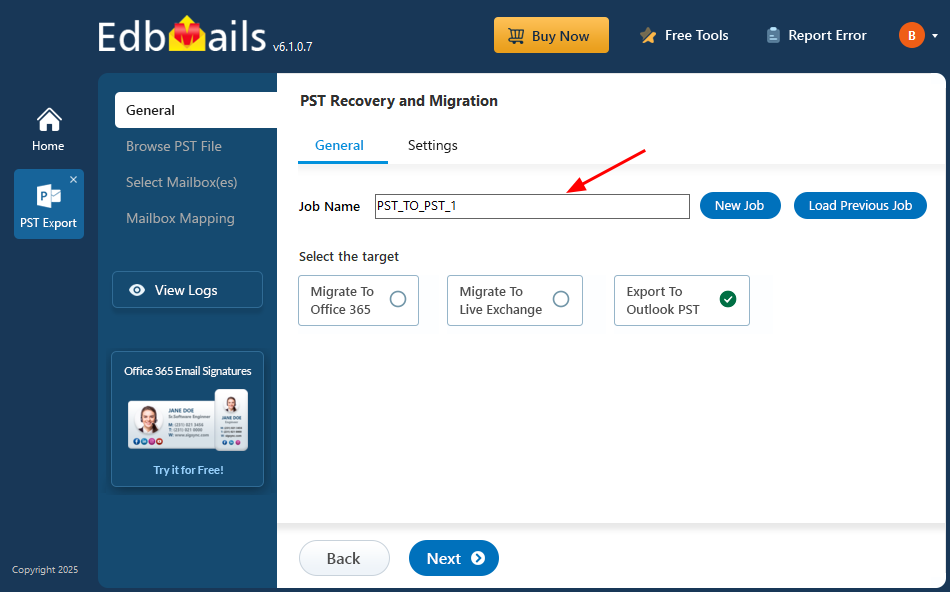
Enter export job name
Select the offline PST file
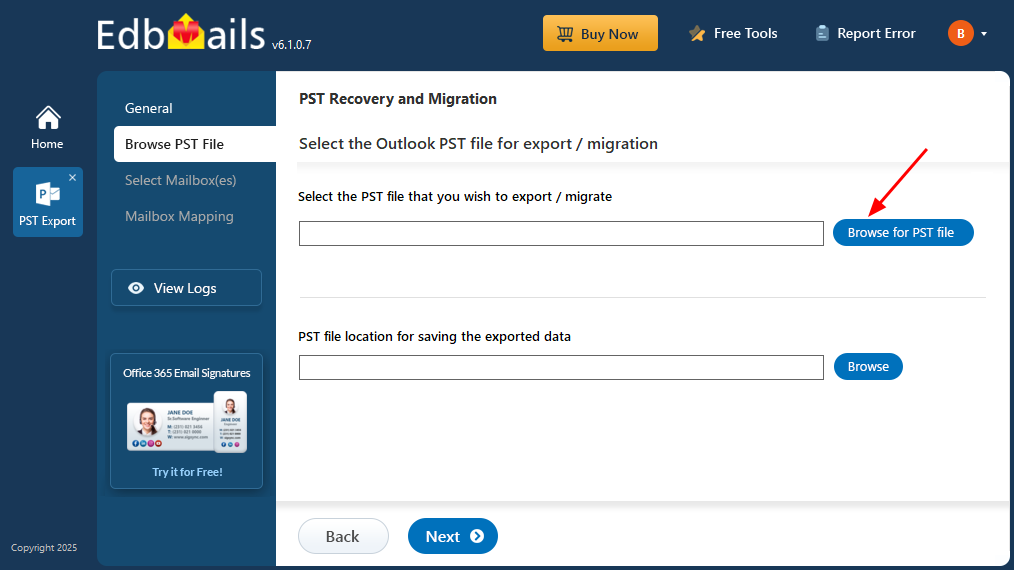
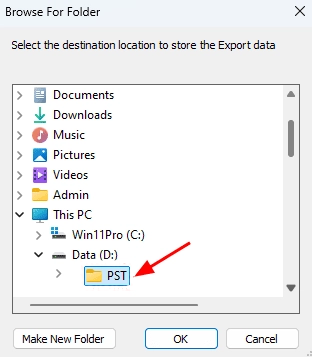
Select the location to save PST files
Select the required mailboxes/folders
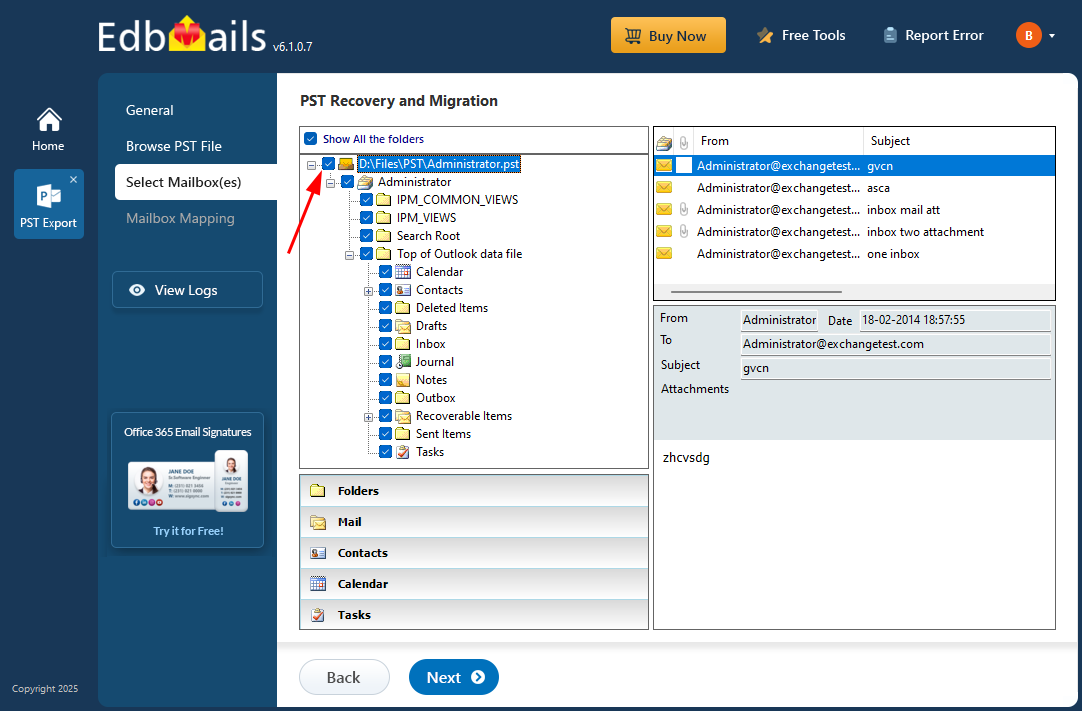
Review the selected folders and click 'Start Export'

Review the export log and open the new PST in Outlook to verify representative mailbox data

What to verify after PST recovery and export
Review the export log and open the destination PST in a supported Outlook environment. Check representative emails, attachments, contacts, calendars, folders, dates, and item counts before retiring or replacing the source PST.