• Menu
    • Offers
    • Products
      EDB Recovery and Migration
      • EDB to PST
      • EDB to Live Exchange
      • EDB to Office 365
      • Public Folder to Office 365
      • Public Folder to Exchange
      • Archive Mailbox to Office 365
      OST, PST, MBOX, NSF, EML, MSG
      • OST Recovery and Migration
      • PST Recovery and Migration
      • MBOX Export and Migration
      • NSF Export and Migration
      • EML to PST Export
      • PST to MSG Export
      • MSG to PST Export
      Exchange Server Migration
      • Exchange Migration
      • Exchange to Office 365
      • Exchange to IMAP
      • Exchange to PST
      Office 365 Migration
      • Office 365 Migration
      • Tenant to Tenant Migration
      • Office 365 to IMAP
      • Public Folder to Office 365
      SharePoint, OneDrive & Teams
      • SharePoint Online Migration
      • OneDrive for Business Migration
      • Microsoft Teams Migration
      Google Workspace Migration
      • Google Workspace Migration
      • Google Workspace Migration to Office 365
      • Google Workspace Migration to Exchange Server
      • Google Workspace Migration to IMAP
      IMAP Email Backup & Migration
      • IMAP Email Backup & Migration
      • IMAP to Exchange
      • PST to IMAP
      • IMAP to Office 365
      • IMAP to PST
      Duplicate Remover
      • Remove Duplicates
      • Remove Duplicates from Office 365
      • Remove Duplicates from Exchange Server
      • Remove Duplicates from IMAP, Outlook
      EdbMails Data Recovery
      • EdbMails Data Recovery
      Backup Solutions
      • Office 365 Backup
      • Exchange Server Backup
      • SharePoint, OneDrive & Teams Backup
    • Free Tools
    • Features
    • Reseller
    • Free Trial
    • FAQ
    • Video Tutorials
    • Pricing
    • Download
    • Support
    • Account
EdbMails EDB Recovery and Migration software
  • Reseller
  • Products
    EdbMails
    All-in-one Recovery and Migration
    • EDB Recovery and Migration
    • OST, PST, MBOX, NSF, EML, MSG
    • Office 365, Exchange Migration
    • SharePoint, OneDrive & Teams
    • Google Workspace Migration
    • IMAP Migration
    • Duplicate Remover
    • EdbMails Data Recovery
    • Backup Solutions
    All ProductsAll Products

    EDB Recovery and Migration

    EdbMails lets you recover corrupted, damaged, and offline Exchange EDB files, convert EDB mailboxes to PST format, and directly migrate mailbox data to Office 365 and live Exchange Server.

    EDB to PST
    EDB to PST
    Recover corrupted, damaged, offline EDB files and convert Exchange EDB mailboxes to PST file format
    Public Folder to Exchange
    Public Folder to Exchange
    Migrate public folders from an Exchange offline EDB file to live Exchange Server
    EDB to Live Exchange Migration
    EDB to Live Exchange Migration
    Directly migrate offline Exchange database (EDB) files to live Exchange server
    Archive Mailbox to Office 365
    Archive Mailbox to Office 365
    Migrate archive mailboxes from offline EDB files directly to Office 365
    EDB to Office 365 Migration
    EDB to Office 365 Migration
    Directly migrate offline Exchange database (EDB) files to Office 365
    Public Folder to Office 365
    Public Folder to Office 365
    Migrate public folders from an offline Exchange EDB file to Office 365

    OST, PST, MBOX, NSF, EML, MSG Export and Migration

    EdbMails lets you to recover OST and PST files, export OST, PST, MBOX, NSF, EML, and MSG files to PST files, and directly migrate OST, PST, MBOX, and NSF mailbox data to Office 365 and live Exchange Server.

    OST Recovery and Migration
    OST Recovery and Migration
    Recover offline OST files, convert OST to PST, and migrate OST to Office 365 and Exchange Server
    PST Recovery and Migration
    PST Recovery and Migration
    Recover Outlook PST files , Export PST to PST, migrate PST to Office 365 and Exchange Server
    MBOX Export and Migration
    MBOX Export and Migration
    Export MBOX to PST, migrate MBOX to Office 365 and Exchange Server
    NSF Export and Migration
    NSF Export and Migration
    Export NSF to PST, migrate NSF to Office 365 and Exchange Server
    EML to PST Export
    EML to PST Export
    Convert EML files to Outlook PST files
    PST to MSG Export
    PST to MSG Export
    Convert Outlook PST file to MSG file format
    MSG to PST Export
    MSG to PST Export
    Export MSG files to Outlook PST files

    Office 365, Exchange Migration

    EdbMails lets you securely migrate mailboxes across Microsoft 365, Exchange, Google Workspace (G Suite), and IMAP-supported servers such as Outlook, Gmail, Zimbra, Zoho Mail, and cPanel, ensuring zero downtime.

    Office 365 Migration
    Office 365 Migration
    Migrate between Office 365 tenants, Office 365 to Exchange, Office 365 to PST, PST files to Office 365.
    Exchange Migration
    Exchange Migration
    Migrate between any Exchange Servers, Exchange to Office 365, Exchange to PST, PST files to Exchange.
    Tenant to Tenant Migration
    Tenant to Tenant Migration
    Migrate Mailboxes, Public Folders, Archive Mailboxes between Office 365 Tenants.
    Exchange to Office 365
    Exchange to Office 365
    Migrate Mailboxes, Public Folders, Archive Mailboxes from live Exchange server to Office 365.
    Office 365 to IMAP
    Office 365 to IMAP
    Migrate Office 365 to IMAP, Office 365 to Gmail, Office 365 to Outlook, Office 365 to Zoho etc.
    Exchange to IMAP
    Exchange to IMAP
    Migrate from live Exchange Server to IMAP servers such as Gmail, Outlook, and Zoho Mail.
    Public Folder to Office 365
    Public Folder to Office 365
    Migrate Public Folders between Office 365 tenants with complete folder hierarchy and mailbox data integrity.
    Exchange to PST
    Exchange to PST
    Export live Exchange Server mailboxes, public folders, and archive mailboxes to Outlook PST files.

    SharePoint, OneDrive & Microsoft Teams Migration

    EdbMails lets you migrate SharePoint sites, OneDrive data, Microsoft Teams, teams, channels, chats, permissions, and documents between Microsoft 365 tenants while maintaining the existing folder structure and data integrity.

    SharePoint Online Migration
    SharePoint Online Migration
    Migrate documents, lists, files and folders from SharePoint sites.
    OneDrive for Business Migration
    OneDrive for Business Migration
    Migrate documents, lists, files, folders, private chats from OneDrive.
    Microsoft Teams Migration
    Microsoft Teams Migration
    Migrate Teams, chats, channels, documents, files and folders etc.

    Google Workspace / G Suite Migration

    EdbMails offers secure Google Workspace migration to Office 365, Exchange, or IMAP, and export to PST covering emails, contacts, calendars and tasks.

    Google Workspace Migration
    Google Workspace Migration
    Migrate emails, calendars, contacts, tasks from Google Workspace to Google Workspace, office 365, Exchange and IMAP. Export to PST
    Google Workspace to Office 365
    Google Workspace to Office 365
    Migrate emails, calendars, contacts, tasks from Google Workspace / G Suite to Office 365
    Google Workspace to Exchange Server
    Google Workspace to Exchange Server
    Migrate emails, calendars, contacts, tasks from Google Workspace / G Suite to on-Premise Exchange Server
    Google Workspace to IMAP
    Google Workspace to IMAP
    Migrate emails, calendars, contacts, tasks from Google Workspace / G Suite to IMAP, Outlook, Zimbra, Zoho etc.
    Google Workspace to Google Workspace Migration
    Google Workspace to Google Workspace
    Migrate emails, calendars, contacts, tasks between two Google Workspace / G Suite tenants
    Google Workspace to PST
    Google Workspace to PST
    Export emails, calendars, contacts, tasks from Google Workspace / G Suite to Outlook PST files

    IMAP Migration

    EdbMails IMAP Migration tool lets you easily migrate emails from IMAP servers such as Outlook, Gmail, Zoho Mail, Zimbra, cPanel, and more. Supports IMAP to IMAP, Office 365, Exchange Server, PST, and bulk PST to IMAP migration.

    IMAP Email Backup & Migration
    IMAP Email Backup & Migration
    Backup and migrate emails from IMAP servers to PST, Office 365, and On-Premises Exchange Server
    IMAP to Office 365
    IMAP to Office 365
    Migrate emails, folders, and attachments from IMAP servers to Office 365
    IMAP to Exchange
    IMAP to Exchange
    Migrate emails, folders, and attachments from IMAP servers to on-premises Exchange Server
    IMAP to PST
    IMAP to PST
    Export emails, folders, and attachments from IMAP servers to Outlook PST files for backup
    PST to IMAP
    PST to IMAP
    Migrate emails, folders, and attachments from bulk PST files to IMAP servers

    Duplicate Remover

    EdbMails Duplicate Remover lets you easily remove duplicate items from Office 365 and Exchange Server, and from IMAP, Outlook, Gmail, Zimbra, Zoho Mail, etc., ensuring a clean and organized mailbox.

    Remove Duplicates
    Remove Duplicates
    Easily clean up your Office 365, Exchange, Outlook and IMAP accounts by removing duplicate emails.
    Remove Duplicates from Office 365
    Remove Duplicates from Office 365
    Remove duplicate emails, calendars, contacts, journal tasks, etc. from Office 365.
    Remove Duplicates from Exchange Server
    Remove Duplicates from Exchange Server
    Remove duplicate emails, calendars, contacts, journal tasks, etc. from live Exchange Server.
    Remove Duplicates from IMAP, Outlook
    Remove Duplicates from IMAP, Outlook
    Remove duplicate emails, attachments from IMAP, Outlook, Gmail, Zimbra, Zoho Mail etc.

    Exchange, SharePoint, OneDrive, Teams and Office 365 Backup

    EdbMails enables secure, automated backup and recovery for Microsoft 365 services including Exchange Online, SharePoint, OneDrive, Teams, and Live Exchange Server with complete data protection and restore flexibility.

    Office 365 Backup
    Office 365 Backup
    Incremental, Granular, Encrypted and Compressed Office 365 Mailboxes Backup
    Exchange Server Backup
    Exchange Server Backup
    Incremental, Granular, Encrypted and Compressed Exchange Mailboxes Backup
    SharePoint, OneDrive & Teams Backup
    SharePoint, OneDrive & Teams Backup
    Backup Online site collections, Team sites, Office 365 groups, all documents etc.

    EdbMails Data Recovery

    EdbMails Data Recovery Software lets you recover permanently deleted data, including photos, videos, documents, and archived files, from partitions on hard drives, SSDs, USB drives, SD cards, and external storage devices.

    EdbMails Data Recovery
    EdbMails Data Recovery
    Recover and restore permanently deleted data from hard drives, SSDs, USB drives, SD cards, and etc.
    Whitepaper Whitepaper
    Request a Demo Request a Demo
    Sign Up Sign Up
  • Features
  • Video Tutorials
  • Free Tools
  • FAQ
  • Knowledge Base
  • Offers
  • Pricing
  • Download
  • Support
  • Sign in
  • Cart
Home › Learn › What is Office 365 Migration?

What is Office 365 Migration?

Office 365 migration is the process of moving mailboxes, files, calendars, and collaboration data into, out of, or between Microsoft 365 (Office 365) environments. It covers email, public folders, archive mailboxes, SharePoint sites, OneDrive files, and Teams chats and channels. Migration runs in both directions, either into Office 365 from an on-premises Exchange server, Google Workspace, or another hosted provider, or out of Office 365 to Exchange, IMAP, or a separate Office 365 tenant. Microsoft's native tools handle the basic scenarios, but they tend to break down on mailbox mapping, incremental sync, and high mailbox counts, so larger or mixed-source migrations usually call for a dedicated migration tool.

Try EdbMails Migration Tool Free
Tenant to Tenant
On-Prem Exchange
Google Workspace
IMAP Server
Microsoft 365Office 365 Target
On this page
  1. Why Migrate to Microsoft 365
  2. Common Migration Scenarios
  3. Office 365 Migration Methods
  4. Right Migration Method
  5. How Long Does Migration Take?
  6. Office 365 Migration Process
  7. Pre-Migration Checklist
  8. Migration Challenges and Solutions
  9. Migration Best Practices
  10. Native Tools vs. EdbMails
  11. Frequently Asked Questions

Why organizations migrate to Microsoft 365

Work from anywhere

Email, files, and Teams follow people across devices and locations. Start a reply on a desktop, finish it on a phone, and pull up the same files from any laptop with no VPN required. This finally retires the file-server setup that made remote work painful.

Stronger security posture

Microsoft 365 includes Defender, MFA, Conditional Access, and DLP out of the box, with no extra appliances or separate security vendors needed. Your organization's security baseline improves the day you migrate, even before any advanced configuration.

Lower infrastructure cost

You eliminate server hardware purchases and their refresh cycles. You also free up IT time by removing monthly patch windows, storage expansions, and weekend emergency calls. The recovered time is often worth more than the licensing difference.

One place to collaborate

Outlook, Teams, SharePoint, and OneDrive share one login and one file layer, so people co-author the same document in real time and see each other's edits as they happen. No more emailing versions back and forth, or wondering which copy is current.

Scales with you

When your team grows, you just add more licenses instead of buying and setting up a new server. This makes it easy to scale up during rapid growth, acquisitions, or seasonal hiring without spending on hardware you may not need later.

Ready for what's next

Features like Microsoft Copilot require your data to already live in Microsoft 365 because they are cloud-only. Migrating now means you are ready to adopt new capabilities as they arrive, without needing a separate project later.

Common migration scenarios

Where you're migrating from matters more than where you're going. An Exchange server, a Google Workspace tenant, and a pile of PST files each need completely different tooling and prep. These are the starting points we see most often.

01

On-premises Exchange → Exchange Online

The classic move: mail, calendars, contacts and often public folders leave an Exchange 2013/2016/2019 server for the cloud.

02

Google Workspace → Microsoft 365

Gmail, Google Drive and Calendar are mapped across to Exchange Online, OneDrive and SharePoint — a cross-platform move with format differences to reconcile.

03

Tenant-to-tenant consolidation

Mergers, acquisitions and divestitures that combine or split Microsoft 365 tenants, carrying users, mailboxes, files and identities between them.

04

Hosted email or IMAP provider

Mailboxes on a hosting provider such as GoDaddy or Rackspace move to Exchange Online — often with domain ownership to transfer too.

05

PST import & archive cleanup

Scattered PST files and legacy archives are ingested into online mailboxes and archive mailboxes so nothing is stranded on endpoints.

Office 365 migration methods

There are several migration paths you will come across most often. Choose based on your source system and how much transition time you need. For a full side-by-side comparison of these methods, see our dedicated migration methods comparison page

Cutover Migration
How it works

All mailboxes move together in a single pass, and users reconnect afterward. It suits smaller organizations that want to move in one go.

Best for
  • Small organizations on a single Exchange environment
  • Teams that want to move in one go
  • Exchange 2003, 2007, 2010 sources
Watch out for
  • Users must reconfigure Outlook profiles afterward
  • The whole domain flips at once — DNS timing is critical
  • No coexistence period — all-or-nothing approach
Staged Migration
How it works

Mailboxes move in scheduled groups over time, while both environments stay aligned during the transition. It fits organizations that want a controlled, phased rollout.

Best for
  • Mid-sized Exchange 2003/2007 environments
  • Organizations needing controlled, phased rollout
  • Departments migrating at different times
Watch out for
  • Requires Azure AD Connect directory sync setup
  • Migrates user/resource mailboxes but not all object types
  • More complex coordination than cutover

Note: Staged migration only supports Exchange 2003 and 2007 as sources. If you're still running either of these, the migration is the easy part of your problem, since both are far past end of support and shouldn't be internet-facing. In most modern projects, the real choice is between cutover, hybrid, or a third party tool. Version limits like this are specific to Microsoft's native methods. EdbMails migrates from any Exchange version, so your source server doesn't decide your method.

IMAP Migration
How it works

Mail is copied from any IMAP-capable source into Microsoft 365 mailboxes. It is a good fit for non-Exchange sources such as Gmail, Zoho, or Zimbra.

Best for
  • Non-Exchange sources (Gmail, Zoho, cPanel, Zimbra)
  • Legacy hosted email providers
  • Organizations with straightforward email-only needs
Watch out for
  • Migrates email only — no contacts, calendars or tasks
  • Each cloud mailbox must be pre-created before migration
  • No delta sync natively — requires re-running for new items
Tenant-to-Tenant Migration
How it works

Mailboxes, files, and identities move from one Microsoft 365 tenant to another. It is common for mergers, acquisitions, and rebranding.

Best for
  • Company mergers and acquisitions
  • Corporate divestitures splitting one tenant into two
  • Rebranding with new tenant structures
Watch out for
  • Native Microsoft tooling is very limited here
  • Identity, domain and license mapping must be planned carefully
  • SharePoint/Teams permissions need manual recreation
Google Workspace Migration
How it works

Gmail, Contacts, and Calendar are mapped and moved to Exchange Online. It suits organizations switching from Google to Microsoft.

Best for
  • Organizations switching from G Suite to Microsoft 365
  • Mergers between Google-first and Microsoft-first companies
  • Teams consolidating onto a single platform
Watch out for
  • Gmail labels map to folders, so nested labels need review
  • Recurring meetings and shared calendars need checking after the move
  • Google accounts must be prepared with API access before migration starts

How to choose the right migration method

Most guides tell you to pick a method by mailbox count, but that is not the whole story. The right choice depends on your source system, how much coexistence you need, and what data you cannot afford to lose. Answer these questions before you commit, because switching methods halfway through means redoing the endpoint setup and often re-migrating data.

Quick rule of thumb: cutover suits smaller organizations, staged suits mid-sized ones, hybrid suits larger or phased rollouts, IMAP suits non-Exchange sources, and tenant-to-tenant tooling suits Microsoft 365-to-Microsoft 365 moves.

Questions worth answering before you commit

 
How many mailboxes, and how big?

Mailbox sizes shape the method and timeline. The overall volume of data, not just the user count, is what really affects how long the move takes.

 
How much coexistence do you need?

Do old and new systems need to interoperate during the move? Hybrid is the only native method that supports this fully.

 
What data cannot be lost?

Contacts, calendars, public folders, archives and permissions each have method-specific limits. Map them before choosing.

 
Are there compliance requirements?

Regulated industries may dictate tenant type, license tier, data residency and retention settings upfront.

How long does Office 365 migration take?

The honest answer is that the volume of data decides the timeline more than the number of users. A smaller organization with years of email history can take longer than a larger one with lean mailboxes. Microsoft's throttling limits also cap how fast data moves, no matter which tool you use.

In general, smaller organizations with light mailboxes can often move over a weekend. Mid-sized organizations usually run in phased batches with a pilot first, and larger enterprises plan for coexistence and migration in waves with heavier testing. Google Workspace and tenant-to-tenant moves add time for identity, calendar, and format mapping.

Pre-staging the bulk of the data ahead of time and running a short delta at cutover keeps user-visible downtime close to none, even on a move that runs over a longer period.

Migration is faster with EdbMails because the software supports multithreading and migrates up to 20 mailboxes in parallel. You can also install the software on multiple computers and migrate a different set of mailboxes on each one, running several batches at the same time for large mailbox counts.

Office 365 migration process

The method changes from project to project. The phase sequence almost never does. Failures typically cluster in two places: assessment (skipped to save a week) and pilot (cut to a single test mailbox). Both save days upfront and cost weeks after cutover.

01

Assess & inventory

  • Count mailboxes and measure their sizes
  • Map users, groups, permissions and dependencies
  • Note public folders, shared and archive mailboxes
  • Flag aging clients and unsupported apps
02

Plan & design

  • Select tenant type and license tiers
  • Choose the migration method and tool
  • Define batches, waves and rollback plan
  • Set communication and training plan
03

Prepare the environment

  • Verify domains and plan DNS changes
  • Provision users, licenses and identity sync
  • Configure mail flow and permissions
  • Remove stale accounts and junk data
04

Pilot & test

  • Move real users and mailboxes first
  • Validate mail flow and coexistence
  • Adjust the migration schedule
  • Collect feedback and refine the runbook
05

Migrate & cut over

  • Execute pre-stage passes ahead of time
  • Run a final delta sync at cutover
  • Switch DNS / MX when data is in place
  • Monitor logs and throughput throughout
06

Validate & optimize

  • Verify mail, files, contacts and calendars
  • Reconfigure Outlook and mobile profiles
  • Stand up support for the first weeks
  • Decommission legacy systems once stable

Office 365 Pre-migration checklist

These are the items teams most often wish they'd handled before migration day rather than during it.

 
Define the goal

Write down why you're migrating and what success looks like — it settles later trade-offs.

 
Inventory everything

Mailboxes, sizes, shared/archive mailboxes, public folders, files and apps.

 
Verify your domain

Confirm domain ownership early so users can receive mail the moment they're switched.

 
Right-size licenses

Match Microsoft 365 plans to what users actually need before you provision.

 
Clean up first

Archive or delete stale mailboxes and junk data — less to move means a faster, cheaper migration.

 
Check clients & devices

Update Outlook, Teams and OneDrive; retire versions that won't play nicely with the cloud.

 
Plan mail flow & DNS

Know exactly which records change, and when, to avoid mail sitting in limbo.

 
Prepare people

Tell users the what and the when, and give them training and a support channel.

 
Run a pilot

Migrate a test group and validate before you commit the whole organization.

 
Schedule wisely

Run heavy passes in low-traffic windows and leave room for a delta at cutover.

See our complete Office 365 migration checklist for the full list you can work through with your team.

Office 365 Migration Challenges and Solutions

Every migration runs into at least one of these common challenges. Here is what each one looks like and the fix that actually works. For a deeper look at each issue and its resolution, see our detailed Office 365 migration challenges guide .

Microsoft throttling slows down the migration Throttling

Microsoft applies throttling limits on data transfers to protect its cloud infrastructure. When too much data moves at once, transfers slow down or stall, and entire migration waves can get stuck waiting to resume.

Fix Break the migration into smaller batches, pre-stage the bulk of the data ahead of time, and schedule heavy passes during off-peak hours. EdbMails Office 365 migration tool handles Microsoft throttling automatically. It manages transfer rates, retries failed items, and runs concurrent mailbox migrations in parallel so the migration keeps moving without manual intervention.
Large mailboxes drag the timeline Throughput

Very large mailboxes take a long time to move. Combined with throttling, they can stall the entire migration wave and push your schedule back.

FixGet users to archive or delete old items before the move. Pre-stage the bulk in the background while people keep working, then run a short delta sync at cutover. If a mailbox keeps failing, spread it across additional passes. EdbMails supports incremental delta sync and parallel migrations to handle large mailboxes efficiently.
Public folders and permissions get overlooked Scope gaps

Public folders, shared mailboxes and permission structures are easy to forget and hard to reconstruct later once the source is decommissioned.

FixEdbMails migrates public folders and shared mailboxes while preserving the folder structure, and carries over inbox rules.
Old clients and apps break Compatibility

Outdated Office versions and unsupported add-ins are a leading cause of post-migration support tickets and user frustration.

FixUpdate or replace clients and enforce modern authentication before the move begins.

Office 365 Migration best practices

None of these are complicated, and none are optional. The migrations that go badly are almost always the ones where the team skipped the audit to save a week, then spent three weeks aftercutover rebuilding permissions and hunting for public folders that never moved.

For a complete walkthrough of each practice with real-world examples, see our Office 365 migration best practices guide.

#01

Plan more than you migrate

Thorough assessment and design prevent the surprises that turn a weekend into a fortnight.

#02

Always pilot first

A representative test batch reveals throttling, permission and client issues at low cost.

#03

Pre-stage, then delta

Copy the bulk of the data in the background while people keep working. At cutover, run one finaldelta pass to pick up whatever changed. Done right, users notice nothing except a new Outlookprofile prompt.

#04

Use modern authentication

Encrypted channels and OAuth-based auth are the baseline for a secure migration.

#05

Clean before you move

Deleting stale data cuts migration time, storage cost and complexity in one stroke.

#06

Monitor and validate

Track logs during the move and verify mail, files, contacts and calendars after it.

#07

Migrate in off-peak windows

Run heavy passes when the network is quiet to keep the business running normally.

#08

Support the first weeks

A staffed hypercare period after go-live is what turns a migration into an adoption.

Native tools vs. EdbMails

Microsoft's built-in tools handle straightforward moves, but the gaps become painful fast once a migration gets more complex: missing permission mapping, limited reporting, and no tenant-to-tenant support. EdbMails is built to cover exactly those gaps.

Included free with Microsoft 365

Native Microsoft utilities

Best suited for
  • Standard Exchange 2013–2019 to Exchange Online
  • Simple IMAP mailboxes (cPanel, GoDaddy)
  • Organizations with in-house PowerShell expertise
Limitations
  • No folder-level permission mapping after migration
  • Limited item-level reporting and audit logs
  • No date-range or folder-level filtering per mailbox
  • IMAP method skips contacts, calendars and tasks
  • No native tenant-to-tenant tooling
Recommended third-party tool

EdbMails Office 365 Migration

What it handles that native tools can't
  • Built-in support for tenant-to-tenant migration
  • Migrates everything: contacts, calendars, tasks, not just email
  • Incremental delta sync, run multiple passes with no duplicates
  • Item-level migration reports and audit logs for every batch
  • Public folder and archive mailbox migration without PowerShell scripting or AD prep
  • Folder and date-range filtering per mailbox
  • Concurrent mailbox pipeline for faster, parallel migrations
  • No PowerShell scripting required
Download Free Trial Download button

Frequently Asked Questions

Data volume decides this, not user count. A small business with lean mailboxes can finish over a weekend, while a large enterprise with a lot of data should plan in weeks and lean on pre-staging. Microsoft's throttling also caps how fast concurrent transfers run. EdbMails is a high-performance tool that migrates 2 to 5 GB per hour per mailbox and supports parallel migration of multiple mailboxes.
Yes. By copying mailboxes and files ahead of time while people keep working, then running a final delta sync at cutover to capture the last changes, you can switch users over with little or no perceived downtime. A pilot batch, careful DNS planning and post-migration validation checks protect against data loss.
A cutover migration moves every mailbox at once and suits smaller organizations. A staged migration moves mailboxes in batches over time and fits mid-sized environments. A hybrid migration keeps on-premises Exchange and Exchange Online running side by side during a coexistence period, which is best for large enterprises that need a gradual, low-impact move. For a detailed comparison of all migration methods, see our migration methods page.
Not always. Microsoft's native methods handle straightforward Exchange and IMAP moves at no extra tooling cost. But they have real limits: no tenant-to-tenant support, no permission mapping, no repeatable delta passes, and minimal reporting. For Google Workspace moves, large environments, or regulated projects, those gaps become painful fast. That's where a purpose-built tool like EdbMails covers the gap, with tenant-to-tenant, Google Workspace, PST support, delta sync, and zero-downtime moves built in.
For migration purposes, yes — Microsoft rebranded Office 365 as Microsoft 365. You'll still see "Office 365 migration" widely used because the term is familiar, but it refers to moving into the same cloud services now marketed under the Microsoft 365 name.
Once every mailbox has been moved and verified in Microsoft 365, you can start planning to retire the on-premises server. Most teams keep it running for a few weeks after cutover as a fallback while users adjust. If you used the hybrid method, the server stays active throughout coexistence and only gets decommissioned after the last mailbox moves. Before pulling the plug, make sure DNS and MX records are pointing to Microsoft 365, all licenses are in place, and no older business apps still depend on the old server.
Both can move, but they need their own planning. Shared mailboxes typically migrate alongside user mailboxes, though you should verify delegate access and send-as permissions after the move since these do not always carry over cleanly. Public folders are a different story. They require a separate migration batch and careful hierarchy mapping, particularly if your organization has years of nested folders that people still rely on. EdbMails handles both public folder and shared mailbox migrations while keeping the folder structure and permissions intact, which avoids the manual rebuilding that native tools often leave you with.
Usually, yes. After a cutover or staged migration, Outlook will need a new profile or Autodiscover has to pick up the updated settings. Most mobile devices running the Outlook app or ActiveSync will reconnect on their own once DNS propagates, but a handful will need the account removed and re-added manually. The way to keep support tickets low is simple: send users a short step-by-step guide before the switch happens, not after.
Large mailboxes are where migrations slow down. Microsoft applies throttling limits on data transfers, so a very large mailbox takes significantly longer to move than a small one. The practical fix is to clean up before you migrate. Get users to archive or delete old items they no longer need. For mailboxes that genuinely carry a lot of active data, pre-staging copies the bulk in the background while people keep working. A final delta sync at cutover picks up whatever changed since the last pass. EdbMails supports incremental delta sync and runs multiple mailbox migrations in parallel, which cuts down the overall transfer time compared to running native tools one batch at a time.
Yes. Emails, contacts, calendars and Drive files can all move from Google Workspace into Exchange Online, OneDrive and SharePoint. The tricky part is format and structure differences between the two platforms. Google labels do not map one-to-one to Outlook folders, and Google Drive sharing permissions need to be translated into SharePoint equivalents. If these are not handled properly during migration, users end up with messy folder structures and broken access. EdbMails supports Google Workspace to Office 365 migration and takes care of these mapping differences so data lands where it should without manual cleanup.
Mailbox inbox rules can be migrated along with the mailbox data, depending on the migration scenario. However, certain Exchange-specific configurations, such as custom Exchange forms, Outlook add-ins, and integrations tied to the on-premises environment, may require manual configuration after migration. For IMAP migrations, the scope is more limited, as IMAP primarily handles email data. Contacts, calendars, and tasks require separate migration methods.
Moving data is the technical half. The other half is making sure people are not confused or frustrated by the change. Send out clear communications a week or two before migration starts. Cover what is changing, when it will happen and what users need to do on their end. If you are introducing new tools like Teams or OneDrive for the first time, run short training sessions. Set up a dedicated support channel (even a shared inbox or Teams channel works) for the first couple of weeks so people have somewhere to go when things do not look right. Running a pilot batch first gives you real user feedback to fix issues before rolling out to the rest of the organization.
It depends on the method. Cutover is all or nothing. Every mailbox moves in one pass, which is why it only works well for smaller organizations. Staged and hybrid methods give you full control over which mailboxes move and when, so you can start with a pilot group, move departments in phases, or hold back mailboxes that depend on older systems. EdbMails lets you pick individual users, specific folders, or even filter by date range within each batch, giving you granular control over what gets migrated and when.
Licensing aside, the cost of an Office 365 migration typically has three parts: the migration tool, labor, and the potential cost of downtime if the migration is not planned properly. Native tools may be free but can have limitations, while third-party migration tools are often priced per mailbox. Labor costs depend on whether the migration is handled by your internal IT team or a migration partner. For a cost-effective option, EdbMails offers an affordable Office 365 migration solution with a one-time lifetime license, including free software upgrades for life and free 24/7 technical support, so there are no recurring licensing or renewal fees. This makes it especially budget-friendly for organizations planning current and future migrations.

Yes. Microsoft Teams data can be migrated between tenants, including Teams chats, channel messages, and associated data. The migration scope can vary depending on the source and target environments.

EdbMails supports the migration of Teams chats and channels, including all supported Teams data, helping organizations move their Teams content to Microsoft 365.

The required permissions depend on the migration scenario. For tenant-level migrations, Global Administrator permissions may be required. For mailbox-level migrations, Full Mailbox Access permissions can be sufficient, depending on the migration method and configuration. In short, you may need either Global Administrator permissions or Full Mailbox Access rights to perform the migration.
Incremental migration only transfers items that are new or changed since the last pass. This avoids duplicating data that already moved and keeps the target mailbox in sync with the source right up until cutover. EdbMails runs incremental (delta) passes automatically on each subsequent run.

Ready to start your migration?

Try EdbMails free with no time limit. No credit card and no PowerShell scripting required.

Download Free Trial Explore EdbMails Features
hidden msg

EdbMails Demo / Trial Version

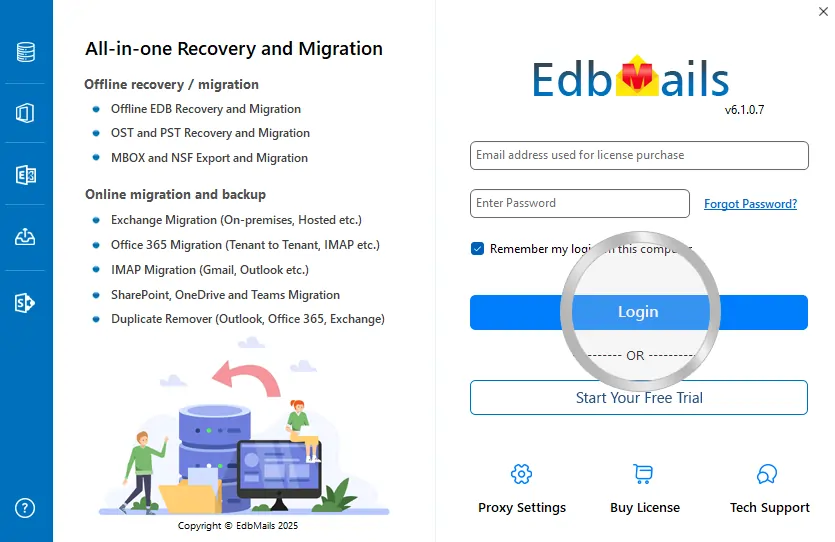
Step 1. Download and install EdbMails

Step 2. Click the 'Start Your Free Trial' button

Demo login EdbMails

  • Home
  • Features
  • Pricing
  • Support
  • Download
  • Sitemap
  • FAQ
  • Video Tutorials
  • Technical Support
  • Live Chat
  • Contact Us
Shifttocloud Inc.
Rehoboth Beach, DE
United States
+1 (302) 416-3056

Privacy Policy | Terms of Use | GDPR | Security | Press Releases

@edbmails.com All rights are reserved

Live Chat

Hi, May I help you?

Hide Chat Now