


Export Office 365 users to CSV file
Use the Microsoft 365 admin center to export your Office 365 user list to a CSV file. This is useful when you need a tenant user list for migration preparation or when all required mailboxes are not displayed in the EdbMails application. The steps below use the admin-center export and do not require PowerShell.
Export users from the Microsoft 365 admin center
1. Sign in to the Microsoft 365 admin center
- Go to admin.microsoft.com and sign in with an account that has permission to view users in your organization. Follow your organization's least-privilege policy rather than using a Global Administrator account when a lower-privileged role is sufficient.
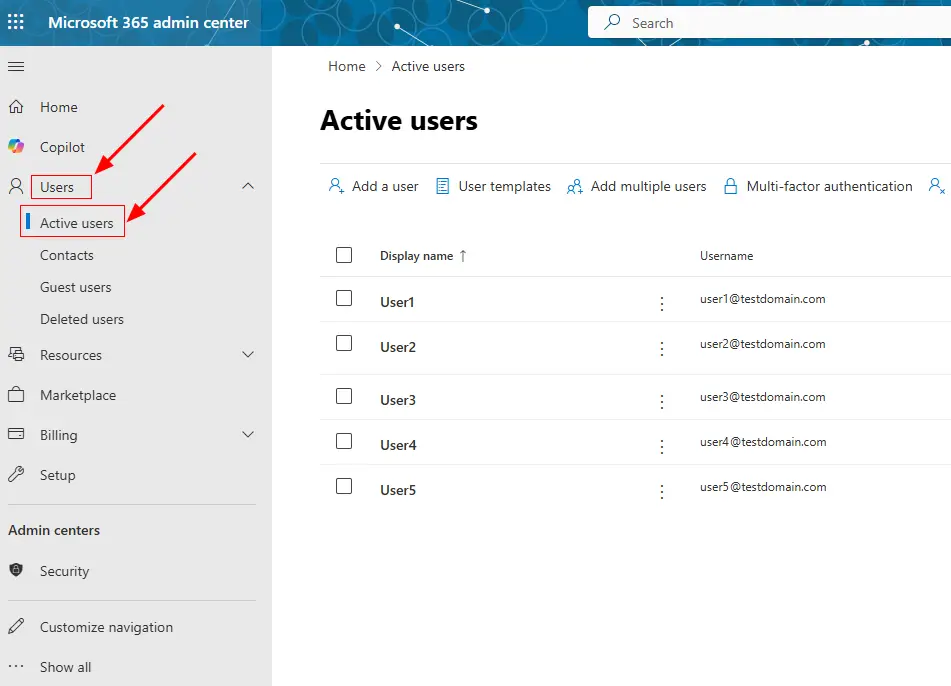
2. Open Active users
- In the left navigation, select Users, and then select Active users.
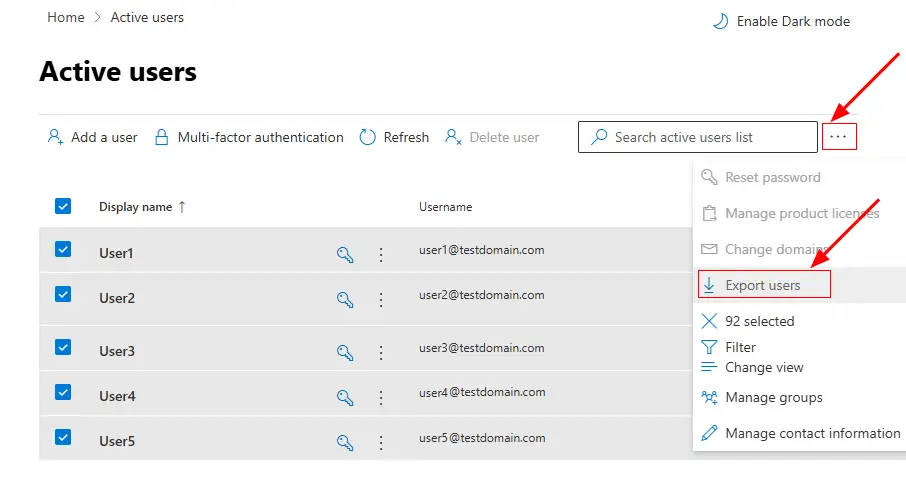
3. Export the user list
- On the Active users page, open More actions (the three-dot menu, if shown), select Export users, and continue with the export.
4. Save the CSV file
- Save the downloaded CSV file to a location you can access during migration preparation. The file contains user/account details included by the Microsoft 365 admin-center export.
If you are preparing users for a mailbox move, review the Office 365 migration tool to see where mailbox discovery, selection, mapping, and migration fit into the overall workflow.
For the complete migration sequence, follow the Office 365 migration guide from source connection through mapping, migration, and verification. Before starting a production migration, use the Office 365 migration checklist to confirm tenant access, mailbox readiness, and other preparation items.
Frequently Asked Questions
What admin role do I need to export Office 365 users?
What's included in the exported CSV?
What if the Export option isn't showing up?
