


IMAP Migration Filters and Incremental Settings
This page documents supporting configuration options used with the EdbMails IMAP Migration Tool. EdbMails provides migration and export settings for controlling repeat runs, filters, folder exclusions, message-size handling, PST splitting, and other scenario-specific options. The exact options that apply depend on the selected workflow. Standard IMAP sources are email-focused, so settings for contacts, calendars, tasks, Outlook/PST containers, or other item types may appear in shared application screens but are not supplied by the IMAP protocol itself.
Before changing settings: Run a pilot with the default configuration first. Use filters or non-default incremental options only when they match the migration plan, and review the report after each pass.
Incremental Migration
Incremental (delta) migration is designed for follow-up runs between the same source and target. After the first migration, EdbMails checks eligible source items against prior migration state and processes new or changed email items rather than intentionally repeating the complete mailbox. Use the migration report to verify what was processed on each pass.
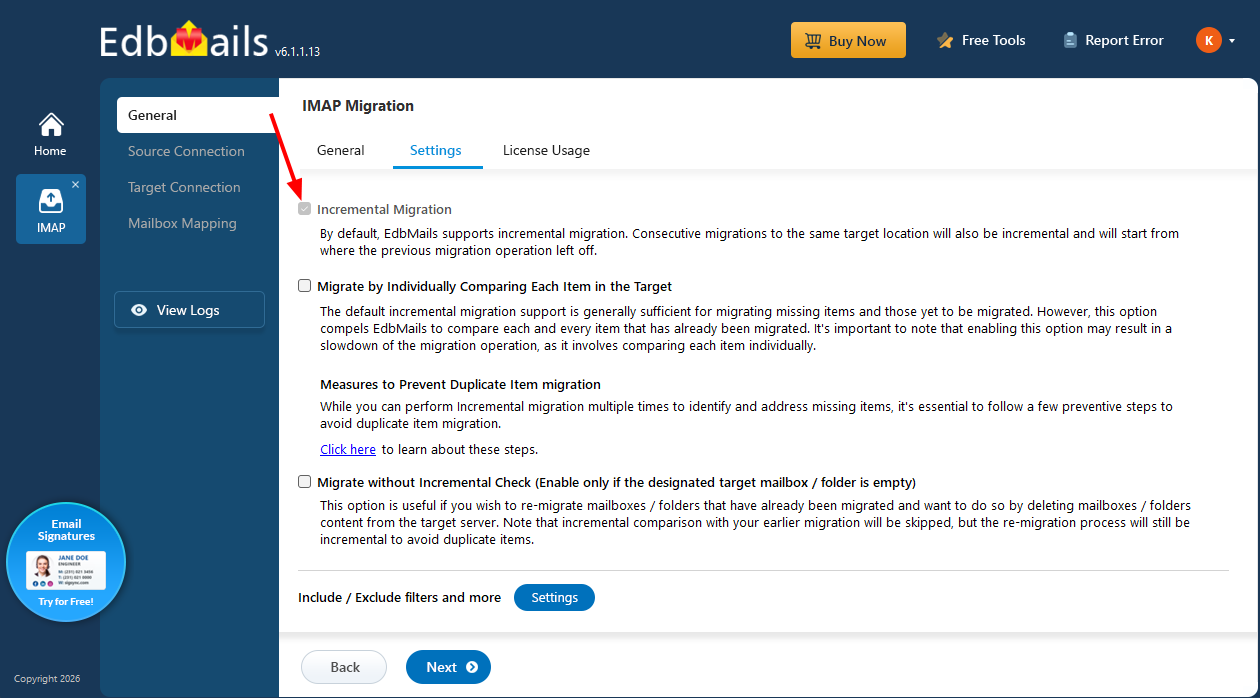
Migrate by Individually Comparing Each Item in the Target
Enable this option when you need EdbMails to compare migrated items against the target more exhaustively than the standard incremental check. Item-by-item comparison can increase processing time and target load, so it is better suited to verification or troubleshooting than to a normal first-pass migration.
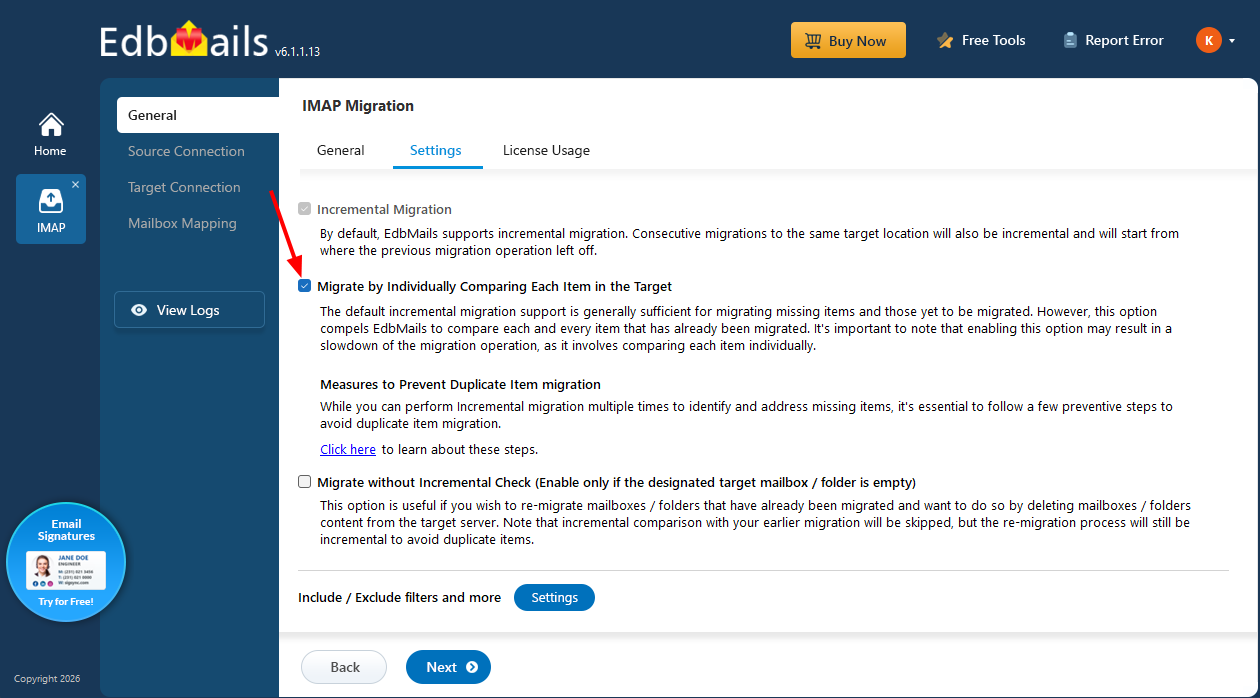
Migrate without Incremental Check
Use this option only when you intentionally need to bypass the standard incremental comparison, for example after clearing a destination and preparing a clean re-migration. Because the usual incremental check is not used, review the target state carefully before enabling it and verify the result after the run to avoid unintended repeat processing.
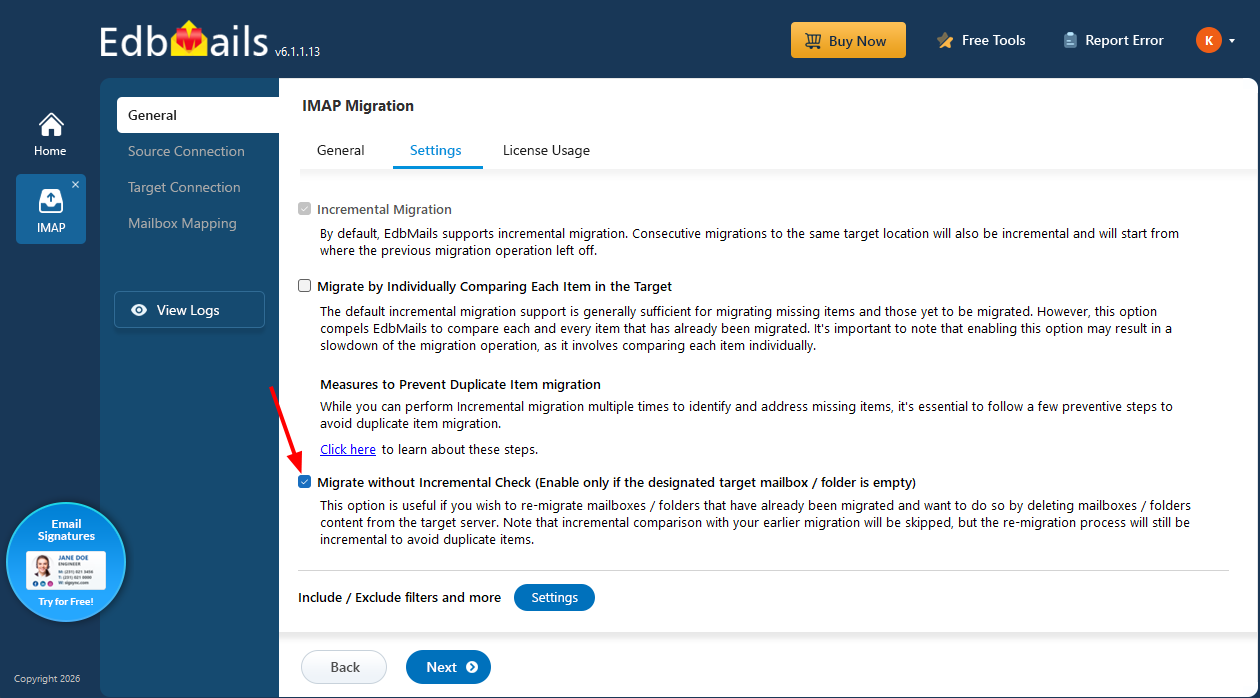
Include / Exclude Filters and More
Use the Settings window to control which supported email data is included or excluded from the selected migration or export. Not every option applies to every destination; PST-specific settings, target-server settings, and shared application options should be used only for the workflow in which they are relevant.
Include / Exclude Filters for Export and Migration
Tick this checkbox to migrate by a condition instead of moving the entire mailbox, then decide whether matching items should be included or excluded.
Include: Migrates only the items that meet your filter criteria, keeping the transfer limited to the data you actually want.
Exclude: Leaves out the items that meet your filter criteria and migrates everything else.
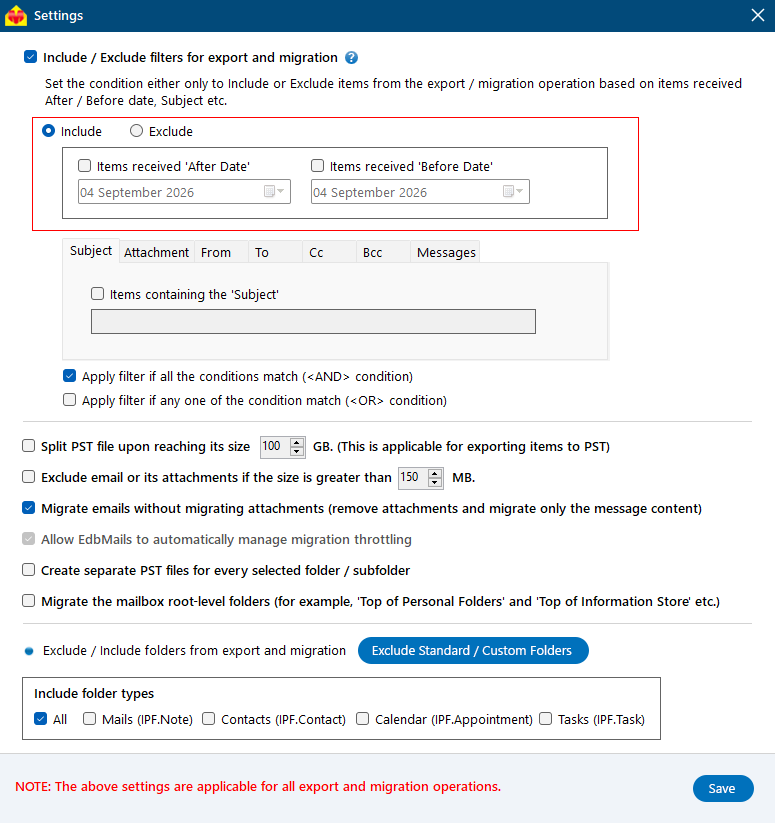
Filters: The following filters are available to customize your migration operation:
- Date Filter: Include or exclude items based on the date they were received. You can define an 'After Date', a 'Before Date', or both to migrate items within a particular date range.
- Subject: Include or exclude email messages based on the message subject.
- Attachments: Include or exclude email messages based on attachment names.
- From: Include or exclude emails sent by specific senders.
- To: Include or exclude emails sent to specific recipients.
- Messages: Include or exclude emails based on their read or unread status.
- Cc: Include or exclude emails based on specific CC addresses.
- Bcc: Include or exclude emails based on specific BCC addresses.
- Apply filters if all the conditions match (AND condition): Filters are applied only when all specified conditions are satisfied.
- Apply filters if any one of the conditions match (OR condition): Filters are applied when at least one of the specified conditions is met.
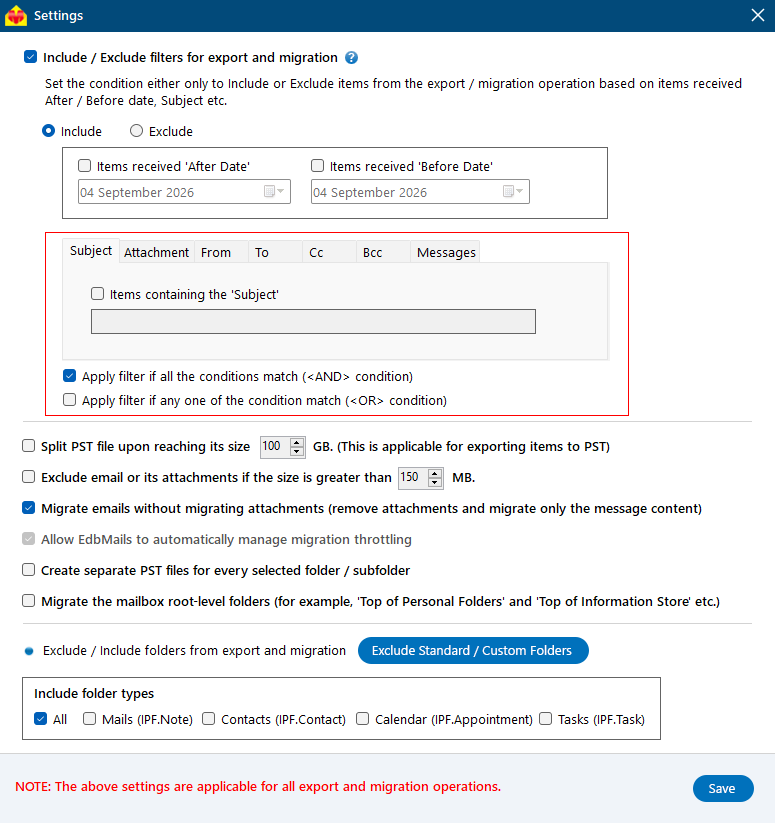
Split PST file upon reaching its size
This option applies only to PST export. Enter the required split size and EdbMails starts a new PST when the configured threshold is reached. Splitting large exports can make PST files easier to store, transfer, and use in Outlook than one oversized file. Verify the resulting PST files after the export.
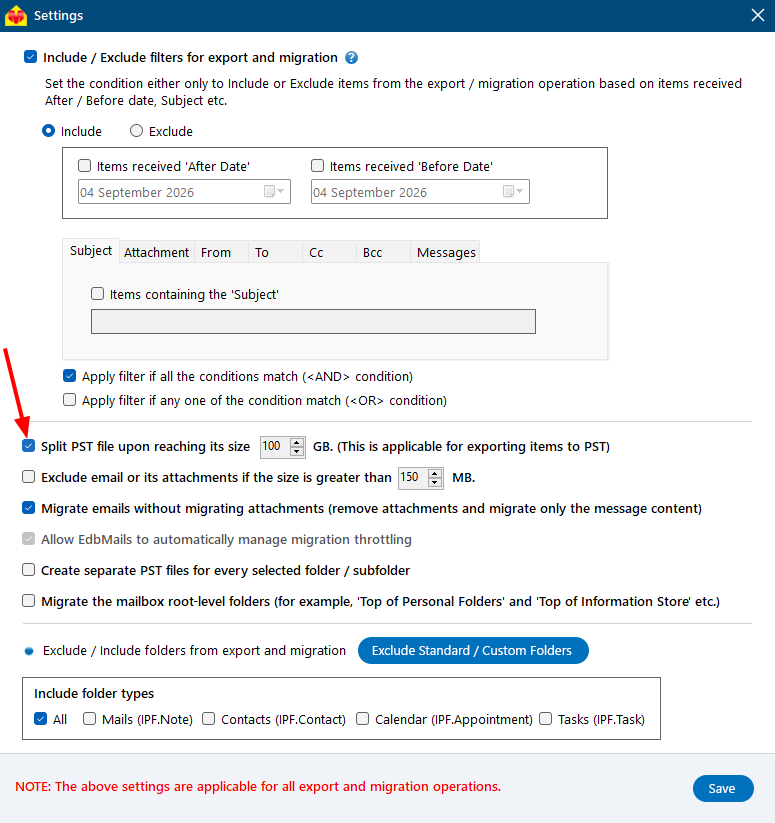
Exclude email or its attachments if the size is greater than
Set a size threshold when oversized messages or attachments should be excluded from the selected workflow. This can help when the target has lower message-size limits or when a backup project intentionally omits very large attachments. Record the exclusion threshold so skipped content is expected and auditable.
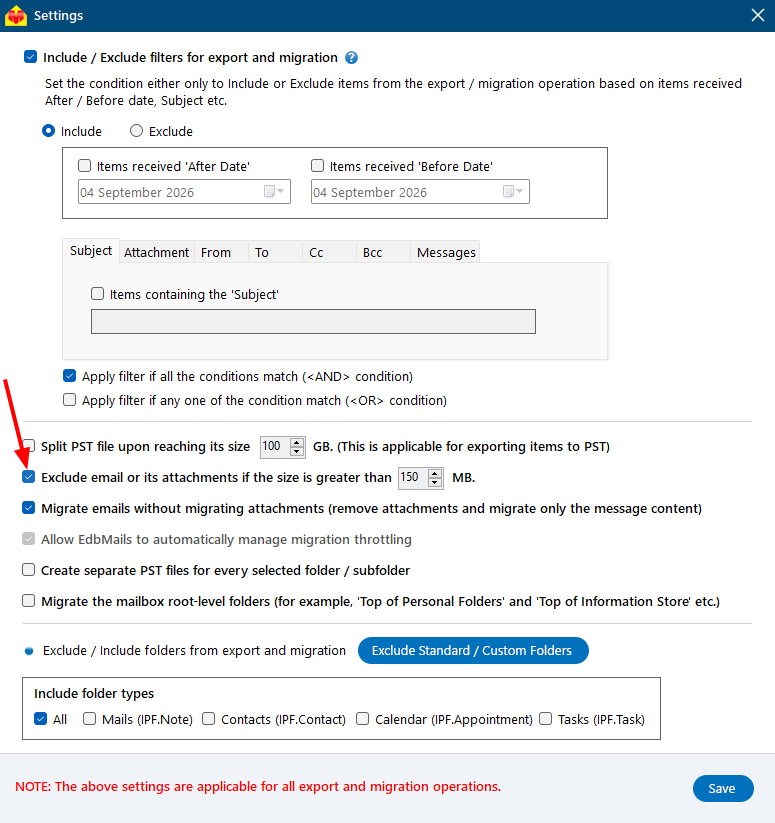
Migrate emails without migrating attachments
Enable this only when the project intentionally requires message bodies without attachments. The email message is processed without its attached files, which reduces transfer volume but produces a target or backup that is not a complete copy of the source message. Document this choice before migration.
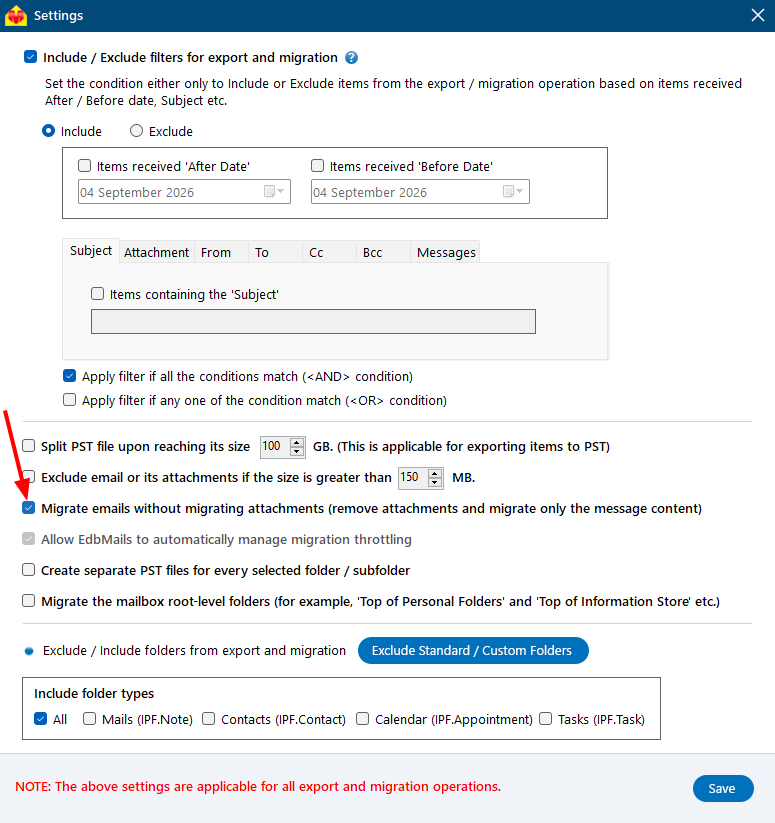
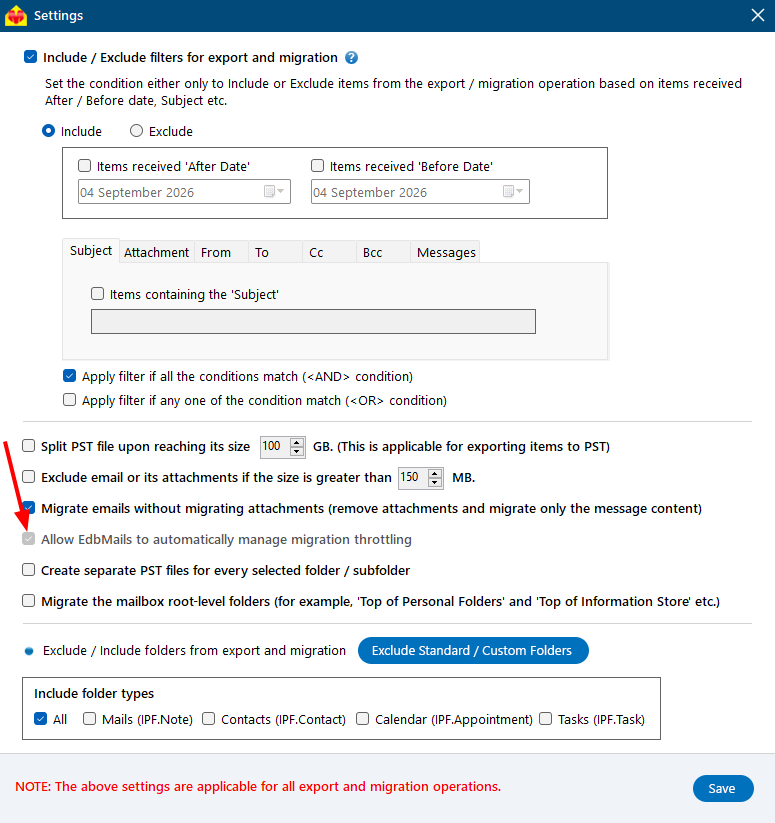
Allow EdbMails to automatically manage migration throttling
When enabled, EdbMails uses its retry and pacing logic to respond to throttling or temporary service limits encountered during supported migration scenarios. Provider limits still apply, and actual throughput depends on source and target behavior, mailbox size, network capacity, and configured concurrency.
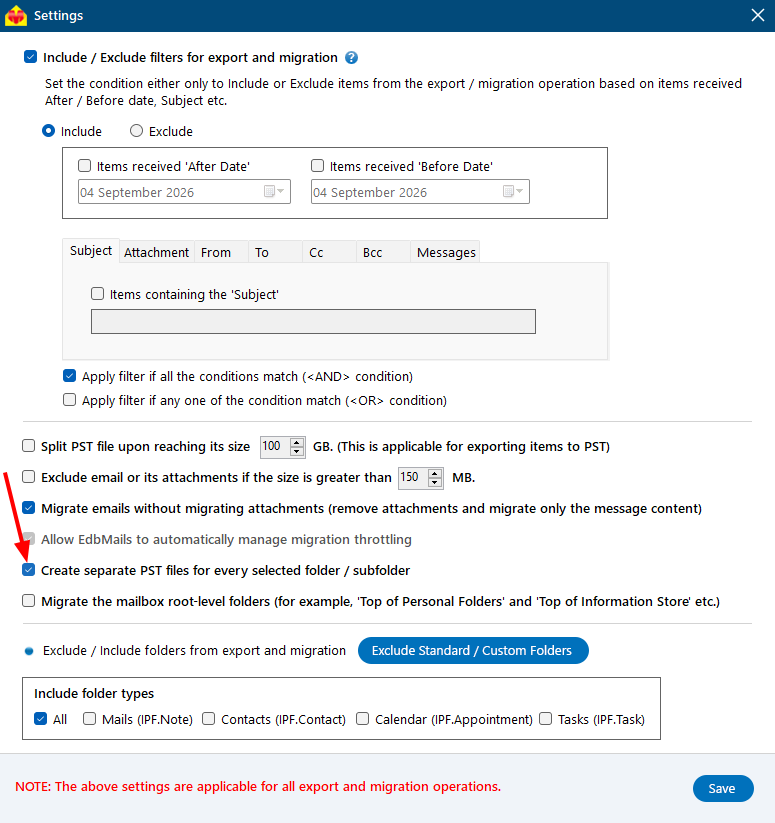
Create separate PST files for every selected folder / subfolder
This PST-export option creates separate output PST files for selected folders or subfolders instead of placing the complete mailbox structure into one PST. Use it when folders need to be handed off, reviewed, or archived independently, and verify the complete set of output files after export.
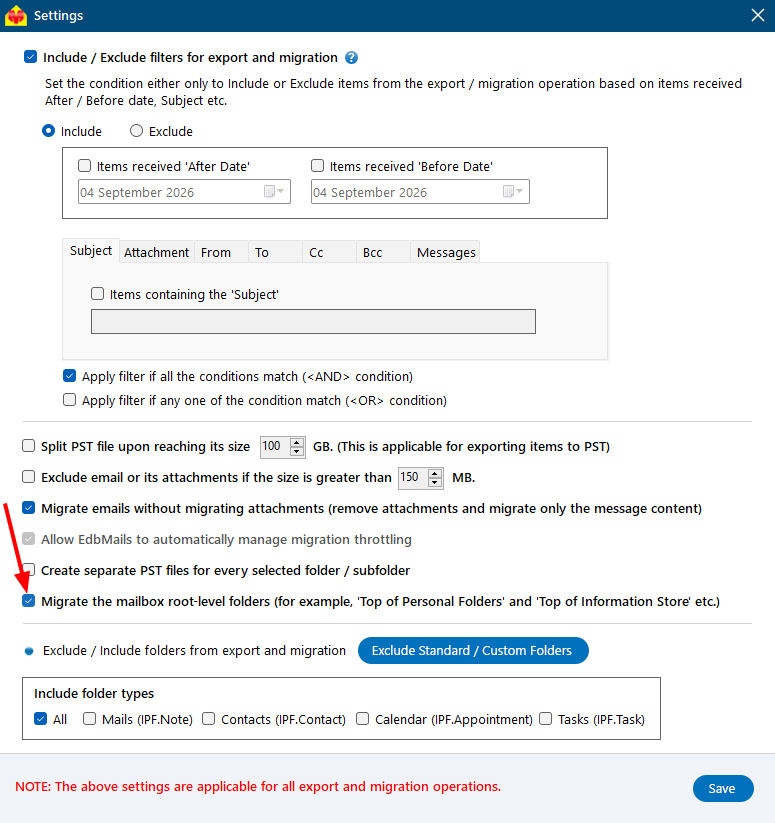
Migrate the mailbox root-level folders
This is a shared application setting whose relevance depends on the selected source and destination. Outlook, PST, and Exchange-style stores can expose root-level containers outside the normal folder tree. A standard IMAP source may not expose the same container model, so use this option only when the loaded mailbox structure actually contains applicable root-level folders.
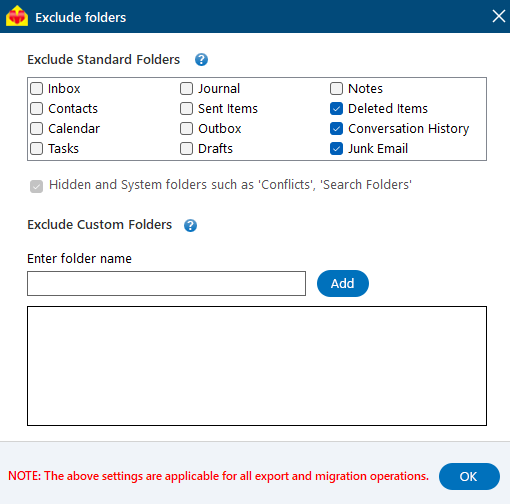
Exclude Standard / Custom Folders
Use this option to exclude standard or custom folders that should not be transferred. EdbMails may preselect common exclusions such as Deleted Items, Junk Email, or Conversation History depending on the workflow. Review the exclusion list before the production run instead of assuming the defaults match every project.
Include folder types
This option can appear in shared EdbMails migration screens to choose item or folder types supported by the selected source. For a standard IMAP source, the protocol itself exposes email and mail folders; contacts, calendars, and tasks are not available through IMAP and require a separate provider-specific or application-specific workflow. Do not select non-mail types on an IMAP-source project unless the chosen EdbMails scenario uses another API or connector that supplies them.
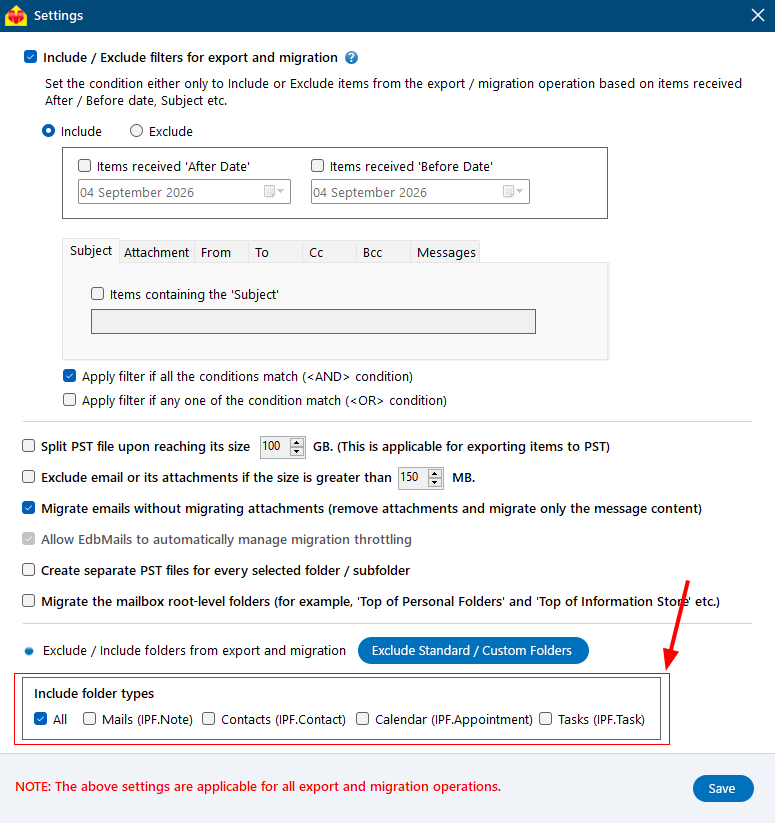
Click the 'Save' button to apply the settings.
