EdbMails EDB Recovery and Migration software
  • Products
    EdbMails
    All-in-one Recovery and Migration

    Trusted and internationally recognized software that delivers award winning solutions.

    Explore our products
    • Offline Recovery Tools
    • Migration Tools
    • G Suite Migration
    • IMAP Migration
    • Duplicate Remover
    • Backup
    • Windows Data Recovery

    Exchange EDB / Email Recovery Tools

    EdbMails offers a comprehensive suite of tools to recover and convert offline EDB, OST, and PST files into Outlook PST, migrate mailboxes to Office 365 and live Exchange Server, and export and migrate data from NSF, MBOX, EML, and MSG formats.

    EDB Recovery and Migration
    Recover EDB to PST, EDB to Office 365 and Exchange NO Duplicate Migration
    NSF Export and Migration
    Export NSF to PST, NSF to Office 365 and Exchange Migration
    OST Recovery and Migration
    Recover OST to PST, OST to Office 365 and Exchange Migration
    EML to PST Export
    EML files export to Outlook PST format
    PST Recovery and Migration
    Recover Outlook PST, PST to Office 365 and Exchange Migration
    PST to MSG Export
    Outlook PST files export to MSG format
    MBOX Export and Migration
    Export MBOX to PST, MBOX to Office 365 and Exchange Migration
    MSG to PST Export
    Export MSG files to Outlook PST files

    Exchange, Office 365, IMAP, SharePoint, OneDrive, Teams

    EdbMails lets you securely migrate mailboxes across Microsoft 365, Exchange, Google Workspace (G Suite), and IMAP-supported servers such as Outlook, Gmail, Zimbra, Zoho Mail, and cPanel, ensuring zero downtime.

    Exchange Server Migration
    Migrate between any Exchange Servers, Exchange to Office 365, Exchange to PST, PST files to Exchange.
    SharePoint Online Migration
    Migrate documents, lists, files and folders from SharePoint sites.
    Office 365 Migration
    Migrate between Office 365 tenants, Office 365 to Exchange, Office 365 to PST, PST files to Office 365.
    OneDrive for Business Migration
    Migrate documents, lists, files and folders from OneDrive.
    Microsoft Teams Migration
    Migrate Teams, chats, channels, documents, files and folders etc.

    Google Workspace / G Suite Migration

    EdbMails G Suite Migration Tool lets you easily migrate emails, calendars, contacts, tasks, and more from G Suite to Office 365, Exchange Server, and IMAP servers using a Google Admin account without requiring individual user credentials.

    G Suite Migration
    Migrate emails, calendars, contacts, tasks from G Suite to Office 365, G Suite to Exchange, G Suite to IMAP Servers
    G Suite to Office 365
    Migrate emails, calendars, contacts, tasks from Google Workspace / G Suite to Office 365
    G Suite to Exchange Server
    Migrate emails, calendars, contacts, tasks from Google Workspace / G Suite to on-Premise Exchange Server
    G Suite to IMAP
    Migrate emails, calendars, contacts, tasks from Google Workspace / G Suite to IMAP, Outlook, Zimbra, Zoho etc.

    IMAP Migration

    EdbMails IMAP Migration tool lets you easily migrate emails from IMAP servers such as Outlook, Gmail, Zoho Mail, Zimbra, cPanel, and more. Supports IMAP to IMAP, Office 365, Exchange Server, PST, and bulk PST to IMAP migration.

    IMAP Email Backup & Migration
    Backup and migrate emails from IMAP servers to PST, Office 365, and On-Premises Exchange Server
    IMAP to Office 365
    Migrate emails, folders, and attachments from IMAP servers to Office 365
    IMAP to Exchange
    Migrate emails, folders, and attachments from IMAP servers to on-premises Exchange Server
    IMAP to PST
    Export emails, folders, and attachments from IMAP servers to Outlook PST files for backup
    PST to IMAP
    Migrate emails, folders, and attachments from bulk PST files to IMAP servers

    Duplicate Remover

    EdbMails Duplicate Remover lets you easily remove duplicate items from Office 365 and Exchange Server, and from IMAP, Outlook, Gmail, Zimbra, Zoho Mail, etc., ensuring a clean and organized mailbox.

    Remove Duplicates from Office 365
    Remove duplicate emails, calendars, contacts, journal tasks, etc. from Office 365.
    Remove Duplicates from Exchange Server
    Remove duplicate emails, calendars, contacts, journal tasks, etc. from live Exchange Server.
    Remove Duplicates from IMAP, Outlook
    Remove duplicate emails, attachments from IMAP, Outlook, Gmail, Zimbra, Zoho Mail etc.

    Exchange, SharePoint, OneDrive, Teams and Office 365 Backup

    EdbMails enables secure, automated backup and recovery for Microsoft 365 services including Exchange Online, SharePoint, OneDrive, Teams, and Live Exchange Server with complete data protection and restore flexibility.

    Office 365 Backup
    Incremental, Granular, Encrypted and Compressed Office 365 Mailboxes Backup
    Exchange Server Backup
    Incremental, Granular, Encrypted and Compressed Exchange Mailboxes Backup
    SharePoint, OneDrive & Teams Backup
    Backup Online site collections, Team sites, Office 365 groups, all documents etc.

    Windows Data Recovery

    EdbMails Windows Data Recovery Software lets you recover permanently deleted data, including photos, videos, documents, and archived files, from partitions on hard drives, SSDs, USB drives, SD cards, and external storage devices.

    Windows Data Recovery
    Recover and restore permanently deleted data from hard drives, SSDs, USB drives, SD cards, and etc.
    Whitepaper
    Request a Demo
    Sign Up
  • Features
  • FAQ
  • Pricing
  • Download
  • Support
  • Sign in
User’s Manual
Exchange Server Migration

User Manual

User Manual

  • Exchange Migration Overview
  • Initial Setup
  • System Requirements
  • Migration Scenarios
  • Installation
    • Installation process
    • Reinstall or Upgrade
    • How to uninstall
  • FAQ
    • General
    • Migration Free Trial / Demo
    • Migration License
    • Before Migration
    • Migration - Steps
    • After Migration
  • Videos
    • Exchange to Exchange
    • Exchange to Office 365
    • Exchange to IMAP
    • Exchange to PST
    • Public Folder to Office 365
    • Archive Mailbox to Office 365
    • Public Folder to Exchange
    • Archive Mailbox to Exchange
    • Restore Bulk PST files to Exchange
  • Screenshots
    • Exchange to Exchange
    • Exchange to Office 365
    • Exchange to PST
  • Understanding the Application
    • Migration
    • Migration Speed
    • Incremental Migration
    • Exchange Throttling Policy
  • How it works?
    • Exchange to Exchange
    • Exchange to Office 365
    • Exchange to PST
    • Exchange to IMAP
    • Exchange Public Folder to Office 365
    • Exchange Public Folder to Exchange
    • Exchange 2010 to 2016 Public folder
    • Exchange 2013 Public folder to Office 365
    • Exchange 2016 Public folder to Office 365
    • Exchange Public Folder to Shared Mailbox
    • Archive Mailbox to Office 365
    • Archive Mailbox to Exchange
    • Hosted Exchange Migration
    • Hosted Exchange to Live Exchange Migration
    • Hosted Exchange to Office 365 Migration
    • Live Exchange to Hosted Exchange Migration
    • Hosted Exchange Public Folder to Office 365 Migration
    • Cross-forest migration from Exchange 2013 to Exchange 2019/2016
    • Hybrid Migration
    • Public folder Migration in Hybrid Environment
    • Disable msExchMailboxGuid
    • Exchange to Gmail Migration
    • Multiple PST files to Exchange server
  • Connect to Exchange server for multiple mailboxes migration
    • Connect with Global Admin
    • Connect to Multiple users using CSV file
    • Connect using full access permission
    • Connect individual users for Single / Specific user Migration
  • Connect to Hosted Exchange for its Migration
    • Connect with Full Access permissions
    • Connect to multiple users using CSV file
    • Connect to Individual user for migration
  • Connect to Office 365
    • Modern Authentication Using OAuth 2.0
      • Microsoft 365 modern authentication
      • Automatic Registration
      • Manual Registration
    • Connect with Global Admin
    • Connect to Office 365 with full access permission
    • Connect to Office 365 with CSV file option
    • Connect to Office 365 as single user mailbox
  • Set Exchange Server Impersonation rights
    • Exchange 2007 and below
    • Exchange 2010, 2013, 2016 and 2019
    • Set using Exchange Server GUI
  • Knowledge Base
    • Exchange to Exchange Migration
    • Exchange to Office 365 Migration
    • Migrate Legacy Exchange to Latest Exchange
    • Cross-forest and cross-domain migration
    • Public folder, Shared mailbox migration
    • Archive mailbox migration
    • Hosted Exchange Migration
    • Incremental migration
    • Cutover, staged and hybrid migration
    • Migrate SBS 2003, 2008, 2011 to a Modern Exchange Environment
    • Export Exchange Mailbox to PST
    • Secure Exchange Migration
    • Selective Mailbox / Folder Migration
    • Automatic Mailbox Mapping
    • Assign Public Folder to one target destination
    • Multiple PST Restore
    • No Impact on users - Zero downtime
    • Migrate Email Rules, Forwarding and Junk Email Configuration
    • Exchange migration speed and throttling management
    • Support for all the languages
    • Advanced settings and options
    • GAL and all address lists Migration
    • Exchange migration reports
    • Best Exchange Migration software
    • Exchange migration checklist
    • Exchange migration manager
    • Feature rich Exchange migration software
    • Exchange to Office 365 migration planning
    • Exchange server migration tips
    • Export Exchange server users to CSV
  • Migration Types
    • Cutover Migration
    • Staged Migration
    • Hybrid Migration
  • Map the Mailboxes
  • Migration Walkthrough
    • From Exchange 2003
    • From Exchange 2007
    • From Exchange 2010 to Exchange 2019
    • From Exchange 2010 to Exchange 2016
    • From Exchange 2010 to Office 365
    • From Exchange 2013 to Exchange 2019
    • From Exchange 2013 to Exchange 2016
    • From Exchange 2013 to Office 365
    • From Exchange 2016 to Exchange 2019
    • From Exchange 2016 to Office 365
    • From Exchange 2019 to Office 365
    • From Office 365
    • Exchange 2013 mailbox to PST
    • Exchange 2016 mailbox to PST
    • Exchange 2019 mailbox to PST
    • Exchange 2010 mailbox to PST
  • Multifactor Authentication
    • Enable MFA in Office 365
    • Create App password for MFA
    • Disable Security Defaults
  1. Home
  2. Product
  3. Connect to your Exchange using Autodiscover Email
Download Buy Now

Connect to Exchange Server using Autodiscover Email

EdbMails Exchange Migration Software provides a simple connection option called ‘Use Autodiscover Email’, designed to make it easier to identify and connect to your Exchange server. Instead of manually providing the server name, IP address, or Exchange version, this option automatically detects the correct server configuration using the Autodiscover service based on the email address you enter. This approach works well in environments where Autodiscover is properly configured, reduces manual input and helps organizations quickly authenticate and start the migration without handling technical server settings.

How to Use Autodiscover Email to Connect to Your Exchange Server

Before connecting to your Exchange Server, verify the system requirements. After confirming the requirements, download and install the EdbMails application on your computer to proceed with the migration process.

  1. Select ‘Live Exchange Migration’ and configure the job name by either keeping the default or clicking ‘New Job’ to specify a custom name.
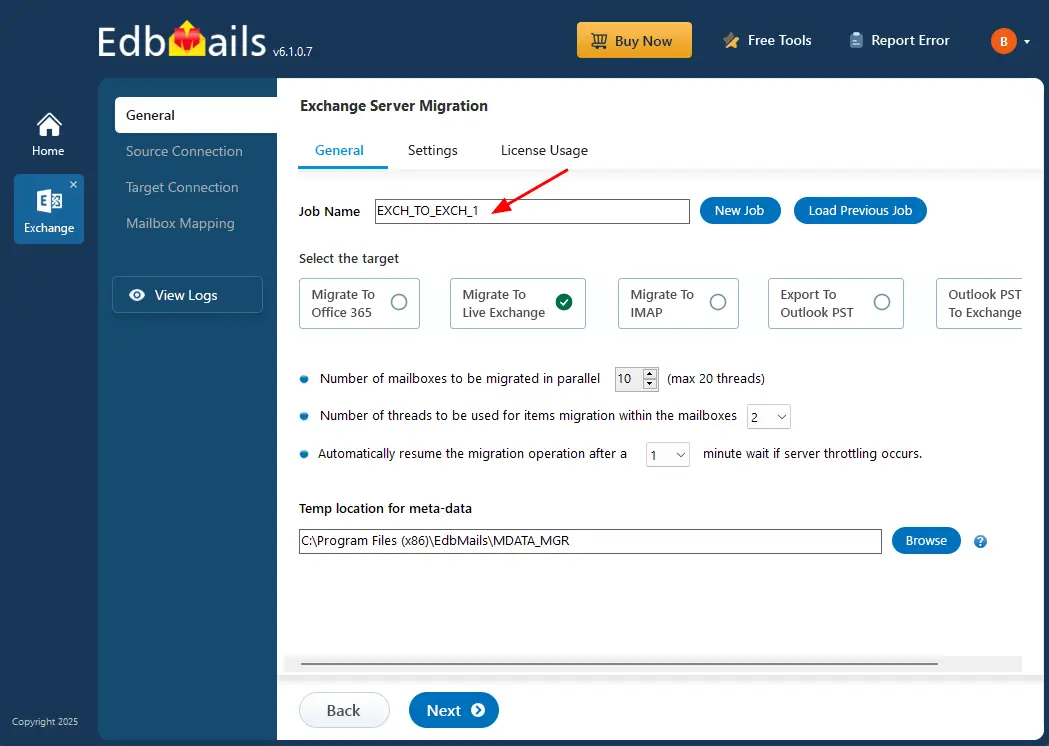
    Enter job name

  2. Next, click the ‘Add New Connection’ button to establish a new connection to the source Exchange server. To use a previous connection, you can select it from the connection list and click ‘Connect to Existing’. In this case, we will go with a new connection.
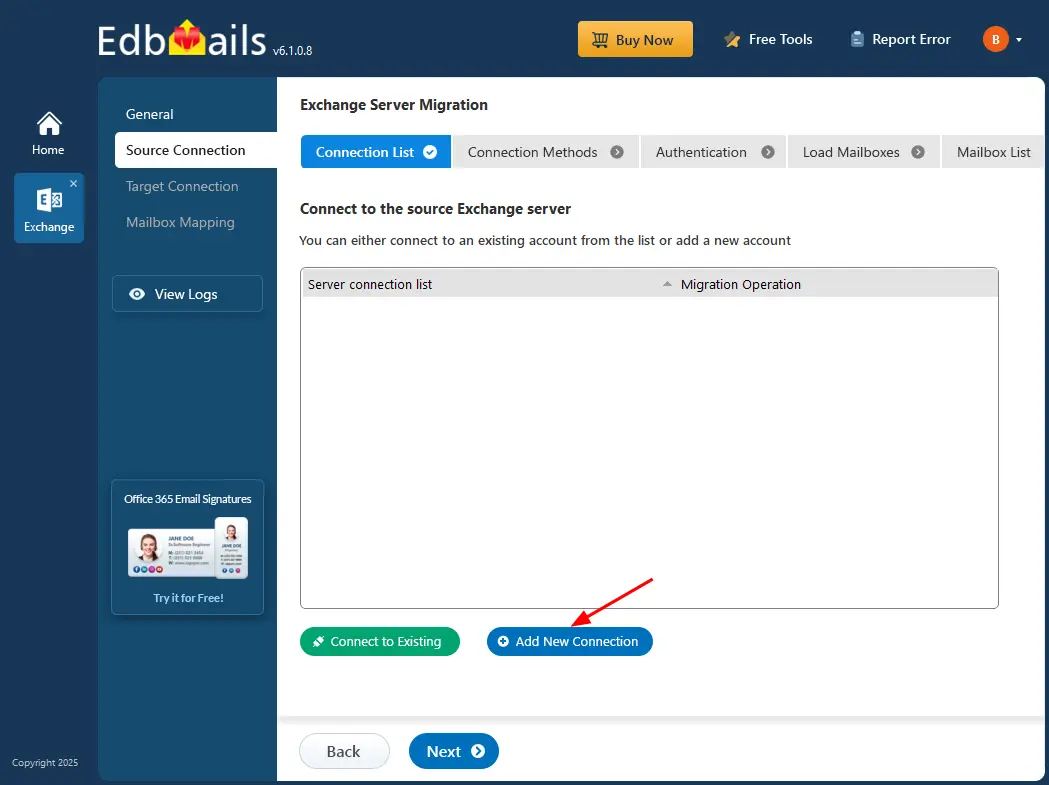
    Click Add New Source Exchange Connection

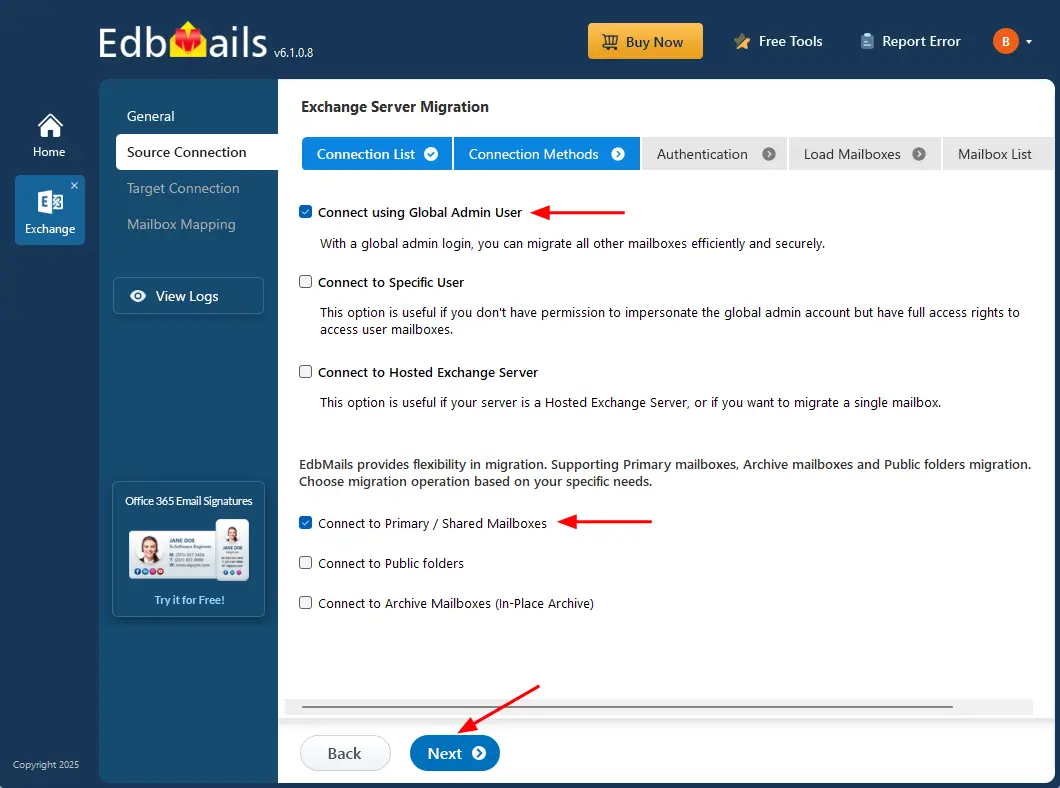
  3. The Exchange Server source connection opens a wizard to configure the migration. Choose ‘Connect using Global Admin User’ as the connection method and specify the mailbox type to migrate all mailboxes efficiently and securely.

     Connect to Specific User

     Connect to Hosted Exchange Server

    Select required connection option

  4. Choose ‘Use Autodiscover Email’, enter the email address and password, and click the ‘Login’ button to establish the source Exchange connection.
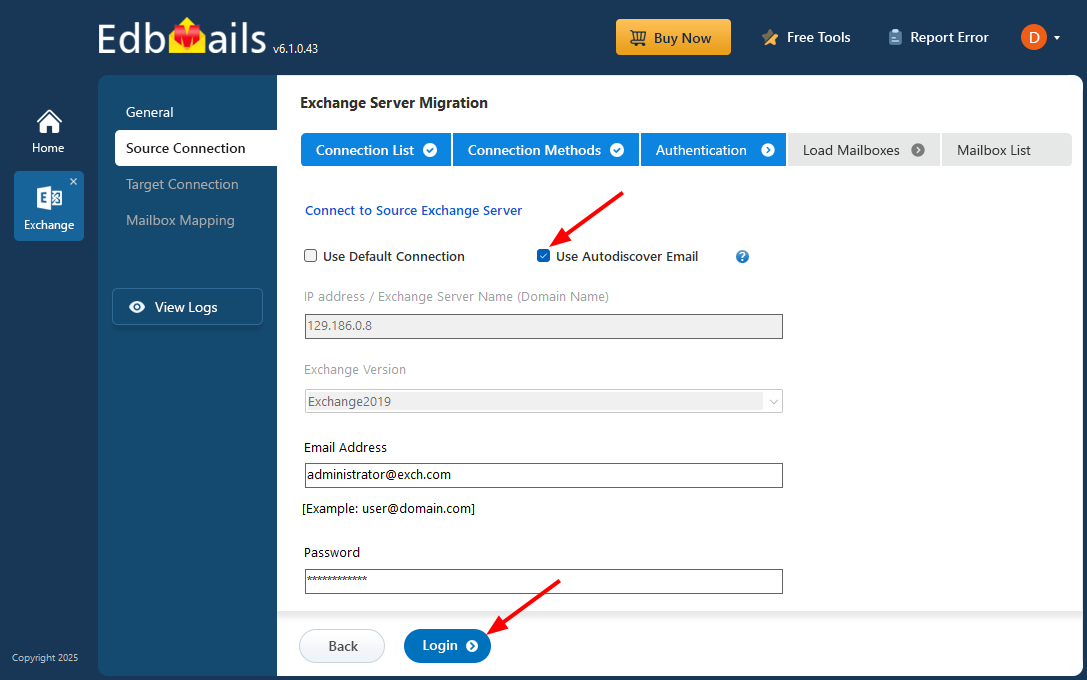
    Choose Autodiscover Email

  5. Once you’ve successfully logged into your source Exchange server, choose a method to load the mailboxes.
    1. Load Mailboxes automatically
    2. Load Mailboxes Using .CSV file
    3. Load Mailboxes from previous list

    EdbMails will automatically load the mailboxes; however, due to Microsoft API limitations, it may display a maximum of 100 mailboxes at a time. If your organization has more than 100 mailboxes, use the ‘Load Mailboxes using .CSV file’ option to import all mailboxes efficiently and prepare them for migration.
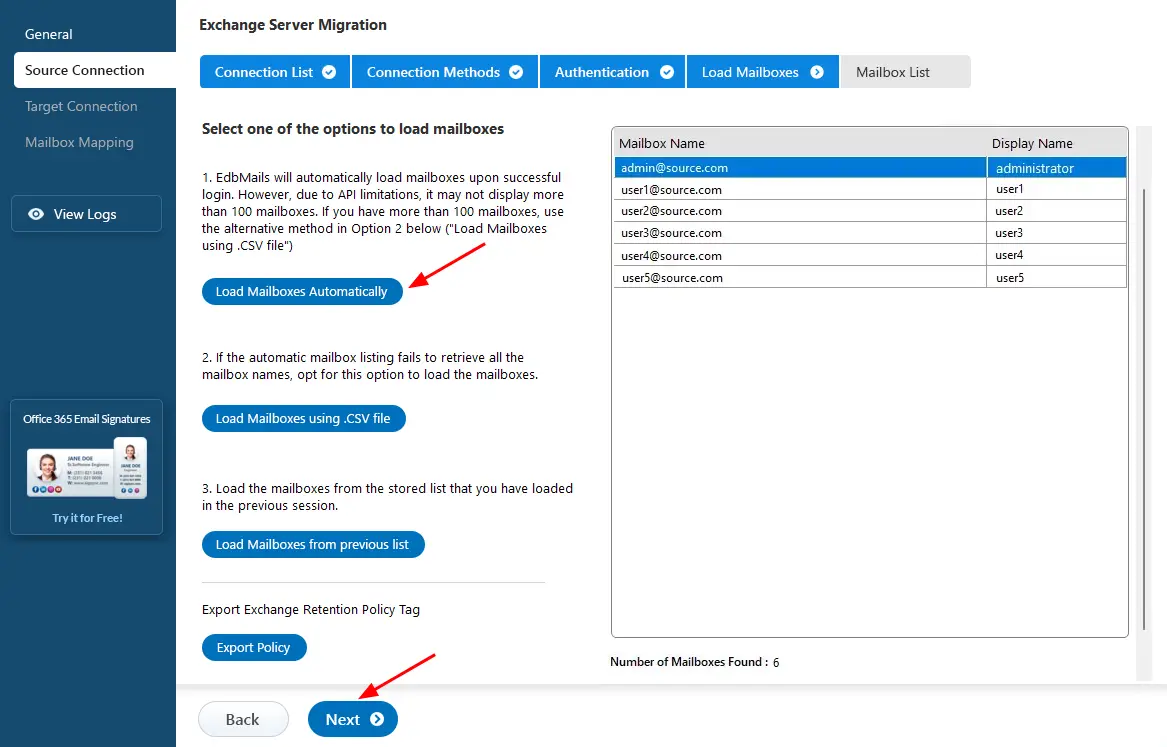
    Select the option to load mailboxes

  6. After loading all the mailboxes, select the mailboxes or folders you want to migrate from the source Exchange server.
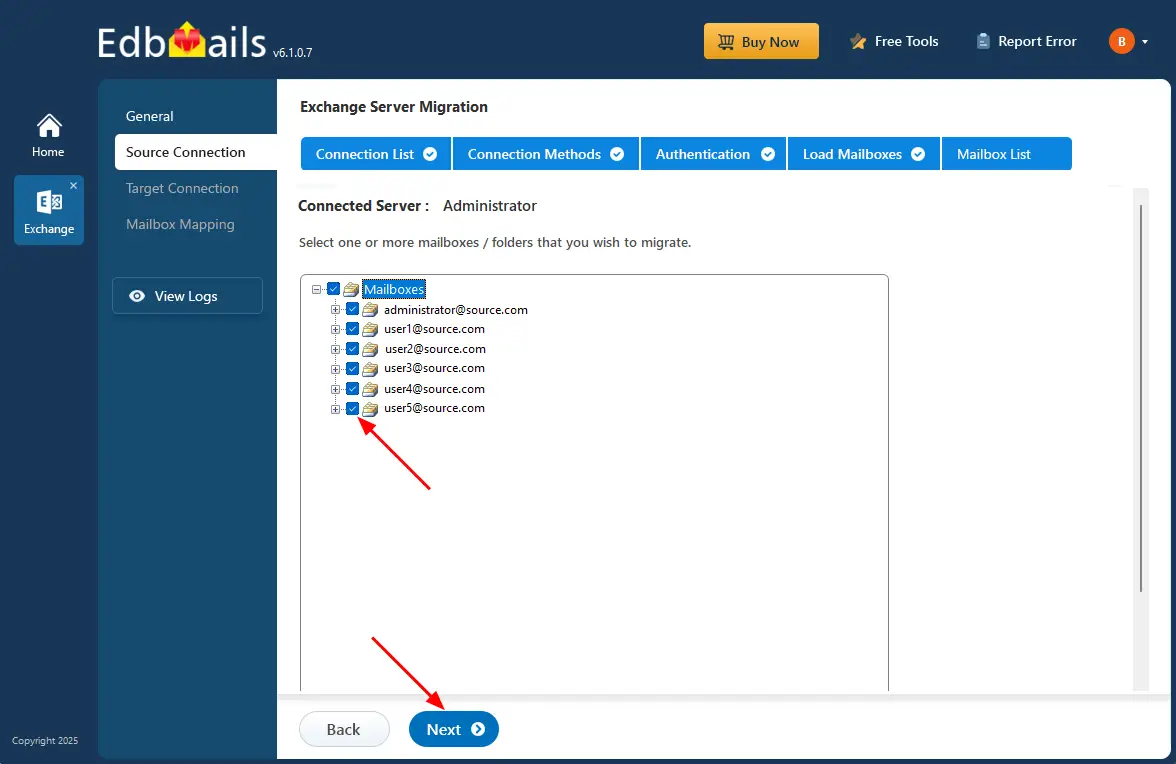
    Select the mailboxes and click ‘Next’ to continue

    Once the source Exchange server connection is successfully configured and the required mailboxes are selected, the source setup is complete. You can now proceed to configure the target connection to continue with the migration process.

     Click here to know the steps to migrate Exchange to Exchange server

     Click here to know the steps to migrate Exchange to Office 365

Advantages of Using Autodiscover Email

  • Simplified setup, the server configuration is automatically detected without requiring IP addresses or server names.
  • Reduces configuration errors. Since the server details are fetched automatically, it minimizes incorrect inputs or outdated server information.
  • When server IPs or endpoints change frequently, Autodiscover always fetches the latest configuration.
  • Ideal for quick connectivity, it helps users connect faster without requiring technical knowledge of the server environment.
  • Best suited for well-configured environments, it works smoothly when Autodiscover is properly enabled, making the connection process more reliable.

Conclusion

The Autodiscover Email option in EdbMails provides a fast and user-friendly way to connect to your Exchange server without requiring technical knowledge of server names, IP addresses, or configuration details. By automatically detecting the correct server settings, it eliminates manual entry, minimizes errors, and provides a smooth start to your migration process. Once the connection is established and mailboxes are loaded, you can continue with the migration.


Additional Resources:

  • Exchange Server Using Default Connection
  • Exchange migration step by step guide
  • Exchange Archive mailbox migration
  • Migrate between Hosted Exchange servers
lady image

 In this manual

Using Autodiscover EmailAdvantage

Live Exchange Migration

100 Mailboxes $299 Only

Buy Now

Need help?

24/7 Customer support

Contact us on Live chat

Personalized Demo

Book a personalized demo

Still need help?

Email us / Call us

@edbmails.com All rights are reserved Privacy Policy | Terms of Use | GDPR | Security | Press Releases

hidden msg
Live Chat

Hi, May I help you?

Hide Chat Now