


Office 365 Migration FAQs
General
Why do I need EdbMails Office 365 Migration?
EdbMails Office 365 Migration Tool provides a guided workflow for supported Microsoft 365 migration scenarios without requiring administrators to build migration scripts for routine tasks.
Depending on the source and target, you can use mailbox mapping, filters, incremental migration, Public Folder and archive-mailbox workflows, and migration reports. For larger projects, run a pilot first, review the report, and validate representative mailbox data before the final migration pass.
How does EdbMails Office 365 migration work?
EdbMails connects to the source and target environments using the authentication and access method supported for the selected migration scenario. For Microsoft 365 connections, EdbMails uses OAuth 2.0 modern authentication with Microsoft Entra ID application registration. Registration can be completed automatically where the required administrator permissions are available, or manually when an administrator prefers to configure the application and permissions directly.
After authentication, the application lists the available mailboxes, lets you map source mailboxes to target mailboxes, apply supported migration settings and filters, start the transfer, and review the migration report. Supported item types and properties vary by source, target, permissions, and workload, so validate a representative pilot before running the full migration.
For the complete workflow, see the Office 365 migration guide.
Is migration between two different Office 365 tenants possible?
Yes, EdbMails supports migration between different Office 365 tenants, which is useful for organizations in scenarios like mergers.
Does EdbMails support migrations from Hosted Exchange Server?
Yes. EdbMails supports supported Hosted Exchange to Microsoft 365 migration scenarios when the source environment provides the required mailbox access and authentication. Review the source-server requirements and test a representative mailbox before the full migration.
Does EdbMails store entire mailbox data on my local computer for incremental migration?
No. EdbMails keeps certain metadata details (not the entire mailbox details) on your computer in encrypted format.
Which EdbMails features help with Office 365 migration projects?
EdbMails provides practical migration controls such as mailbox mapping, filters, incremental migration, migration reports, and guided source-to-target workflows. These features help administrators plan, run, and review migration batches without depending on custom PowerShell scripts for the standard EdbMails workflow.
Migration throughput and results depend on factors such as source health, Microsoft service limits, permissions, item types, network conditions, and the target environment. Review the migration report and validate representative mailboxes before completing the project.
Are all languages supported by EdbMails?
EdbMails can process multilingual mailbox data and Unicode characters in supported migration scenarios. When default folders use different languages on the source and target, system-folder mapping may require matching regional or language settings, or manual folder mapping. Test representative mailboxes when the environments use different languages.
Is there any size or speed limits for the migration?
There is no single migration speed or mailbox-size value that applies to every project. Throughput depends on Microsoft 365 service limits and throttling, source and target performance, item sizes, network bandwidth, mailbox count, and the migration settings in use.
Large messages and other items are also subject to the limits configured on the destination service. Review the applicable Exchange Online migration limits and test a representative batch when planning the migration window.
Is there a support for Multi-Factor Authentication in Office 365?
Yes. For Microsoft 365 tenants, EdbMails uses Modern Authentication with OAuth 2.0 rather than app-password-based authentication. The Microsoft Entra application can be registered automatically where the required administrator permissions are available, or registered manually with the permissions required for the migration workflow.
See Microsoft 365 modern authentication for the current connection options.
Does EdbMails support mapping of source and target mailboxes?
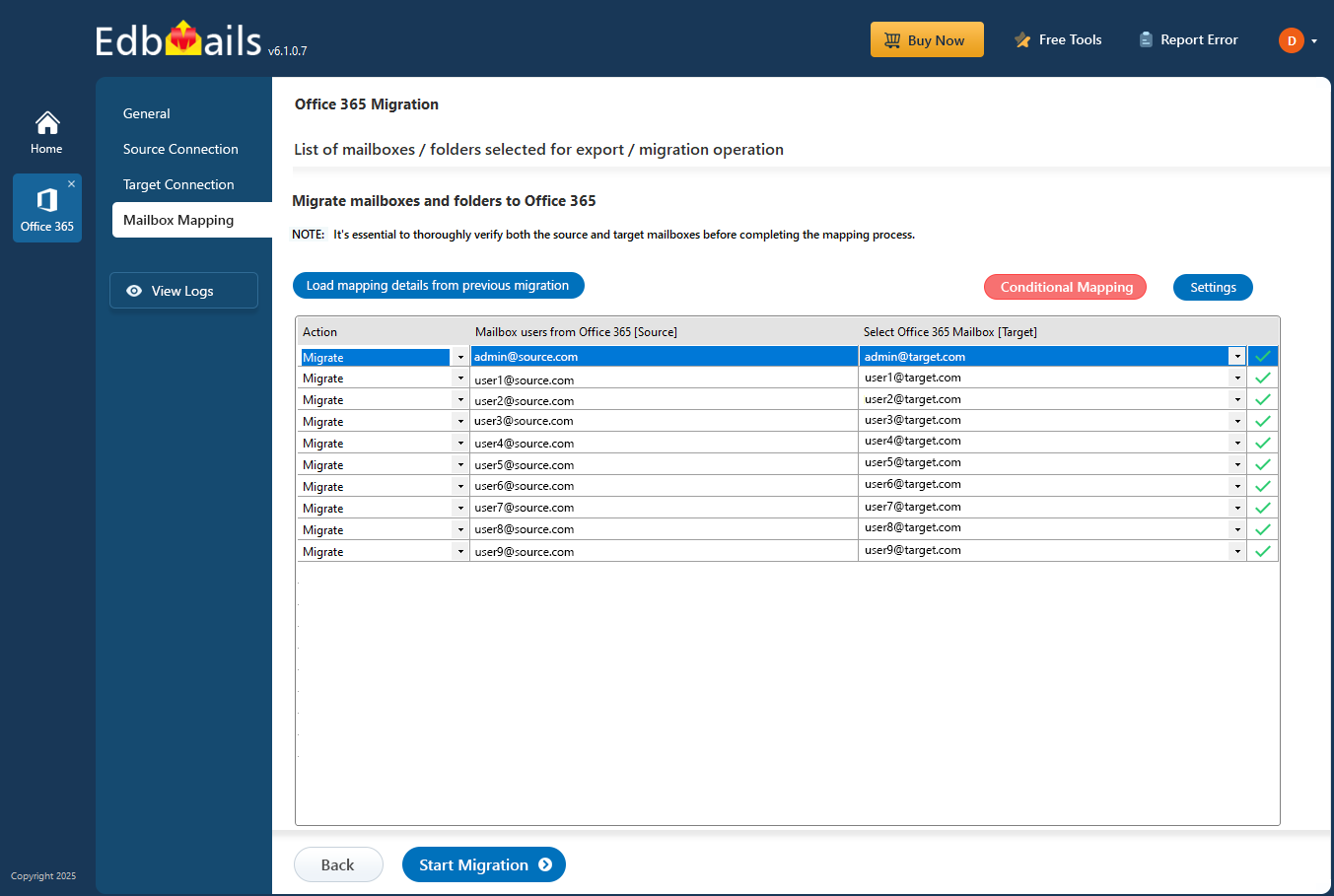
Yes, EdbMails Office 365 migration tool supports various methods for mapping source mailboxes to the target mailboxes of your choice. One of the easiest ways is automatic mailbox mapping, where the tool intelligently detects and matches source and target mailboxes, eliminating the need for manual intervention. For more flexibility, manual mapping can be done by selecting each source mailbox and manually choosing the corresponding target mailbox from the right pane.
Additionally, EdbMails offers the CSV method for mapping, which is especially useful when you have a large number of mailboxes to migrate. By importing a CSV file with the necessary mailbox mappings, you can automate the mapping process, making it faster and more efficient.
Does EdbMails Office 365 migration support Public folders?
Yes. EdbMails supports Public Folder migration for supported source and target scenarios. Prepare the required Public Folder destination and permissions before starting, then validate the folder hierarchy and migrated items after the transfer.
How to increase email message size limit in Office 365?
- To change the max message size limit for a single user in Office 365, follow these steps:
- Log in to the Exchange Admin Center at https://admin.exchange.microsoft.com/.
- Navigate to Recipients > Mailboxes.
- Select the mailbox of the user whose message size you wish to adjust.
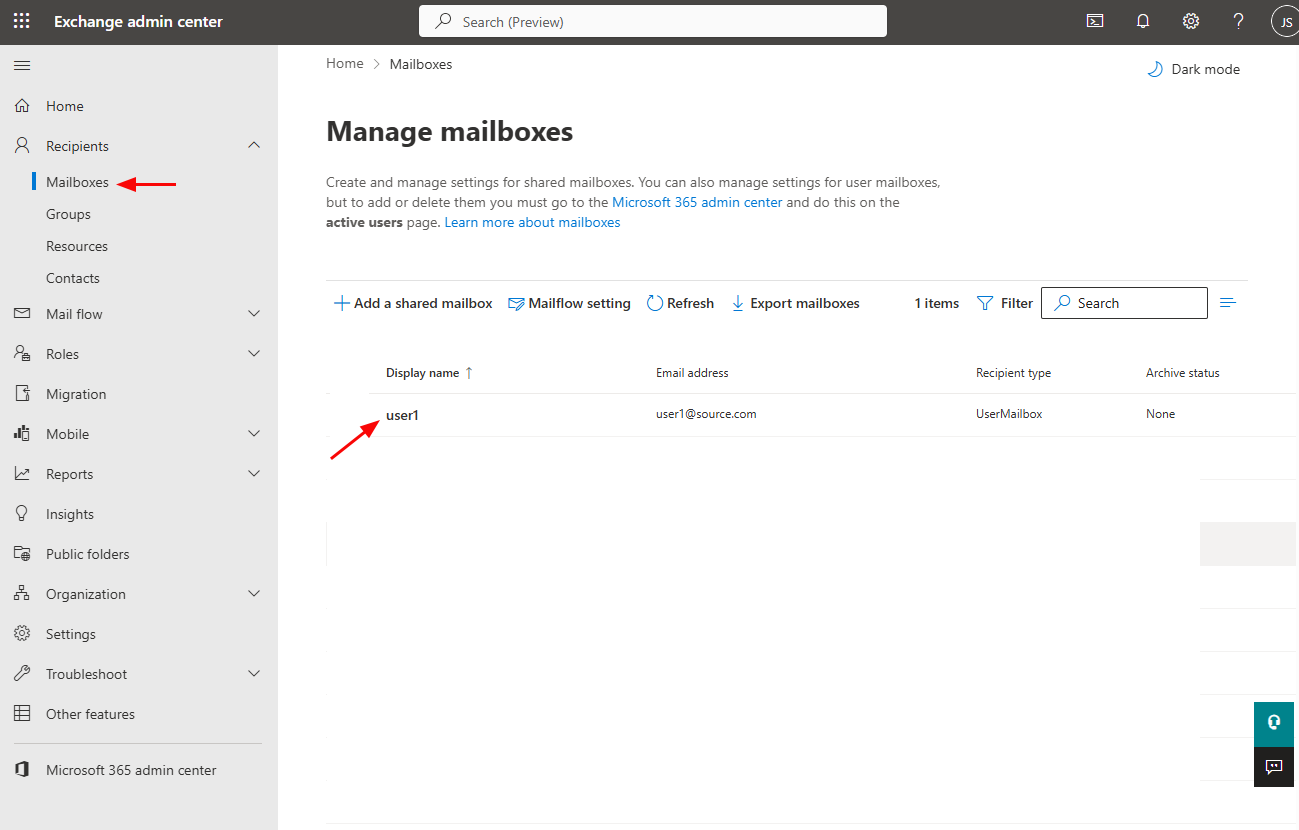
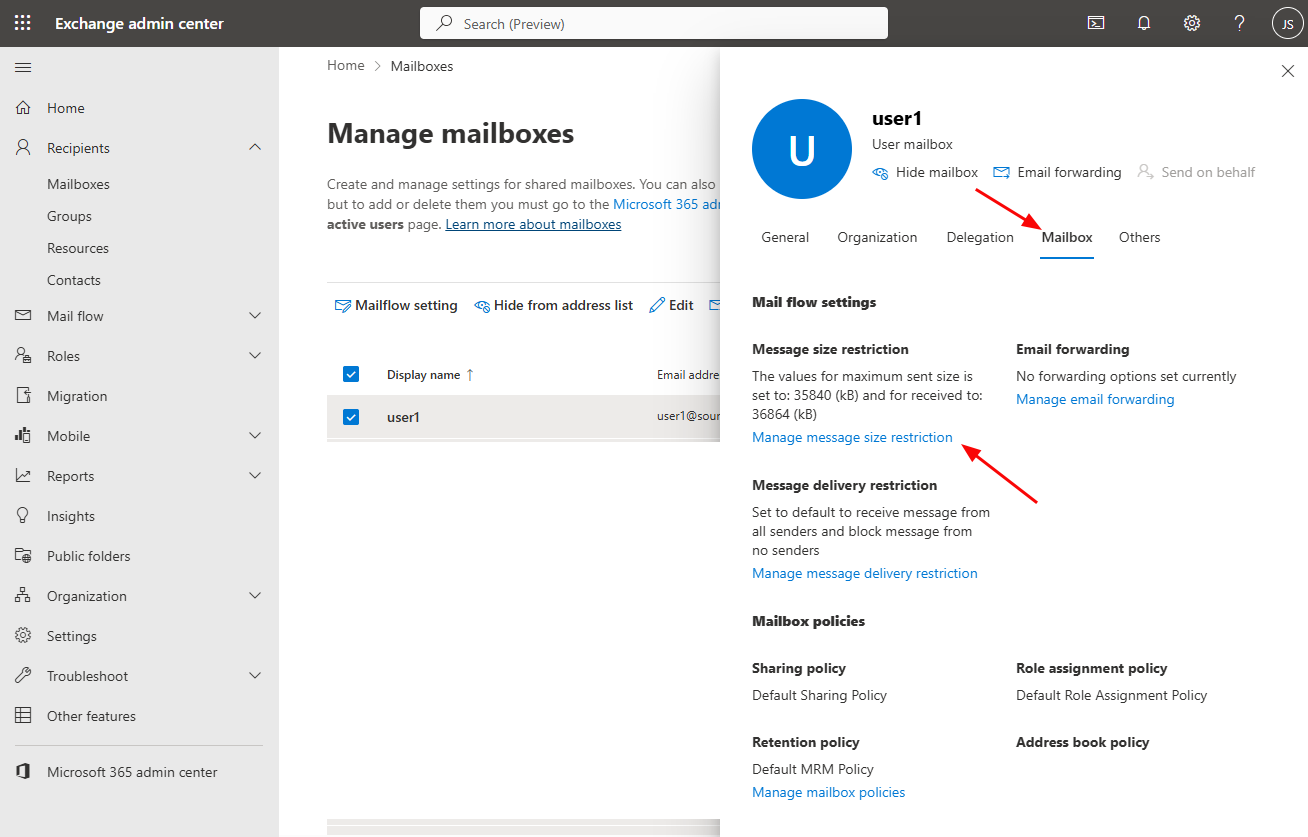
- In the overlay that appears, click on the 'Mailbox' tab, then select 'Manage message size restriction.'
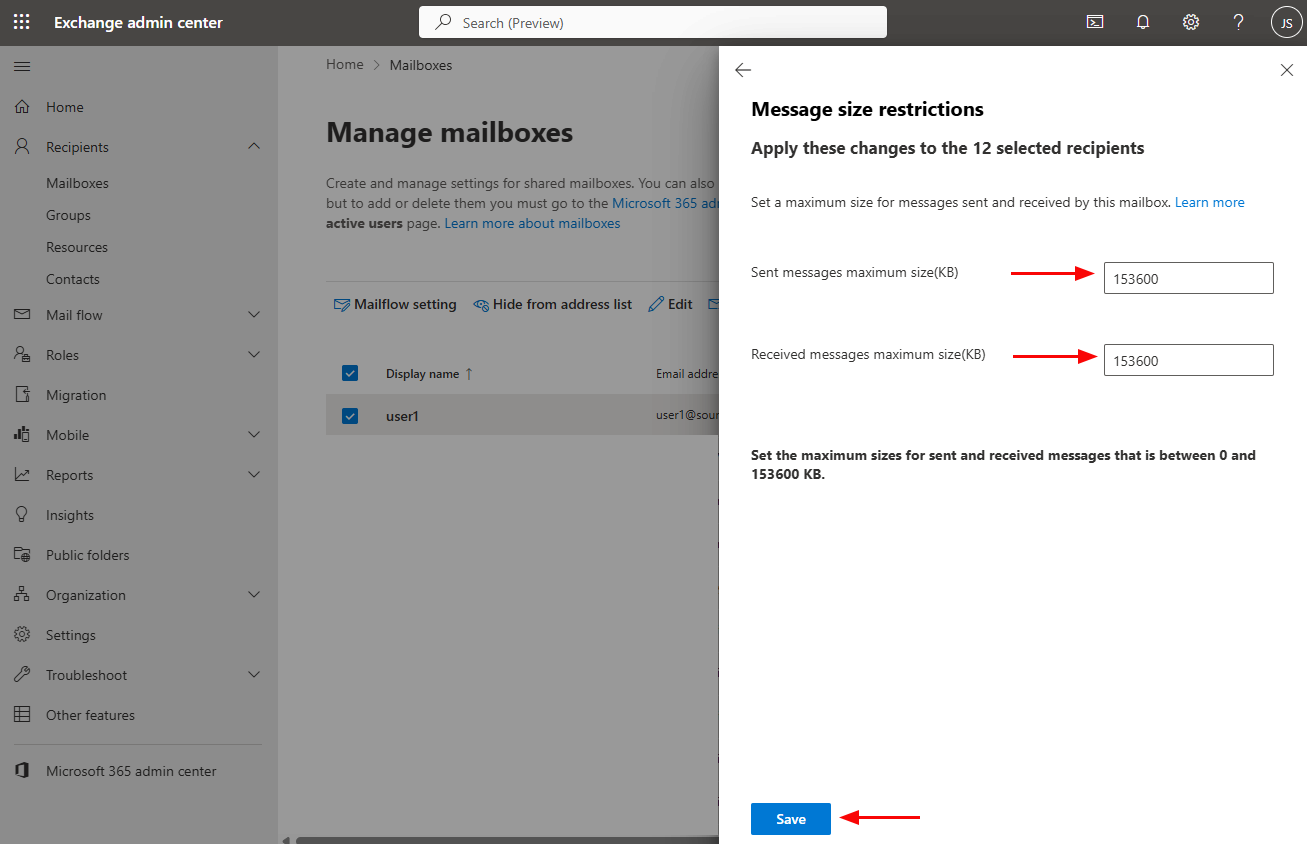
- In the fields for 'Sent messages maximum size' and 'Received messages maximum size,' enter the desired limits in KB. The maximum value is 153600 KB.
- Click "Save" to confirm your changes.
To adjust the message size limit for multiple or all users:
- Log in to the Exchange Admin Center at https://admin.exchange.microsoft.com/.
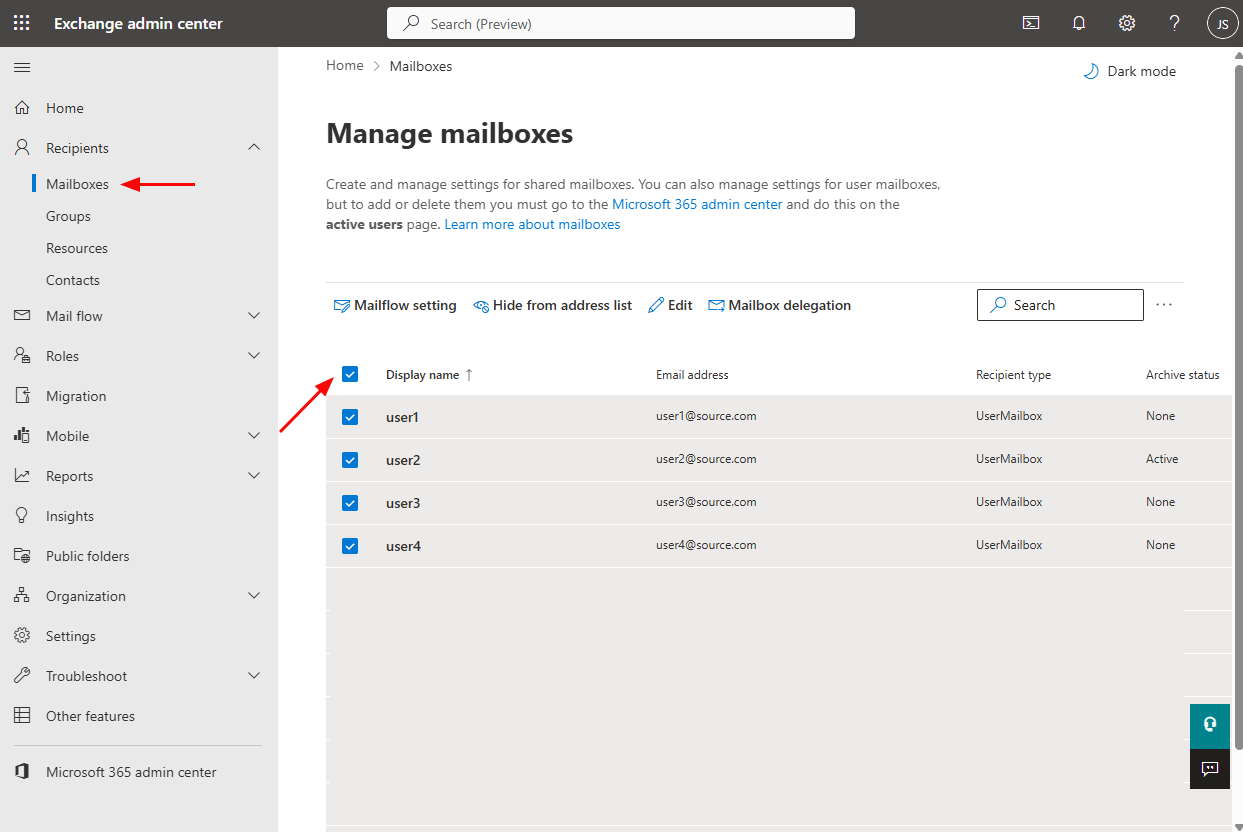
- Navigate to Recipients > Mailboxes.
- Select the mailboxes you wish to edit.
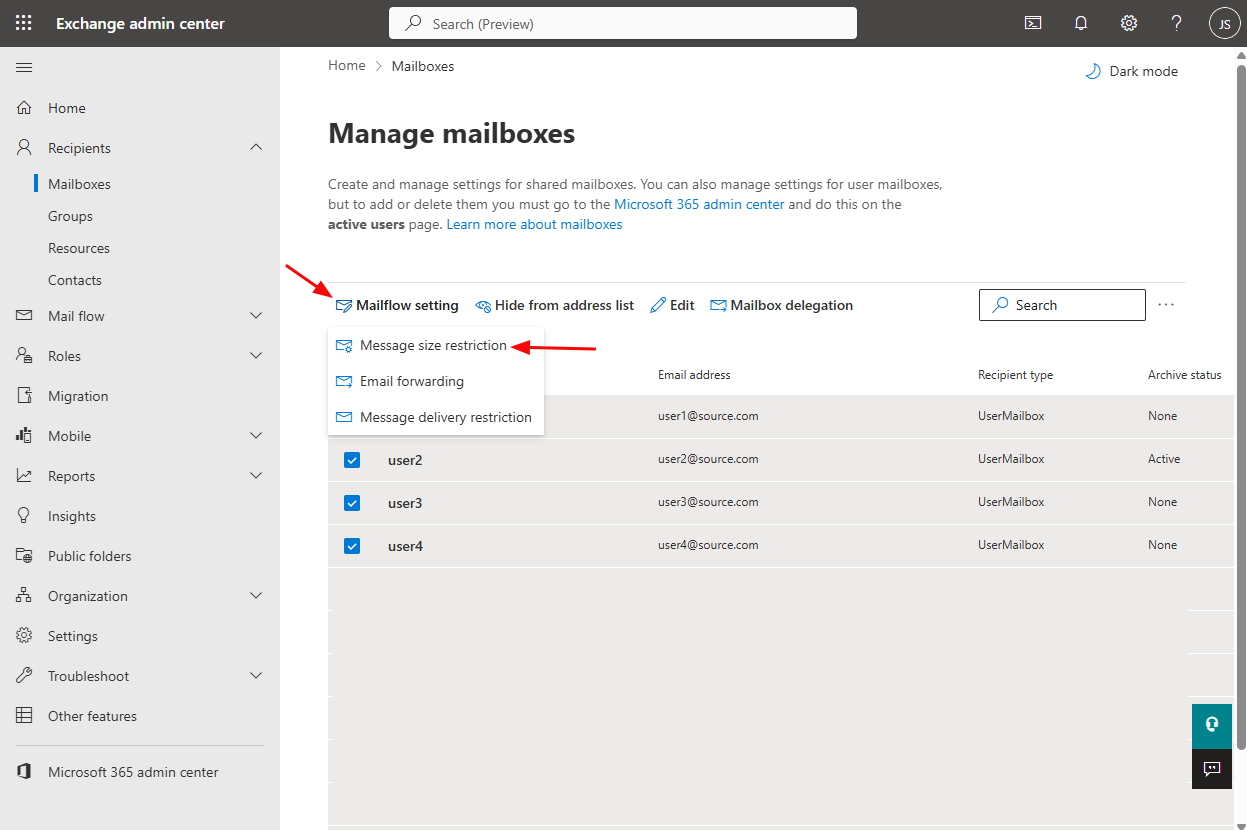
- In the top menu, click on 'Mail flow settings' and select 'Message size restriction.'
- In the overlay that appears, enter the new limits for 'Sent messages maximum size' and 'Received messages maximum size' in KB.
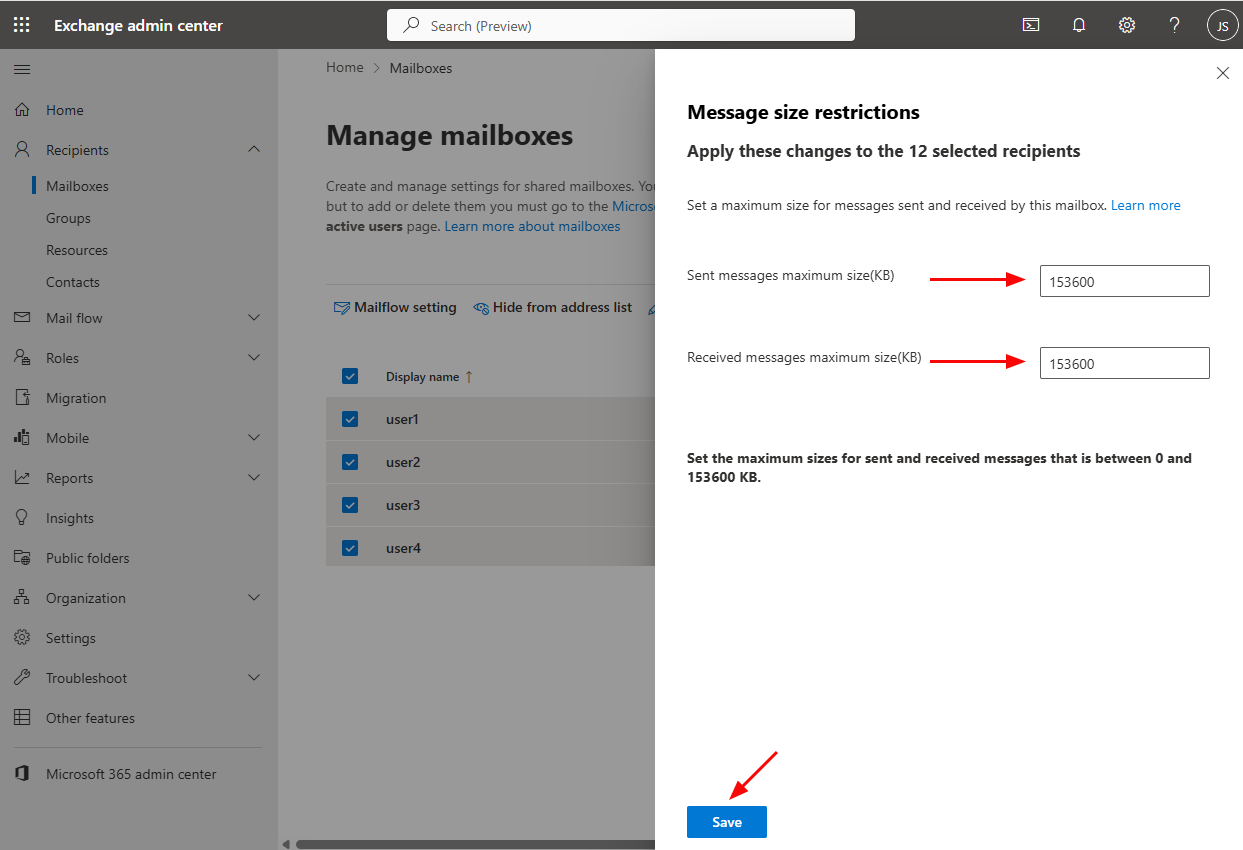
- Click 'Save' to apply the changes.
Is there a way to migrate Office 365 mailboxes without Global admin access, having only ‘full access rights’?
Yes, you can migrate Office 365 mailboxes using an account with either Global admin access or full access rights. Refer to the below details:
EdbMails uses Modern Authentication with OAuth 2.0 for Office 365 login. It follows two different methods:
- Login using ‘Auto Registration’
- Login using ‘Manual Registration’
In the Auto Registration method, for login you need to have an account with Global admin access. However, you can use either a Global admin account or any user account with full access rights in the Manual Registration method.
Click here to know the steps to manually register the EdbMails application on Entra ID (Azure Active Directory).How to get Global Admin access when your source is GoDaddy-hosted Office 365?
GoDaddy-hosted Microsoft 365 tenants hide the real Global Admin account and route logins through GoDaddy's own SSO, so you can't just log in with a GoDaddy email/password on portal.office.com when EdbMails needs source tenant credentials.
Getting the actual Global Admin login for a GoDaddy-managed source tenant
1. Find the hidden Global Admin account
GoDaddy provisions a Microsoft 365 tenant behind the scenes but only exposes its own portal to you. The real Azure AD/Entra Global Admin account exists but isn't shown in your normal user list — it's usually something like admin@
.onmicrosoft.com. - Log in to portal.azure.com using your GoDaddy Microsoft 365 admin credentials.
- Go to Microsoft Entra ID → Users.
- Look for a user with a .onmicrosoft.com UPN (not your custom domain) that has the Global Administrator role — this is the account GoDaddy created behind the scenes.
GoDaddy doesn't give you full access to the underlying Office 365 admin portal and by default hides the Global Administrator account, so you have to log into portal.azure.com with GoDaddy's Office 365 admin account and reset the password for that hidden admin.
2. Reset its password and log in directly
Reset that account's password from Entra ID, then sign in at portal.office.com or portal.microsoft.com directly with the .onmicrosoft.com UPN and new password — bypassing GoDaddy's SSO redirect entirely. That .onmicrosoft.com account is what you should give to EdbMails as the source tenant Global Admin credential.
3. Why this matters for EdbMails
The migration API can't authenticate through GoDaddy's SSO — any login through your custom domain gets redirected to sso.godaddy.com and breaks programmatic/API-based access. So for EdbMails' source tenant login field, always use the .onmicrosoft.com admin account with Global Admin (or at least Exchange Admin) rights, not a @yourdomain.com address, even if that address also has admin rights in GoDaddy's UI.
4. If you can't find/reset the hidden admin
Some GoDaddy plans lock this down further. In that case:
- Open a GoDaddy support ticket specifically asking them to unlock/expose the Global Administrator account or grant you Entra ID Global Admin access for migration purposes — this is a known, common request from them.
- Alternatively, GoDaddy support can sometimes elevate an existing admin user's role directly in Entra ID on your behalf.
Migration Free trial / Demo
How to run EdbMails demo / trial version for a quick test / review?
You can run EdbMails demo / trial version for a quick test / review using 2 easy steps:
- Step 1: Download and install the EdbMails application
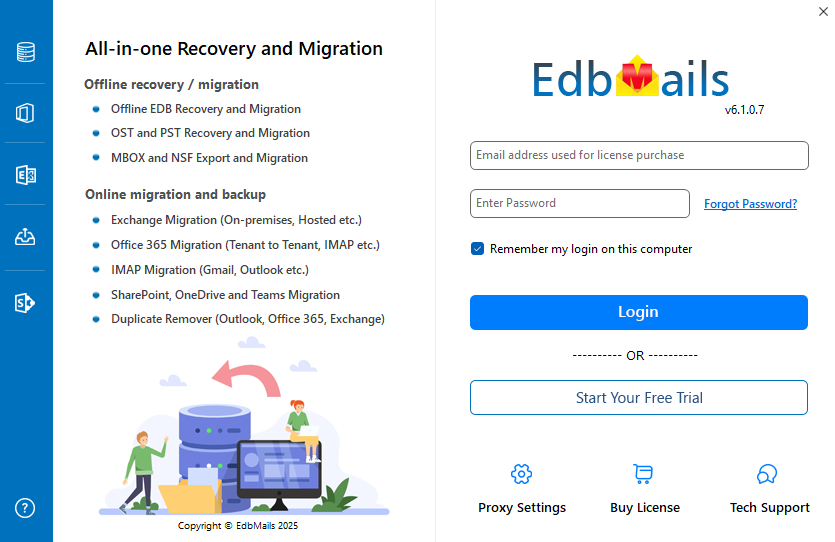
- Step 2: Click the 'Start Your Free Trial' button.
How fast I will receive the KEY after purchasing EdbMails license?
EdbMails does not require any separate KEY to use the application after purchasing the license. That is, your account will be automatically upgraded to the type of the license that you have purchased. You need to download and install the application and login using the EdbMails account credentials (E-mail Address and password) that you have created during license purchase.
Can I test all the features of EdbMails Office 365 Migration before buying it?
Yes. The free trial lets you evaluate the migration workflow before purchasing a license.
The current trial migrates up to 30 items from each supported folder so you can test authentication, mailbox mapping, folder handling, filters, and the resulting migration report with representative data.
After purchasing the appropriate license, continue with the same source, target, and computer when you want EdbMails to use the retained migration metadata for subsequent incremental passes.
What if I encounter an error?
- For troubleshooting steps, check our Knowledge Base, which covers solutions to common issues.
- If you still need help, you can contact our 24/7 Technical Support team via email, live chat, or phone. We also offer remote access assistance to help you resolve complex problems directly.
- For detailed usage instructions, refer to the User Manual.
Migration License
I have purchased 100 user licenses for Migration. How does the license work?
EdbMails counts only the source mailboxes that are selected for migration. The destination mailboxes or the number of migrations do not affect the license count.
For example, if you migrate the following 3 source mailboxes:
- User1@source.onmicrosoft.com
- User2@source.onmicrosoft.com
- User3@source.onmicrosoft.com
Even if you migrate them multiple times or to different destinations (including different domains), they will still count as only 3 licenses.
So, with a 100-user license, you can migrate up to 100 unique source mailboxes, regardless of how many times or where they are migrated.
How is EdbMails Office 365 migration licensed?
EdbMails is licensed per mailbox for Office 365 migration.
For example, if you have purchased license for migrating 100 mailboxes and migrated only 50 to Office 365, you can still use the 50 slots you have left to migrate from Office 365 to Office 365 tenant or Live Exchange Server
How does EdbMails Office 365 to Office 365 / Live Exchange migration license works?
Office 365 to Office 365 and Office 365 to Live Exchange migration licensing is based on the number of unique source mailboxes selected for migration. Re-running migration for the same licensed source mailbox does not consume another mailbox slot under the same applicable license.
For current mailbox counts, plan terms, and pricing, review the Office 365 Migration pricing information.
Where to check how many mailboxes licenses I have used?
To view the total purchased mailboxes and used mailbox licenses, follow these steps:
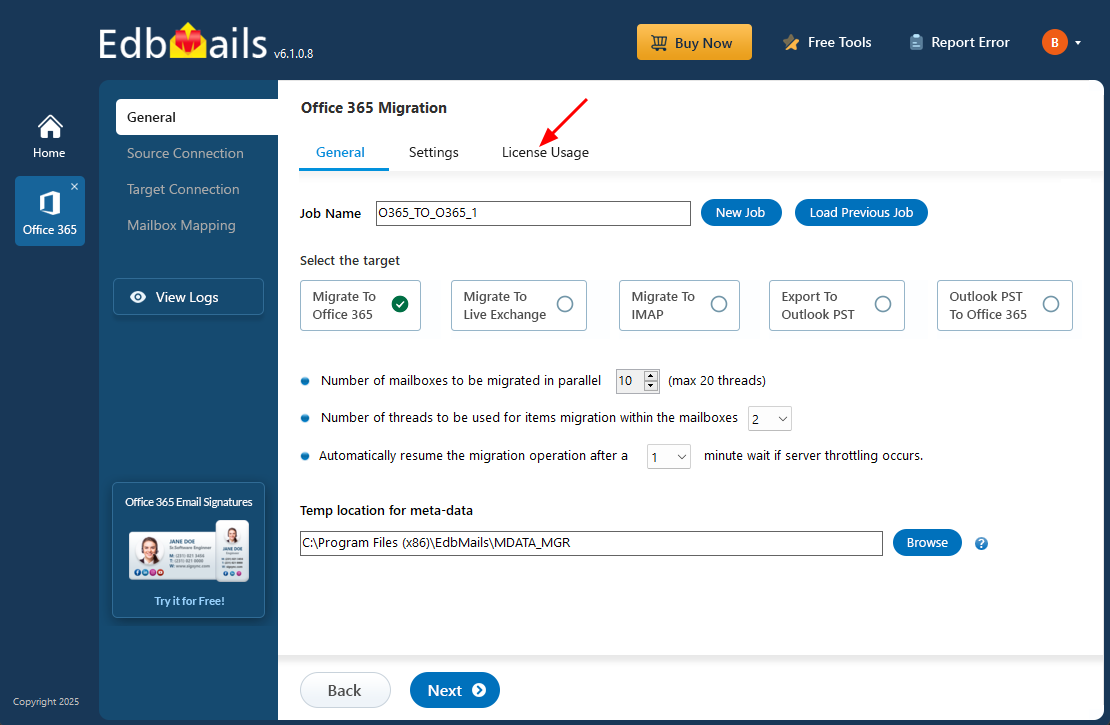
- Navigate to the 'General' tab from the left pane of the Office 365 Migration window, then click the 'License Usage' tab as shown in the screenshot below:
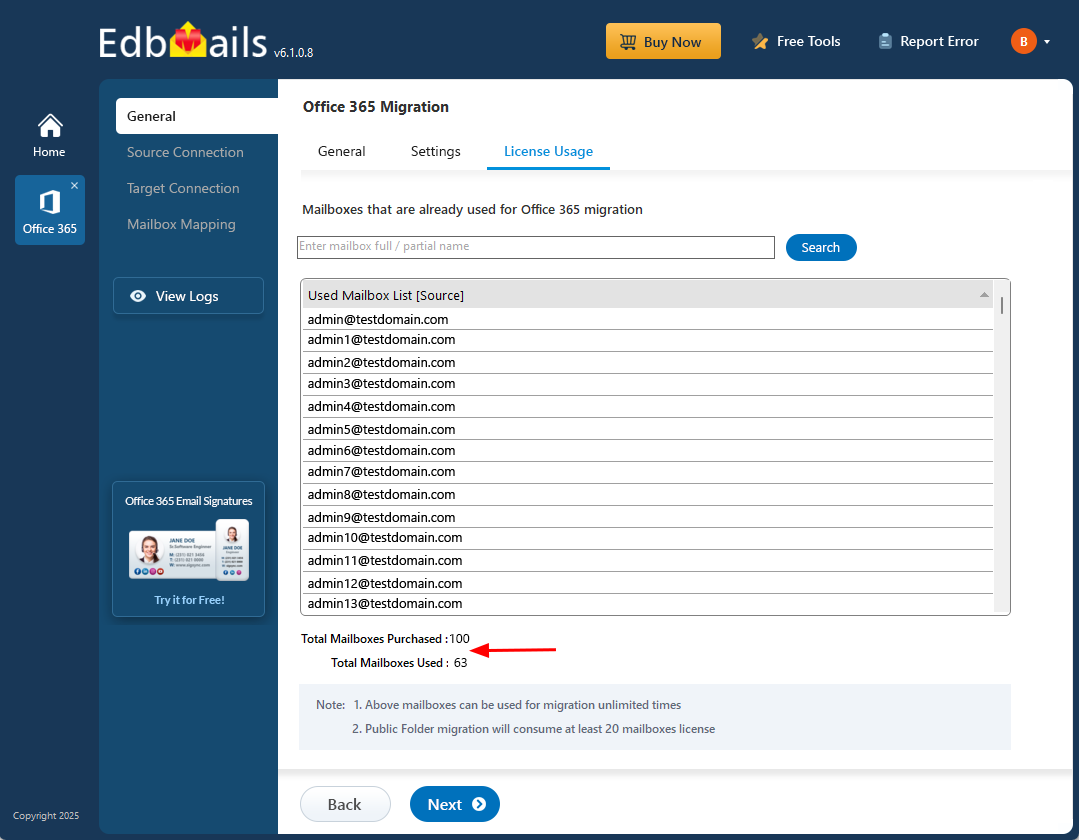
- You'll find a list of mailboxes already utilized for migration along with the count of total purchased and used mailbox licenses.
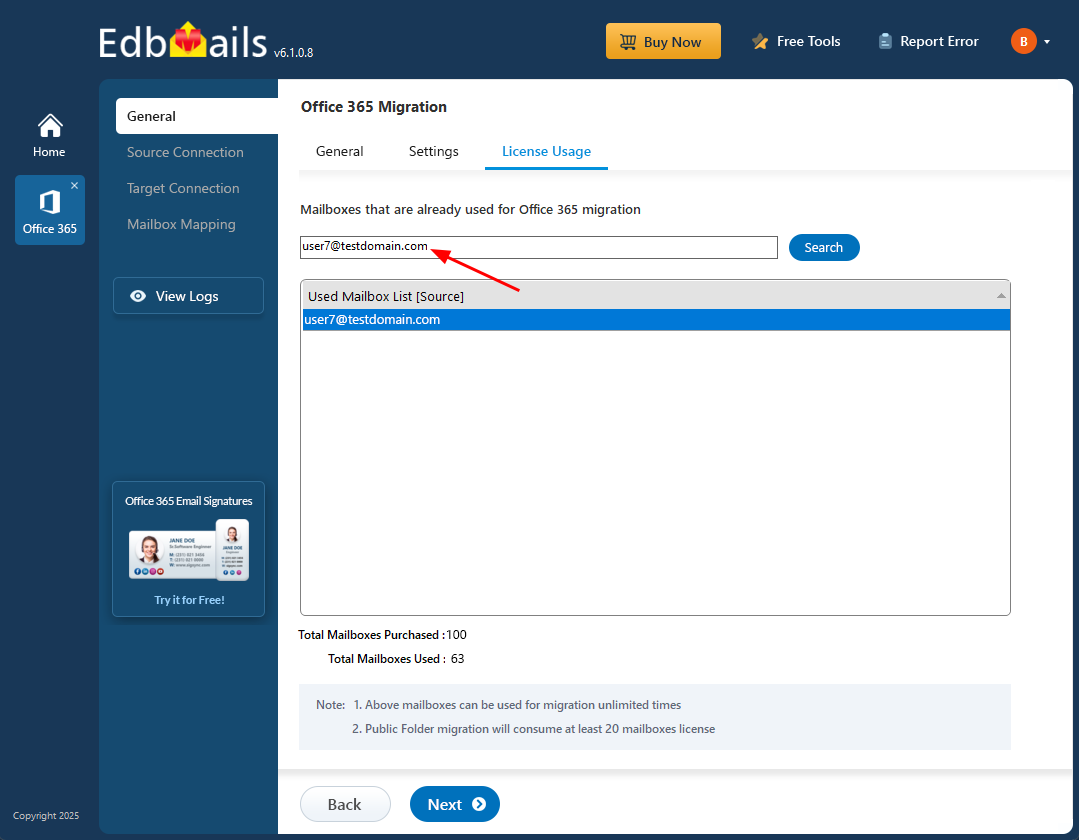
- Furthermore, you can use the search bar to locate a specific mailbox and check if it has been used for migration.
- Navigate to the 'General' tab from the left pane of the Office 365 Migration window, then click the 'License Usage' tab as shown in the screenshot below:
Does the license includes migration of Contact list, Calendar and Public Folders?
The mailbox migration license covers supported mailbox item types such as email, contacts, calendars, tasks, and other supported mailbox folders. Public Folder and archive-mailbox workflows have their own migration and licensing considerations, so review the applicable plan before starting those workloads.
Do I need to buy separate license for Public Folders migration?
You do not need a separate EdbMails product solely for Public Folder migration. Public Folder migration uses the licensing allocation defined for the applicable Office 365 Migration plan. Check the current pricing and licensing details or contact EdbMails support for the exact allocation available with your license.
In case of migration failed halfway through, can the same set of license be reused?
Yes. If a migration is interrupted or a mailbox needs to be rerun, the same licensed source mailbox can be migrated again without consuming another mailbox slot under the same applicable license. Review the migration report, correct the reported issue, and rerun the mailbox using the same source and target configuration where possible.
What if I need license to migrate more mailboxes?
If your current licenses do not cover all the mailboxes you need to migrate, you can purchase additional licenses from the EdbMails Office 365 Migration Pricing Page. Once the purchase is complete, close and reopen the EdbMails application to refresh the license status. The newly purchased licenses will then be available, and you can continue with the migration.
Before Migration
How to Create the Public Folders in Office 365 for a new organization?
Create and configure the required target Public Folder destination before starting a Public Folder migration. Confirm the destination structure and permissions that are required for the selected migration scenario.
Can the application migrate encrypted emails?
Migration support for encrypted or protected messages depends on the encryption or rights-management method, the source account's ability to access the content, and what the destination supports. Some protected items may not be available to a migration application in the same way as ordinary mailbox items.
Include representative encrypted messages in a pilot migration and verify that they can be opened as expected in the destination before migrating the full mailbox set.
Do I need to take care of time zone settings for mailbox migration?
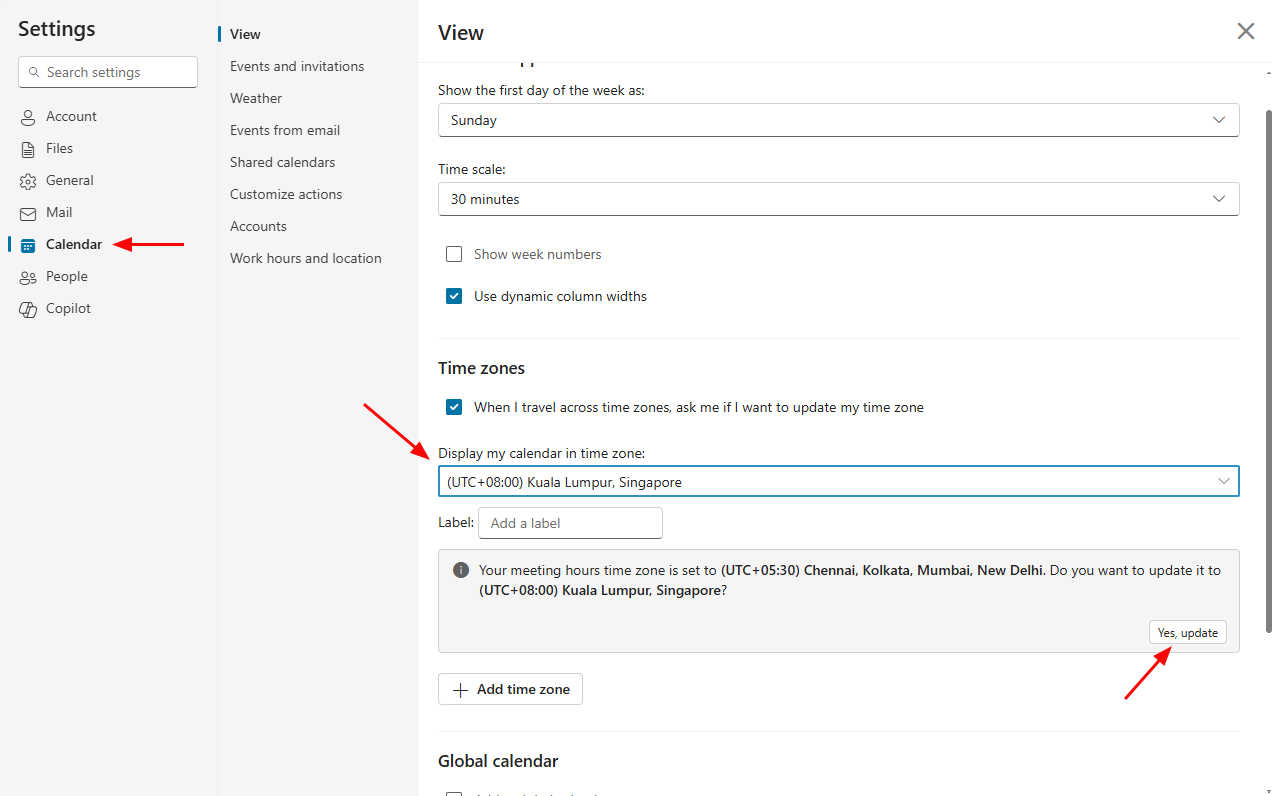
Yes, it is crucial to configure the time zone settings correctly for both the source and target mailboxes before initiating the migration process. Follow the steps below to ensure that the necessary time zone settings are in place:
Steps:
- Log in to Office 365 Outlook Web Access (OWA).
- Click on 'Settings'
- Navigate to the 'Calendar' tab.
- Adjust the desired time zone settings.
- Save your changes by clicking the 'Save' button.
- Confirm your changes by clicking the 'Yes, Update' button, as indicated in the screenshot below.
Standard folders (such as Inbox, Calendar, Contact etc.,) On my source Office 365 mailboxes are initialized with different languages. How do I migrate these folders by mapping the respective system folders on the target (destination) server?
For Instance: Your source Inbox folder is named 'Boîte de réception', which is in French language. If you migrate this folder directly to the destination server then by default it will not get mapped to the 'Inbox' folder on the target server. In order to map this to the respective folder, there are two methods
Method 1: Change the regional settings on Office 365 target server to that of your source mailbox folder language (in this case, it is French).
For Office 365:
Click here to know the steps to change the language and regional settings
For Exchange Server:
Click here to know the steps to change the language and regional settings
Method 2: Manually select and map specific target folders during the migration process. For instance, you can choose to select the 'Inbox' folder on your target server and migrate the corresponding 'Inbox' folder from the source to it.
Click here for the steps to manually select and map the specific target mailbox folder
EdbMails does Incremental Migration. Is there a need to migrate a particular mailbox from the same computer during consecutive migration for the incremental check to be effective?
Yes. The first migration pass processes the selected source data. EdbMails stores migration metadata on the computer and uses it during supported repeat migrations to identify previously processed items.
For incremental behavior, rerun the migration from the same computer with the same source and target mailbox mapping. This allows EdbMails to use the retained metadata when processing eligible new or changed items. Mailboxes that have not previously been migrated from that computer can be handled separately.
What types of data can EdbMails Office 365 tool migrate?
For supported mailbox-migration scenarios, EdbMails can migrate mailbox items such as email, calendars, contacts, tasks, notes, journals, and supported folders. Public Folders, archive mailboxes, and permissions are separate workloads whose supported properties depend on the source and target environment.
Review the migration guide for the selected scenario and validate representative data before the full migration.
Is it necessary to install EdbMails on the source server?
No, You can install EdbMails on any computer that can access the source server for migration to Office 365.
Is the data on source server affected in anyway when using EdbMails Office 365 migration tool?
During the normal migration workflow, EdbMails reads supported source mailbox data and copies eligible items to the configured destination. It does not intentionally delete or modify source mailbox content as part of the migration process.
Is it possible to manually map the source mailbox folders to specific target mailbox folders during the migration process?
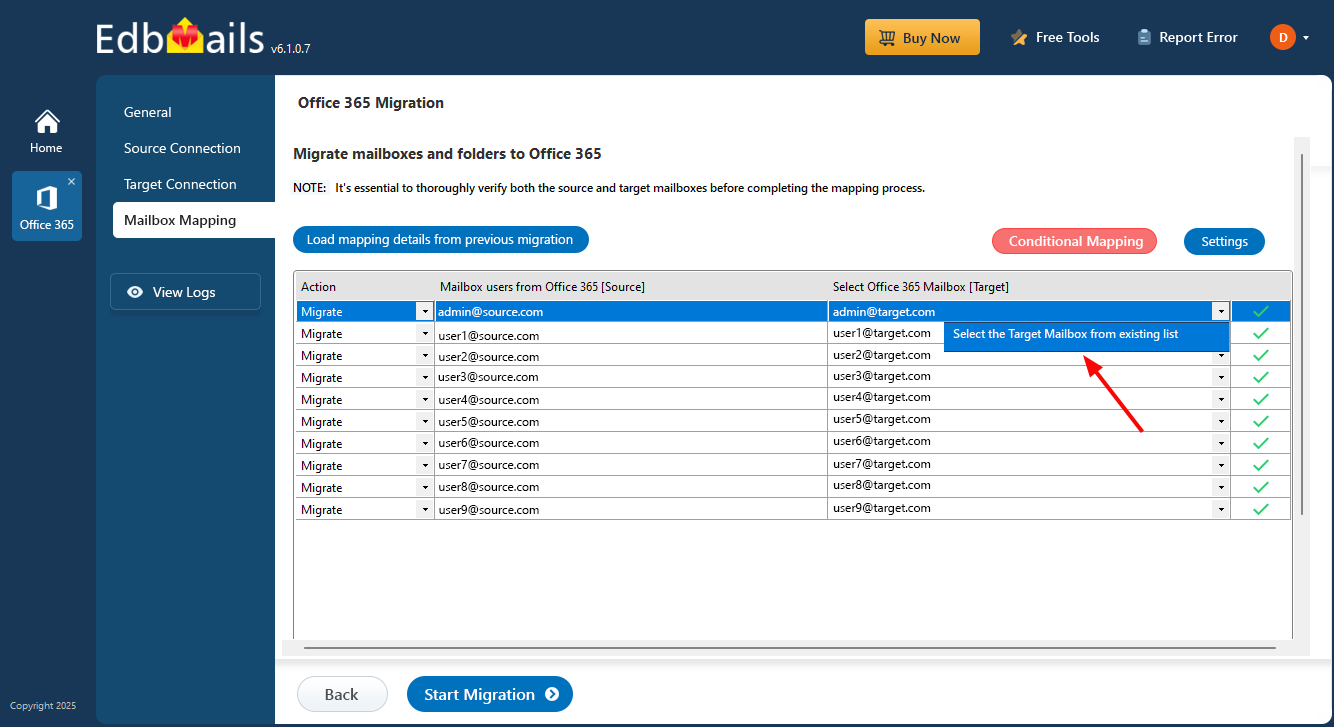
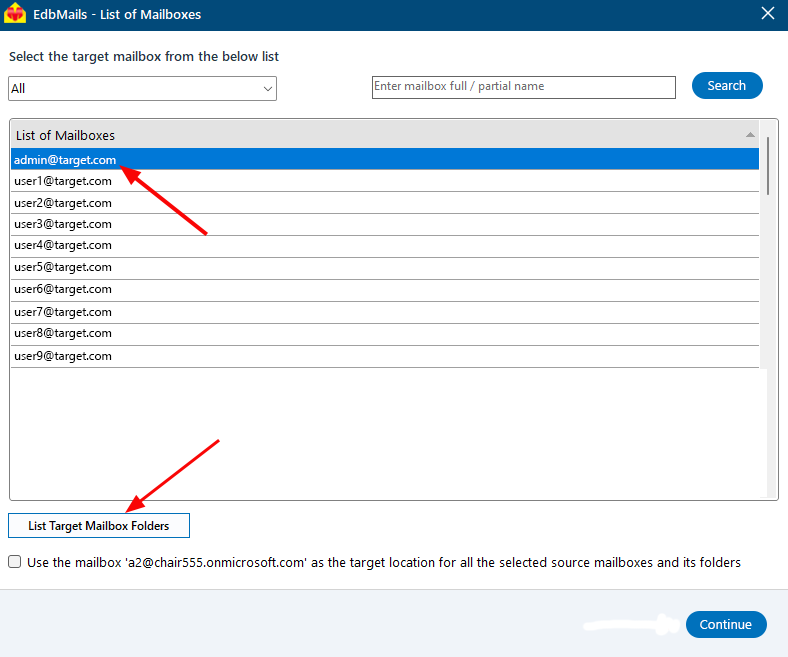
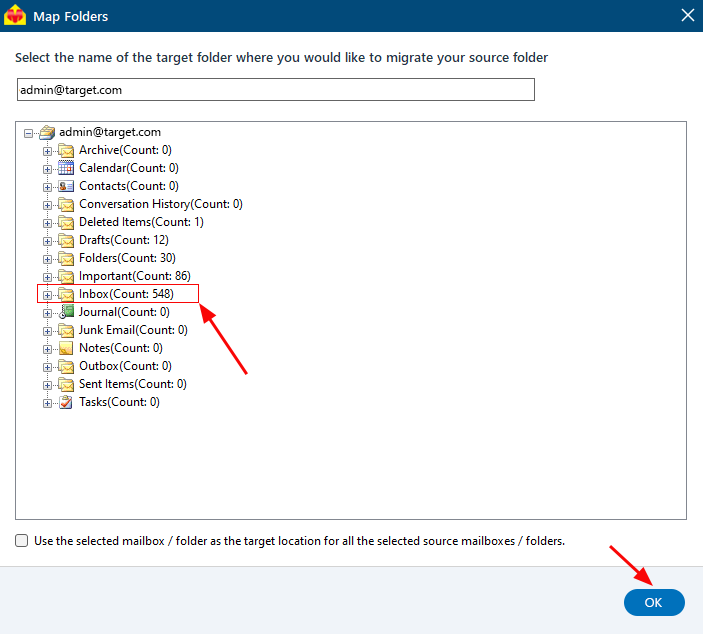
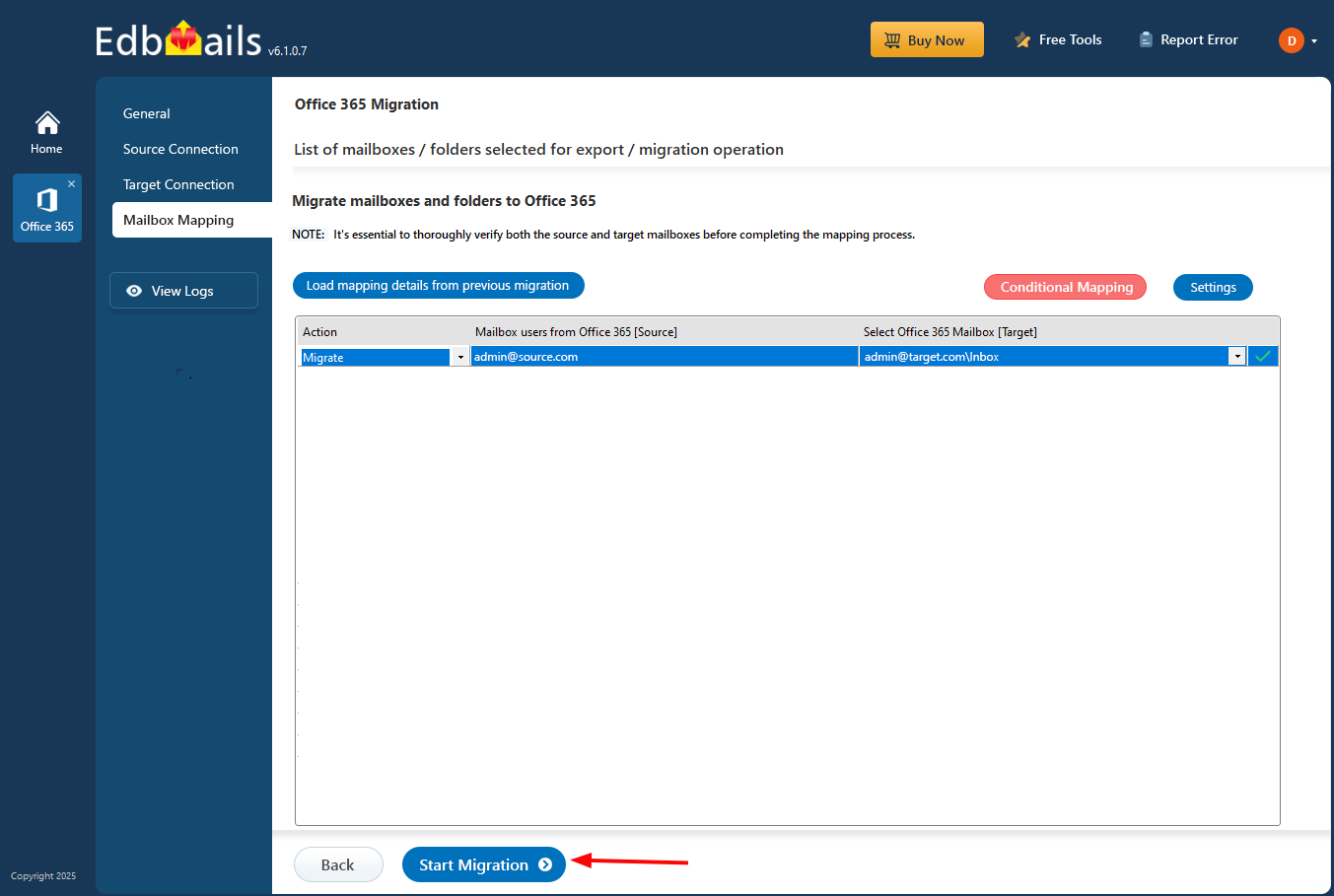
Absolutely! With EdbMails, you have the flexibility to manually map the source mailbox folders to specific target mailbox folders during the migration process. This feature allows you to precisely define the mapping and ensure that your data is migrated to the desired locations (folder) in the target mailbox.
Steps:
- Step 1: In the mapping window as shown in the below screenshot, click ‘Select the Target Mailbox from existing list’
- Step 2: Click the ‘List Target Mailbox Folders’ button
- Step 3: Select the target mailbox folder and click ‘OK’ to proceed
- Step 4: Click ‘Start Migration’ to proceed with the migration
- Step 1: In the mapping window as shown in the below screenshot, click ‘Select the Target Mailbox from existing list’
Migration - Steps
How to perform Office 365 Migration?
The standard workflow is to prepare source and target access, connect both environments, list and map mailboxes, configure filters or other migration settings, run a pilot or selected batch, start the migration, and review the migration report.
Should I run a pilot before migrating all mailboxes?
Yes. A pilot helps you verify authentication, mailbox mapping, representative item types, filters, destination behavior, and reporting before the full migration. Use a small set of representative mailboxes and resolve any reported issues before expanding the batch.
How do I review failed or skipped items during migration?
Review the EdbMails migration report after each batch. Check completed, skipped, and failed items, then correct authentication, permission, mapping, item-size, or destination issues before rerunning the affected mailbox or batch.
What should I validate before the final migration pass?
Confirm the source-to-target mailbox mapping, review migration reports, verify representative email, calendar, contact, folder and permission data where applicable, and resolve reported failures. If the initial pass was run from the same computer with the same source and target mapping, run the supported incremental pass before cutover to process eligible new or changed items.
After Migration
How to recreate Outlook profiles after the migration?
Does EdbMails support migration from a hybrid environment?
EdbMails can be used in supported migration scenarios that involve Microsoft 365 and Exchange environments, including organizations operating in a hybrid configuration. The exact preparation and supported workload depend on the source, target, authentication model, and coexistence design.
Run a pilot and verify mail flow, mailbox access, and the target configuration before migrating production batches.
Can I continue using the Source mailboxes after migration?
Source mailboxes can continue to exist after a data migration, but whether users should keep using them depends on the cutover and mail-routing plan. New mail is delivered according to the active DNS, routing, coexistence, and tenant configuration rather than the migration application's data-transfer status.
If users continue working in the source before cutover, run the supported incremental migration from the same computer with the same source and target mapping to process eligible new or changed items before the final transition.
After my initial migration, I have new emails in my source Office 365 tenant. How do I migrate them again without duplicates?
Run the migration again from the same computer using the same source and target mailbox mapping. EdbMails uses the migration metadata retained from the initial pass to identify previously processed items and handle eligible new or changed items during the supported incremental migration workflow.
- Use the same computer used for the initial migration.
- Select the same source and target mailboxes.
- Review the migration report before the final cutover.
See Office 365 incremental migration.
You can also use supported include/exclude filters to limit a pass by date or other available criteria when that fits the migration plan.
What should I check after the migration is complete?
Review the final migration report and verify representative mailbox items, folder hierarchy, calendars, contacts, permissions where applicable, and any failed or skipped items. Also confirm mail flow, DNS/cutover changes, Outlook access, and user sign-in behavior according to the migration plan before closing the project.
