


Gmail to Zoho Mail Migration
Are you planning to migrate your organization’s email data from Gmail (Google Workspace) to Zoho Mail? Transitioning between email platforms may seem challenging, especially with concerns about maintaining data integrity, preserving folder hierarchy, and avoiding downtime, but using the right solution makes the entire process seamless and dependable.
Gmail is a popular email platform known for its label-based organization, seamless access across devices, and strong integration with Google Workspace applications. However, many businesses choose Zoho Mail for its stronger focus on privacy, advanced security controls, centralized admin management, and built-in collaboration tools such as email sharing, Streams, Notes, Tasks, and Calendar integration.
For a smooth and reliable migration from Gmail to Zoho Mail, EdbMails IMAP Migration tool delivers a secure and efficient solution. It supports both single and bulk mailbox migrations, maintains the original folder structure, and enables incremental migration to avoid duplicates. With features such as automatic mailbox mapping, date-based filtering, and pause and resume options, it ensures a simple and stress-free Gmail to Zoho Mail migration.
Why Switch from Gmail to Zoho Mail?
1. Privacy and Security:
Zoho Mail encrypts all user data and enforces multi-layered security, including 2FA, S/MIME, and TLS protocols, ensuring confidential information remains protected.
2. Centralized Control Panel:
The Zoho Mail Control Panel allows admins to configure organization-level policies, manage users, enforce spam rules, create groups, and access reports from a single console.
3. Collaboration and Productivity Tools:
Zoho Mail offers email/folder sharing, Streams, Notes, Tasks, and Calendar integration, allowing users to collaborate without leaving their inbox.
4. Efficient Mailbox Management:
With folder-level migration, date-range filtering, and exclusion options, you can migrate only the necessary data, reducing storage consumption and ensuring better organization.
Gmail to Zoho Mail Migration Planning
A well-structured migration plan is crucial to avoid data loss, downtime, and confusion. Consider the following:
- Assess mailbox size and user count – Helps determine required bandwidth and migration duration.
- Verify Zoho Mail accounts – Ensure all target accounts exist in Zoho before migration.
- Backup Gmail data – Create a backup to mitigate any unforeseen issues.
- Network readiness – Confirm your internet speed and firewall settings support IMAP connections.
- Communication plan – Inform users about the migration schedule and expected impact.
- Pilot migration – Test a few mailboxes first to verify the process and correct any issues.
Gmail to Zoho Mail Migration Prerequisites
Before starting, ensure the following:- IMAP access enabled in Gmail accounts.
- Zoho Mail accounts created for all users.
- Gmail app passwords generated.
- Folder and label strategy – Identify which Gmail labels/folders to migrate
Learn how to create an app password for a Gmail account
Learn how to enable IMAP access in gmail
Steps to Migrate Gmail to Zoho
Step 1: Download and Install EdbMails
- Download and install EdbMails on your computer.
See the EdbMails system requirements for Gmail to Zoho migration
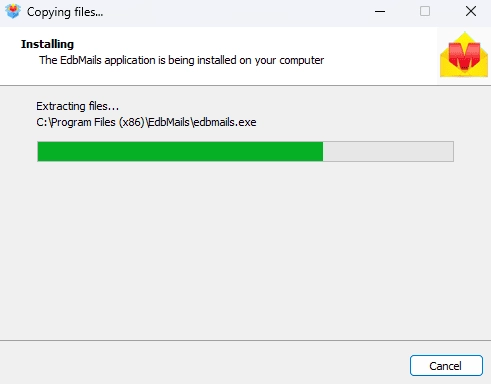
- Open the EdbMails application on your system.
- Type your registered email address and password, then click ‘Login’. If you haven’t created an account yet, click ‘Start Your Free Trial’ to proceed with the trial version.Note: The Free Trial gives you access to all essential features and allows exporting up to 30 items per folder. To lift this limit and export unlimited items, purchase a valid license from the EdbMails website.
Click here to purchase the license from the EdbMails website.
After completing the purchase, restart the application and sign in again using the same email address and password provided during the purchase to activate your license.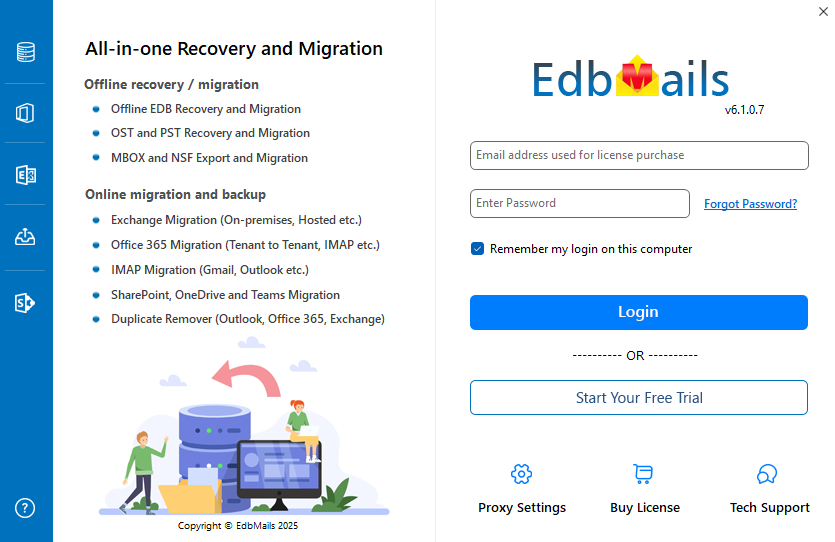
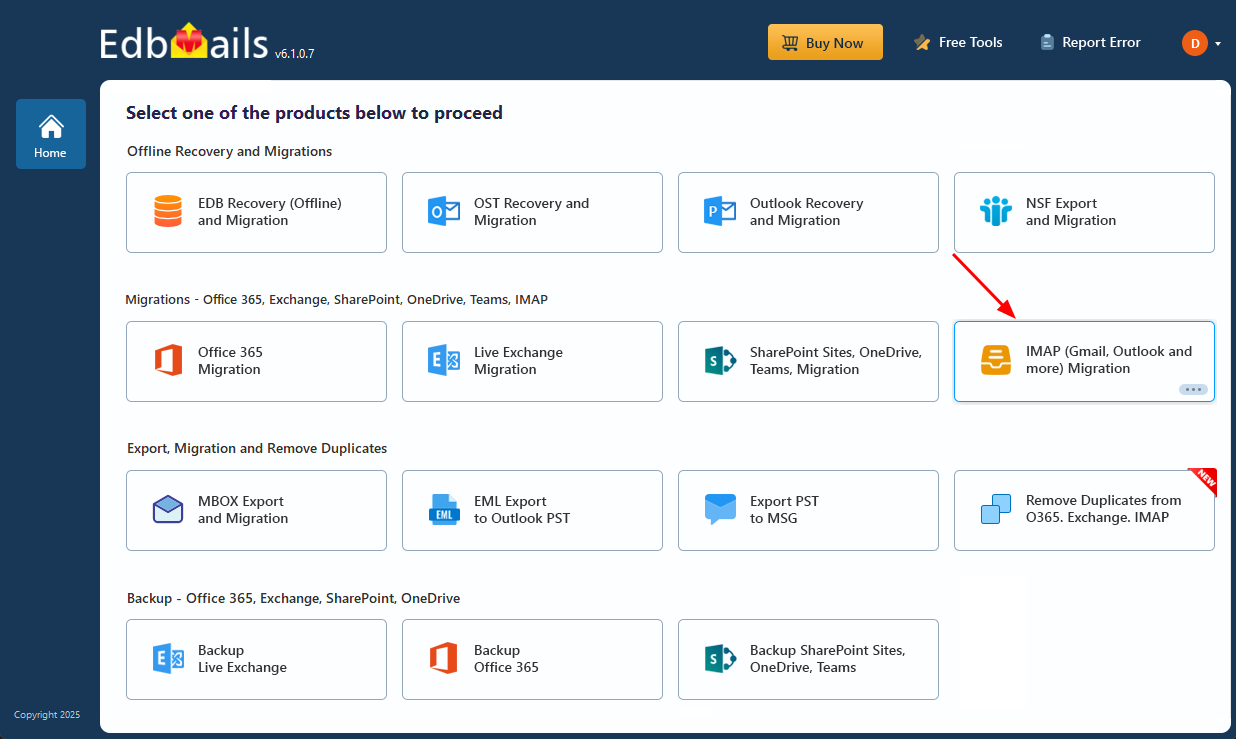
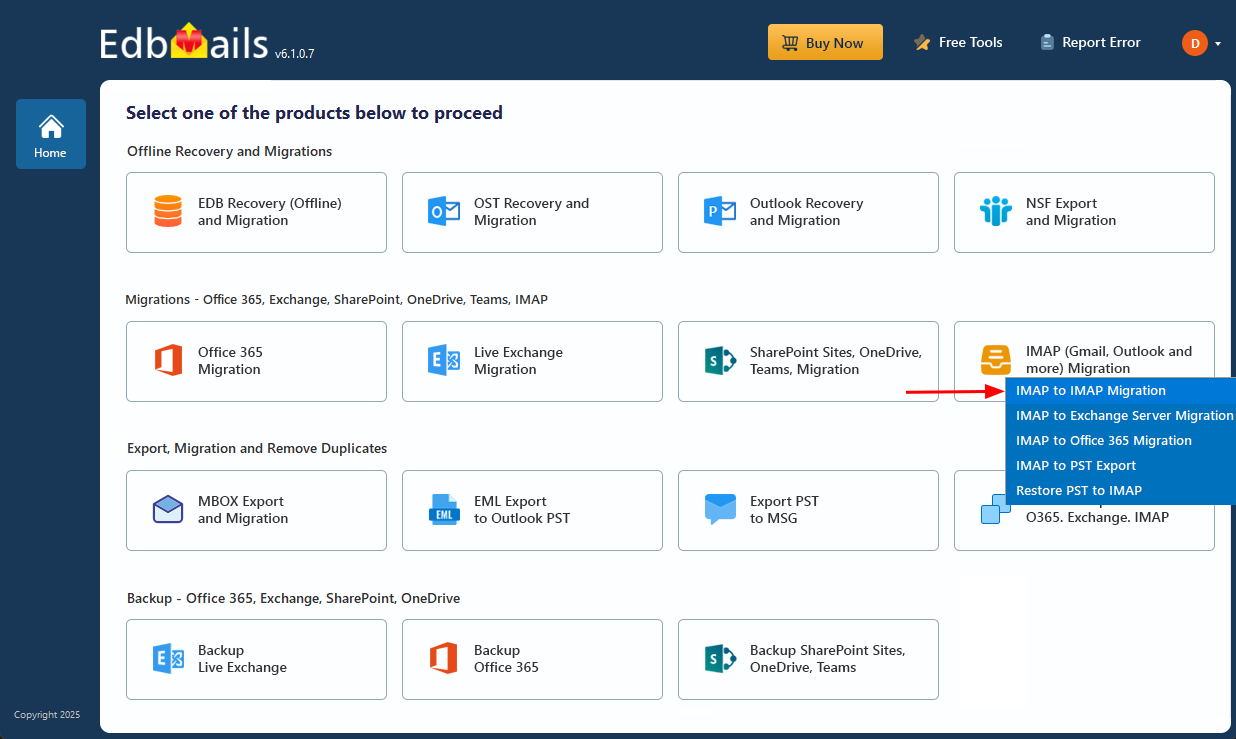
- Select ‘IMAP (Gmail, Outlook & more) Migration’
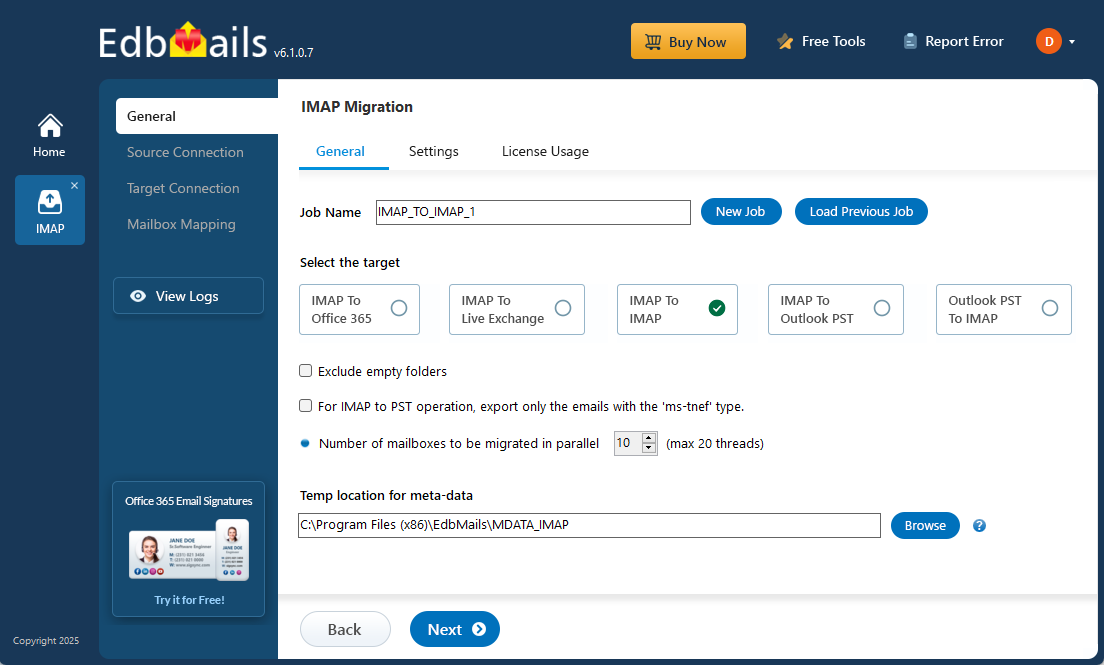
- Select ‘IMAP to IMAP Migration’
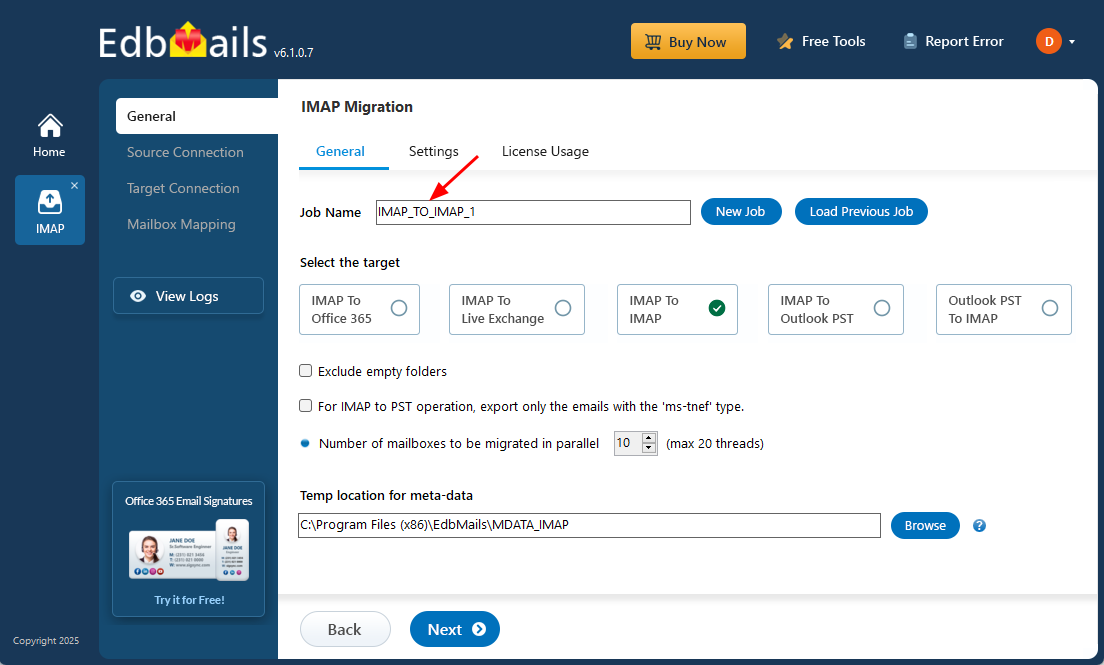
- You can continue with the automatically assigned default job name, or select ‘New Job’ to rename it according to your preference before proceeding.
- Download and install EdbMails on your computer.
Step 2: Connect to the Source Gmail Server
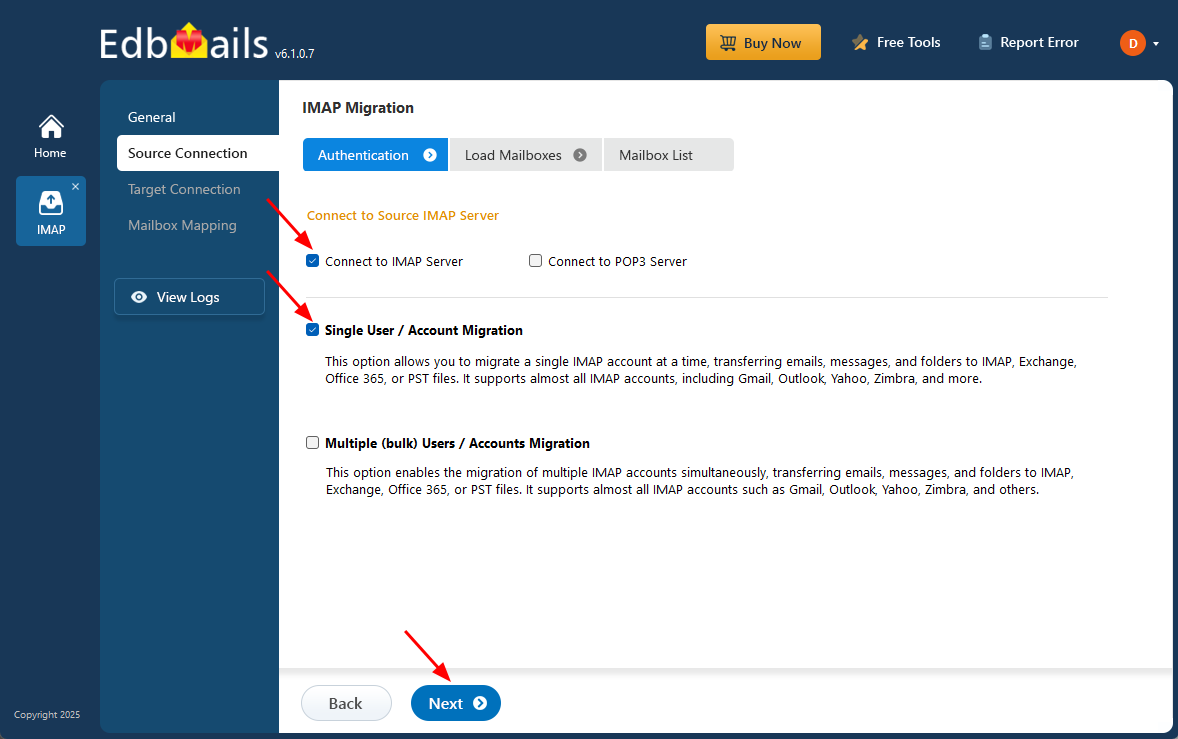
- For migrating an individual account, select ‘Single User / Account Migration’, then choose the appropriate option such as ‘Connect to IMAP Server’ or ‘Connect to POP3 Server’.
- Click ‘Next’ to continue to the following step.
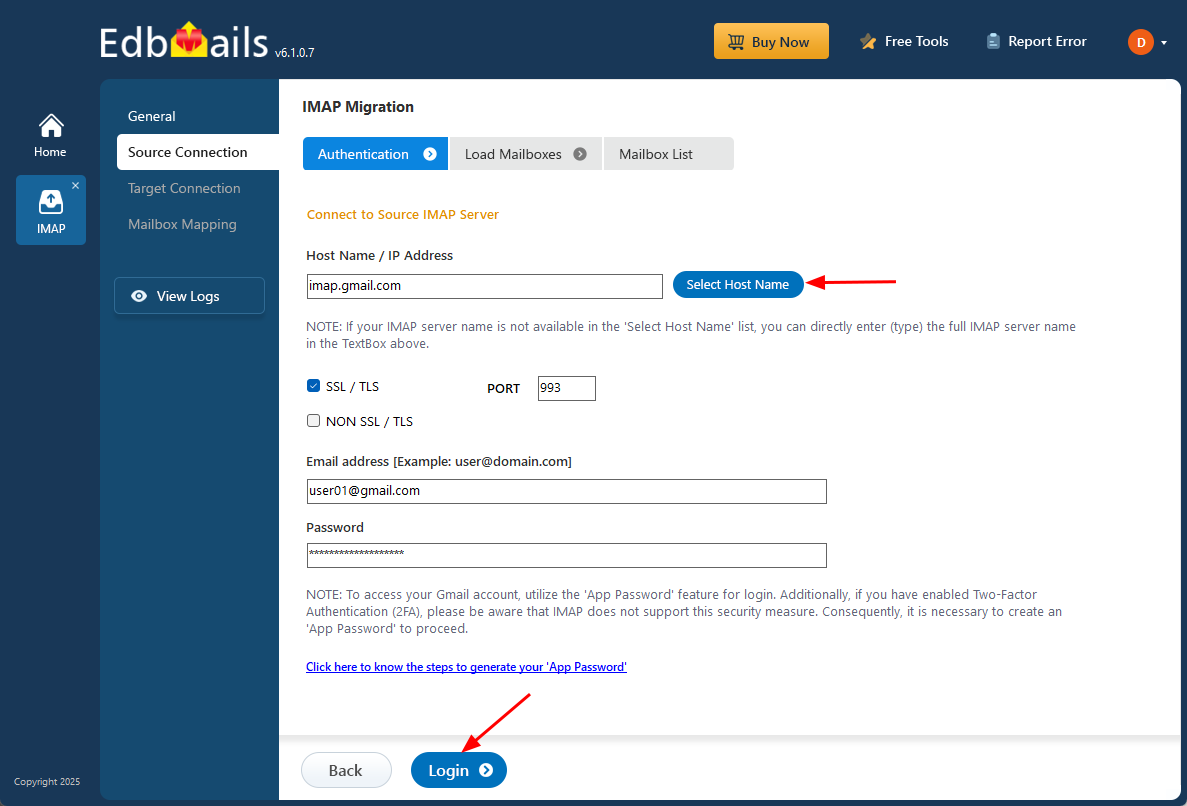
- Choose Gmail (imap.gmail.com) as the IMAP host name from the list or enter it manually.
- Then, enter your email address and app password. If you are connecting to a Gmail account, create an app password and use it instead of your regular password to successfully complete the connection.
- Click the ‘Login’ button.
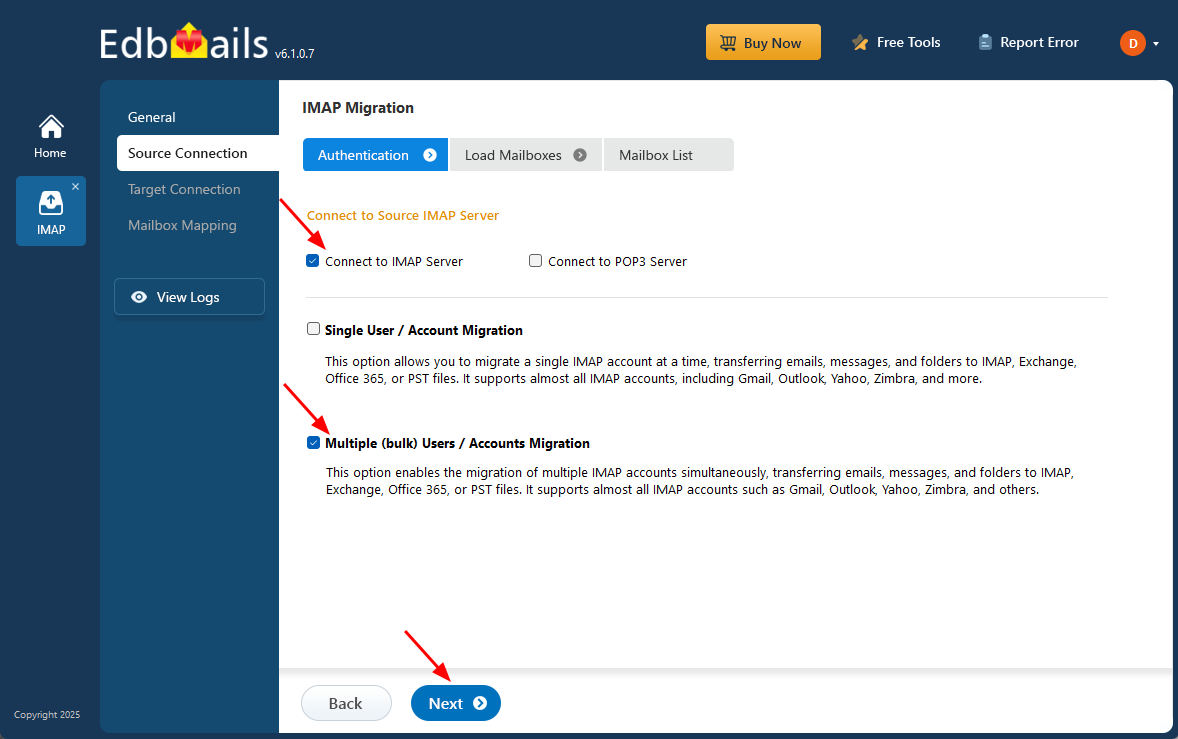
- To migrate multiple Gmail accounts at once, choose ‘Multiple (Bulk) Users/Accounts Migration’.
- Select the appropriate option such as ‘Connect to IMAP Server’ or ‘Connect to POP3 Server’.
- Then click ‘Next’.
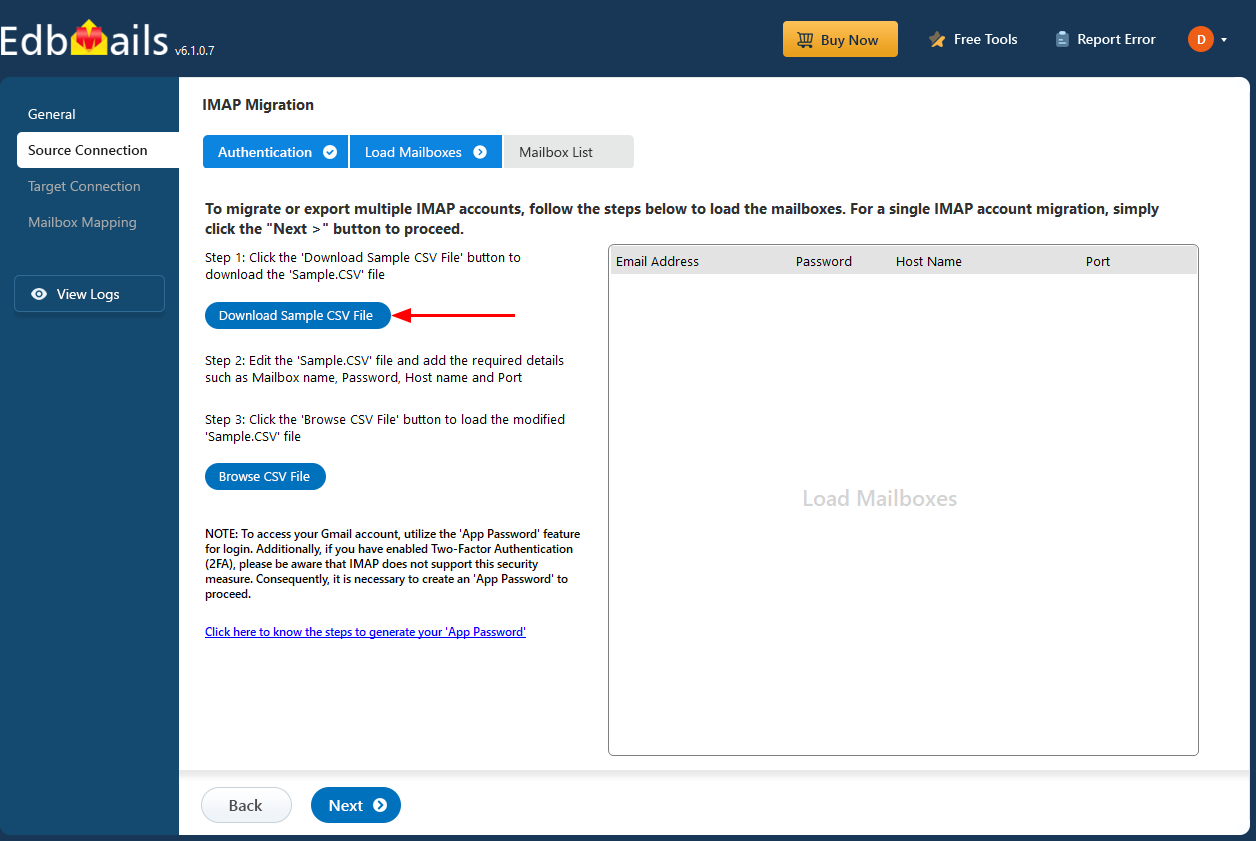
- Click ‘IMAP Migration CSV File’ for downloading the ‘Sample.CSV’ file.
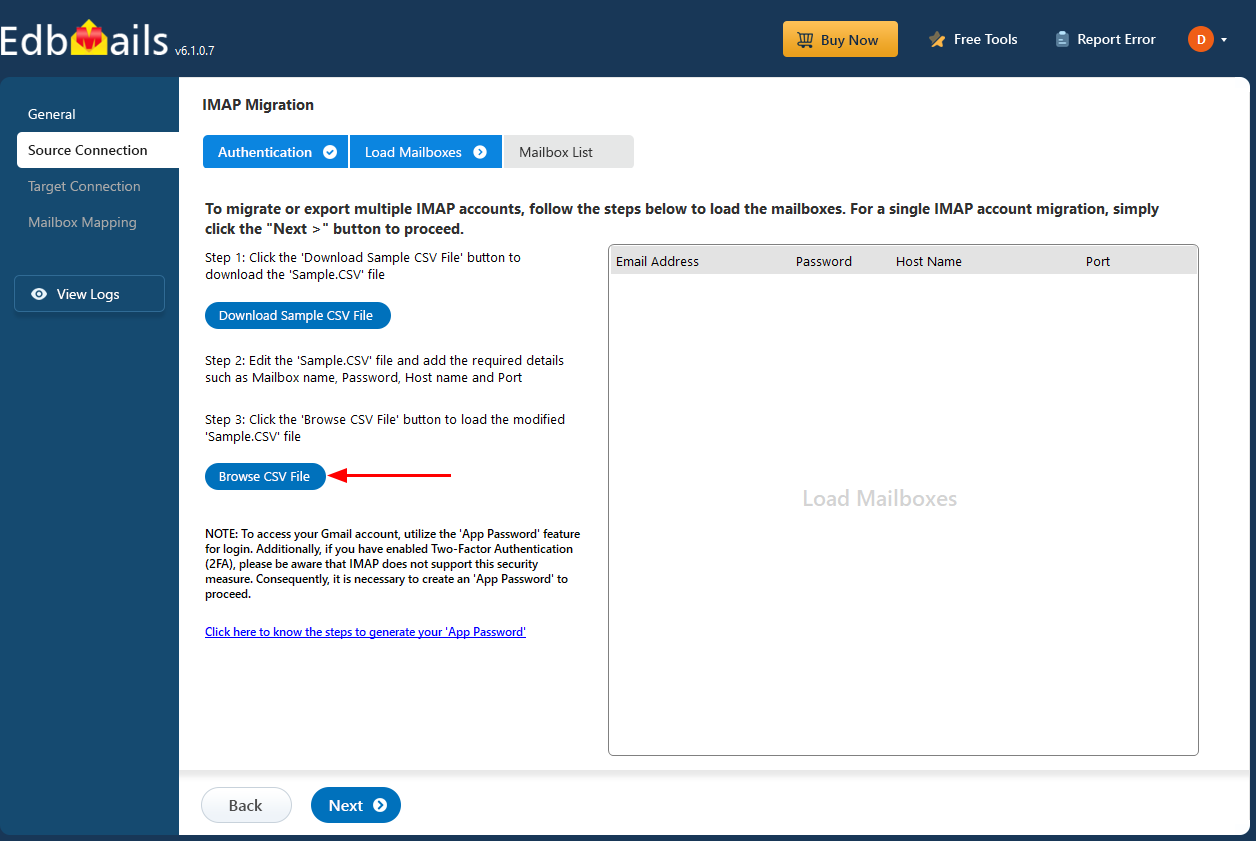
- Open the CSV file and fill in the necessary details including the email address, password, host name, and port number, then save the file once all the information has been updated.

- Close the CSV file and click ‘Load Modified CSV File' to upload the updated CSV file.
- Check the listed mailboxes to confirm that all details are correct.
- Then click ‘Next’ to proceed.
Step 3: Select Source Gmail Mailboxes
- Select the Gmail mailboxes or folders that you want to migrate from the Mailbox list, then click ‘Next’.
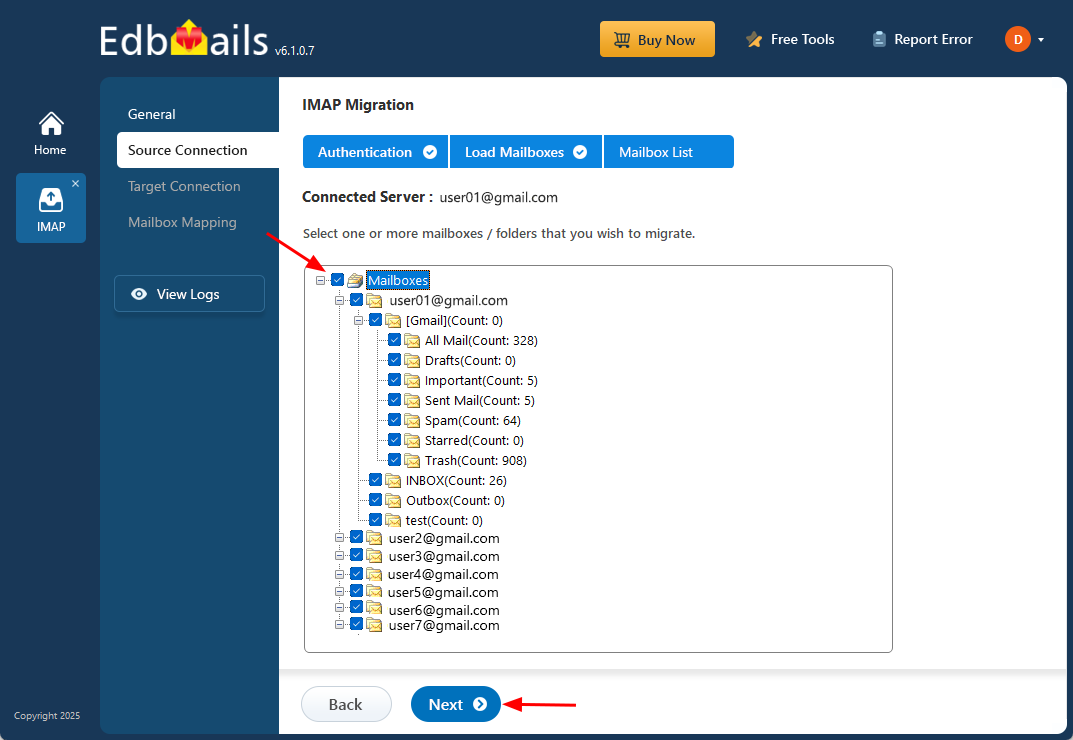
- Select the Gmail mailboxes or folders that you want to migrate from the Mailbox list, then click ‘Next’.
Step 4: Connect to the Target Zoho Mail Server
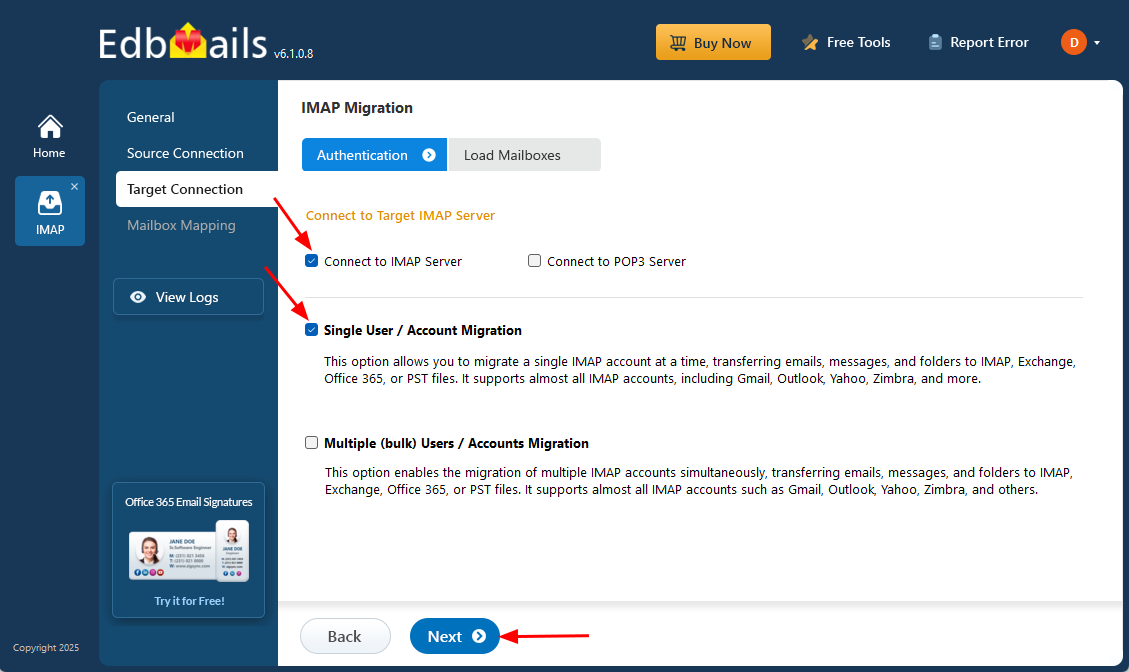
- To connect an individual user account, select ‘Single User / Account Migration’.
- Choose the appropriate protocol such as ‘Connect to IMAP Server’ or ‘Connect to POP3 Server’.
- Then click ‘Next’ to continue.
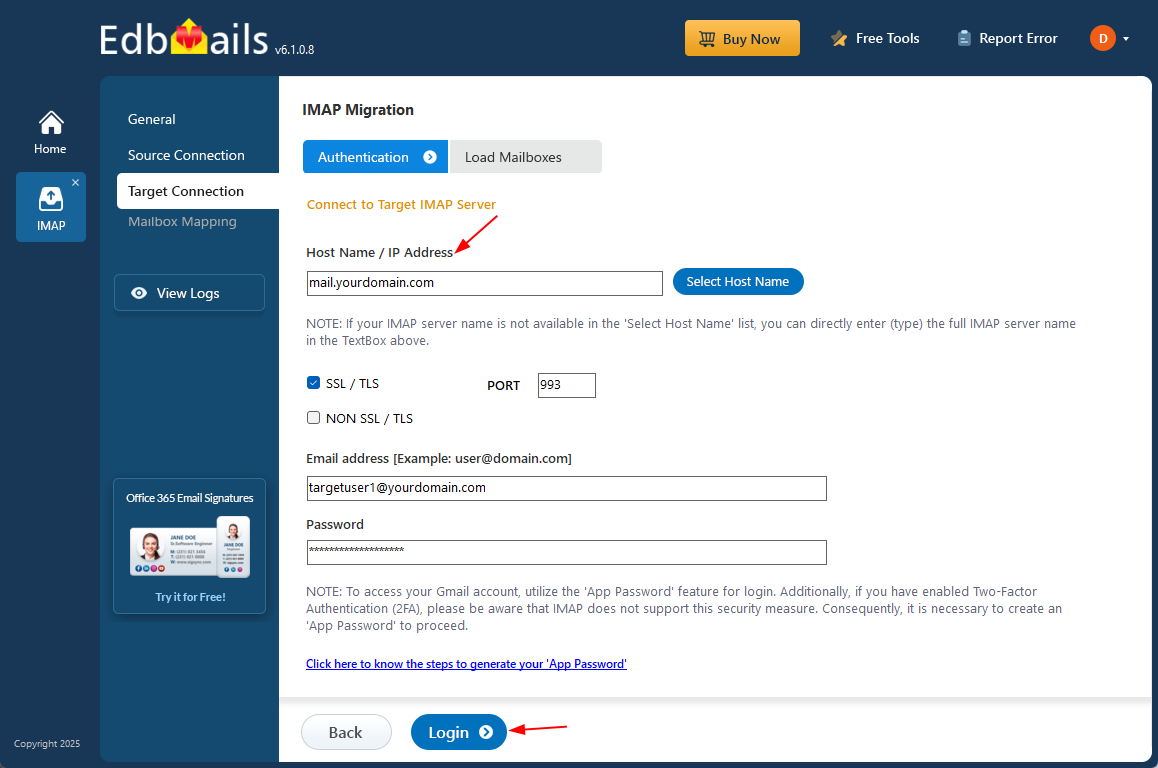
- For a single-user login, choose the correct IMAP hostname from the list or enter the Zoho IMAP hostname as imap.zoho.com
- Then enter the Zoho email address and its corresponding app password.
- If you are connecting to a Gmail account, generate an app password and use it in place of your regular account password.
- Click the ‘Login’ button.
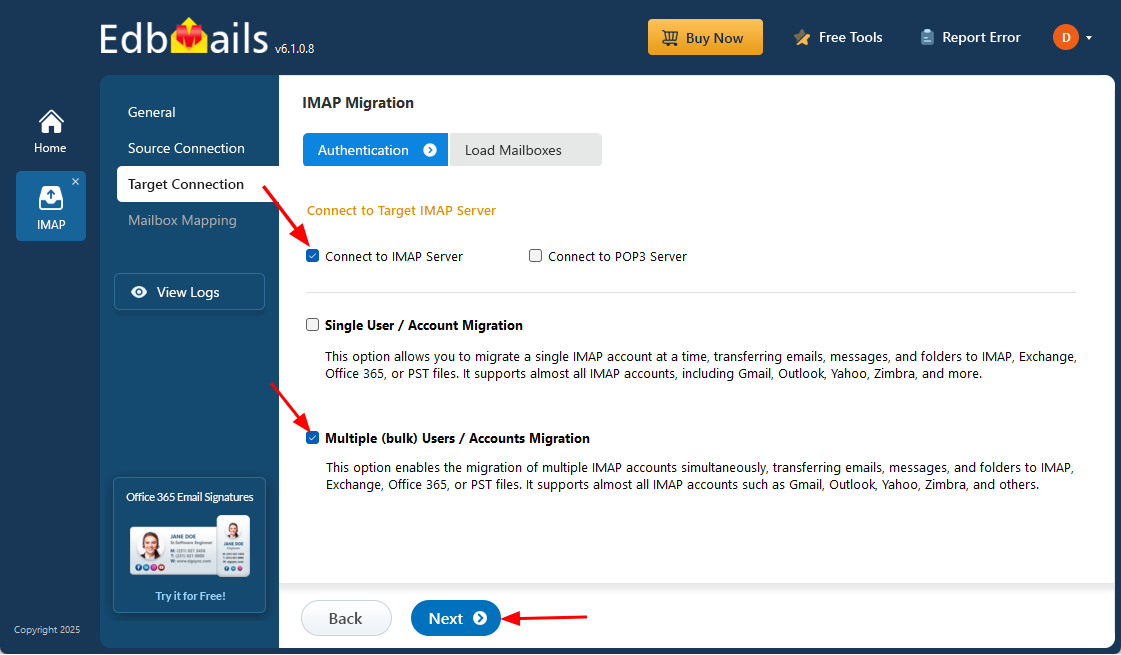
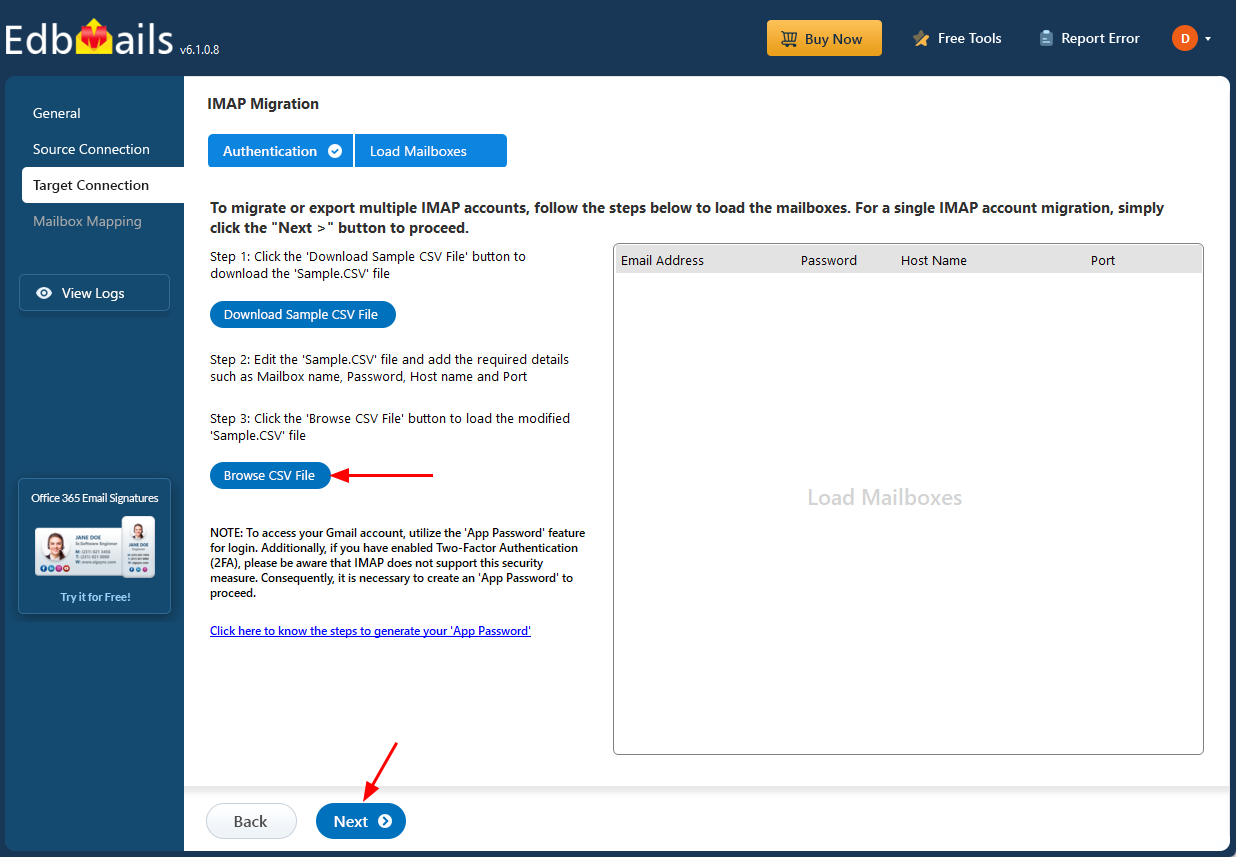
- To set up a connection for multiple Zoho mailboxes simultaneously, choose the ‘Multiple (Bulk) Users/Accounts Migration’ option and click ‘Next’ to continue.
- Click ‘IMAP Migration CSV File’ for downloading the ‘Sample.CSV’ file.
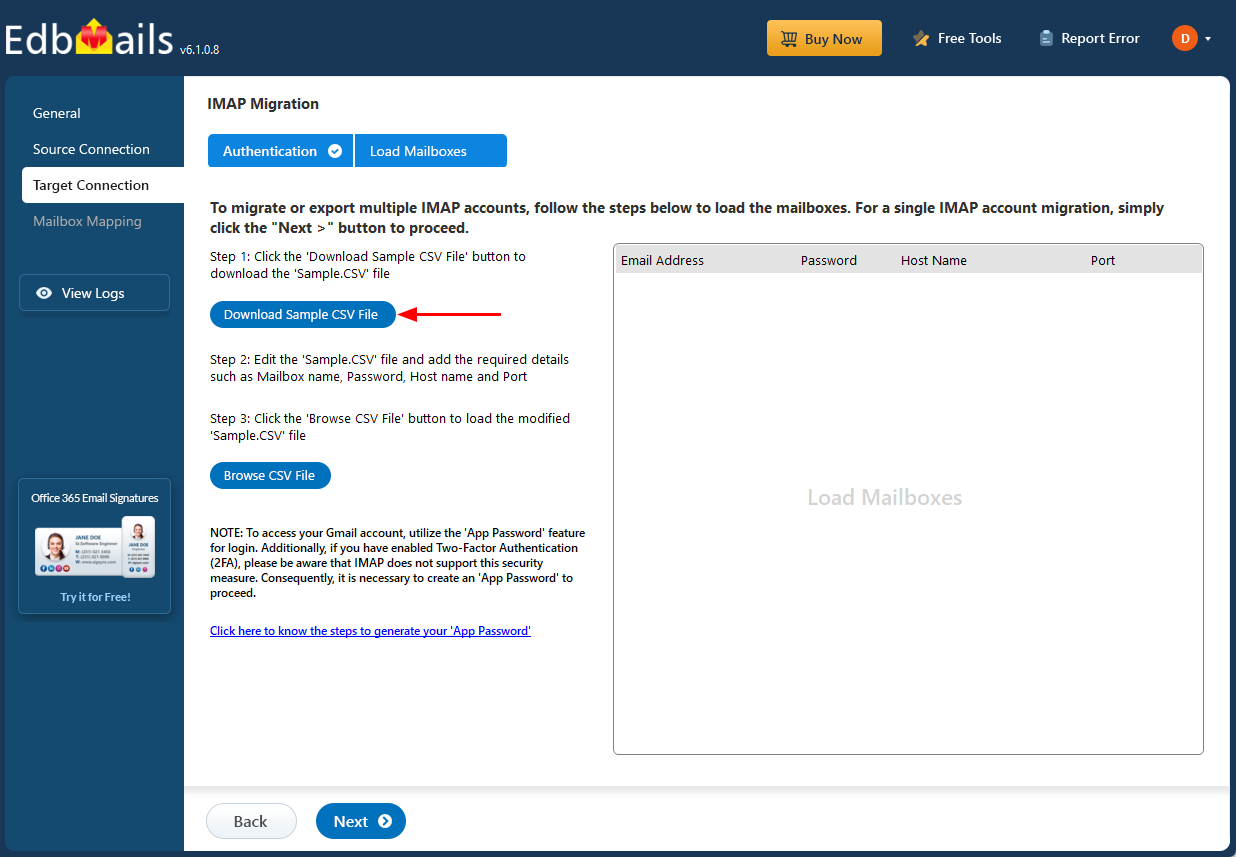
- Edit the CSV file by entering the required target Zoho server details, including the email address, password, hostname, and port number.

- Once completed, save the CSV file to apply the changes and close it.
- Click the ‘Load Modified CSV File’ button and select the updated CSV file from your system.
- Confirm that the mailbox details are correct, then click ‘Next’ to continue.
Step 5: Gmail to Zoho Mailboxes Mapping
- Select one of the mailbox mapping options.
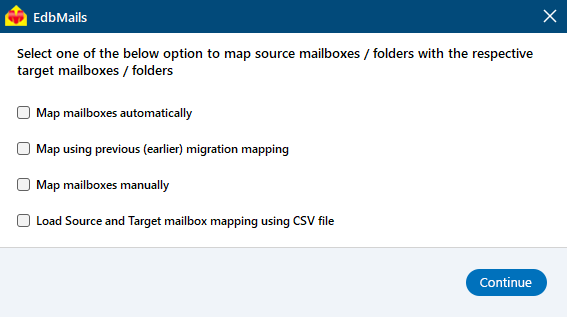
- EdbMails automatically maps mailboxes between the source Gmail and target Zoho servers.
- You also have the option to manually map mailboxes if required.
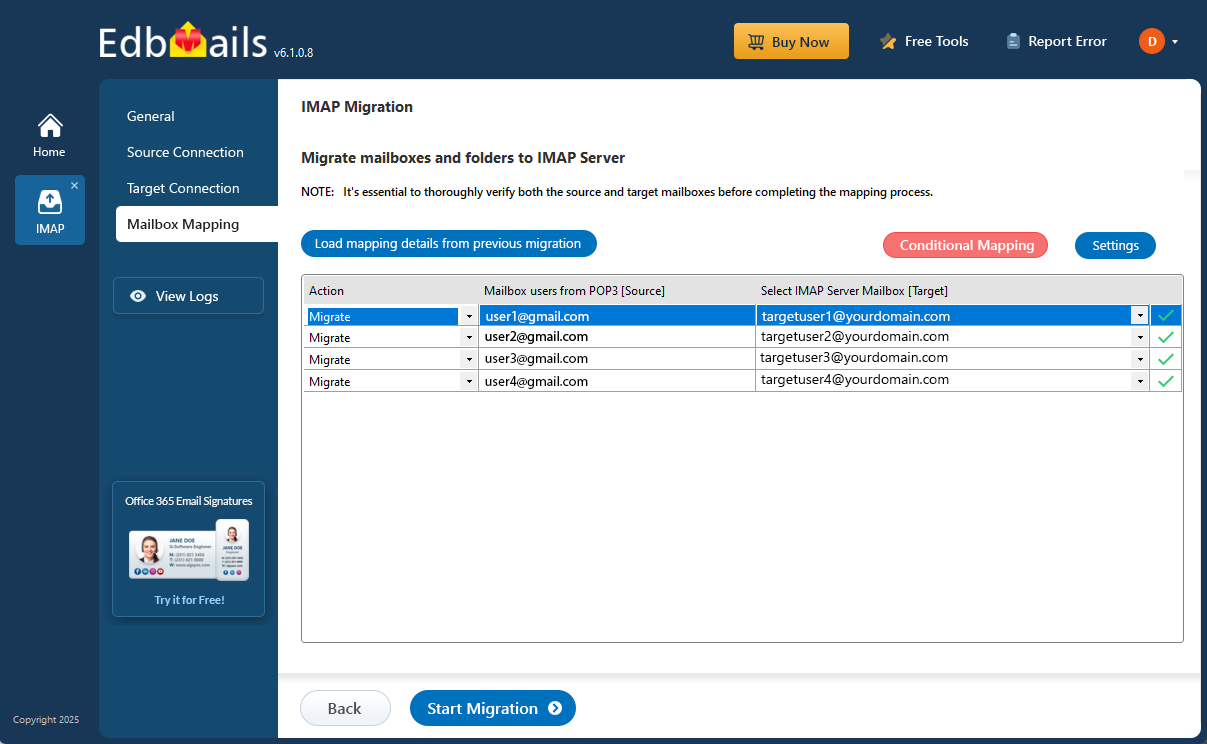
- Select one of the mailbox mapping options.
Step 6: Start the Gmail to Zoho Migration Operation
- Verify both the source and target mailboxes before completing the mapping process.
- Click the ‘Settings’ button to configure and apply the required filters. For instance, you can define a specific date range to migrate only the emails that fall within that selected period
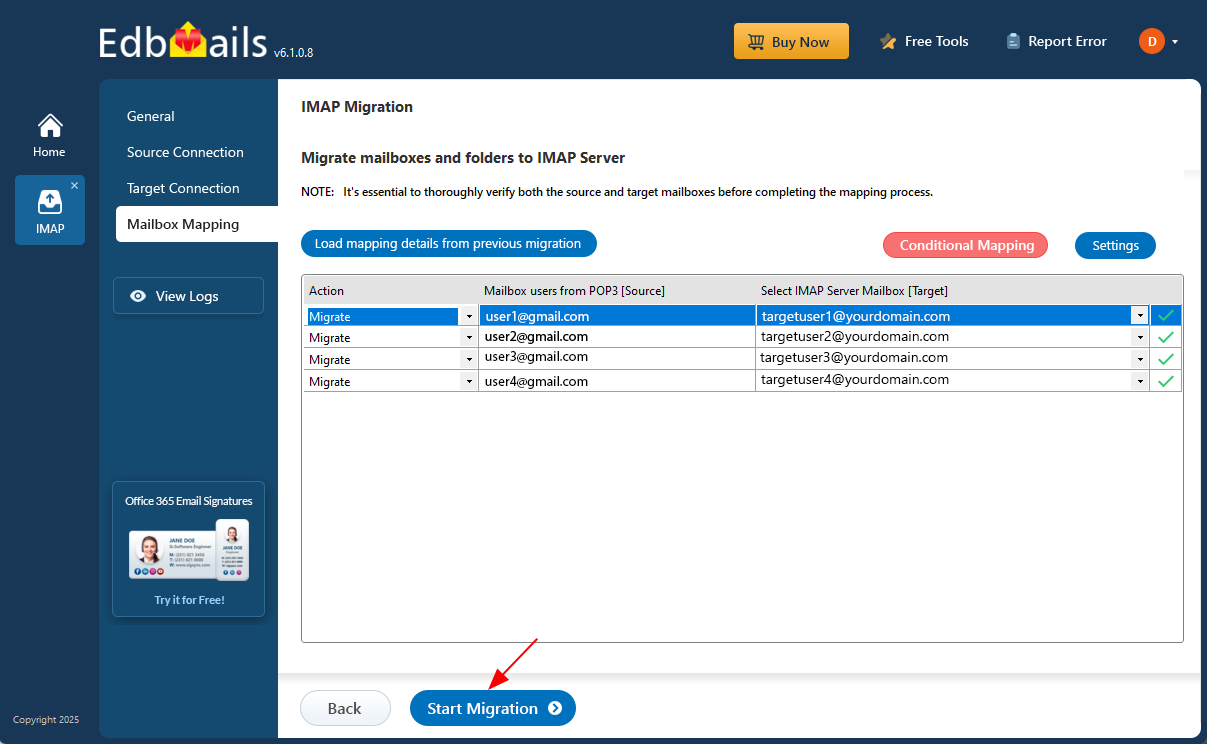
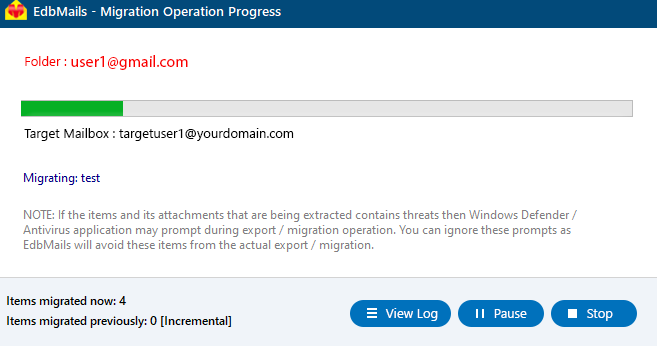
- After mapping the mailboxes, click the ‘Start Migration’ button to initiate the migration process.
- Click on the ‘View Logs’ button to open the migration report.
- It gives you a detailed overview of the process, showing how many emails, folders, and mailbox items were migrated ensuring clear tracking and evaluation of the process.
Post-Migration Tasks
- Verify all emails from Gmails are migrated correctly in Zoho Mail Server.
- Communicate with users about the completed migration.
- Update email client settings if needed (POP/IMAP configurations).
Troubleshooting Guide
- Check EdbMails logs for any migration errors or skipped items.
- Ensure correct IMAP/SMTP settings are used for both Gmail and Zoho Mail accounts.
- Verify that the source Gmail account has IMAP access enabled.
- Confirm that Zoho Mail accounts have enough storage and are active. For large mailbox migrations, use incremental migration to prevent duplicates and reduce throttling.
- For large mailbox migrations, use incremental migration to prevent duplicates and reduce throttling.
- Check network connectivity and firewall settings to ensure uninterrupted migration.
- Contact EdbMails 24/7 support for any unresolved issues or guidance.
Frequently Asked Questions (FAQ)
Can I migrate Gmail labels as folders in Zoho Mail?
Yes. EdbMails automatically maps Gmail labels to corresponding folders in Zoho Mail during migration. This ensures that all emails retain their organizational structure, making it easier for users to continue working without confusion. Labels are converted to folders while preserving the emails, attachments, and timestamps.
Can I migrate multiple users at once?
Yes. EdbMails supports bulk migration using the CSV import feature. You can provide a CSV file with multiple Gmail accounts and their credentials, and the tool will migrate all mailboxes to Zoho Mail simultaneously. This saves time, ensures accuracy, and supports concurrent mailbox migration to improve efficiency.
What if the migration is interrupted or stops unexpectedly?
EdbMails provides pause and resume functionality. If a migration is interrupted due to network issues, system shutdown, or throttling, you can restart the migration from where it stopped. The tool performs incremental migration, transferring only the items that were not migrated yet, ensuring no duplicates or data loss.
Are attachments and calendar items also migrated?
Yes. EdbMails migrates all mailbox items, including emails, attachments, calendar entries, and contacts. Calendar and contact data are transferred accurately using CardDAV and CalDAV protocols (if supported by the target server)
Do I need admin access for Gmail and Zoho Mail accounts?
No. Admin access is not required. EdbMails can migrate data using individual user account details. This allows secure migration without granting full admin rights, while still preserving mailbox items, folder hierarchy, and attachments accurately.
Can I migrate selectively instead of the entire mailbox?
Yes. EdbMails provides smart filtering options, allowing you to migrate emails based on date range, specific folders, or certain senders. This is useful if you only need to migrate recent emails or particular data, saving time and reducing unnecessary data transfer.
How do I handle large mailbox migrations without slowing down the process?
For large mailboxes, EdbMails supports concurrent migration and incremental transfer, allowing multiple mailboxes or threads to be migrated simultaneously. This reduces migration time and avoids server throttling, while ensuring all data is transferred accurately.
What support is available if I face issues during migration?
EdbMails offers 24/7 technical support via live chat and email. You can contact the support team for assistance with troubleshooting errors, configuration questions, or any other migration-related issues. Detailed logs generated by the tool can also help in quickly resolving issues.
Which license do I need to migrate Gmail mailboxes to Zoho Mail?
To migrate Gmail mailboxes to Zoho Mail using EdbMails, you need the IMAP migration license based on the number of mailboxes you plan to migrate. The license allows bulk migrations, concurrent transfers, incremental updates, and access to all advanced features of the tool.

