


Repair corrupted EDB file from an Exchange server
Microsoft Exchange Server has changed the way businesses stay connected, becoming a go-to solution for email and communication. But like any system, it’s not perfect. Problems such as malware, ransomware, sudden power failures, or improper shutdowns can damage the Exchange database file (.edb). One of the most common reasons this happens is due to Jet Database Engine errors. When these errors occur, they can corrupt the database, block access to mailboxes, and disrupt communication. Fixing these issues quickly is essential to get things back on track and keep business operations running smoothly.
When the Exchange database becomes corrupted, the server can no longer access it, making it crucial to repair and recover the EDB file. However, the recovery process can be complex—especially for IT administrators without the right tools. This is where EdbMails EDB to PST Converter proves invaluable. It allows you to recover offline or corrupted EDB files without needing an Exchange Server connection and helps you securely convert them into PST format.
This article outlines two effective methods to repair a corrupted EDB file and recover data from Exchange Server versions 2019, 2016, 2013, 2010, 2007, and 2003.
What leads to the corruption of an Exchange database file (EDB)?
One of the most common causes of Exchange database corruption is an unexpected Exchange server crash or hard-disk failure on which the Exchange server is installed. There are additional reasons, which are listed below.
- Virus infection or malware attack of your computer
- Unexpected errors on an Exchange server
- Missing or deleted transaction log files
- Physical or logical errors on the database file
How to check the Exchange mailbox for corruption?
To check the Exchange database (EDB) and mailboxes for corruption in Exchange 2003, 2007, 2010, 2013, 2016, and 2019, launch the Eseutil.exe utility from the Exchange server’s installation directory and run the command eseutil/mh to find out if the database is in Clean or Dirty Shutdown state. A Clean Shutdown indicates that the database is free from errors, whereas a Dirty Shutdown indicates that the database is inconsistent with its transaction logs and requires recovery before it can be mounted.
How to check the mailbox for corruption in Exchange 2019, 2016 and 2013?
To detect and check the database for corruption in Exchange 2010 (SP1), 2013, 2016, and 2019, run the PowerShell command New-MailboxRepairRequest using the Exchange Management Shell (EMS) for the following corruption types: AggregateCounts, FolderView, ProvisionedFolder, and SearchFolder.
The difference between Eseutil and New-MailboxRepairRequest is that, Eseutil repairs the corruption only if the database is dismounted, whereas the mailboxrepair cmdlet can repair single or multiple Exchange mailboxes from online databases without dismounting them. Let us now look at how to repair an Exchange database.
Prerequisites to repair an Exchange database file
Ensure that you meet the following prerequisites before repairing the EDB file using Eseutil.
- Make sure that you have administrator privileges to access the Exchange server.
- Take a complete backup of your Exchange database file (.EDB)
- Make a note of the Exchange server version you’re using.
- Dismount the database from the Exchange server using the Dismount-Database command.
How to repair and fix a corrupted Exchange EDB file?
You can repair a corrupted Exchange EDB file by using Eseutil, a Microsoft built-in command line utility for performing both Soft Recovery (eseutil/r) and Hard Recovery (eseutil/p) on the database. Alternatively, you can use EdbMails Exchange recovery tool to perform complete database recovery and export EDB to PST easily.
Steps to repair corrupted Exchange EDB using eseutil
- Step 1: Locate and run the Eseutil utility from the Exchange server\bin directory.
- Step 2: Check the database status by running the command Eseutil/mh
When you run the command Eseutil/mh, the utility checks the status of the database and reports whether it is in a Clean or Dirty Shutdown state. You can remount the database only when it is in the Clean Shutdown state. If the database is in the Dirty Shutdown state, you must first perform a soft recovery to see if the database can be recovered, and then a hard recovery if the level of corruption is severe. See steps to resolve the Dirty Shutdown error of Exchange database.
See steps to resolve the Dirty Shutdown error of Exchange database.
If the database state shows Clean Shutdown, you can safely remount the database. The following cmdlet enables you to perform the mount operation.
Mount-Database -Identity
However, if the database is in the Dirty Shutdown state, you cannot mount it directly and it requires a complete recovery.
- Step 3: Perform a soft recovery by running the cmdlet Eseutil/r
If the database is in the Dirty Shutdown, it means that the transaction log files are missing or the EDB is severely corrupted. Depending upon the nature of the error message, you may have to perform soft and hard recovery. If you have the transaction log files, copy and paste them to the database directory and replay them with the cmdlet eseutil/r. Remount the database if no errors are found at this stage
- Step 4: Perform a hard recovery by running the cmdlet Eseutil/p
If the soft recovery fails or if the transaction log files are missing, perform a hard recovery with the cmdlet eseutil/p. Remember that the hard recovery operation purges the data that the eseutil cannot recover. This results in data loss if the EDB file is severely corrupted.
- Step 5: Defragment the Exchange database by running the cmdlet Eseutil/d.
After the hard recovery, run Isinteg or New-MailboxRepairRequest -Database until no errors are found. Check the database integrity by running the command Eseutil/g
Tip: Depending on the Exchange server, you need to execute the command New-MailboxRepairRequest -Database for Exchange 2013, 2016, 2019, or Isinteg for Exchange 2003, 2007, and 2010 to check the integrity of the database.
- Step 6: Finally, remount the Exchange database (EDB) to the server
The following cmdlet enables you to perform the mount operation
Mount-Database -Identity
Limitations of using the manual EDB recovery method
In summary, recovering an Exchange database using Eseutil requires deep technical knowledge, and even a small mistake can lead to permanent data loss. The process is also time-consuming and generally discouraged by IT professionals. To ensure a safe and efficient recovery, it’s best to use a reliable Exchange recovery tool like EdbMails, which allows you to securely repair and convert EDB files to PST without the risks of manual methods.
Repair and restore corrupted EDB file in Exchange 2019, 2016, 2013, 2010 and 2007
EdbMails offers a user-friendly solution to repair and convert damaged or offline EDB files from all versions of Exchange server, including 2019, 2016, 2013, 2010, 2007, and 2003. It supports the recovery of database files such as STM, pub.edb, priv.edb, and mailbox.edb, and lets you export mailbox data to Outlook PST format—without requiring an active Exchange server or Active Directory connection.
Even if the EDB file is severely corrupted or missing log files, EdbMails can recover the contents with ease. The software includes a built-in preview feature and allows you to save individual mail items in HTML, EML, or MHT formats. Compatible with all versions of Windows and Windows Server, it also enables smooth mailbox migration to live Exchange server, Office 365, and Hosted Exchange environments.
Step 1 : Download and install EdbMails EDB Recovery and Migration software
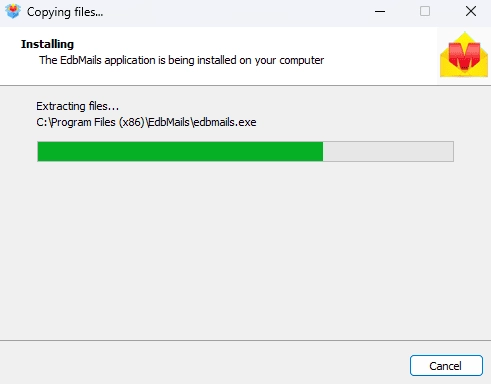
- Download EdbMails and install it on any Windows-based computer to get started.
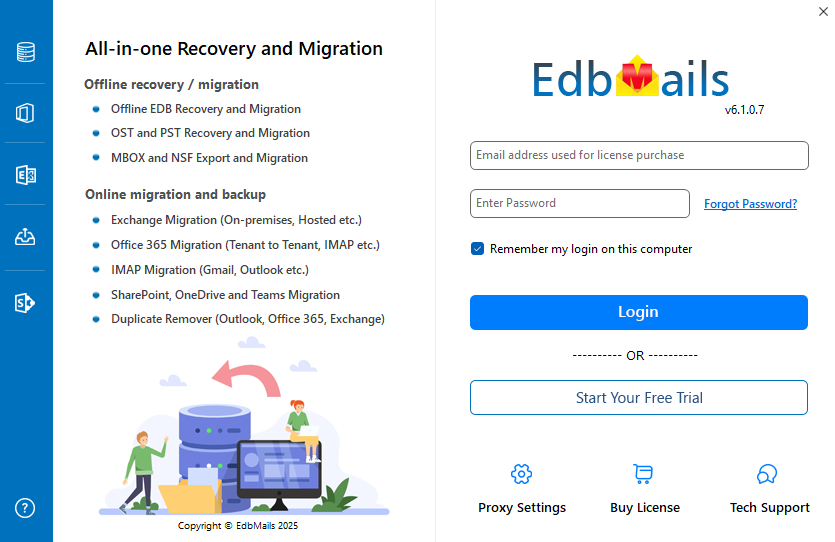
- Open the EdbMails application.
- Log in using your registered email address and password, then click ‘Login’. If you’re new to EdbMails, click ‘Start Your Free Trial’ to access the trial version.
Note: The free trial allows exporting up to 30 items per folder. To access all features, a valid license is required.
Click here to purchase the license from the EdbMails website.
After completing the purchase, restart the application and log in with the same email address. Your license will be activated automatically, giving you full access to the tool.
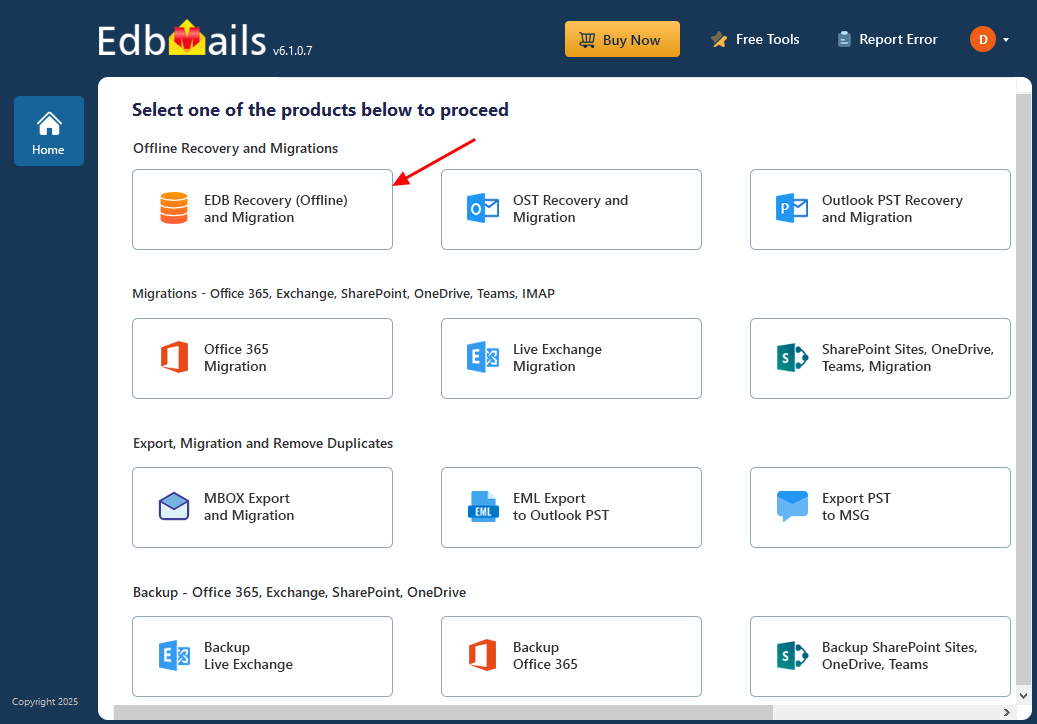
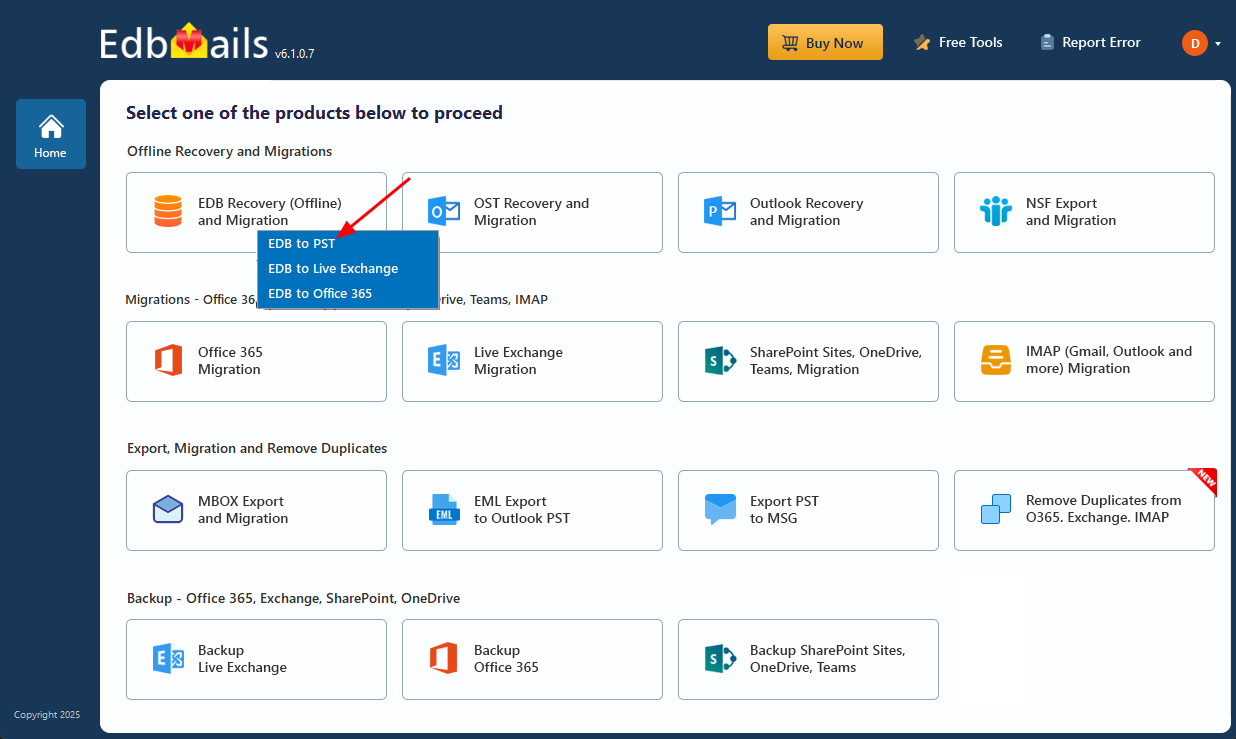
- Select ‘EDB Recovery (Offline) and Migration’ from the product list
- Select ‘EDB to PST’ option
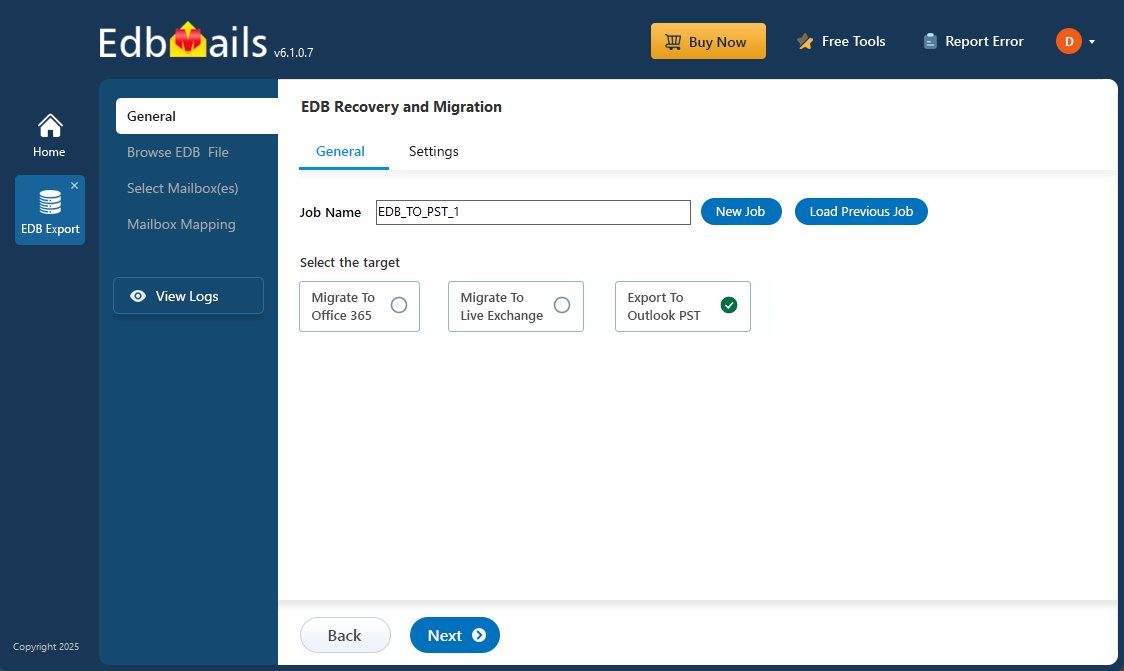
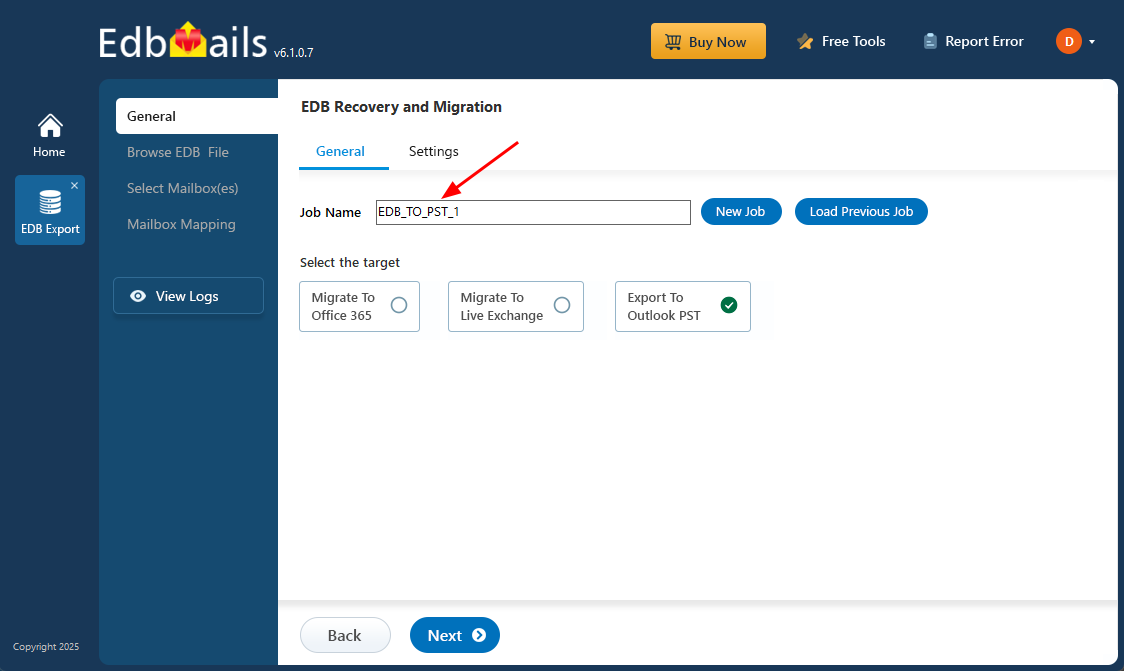
- You can stick with the default job name or choose ‘New Job’ to create a custom one.
- After setting the name, just click ‘Next’ to continue.
- Download EdbMails and install it on any Windows-based computer to get started.
Step 2: Select the offline EDB file
- Click ‘Browse for EDB file’
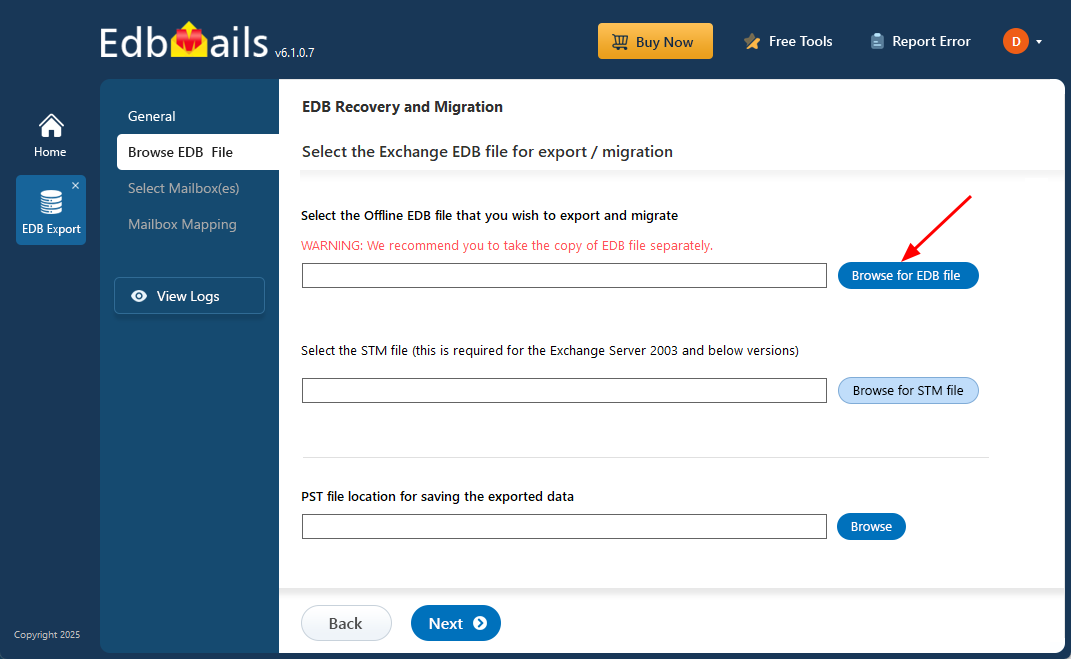
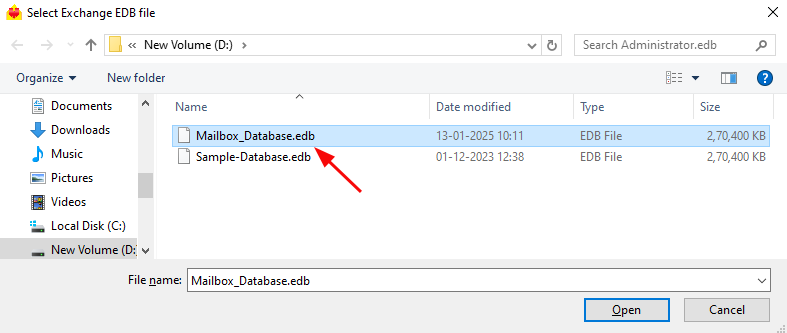
- Select the offline EDB file from your local drive and click ‘Next’ to continue.
- Click ‘Browse’
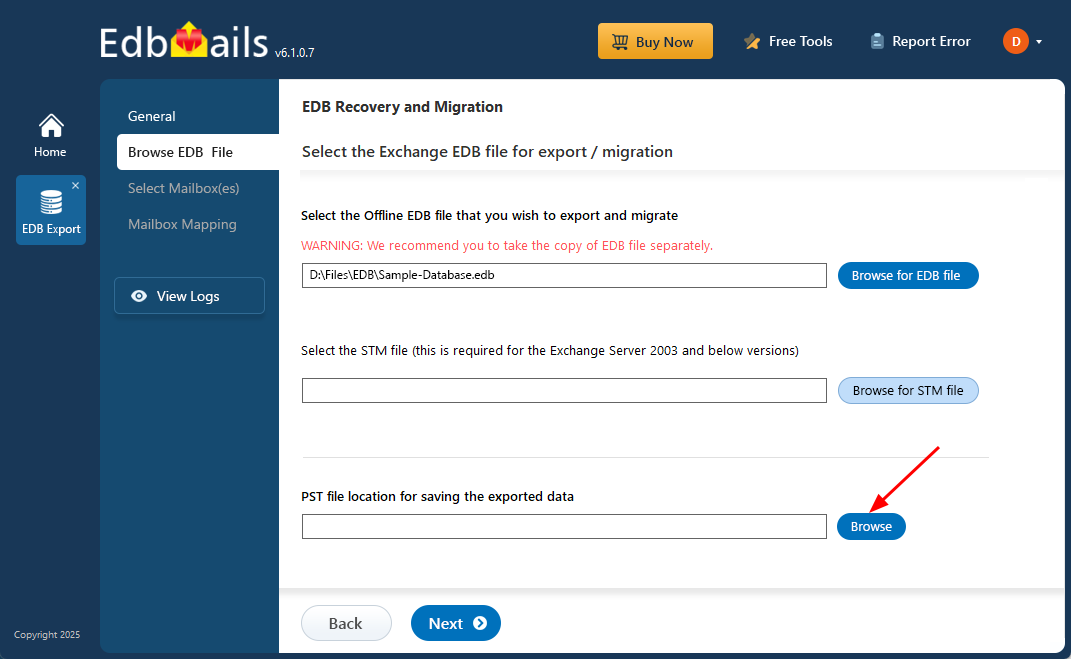
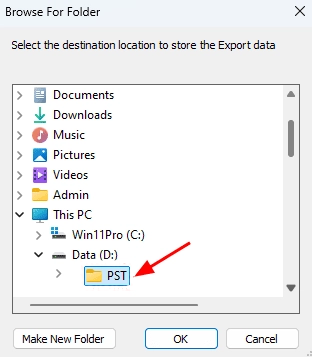
- Select a location to save the exported PST files and make sure your drive has sufficient free space for storing them.
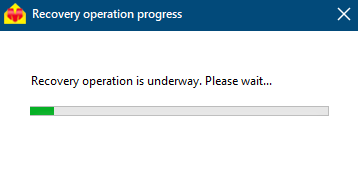
- EdbMails thoroughly scans offline EDB files to recover all mailbox data, including emails, contacts, calendars, and other items, even from damaged or partially corrupted files. By examining the internal database structure in detail it ensures precise and complete restoration. The scanning time depends on the file size and level of corruption.
- Click ‘Browse for EDB file’
Step 3: Select the mailboxes to export EDB to PST
- After EdbMails completes the EDB file recovery, all your mailboxes and folders become accessible within the application. Simply select the ones you wish to export, and click ‘Next’ to continue the process.
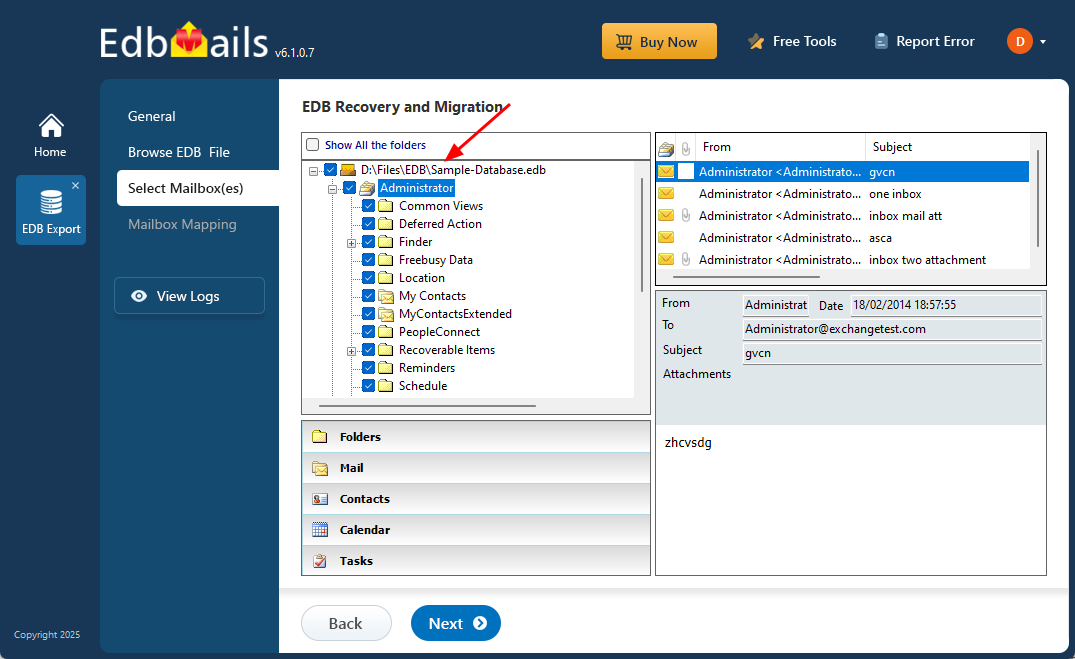
- After EdbMails completes the EDB file recovery, all your mailboxes and folders become accessible within the application. Simply select the ones you wish to export, and click ‘Next’ to continue the process.
Step 4: Convert EDB to PST
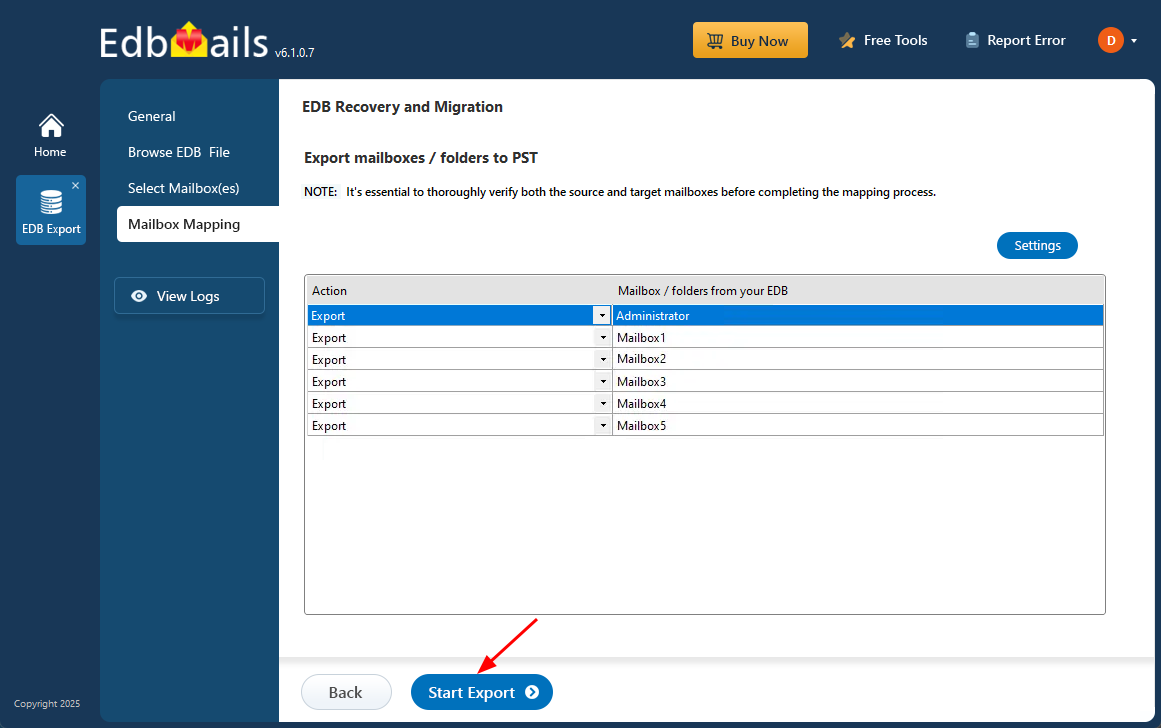
- Check the mailboxes and folders selected for export operation. Ensure that the 'Action' is set to 'Export', then click the 'Start Export' button.
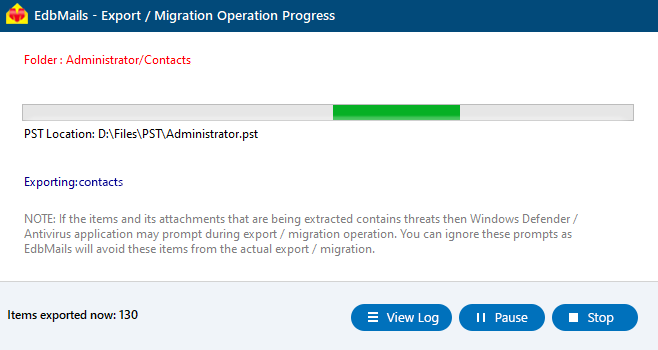
- You can track the export status in real-time using the progress bar. Once the process finishes, EdbMails will display a confirmation message indicating successful completion.
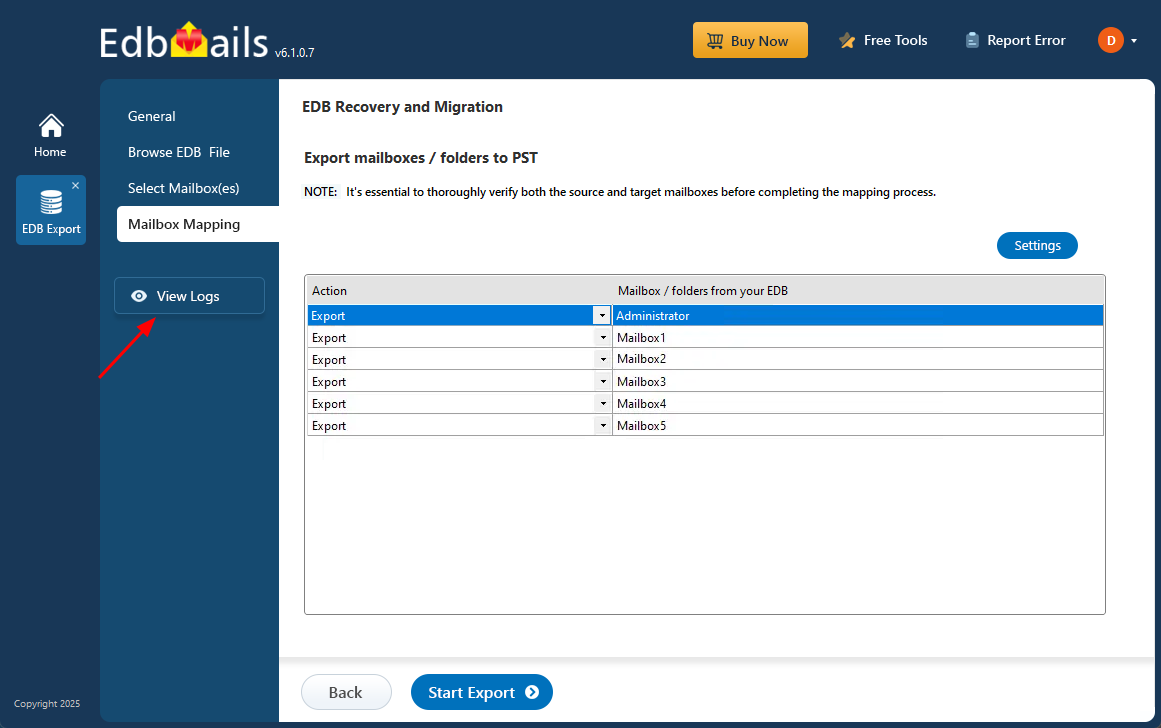
- Click the ‘View Logs’ button to view the export operation report
- Check the mailboxes and folders selected for export operation. Ensure that the 'Action' is set to 'Export', then click the 'Start Export' button.
Features of EdbMails Exchange EDB recovery
EdbMails is a feature-rich tool that allows you to easily open, view, export, and migrate your mail items from EDB to PST. Although this is not an exhaustive list, let us look at some of the application's key features.
- Convert the EDB file to PST file and migrate to Office 365
This application makes exporting EDB files to PST quick and simple. You can also directly migrate or import EDB files into Office 365 or another Exchange server with just a few clicks. It’s an ideal solution for recovering Exchange databases like 2013 and 2010—no need to use complex tools like eseutil.
- Convert and export Exchange Public folders to PST
EdbMails allows you to export not just user mailboxes, but also Exchange Public folders to PST files. It supports a wide range of Exchange versions—from older ones like 2003 and 2007 to the latest such as 2019 and 2016—making it a reliable choice for various recovery and export needs.
- Include and Exclude Filter options
There are many situations where you might need to export Exchange emails to PST based on a specific date or selectively extract items like contacts or certain folders—such as Inbox or Sent Items. This level of detailed, brick-level export is made easy with EdbMails. By default, it performs item-level recovery and offers advanced filters and rules, so you can include or exclude specific emails and folders as needed.
- Consistent folder hierarchy and integrity
EdbMails converter for EDB is a highly secure application that maintains perfect data formatting, and folder hierarchy structure on both the source and target without causing any data loss. This creates an identical replica of your email data ensuring 100% integrity and accuracy.
- Recover deleted mail items from EDB file
EdbMails helps you recover deleted mailboxes directly from an EDB file, even if they're no longer visible in the Exchange server. It can also retrieve deleted emails from individual mailboxes and supports the recovery of both private and public folders. Once recovered, the data can be exported to PST format for easy access and backup.
- Free Software Trial Version
EdbMails EDB to PST converter comes with a Free trial version using which you can export 30 mail items from each EDB folder to PST and migrate to Office 365 and Exchange allowing you to become acquainted with the product’s functionality and features.
Concluding Words
While the Exchange server is a popular choice for businesses globally, it is vulnerable to corruption and data loss. Quick recovery is essential to minimize both time and financial losses. There are two main methods for repairing and recovering an Exchange EDB file: the first uses Microsoft's native Eseutil utility, while the second involves EdbMails, a Microsoft-certified Exchange database recovery tool. However, the native method is often unreliable and can lead to data loss. Many IT professionals recommend EdbMails as a safer, more effective solution to repair and recover Exchange databases, convert EDB files to PST, and ensure no data loss or downtime.

