


Export OST Using a Date Range Filter
Date filtering exports only the mailbox items that fall within a From/To range you set — it doesn't change the source OST, and it only covers what's actually present in that file.
If expected items are missing, the usual reasons are an unsynced live mailbox, content that lives in the Online Archive rather than the primary mailbox, or a date range that doesn't match the item property being evaluated. See the limitations and troubleshooting sections below.
This page focuses specifically on date-range semantics, boundaries, and date-specific troubleshooting. If you need to combine date filtering with folder, sender, or item-type selection, see Selective OST Export for the combined-criteria workflow.
Organisations and individual users often need to export only a specific portion of mailbox data rather than the entire contents of an Outlook Offline Storage Table (OST) file. Common examples include preserving emails from a defined time period, creating archives for compliance, reducing the size of exported data, or migrating only recent mailbox content. In these situations, the ability to export OST using date filters helps limit the exported data to the required date range. The EdbMails OST to PST Converter supports date-based filtering, allowing users to export only mailbox items that fall within a specified date range instead of processing the entire OST file.
Date-based filtering helps export only the Outlook mailbox items that fall within a specified date range, reducing the size of the exported data and simplifying mailbox management. Understanding how this filtering works, its prerequisites, supported scenarios, and Outlook limitations helps ensure that only the required mailbox data is included during the export process.
What does it mean to Export OST using Date Filters?
An OST file is basically a local, offline copy of your mailbox - it syncs with Exchange, Microsoft 365, or an IMAP account set up for offline access. Rather than exporting every single item sitting in there, date filtering allows administrators and users to include only items that fall within a specified period.
EdbMails evaluates the date criteria available in the current Filter Settings for the selected item type. Do not assume that one email timestamp also governs Calendar, Contacts, Tasks, recurring meetings, or exceptions. Before a production export, confirm the exact supported date field for each required item type in the installed build and preview representative results.
Date property, boundaries, and time zone
For email, verify whether the selected filter evaluates the sent date, received date, or another property. Also verify whether From and To are inclusive, what time is assumed when only a date is entered, and which time zone is used. For recurring Calendar items, confirm how the series master, occurrences, and exceptions are evaluated. If the current build does not expose or document one of these rules, validate the intended boundary with sample items before exporting the full OST.
Date filtering for Contacts and Tasks may not follow email semantics. Apply it only where the current build explicitly supports the required item type and date property.
Use Cases for Exporting OST using Date Filters
Date-based export is useful in several administrative and operational scenarios.
Common use cases include:
- Creating a mailbox archive for a specific audit or financial period.
- Exporting only the recent mailbox data during migration projects.
- Splitting old, dormant mail away from active mailbox content.
- Keeping PST files small enough for easier storage and transfer.
- Saving mailbox data before an account gets decommissioned.
- Scoping a collection for legal discovery or internal investigations to a defined time range. Date filtering narrows what's collected; it doesn't by itself satisfy legal hold, chain-of-custody, or eDiscovery completeness requirements — those need their own process alongside it.
Filtering by date also minimises processing time by excluding unnecessary mailbox items from the export operation.
How Date Filtering Works during OST Export
When an OST export process supports date filters, the application scans mailbox folders and evaluates each supported item against the specified date range. Items that satisfy the filter criteria are included in the export, while all others are skipped.
For example, you set the range to January 1 through June 30, 2025 - only items falling in that stretch get processed. Everything else is left alone.
This approach differs from folder-based filtering because the export includes qualifying items regardless of where they are stored, provided the selected folders are included in the export scope. Date filtering does not modify the original OST file. It only controls which items are written to the destination file or migration target.
Classic Outlook itself has built-in search and filter tools, plus its own PST export via Import/Export, so date-scoped filtering isn't unique to third-party tools. Where a dedicated OST processing tool differs is applying that filtering directly to an offline or orphaned OST that Outlook itself can't open.
Important Considerations before Exporting OST using Date Filters
Before starting the export, verify the following prerequisites.
- Ensure the OST file is accessible
The file needs to exist and be readable enough to parse. If the mailbox is still live and the Outlook profile tied to it is active, Outlook should be able to open it without sync errors — but that's not a requirement for EdbMails specifically: it can scan and preview an orphaned OST independently, without needing Outlook or the original profile to open it first. That's the scenario a dedicated OST tool is built for.
- Verify mailbox synchronization
If this OST belongs to a live Exchange or Microsoft 365 account, give Outlook time to sync fully before you export. Items that have not yet synchronised from the server will not appear in the local OST and therefore cannot be exported.
- Confirm available storage
The destination location should have sufficient free disk space for the exported PST or other supported output format.
The required storage depends on:
- Mailbox size
- Selected folders
- Date range
- Included attachments
Limitations: What a Date Range Can and Can't Reach
- Cache completeness: for a live Cached Exchange Mode mailbox, only items already present in the local cache can be exported from the OST. A date range can be entered correctly and still return an incomplete result if the older mail it covers was never cached locally to begin with.
- Online Archive: a date range applied to the primary OST does not reach into the separate Online Archive mailbox. If the period you need lives in the Online Archive rather than the primary mailbox, use the archive recovery path instead.
Steps to Export OST using Date Filters
The exact procedure varies depending on the application used. In general, the workflow consists of the following steps:
- Open up the OST export application.
- Load the required OST file.
- Scan the mailbox if required.
- Preview the mailbox structure.
- Select the folders to export.
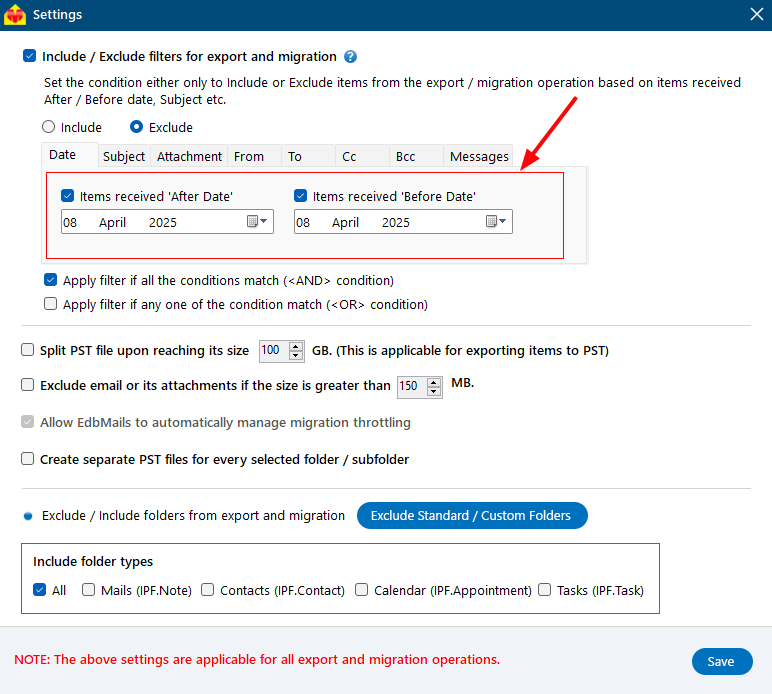
- Enable the date filter option.
- Specify the From and To dates.
- Choose the export format, such as PST.
- Select the destination folder.
- Start the export process.
If the application you're using supports it, you can usually stack the date filter with other criteria too - subject lines, attachments, item type, that sort of thing.
EdbMails own OST conversion process supports exactly this kind of date-based filtering during export, so only the items that fall within your chosen range get pulled in - without touching or altering the original OST file.
Example Date Ranges by Requirement
| Requirement | Example |
|---|---|
| Financial-year email export | 01-Apr-2025 through 31-Mar-2026 |
| Recent migration window | Last 90 days |
| Incident review | Exact From/To date-time, if your build supports time-level filtering |
| Old-content archive | Before a defined cutoff date |
Best practices for exporting OST by Date Filters
- Verify the selected date range before starting the export.
- Allow Outlook to complete mailbox synchronisation before exporting active mailboxes.
- Export to a local drive with adequate free space.
- Use meaningful file names that indicate the exported date range.
- Validate the exported PST by opening it in Outlook after completion.
- Keep the original OST unchanged until the export has been verified.
- If exporting large mailboxes, divide the export into smaller date ranges to simplify management.
These practices improve data organisation and reduce the likelihood of exporting unnecessary mailbox content.
Common Issues and Troubleshooting
- Expected items are missing
If some emails are not included in the export:
- Verify that Outlook completed synchronisation.
- Confirm the selected date range.
- Check whether the items were stored in folders included in the export.
- Ensure the items were not previously deleted or archived elsewhere.
- Confirm the date property being filtered (received, sent, etc.) is actually the one the missing item's date corresponds to.
- Check whether the item falls outside the current Cached Exchange Mode cache range rather than outside your selected date filter.
- Confirm the item isn't in the separate Online Archive mailbox rather than the primary mailbox OST.
- Rule out source corruption or a readability issue in the OST itself.
- Exported PST contains fewer items than expected
Possible causes include:
- Incorrect filter dates.
- Unsynchronised mailbox data.
- Folder selection exclusions.
- Export interruption before completion.
Review the export settings and repeat the operation if necessary.
- Large mailbox takes longer to process
Processing time depends on:
- OST file size
- Number of mailbox items
- Storage performance
- System resources
- Selected export scope
Limiting the export to the required date range generally reduces processing time compared to exporting the entire mailbox.
- Outlook cannot open the OST
Outlook can only access an OST associated with its original Outlook profile.
If the mailbox has been removed or the profile no longer exists, Outlook cannot mount the OST directly. In this situation, Outlook itself cannot perform the export, and an application capable of reading an orphaned OST is required.
Export OST by Date with EdbMails OST to PST Converter
The EdbMails OST to PST Converter applies date-based filters before the export begins, working on orphaned, inaccessible, or damaged OST files without needing Outlook or the original profile to open them first. It keeps the original folder structure intact and writes only the filtered result to PST, without touching the source file. Folder and item-type filters can be combined with the date range — see Selective OST Export for that combined workflow.
EdbMails can scan and preview an OST without Outlook. A supported Outlook installation with a configured profile is required when exporting the recovered data to PST; direct migration to Exchange or Microsoft 365 does not require Outlook for the target migration.
Validating a Date-Filtered Export
- Record the date range you selected before starting the export.
- Check the first and last items included in the result against that range.
- Spot-check an item just outside the range to confirm it was correctly excluded.
- Verify source-to-target item counts where that's meaningful for your job.
- Save the export report or log for your records.
Conclusion
Using date-based filtering is an effective way to export OST using date filters when only a specific portion of mailbox data is required. Rather than exporting the entire mailbox, administrators and users can restrict the export to a defined time period, making archives easier to manage and reducing storage requirements. Before starting the export, ensure the OST is accessible, the mailbox is fully synchronised, and the selected date range accurately reflects the required data. Applying these practices helps produce consistent and reliable export results while preserving the integrity of the original OST file.
Frequently Asked Questions
- Can Outlook export only emails within a specific date range?
Classic Outlook provides search and filter tools and can export mailbox data to PST. For repeatable filtering of an offline or orphaned OST outside its original profile, use a workflow that applies verified date criteria during OST processing.
- Does applying a date filter modify the original OST file?
No. A date filter affects only the export operation. The original OST file and its mailbox data remain unchanged.
- Can I combine date filters with other mailbox filters?
Some OST processing applications support combining date filters with additional criteria, such as folder selection, subject filters, or attachment-based filtering. The available options depend on the application's capabilities.
- What happens if new emails arrive during the export?
If Outlook is connected to an active mailbox, newly synchronised items that fall outside the processed portion of the export may not be included. For consistent results, allow synchronisation to complete before starting the export.
- Can I export an orphaned OST using date filters?
Yes, provided the application supports reading orphaned OST files and offers date-based filtering during the export process. Outlook itself cannot directly open or export an orphaned OST.
- Why are older emails missing even though the date range includes them?
A few likely reasons: the item was never cached locally in a live Cached Exchange Mode mailbox, so it isn't in the OST at all regardless of the date filter; the item is actually in the separate Online Archive mailbox rather than the primary mailbox; or the date filter is evaluating a different property (received vs. sent, for example) than the one you expected.
- Can I combine date filters with sender or subject filters?
Where the application supports it, yes — date filters can typically be combined with sender, subject, or folder criteria. See Selective OST Export for the combined-filter workflow.
- Which date does the filter use for email?
Confirm the current build's field definition before a production export. Depending on the implementation, received mail and sent mail may be evaluated using different message properties; do not assume one universal date field.
- Are the start and end dates inclusive?
Verify the boundary behavior in the current build, including whether time-of-day is accepted or each boundary represents a whole day. Test items exactly on both boundaries before relying on the result.
- Which time zone is used?
Confirm the time-zone basis used by the installed build and the workstation. Around daylight-saving changes or midnight boundaries, validate sample items before exporting the full data set.
- How are calendars, contacts, and tasks filtered?
These item types have different relevant date properties. Confirm which property the current build evaluates for each type, and spot-check recurring calendar items and task dates before treating the export as complete.
Does the date filter use the sent date, received date, or both?
Can I export items from an Online Archive using a date filter?
Will a date-filtered export miss items that have not fully synced to the OST yet?
Can I export a custom date range, or only preset periods like "last 30 days"?

