


EDB to Live Exchange Migration Step by Step Guide
EdbMails EDB to Exchange Migration Tool lets you directly import mailboxes data from an offline EDB file to a live Exchange server quickly. It supports all Exchange Server versions, including 2019, 2016, 2013, 2010, and 2007, making it ideal for organizations looking to upgrade their Exchange environment, consolidate servers, or recover from a corrupted database.EdbMails can recover corrupted EDB files and restore complete mailboxes, including emails, calendars, notes, and tasks, without requiring technical expertise. Its incremental migration ensures that only new or modified items are transferred in subsequent runs, preventing duplicates and reducing migration time.
The software also helps extract and migrate offline EDB files affected by Dirty Shutdown, Jet Engine errors, database mounting problems, and consistency check failures.
The following sections provide a step-by-step guide to recover and migrate mailboxes from an EDB file to a live Exchange server.
- Step 1: Check that your system meets the Exchange server setup requirements
The following links help you to set up your target Exchange server. Learn more about the network, hardware, coexistence scenarios, and operating system requirements for installing Exchange.
- Step 2: Prepare your system with the following prerequisites for Exchange
Complete the following prerequisites for Active Directory, Windows Mailbox server, and Windows Edge Transport servers before installing the target Exchange server.
- Step 3: Set up the target Exchange server for migration
Given below is a list of key points for installing and preparing the Exchange server for migration.
- Prepare the AD and domains
- Before installing Exchange Server, you need to prepare your Active Directory forest and its domains for the new version of Exchange.
- If you have a separate team to manage the Active Directory schema, you need to first extend the active directory schema, else proceed to the next step to prepare the Active Directory.
- If you have multiple domains you need to additionally prepare the Active Directory domains.
- Install Exchange server on your computer
Ensure that you meet the server system requirements and prerequisites as outlined previously. Next, follow the link to install Exchange 2016 or install Exchange 2019 from the setup wizard based on which server you want to migrate to.
- Prepare a clean Exchange target environment
Configuring Exchange Server for Mail Flow and Connectivity
- Create and configure a Send connector to send mail outside the Exchange organization.
- By default, Exchange automatically creates receive connectors for inbound mail flow when the mailbox server is installed. If you need to configure receive connectors manually, follow the steps in the link.
- Add accepted domains to allow recipients to send and receive email from another domain.
- Configure the default email address policy to add the accepted domain to every recipient in the organization.
- Configure external URLs (domains) on the virtual directories in the Client Access (frontend) services on the Mailbox server to allow clients to connect to your server from the internet (outside the organization’s network).
- Configure internal URLs on the virtual directories in the Client Access (frontend) services on the Mailbox server to allow clients to connect to your server from the internal network.
- Configure SSL certificates from a third-party certificate authority for services such as Outlook Anywhere and Exchange ActiveSync.
- Verify the Exchange server installation by running the command Get-ExchangeServer on the Exchange Management Shell (EMS).
- Create mailboxes and Public folders on the Exchange server
Before you migrate your mail data, ensure that you create mailboxes on the target server and assign suitable licenses to them. For the Public folder migration, create mail-enabled Public folders.
- Assign management roles to the admin account
- Application Impersonation
- View-Only Recipients
- View-Only Configuration
Also assign the Organization Management role group to the admin user. It is an elevated permission that is required for mailbox and Public folder migration.
- Verify the mailbox of the admin account
Check to see if the admin account that has been assigned management roles has a valid and non-hidden mailbox on the Exchange server.
- Configure the throttling and message-size limits
Change the EWS throttling and message size limits manually on the Exchange server by following the steps in the link.
- Prepare the AD and domains
- Step 1: Check that your system meets the Exchange server setup requirements
Steps to import EDB to Exchange server using EdbMails
Step 1: Download and install EdbMails software
- Download and install EdbMails
See a detailed list of EdbMails system requirements for EDB Recovery and migration.
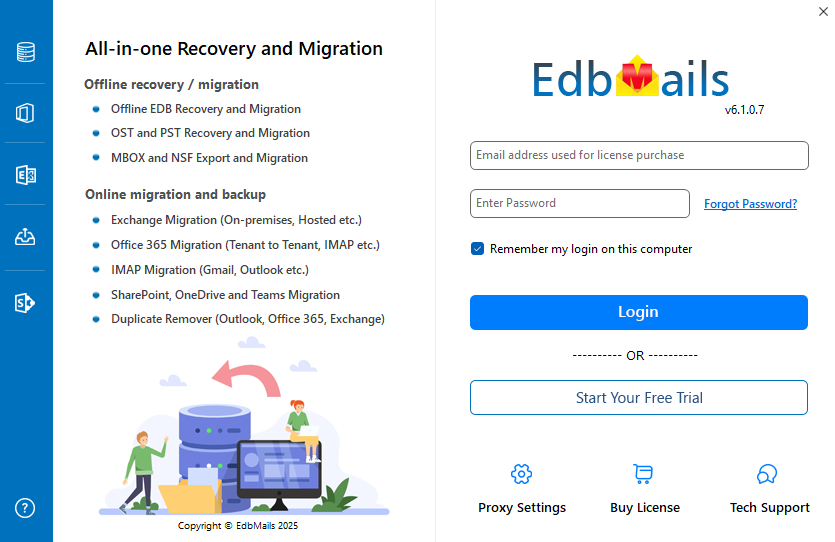
- Open the EdbMails application on your computer.
- Log in using your registered email address and password, then click ‘Login’. If you’re a new user, select ‘Start Your Free Trial’ to access the trial version.
Note: The free trial lets you explore all major features and migrate up to 30 items from each folder. To unlock the full functionality without limitations, you’ll need to purchase a valid license from the EdbMails website.
Click here to purchase the license from the EdbMails website.
Once your purchase is complete, close and reopen the EdbMails application, then log in again with the same credentials to successfully activate your license.
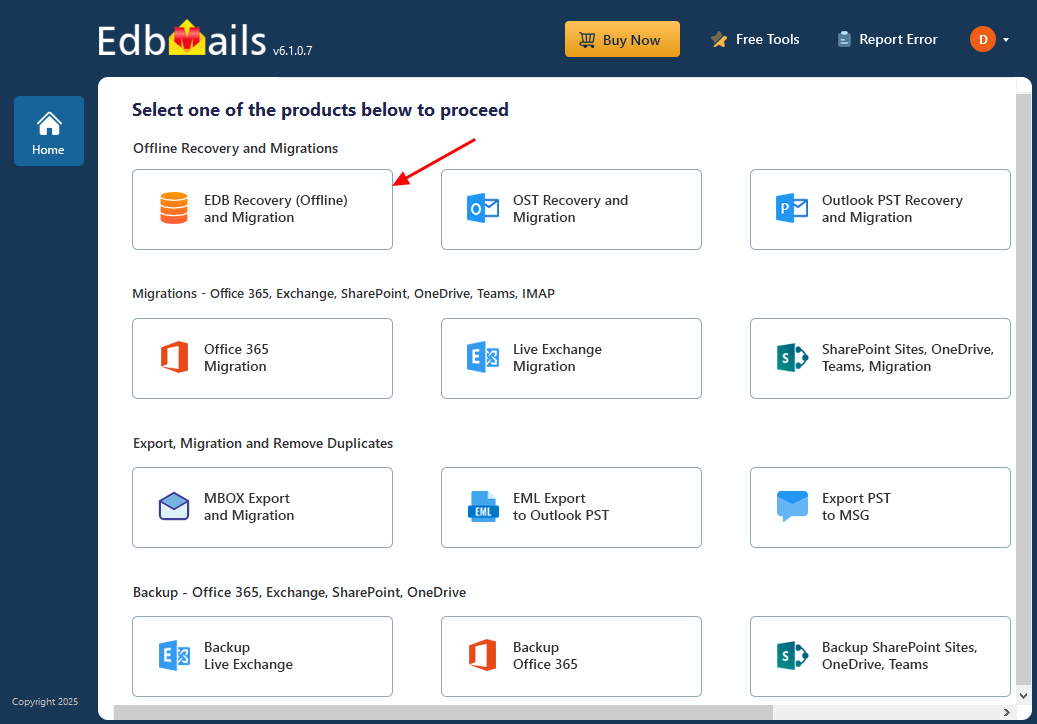
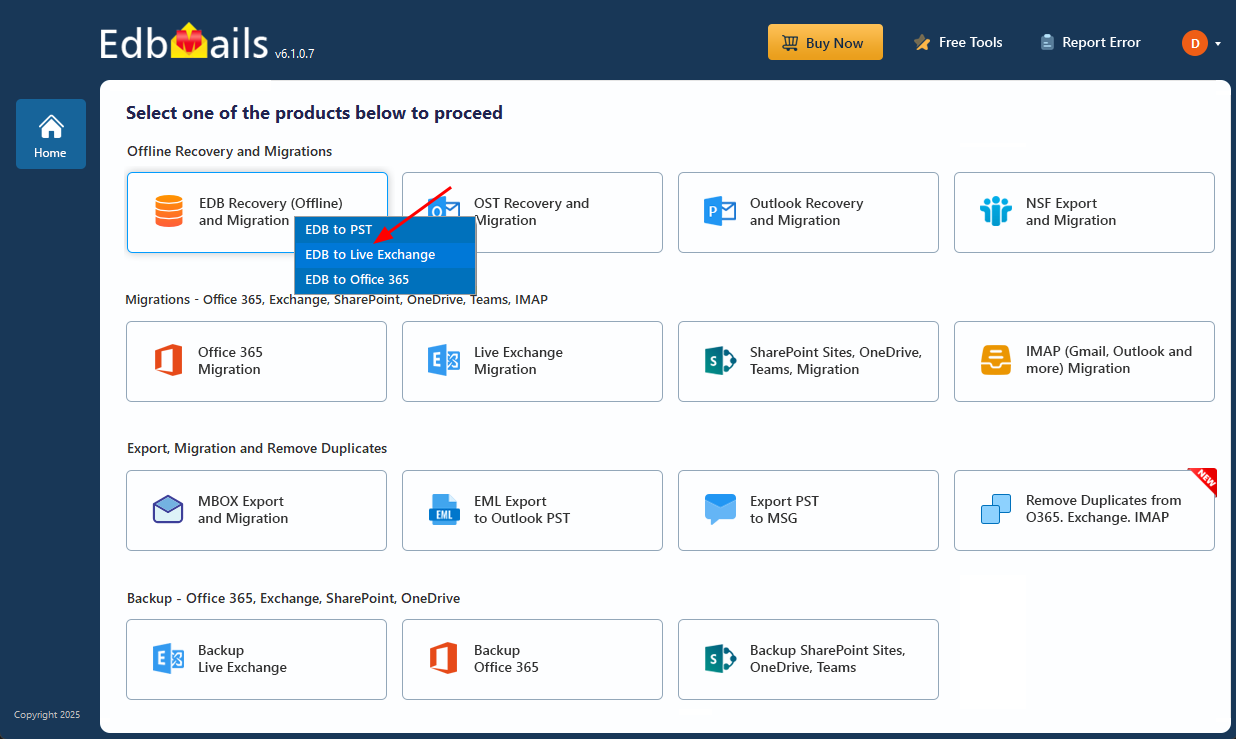
- Select ‘EDB Recovery (Offline) and Migration’.
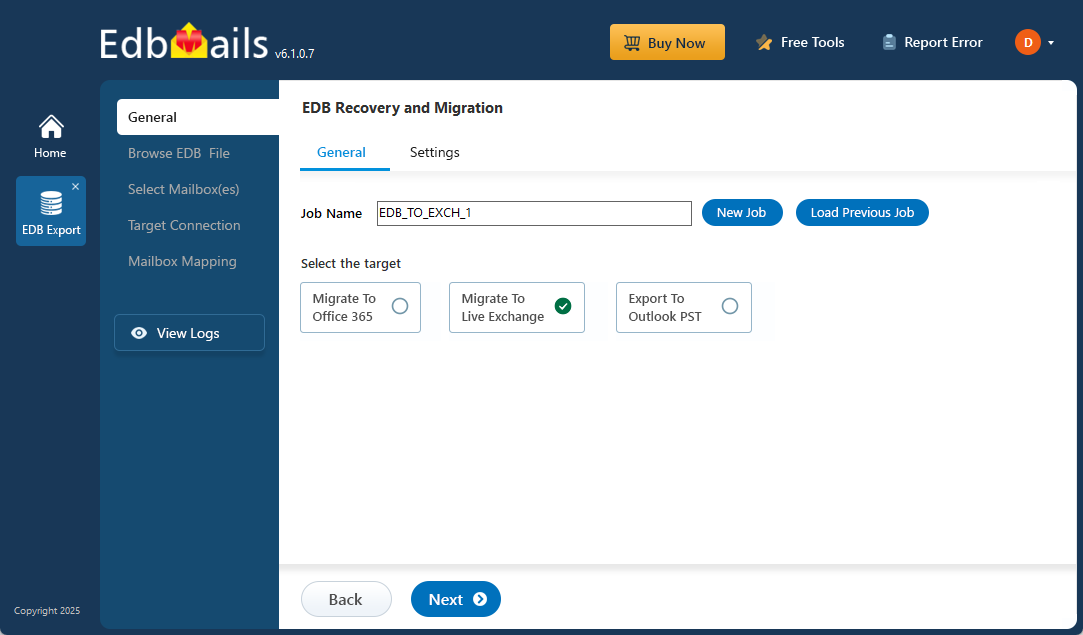
- Select 'EDB to Live Exchange'
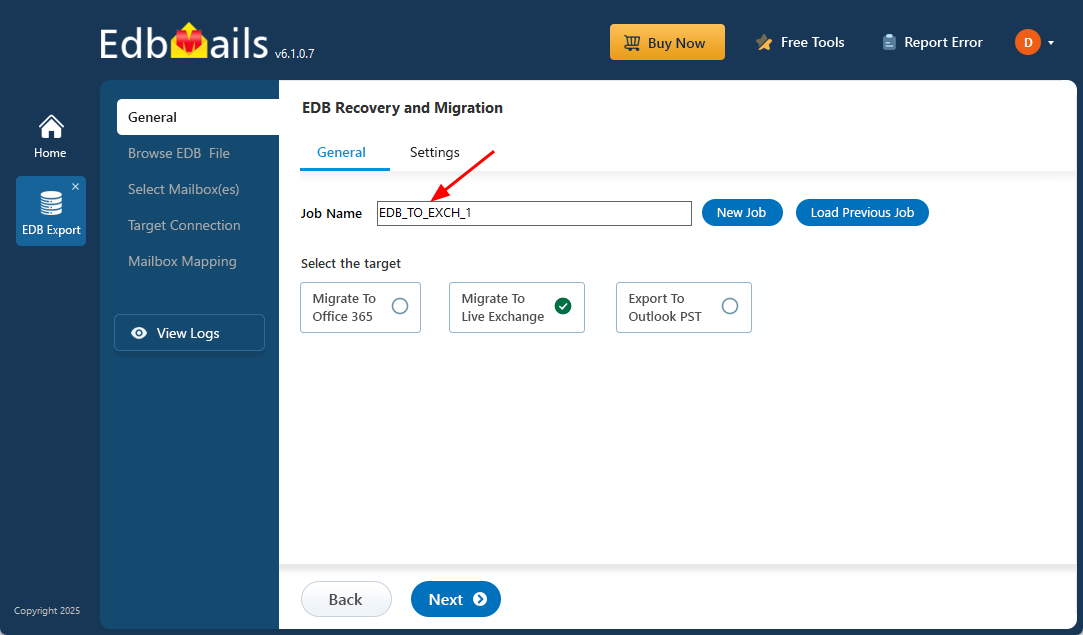
- You can keep the default job name or select the ‘New Job’ button to change the job name.
- Then, click ‘Next’ to continue.
- Download and install EdbMails
Step 2: Select the offline EDB file
- Click ‘Browse for EDB file’.
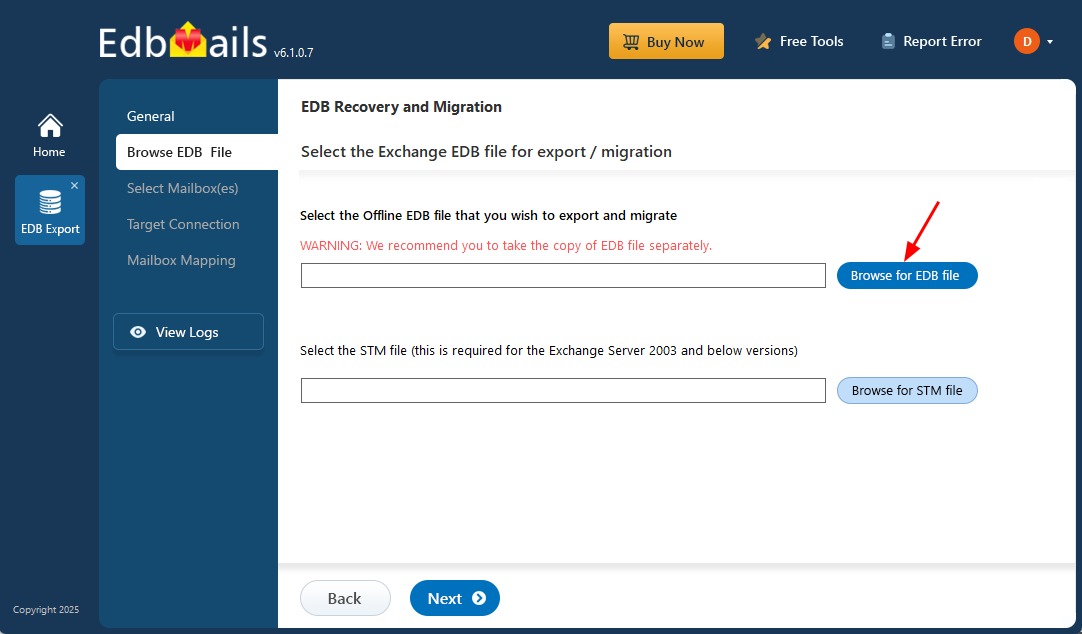
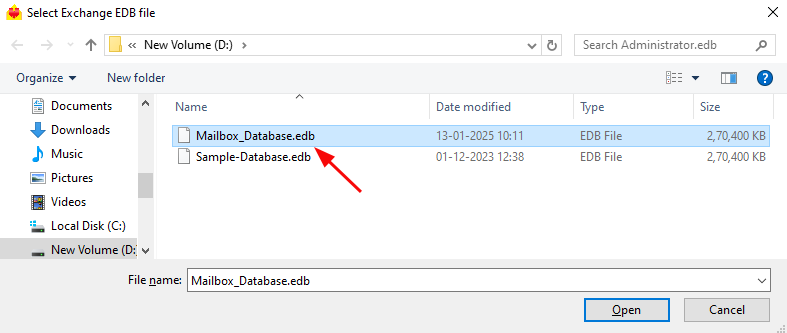
- Choose the EDB file from your local drive and click ‘Next’ to continue. Alternatively, you can select an EDB file located on a shared network drive, as long as the necessary read and write permissions are granted.
- EdbMails thoroughly scans offline EDB files and recovers mailbox data, even from corrupted or partially damaged files. The tool carefully analyzes the file’s internal structure to retrieve emails and all other mailbox items. Recovery time may vary depending on the file size and level of corruption, so it’s important to let the process complete for a precise and complete restoration.
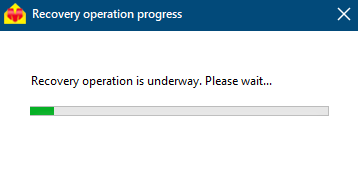
- Once the recovery is complete, all EDB file data is displayed within the application, preserving the entire folder and subfolder structure. You can click on any folder to explore its contents in detail. Selecting items such as Emails, Contacts, Notes, Tasks, or Calendar shows a clear preview of the data on the right pane. With EdbMails EDB to PST Converter, you can effortlessly open and view EDB files, even without an Exchange server.
- Select the required mailboxes/folders and click the 'Next' button to continue.
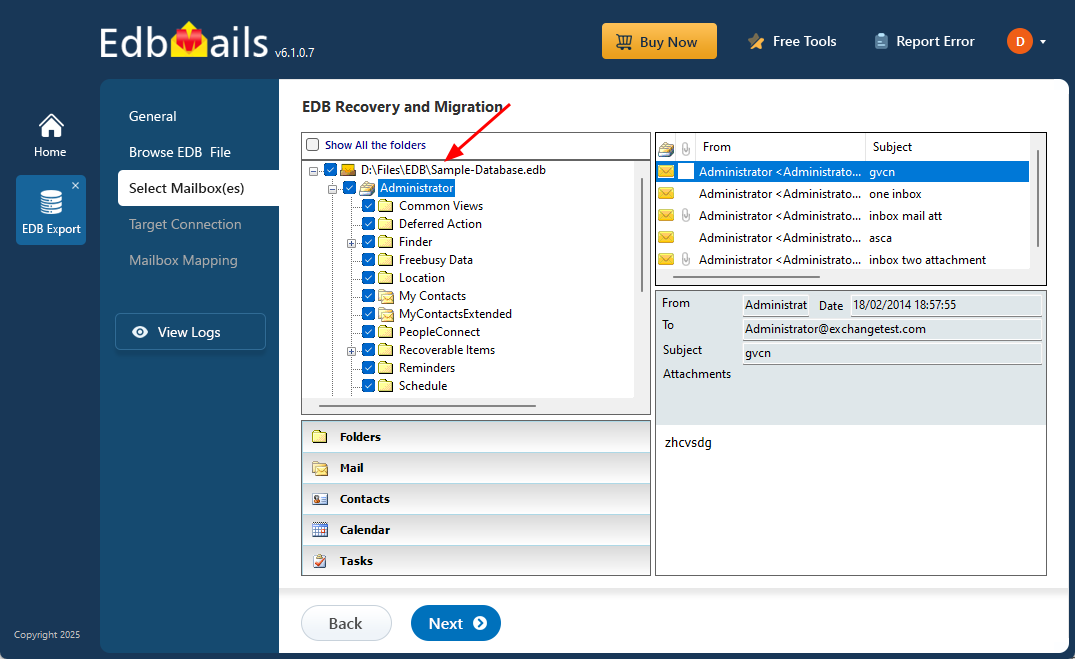
- Click ‘Browse for EDB file’.
Step 3: Connect to the target Exchange server
- To connect to the Exchange Server, click ‘Add New Connection’ to set up a new connection. If you want to use a previously saved configuration, simply select it from the connection list and click ‘Connect to Existing’ to proceed.
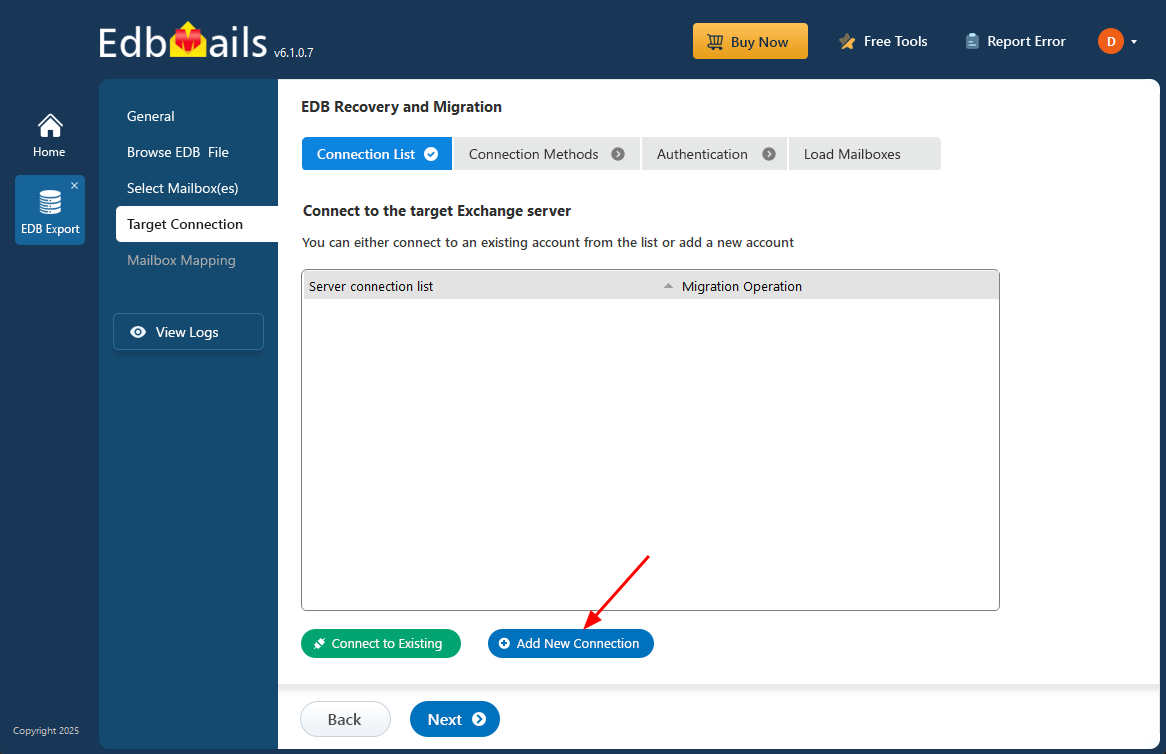
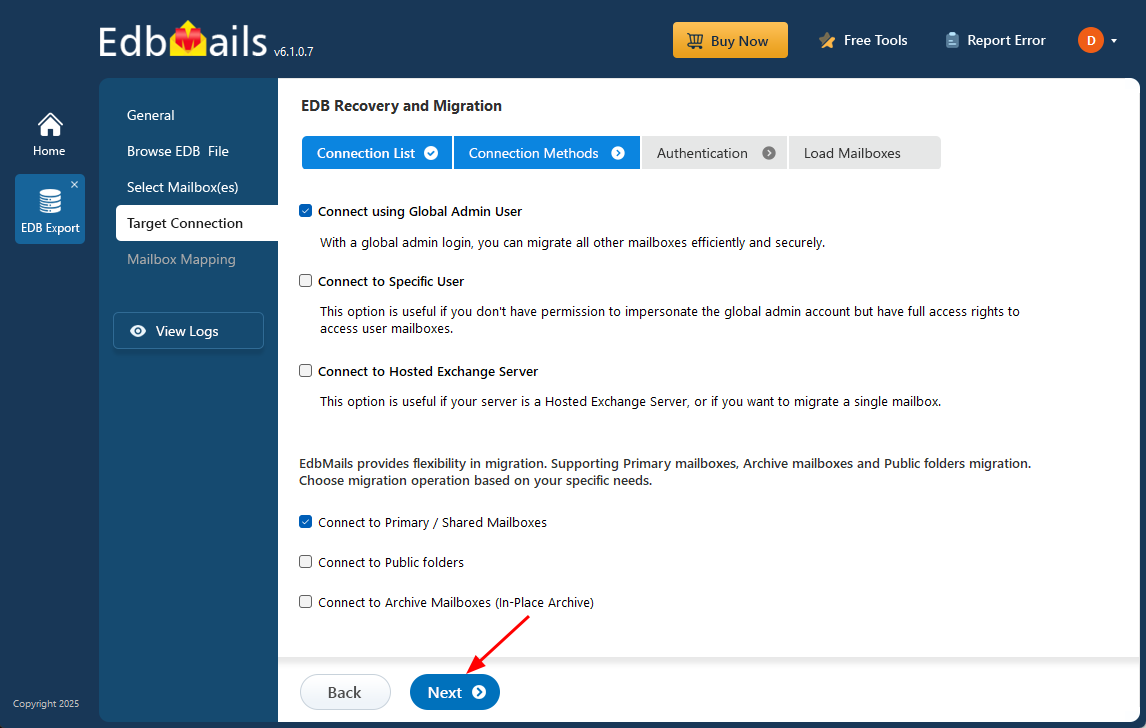
- Select the required connection options and click the ‘Next’ button.
Different options to connect to Exchange server in EdbMails
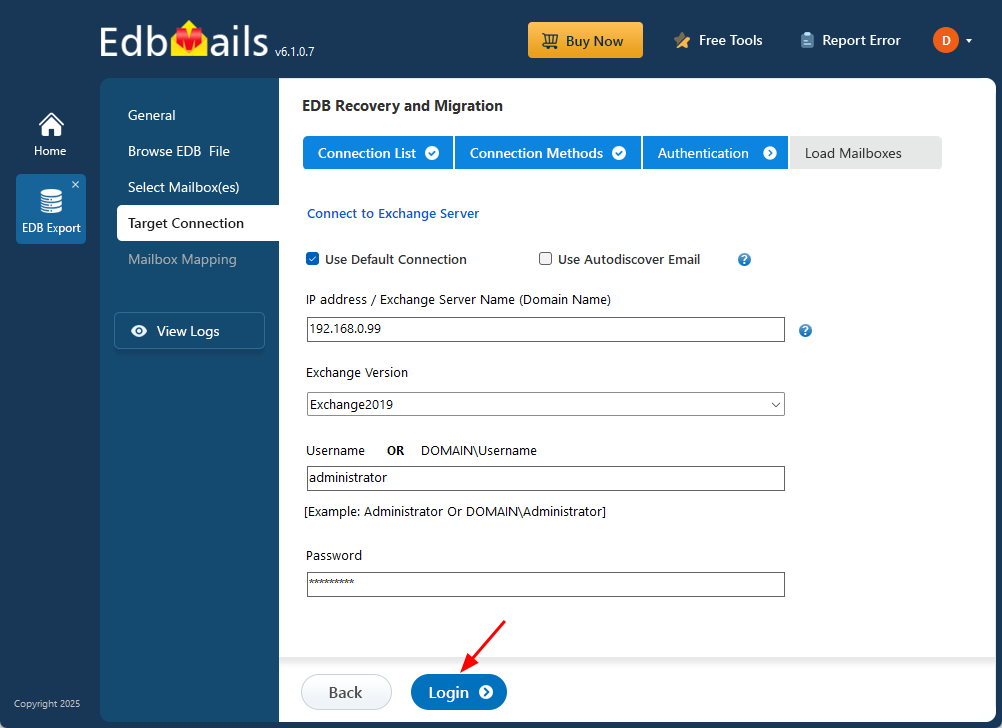
- Enter the Exchange Server details and click 'Login' to proceed with Exchange server Connection
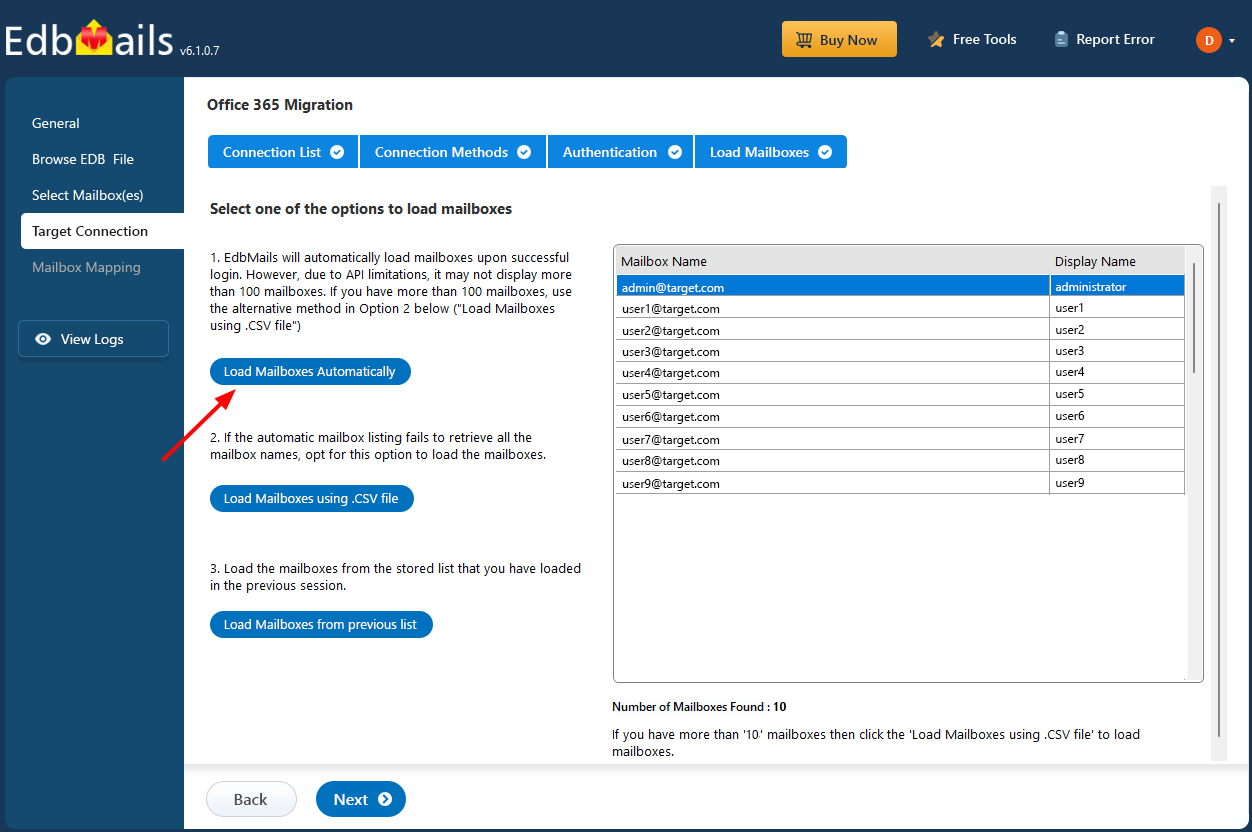
- Select one of the methods to load the mailboxes. You can also load mailboxes using CSV files.
- To connect to the Exchange Server, click ‘Add New Connection’ to set up a new connection. If you want to use a previously saved configuration, simply select it from the connection list and click ‘Connect to Existing’ to proceed.
Step 4: Map source and target mailboxes
- Choose the required mailbox mapping option
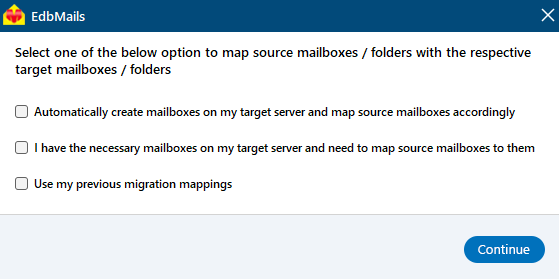
- If you have installed EdbMails on your Exchange server, you can choose to automatically create mailboxes on the target Exchange server.
Click here to know more about automatic mailbox creation
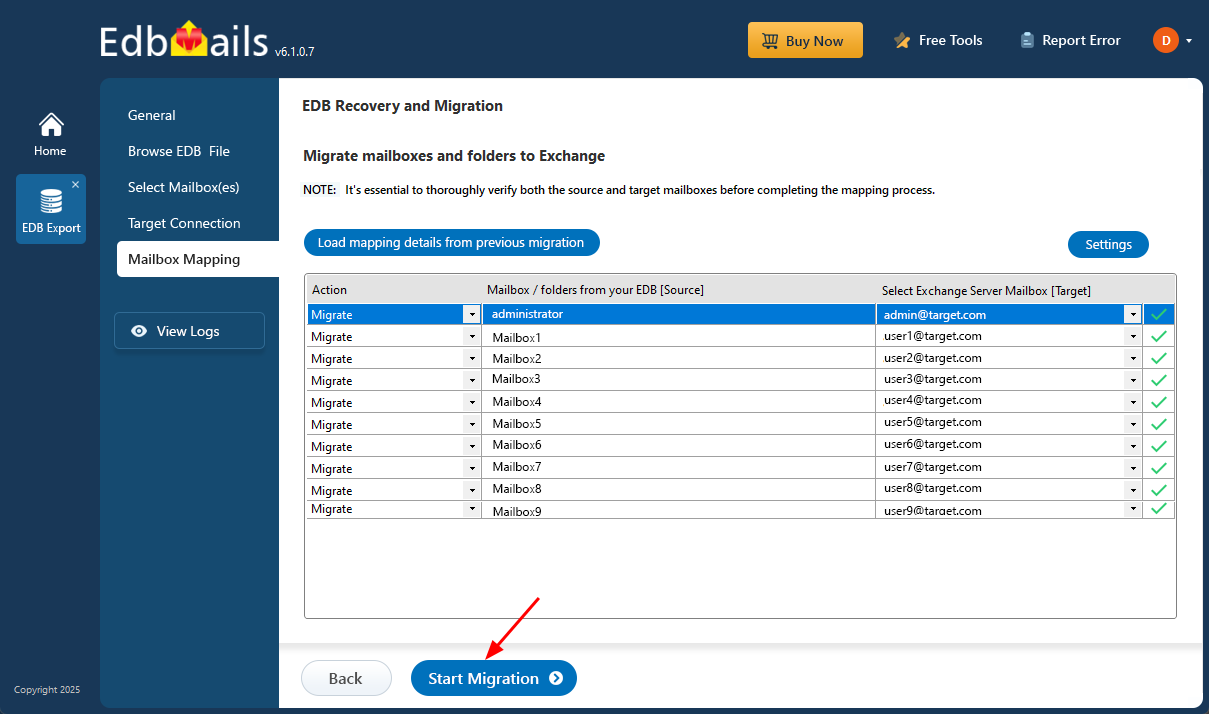
- EdbMails automatically maps mailboxes and folders between the source and target servers, ensuring a smooth and consistent migration experience. If needed, you can also manually assign specific source mailboxes to their correct destination mailboxes, allowing accurate alignment based on organizational structure or user requirements.
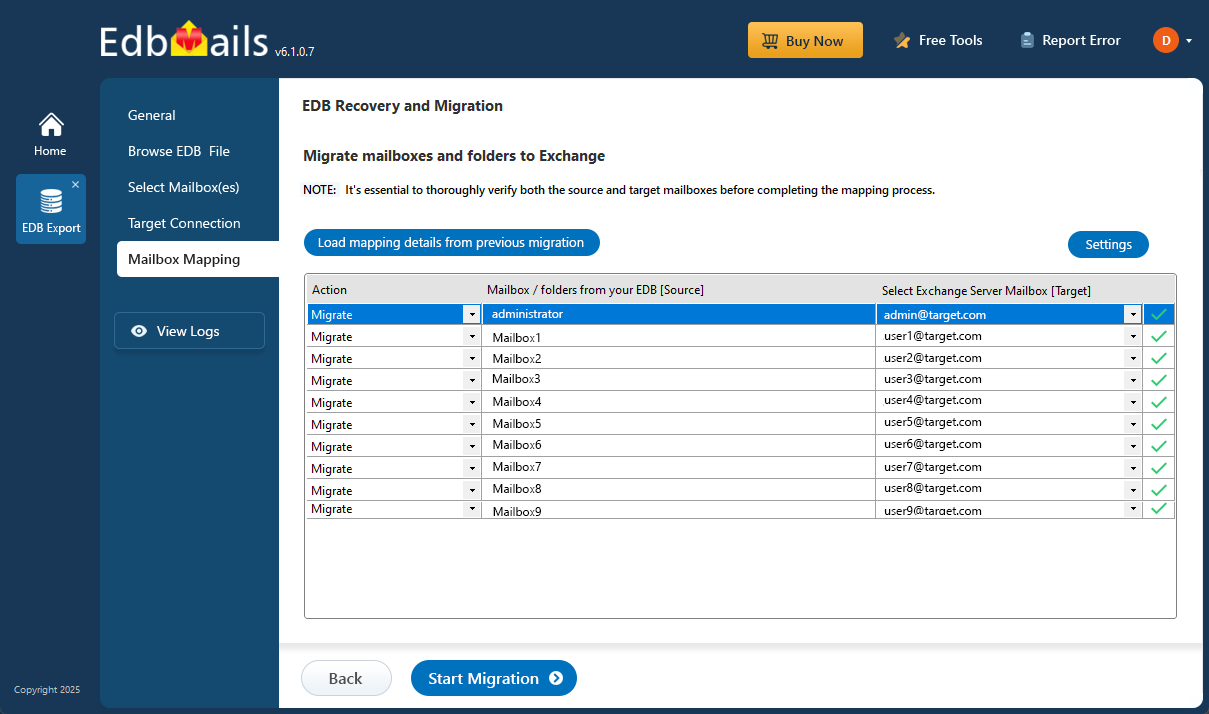
- EdbMails lets you apply filters to customize your EDB to live Exchange migration, so you can move only the mailboxes or items you need. For instance, date filters allow you to migrate emails from a specific time period, making the process faster and more efficient. To set filters, simply click the ‘Settings’ button on the right-hand side of the interface.
Click here to learn more about setting date filters for EDB to live Exchange Migration
- Choose the required mailbox mapping option
Step 5: Start EDB to live Exchange migration
- Once the mapping is complete, click the ‘Start Migration’ button.
- During migration, you can track progress in real-time. Once completed, a confirmation message will appear.
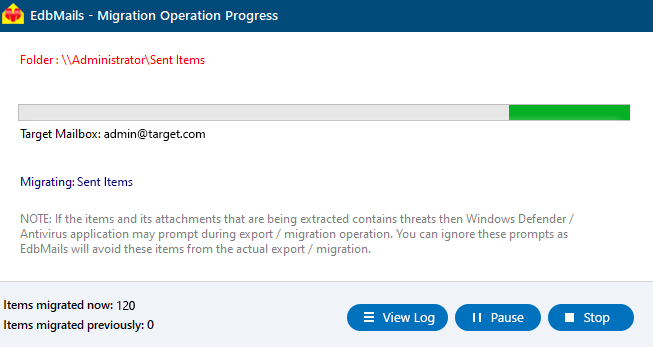
- Click the ‘View Logs’ button to access the migration log report and verify the count of migrated emails, folders, and mailbox items.
- Once the mapping is complete, click the ‘Start Migration’ button.
Benefits of using EdbMails to import EDB to Exchange Server
- EdbMails can fully recover corrupted EDB files and enables direct migration from EDB to Exchange server 2016, 2019 and 2013.
- You can import mailboxes from EDB to an Exchange server without size limitations.
- Migrate selected mailbox items with the advanced filter settings.
- Single recovery and migration tool for both Exchange and Office 365.
- Best solution to upgrade and migrate mailboxes from legacy Exchange server (2000, 2003 and 2007) to the latest Exchange Server
- Migrate deleted email items and Public folder mailboxes from EDB to Live Exchange. More Features
Frequently Asked Questions (FAQ)
Does EdbMails support migration to live Exchange 2016 and 2019?
Yes, EdbMails supports direct migration from offline EDB files to live Exchange Server 2013, 2016, and 2019. The tool connects to the target server using Exchange Web Services (EWS) and securely transfers mailbox data.
Can emails get duplicated if the migration is performed again?
No. EdbMails prevents duplication by using an incremental migration approach. It tracks the items that have already been migrated using stored metadata, ensuring they are not transferred again. When you rerun the migration, only newly added or previously missed emails are synced to the destination, keeping the mailbox free from duplicates.
How does the licensing work for EDB to Live Exchange migration?
EdbMails provides an edition-based licensing model for EDB to Live Exchange migration. After purchasing a valid license, you can migrate unlimited Exchange database files to Live Exchange without any file size restrictions. For more information on available editions and pricing details, visit the pricing page.

