
EdbMails EDB Recovery and Migration software
  • Products
    EdbMails
    All-in-one Recovery and Migration
    • EDB Recovery and Migration
    • OST, PST, MBOX, NSF, EML, MSG
    • Office 365, Exchange Migration
    • SharePoint, OneDrive & Teams
    • Google Workspace Migration
    • IMAP Migration
    • Duplicate Remover
    • EdbMails Data Recovery
    • Backup Solutions
    • All ProductsAll Products

    EDB Recovery and Migration

    EdbMails lets you recover corrupted, damaged, and offline Exchange EDB files, convert EDB mailboxes to PST format, and directly migrate mailbox data to Office 365 and live Exchange Server.

    EDB to PST
    EDB to PST
    Recover corrupted, damaged, offline EDB files and convert Exchange EDB mailboxes to PST file format
    Public Folder to Exchange
    Public Folder to Exchange
    Migrate public folders from an Exchange offline EDB file to live Exchange Server
    EDB to Live Exchange Migration
    EDB to Live Exchange Migration
    Directly migrate offline Exchange database (EDB) files to live Exchange server
    Archive Mailbox to Office 365
    Archive Mailbox to Office 365
    Migrate archive mailboxes from offline EDB files directly to Office 365
    EDB to Office 365 Migration
    EDB to Office 365 Migration
    Directly migrate offline Exchange database (EDB) files to Office 365
    Public Folder to Office 365
    Public Folder to Office 365
    Migrate public folders from an offline Exchange EDB file to Office 365

    OST, PST, MBOX, NSF, EML, MSG Export and Migration

    EdbMails lets you to recover OST and PST files, export OST, PST, MBOX, NSF, EML, and MSG files to PST files, and directly migrate OST, PST, MBOX, and NSF mailbox data to Office 365 and live Exchange Server.

    OST Recovery and Migration
    OST Recovery and Migration
    Recover offline OST files, convert OST to PST, and migrate OST to Office 365 and Exchange Server
    PST Recovery and Migration
    PST Recovery and Migration
    Recover Outlook PST files , Export PST to PST, migrate PST to Office 365 and Exchange Server
    MBOX Export and Migration
    MBOX Export and Migration
    Export MBOX to PST, migrate MBOX to Office 365 and Exchange Server
    NSF Export and Migration
    NSF Export and Migration
    Export NSF to PST, migrate NSF to Office 365 and Exchange Server
    EML to PST Export
    EML to PST Export
    Convert EML files to Outlook PST files
    PST to MSG Export
    PST to MSG Export
    Convert Outlook PST file to MSG file format
    MSG to PST Export
    MSG to PST Export
    Export MSG files to Outlook PST files

    Office 365, Exchange Migration

    EdbMails lets you securely migrate mailboxes across Microsoft 365, Exchange, Google Workspace (Google Workspace Migraton), and IMAP-supported servers such as Outlook, Gmail, Zimbra, Zoho Mail, and cPanel, ensuring zero downtime.

    Office 365 Backup
    Office 365 Migration
    Migrate between Office 365 tenants, Office 365 to Exchange, Office 365 to PST, PST files to Office 365.
    Exchange Server Backup
    Exchange Migration
    Migrate between any Exchange Servers, Exchange to Office 365, Exchange to PST, PST files to Exchange.
    Tenant to Tenant Migration
    Tenant to Tenant Migration
    Migrate Mailboxes, Public Folders, Archive Mailboxes between Office 365 Tenants.
    Exchange to Office 365
    Exchange to Office 365
    Migrate Mailboxes, Public Folders, Archive Mailboxes from live Exchange server to Office 365.
    Office 365 to IMAP
    Office 365 to IMAP
    Migrate Office 365 to IMAP, Office 365 to Gmail, Office 365 to Outlook, Office 365 to Zoho etc.
    Exchange to IMAP
    Exchange to IMAP
    Migrate from live Exchange Server to IMAP servers such as Gmail, Outlook, and Zoho Mail.
    Public Folder to Office 365
    Public Folder to Office 365
    Migrate Public Folders between Office 365 tenants with complete folder hierarchy and mailbox data integrity.
    Exchange to PST
    Exchange to PST
    Export live Exchange Server mailboxes, public folders, and archive mailboxes to Outlook PST files.

    SharePoint, OneDrive & Microsoft Teams Migration

    EdbMails lets you migrate SharePoint sites, OneDrive data, Microsoft Teams, teams, channels, chats, permissions, and documents between Microsoft 365 tenants while maintaining the existing folder structure and data integrity.

    SharePoint, OneDrive & Teams Backup
    SharePoint Online Migration
    Migrate documents, lists, files and folders from SharePoint sites.
    OneDrive for Business Migration
    OneDrive for Business Migration
    Migrate documents, lists, files, folders, private chats from OneDrive.
    Microsoft Teams Migration
    Microsoft Teams Migration
    Migrate Teams, chats, channels, documents, files and folders etc.

    Google Workspace / G Suite Migration

    EdbMails offers secure Google Workspace migration to Office 365, Exchange, or IMAP, and export to PST covering emails, contacts, calendars and tasks.

    Google Workspace Migration
    Google Workspace Migration
    Migrate emails, calendars, contacts, tasks from Google workspace to Google workspace, office 365, Exchange and IMAP. Export to PST
    Google Workspace to Office 365
    Google Workspace to Office 365
    Migrate emails, calendars, contacts, tasks from Google Workspace / G Suite to Office 365
    Google Workspace to Exchange Server
    Google Workspace to Exchange Server
    Migrate emails, calendars, contacts, tasks from Google Workspace / G Suite to on-Premise Exchange Server
    Google Workspace to IMAP
    Google Workspace to IMAP
    Migrate emails, calendars, contacts, tasks from Google Workspace / G Suite to IMAP, Outlook, Zimbra, Zoho etc.
    Google Workspace to Google Workspace Migration
    Google Workspace to Google Workspace
    Migrate emails, calendars, contacts, tasks between two Google Workspace / G Suite tenants
    Google Workspace to PST
    Google Workspace to PST
    Export emails, calendars, contacts, tasks from Google Workspace / G Suite to Outlook PST files

    IMAP Migration

    EdbMails IMAP Migration tool lets you easily migrate emails from IMAP servers such as Outlook, Gmail, Zoho Mail, Zimbra, cPanel, and more. Supports IMAP to IMAP, Office 365, Exchange Server, PST, and bulk PST to IMAP migration.

    IMAP Email Backup & Migration
    IMAP Email Backup & Migration
    Backup and migrate emails from IMAP servers to PST, Office 365, and On-Premises Exchange Server
    IMAP to Office 365
    IMAP to Office 365
    Migrate emails, folders, and attachments from IMAP servers to Office 365
    IMAP to Exchange
    IMAP to Exchange
    Migrate emails, folders, and attachments from IMAP servers to on-premises Exchange Server
    IMAP to PST
    IMAP to PST
    Export emails, folders, and attachments from IMAP servers to Outlook PST files for backup
    PST to IMAP
    PST to IMAP
    Migrate emails, folders, and attachments from bulk PST files to IMAP servers

    Duplicate Remover

    EdbMails Duplicate Remover lets you easily remove duplicate items from Office 365 and Exchange Server, and from IMAP, Outlook, Gmail, Zimbra, Zoho Mail, etc., ensuring a clean and organized mailbox.

    Remove Duplicates
    Remove Duplicates
    Easily clean up your Office 365, Exchange, Outlook and IMAP accounts by removing duplicate emails.
    Remove Duplicates from Office 365
    Remove Duplicates from Office 365
    Remove duplicate emails, calendars, contacts, journal tasks, etc. from Office 365.
    Remove Duplicates from Exchange Server
    Remove Duplicates from Exchange Server
    Remove duplicate emails, calendars, contacts, journal tasks, etc. from live Exchange Server.
    Remove Duplicates from IMAP, Outlook
    Remove Duplicates from IMAP, Outlook
    Remove duplicate emails, attachments from IMAP, Outlook, Gmail, Zimbra, Zoho Mail etc.

    Exchange, SharePoint, OneDrive, Teams and Office 365 Backup

    EdbMails enables secure, automated backup and recovery for Microsoft 365 services including Exchange Online, SharePoint, OneDrive, Teams, and Live Exchange Server with complete data protection and restore flexibility.

    Office 365 Backup
    Office 365 Backup
    Incremental, Granular, Encrypted and Compressed Office 365 Mailboxes Backup
    Exchange Server Backup
    Exchange Server Backup
    Incremental, Granular, Encrypted and Compressed Exchange Mailboxes Backup
    SharePoint, OneDrive & Teams Backup
    SharePoint, OneDrive & Teams Backup
    Backup Online site collections, Team sites, Office 365 groups, all documents etc.

    EdbMails Data Recovery

    EdbMails Data Recovery Software lets you recover permanently deleted data, including photos, videos, documents, and archived files, from partitions on hard drives, SSDs, USB drives, SD cards, and external storage devices.

    EdbMails Data Recovery
    EdbMails Data Recovery
    Recover and restore permanently deleted data from hard drives, SSDs, USB drives, SD cards, and etc.
    Whitepaper Whitepaper
    Request a Demo Request a Demo
    Sign Up Sign Up
  • Features
  • FAQ
  • Offers
  • Pricing
  • Download
  • Support
  • Sign in
User’s Manual
Google Workspace Migration

User Manual

User Manual

  • Overview
  • System Requirements
  • Migration Scenarios
  • Installation
    • Installation process
    • Reinstall or Upgrade
    • How to uninstall
  • FAQs
    • Google Workspace to Office 365
    • Google Workspace to IMAP
    • Google Workspace to Exchange
    • Google Workspace to Google Workspace
    • Google Workspace to PST Export
  • Videos
  • Screenshots
    • Google Workspace to Office 365
    • Google Workspace to Exchange
    • Google Workspace to IMAP
  • How it works?
    • Google Workspace to Office 365 Migration
    • Migrate Google Workspace to Google Workspace
    • Google Workspace to Exchange Migration
    • Google Workspace to IMAP Migration
    • Export Google Workspace to Outlook PST
  • Google Workspace Migration Settings
  • Google Workspace Admin Configuration
  • Connect to target Office 365
  • Connect to Exchange server for multiple mailboxes migration
    • Connect with Global Admin
    • Connect to Multiple users using CSV file
    • Connect using full access permission
    • Connect individual users for Single / Specific user Migration
  • Connect to Hosted Exchange for its Migration
    • Connect with Full Access permissions
    • Connect to multiple users using CSV file
    • Connect to Individual user for migration
  • Connect to IMAP
    • Connect IMAP Single Server
    • Connect IMAP Multiple Server
  • Knowledge Base
    • Bulk Google Workspace Mailbox Migration
    • Google Workspace Migration
    • Why Choose EdbMails
    • Automatic Mailbox Mapping
    • Best Google Workspace Migration Software
    • Migrate Google Workspace Emails, Contacts & Calendars
    • Fix Google Workspace Migration Issues
    • Avoid Google Workspace Migration Mistakes
    • Mistakes to Avoid During Google Workspace Migration
    • Migrate Large Google Workspace Mailboxes
    • Google Workspace Metadata Preservation
    • Fix Google Workspace API Permission Errors
    • Google Workspace Contacts Migration
    • Google Workspace Tasks Migration
    • Google Workspace Migration Performance
    • Selective Google Workspace Mailbox Migration
    • Batch Google Workspace Mailbox Migration
  • Map the Mailboxes
  • Incremental Migration
  • Exchange Throttling Policy
  • Multifactor Authentication
    • Enable MFA in Office 365
    • Create App password for MFA
    • Disable Security Defaults
  1. Home
  2. Google Workspace Migration
  3. Gmail Labels vs Outlook Folders: Migration Explained
Download Buy Now

Gmail Labels vs Outlook Folders: What Changes During Migration?

Migration relevance: This page explains the label/folder model difference that matters when moving Gmail or Google Workspace email to Microsoft 365 or Exchange. For the actual migration workflow, use the appropriate migration guide rather than treating labels and folders as interchangeable.

Anyone moving a mailbox off Gmail runs into the same question sooner or later: where did my labels go, and why does the folder tree in Outlook look different? It is a fair thing to wonder about. Gmail and Outlook organize mail in fundamentally different ways, so the mapping from Gmail labels to Outlook folders is not always one-to-one. Knowing what to expect before you start saves a lot of second-guessing once the mailboxes land.
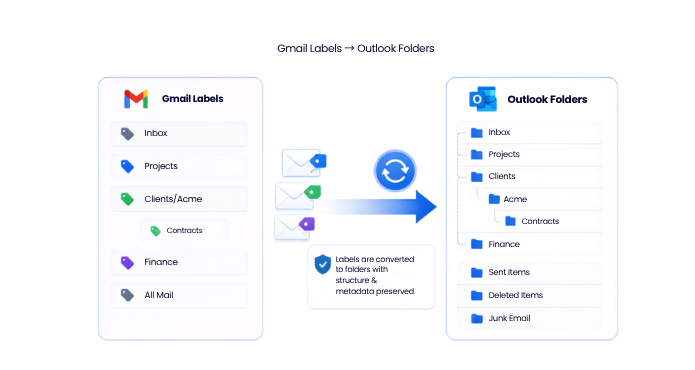
Gmail Labels to Outlook Folders

This page explains the conceptual difference between the two systems, what actually happens to each type of label during a move, and which parts of your mail stay exactly as they were. When the time comes to run the move itself, EdbMails Google Workspace Migration Tool takes care of the label-to-folder conversion for you, mapping your Gmail labels to the corresponding Outlook folders while preserving your message properties intact.

Why Labels and Folders are not the Same Thing

The confusion starts because both features look similar in the interface. On the left side of the screen, you see a list of names; you click one, and a set of emails appears. Under the hood, though, they work in opposite ways. A Gmail label is a tag. It is a piece of information attached to a message, and a single email can carry as many tags as you like. An invoice from a client might sit under "Finance," "2026," and "Client-Acme" all at once. There is still only one copy of that email. Gmail keeps every message in a single master store called All Mail, and each label is really just a saved view that filters that store. An Outlook folder is a container. A message physically lives inside one folder and one folder only. If you want the same invoice to appear in three places, you need three copies, one per folder. That is the core of it: Gmail describes a message with labels, while Outlook files a message into a location. Everything else about the migration follows from this single difference.

Gmail Labels vs Outlook Folders at a Glance

BehaviorGmail labelsOutlook folders
How mail is organizedTags applied to messagesContainers that hold messages
Copies of a messageOne copy, many labelsOne copy per folder
Multiple categories at onceYes, several labels per emailNo, one folder per email
NestingSub-labels using a Parent/Child formatTrue nested folder hierarchy
Master storeAll Mail holds everythingNo single "all mail" container
System organizersInbox, Sent, Starred, Important, Spam, TrashInbox, Sent Items, Drafts, Deleted Items, Junk Email

What Happens to Each Label Type During Migration

A good migration does not throw your organization away. It translates it. Here is how common label types appear when they are converted to folders in Outlook, Microsoft 365, or Exchange.

Regular User Labels Become Folders

Every label you created by hand turns into a folder with the same name. A label called "Projects" becomes a folder called "Projects," and the emails tagged with it show up inside. For the vast majority of your mail, this is the whole story, and the result feels natural the moment users open Outlook.

System Labels Map to Standard Outlook Folders

Gmail's built-in labels line up with the folders Outlook already expects. Inbox stays the Inbox. Sent Mail becomes Sent Items. Drafts stay Drafts. Trash maps to Deleted Items, and Spam lands in Junk Email. This mapping is handled for you, so users are not left hunting for their sent messages in an oddly named folder.

Nested Labels Keep their Hierarchy

Gmail lets you nest labels using a slash, so "Clients/Acme/Contracts" reads as a three-level structure. That hierarchy carries over into a matching nested folder tree in Outlook, with Contracts sitting inside Acme, inside Clients. You do not have to rebuild the tree by hand after the move.

Messages with more than one Label

This is the part that surprises people, and it is worth slowing down on. In Gmail, one email can wear several labels. In Outlook, that same email can only sit in one folder. So when a message tagged with "Finance" and "Client-Acme" arrives at the destination, it needs to appear under both folders to preserve the way you had it organized. The practical result is that a multi-labeled message shows up as a copy in each corresponding folder. This can be expected when the destination represents Gmail's multi-label organization as folders. The exact result depends on how the migration workflow maps Gmail labels to the target folder model. It also means the item count in Outlook can look slightly higher than the raw message count in Gmail, because a message with three labels is now filed in three places. Understanding this up front stops it from looking like something went wrong.

All Mail is Handled Separately for a Reason

All Mail is Gmail's master archive, and it contains every single message in the account, including everything that already sits under a label. If a migration copied All Mail as its own folder on top of every label folder, you would end up with a second full copy of the mailbox and a badly inflated size on the target. For that reason, All Mail is treated with care rather than copied blindly. EdbMails preserves your label-based structure while its duplicate-prevention logic keeps the same message from being written to the target twice. That is also why running incremental migration across several passes does not pile up duplicate emails, since each run only picks up what is new or changed.

Starred, Important, and Gmail categories

A few Gmail features have no direct folder equivalent, so they behave differently. Starred and Important are Gmail's own priority markers, and the inbox categories (Primary, Social, Promotions, Updates, Forums) are tabs that sort your inbox rather than real labels. These are display conveniences inside Gmail rather than storage locations, so they do not translate into standalone Outlook folders the way a user label does. Your actual messages still migrate in full; it is only these Gmail-specific views that do not have a matching container on the Outlook side.

Message Content and Metadata Stay Unchanged

It is easy to focus on the structural changes and assume the content itself is at risk. It is not. The message data comes across untouched. Read and unread status is preserved, so a folder full of unread mail still reads as unread after the move. Timestamps stay accurate, which keeps your mail sorting in the right order by date. Sender and recipient details, subject lines, and the message body all transfer as they were. Attachments stay bound to their original emails, so an invoice does not get separated from the message it arrived on. In short, the label-to-folder conversion changes how mail is organized, not what the mail contains.

If you want the full picture of every data type that moves across, including contacts, calendars, and tasks, the guide on migrating Google Workspace emails, contacts, and calendars covers it in detail.

What to Check Before You Migrate

A little planning around labels goes a long way toward a clean result. Take a look at how heavily your users rely on multi-label organization. Accounts where most messages carry a single label convert almost invisibly. Accounts where power users tag everything three or four ways will show more copies spread across folders, which is normal but worth explaining to those users in advance. Clean up before you move, not after. Old labels nobody uses, throwaway tags from years back, and abandoned sub-labels all become folders if you leave them in place. Trimming them in Gmail first gives you a tidier folder tree in Outlook. It is far easier to delete a label in Gmail than to reorganize a folder structure once it is sitting in a live Outlook mailbox. Set expectations about item counts. Because multi-labeled messages file into more than one folder, the total item count on the target can read higher than the source. Let your team know this ahead of time so it does not get mistaken for duplication or an error. If you hit anything unexpected during the run, the notes on how to fix Google Workspace migration issues and mistakes to avoid during Google Workspace migration are worth a read.

How EdbMails Converts Labels to Folders

EdbMails reads the label structure straight from the source Google Workspace account and rebuilds it as a folder hierarchy on the destination, whether that target is Microsoft 365, Exchange Server, or an IMAP-based platform. User labels become folders, system labels map to their Outlook counterparts, and nested labels keep their parent-child arrangement. Because the tool treats the mailbox as one connected dataset, folder structure, metadata, and message properties are preserved together rather than as separate pieces. Incremental migration lets you run the process more than once in the lead-up to cutover without stacking duplicates, and the per-mailbox migration report shows exactly what landed in each folder so you can verify the conversion before users switch over. The same behavior applies whether you are moving to Office 365, to Exchange Server, or exporting to Outlook PST.

Related migration guides

For organization-managed Google Workspace migration to Microsoft 365, use the Google Workspace to Microsoft 365 Migration Tool or the step-by-step Google Workspace migration guide. For personal Gmail/IMAP-based migration, use the Gmail to Office 365 migration guide.

Conclusion

The shift from Gmail labels to Outlook folders is really a shift in thinking, from tagging messages to filing them. Once you know that a label is a tag and a folder is a container, the rest follows: user labels become folders, nested labels keep their tree, system labels map to Outlook's standard set, and multi-labeled messages get filed in each folder they belonged to. The content of your mail, from read status to attachments, comes across unchanged. To see how this conversion runs end to end on your own mailboxes, start with the Google Workspace Migration Tool and review the automatic mailbox mapping step, which pairs each source account to the right destination before anything moves.

Frequently Asked Questions

  1. Do Gmail labels become folders in Outlook?

    Yes. Each Gmail label is recreated as a folder in Outlook, and messages associated with that label are placed in the corresponding folder. User-defined labels retain their names and nested labels retain their folder hierarchy.

  2. Why does one email appear in several Outlook folders after migration?

    This occurs when the message had multiple Gmail labels. To preserve the original label organization, EdbMails places the message in each corresponding Outlook folder, which is expected behavior during Gmail-to-Outlook migration.

  3. Will my folder count or item count change after migration?

    Folder counts generally match the Gmail label structure, except for labels that are excluded before migration. Item counts may appear slightly higher because messages with multiple labels are stored in more than one Outlook folder.

  4. What happens to Gmail's All Mail during the migration?

    Gmail All Mail is treated as the master archive of the mailbox. EdbMails preserves the label-based folder structure while avoiding creation of a second full copy of the mailbox on the destination platform.

  5. Are Starred and Important labels migrated?

    The email messages are migrated completely, but Gmail-specific views such as Starred, Important, and Inbox category tabs are not created as separate Outlook folders because they are view labels rather than independent storage folders.

 In this manual

IntroductionLabels to FoldersConclusionFAQs

Google Workspace Migration

100 Mailboxes $299 Only

Buy Now

Need help?

24/7 Customer support

Contact us on Live chat

Personalized Demo

Book a personalized demo

Still need help?

Email us / Call us

@edbmails.com All rights are reserved Privacy Policy | Terms of Use | GDPR | Security | Press Releases

hidden msg
Live Chat

Hi, May I help you?

Hide Chat Now