EdbMails EDB Recovery and Migration software
  • Products
    EdbMails
    All-in-one Recovery and Migration
    • EDB Recovery and Migration
    • OST, PST, MBOX, NSF, EML, MSG
    • Office 365, Exchange Migration
    • SharePoint, OneDrive & Teams
    • Google Workspace Migration
    • IMAP Migration
    • Duplicate Remover
    • EdbMails Data Recovery
    • Backup Solutions
    • All ProductsAll Products

    EDB Recovery and Migration

    EdbMails lets you recover corrupted, damaged, and offline Exchange EDB files, convert EDB mailboxes to PST format, and directly migrate mailbox data to Office 365 and live Exchange Server.

    EDB to PST
    EDB to PST
    Recover corrupted, damaged, offline EDB files and convert Exchange EDB mailboxes to PST file format
    Public Folder to Exchange
    Public Folder to Exchange
    Migrate public folders from an Exchange offline EDB file to live Exchange Server
    EDB to Live Exchange Migration
    EDB to Live Exchange Migration
    Directly migrate offline Exchange database (EDB) files to live Exchange server
    Archive Mailbox to Office 365
    Archive Mailbox to Office 365
    Migrate archive mailboxes from offline EDB files directly to Office 365
    EDB to Office 365 Migration
    EDB to Office 365 Migration
    Directly migrate offline Exchange database (EDB) files to Office 365
    Public Folder to Office 365
    Public Folder to Office 365
    Migrate public folders from an offline Exchange EDB file to Office 365

    OST, PST, MBOX, NSF, EML, MSG Export and Migration

    EdbMails lets you to recover OST and PST files, export OST, PST, MBOX, NSF, EML, and MSG files to PST files, and directly migrate OST, PST, MBOX, and NSF mailbox data to Office 365 and live Exchange Server.

    OST Recovery and Migration
    OST Recovery and Migration
    Recover offline OST files, convert OST to PST, and migrate OST to Office 365 and Exchange Server
    PST Recovery and Migration
    PST Recovery and Migration
    Recover Outlook PST files , Export PST to PST, migrate PST to Office 365 and Exchange Server
    MBOX Export and Migration
    MBOX Export and Migration
    Export MBOX to PST, migrate MBOX to Office 365 and Exchange Server
    NSF Export and Migration
    NSF Export and Migration
    Export NSF to PST, migrate NSF to Office 365 and Exchange Server
    EML to PST Export
    EML to PST Export
    Convert EML files to Outlook PST files
    PST to MSG Export
    PST to MSG Export
    Convert Outlook PST file to MSG file format
    MSG to PST Export
    MSG to PST Export
    Export MSG files to Outlook PST files

    Office 365, Exchange Migration

    EdbMails lets you securely migrate mailboxes across Microsoft 365, Exchange, Google Workspace (Google Workspace Migraton), and IMAP-supported servers such as Outlook, Gmail, Zimbra, Zoho Mail, and cPanel, ensuring zero downtime.

    Office 365 Backup
    Office 365 Migration
    Migrate between Office 365 tenants, Office 365 to Exchange, Office 365 to PST, PST files to Office 365.
    Exchange Server Backup
    Exchange Migration
    Migrate between any Exchange Servers, Exchange to Office 365, Exchange to PST, PST files to Exchange.
    Tenant to Tenant Migration
    Tenant to Tenant Migration
    Migrate Mailboxes, Public Folders, Archive Mailboxes between Office 365 Tenants.
    Exchange to Office 365
    Exchange to Office 365
    Migrate Mailboxes, Public Folders, Archive Mailboxes from live Exchange server to Office 365.
    Office 365 to IMAP
    Office 365 to IMAP
    Migrate Office 365 to IMAP, Office 365 to Gmail, Office 365 to Outlook, Office 365 to Zoho etc.
    Exchange to IMAP
    Exchange to IMAP
    Migrate from live Exchange Server to IMAP servers such as Gmail, Outlook, and Zoho Mail.
    Public Folder to Office 365
    Public Folder to Office 365
    Migrate Public Folders between Office 365 tenants with complete folder hierarchy and mailbox data integrity.
    Exchange to PST
    Exchange to PST
    Export live Exchange Server mailboxes, public folders, and archive mailboxes to Outlook PST files.

    SharePoint, OneDrive & Microsoft Teams Migration

    EdbMails lets you migrate SharePoint sites, OneDrive data, Microsoft Teams, teams, channels, chats, permissions, and documents between Microsoft 365 tenants while maintaining the existing folder structure and data integrity.

    SharePoint, OneDrive & Teams Backup
    SharePoint Online Migration
    Migrate documents, lists, files and folders from SharePoint sites.
    OneDrive for Business Migration
    OneDrive for Business Migration
    Migrate documents, lists, files, folders, private chats from OneDrive.
    Microsoft Teams Migration
    Microsoft Teams Migration
    Migrate Teams, chats, channels, documents, files and folders etc.

    Google Workspace / G Suite Migration

    EdbMails offers secure Google Workspace migration to Office 365, Exchange, or IMAP, and export to PST covering emails, contacts, calendars and tasks.

    Google Workspace Migration
    Google Workspace Migration
    Migrate emails, calendars, contacts, tasks from Google workspace to Google workspace, office 365, Exchange and IMAP. Export to PST
    Google Workspace to Office 365
    Google Workspace to Office 365
    Migrate emails, calendars, contacts, tasks from Google Workspace / G Suite to Office 365
    Google Workspace to Exchange Server
    Google Workspace to Exchange Server
    Migrate emails, calendars, contacts, tasks from Google Workspace / G Suite to on-Premise Exchange Server
    Google Workspace to IMAP
    Google Workspace to IMAP
    Migrate emails, calendars, contacts, tasks from Google Workspace / G Suite to IMAP, Outlook, Zimbra, Zoho etc.
    Google Workspace to Google Workspace Migration
    Google Workspace to Google Workspace
    Migrate emails, calendars, contacts, tasks between two Google Workspace / G Suite tenants
    Google Workspace to PST
    Google Workspace to PST
    Export emails, calendars, contacts, tasks from Google Workspace / G Suite to Outlook PST files

    IMAP Migration

    EdbMails IMAP Migration tool lets you easily migrate emails from IMAP servers such as Outlook, Gmail, Zoho Mail, Zimbra, cPanel, and more. Supports IMAP to IMAP, Office 365, Exchange Server, PST, and bulk PST to IMAP migration.

    IMAP Email Backup & Migration
    IMAP Email Backup & Migration
    Backup and migrate emails from IMAP servers to PST, Office 365, and On-Premises Exchange Server
    IMAP to Office 365
    IMAP to Office 365
    Migrate emails, folders, and attachments from IMAP servers to Office 365
    IMAP to Exchange
    IMAP to Exchange
    Migrate emails, folders, and attachments from IMAP servers to on-premises Exchange Server
    IMAP to PST
    IMAP to PST
    Export emails, folders, and attachments from IMAP servers to Outlook PST files for backup
    PST to IMAP
    PST to IMAP
    Migrate emails, folders, and attachments from bulk PST files to IMAP servers

    Duplicate Remover

    EdbMails Duplicate Remover lets you easily remove duplicate items from Office 365 and Exchange Server, and from IMAP, Outlook, Gmail, Zimbra, Zoho Mail, etc., ensuring a clean and organized mailbox.

    Remove Duplicates
    Remove Duplicates
    Easily clean up your Office 365, Exchange, Outlook and IMAP accounts by removing duplicate emails.
    Remove Duplicates from Office 365
    Remove Duplicates from Office 365
    Remove duplicate emails, calendars, contacts, journal tasks, etc. from Office 365.
    Remove Duplicates from Exchange Server
    Remove Duplicates from Exchange Server
    Remove duplicate emails, calendars, contacts, journal tasks, etc. from live Exchange Server.
    Remove Duplicates from IMAP, Outlook
    Remove Duplicates from IMAP, Outlook
    Remove duplicate emails, attachments from IMAP, Outlook, Gmail, Zimbra, Zoho Mail etc.

    Exchange, SharePoint, OneDrive, Teams and Office 365 Backup

    EdbMails enables secure, automated backup and recovery for Microsoft 365 services including Exchange Online, SharePoint, OneDrive, Teams, and Live Exchange Server with complete data protection and restore flexibility.

    Office 365 Backup
    Office 365 Backup
    Incremental, Granular, Encrypted and Compressed Office 365 Mailboxes Backup
    Exchange Server Backup
    Exchange Server Backup
    Incremental, Granular, Encrypted and Compressed Exchange Mailboxes Backup
    SharePoint, OneDrive & Teams Backup
    SharePoint, OneDrive & Teams Backup
    Backup Online site collections, Team sites, Office 365 groups, all documents etc.

    EdbMails Data Recovery

    EdbMails Data Recovery Software lets you recover permanently deleted data, including photos, videos, documents, and archived files, from partitions on hard drives, SSDs, USB drives, SD cards, and external storage devices.

    EdbMails Data Recovery
    EdbMails Data Recovery
    Recover and restore permanently deleted data from hard drives, SSDs, USB drives, SD cards, and etc.
    Whitepaper Whitepaper
    Request a Demo Request a Demo
    Sign Up Sign Up
  • Features
  • FAQ
  • Offers
  • Pricing
  • Download
  • Support
  • Sign in
User’s Manual
SharePoint Migration

User Manual

User Manual

  • FAQ
    • SharePoint Migration
    • OneDrive Migration
    • Microsoft Teams Migration
  • Videos
    • SharePoint Migration
    • OneDrive Migration
    • Microsoft Teams Migration
  • Screenshots
    • SharePoint Migration
    • OneDrive Migration
    • Microsoft Teams Migration
    • Microsoft Teams Channel Migration
    • Microsoft Teams Chats Migration
  • How it works?
    • SharePoint Migration
    • OneDrive Migration
    • Microsoft Teams Migration
    • Microsoft Teams Channel Migration
    • Microsoft Teams Chats Migration
  • Microsoft Entra ID App Creation Guide
    • SharePoint Migration
    • OneDrive Migration
    • Office 365 Groups Migration
    • Teams and Channel Migration
    • Private and Group Chat Migration
  1. Home
  2. SharePoint Migration
  3. Microsoft Entra ID App Creation Guide for Migration | EdbMails
Download Buy Now

Microsoft Entra ID App Creation Guide for SharePoint, OneDrive and Teams Migration

When you choose manual app registration in EdbMails, Microsoft Entra ID (formerly Azure Active Directory) needs an application identity for the Microsoft 365 tenant you are connecting. This guide explains the three common tasks: create the app, create a client secret, and add Microsoft Graph application permissions with admin consent.

The exact application name and permission list depend on the migration workload and whether you are configuring the Source or Target tenant. Use the corresponding EdbMails SharePoint, OneDrive, Teams and Channel, or Private and Group Chat guide for those workload-specific values.

For tenant-to-tenant migration: Create the Source and Target applications in their respective Microsoft 365 tenants. Keep each tenant's Application (Client) ID, Directory (Tenant) ID and Client Secret Value with the matching connection in EdbMails.

Quick configuration summary

1. Create AppRegister the application in the correct Microsoft Entra tenant and record the Client ID and Tenant ID. 2. Set Client SecretCreate a client secret and copy its Value immediately. 3. Apply PermissionsAdd the Microsoft Graph Application permissions listed on the workload page and grant admin consent.

Before you begin

  • Sign in to the Microsoft Entra admin center with an account authorized to create app registrations and grant the required admin consent.
  • Confirm that you are working in the correct Source or Target tenant before creating the application.
  • Open the workload-specific EdbMails manual-registration page so you can use the exact application name and permission list for that workload.
  • Plan to store the Application (Client) ID, Directory (Tenant) ID and Client Secret Value securely. These values are used when EdbMails connects to the tenant.

Steps to Manually Register an App

Click the accordions below to create the app, create a client secret, and add the required permissions.

  1. Step 1: Create the application in Microsoft Entra ID

    • Sign in to the Microsoft Entra admin center.
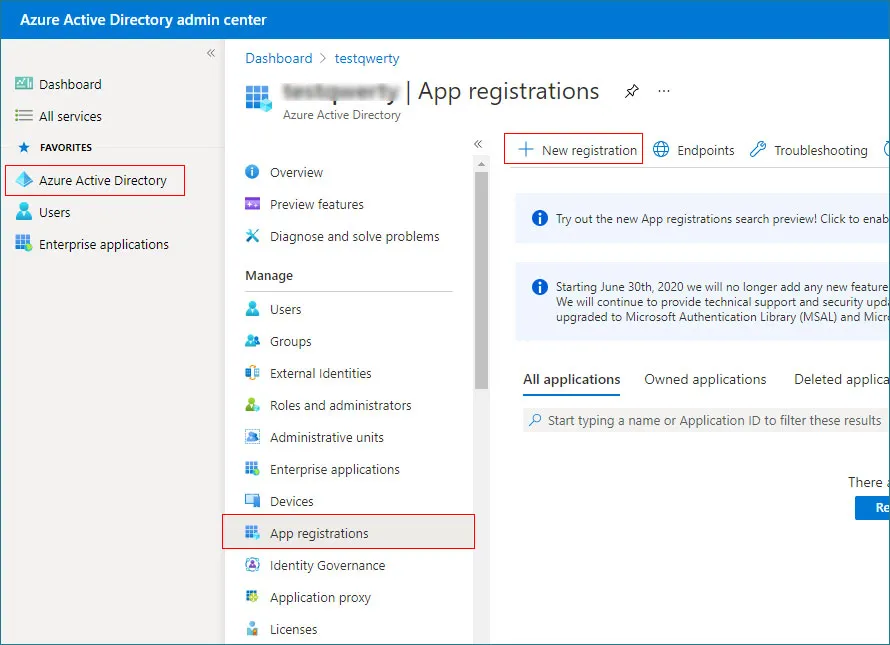
    • Go to Microsoft Entra ID > App registrations, and select + New registration.

      Microsoft Entra ID App registrations page showing the New registration option

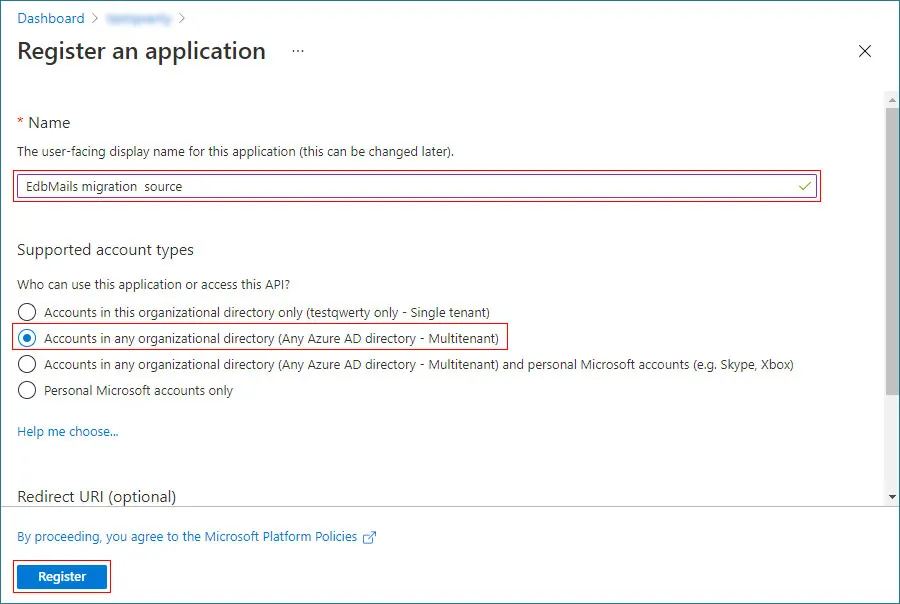
    • Enter the application name.
    • Keep the default account type.
    • Leave the Redirect URI empty unless the EdbMails instructions for your migration scenario specifically require one.
    • Click the Register button.

      Microsoft Entra application registration form showing the Register button

    • On the application's Overview page, copy the Application (Client) ID and Directory (Tenant) ID. Keep both values with the Source or Target configuration they belong to.
    Why the tenant matters: An app registration belongs to the tenant where it is created. Source credentials should be used for the Source connection, and Target credentials should be used for the Target connection.
  2. Step 2: Create a client secret

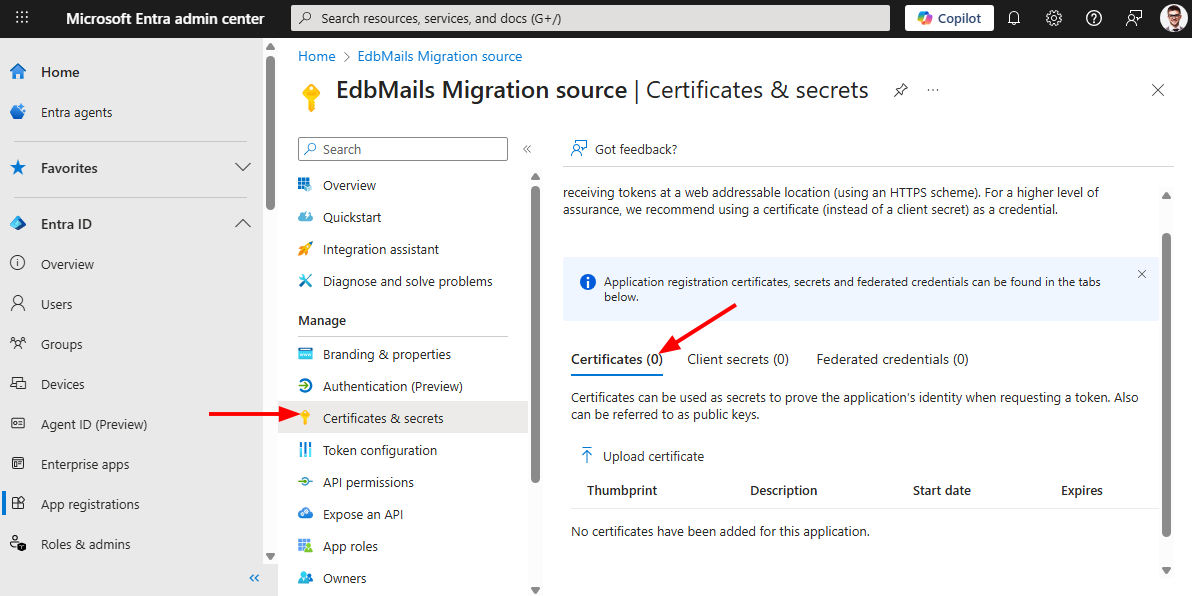
    • Open the application you created and select Certificates & secrets.

      Certificates and secrets section in Microsoft Entra ID

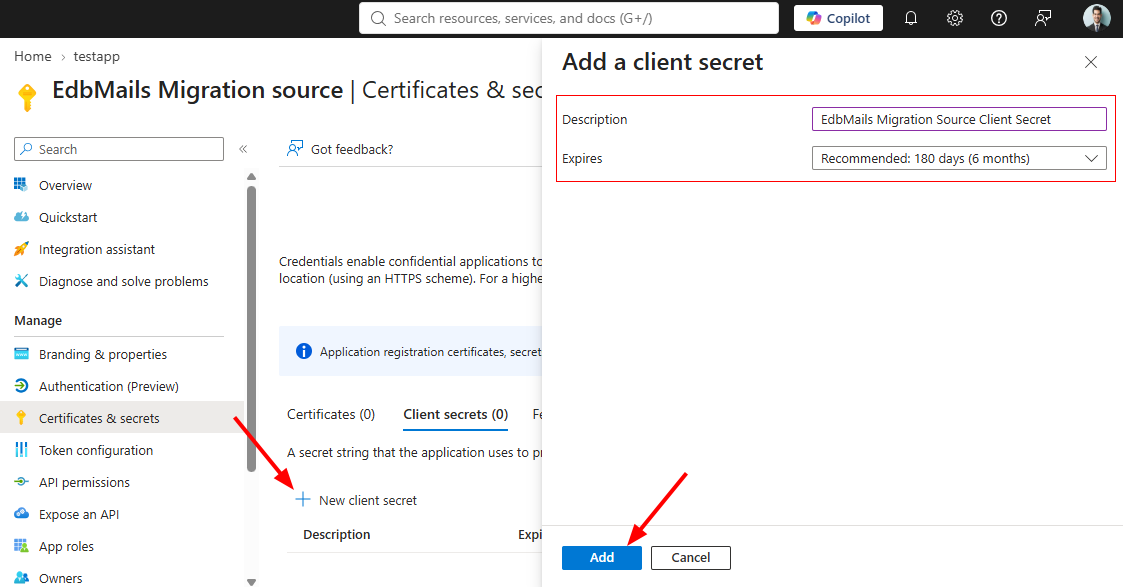
    • Under Client secrets, select + New client secret and enter the Description, select the Expiration period, and click ‘Add’.

      New client secret configuration in Microsoft Entra ID

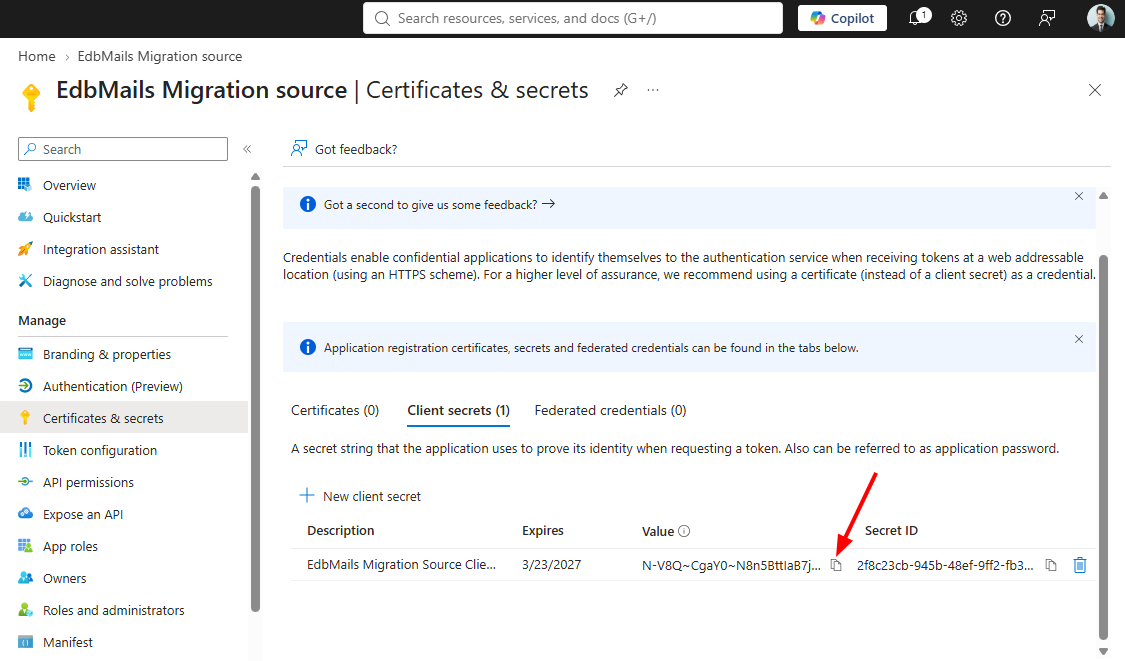
    • Copy the entry shown in the Value column immediately and store it securely.

      Client Secret Value displayed after creation in Microsoft Entra ID

    Important: Copy the Client Secret Value, not the Secret ID. If the Value is not saved when it is created, create a new client secret before configuring EdbMails.
  3. Step 3: Add application permissions and grant admin consent

    Add Microsoft Graph application permissions

    Required Microsoft Graph permissions by workload

    Choose your migration workload, then select Source or Target to view the exact Microsoft Graph Application permissions. These quick-reference lists match the dedicated EdbMails manual-registration pages.

    Use separate Source and Target applications for SharePoint migration.

    Use separate Source and Target applications for OneDrive migration.

    Use separate Source and Target applications for Office 365 Groups migration.

    Includes Teams document libraries, channels and channel messages. The Target will be Team sites.

    Includes Microsoft Teams private 1:1 chats and group chats between Microsoft 365 users.

    Steps to Add Microsoft Graph application permissions

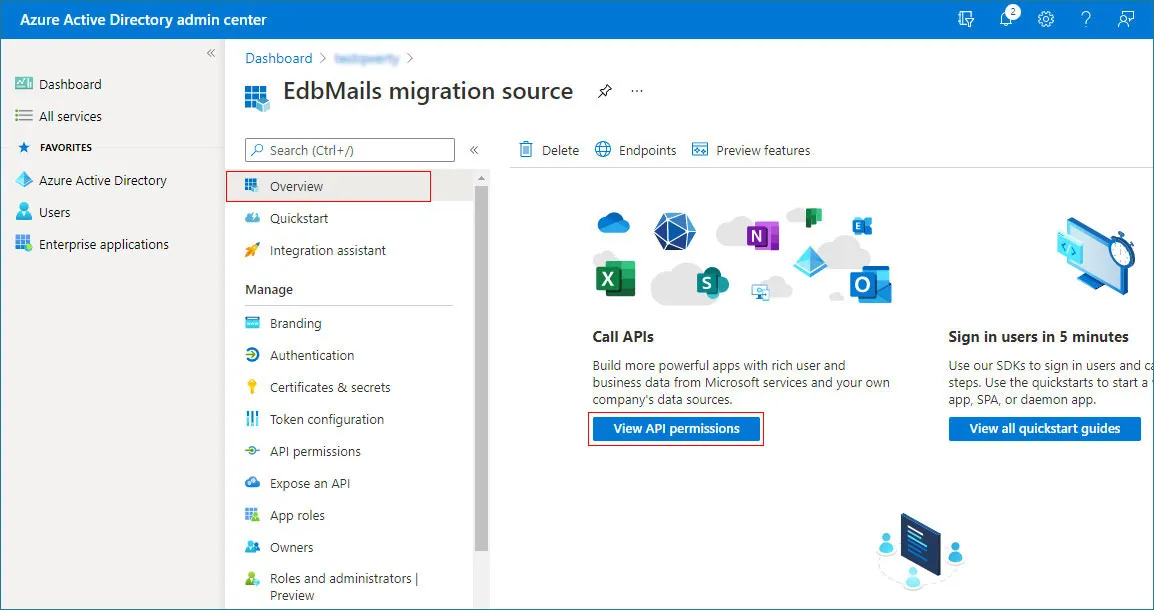
    • Navigate to ‘Overview’ and click ‘View API permissions’

      View API permissions option on the Microsoft Entra application Overview page

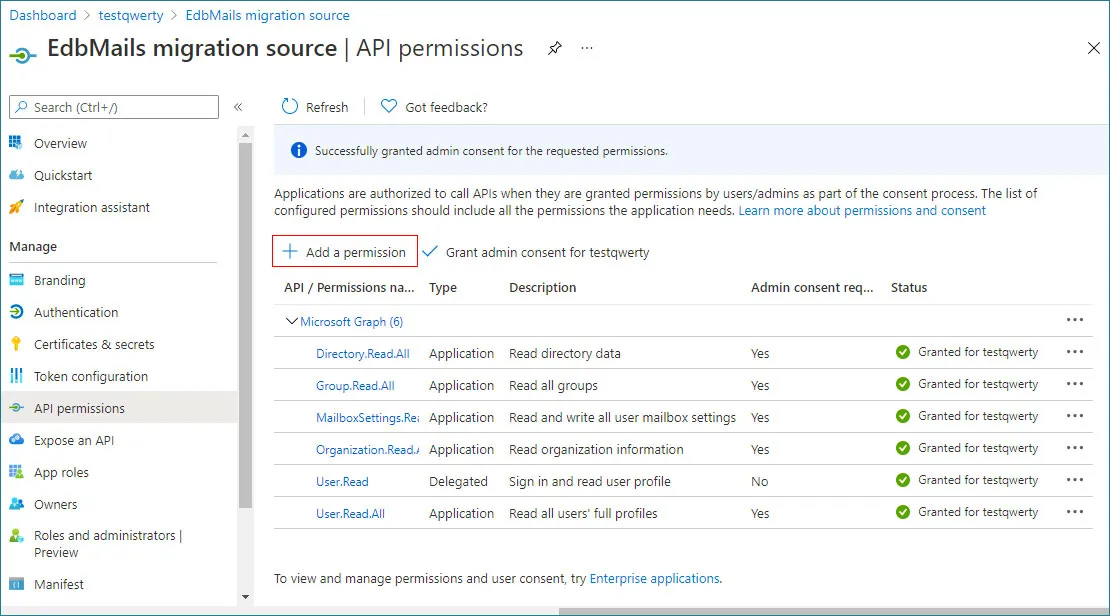
    • Select + Add a permission.

      Add a permission button on the Microsoft Entra API permissions page

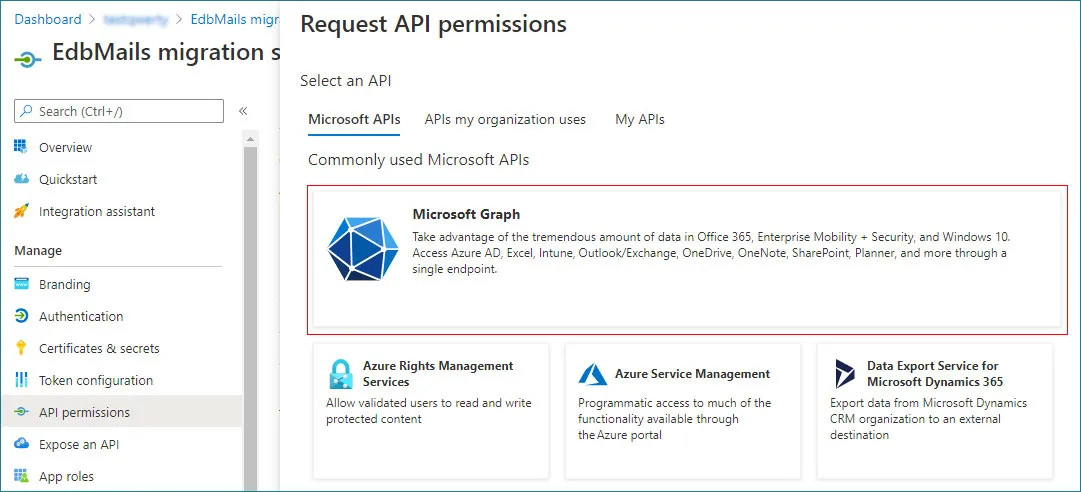
    • Select Microsoft Graph.

      Microsoft Graph selected in the Request API permissions window

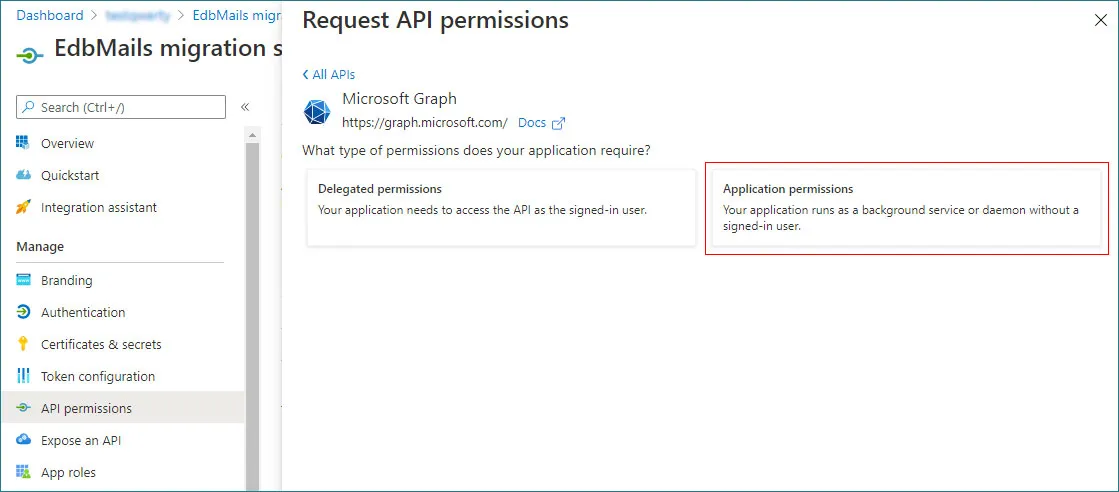
    • Select Application permissions.

      Application permissions option selected for Microsoft Graph

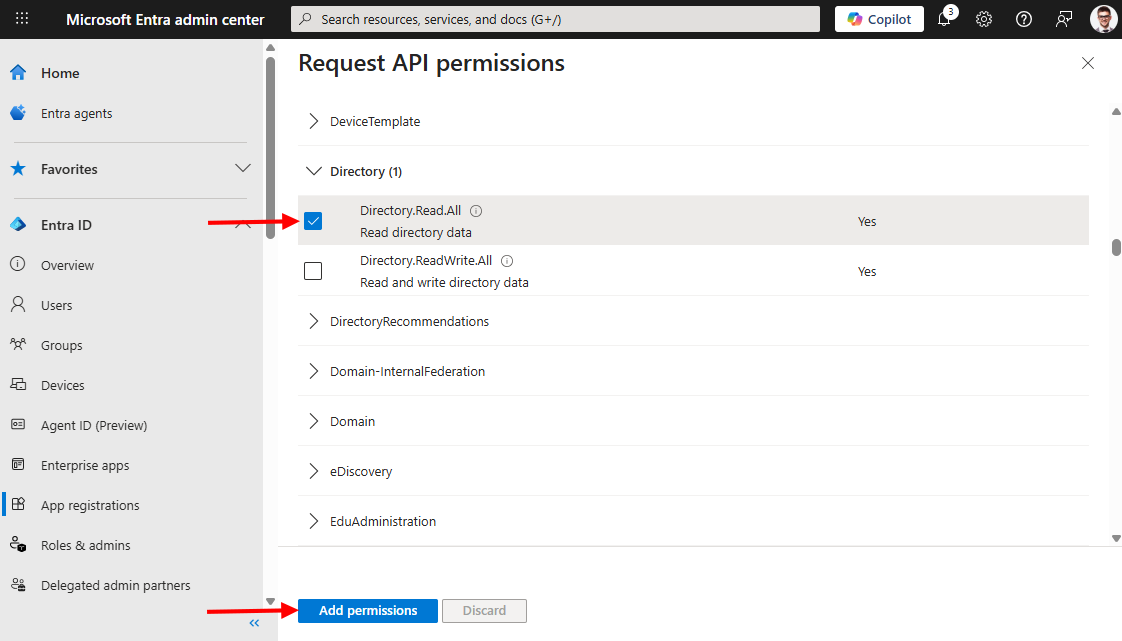
    • Using the Source or Target permission list shown above, search for each permission in Microsoft Graph and select it. Repeat until all required permissions are selected. Then click Add permissions.

      Selecting Microsoft Graph Application permissions in Microsoft Entra ID

    Grant admin consent

    • Return to API permissions and compare the configured permissions with the Source or Target permission list on the EdbMails workload page.
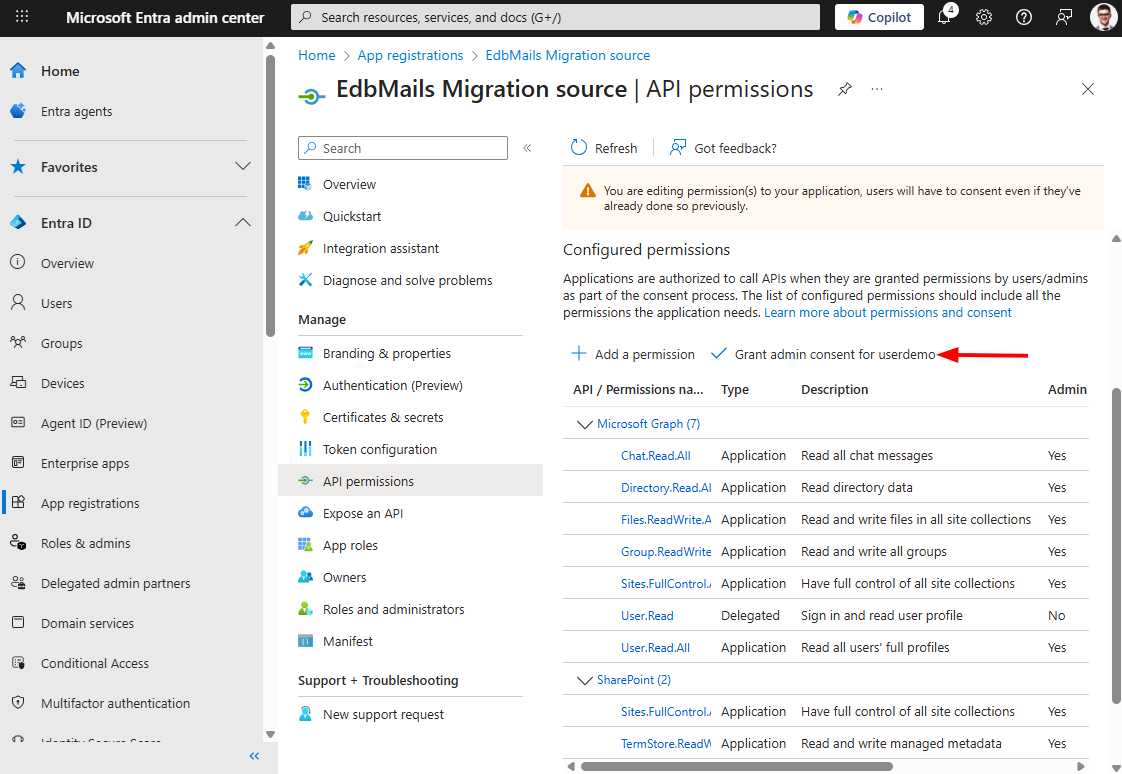
    • Select Grant admin consent for your organization.

      Grant admin consent option on the Microsoft Entra API permissions page

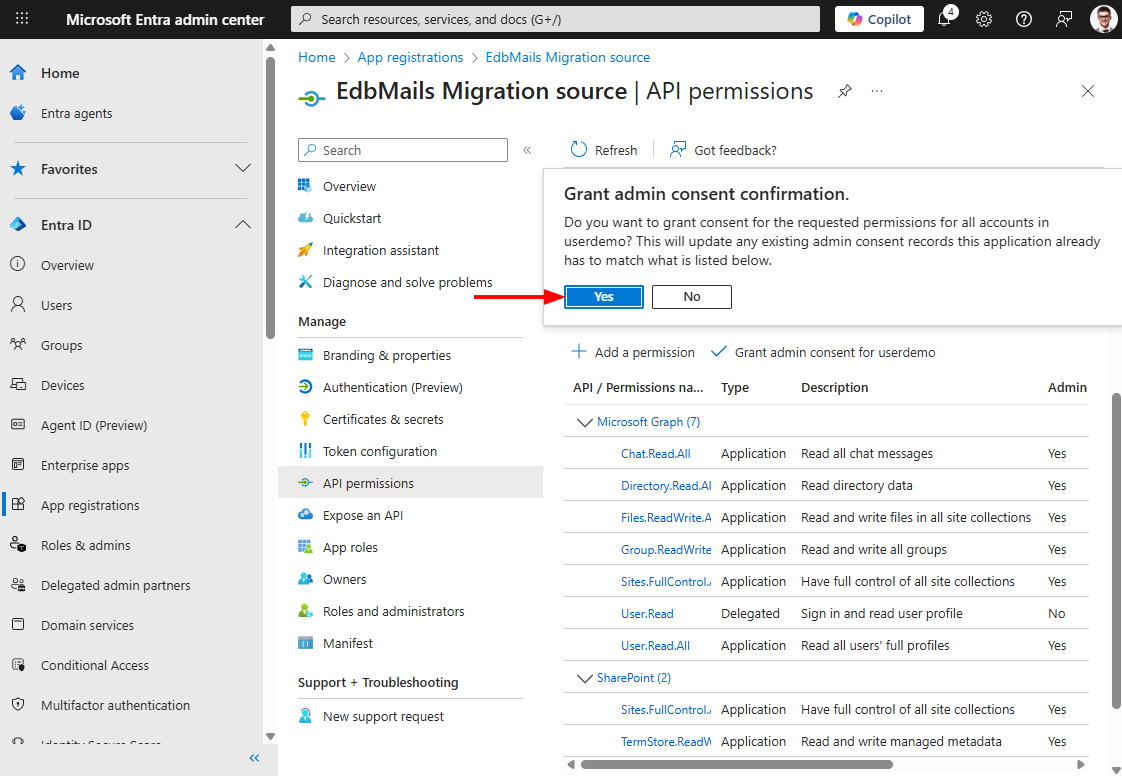
    • Review the requested permissions and confirm the action.

      Confirmation prompt for granting admin consent to the registered application

    • Verify that the required permissions show the granted status before continuing to EdbMails.

Verify the app registration before connecting EdbMails

  • The app was created in the intended Source or Target Microsoft 365 tenant.
  • The application name matches the applicable EdbMails workload guide.
  • The Application (Client) ID and Directory (Tenant) ID were copied from the correct app.
  • The Client Secret Value was copied and stored securely.
  • Every Microsoft Graph permission listed on the workload page was added for the correct Source or Target app.
  • Application permissions, not Delegated permissions, were selected where specified.
  • Admin consent was granted for the configured permissions.
  1. Troubleshooting manual app registration

    1. The client secret value is no longer visible

      Microsoft Entra ID displays the secret Value when it is created. If you did not save the Value, create a new client secret and use the new Value in EdbMails.

    2. The permission is present but the connection still fails

      Check whether admin consent has been granted and verify that you selected Application permissions. Adding a permission and granting consent are separate actions.

    3. The app was created in the wrong tenant

      Create the application in the correct Source or Target tenant and use the Client ID, Tenant ID and Client Secret Value from that application. Tenant-specific credentials are not interchangeable.

    4. I am not sure which permission list to use

      Do not copy permissions from another workload. Open the SharePoint, OneDrive, Teams and Channel, or Private and Group Chat manual-registration page and use the Source or Target list shown there.

  1. Frequently asked questions

    1. What is a Microsoft Entra ID app registration?

      An app registration creates an application identity in a Microsoft Entra tenant. EdbMails uses the application details and the permissions configured for the migration connection.

    2. What is the difference between Application and Delegated permissions?

      Application permissions allow an application to access an API using its own identity. Delegated permissions operate on behalf of a signed-in user. The EdbMails workload pages identify the required migration permissions as Application permissions.

    3. Where can I find the Application (Client) ID and Directory (Tenant) ID?

      Open the registered application in Microsoft Entra ID and view the Overview page.

    4. Should I copy the Client Secret ID or the Client Secret Value?

      Copy the Client Secret Value. The Secret ID is not the value used for this EdbMails connection.

    5. Why do I need to grant admin consent?

      Adding a permission records what the application requests. Admin consent authorizes the configured permissions for the tenant.

    6. Do I need separate Source and Target apps?

      Yes, for the tenant-to-tenant manual configurations described in these EdbMails workload guides. Create each app in the tenant it will connect to.

    7. Does this page contain the SharePoint, OneDrive or Teams permission lists?

      Yes. In Step 3, expand the required workload and select Source or Target to view a quick-reference permission list. The dedicated workload page remains the full guide for app naming, connection details and migration-specific instructions.


Related EdbMails resources:

  • OneDrive manual app registration
  • Teams and Channel manual app registration
  • Private and Group Chat manual app registration
  • Manual app registration for Office 365 mailbox migration
Additional resources and related guides

SharePoint Migration Source permissions

Application nameSharePoint Migration SourceAPIMicrosoft GraphPermission typeApplication permissions
  • Files.Read.All
  • Group.Read.All
  • GroupMember.Read.All
  • Sites.Read.All
  • User.Read.All
Set all these permissions in the SharePoint Migration Source app.

SharePoint Migration Target permissions

Application nameSharePoint Migration TargetAPIMicrosoft GraphPermission typeApplication permissions
  • Files.ReadWrite.All
  • Group.ReadWrite.All
  • GroupMember.ReadWrite.All
  • Sites.Create.All
  • Sites.FullControl.All
  • Sites.ReadWrite.All
  • User.Read.All
Create this app in the Target SharePoint tenant. Only Microsoft Graph permissions are required for this configuration.

OneDrive Migration Source permissions

Application nameOneDrive Migration SourceAPIMicrosoft GraphPermission typeApplication permissions
  • Files.Read.All
  • Group.Read.All
  • GroupMember.Read.All
  • Sites.Read.All
  • User.Read.All
Create this app in the Source OneDrive tenant, then grant admin consent after all listed permissions are configured.

OneDrive Migration Target permissions

Application nameOneDrive Migration TargetAPIMicrosoft GraphPermission typeApplication permissions
  • Files.ReadWrite.All
  • Group.ReadWrite.All
  • GroupMember.ReadWrite.All
  • Sites.Create.All
  • Sites.FullControl.All
  • Sites.ReadWrite.All
  • User.Read.All
Create this app in the Target OneDrive tenant. Only Microsoft Graph permissions are required for this configuration.

Office 365 Groups Migration Source permissions

Application nameOffice 365 Groups Migration SourceAPIMicrosoft GraphPermission typeApplication permissions
  • Files.Read.All
  • Group.Read.All
  • GroupMember.Read.All
  • Sites.Read.All
  • User.Read.All
Set all these permissions in the Office 365 Groups Migration Source app.

Office 365 Groups Migration Target permissions

Application nameOffice 365 Groups Migration TargetAPIMicrosoft GraphPermission typeApplication permissions
  • Files.ReadWrite.All
  • Group.ReadWrite.All
  • GroupMember.ReadWrite.All
  • Sites.Create.All
  • Sites.FullControl.All
  • Sites.ReadWrite.All
  • User.Read.All
Set all these permissions in the Office 365 Groups Migration Target app.

Teams and Channel Migration Source permissions

Application nameEdbMails Teams and Channel Migration SourceAPIMicrosoft GraphPermission typeApplication permissions
  • Calendars.Read
  • Channel.ReadBasic.All
  • ChannelMessage.Read.All
  • ChannelSettings.Read.All
  • Files.Read.All
  • Group.Read.All
  • Sites.Read.All
  • Tasks.Read.All
  • User.Read.All
This Source app is for Teams document libraries, channels and channel messages.

Teams and Channel Migration Target permissions

Application nameEdbMails Teams and Channel Migration TargetAPIMicrosoft GraphPermission typeApplication permissions
  • Calendars.ReadWrite
  • Channel.Create
  • ChannelSettings.ReadWrite.All
  • Files.ReadWrite.All
  • Group.Read.All
  • GroupMember.ReadWrite.All
  • Sites.Read.All
  • Tasks.ReadWrite.All
  • TeamsTab.Create
  • Teamwork.Migrate.All
  • User.Read.All
This Target app is for Teams document libraries, channels and channel messages. The Target will be Team sites.

Private and Group Chat Migration Source permissions

Application nameEdbMails Groups and Teams Chat Migration SourceAPIMicrosoft GraphPermission typeApplication permissions
  • Calendars.Read
  • Chat.Read.All
  • ChatMember.Read.All
  • ChatMessage.Read.All
  • Files.Read.All
  • Group.Read.All
  • GroupMember.Read.All
  • Tasks.Read.All
  • TeamsTab.Read.All
  • User.Read.All
Use this Source app for Microsoft Teams private 1:1 chats and group chats.

Private and Group Chat Migration Target permissions

Application nameEdbMails Groups and Teams Chat Migration TargetAPIMicrosoft GraphPermission typeApplication permissions
  • Calendars.ReadWrite
  • Chat.Create
  • Chat.Read.All
  • ChatMember.ReadWrite.All
  • Files.ReadWrite.All
  • Tasks.ReadWrite.All
  • TeamsTab.Create
  • Teamwork.Migrate.All
  • User.Read.All
Use this Target app for Microsoft Teams private 1:1 chats and group chats.

 In this manual

IntroductionCreate AppClient SecretApply PermissionsValidation ChecklistTroubleshootingFAQs

SharePoint Migration

Just 10 Sites $80 Only

Buy Now

Need help?

24/7 Customer support

Contact us on Live chat

Personalized Demo

Book a personalized demo

Still need help?

Email us / Call us

@edbmails.com All rights are reserved Privacy Policy | Terms of Use | GDPR | Security | Press Releases

hidden msg
Live Chat

Hi, May I help you?

Hide Chat Now