


Create and Import a Disk Image
EdbMails Data Recovery Software includes a dedicated Disk Image Recovery feature that gives you a safer, more controlled way to recover lost or deleted files from any Windows storage device. Instead of scanning your original drive repeatedly — which increases read cycles on the device — EdbMails allows you to either create an exact sector-by-sector disk image of the drive first, or import an existing disk image file, and then perform the full data recovery from that image.
A disk image is a single file that contains a precise, bit-for-bit copy of an entire drive or partition — capturing every sector exactly as it exists on the physical storage medium, including all files, folder structures, partition data, and free space. Once a disk image is created, it acts as a virtual stand-in for the original drive. EdbMails can scan and recover data from that image just as it would from the physical drive itself — without touching the original device again. EdbMails Disk Image Recovery supports two workflows:
- Create Disk Image — EdbMails creates an exact .img copy of your connected drive and saves it to a safe location. You then recover deleted or lost files from that image.
- Import Disk Image — You load an existing disk image file (in any supported format) into EdbMails, which then scans and recovers files from within that image.
EdbMails Disk Image Recovery is designed to handle data loss caused by accidental deletion, drive formatting, and lost or deleted partitions. It works with internal hard drives, SSDs, external drives, USB flash drives, SD cards and virtual machine disk files including VMDK and VHD/VHDX formats.
Why Choose EdbMails for Disk Image Recovery?
EdbMails Data Recovery provides a complete disk image recovery solution — from creating the image right through to previewing and restoring your files — all within a single, easy-to-use application. Here is what sets EdbMails apart:
- Create & Import in One Tool EdbMails handles both workflows in a single application — create a fresh .img disk image from your drive, or import an existing image file and recover data from it straight away.
- Wide Disk Image Format Support Import and recover from disk image files in .edisk, .img, .bin, .dd, .raw, .vhd, .vhdx, and .vmdk formats — covering all major disk imaging standards.
- Deep Scan + Quick Scan EdbMails offers both Quick Scan for recently deleted files and Deep Scan for formatted or partition-lost drives — applied directly to the disk image for thorough recovery results.
- Preview Files Before Restoring Browse and preview recoverable files — documents, photos, videos, emails — directly within EdbMails before selecting what to restore, so you only save what you need.
- Read-Only, Non-Destructive Process Once the disk image is created, the original drive is never accessed again. All scanning and recovery happens on the image file, fully protecting the source device.
- All Drive Types Supported Create disk images from internal HDDs, SSDs, external drives, USB flash drives, SD cards, and virtual machine disks (VMDK, VHD, VHDX) on Windows.
- 1,000+ File Formats Recovered EdbMails recovers over 1,000 file types from disk images — including Office documents, RAW photos, MP4 videos, PST/OST email archives, ZIP files, and much more.
- Simple easy to use Interface EdbMails guides you through every step of disk image creation and recovery with a clean, wizard-style interface — no technical background or command-line knowledge required.
Supported Disk Image File Formats
Create Disk Image (Supported Output Formats)
When using the EdbMails Create Disk Image feature, you can save the disk image in any of the following formats:
- Electronic Disk Image (.edisk)
Electronic Disk image used for storing disk data and can be imported directly back into EdbMails for recovery.
- Raw Disk Image (.img)
Universal raw image format used for storing sector-by-sector disk data and widely compatible with EdbMails Import and other imaging tools.
- Binary Image (.bin)
Generic binary dump format used for storing raw drive or partition data.
- DD Image (.dd)
Standard raw image format compatible with Linux dd and similar imaging tools.
- Raw Image (.raw)
Unprocessed sector-by-sector disk dump format.
Import Disk Image (Supported Input Formats)
EdbMails can import and recover data from disk image files in the following formats:
- Electronic Disk Image (.edisk)
Electronic Disk image used for storing disk data.
- Raw Disk Image (.img)
Standard raw disk image format used for storing sector-by-sector disk data.
- Binary Image (.bin)
Generic binary dump format used for storing raw drive or partition data.
- DD Image (.dd)
Disk image format created using Linux dd or compatible tools for sector-by-sector copying.
- Raw Image (.raw)
Unprocessed sector-by-sector disk dump format.
- Virtual Hard Disk (.vhd)
Microsoft virtual disk format used for storing virtual machine disk data.
- Virtual Hard Disk v2 (.vhdx)
Advanced Microsoft virtual disk format used in newer Hyper-V environments.
- VMware Virtual Disk (.vmdk)
Virtual machine disk format used for storing VMware virtual machine data.
- Electronic Disk Image (.edisk)
Recoverable File Types from Disk Images
EdbMails Data Recovery can recover over 1,000 file types from disk images, including all commonly used document, media, archive, and email formats:
DocumentsDOC, DOCX, XLS, XLSX, PPT, PPTX, PDF, TXT, CSV, RTFImages & PhotosJPG, JPEG, PNG, BMP, TIFF, RAW, GIF, HEIC, SVG, PSDVideosMP4, AVI, MOV, MKV, WMV, FLV, 3GP, MPEG, M4V, TSAudioMP3, WAV, AAC, FLAC, WMA, OGG, M4A, AIFFArchivesZIP, RAR, 7Z, TAR, GZ, ISO, CABEmail & DatabasePST, OST, EML, MSG, MDB, ACCDB, SQL, DBFSystem & OthersEXE, DLL, XML, HTML, JS, PY, and 1,000+ more formatsPrerequisites to Create and Import a Disk Image
- Install EdbMails Data Recovery Software on your computer.
- Purchase and activate the appropriate license to enable full recovery functionality.
- Ensure sufficient free disk space is available to save the recovered data.
- If you want to import an image, make sure you have the disk image file on your system.
Steps to Create and Import Disk Image using EdbMails
Step 1: Create Disk Image
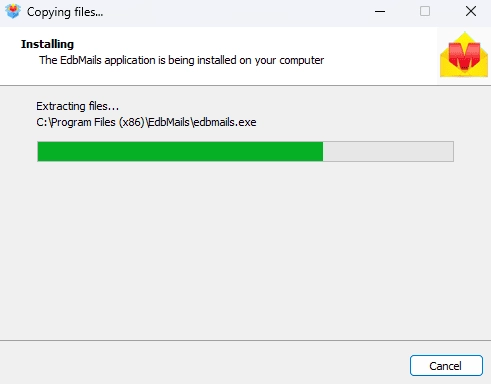
- Download and install the EdbMails application on your computer.
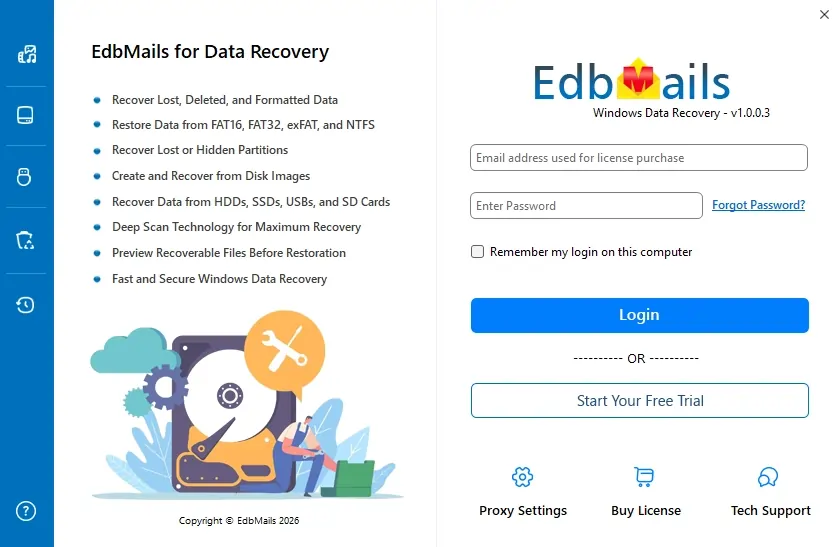
- Enter your email address and password to login. If you haven’t registered yet, click ‘Start Your Free Trial’ to explore the features.
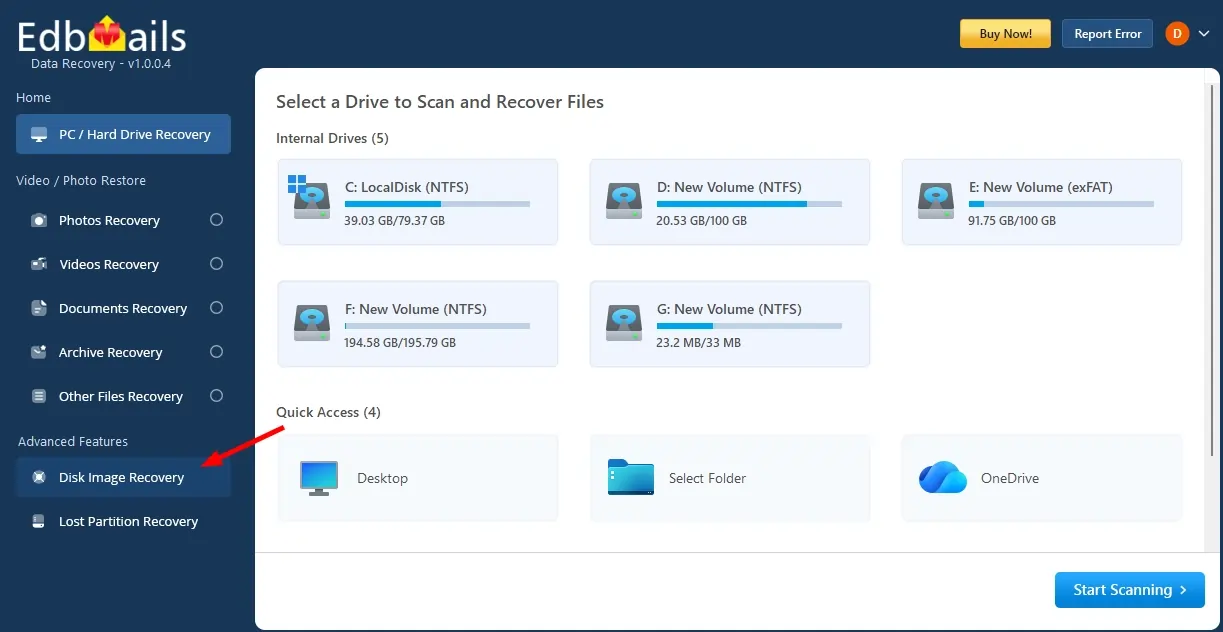
- In the left-side toolbar, under Advanced Features, click ‘Disk Image Recovery’.
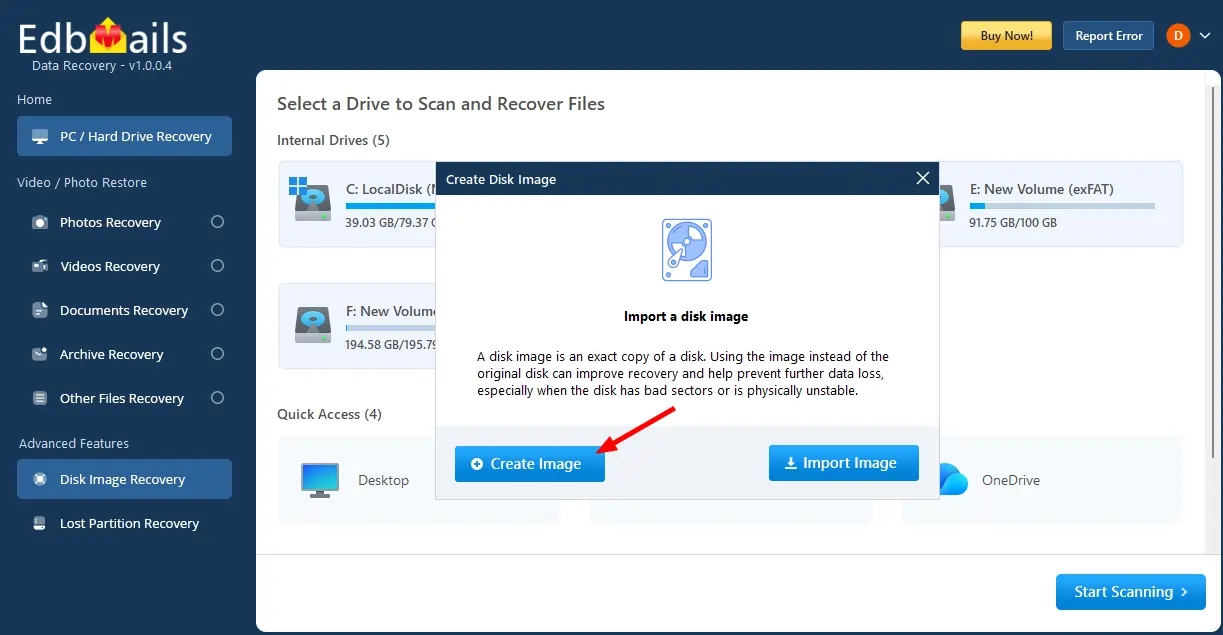
Note: If you already have a disk image available, you do not need to create a new one. You can directly import the existing disk image by following the steps.
- Click ‘Create Image’ to create a new disk image.
- Select the drive from which you want to create a disk image.
- Then, click the ‘Browse’ button and select the location where you want to save the disk image.
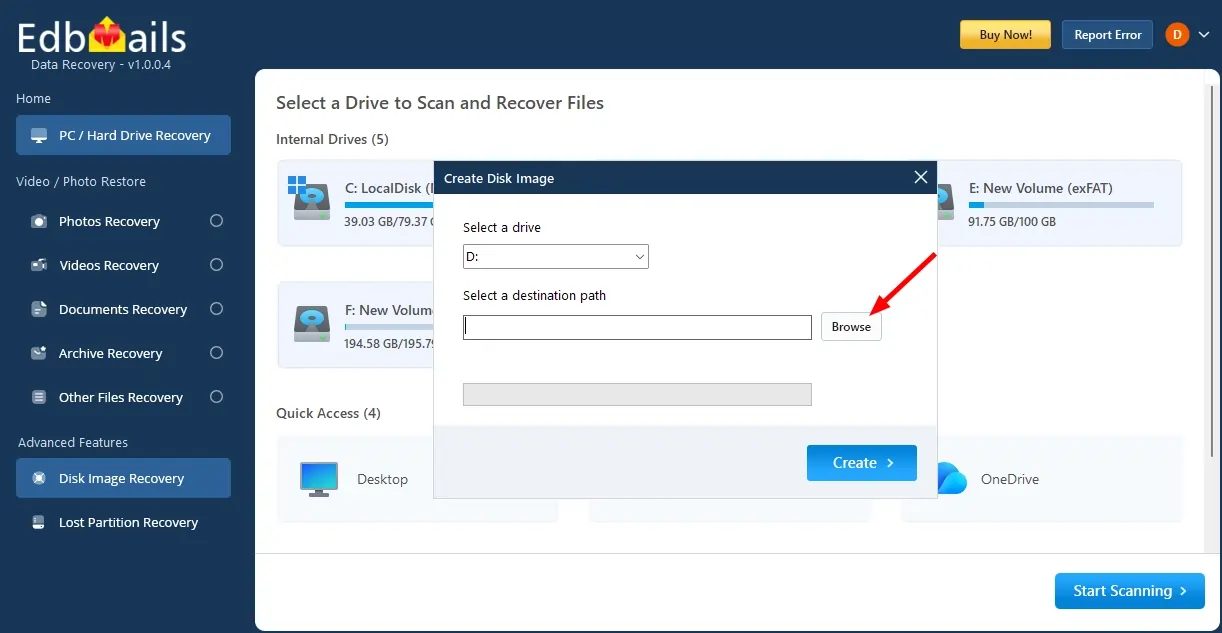
- Choose the desired location and click ‘OK’.
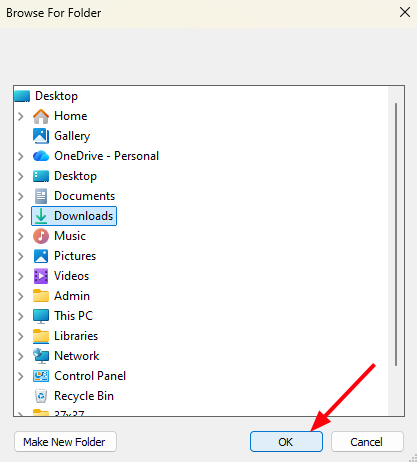
- Click on the ‘Create’ button to begin the process.
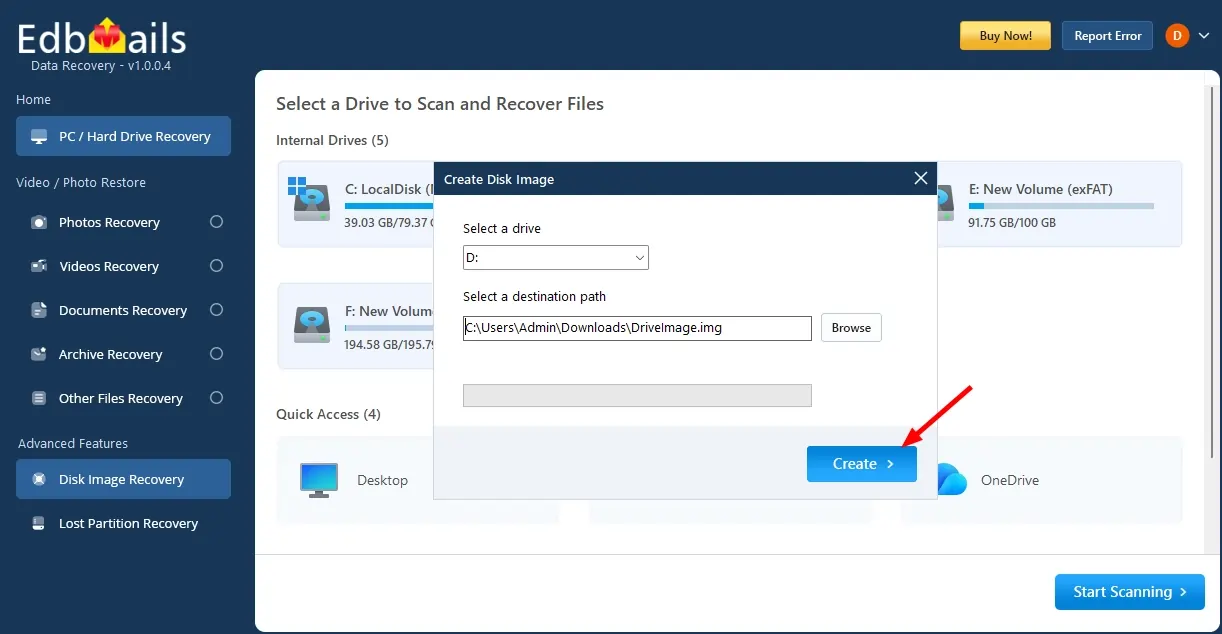
- Disk image has created successfully.
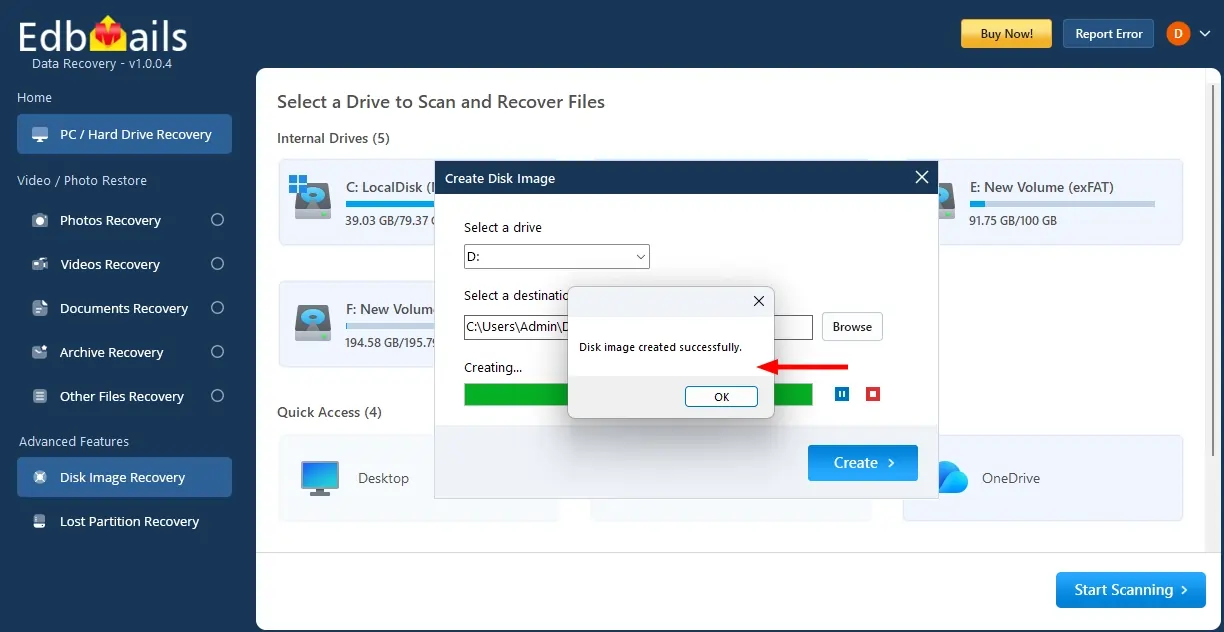
Step 2: Import Disk Image
- In the left-side toolbar, under Advanced Features, click ‘Disk Image Recovery’.
- Click ‘Import Image’ to import your disk image to the selected drive.
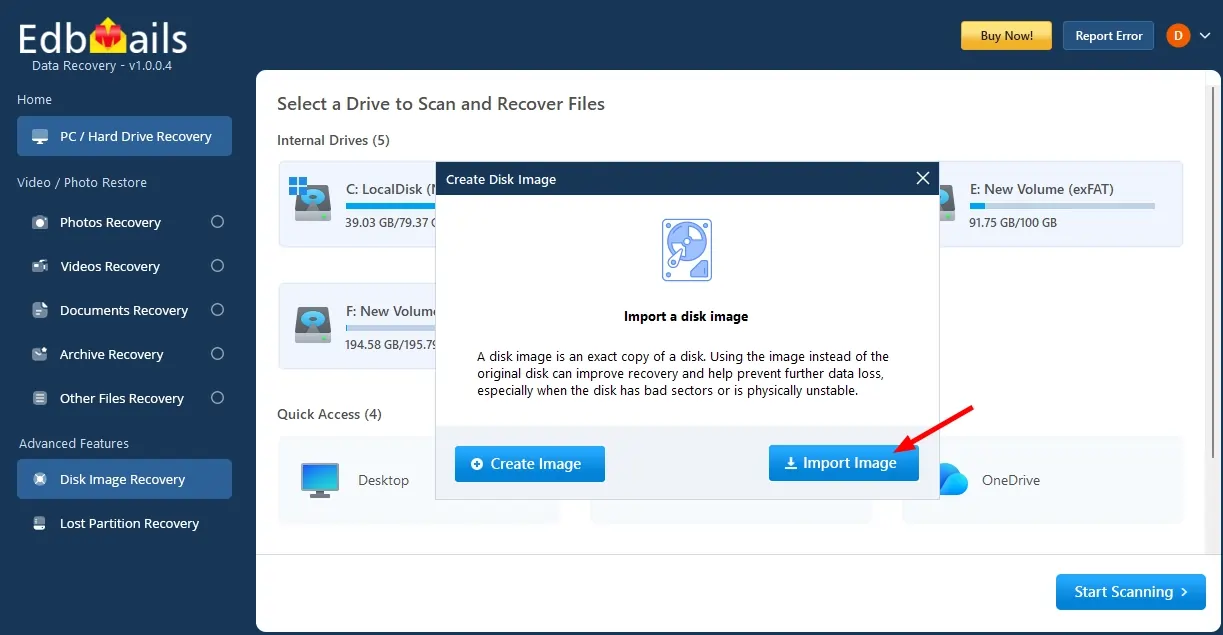
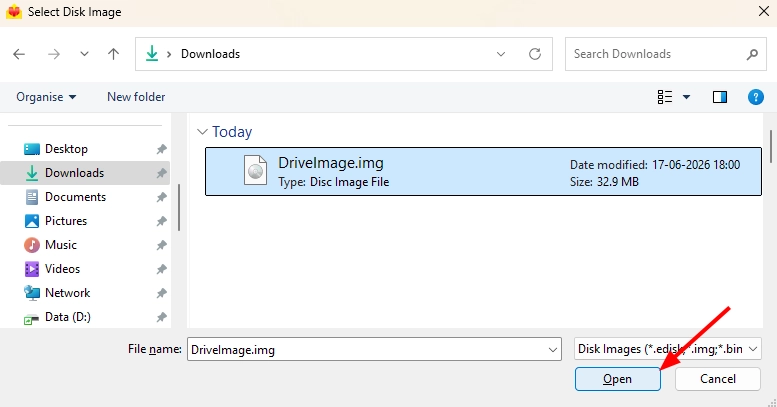
- Choose the disk image you want to import.
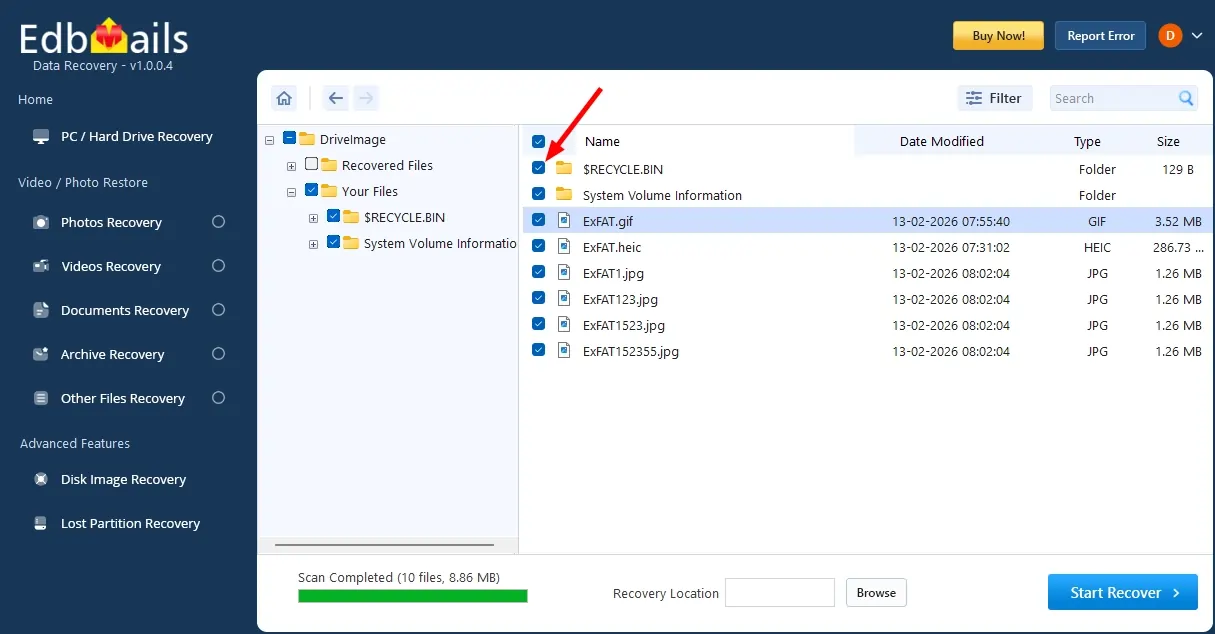
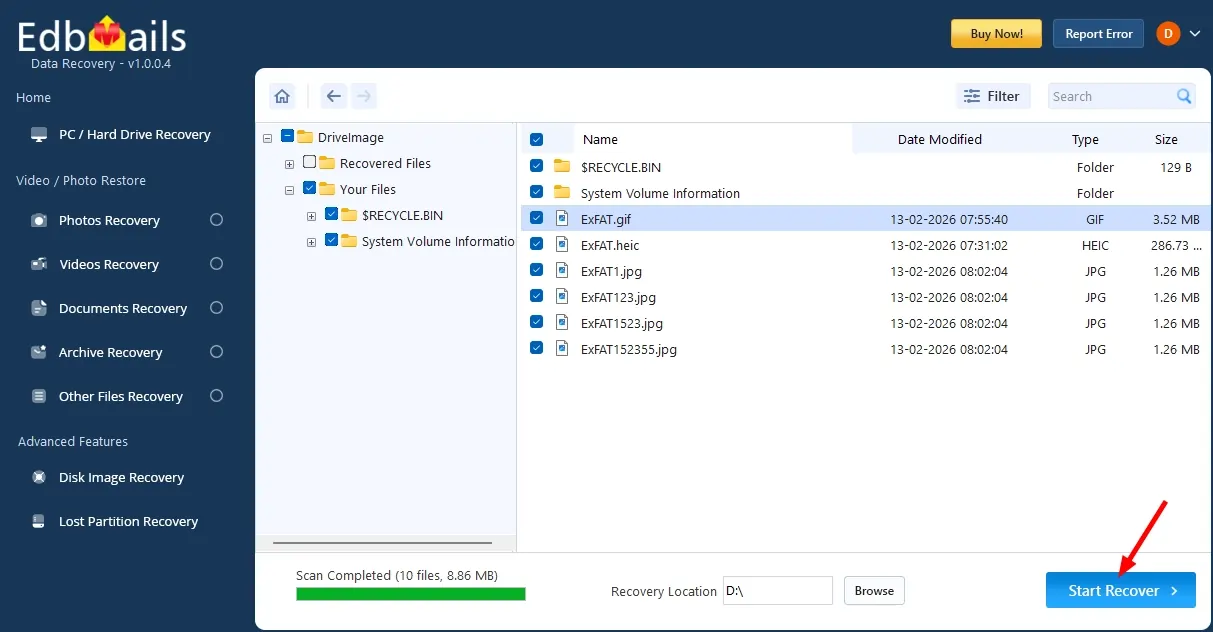
- Select the items that you want to restore.
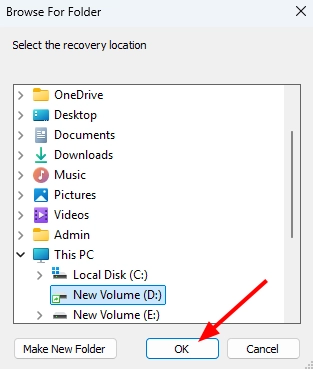
- Click the ‘Browse’ button to select the recovery location.
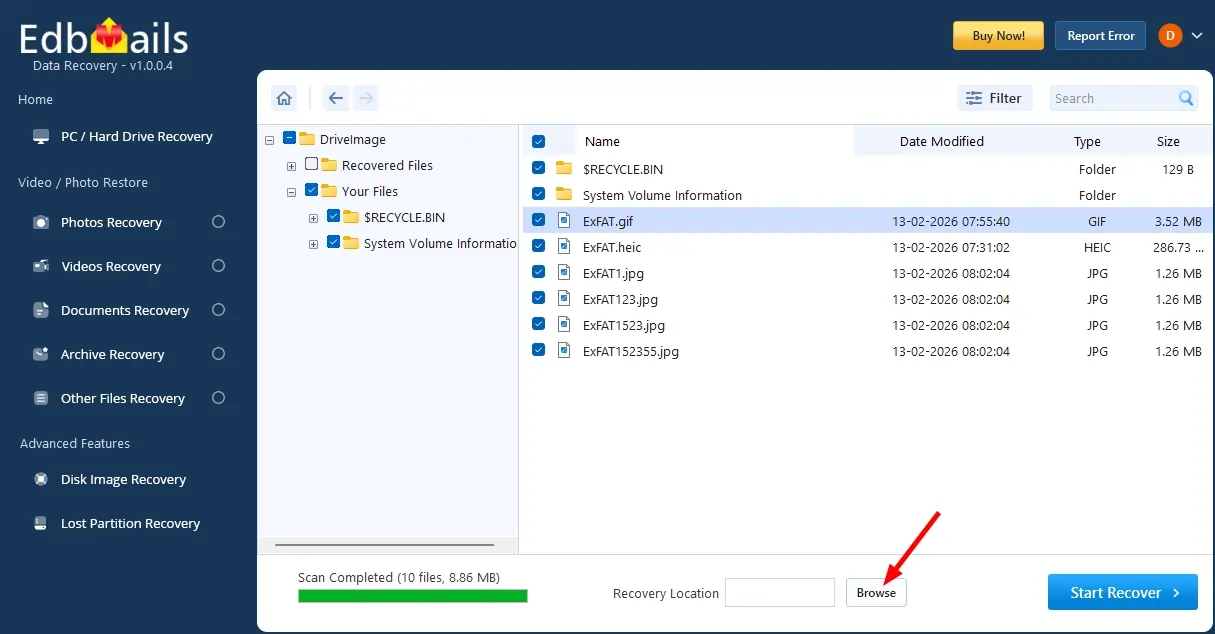
- Choose the desired location and click ‘OK’.
- Click the ‘Start Recover’ button.
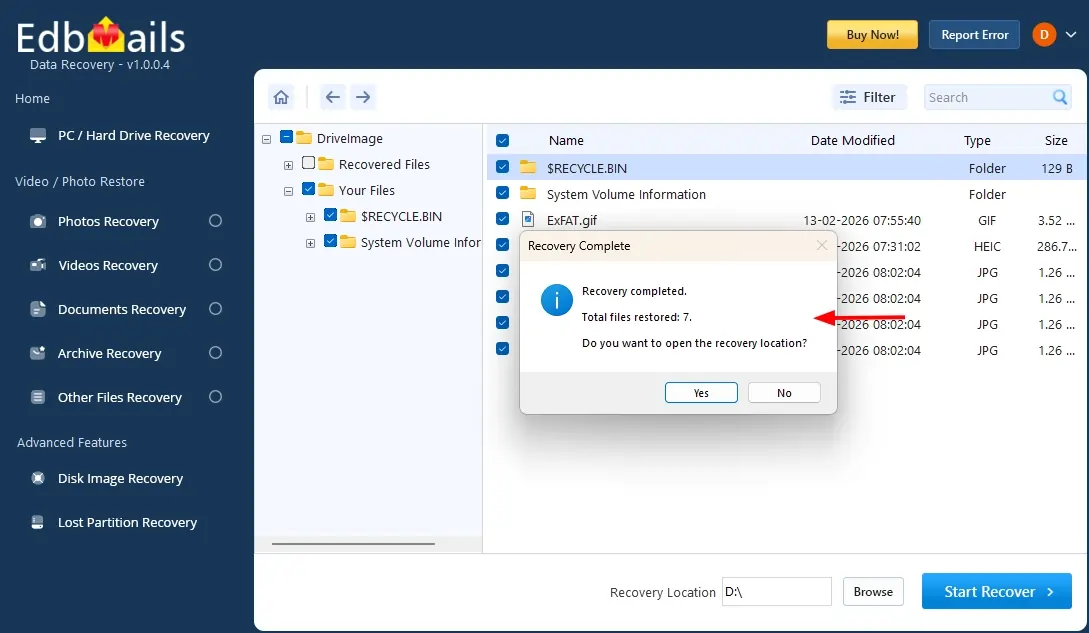
- Once recovery is complete, the total number of recovered items will be displayed.
- Download and install the EdbMails application on your computer.
Frequently Asked Questions (FAQs)
Is it safe to create a disk image with EdbMails - Will it alter my drive?
Yes, it is completely safe. EdbMails reads the source drive in a non-destructive, read-only manner during image creation. It does not write to, modify, or alter any data on the source drive at any point during the imaging process.
Can EdbMails recover data from a disk image after formatting?
Yes. If the disk image was created from a drive before it was formatted — or if the image captures the formatted state — EdbMails Deep Scan performs a sector-level analysis of the image to locate and recover files from the formatted partition.
What format does EdbMails use when creating a disk image?
When creating a disk image, EdbMails supports saving the image in the following formats: .edisk, .img, .bin, .dd, and .raw. All of these can be imported back into EdbMails for future recovery sessions.
Can I recover data from a VMDK or VHD virtual machine disk using EdbMails?
Yes. EdbMails supports importing .vmdk (VMware) and .vhd / .vhdx (Microsoft Hyper-V) virtual machine disk image files. Once imported, EdbMails scans the virtual disk and recovers deleted or lost files from within it.

