


Lost Partition Recovery
EdbMails Data Recovery provides a reliable and straightforward solution for lost partition recovery on Windows. Whether a partition has been accidentally deleted, disappeared after a Windows update or was wiped during a formatting operation, EdbMails can scan the affected drive and recover the data stored on that partition — without requiring any technical expertise.
A partition is a logically defined section of a physical hard drive or SSD that Windows treats as a separate drive. Every drive you use, whether it is your internal C: drive, an external hard drive, or a USB device, is divided into one or more partitions. Each partition has its own file system (NTFS, FAT32, exFAT, and so on) and maintains a record of all the files and folders stored within it. This record is tracked in a partition table, which is a critical data structure stored at the beginning of the disk. When a partition is deleted or lost, Windows loses its reference to that section of the drive, but in most cases, the underlying data remains physically intact on the disk until it is overwritten by new data.
EdbMails lost partition recovery works by scanning the raw sectors of your drive to locate the remnants of deleted or lost partitions and reconstruct the files stored within them. It supports recovery from all common partition types and file systems, including NTFS, FAT16, FAT32, and exFAT — across internal drives, external hard drives, SSDs, and USB storage devices on Windows.
Common Causes of Partition Loss or Deletion
- Accidental Deletion: Partition deleted via Disk Management or third-party partitioning software
- Sudden Power Failure: A power cut during a write operation corrupts the partition structure
- Windows OS Update: Major Windows upgrades occasionally overwrite or remove existing partitions
- Partitioning Tool Error: Incorrect operations in disk management utilities cause partition loss
- Drive Formatting: Formatting a partition — intentionally or accidentally — erases its index
- Hardware or Firmware Issues: Failing drives or faulty firmware can render partitions unreadable
Lost Partition Recovery Scenarios
EdbMails Data Recovery handles all common partition loss situations on Windows. Here is how EdbMails approaches each scenario:
- Deleted Partition Recovery:
If you accidentally deleted a partition using Windows Disk Management, Diskpart, or any third-party partitioning tool, the partition entry is removed from the partition table, but the file data remains on the disk sectors. EdbMails scans the drive to locate the deleted partition's boundaries and file system, then reconstructs all recoverable files. Run a Quick Scan first for recently deleted partitions; switch to Deep Scan if needed.
- Recover Formatted Partitions:
When a partition is formatted, whether a quick format or a full format, Windows resets the file system index but does not immediately erase the actual file data stored on the sectors. EdbMails Deep Scan reads through all sectors of the formatted partition to locate and recover file signatures and reconstruct your files. This makes it possible to recover formatted partitions and retrieve documents, photos, videos, and more, even after a full format operation.
- Inaccessible Partition Recovery:
A partition may become inaccessible when Windows is unable to read its file system, often showing errors such as "The file or directory is corrupted and unreadable" or prompting you to format the drive. EdbMails bypasses the file system layer and scans the raw disk sectors directly, allowing you to recover data from inaccessible partitions without requiring any prior repair or formatting.
- Partition Lost After Windows OS Update:
Major Windows updates, including upgrades to Windows 10 or Windows 11, occasionally reorganise disk partitions or overwrite recovery partitions, causing existing data partitions to go missing. If a partition disappeared following a Windows update, connect the drive to a working Windows PC, launch EdbMails, and run a Deep Scan on the physical drive to locate and recover data from the lost partition.
- Partition Loss Due to Virus or Malware Attack:
Certain malware strains specifically target the partition table or the file system of a partition to render it inaccessible or invisible. If you suspect a malware attack caused your partition loss, first disconnect the affected drive from the infected machine. Connect it to a clean, malware-free Windows PC and use EdbMails to perform lost partition recovery before running any antivirus or disk repair tool.
- Deleted Partition Recovery:
Why EdbMails is the Best Choice for Lost Partition Recovery
EdbMails Data Recovery is built to handle the full range of partition loss scenarios on Windows — from a simple accidental deletion of a partition to complex cases involving formatted drives, corrupt partition tables, and RAW file systems. Here is what makes EdbMails the right choice for lost partition recovery:
- Deep Partition Scan: EdbMails performs a thorough sector-by-sector scan of your entire drive to locate lost or deleted partitions, even when the partition table is missing or corrupted.
- All File Systems Supported: EdbMails recovers data from partitions formatted with NTFS, FAT16, FAT32, and exFAT — covering all common Windows partition types on internal and external drives.
- Preview Files Before Recovery: Browse and preview recoverable files, documents, photos, videos, and emails directly within EdbMails before choosing what to restore, saving time and storage space.
- 1,000+ File Formats Recovered: From Office documents and RAW camera images to PST email archives and compressed ZIP files, EdbMails recovers over 1,000 file types from lost or deleted partitions.
- Read-Only, Non-Destructive Scanning: EdbMails never writes to your drive during scanning. The entire partition recovery process is read-only, ensuring no additional data is lost or overwritten during the scan.
- Recover from Any Windows Drive: EdbMails supports lost partition recovery from internal HDDs, internal SSDs, external hard drives, external SSDs, USB flash drives, SD cards, and other storage media on Windows.
- Quick Scan + Deep Scan Support: EdbMails performs a Quick Scan for recently lost or deleted partitions where the file system is still partially intact, and a Deep Scan for formatted drives or complex partition loss scenarios.
- Filter and Sort Recovered Data: Once the scan is complete, use EdbMails built-in filters to sort recovered files by date modified, advanced filter, and file size — making it easy to find exactly what you need from thousands of results.
Supported File Types for Lost Partition Recovery
EdbMails Data Recovery can recover over 1,000 file types from lost, deleted, or formatted partitions. The following table covers the major categories:
DocumentsDOC, DOCX, XLS, XLSX, PPT, PPTX, PDF, TXT, CSV, RTFImages & PhotosJPG, JPEG, PNG, BMP, TIFF, RAW, GIF, HEIC, SVG, PSDVideosMP4, AVI, MOV, MKV, WMV, FLV, 3GP, MPEG, M4V, TSAudioMP3, WAV, AAC, FLAC, WMA, OGG, M4A, AIFFArchivesZIP, RAR, 7Z, TAR, GZ, ISO, CABEmail & DatabasePST, OST, EML, MSG, MDB, ACCDB, SQL, DBFSystem & OthersEXE, DLL, XML, HTML, JS, PY, and 1,000+ more formatsPrerequisites for Lost Partition Recovery
- Install EdbMails Data Recovery Software on your computer.
- Purchase and activate the appropriate license to enable full recovery functionality.
- Ensure sufficient free disk space is available to save the recovered data.
- Avoid writing new data to the affected device to prevent overwriting deleted data.
Steps to Recover a Lost or Deleted Partition Using EdbMails
Follow these steps carefully to perform lost partition recovery using EdbMails Data Recovery Software. The process works for deleted partition recovery, recovery after formatting, and recovery from corrupted or RAW partitions.
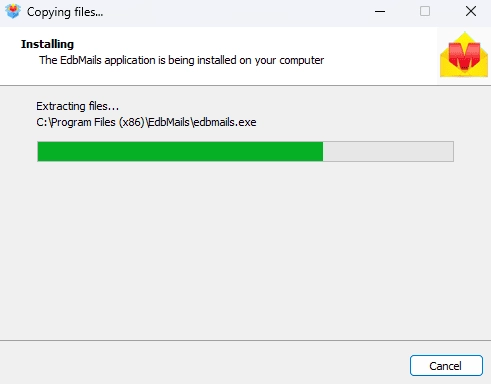
- Download and install EdbMails Data Recovery
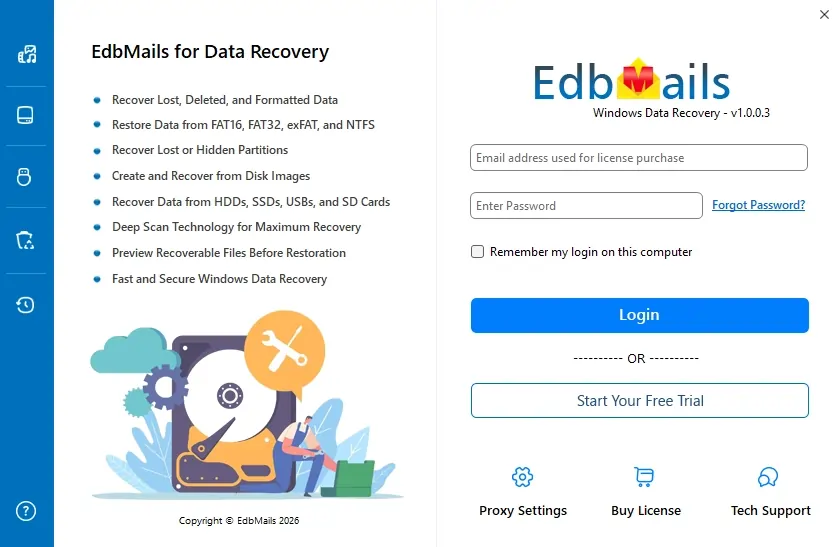
- Enter your email address and password to login. If you haven’t registered yet, click ‘Start Your Free Trial’ to explore the features.
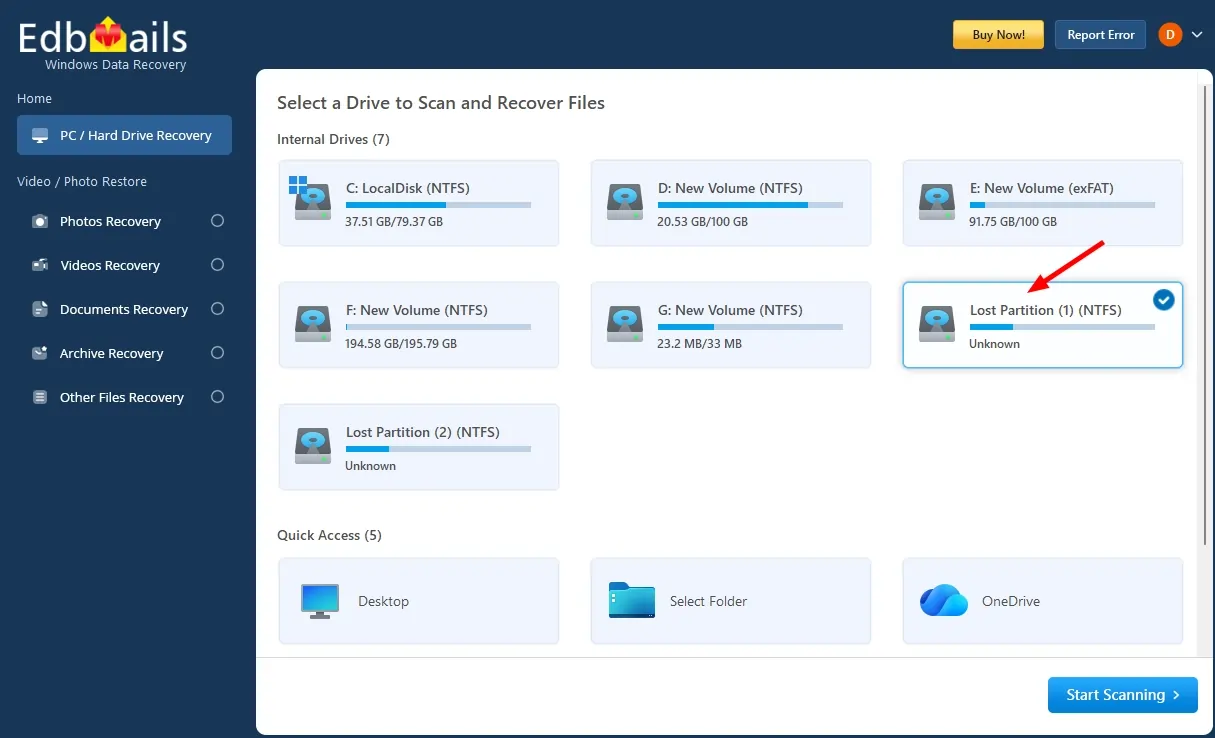
- Select the lost partition drive from which you wish to recover data.
Note: If needed, choose the required filter from the left-side navigation pane and click Apply to refine the scan results.
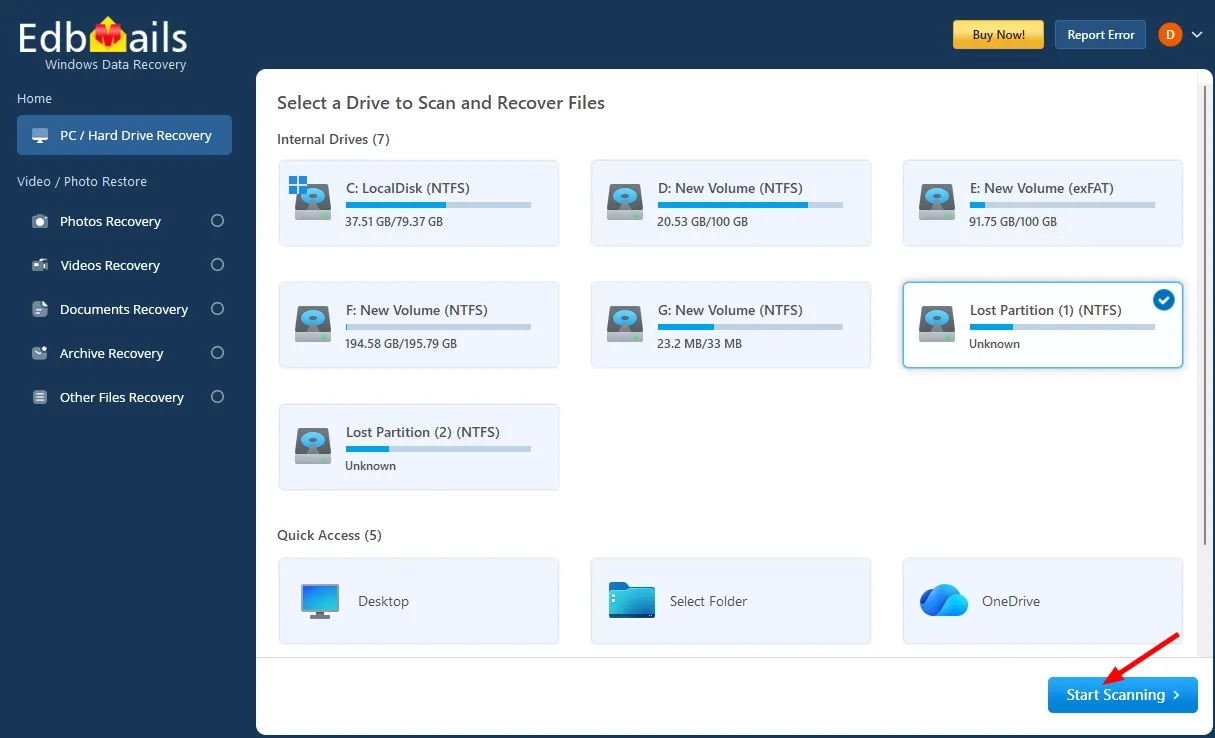
- Click 'Start Scanning' to begin scanning the drive.
- Select the required folders or files that you want to recover.
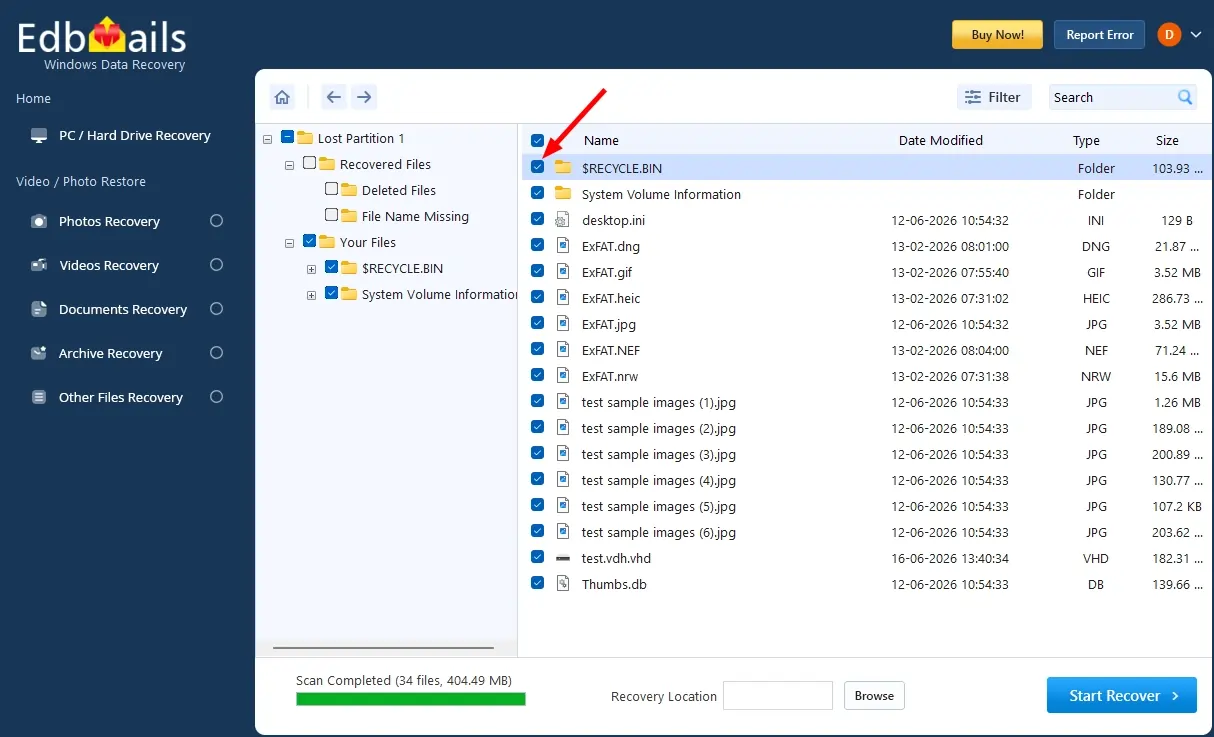
- Click the ‘Browse’ button to select the recovery location.
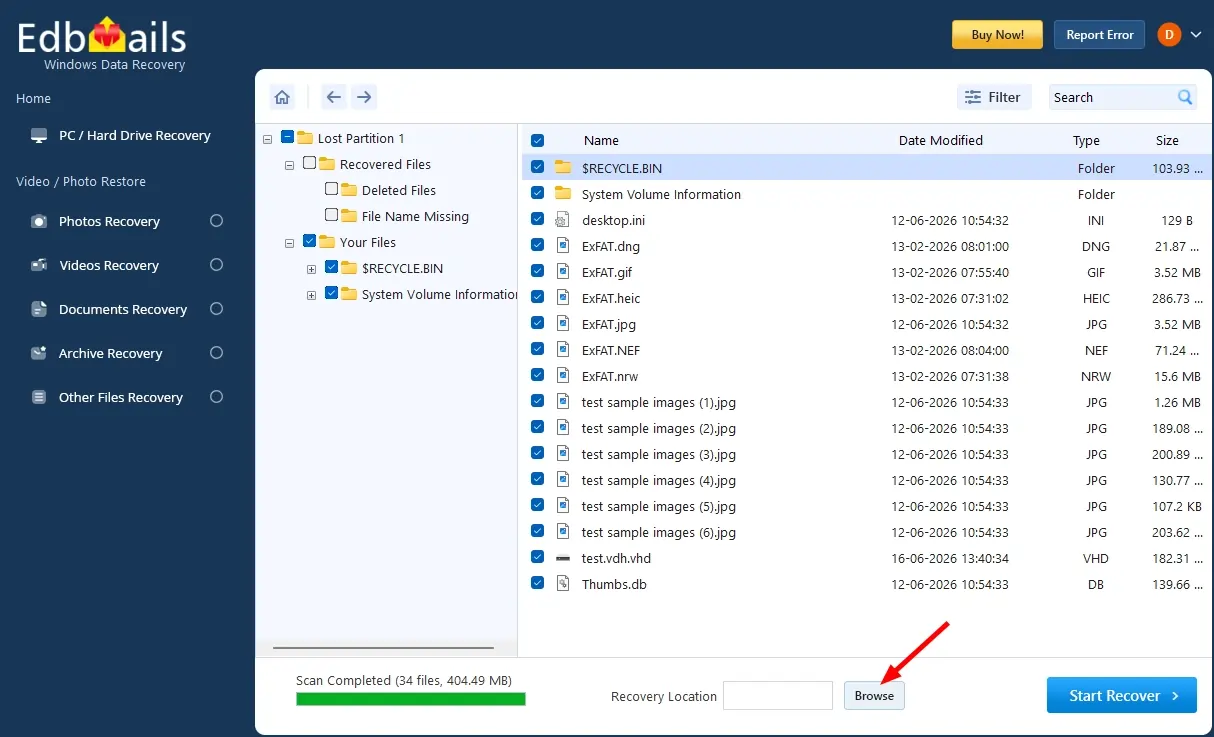
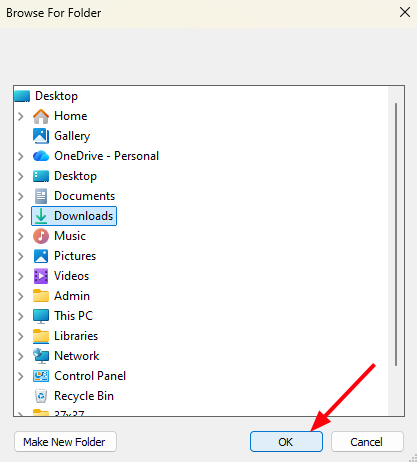
- Choose the desired location and click ‘OK’.
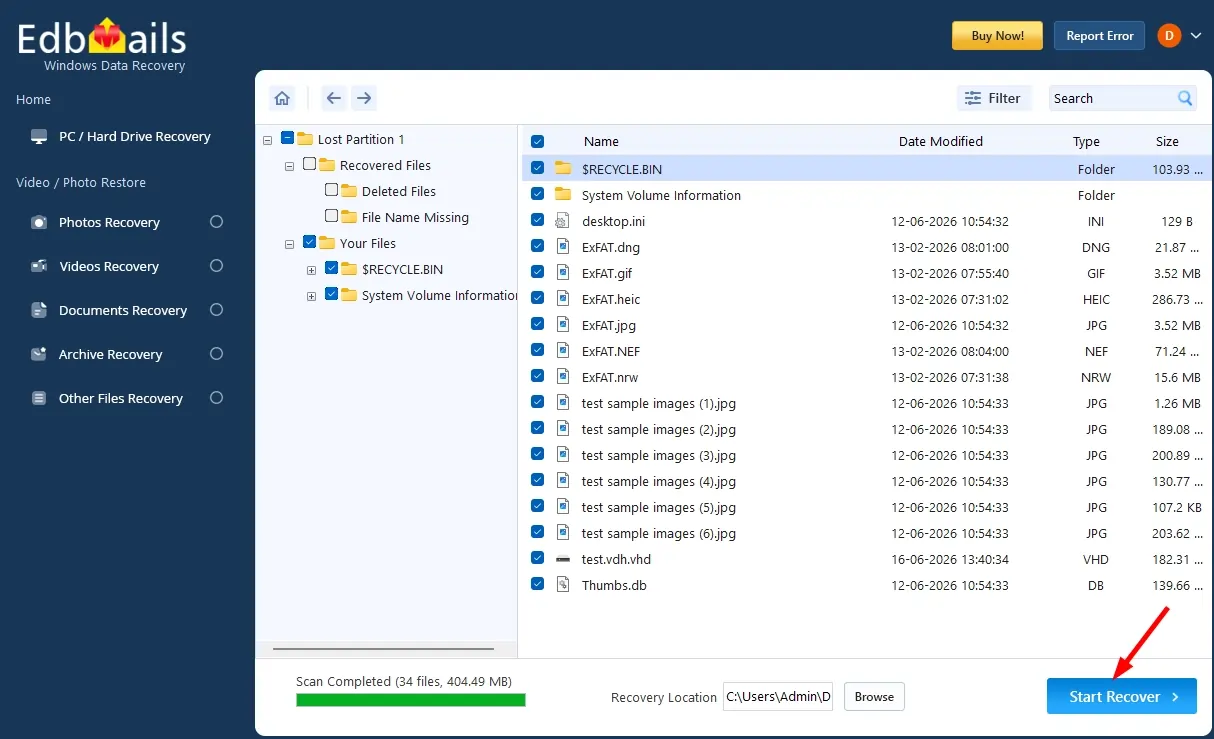
- Click the ‘Start Recover’ button.
- Once recovery is complete, the total number of recovered items will be displayed.
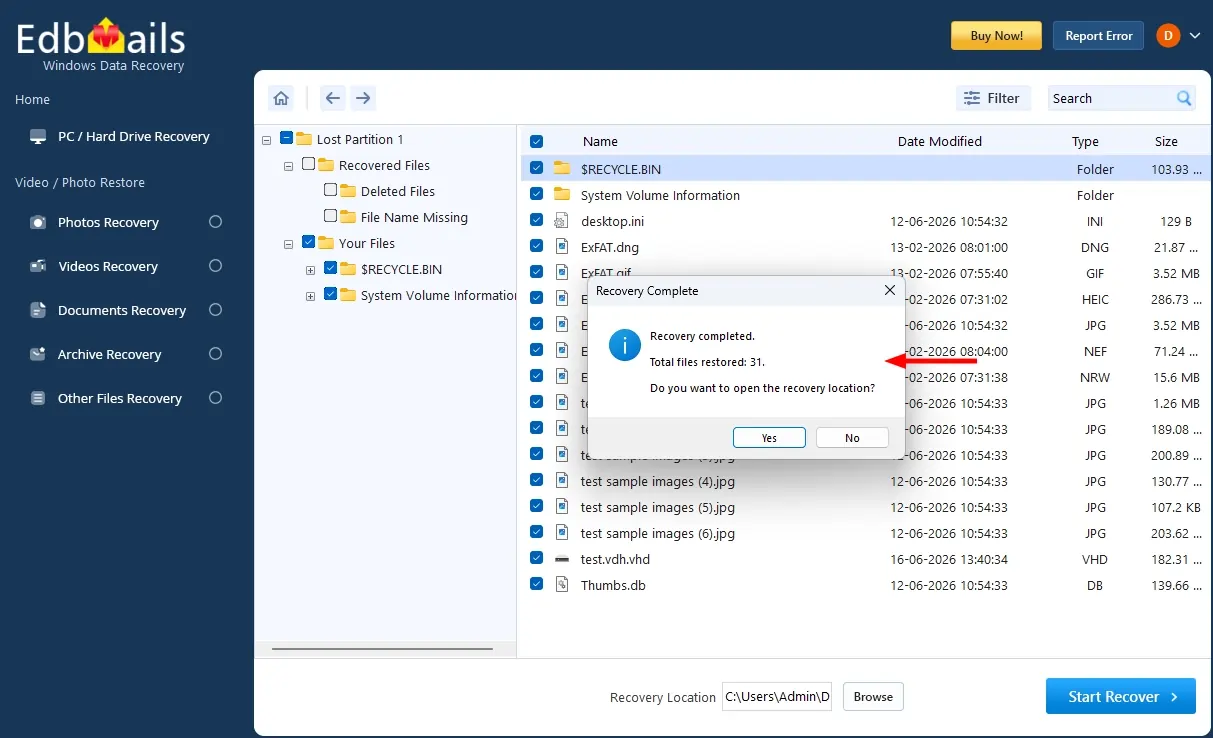
- Open the recovery location to view your recovered files.
- Download and install EdbMails Data Recovery
Frequently Asked Questions (FAQ)
Can EdbMails recover a partition that was deleted a long time ago?
Yes, in many cases. As long as the sectors of the deleted partition have not been overwritten by new data, EdbMails Deep Scan can locate the partition's file system remnants and recover the files stored within it. The sooner you run EdbMails after partition loss, the better the chances of a full recovery.
Which file systems does EdbMails support for lost partition recovery?
EdbMails supports lost partition recovery from drives formatted with NTFS, FAT16, FAT32, and exFAT file systems — covering all common Windows partition types on internal hard drives, SSDs, external drives, USB devices, and SD cards.
Can EdbMails recover data from a partition that shows as unallocated space in Disk Management?
Yes. When a partition appears as unallocated space in Windows Disk Management, it means the partition entry has been removed, but the data is usually still intact. Select the physical drive in EdbMails and run a scan to locate and recover your files from the unallocated space.
Can I recover a partition that was deleted using Diskpart or Windows Disk Management?
Yes. Partitions deleted via Diskpart commands or Windows Disk Management still have their data intact on the drive sectors until that space is overwritten. EdbMails can scan the physical drive and recover files from the deleted partition.

