EdbMails EDB Recovery and Migration software
  • Products
    EdbMails
    All-in-one Recovery and Migration
    • EDB Recovery and Migration
    • OST, PST, MBOX, NSF, EML, MSG
    • Office 365, Exchange Migration
    • SharePoint, OneDrive & Teams
    • Google Workspace Migration
    • IMAP Migration
    • Duplicate Remover
    • EdbMails Data Recovery
    • Backup Solutions
    • All ProductsAll Products

    EDB Recovery and Migration

    EdbMails lets you recover corrupted, damaged, and offline Exchange EDB files, convert EDB mailboxes to PST format, and directly migrate mailbox data to Office 365 and live Exchange Server.

    EDB to PST
    EDB to PST
    Recover corrupted, damaged, offline EDB files and convert Exchange EDB mailboxes to PST file format
    Public Folder to Exchange
    Public Folder to Exchange
    Migrate public folders from an Exchange offline EDB file to live Exchange Server
    EDB to Live Exchange Migration
    EDB to Live Exchange Migration
    Directly migrate offline Exchange database (EDB) files to live Exchange server
    Archive Mailbox to Office 365
    Archive Mailbox to Office 365
    Migrate archive mailboxes from offline EDB files directly to Office 365
    EDB to Office 365 Migration
    EDB to Office 365 Migration
    Directly migrate offline Exchange database (EDB) files to Office 365
    Public Folder to Office 365
    Public Folder to Office 365
    Migrate public folders from an offline Exchange EDB file to Office 365

    OST, PST, MBOX, NSF, EML, MSG Export and Migration

    EdbMails lets you to recover OST and PST files, export OST, PST, MBOX, NSF, EML, and MSG files to PST files, and directly migrate OST, PST, MBOX, and NSF mailbox data to Office 365 and live Exchange Server.

    OST Recovery and Migration
    OST Recovery and Migration
    Recover offline OST files, convert OST to PST, and migrate OST to Office 365 and Exchange Server
    PST Recovery and Migration
    PST Recovery and Migration
    Recover Outlook PST files , Export PST to PST, migrate PST to Office 365 and Exchange Server
    MBOX Export and Migration
    MBOX Export and Migration
    Export MBOX to PST, migrate MBOX to Office 365 and Exchange Server
    NSF Export and Migration
    NSF Export and Migration
    Export NSF to PST, migrate NSF to Office 365 and Exchange Server
    EML to PST Export
    EML to PST Export
    Convert EML files to Outlook PST files
    PST to MSG Export
    PST to MSG Export
    Convert Outlook PST file to MSG file format
    MSG to PST Export
    MSG to PST Export
    Export MSG files to Outlook PST files

    Office 365, Exchange Migration

    EdbMails lets you securely migrate mailboxes across Microsoft 365, Exchange, Google Workspace (Google Workspace Migraton), and IMAP-supported servers such as Outlook, Gmail, Zimbra, Zoho Mail, and cPanel, ensuring zero downtime.

    Office 365 Backup
    Office 365 Migration
    Migrate between Office 365 tenants, Office 365 to Exchange, Office 365 to PST, PST files to Office 365.
    Exchange Server Backup
    Exchange Migration
    Migrate between any Exchange Servers, Exchange to Office 365, Exchange to PST, PST files to Exchange.
    Tenant to Tenant Migration
    Tenant to Tenant Migration
    Migrate Mailboxes, Public Folders, Archive Mailboxes between Office 365 Tenants.
    Exchange to Office 365
    Exchange to Office 365
    Migrate Mailboxes, Public Folders, Archive Mailboxes from live Exchange server to Office 365.
    Office 365 to IMAP
    Office 365 to IMAP
    Migrate Office 365 to IMAP, Office 365 to Gmail, Office 365 to Outlook, Office 365 to Zoho etc.
    Exchange to IMAP
    Exchange to IMAP
    Migrate from live Exchange Server to IMAP servers such as Gmail, Outlook, and Zoho Mail.
    Public Folder to Office 365
    Public Folder to Office 365
    Migrate Public Folders between Office 365 tenants with complete folder hierarchy and mailbox data integrity.
    Exchange to PST
    Exchange to PST
    Export live Exchange Server mailboxes, public folders, and archive mailboxes to Outlook PST files.

    SharePoint, OneDrive & Microsoft Teams Migration

    EdbMails lets you migrate SharePoint sites, OneDrive data, Microsoft Teams, teams, channels, chats, permissions, and documents between Microsoft 365 tenants while maintaining the existing folder structure and data integrity.

    SharePoint, OneDrive & Teams Backup
    SharePoint Online Migration
    Migrate documents, lists, files and folders from SharePoint sites.
    OneDrive for Business Migration
    OneDrive for Business Migration
    Migrate documents, lists, files, folders, private chats from OneDrive.
    Microsoft Teams Migration
    Microsoft Teams Migration
    Migrate Teams, chats, channels, documents, files and folders etc.

    Google Workspace / G Suite Migration

    EdbMails offers secure Google Workspace migration to Office 365, Exchange, or IMAP, and export to PST covering emails, contacts, calendars and tasks.

    Google Workspace Migration
    Google Workspace Migration
    Migrate emails, calendars, contacts, tasks from Google workspace to Google workspace, office 365, Exchange and IMAP. Export to PST
    Google Workspace to Office 365
    Google Workspace to Office 365
    Migrate emails, calendars, contacts, tasks from Google Workspace / G Suite to Office 365
    Google Workspace to Exchange Server
    Google Workspace to Exchange Server
    Migrate emails, calendars, contacts, tasks from Google Workspace / G Suite to on-Premise Exchange Server
    Google Workspace to IMAP
    Google Workspace to IMAP
    Migrate emails, calendars, contacts, tasks from Google Workspace / G Suite to IMAP, Outlook, Zimbra, Zoho etc.
    Google Workspace to Google Workspace Migration
    Google Workspace to Google Workspace
    Migrate emails, calendars, contacts, tasks between two Google Workspace / G Suite tenants
    Google Workspace to PST
    Google Workspace to PST
    Export emails, calendars, contacts, tasks from Google Workspace / G Suite to Outlook PST files

    IMAP Migration

    EdbMails IMAP Migration tool lets you easily migrate emails from IMAP servers such as Outlook, Gmail, Zoho Mail, Zimbra, cPanel, and more. Supports IMAP to IMAP, Office 365, Exchange Server, PST, and bulk PST to IMAP migration.

    IMAP Email Backup & Migration
    IMAP Email Backup & Migration
    Backup and migrate emails from IMAP servers to PST, Office 365, and On-Premises Exchange Server
    IMAP to Office 365
    IMAP to Office 365
    Migrate emails, folders, and attachments from IMAP servers to Office 365
    IMAP to Exchange
    IMAP to Exchange
    Migrate emails, folders, and attachments from IMAP servers to on-premises Exchange Server
    IMAP to PST
    IMAP to PST
    Export emails, folders, and attachments from IMAP servers to Outlook PST files for backup
    PST to IMAP
    PST to IMAP
    Migrate emails, folders, and attachments from bulk PST files to IMAP servers

    Duplicate Remover

    EdbMails Duplicate Remover lets you easily remove duplicate items from Office 365 and Exchange Server, and from IMAP, Outlook, Gmail, Zimbra, Zoho Mail, etc., ensuring a clean and organized mailbox.

    Remove Duplicates
    Remove Duplicates
    Easily clean up your Office 365, Exchange, Outlook and IMAP accounts by removing duplicate emails.
    Remove Duplicates from Office 365
    Remove Duplicates from Office 365
    Remove duplicate emails, calendars, contacts, journal tasks, etc. from Office 365.
    Remove Duplicates from Exchange Server
    Remove Duplicates from Exchange Server
    Remove duplicate emails, calendars, contacts, journal tasks, etc. from live Exchange Server.
    Remove Duplicates from IMAP, Outlook
    Remove Duplicates from IMAP, Outlook
    Remove duplicate emails, attachments from IMAP, Outlook, Gmail, Zimbra, Zoho Mail etc.

    Exchange, SharePoint, OneDrive, Teams and Office 365 Backup

    EdbMails enables secure, automated backup and recovery for Microsoft 365 services including Exchange Online, SharePoint, OneDrive, Teams, and Live Exchange Server with complete data protection and restore flexibility.

    Office 365 Backup
    Office 365 Backup
    Incremental, Granular, Encrypted and Compressed Office 365 Mailboxes Backup
    Exchange Server Backup
    Exchange Server Backup
    Incremental, Granular, Encrypted and Compressed Exchange Mailboxes Backup
    SharePoint, OneDrive & Teams Backup
    SharePoint, OneDrive & Teams Backup
    Backup Online site collections, Team sites, Office 365 groups, all documents etc.

    EdbMails Data Recovery

    EdbMails Data Recovery Software lets you recover permanently deleted data, including photos, videos, documents, and archived files, from partitions on hard drives, SSDs, USB drives, SD cards, and external storage devices.

    EdbMails Data Recovery
    EdbMails Data Recovery
    Recover and restore permanently deleted data from hard drives, SSDs, USB drives, SD cards, and etc.
    Whitepaper Whitepaper
    Request a Demo Request a Demo
    Sign Up Sign Up
  • Features
  • FAQ
  • Offers
  • Pricing
  • Download
  • Support
  • Sign in
User’s Manual
EdbMails Data Recovery

User Manual

User Manual

  • Overview
  • System Requirements
  • Installation
    • Installation process
    • Reinstall or Upgrade
    • How to uninstall
  • FAQs
  • Videos
  • Screenshots
    • SD Card Data Recovery
    • Recycle Bin Recovery
    • USB Data Recovery
    • Hard Drive Data Recovery
    • Photo Recovery
    • Video Recovery
    • Document Recovery
    • Archives Recovery
  • How it works?
    • SD Card Data Recovery
    • Recycle Bin Recovery
    • USB Data Recovery
    • Hard Drive Data Recovery
    • Photo Recovery
    • Video Recovery
    • Documents Recovery
    • Archives Recovery
    • exFAT Data Recovery
    • Lost Partition Recovery
    • Create and Import Disk Image
    • Linux Data Recovery
    • Mac Data Recovery
  • Filter Operations
  1. Home
  2. EdbMails Data Recovery
  3. Mac Data Recovery via SSH | EdbMails
Download Buy Now

Mac Data Recovery via SSH

EdbMails data recovery software provides a powerful solution for Mac users who need to recover lost or deleted data without the hassle of physical access or complicated procedures. Accidentally deleting important files or folders on your Mac happens more often than expected, and when it does, finding a reliable way to get that data back becomes critical.

The Mac Recovery via SSH feature built into EdbMails allows you to recover deleted files from macOS systems, recover deleted folders, and handle broader Mac data recovery scenarios directly from your Windows computer. Whether you're dealing with accidental deletion, a failed system update, or an accidentally formatted drive, this remote recovery solution provides a safe and efficient way to restore your data.
Mac Data Recovery

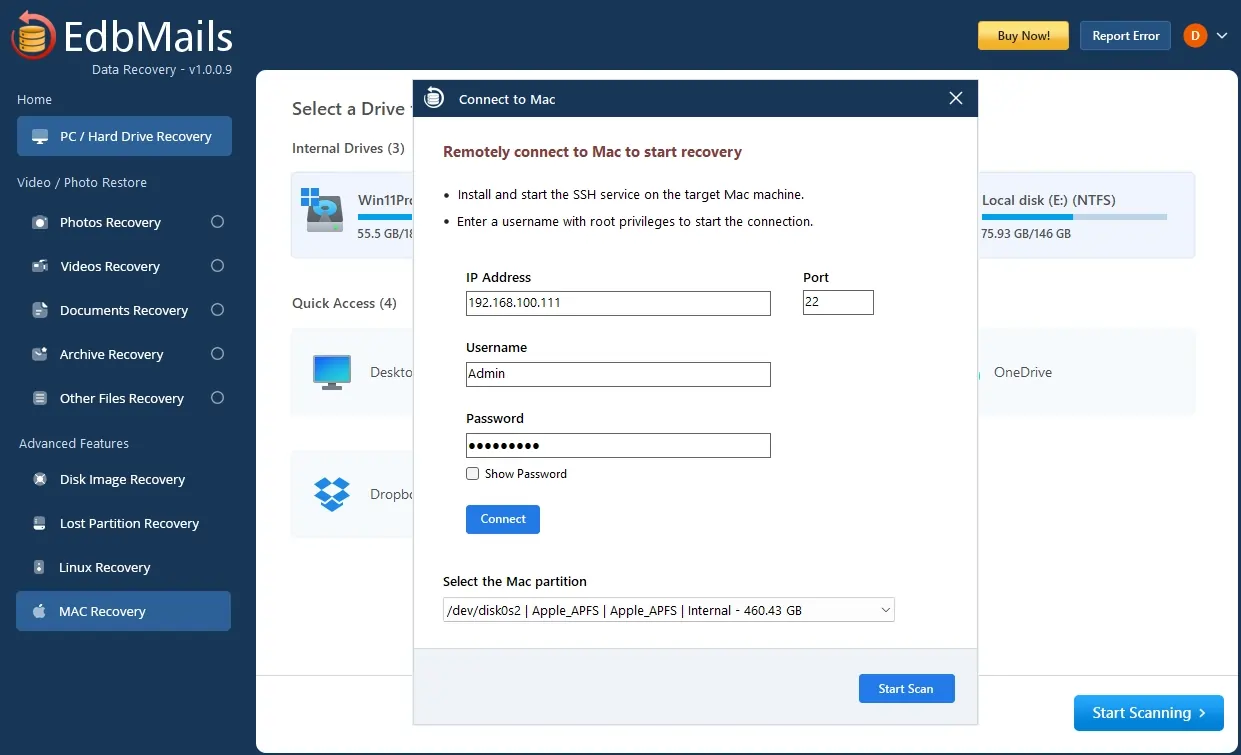
Getting started is straightforward. Simply enable SSH on your target Mac machine, then connect to it from EdbMails using the IP address, port, and your administrator login credentials. Once connected, you can browse and select the relevant Mac partition—including APFS containers and other supported file systems—and run a scan to locate deleted or lost files and folders. The best part is that you can recover everything you need without needing physical access to the Mac system. This makes it especially useful for recovering data from remote workstations, MacBook laptops, or Mac systems at different locations.

This approach works reliably whether your data loss occurred due to accidental deletion, a system update that went wrong, or even accidental disk formatting. EdbMails handles all these scenarios with both Quick Scan for recent deletions and Deep Scan for more comprehensive recovery of older or harder-to-find files.

  1. Key Benefits of Mac Recovery via SSH

    1. Secure Remote Access:

      All communication between your Windows machine and the Mac system is encrypted using industry-standard SSH (Secure Shell), so there's no need to physically access the Mac to recover data. This makes the process safe to use even over network connections, since the entire session remains protected from end to end with military-grade encryption.

    2. Remote Data Recovery:

      EdbMails can recover data from Mac machines located anywhere on your network or across the internet, connecting to remote Mac systems without requiring any additional software installation on the target Mac. This makes it particularly useful for remote workstations, MacBook laptops, Mac Minis used as servers, or even iMacs that aren't easily accessible in person.

    3. Comprehensive File System Support:

      The feature supports all Mac file systems, including APFS (Apple File System - used in modern macOS), HFS+ (Mac OS Extended), NTFS partitions commonly used on external drives, ExFAT, FAT32, and FAT16 file systems. This covers both internal Solid State Drives (SSDs), traditional Hard Disk Drives (HDDs), external USB drives, and Thunderbolt storage devices for broader recovery compatibility.

    4. Advanced Scanning Technology:

      Recovery supports both Quick Scan and Deep Scan modes. Quick Scan rapidly retrieves recently deleted files by reading file system metadata, while Deep Scan performs thorough, sector-level analysis to locate older files, partially overwritten data, or files with corrupted file system references. The software recovers files directly to your Windows location without requiring a preview listing.

    5. Fast & Efficient:

      The SSH connection is optimized to support fast data transfer over the network. Interrupted recovery sessions can be resumed rather than restarted from scratch, saving time and reducing network bandwidth usage. Multiple recovery options are also available to suit different data loss scenarios, whether you're dealing with a single accidentally deleted file or a larger-scale recovery operation.

    6. No Mac Downtime:

      Unlike traditional recovery methods that require removing and connecting the Mac drive to another system, SSH recovery allows you to recover data while the Mac remains in operation. This is especially valuable for business environments where Mac downtime is costly and can impact productivity.

    7. Multi-File Type Support:

      Recover a wide variety of file types, including photos and images (JPEG, PNG, RAW, HEIF), videos (MOV, MP4, AVI), documents (PDF, DOCX, XLSX, PPTX), emails and archives (ZIP, RAR), audio files (MP3, WAV, FLAC), and more. The software uses file signature analysis to identify and recover even corrupted files.

  2. Advantages of Using EdbMails for Mac Recovery

    • Recover deleted and lost data from Mac systems remotely without physically accessing the device.
    • Connect securely to Mac computers from Windows using encrypted SSH communication.
    • Recover data from APFS, HFS+, NTFS, ExFAT, FAT32, and FAT16 file systems with a single application.
    • Restore files from internal drives, SSDs, HDDs, USB drives, and external storage devices.
    • Choose between Quick Scan and Deep Scan to maximize recovery success based on your data loss scenario.
    • Recover documents, photos, videos, emails, archives, audio files, and hundreds of other file formats.
    • Resume interrupted recovery sessions without repeating the entire scanning process.
    • Recover data without removing the Mac drive or installing additional software on the target Mac.
    • Perform recovery while the Mac remains operational, helping reduce system downtime.
    • Simple step-by-step recovery workflow designed for both individual users and IT professionals.
    • Reliable recovery solution for personal, business, and enterprise Mac environments.
  3. Who Should Use This Feature?

    • Users who accidentally deleted important files from their Mac system
    • System administrators and IT professionals managing multiple Mac systems
    • Businesses requiring data recovery from Mac systems without downtime
    • Mac users who experienced accidental formatting or partition deletion
    • Remote teams and organizations need secure data recovery across the network
  4. Prerequisites for Mac Recovery via SSH

    On Your Mac Machine:

    • Compatible with all versions of macOS (10.12 Sierra and later recommended)
    • Administrator/root access privileges for SSH connections
    • SSH service capability (included with all macOS versions, just needs to be enabled)

    On Your Windows Machine (Running EdbMails):

    • Compatible with all modern versions of Windows (Windows 7 SP1 or later)
    • EdbMails data recovery software installed (latest version recommended)
    • Network connectivity to the Mac machine (along with IP address, username, password, and SSH port number)
    • Sufficient storage space to save the recovered data
    • Prior knowledge of the Mac storage device and the partition you want to recover from
  5. Steps to Recover Data from a Mac via SSH

    Enable SSH on Your Mac

    SSH (Secure Shell) is the protocol that allows EdbMails to connect to your Mac system over the network securely. SSH is built in to macOS, so you do not need to install any additional software. Remote Login (SSH) allows secure connections from other computers. Follow these steps carefully to enable Remote Login on your Mac:

    Step 1: Open Terminal on Your Mac and Run the Following Commands

    Command 1: Enable Remote Login (SSH) with Administrator Privileges

    Command: Copy & Paste

    sudo systemsetup -setremotelogin on

    This command enables Remote Login on your Mac, which is the macOS equivalent of SSH. When you run this command with sudo, it requires administrator privileges to make changes to the system settings.

    Command 2: Verify SSH Status

    Command: Copy & Paste

    sudo systemsetup -getremotelogin

    This command checks the current status of Remote Login (SSH) on your Mac and reports whether it is enabled or disabled. It's essential to run this verification command to confirm that your previous command executed successfully.

    Command 3: Find Your Mac's IP Address

    Command: Copy & Paste

    ifconfig | grep "inet "

    You need your Mac's IP address to connect to it from the Windows computer running EdbMails. This command displays all network interfaces and their associated IP addresses. The 'grep' portion filters the output to show only the lines containing 'inet' (IPv4 addresses).

    Configure EDBMails to Connect to Your Mac via SSH

    Follow these steps to set up and use Mac Recovery via SSH in EdbMails

    • Download and install the EdbMails application on your computer.
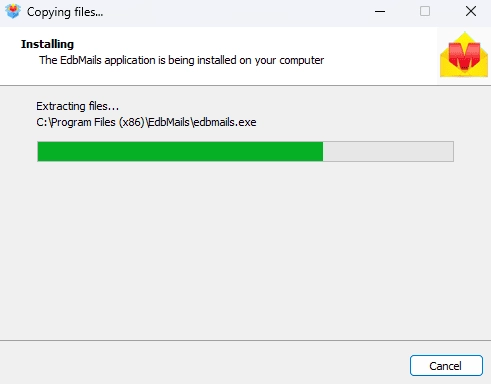
      EdbMails Software Installation

    • Login using your registered email address and password. If you don't yet have an account, click ‘Start Your Free Trial’ to explore EdbMails features.
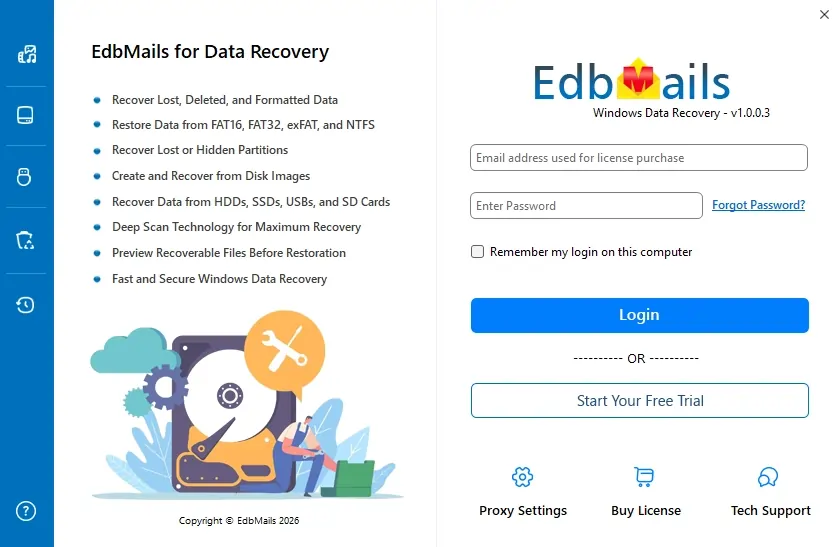
      Login to EdbMails Application

    • In the left-side toolbar, under Advanced Features, click ‘Mac Recovery’.
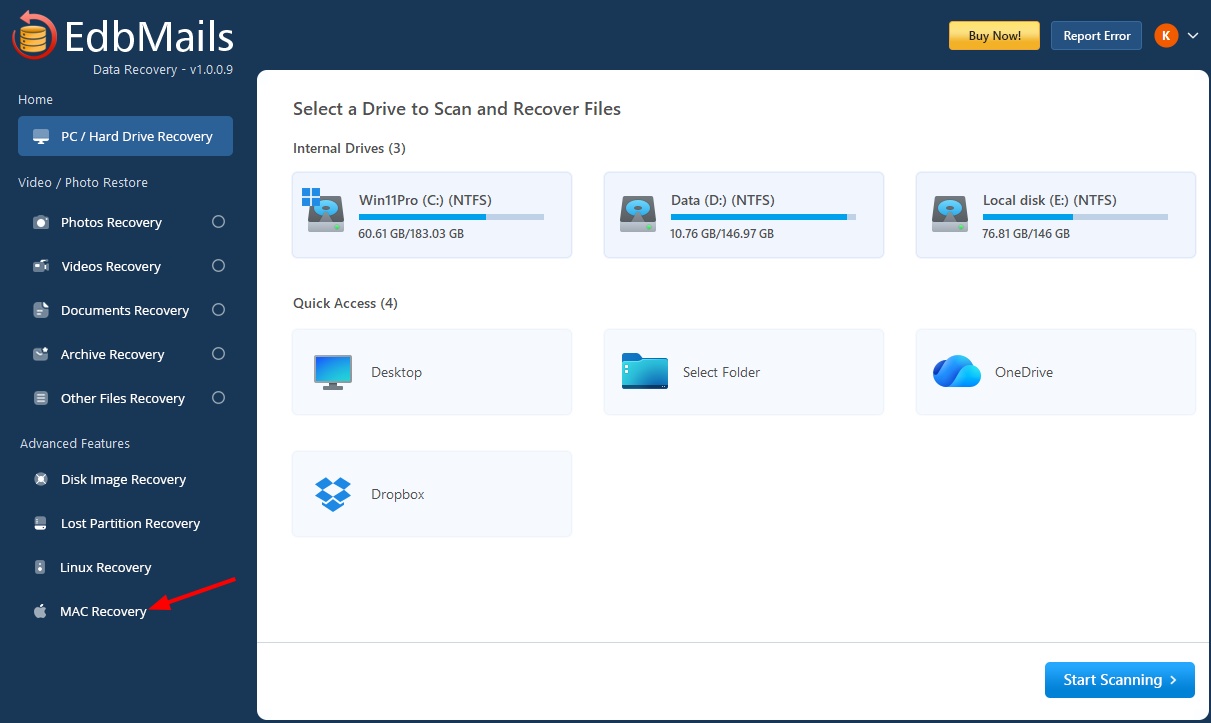
      Mac Recovery

    • Enter the required details, including IP address, username, and password, then click the ‘Connect’ button.
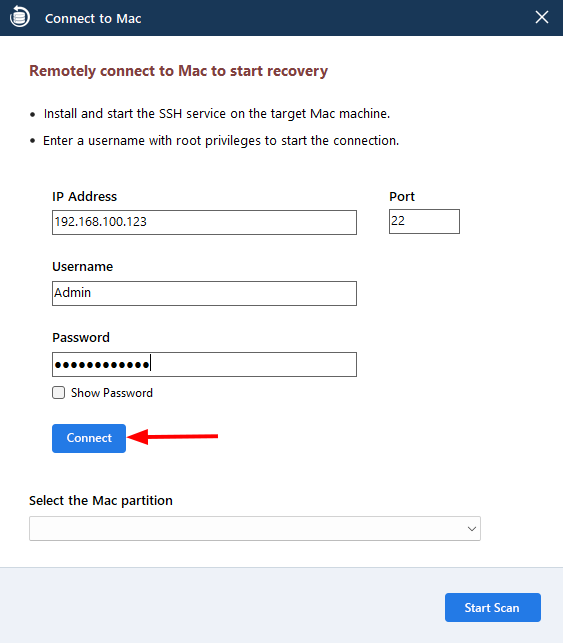
      Connect to Mac

    • Once the partitions load successfully, select the required partition and click ‘Start Scan’.
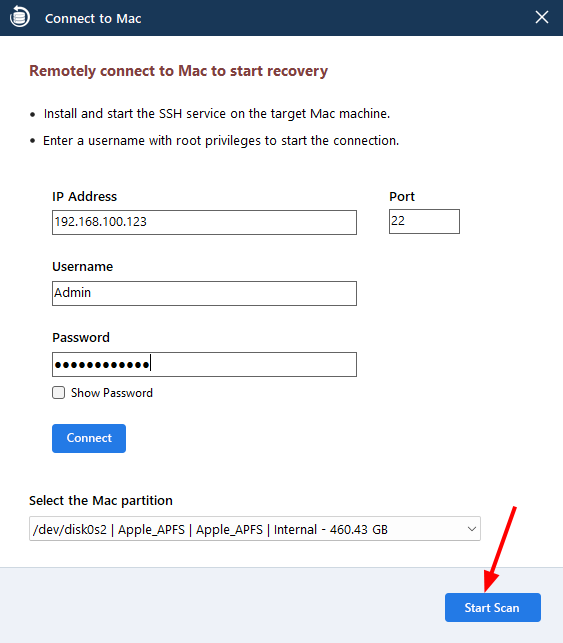
      Select the Mac Partition

    • Select the required folders or files that you want to recover.
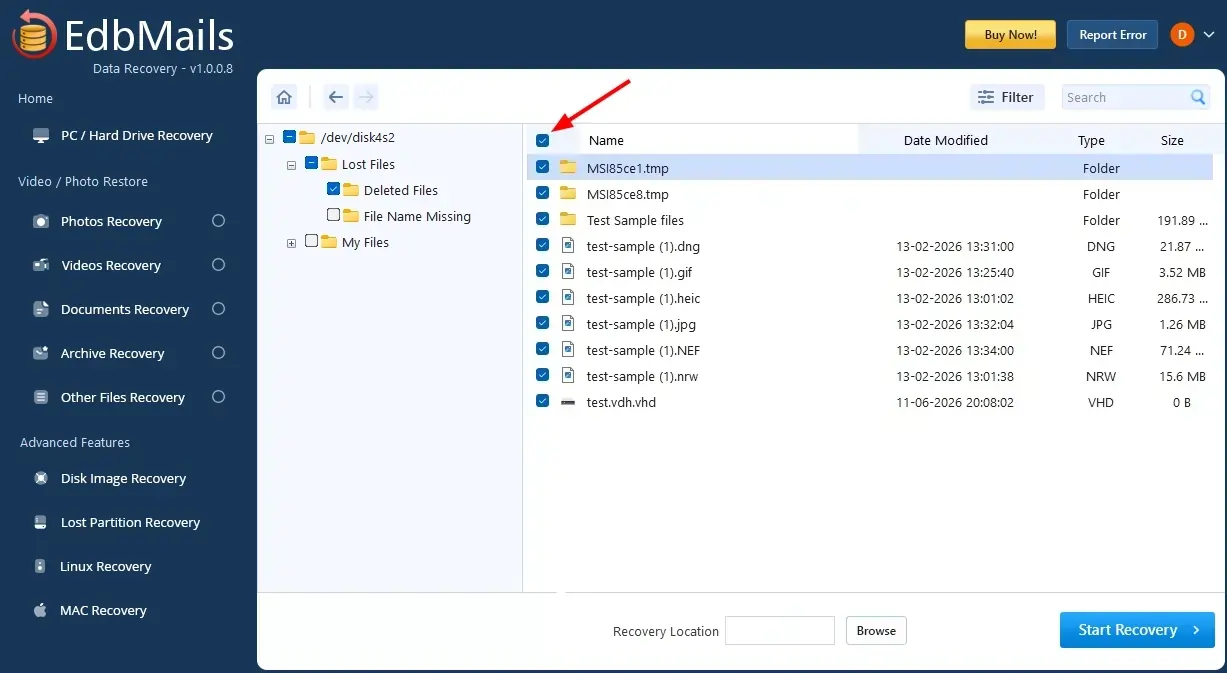
      Select the required items

    • Click the ‘Browse’ button to select the recovery location
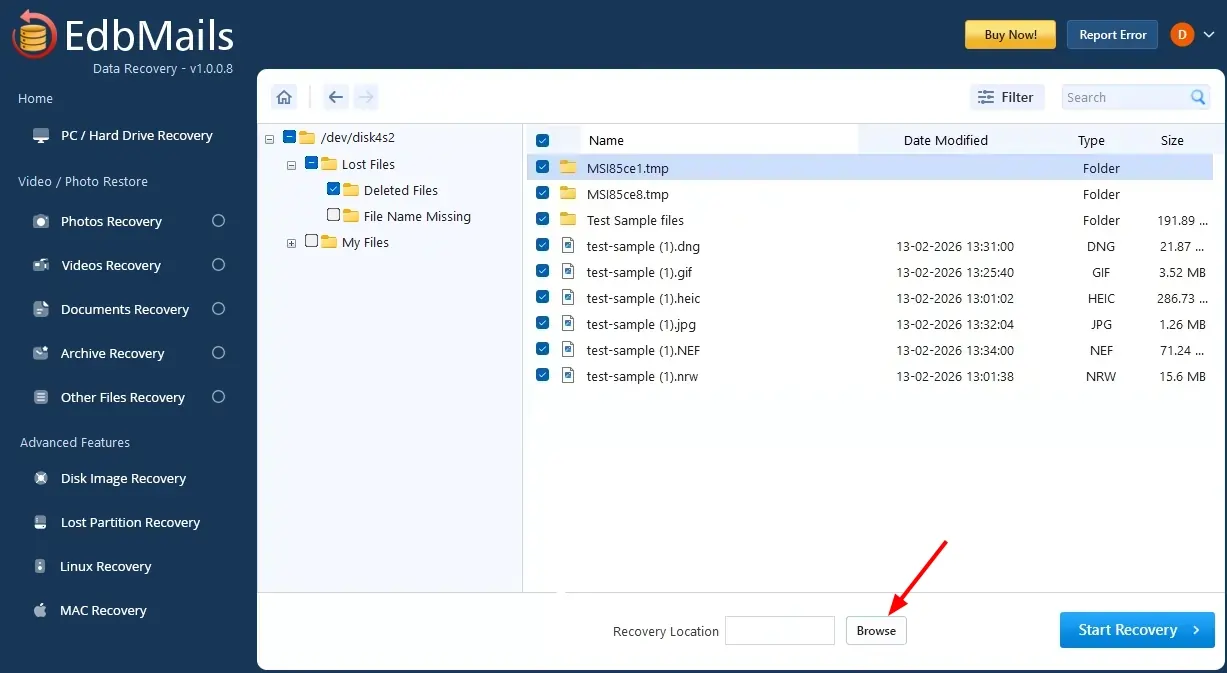
      Browse for recovery Location

    • Choose the desired location and click ‘OK’.
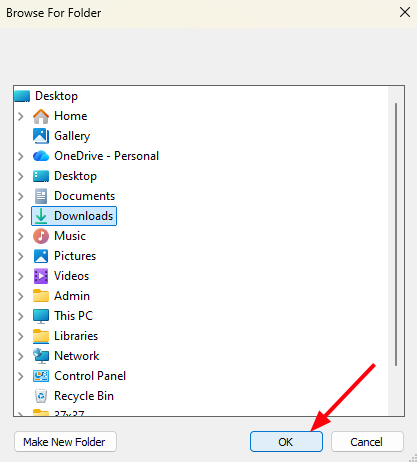
      Select location

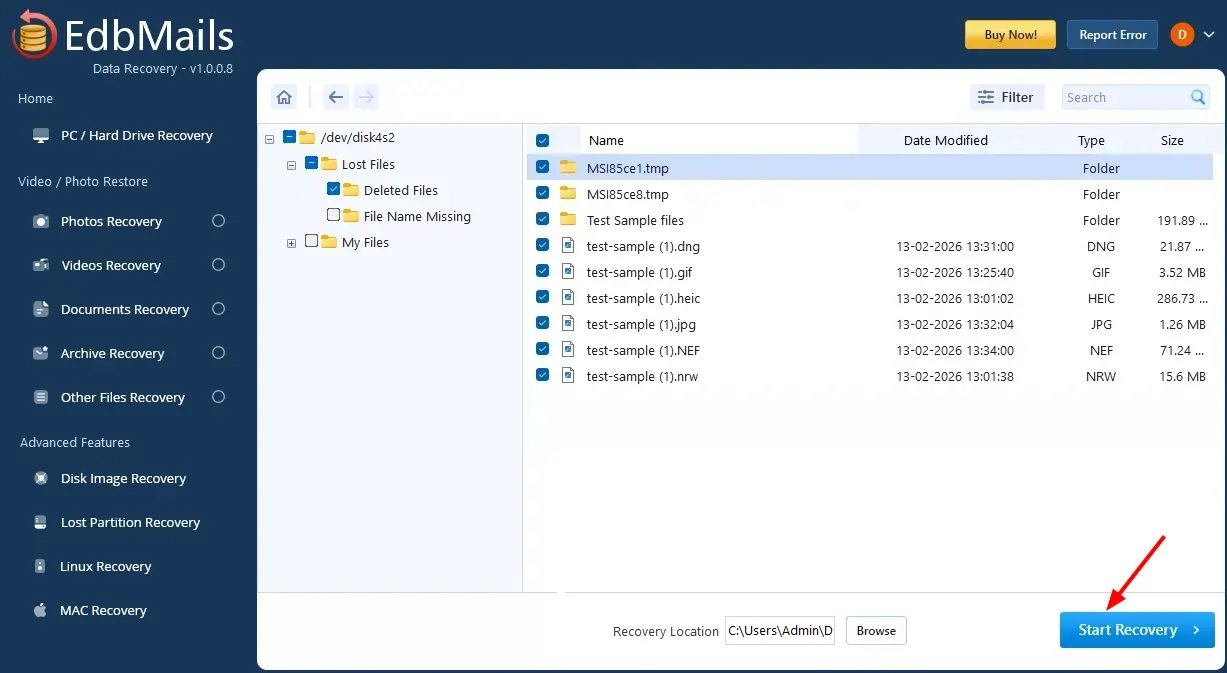
    • Click the ‘Start Recovery’ button.

      Start Recovery

    • Once recovery is complete, the total number of recovered items will be displayed.
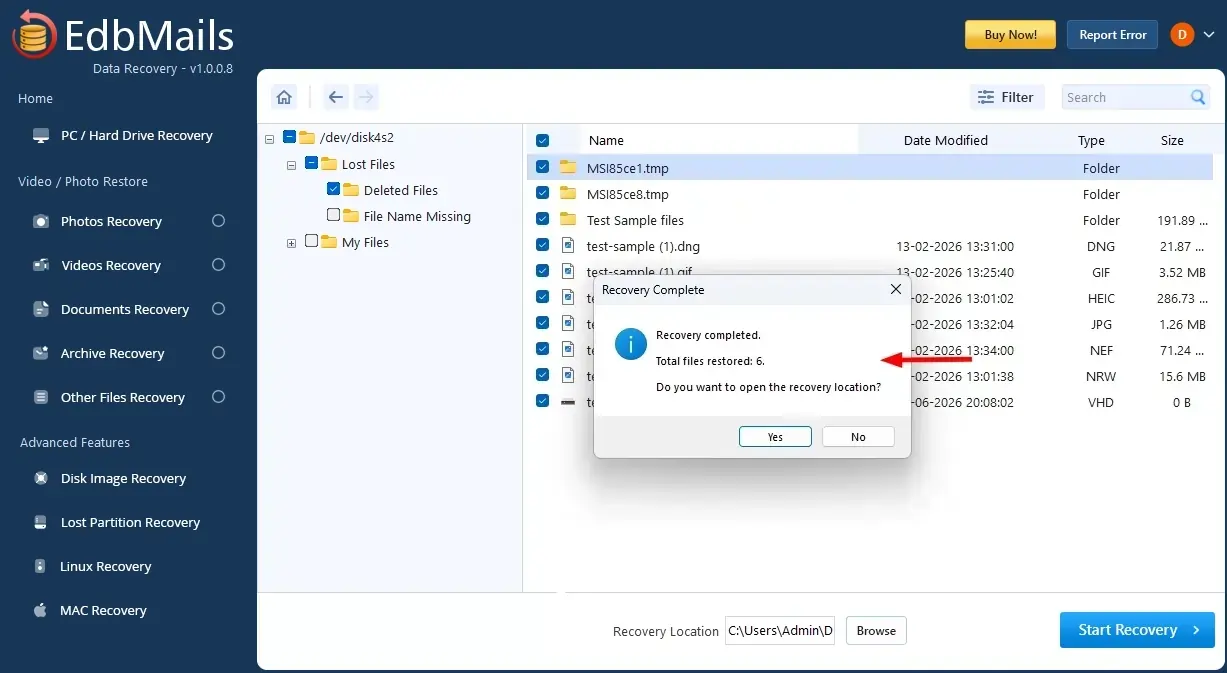
      Number of items recovered

  6. How MacRecovery via SSH Works

    The Mac Recovery feature follows a systematic process to identify and recover your data. Understanding this process helps you make informed decisions about recovery methods:

    Stage
    Description
    SSH Connection
    The application establishes a secure SSH connection to your Mac using the IP address, port, username, and password you provide.
    Disk Detection
    The application reads macOS disk information to identify all available disks, including internal drives, external drives, and partitions.
    Partition Identification
    The application identifies APFS containers, HFS+ partitions, and other supported file systems on the Mac.
    Partition Selection
    You select the specific partition or APFS container containing the data you want to recover.
    Access Validation
    The application validates that the SSH account has raw disk access permissions to read the selected partition.
    File Recovery
    The application performs either a normal scan (for recently deleted files) or a deep scan (for comprehensive recovery using signature-based detection).
  7. Supported Mac File Systems and File Types

    File Systems Supported:

    • APFS (Apple File System) - Primary file system for modern macOS and Mac storage devices
    • HFS+ (Mac OS Extended) - Legacy Mac file system used on older Mac computers
    • NTFS - Windows file system is often used on external drives
    • ExFAT - Universal external drive format
    • FAT32 / FAT16 - Legacy file systems on older drives

    Recoverable File Types:

    • Images and Photos: JPEG, PNG, RAW, HEIF, TIFF, BMP, GIF, PSD, AI
    • Video Files: MOV, MP4, AVI, MKV, FLV, WMV, MPEG
    • Audio Files: MP3, WAV, FLAC, AAC, OGG, M4A
    • Documents: PDF, DOCX, XLSX, PPTX, DOC, XLS, PPT, TXT, RTF
    • Email and Archives: ZIP, RAR, 7Z, TAR, GZ, EML, MSG
    • Other: HTML, CSS, JS, SQL, XML, JSON, and many more

Additional resources:

  • SD Card Recovery
  • Hard Drive Data Recovery Software
  • exFAT Data Recovery
  • Lost Partition Recovery
  • Create and Import Disk Image
  • Linux Data Recovery
lady image

 In this manual

IntroductionKey Benefits of Mac RecoveryAdvantages of Using EdbMailsPrerequisites for MacRecover Mac Data via SSHMac Recovery via SSHSupported Mac Files

Data Recovery

Starts from $35

Buy Now

Need help?

24/7 Customer support

Contact us on Live chat

Personalized Demo

Book a personalized demo

Still need help?

Email us / Call us

@edbmails.com All rights are reserved Privacy Policy | Terms of Use | GDPR | Security | Press Releases

hidden msg
Live Chat

Hi, May I help you?

Hide Chat Now