


Data Recovery Filters
EdbMails Data Recovery Tool offers advanced filter options to quickly identify and recover specific types of files from large volumes of scanned data. During the recovery process, scan results may contain thousands of files, making it difficult to manually locate required data. These filter options simplify the process by allowing you to narrow down results based on file types and specific conditions.
One of the most useful features is the ability to filter files by type. You can focus on recovering photos, videos, documents, archive files, and other file types based on your requirement. This helps refine the results and quickly retrieve important data such as images, business documents, multimedia files, or compressed backups.
In addition to file-type filtering, EdbMails Data Recovery Software provides options to further refine results using date modified, file size, and advanced filters. These filters help locate files based on when they were last accessed, their approximate size, or by excluding unnecessary items such as empty or system-generated files. By combining these options, the recovery process becomes more accurate and easier to manage, especially when working with large storage devices or complex data loss scenarios.
Applying Filters During Data Recovery
In this section, you can learn how to apply filters to categorize recovered data based on file types such as photos, videos, documents, archive files, and other file types, making it easier to quickly locate and recover the required files.
Select the drive from which you want to recover data, then choose the required filter options.
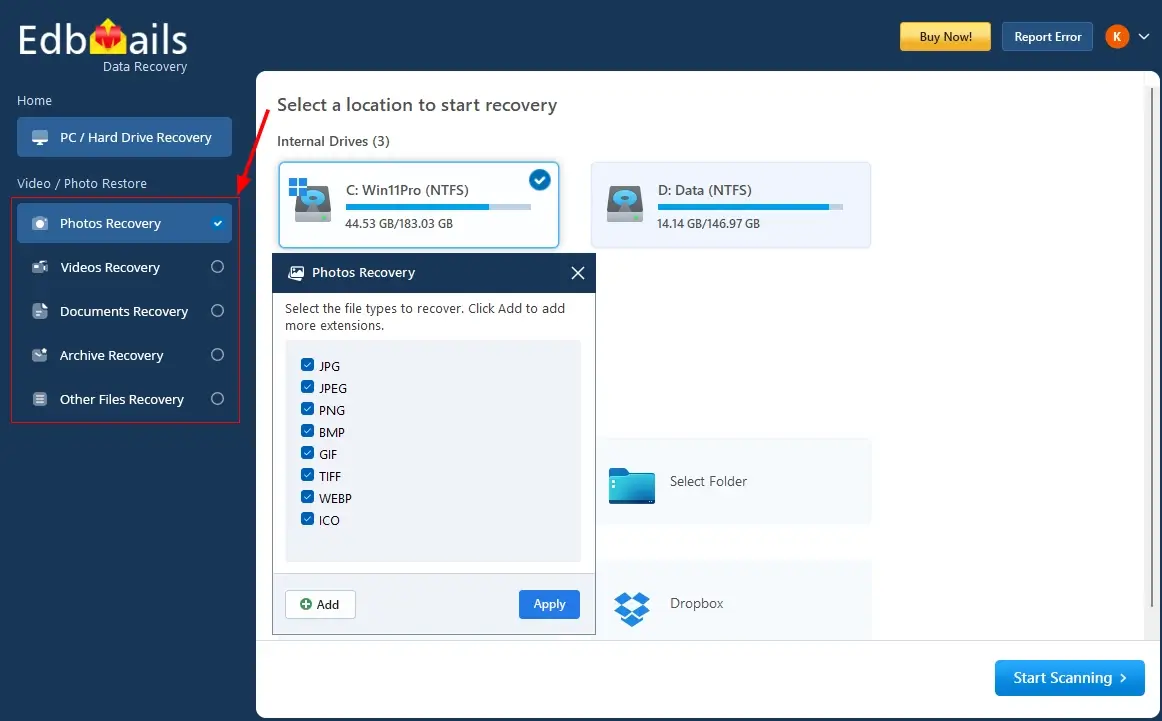
Photo Recovery: The photo filter allows you to quickly locate and recover image files such as JPG, PNG, BMP, GIF, etc. This option is especially useful when you want to restore deleted or lost pictures from a large set of recovered data. By selecting this filter, you can avoid unrelated files and focus only on image-based content.
Video Recovery: The video filter helps you find and recover video files, including formats like MP4, AVI, MOV, MKV, etc. It is ideal for retrieving multimedia files without manually searching through other file types. This filter ensures that only video-related data is displayed, making the recovery process faster and more organized.
Document Recovery: The document filter enables you to recover important files such as DOCX, PDF, XLSX, PPTX, etc. This is particularly useful for restoring business or personal documents from large scan results. It helps you quickly identify essential files without sorting through unnecessary data.
Archive Recovery: The archive filter is used to recover compressed files such as ZIP, RAR, 7Z, etc. These files often contain grouped or backup data, and this filter helps you locate them easily. It simplifies the process of restoring archived content without scanning through individual file types.
Other Files Recovery: The other files filter includes all remaining file types that do not fall under the main categories, such as EXE, DLL, SYS, MSI, LOG, ISO, etc. This option is helpful when the file type is unknown or when you want to recover additional data beyond standard formats. It ensures that no important files are missed during the recovery process.
Additional Filter Options for Better Recovery Control
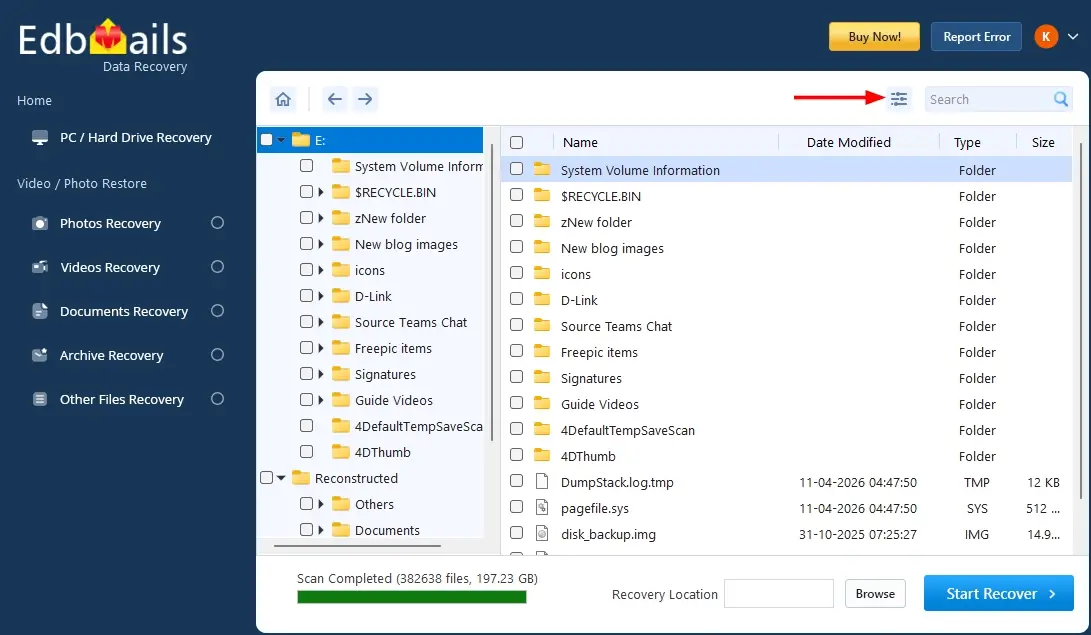
Along with file type filters, you can use additional filter options to further refine the recovery results and quickly locate the required files.
After scanning the drive, click on the filter icon at the top right.
Recover Lost Files Only
If you enable this option, it will display only the files that are deleted or lost, hiding existing files. This helps you focus directly on recoverable data without distractions and avoids confusion with already available files, making it easier to identify and recover the required files.
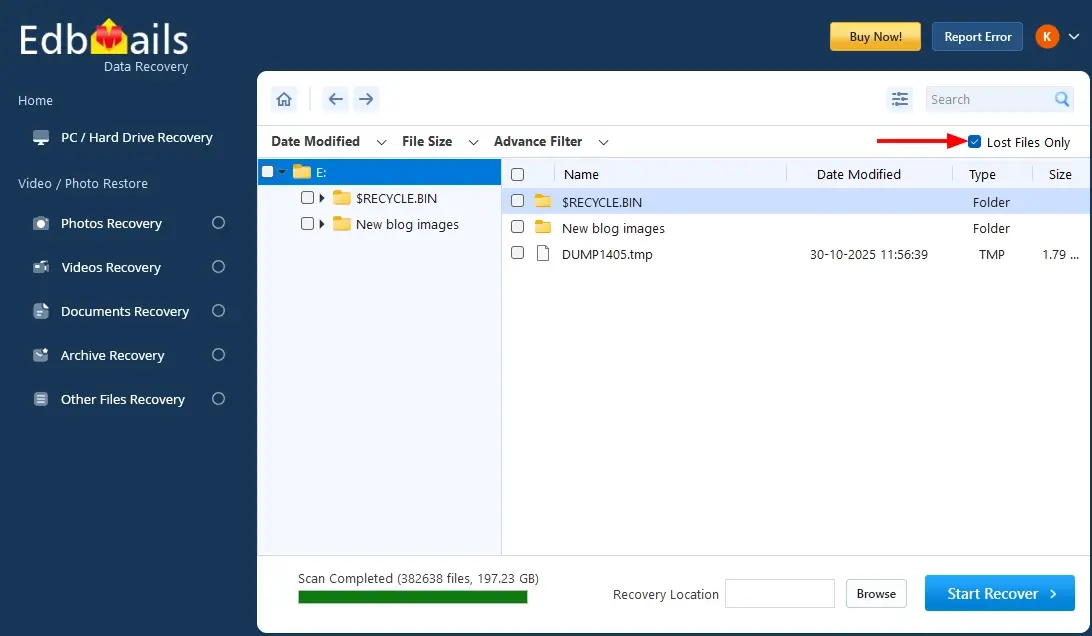
Recover Lost Files Only
If you enable this option, it will display only the files that are deleted or lost, hiding existing files. This helps you focus directly on recoverable data without distractions and avoids confusion with already available files, making it easier to identify and recover the required files.
This support enables EdbMails to scan different types of storage volumes and recover permanently deleted data regardless of the underlying file system.
Date Modified Filter
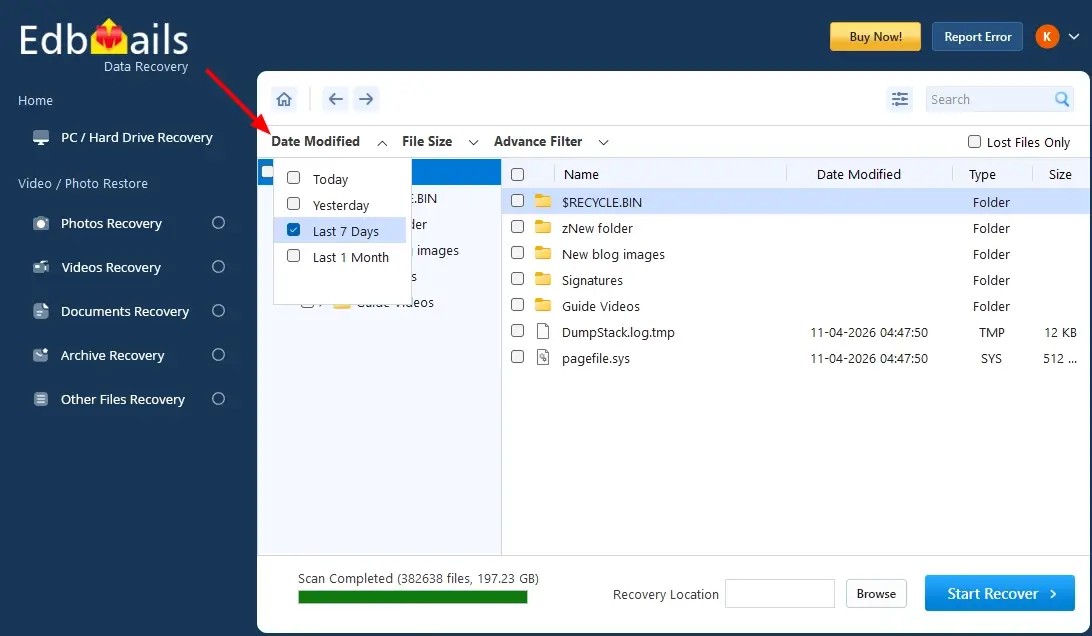
The date modified filter helps you find files based on when they were last updated or used. This is useful when you remember the approximate time the file was deleted or modified. Based on the selected filter, the files will be listed accordingly, making it easier to quickly identify and recover the required data.
You can filter files using options such as:
- Today – Shows files modified on the current day
- Yesterday – Displays files from the previous day
- Last 7 Days – Useful for recent file recovery
- Last 1 Month – Helps locate files modified within a broader timeframe
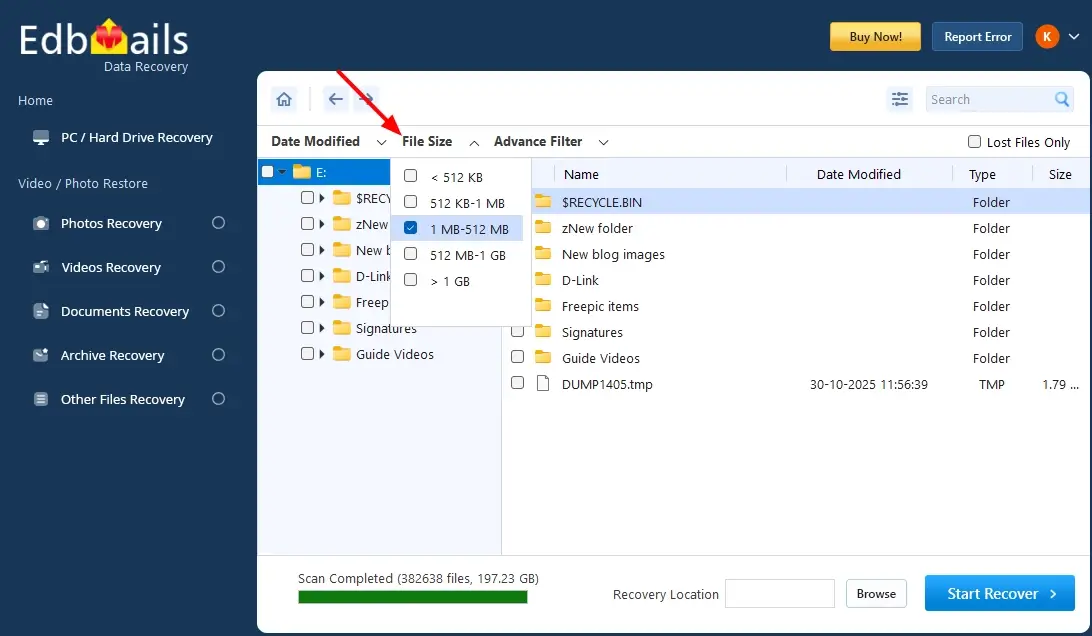
File Size Filter
The file size filter allows you to narrow down results based on the size of the files. This is helpful when you know the approximate size of the lost file.
Available options include:
- 12 KB - 1 MB – Medium-small files
- 1 MB - 512 MB – Standard-sized files
- 512 MB - 1 GB – Large files
- > 1 GB – Very large files
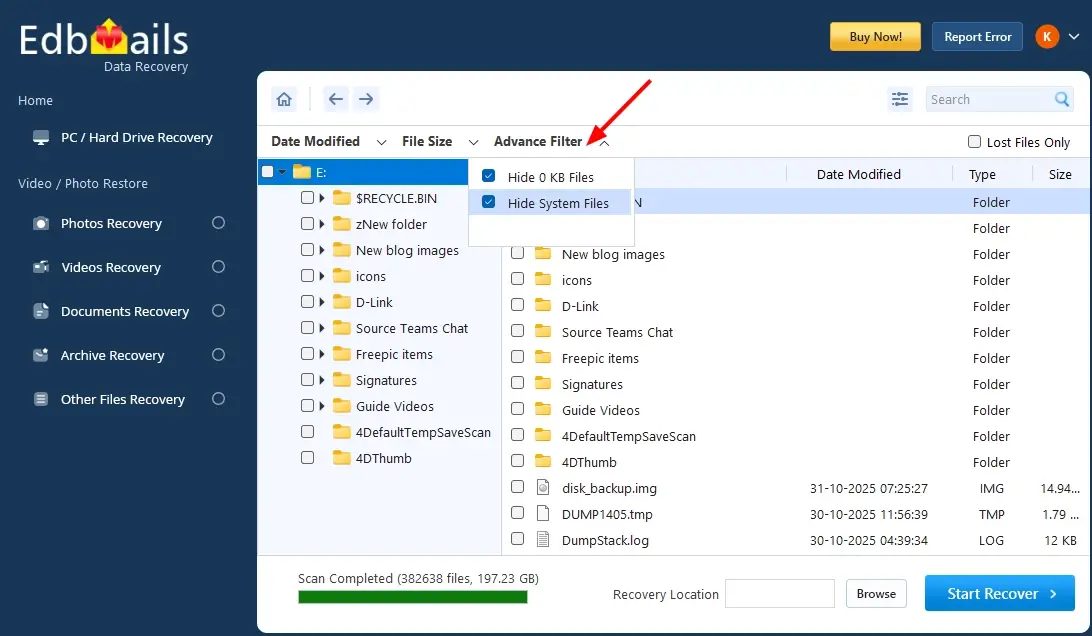
Advanced Filter Options
Advanced filter options help you refine the recovery results by removing unnecessary or irrelevant files, making it easier to focus on important data.
The software follows a subscription-based licensing model (1-year validity) as well as a lifetime license option for long-term usage. Users can choose a plan based on their usage needs and duration.
- Hide 0 KB Files – Excludes empty or corrupted files that do not contain usable data
- Hide System Files – Removes system-generated files, allowing you to focus only on user files
Now, select the required folders or items, choose the recovery location, and start the recovery process.
Reconstructed Files Recovery
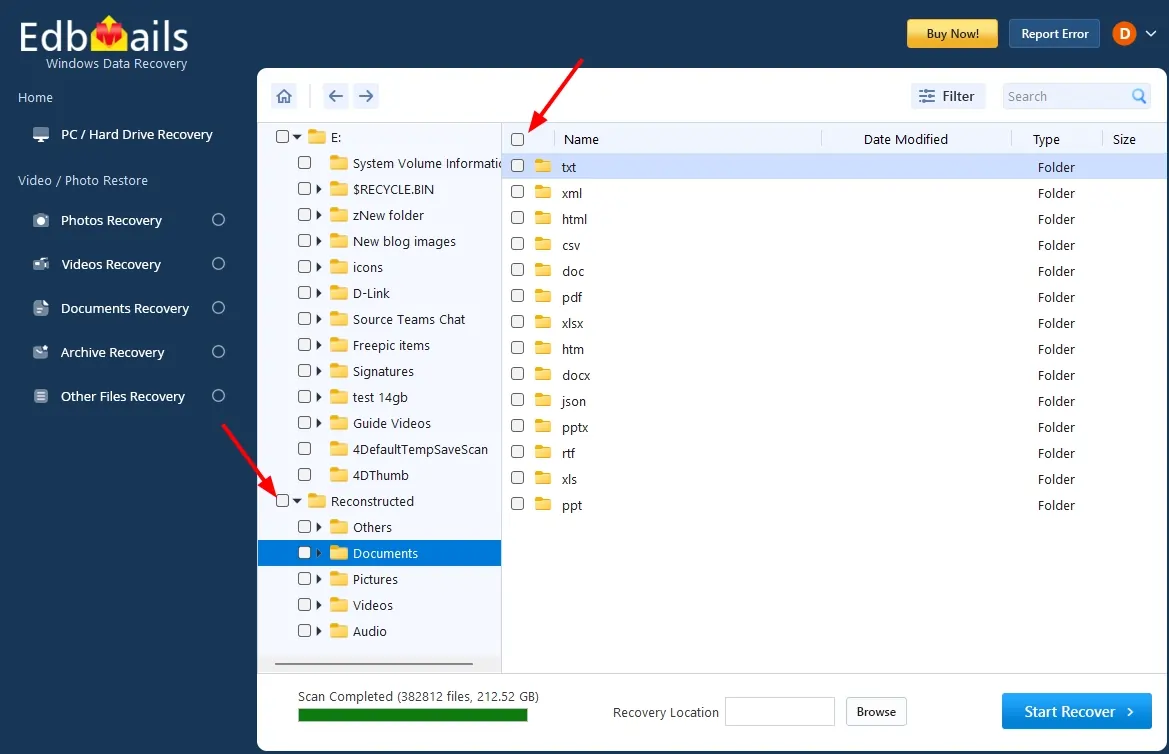
The Reconstructed filter allows you to view files that are rebuilt from scan results and organized into categorized folders such as Others, Documents, Pictures, Videos, and Audio. This feature helps identify files based on their content type when the original folder structure or file details are not fully available.
During the scanning process, the software analyzes file patterns and groups them into appropriate categories. Each category organizes files based on their respective formats. For example, when you select the Documents folder, files are segregated into formats such as DOCX, PDF, XLSX, PPTX, and more. Similarly, all other categories follow the same structured grouping based on file types.
With the reconstructed option, you can:
- View files grouped by category such as Documents, Pictures, Videos, Audio, and Others
- Easily navigate through file types with format-wise segregation inside each category
- Preview files before recovery, even if original names or folder paths are missing
- Quickly locate required files without manually sorting through all scanned results
Additional resources:

