EdbMails EDB Recovery and Migration software
  • Products
    EdbMails
    All-in-one Recovery and Migration

    Trusted and internationally recognized software that delivers award winning solutions.

    Explore our products
    • Offline Recovery Tools
    • Migration Tools
    • G Suite Migration
    • IMAP Migration
    • Duplicate Remover
    • Windows Data Recovery
    • Backup

    Exchange EDB / Email Recovery Tools

    EdbMails offers a comprehensive suite of tools to recover and convert offline EDB, OST, and PST files into Outlook PST, migrate mailboxes to Office 365 and live Exchange Server, and export and migrate data from NSF, MBOX, EML, and MSG formats.

    EDB Recovery and Migration
    Recover EDB to PST, EDB to Office 365 and Exchange NO Duplicate Migration
    NSF Export and Migration
    Export NSF to PST, NSF to Office 365 and Exchange Migration
    OST Recovery and Migration
    Recover OST to PST, OST to Office 365 and Exchange Migration
    EML to PST Export
    EML files export to Outlook PST format
    PST Recovery and Migration
    Recover Outlook PST, PST to Office 365 and Exchange Migration
    PST to MSG Export
    Outlook PST files export to MSG format
    MBOX Export and Migration
    Export MBOX to PST, MBOX to Office 365 and Exchange Migration
    MSG to PST Export
    Export MSG files to Outlook PST files

    Exchange, Office 365, IMAP, SharePoint, OneDrive, Teams

    EdbMails lets you securely migrate mailboxes across Microsoft 365, Exchange, Google Workspace (G Suite), and IMAP-supported servers such as Outlook, Gmail, Zimbra, Zoho Mail, and cPanel, ensuring zero downtime.

    Exchange Server Migration
    Migrate between any Exchange Servers, Exchange to Office 365, Exchange to PST, PST files to Exchange.
    SharePoint Online Migration
    Migrate documents, lists, files and folders from SharePoint sites.
    Office 365 Migration
    Migrate between Office 365 tenants, Office 365 to Exchange, Office 365 to PST, PST files to Office 365.
    OneDrive for Business Migration
    Migrate documents, lists, files and folders from OneDrive.
    Microsoft Teams Migration
    Migrate Teams, chats, channels, documents, files and folders etc.

    Google Workspace / G Suite Migration

    EdbMails G Suite Migration Tool lets you easily migrate emails, calendars, contacts, tasks, and more from G Suite to Office 365, Exchange Server, and IMAP servers using a Google Admin account without requiring individual user credentials.

    G Suite Migration
    Migrate emails, calendars, contacts, tasks from G Suite to Office 365, G Suite to Exchange, G Suite to IMAP Servers
    G Suite to Office 365
    Migrate emails, calendars, contacts, tasks from Google Workspace / G Suite to Office 365
    G Suite to Exchange Server
    Migrate emails, calendars, contacts, tasks from Google Workspace / G Suite to on-Premise Exchange Server
    G Suite to IMAP
    Migrate emails, calendars, contacts, tasks from Google Workspace / G Suite to IMAP, Outlook, Zimbra, Zoho etc.

    IMAP Migration

    EdbMails IMAP Migration tool lets you easily migrate emails from IMAP servers such as Outlook, Gmail, Zoho Mail, Zimbra, cPanel, and more. Supports IMAP to IMAP, Office 365, Exchange Server, PST, and bulk PST to IMAP migration.

    IMAP Email Backup & Migration
    Backup and migrate emails from IMAP servers to PST, Office 365, and On-Premises Exchange Server
    IMAP to Office 365
    Migrate emails, folders, and attachments from IMAP servers to Office 365
    IMAP to Exchange
    Migrate emails, folders, and attachments from IMAP servers to on-premises Exchange Server
    IMAP to PST
    Export emails, folders, and attachments from IMAP servers to Outlook PST files for backup
    PST to IMAP
    Migrate emails, folders, and attachments from bulk PST files to IMAP servers

    Duplicate Remover

    EdbMails Duplicate Remover lets you easily remove duplicate items from Office 365 and Exchange Server, and from IMAP, Outlook, Gmail, Zimbra, Zoho Mail, etc., ensuring a clean and organized mailbox.

    Remove Duplicates from Office 365
    Remove duplicate emails, calendars, contacts, journal tasks, etc. from Office 365.
    Remove Duplicates from Exchange Server
    Remove duplicate emails, calendars, contacts, journal tasks, etc. from live Exchange Server.
    Remove Duplicates from IMAP, Outlook
    Remove duplicate emails, attachments from IMAP, Outlook, Gmail, Zimbra, Zoho Mail etc.

    Exchange, SharePoint, OneDrive, Teams and Office 365 Backup

    EdbMails enables secure, automated backup and recovery for Microsoft 365 services including Exchange Online, SharePoint, OneDrive, Teams, and Live Exchange Server with complete data protection and restore flexibility.

    Office 365 Backup
    Incremental, Granular, Encrypted and Compressed Office 365 Mailboxes Backup
    Exchange Server Backup
    Incremental, Granular, Encrypted and Compressed Exchange Mailboxes Backup
    SharePoint, OneDrive & Teams Backup
    Backup Online site collections, Team sites, Office 365 groups, all documents etc.

    Windows Data Recovery

    EdbMails Windows Data Recovery Software lets you recover permanently deleted data, including photos, videos, documents, and archived files, from partitions on hard drives, SSDs, USB drives, SD cards, and external storage devices.

    Windows Data Recovery
    Recover and restore permanently deleted data from hard drives, SSDs, USB drives, SD cards, and etc.
    Whitepaper
    Request a Demo
    Sign Up
  • Features
  • FAQ
  • Pricing
  • Download
  • Support
  • Sign in
User’s Manual
Windows Data Recovery

User Manual

User Manual

  • Overview
  • System Requirements
  • Installation
    • Installation process
    • Reinstall or Upgrade
    • How to uninstall
  • FAQs
  • Videos
  • Screenshots
    • SD Card Data Recovery
    • Recycle Bin Recovery
    • USB Data Recovery
    • Hard Drive Data Recovery
    • Photo Recovery
    • Video Recovery
    • Document Recovery
    • Archives Recovery
  • How it works?
    • SD Card Data Recovery
    • Recycle Bin Recovery
    • USB Data Recovery
    • Hard Drive Data Recovery
    • Photo Recovery
    • Video Recovery
    • Documents Recovery
    • Archives Recovery
  • Filter Operations
  1. Home
  2. Product
  3. How to Recover Deleted Photos on Windows
Download Buy Now

Photo Recovery on Windows

Photos are critical digital assets used for personal records, professional work, and business documentation. Accidental deletion of image files on Windows systems can result in significant data loss, especially when files are permanently removed using Shift + Delete or after emptying the Recycle Bin.

EdbMails Windows Data Recovery Software enables secure recovery of deleted photo files from HDDs, SSDs, USB drives, and SD cards detected by Windows. The software performs a comprehensive scan of the storage device in read-only mode to locate recoverable image files without altering the original data.

As long as the deleted photo data has not been overwritten, you can view recoverable files and selectively restore the required files to a safe location. This step-by-step guide explains how to recover deleted photos on Windows using EdbMails.

  1. Pre-requisites for Photo Recovery

    Before beginning the photo recovery process, ensure the following:

    • Install EdbMails Windows Data Recovery Software on your computer.
    • Purchase and activate the required license for full recovery.
    • Ensure sufficient free space is available to save recovered photos.
    • Avoid writing new data to the affected device to prevent overwriting deleted photo data.
  2. Steps to Recover Deleted Photos on Windows

    Follow the steps to recover your deleted photos safely using EdbMails.

    • Download and install the EdbMails application on your computer.
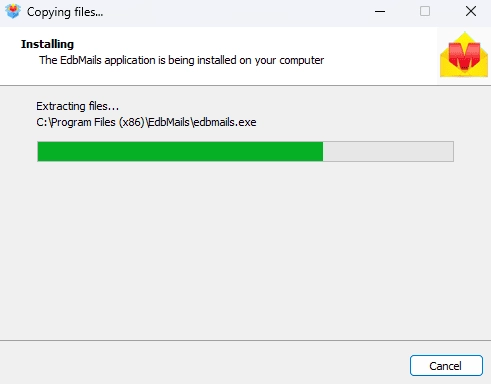
      Edbmails Software Installation

    • Enter your email address and password to login. If you haven’t registered yet, click ‘Start Your Free Trial’ to explore the features.
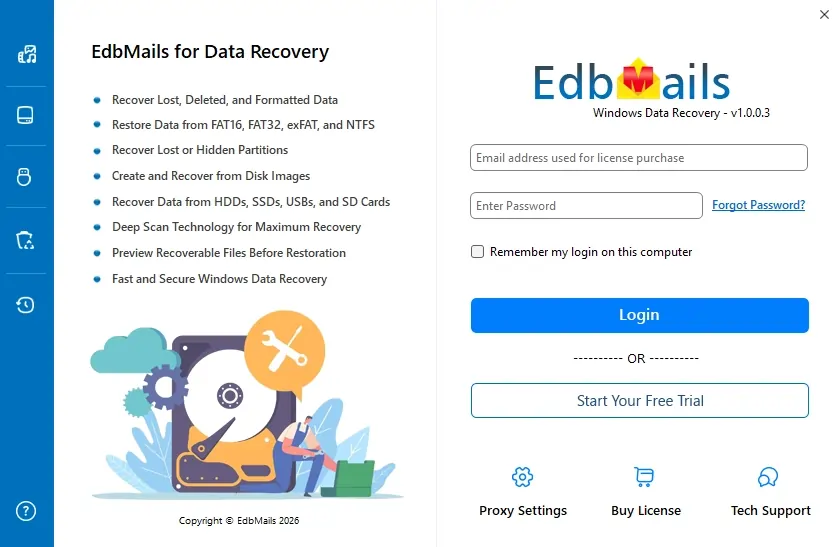
      Login to EdbMails Application

    • Expand and select the ‘Windows Data Recovery’ option.

      Windows Data Recovery

    • Now, select the ‘Photos Recovery’ option.

      Photos Recovery

    • Select the drive (HDD, SSD, USB, or SD card) from which you want to recover deleted photos.
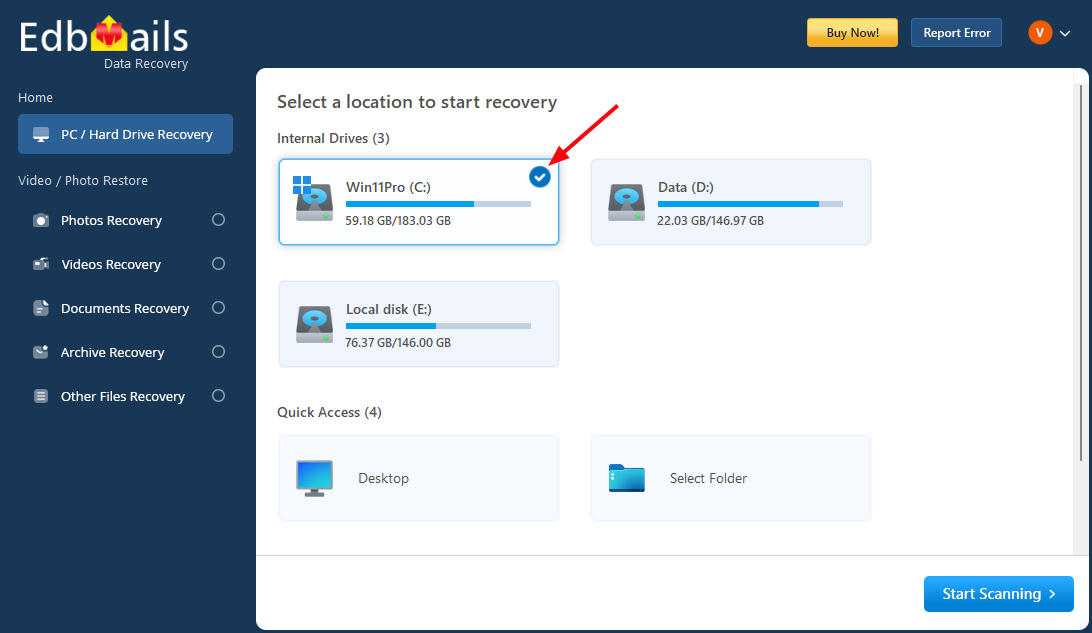
      Select drive

    • Click ‘Photos Recovery’, select the file types you want to recover, and then click ‘Apply’.

      Note: If you have additional file extensions, click the ‘Add’ button and enter the file type.
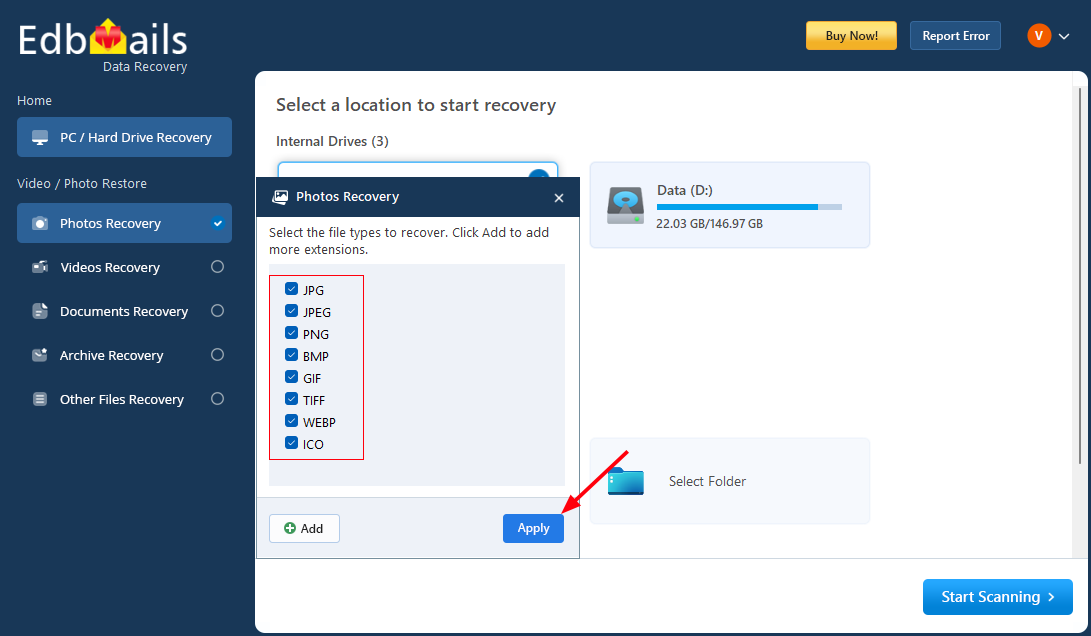
      Select the required file types

    • Select the required folders that you want to recover.
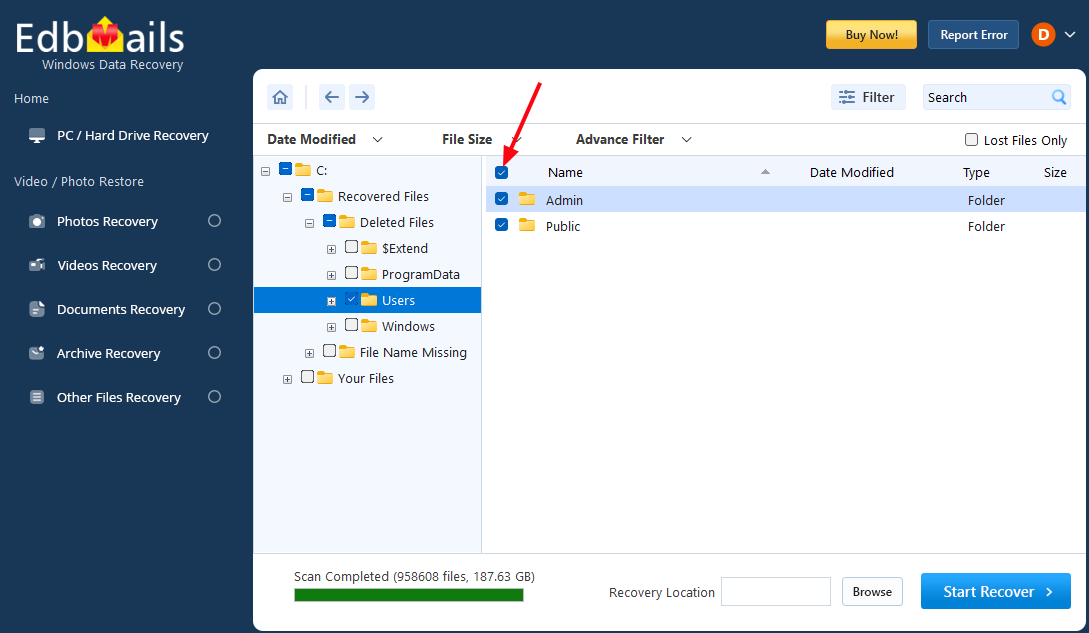
      Select the Folders

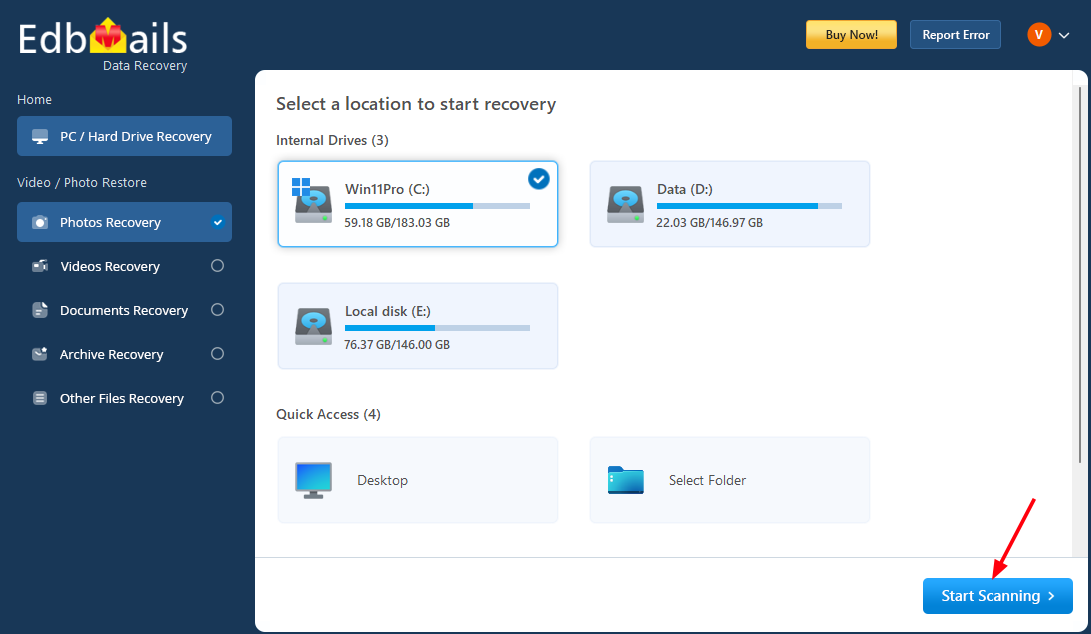
    • Click the ‘Start Scanning’ button.

      Start Scanning

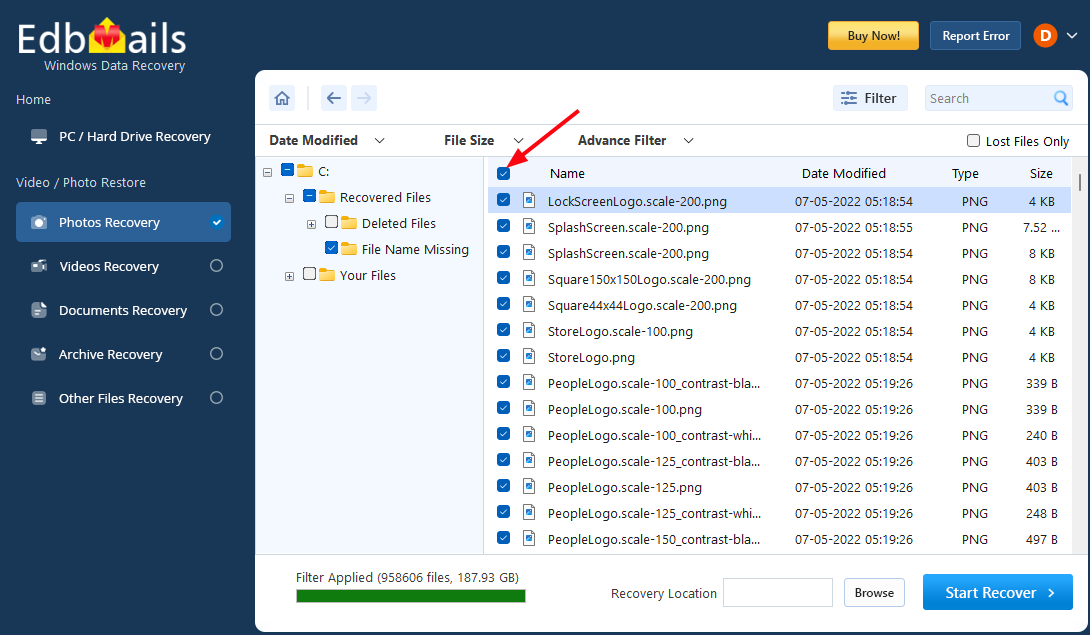
    • Select the items you want to recover.

      Select Photos to recover

    • Click the ‘Browse’ button to select the recovery location.
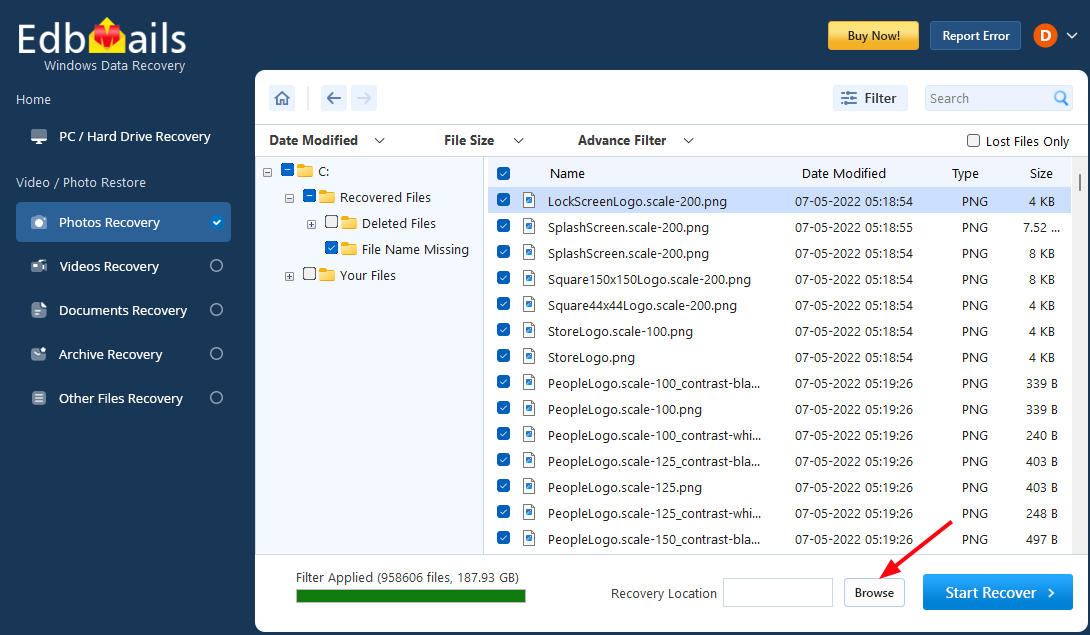
      Browse Recovery Location

    • Choose the desired location and click ‘OK’.
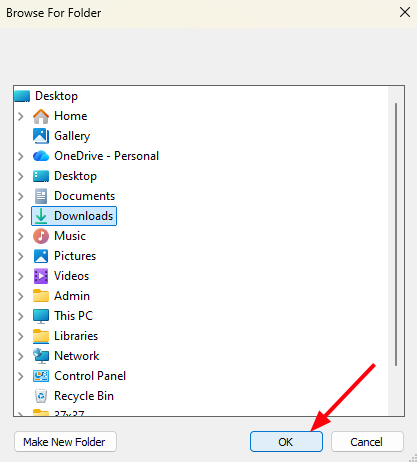
      Select location

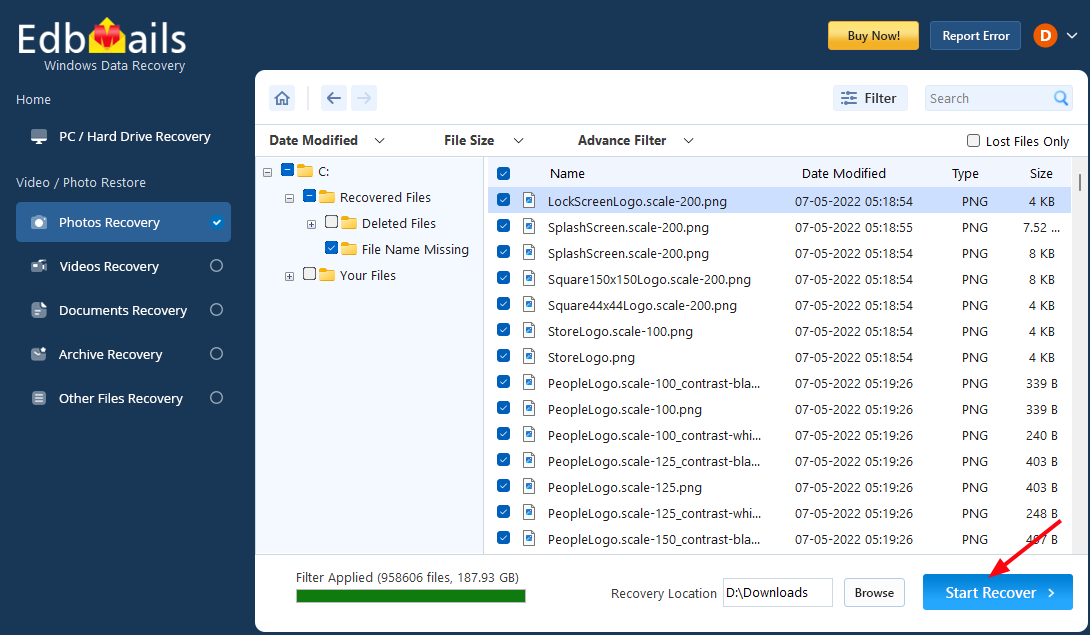
    • Click the ‘Start Recover’ button.

      Start Recover

    • Once all photos are recovered, a prompt will display the number of files recovered.
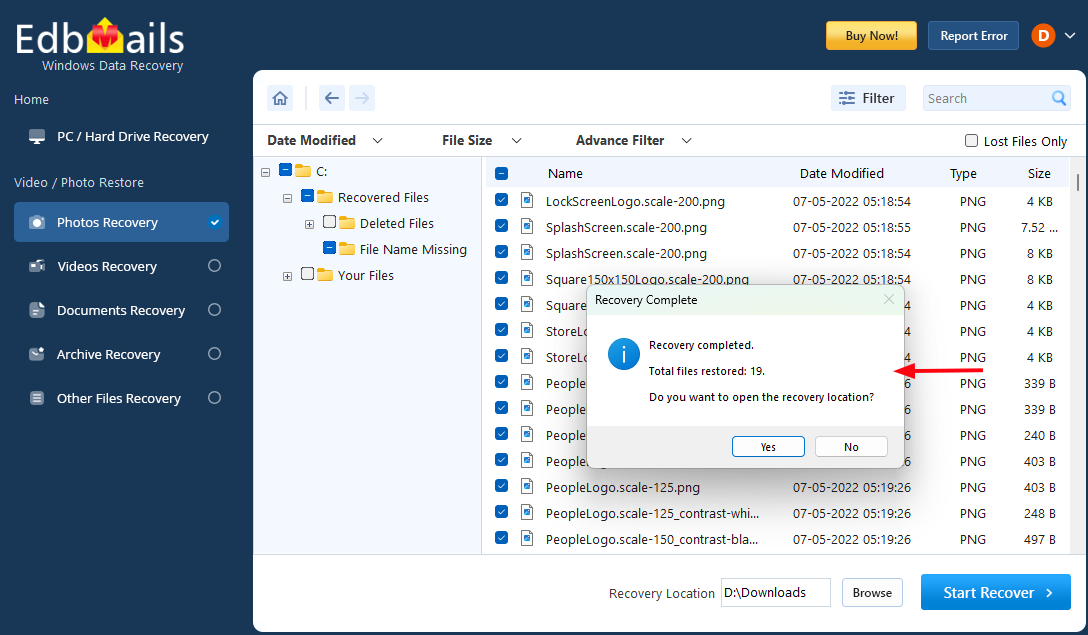
      Number of Photos Recovered

    • Navigate to the recovery location to check the recovered photos.

Supported Photo File Formats

EdbMails Windows Data Recovery Software supports recovery of widely used image file formats stored on Windows-based storage devices. The software scans selected drives and identifies recoverable photo files efficiently, regardless of how they were originally created or stored on the system.

The supported photo formats include:

  • JPG / JPEG (.jpg, .jpeg) – Standard compressed image format commonly used for storing digital photographs.
  • PNG (.png) – High-quality image format that supports lossless compression and transparency.
  • BMP (.bmp) – Windows bitmap image format used for uncompressed graphics.
  • GIF (.gif) – Image format that supports static and animated graphics.
  • TIFF (.tif, .tiff) – High-resolution image format typically used for detailed image storage.
  • WEBP (.webp) – Compressed image format stored on Windows systems.
  • ICO (.ico) – Icon image format used within Windows environments.

During the scanning process, recoverable image files are automatically organized under the photo category, allowing you to quickly locate and preview the required files. This structured classification simplifies navigation, especially when scanning large storage volumes.

As long as the deleted image data has not been overwritten, the identified photo files can be previewed and restored safely to a different storage location.

Benefits of Using EdbMails Photo Recovery Software

  • Recovers permanently deleted photos from Windows storage devices.
  • Supports recovery from HDDs, SSDs, USB drives, and SD cards.
  • Allows users to view recoverable photos before restoration.
  • Enables selective recovery of required photos.
  • Organizes recoverable photos into categories for easy navigation.
  • Performs secure read-only scanning without modifying original data.
  • Compatible with all major Windows versions.
  • Simple and user-friendly interface for all levels of users.

Additional resources:

  • SD Card Recovery
  • Hard Drive Data Recovery Software
  • USB Data Recovery
  • Video Recovery
  • Recycle Bin Recovery
  • Photo Recovery
lady image

 In this manual

IntoductionPre-requisitesSteps to Recover PhotosSupported Photo File Formats Benefits

Windows Data Recovery

Starts from $35

Buy Now

Need help?

24/7 Customer support

Contact us on Live chat

Personalized Demo

Book a personalized demo

Still need help?

Email us / Call us

@edbmails.com All rights are reserved Privacy Policy | Terms of Use | GDPR | Security | Press Releases

hidden msg
Live Chat

Hi, May I help you?

Hide Chat Now