


Remove Duplicates from Office 365 Archive Mailboxes
An archive mailbox in Office 365 stores older content that has been moved out of a user's primary mailbox, typically through a retention policy or manual archiving action, so that the primary mailbox stays within its size limits. Because content is moved into the archive automatically and repeatedly over time, rather than added by a single user action, duplicate items build up in ways that differ from a primary mailbox. A retention policy reapplied after a configuration change, a PST file imported into the archive more than once, or an interrupted migration that gets restarted can each leave the same item sitting in the archive mailbox twice.
EdbMails Duplicate Remover Tool extends its detection and matching engine to Office 365 archive mailboxes, scanning archived emails, calendar items, contacts, and tasks, and removing duplicates while leaving the rest of the archive and its folder structure unaffected.
This guide covers how duplicate items end up in an Office 365 archive mailbox, what to check before starting a cleanup, and the steps to remove duplicates from an archive mailbox using EdbMails.
Archive Mailbox Duplicate Removal Planning
Prerequisites for Archive Mailbox Duplicate Removal
Steps to Remove Duplicates from Office 365 Archive Mailboxes
Step 1: Download and install EdbMails
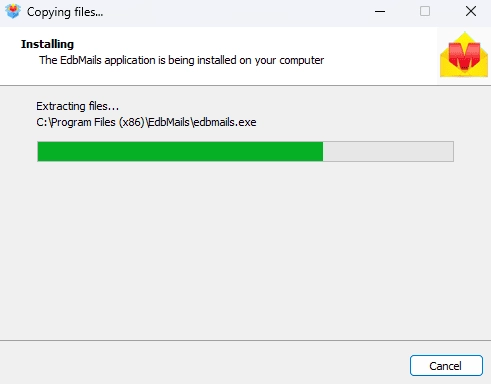
- Download and install the EdbMails application on your computer.
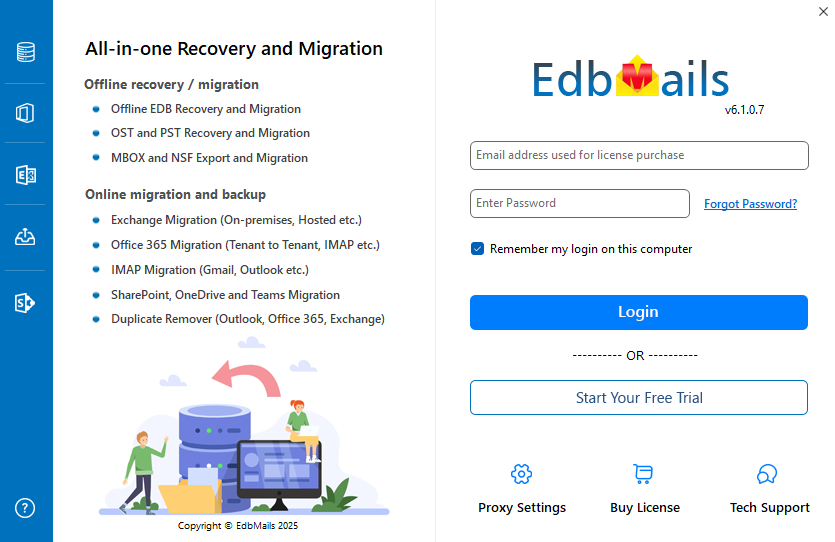
- ‘Login’ using your registered email address and password, or select 'Start Your Free Trial'.
Note: The free trial version lets you scan your Office 365 archive mailboxes and displays the number of duplicate items found. An active EdbMails subscription is required to remove the duplicates.
Check the Duplicate Remover pricing plans to get started with archive mailbox cleanup.
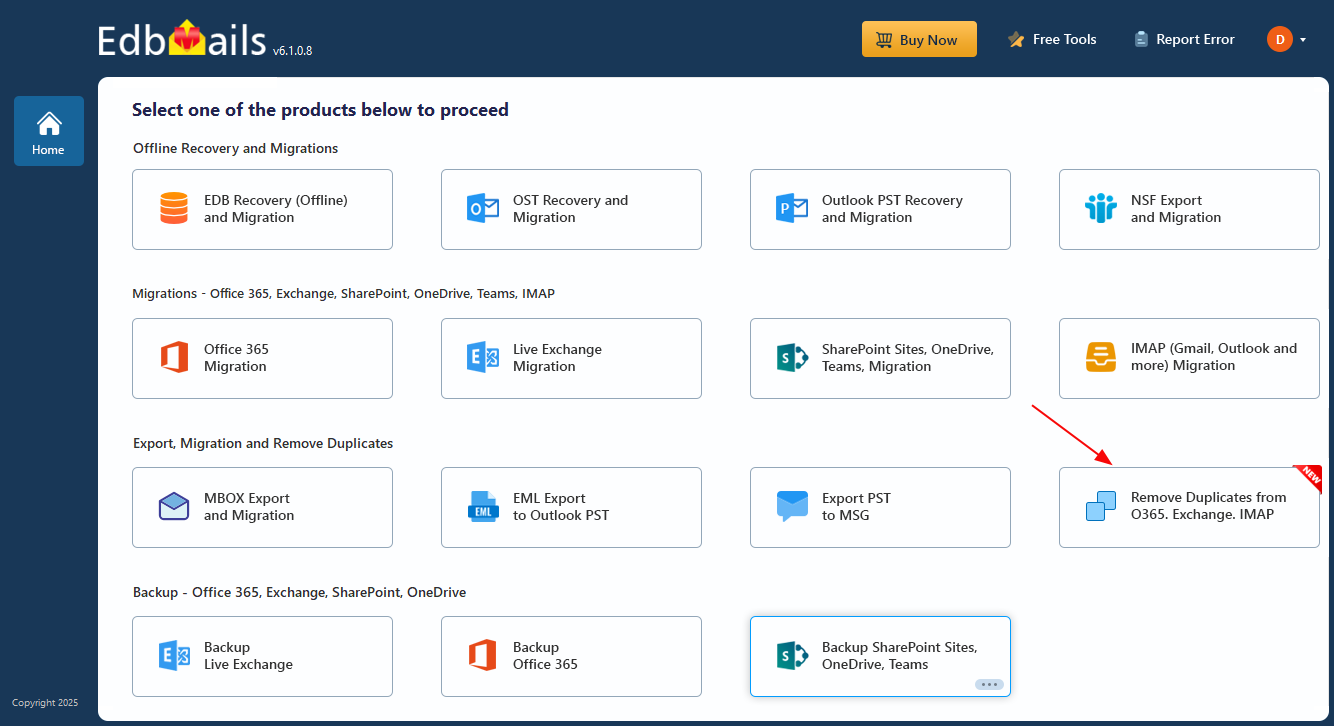
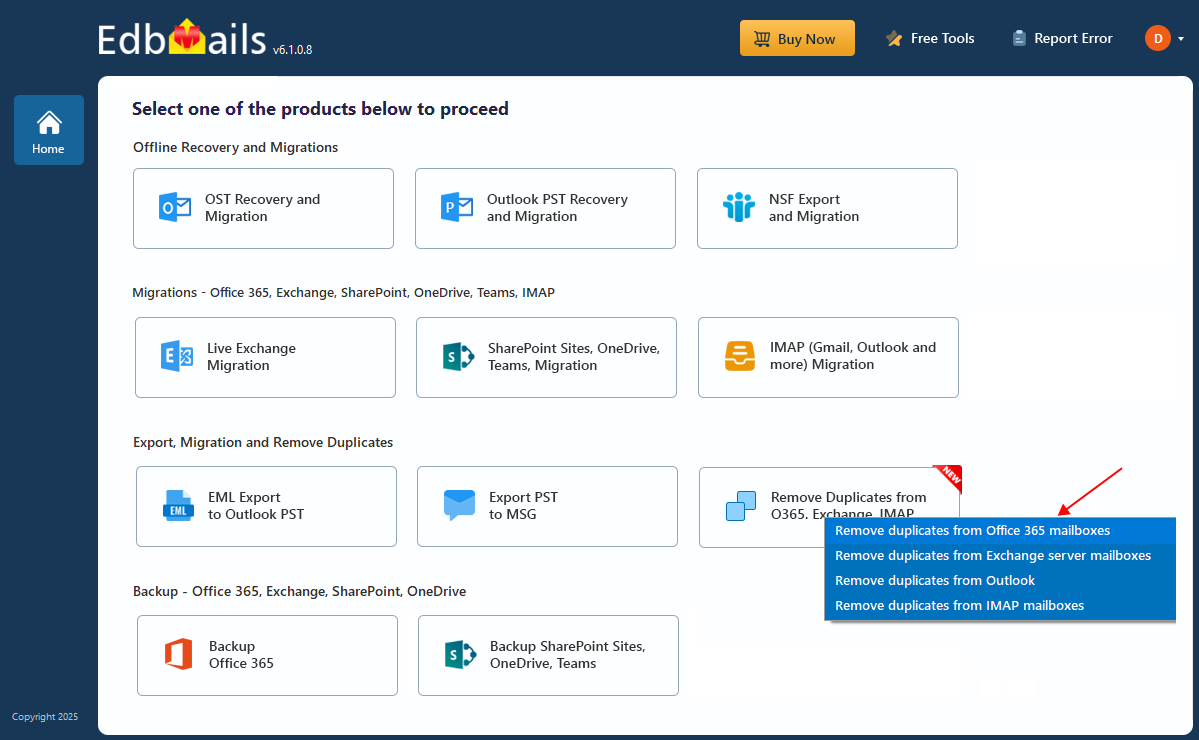
- Click the 'Duplicate Remover (Outlook, Exchange, Microsoft 365, IMAP)' tab, then select 'Remove Duplicates from O365, Exchange, IMAP'.
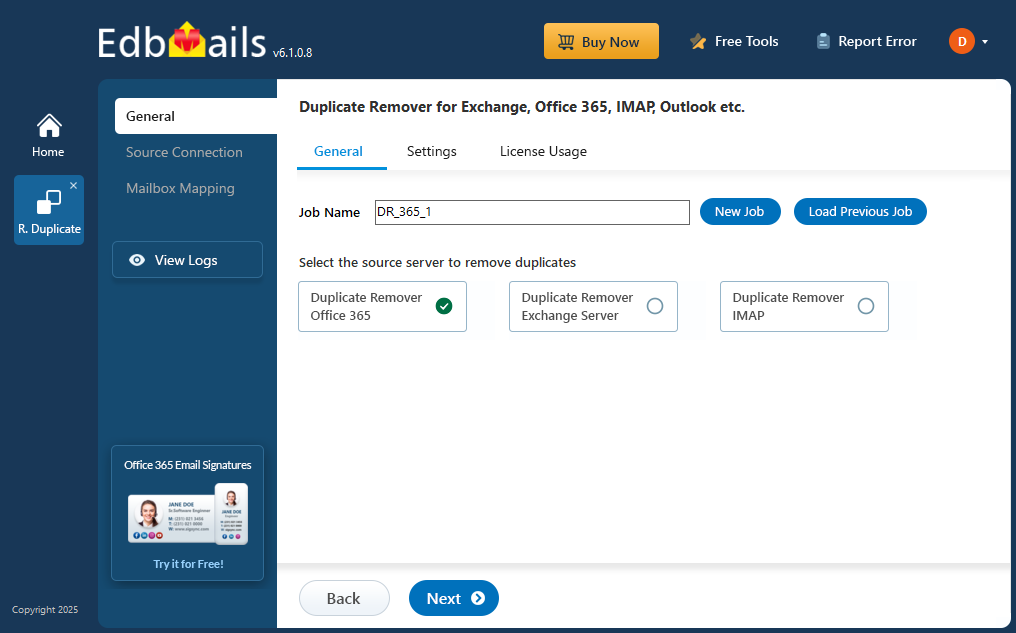
- Select the 'Remove duplicates from Office 365 mailboxes' option.
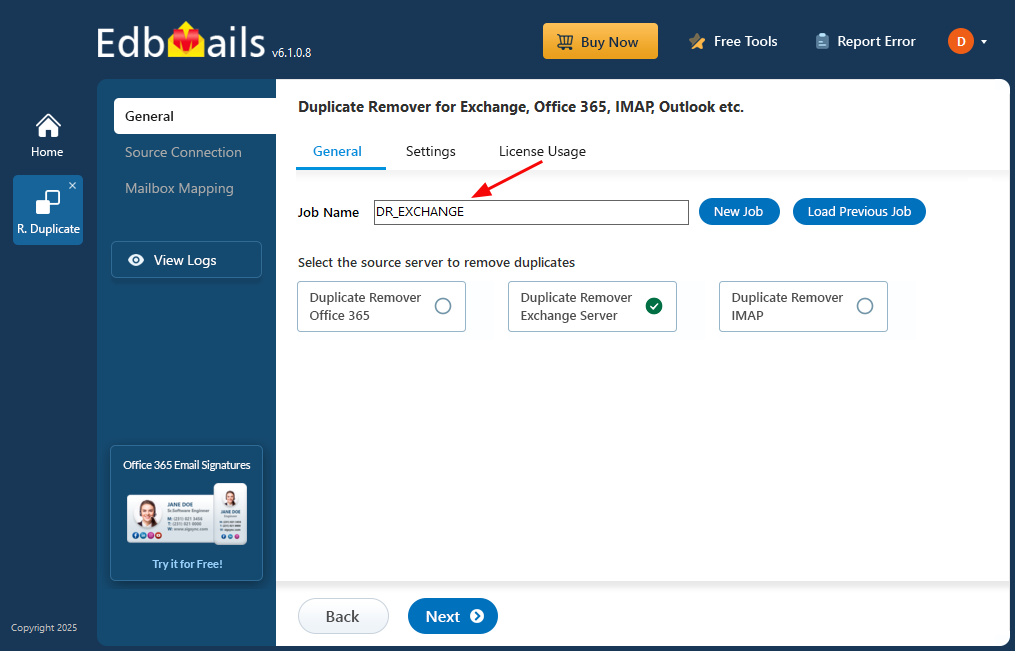
- You can keep the default job name or click ‘New Job’ to change the job name.
Step 2 : Configure duplicate removal settings
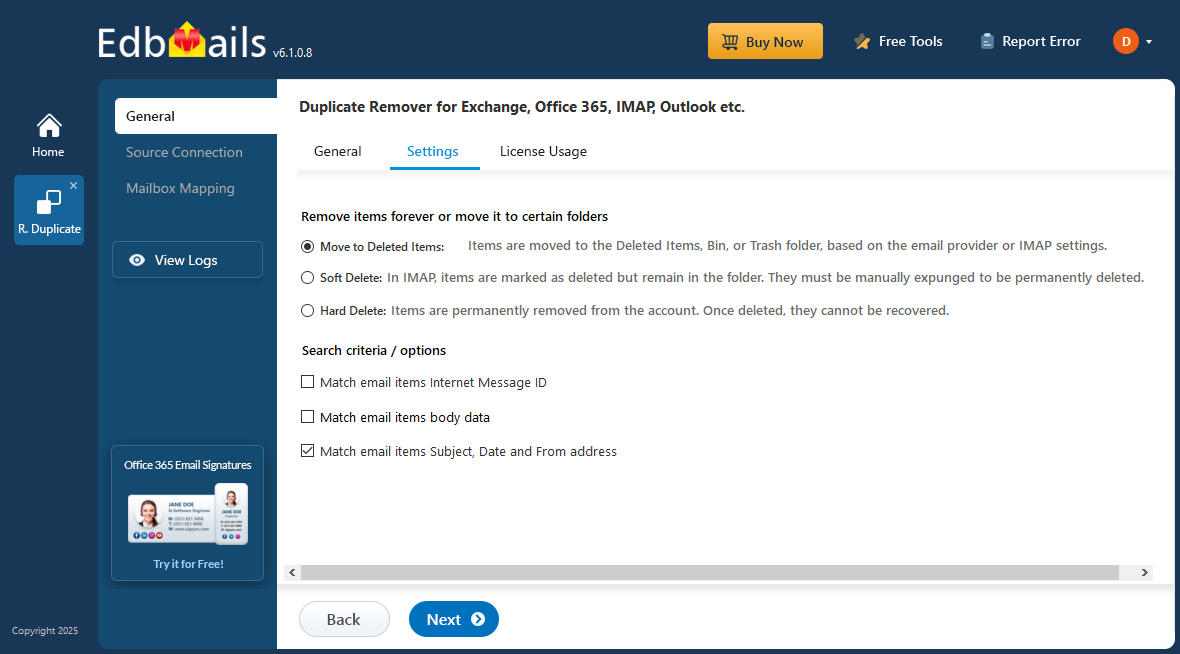
- Specify whether to retain the Newest or Oldest copy when a duplicate is found.
- Choose the removal method: Move to Deleted Items (moves the item to the Deleted Items folder), Soft Delete (moves the item to the Recoverable Items folder), or Hard Delete (removes the item permanently).
- Remove duplicates from all folders or only specific folders such as Mail, Contacts, Calendar, or Tasks.
- Set the detection criteria for matching duplicates: Subject, Sender, Date and Time, Internet Message ID, or a Unique Tag Key.
- After configuring these settings, select 'Next' to continue.
Step 3: Connect to Office 365 tenant
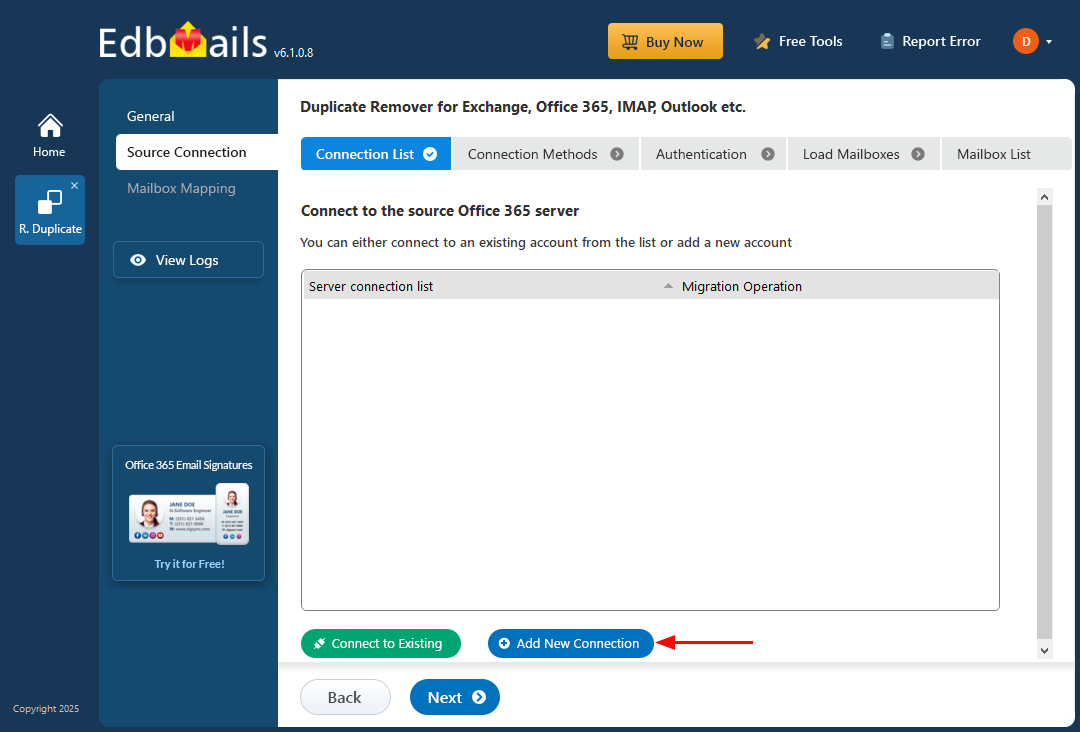
- Select 'Add New Connection' to establish a new connection with the Office 365 tenant, or select an existing connection from the list and click 'Connect to Existing'.
- Select the 'Connect to Archive Mailboxes (In-place Archive)' option, then click 'Next'.
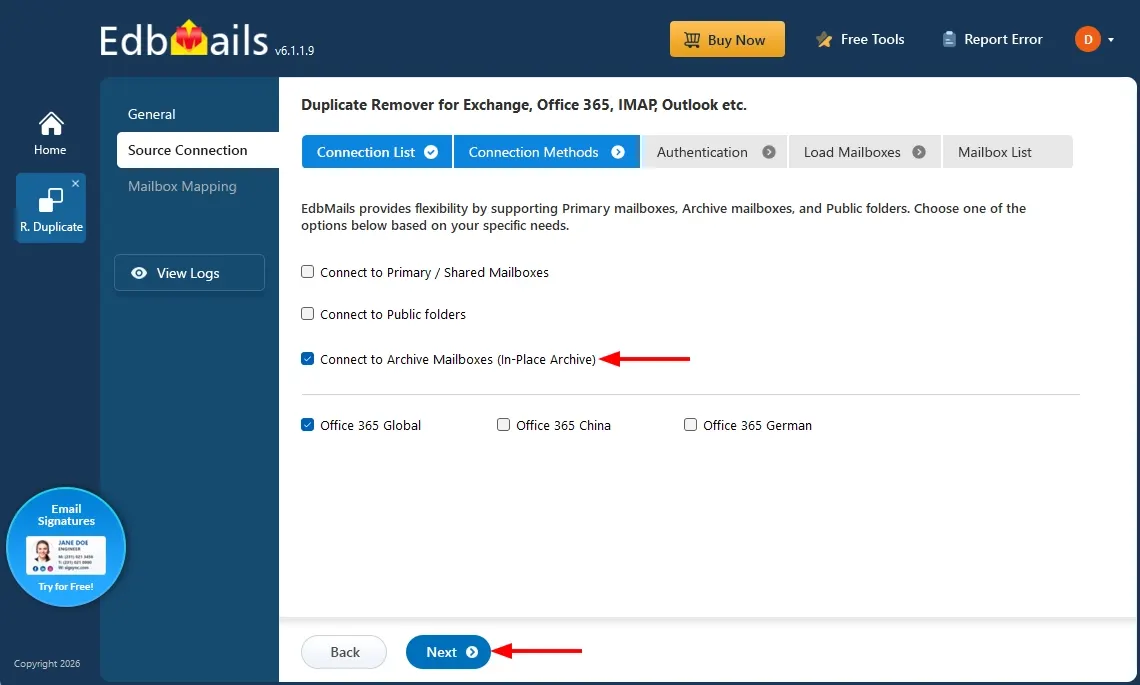
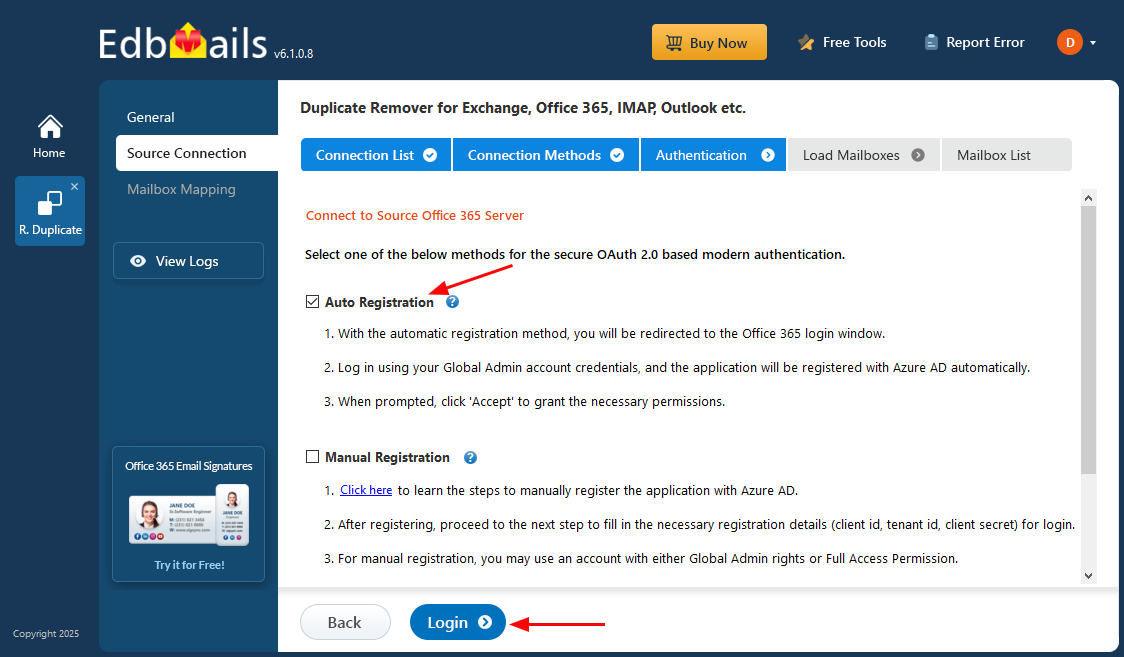
- Select one of the authentication methods and click the ‘Login’ button to continue.
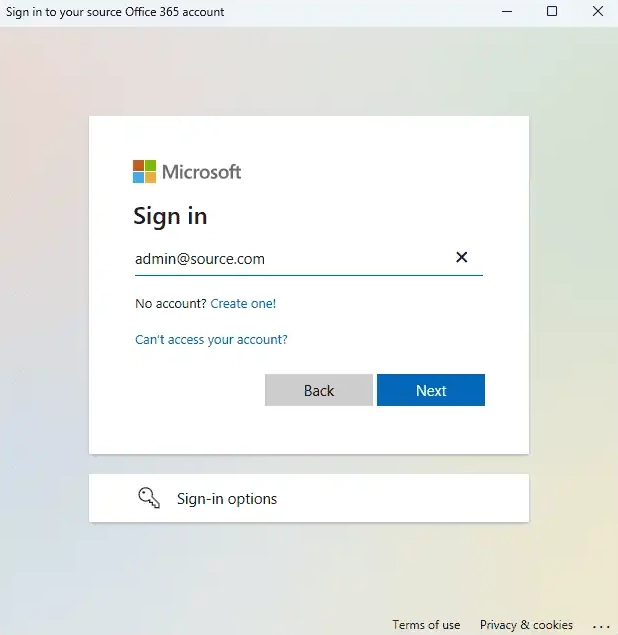
- Authenticate through the Microsoft sign-in page.
- Choose one of the methods to load the mailboxes. EdbMails will load mailboxes automatically, or you can load mailboxes using a CSV file.
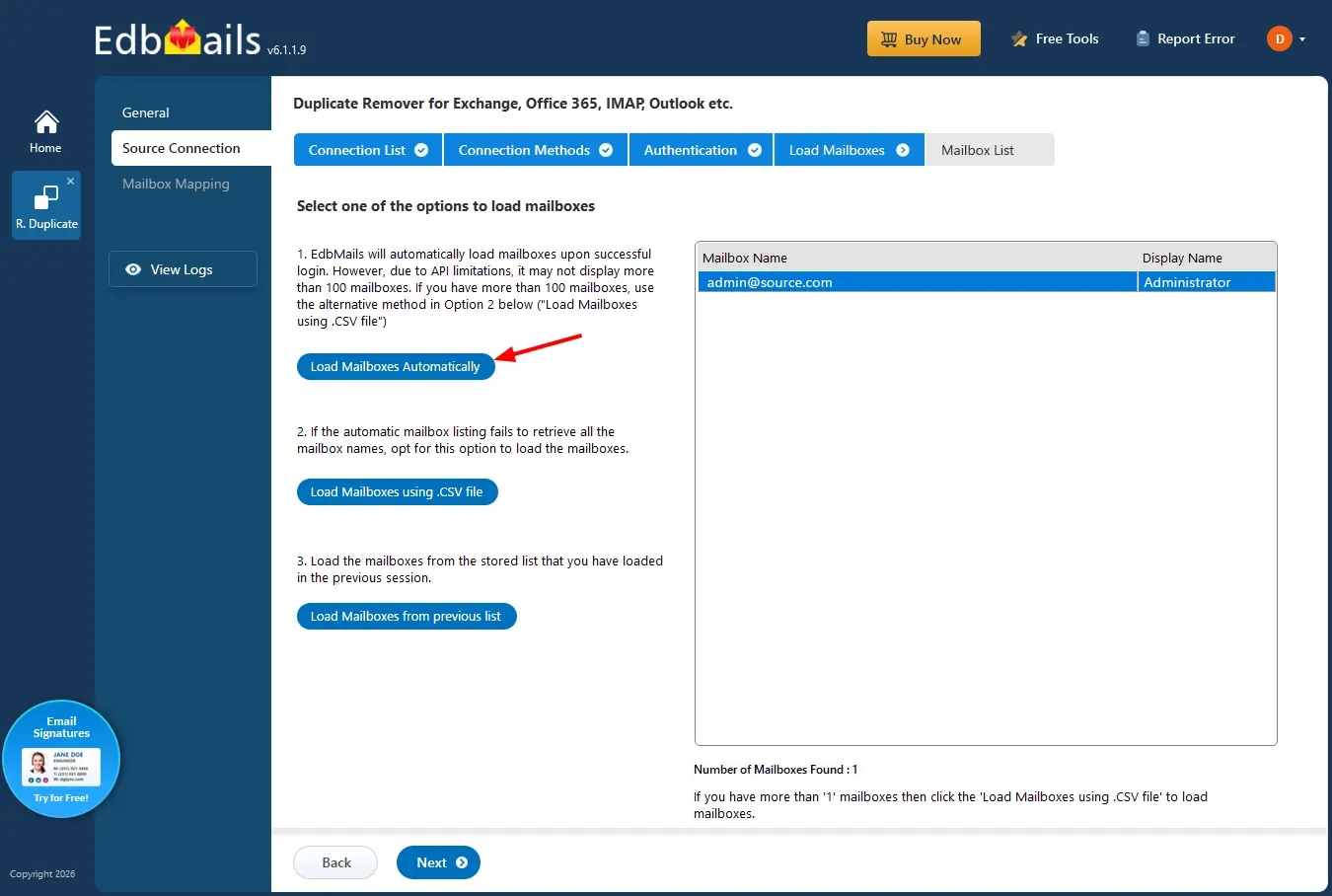
Step 4: Select the Archive Mailboxes
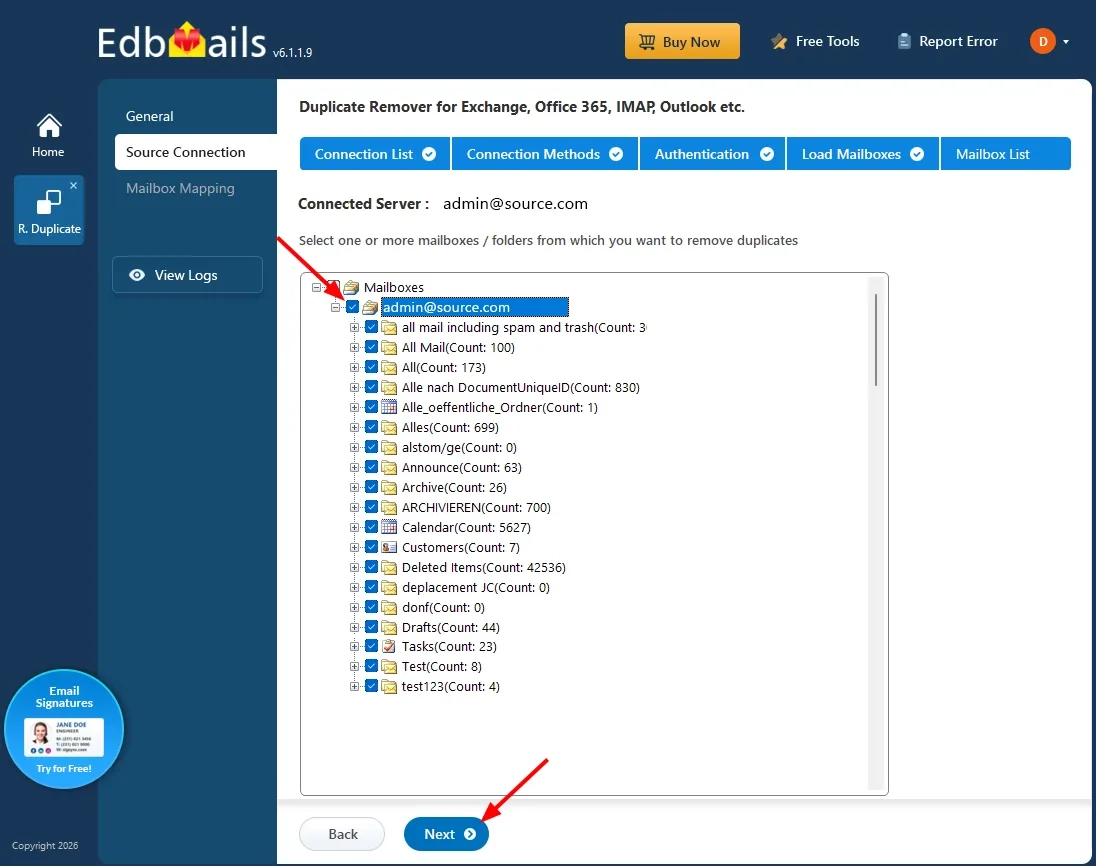
- Select the required archive mailbox and folders, then click 'Next'.
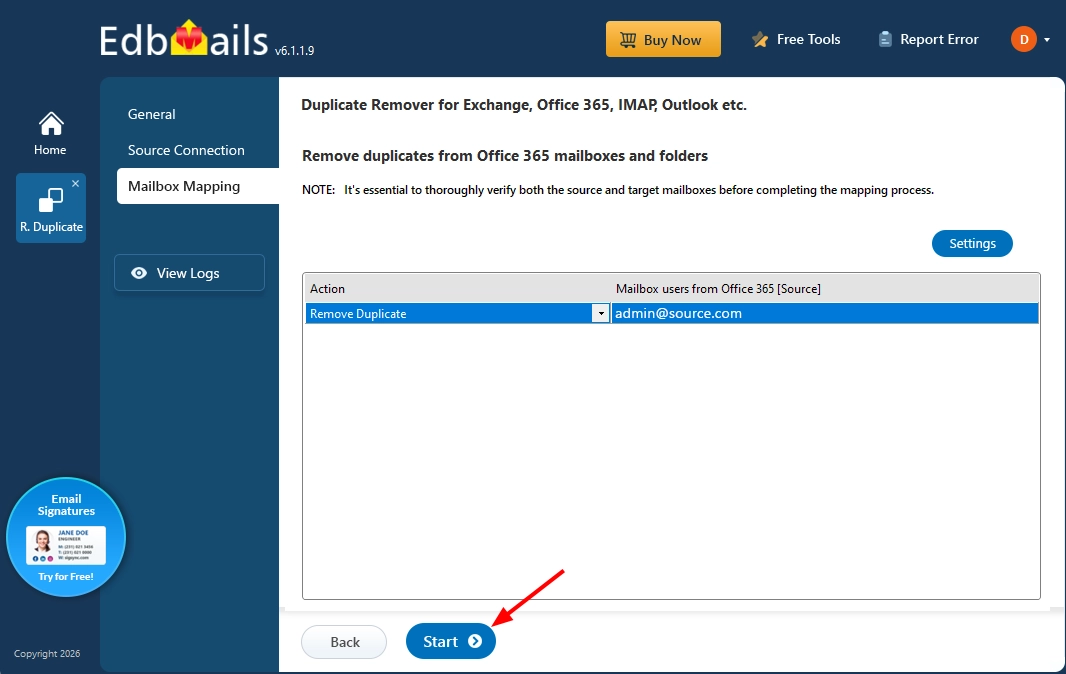
- Confirm that the 'Action' column is set to 'Remove Duplicate' for each selected folder.
- Click 'Start' to begin the duplicate removal process.
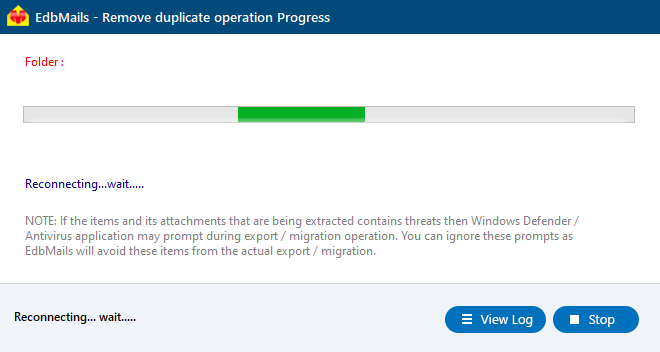
- Monitor progress in real time. EdbMails displays a confirmation message once the job is complete, along with a summary of the items found and removed.
- Click 'View Logs' to review the detailed report generated by EdbMails and confirm the number of items removed from each public folder.
- Download and install the EdbMails application on your computer.
Why EdbMails Is a Reliable Fit for Archive Mailbox Cleanup
- Detects and removes duplicate emails, contacts, calendar items, and tasks from an archive mailbox without disturbing the rest of the archived data.
- Handles large archive mailboxes efficiently, which matters since archives often hold years of accumulated content.
- Reduces storage consumption in the archive without requiring manual review of individual folders.
- Keeps retention and compliance data intact, since only identified duplicates are removed and the rest of the archive is left untouched.
- Runs safely on a live archive mailbox, with no disruption to the primary mailbox or the user's access to their data.
- Provides a detailed report after every job, along with 24/7 technical support if assistance is needed.
Frequently Asked Questions
- Will removing duplicates affect the folder structure of the archive mailbox?
No. EdbMails removes only the duplicate items identified by the selected detection criteria. The archive mailbox folder structure and all non-duplicate data remain unchanged.
- Can duplicates be removed from specific folders instead of the entire archive?
Yes. You can select specific folders within the archive mailbox during the folder selection step rather than scanning the entire archive mailbox in a single duplicate-removal job.
- What account permissions are required to run this job?
The account running the job must have sufficient access to the archive mailbox. This is usually an Office 365 administrator account or an account that has been granted Full Access permission to the target mailbox.
- Does an archive mailbox need to be enabled before running duplicate removal?
Yes. The archive mailbox must already be enabled and contain mailbox data before a duplicate-removal job can be performed against it.
- Can duplicates be recovered after removal?
Yes, if ‘Move to Deleted Items’ was selected. Hard Delete removes items permanently and is recommended only after the results have been reviewed using a recoverable option.

