


Remove Duplicates from Exchange Public Folders
Exchange public folders hold content that is shared across multiple users on an on-premises Exchange server, such as departmental emails, shared calendars, contact lists, and discussion items. Unlike a regular mailbox, a public folder is often accessed by many users at once and, depending on the Exchange version, may also be replicated across more than one server for availability. Both of these factors make public folders more prone to accumulating duplicate content than an individual mailbox.
EdbMails Duplicate Remover Tool applies its detection and matching engine to Exchange public folders, scanning the folder hierarchy and removing duplicate emails, calendar items, contacts, and tasks while keeping the folder structure and existing permissions unchanged.
This guide explains what leads to duplicate items in Exchange public folders, what to check before starting a cleanup, and the steps to remove duplicates from a public folder hierarchy using EdbMails.
Prerequisites for Exchange Public Folder Duplicate Removal
Steps to Remove Duplicates from Exchange Public Folders
Step 1: Download and install EdbMails
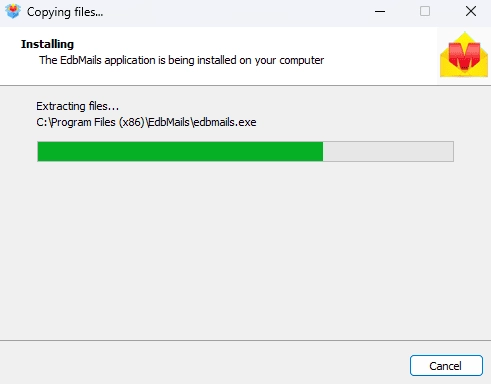
- Download and install the EdbMails application on your computer.
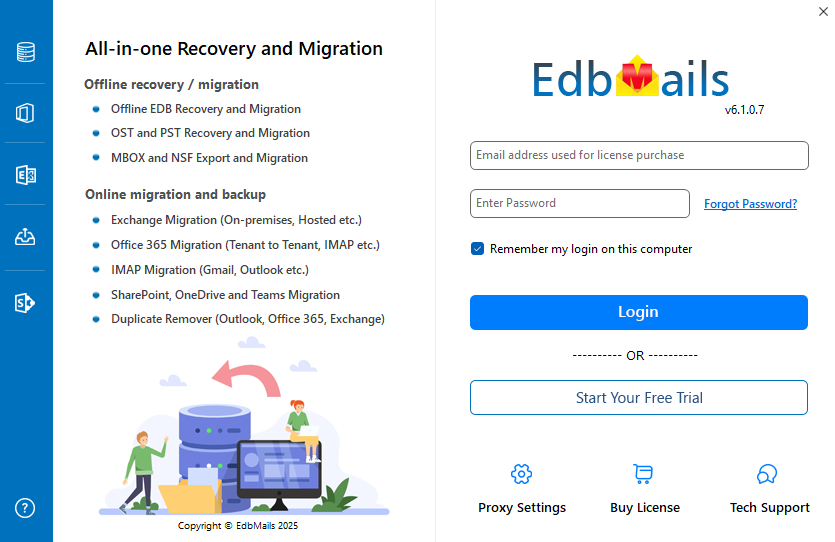
- Log in with your registered email address and password, or select 'Start Your Free Trial'.
Note: The free trial version lets you scan your Exchange public folders and see the number of duplicate items EdbMails detects. An active EdbMails subscription is required to proceed with removing them.
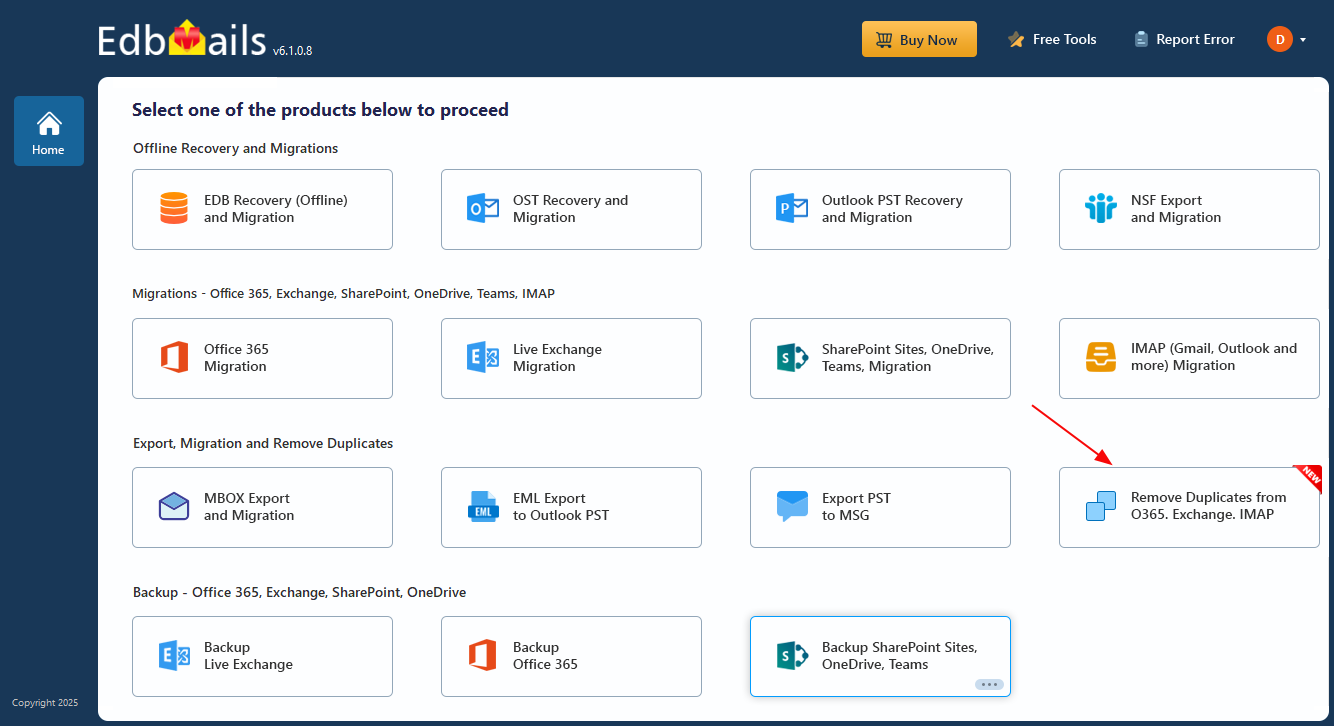
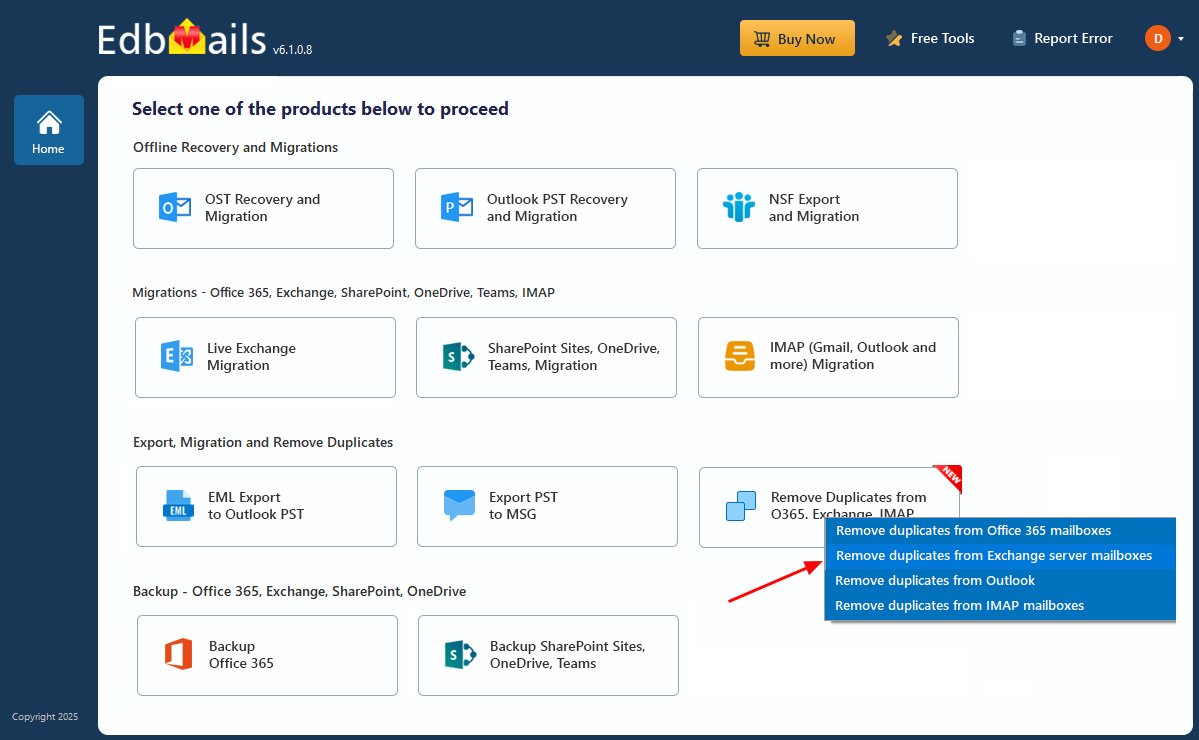
- Click the 'Duplicate Remover (Outlook, Exchange, Microsoft 365, IMAP)' tab, then select 'Remove Duplicates from O365, Exchange, IMAP'.
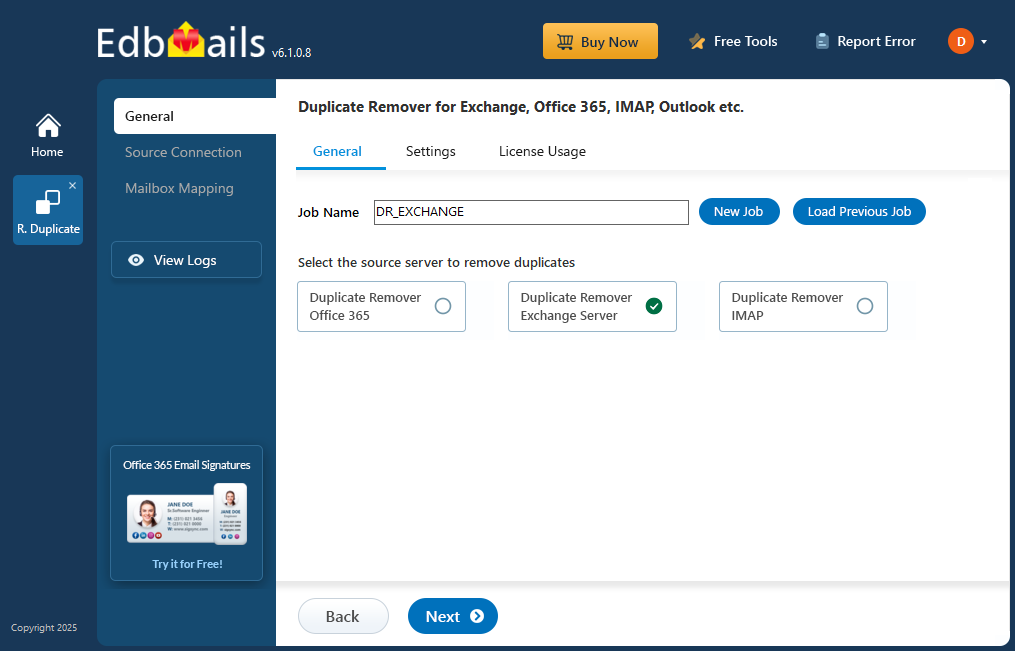
- Select the 'Remove duplicates from Exchange server mailboxes' option.
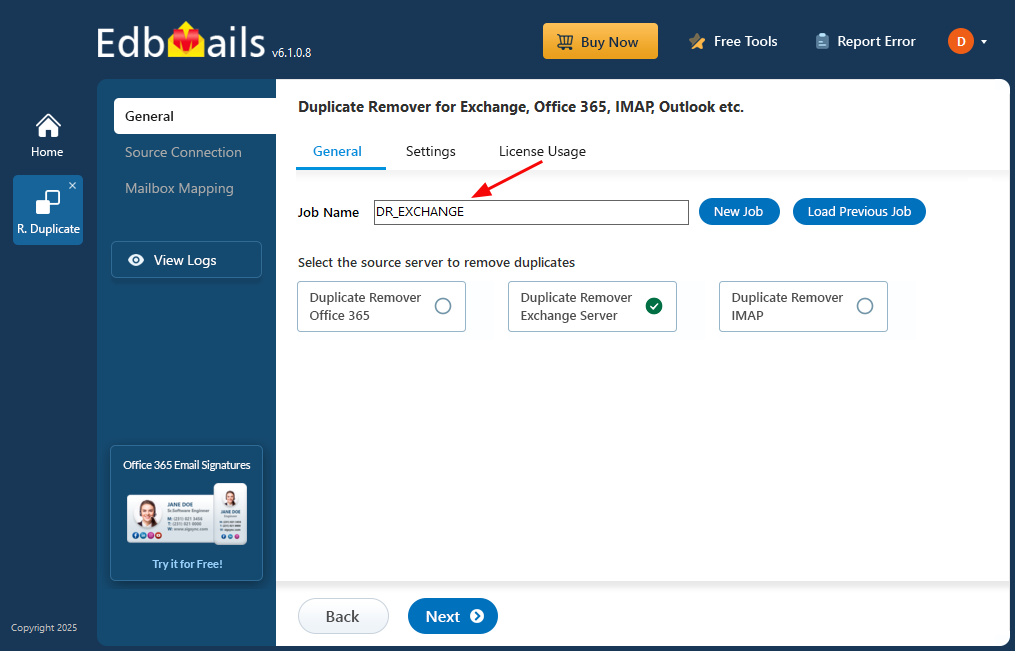
- Keep the default job name, or select 'New Job' to assign a custom name.
Step 2 : Configure duplicate removal settings
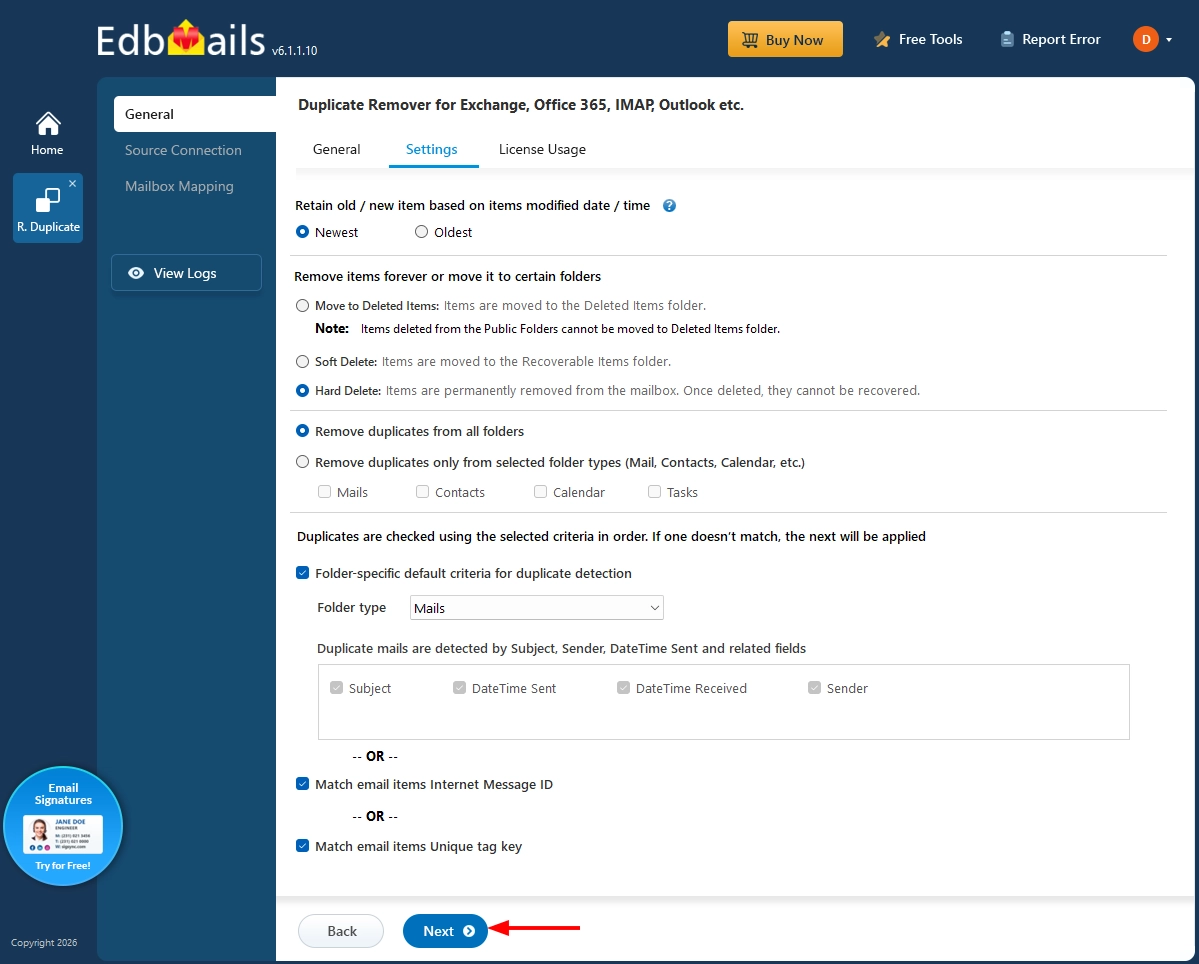
- Under Retain old/new item, choose Newest or Oldest based on the item's modified date and time.
- Under Remove items forever or move it to certain folders, choose either Soft Delete or Hard Delete. Do not select Move to Deleted Items, since this option does not apply to public folders.Note:
- Public folders don't have a Deleted Items or Recoverable Items folder, so only Soft Delete or Hard Delete can be used, not Move to Deleted Items.
- With Soft Delete, items are removed but handled internally by Exchange Online. They can't be viewed or restored through the Outlook Recover Deleted Items option.
- If you may need to review or restore the data later, back it up first, for example by exporting the public folder to a PST file.
- Choose whether to Remove duplicates from all folders, or Remove duplicates only from selected folder types such as Mails, Contacts, Calendar, or Tasks.
- Under duplicate detection criteria, EdbMails checks items using the selected criteria in order, applying the next one if the previous doesn't match. You can use the folder-specific default criteria (Subject, DateTime Sent, DateTime Received, Sender), match using the Internet Message ID, or match using a Unique Tag Key.
- Once these settings are configured, select 'Next' to continue.
Step 3: Connect to the source Exchange server
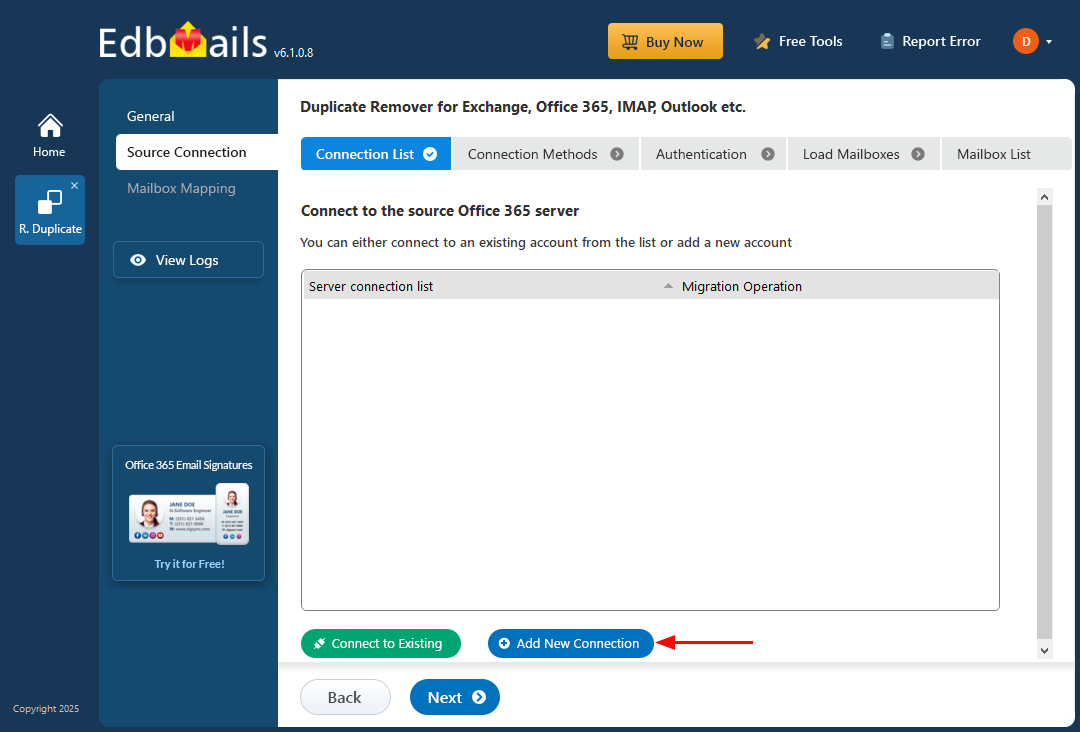
- To make a new connection to your Exchange server, click the 'Add New Connection' button. If a connection already exists, select it from the list and click 'Connect to Existing' to continue.
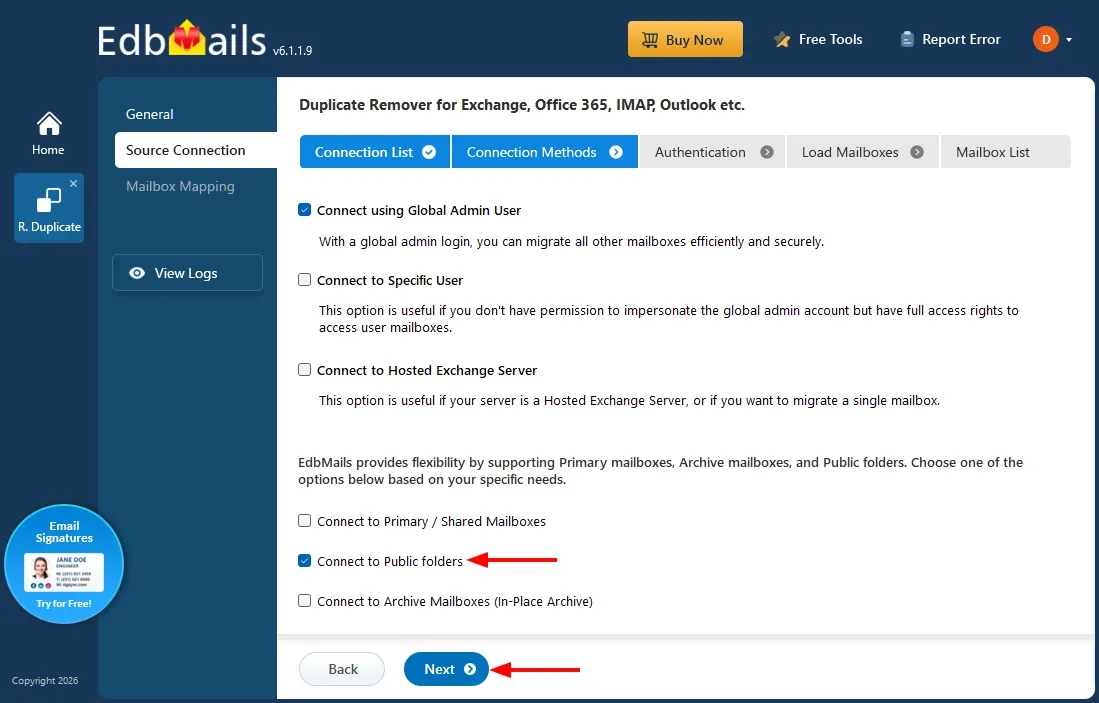
- Choose the connection method as 'Connect to Public Folder' and click 'Next'..
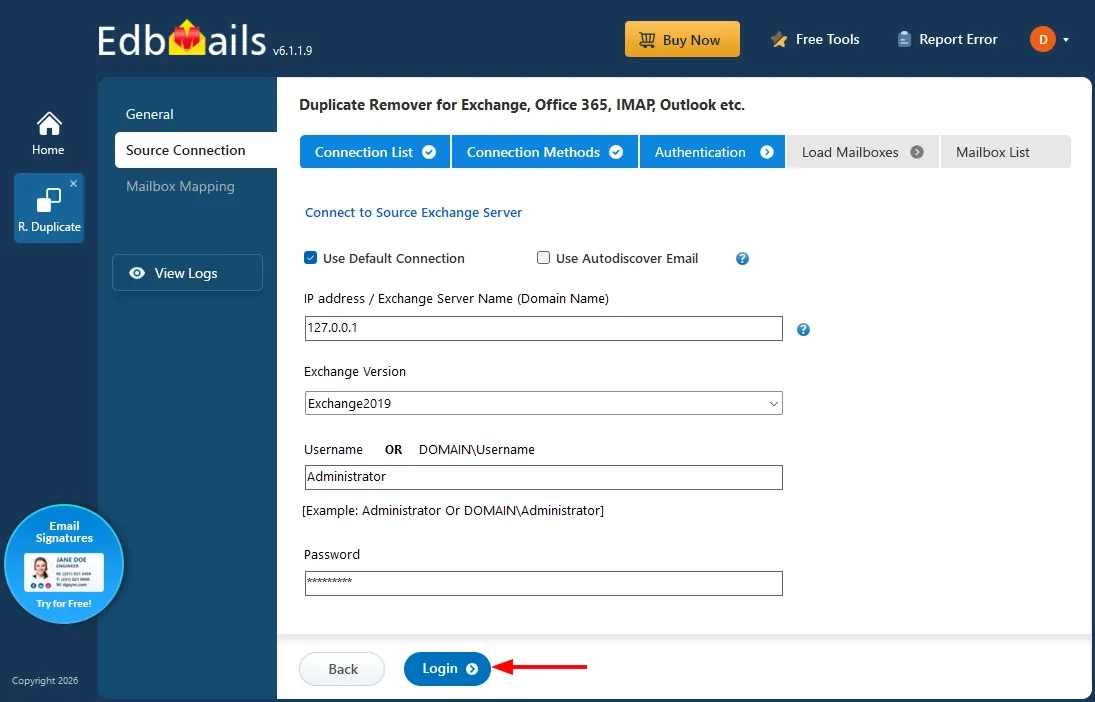
- Enter the Exchange server details and click 'Login'.
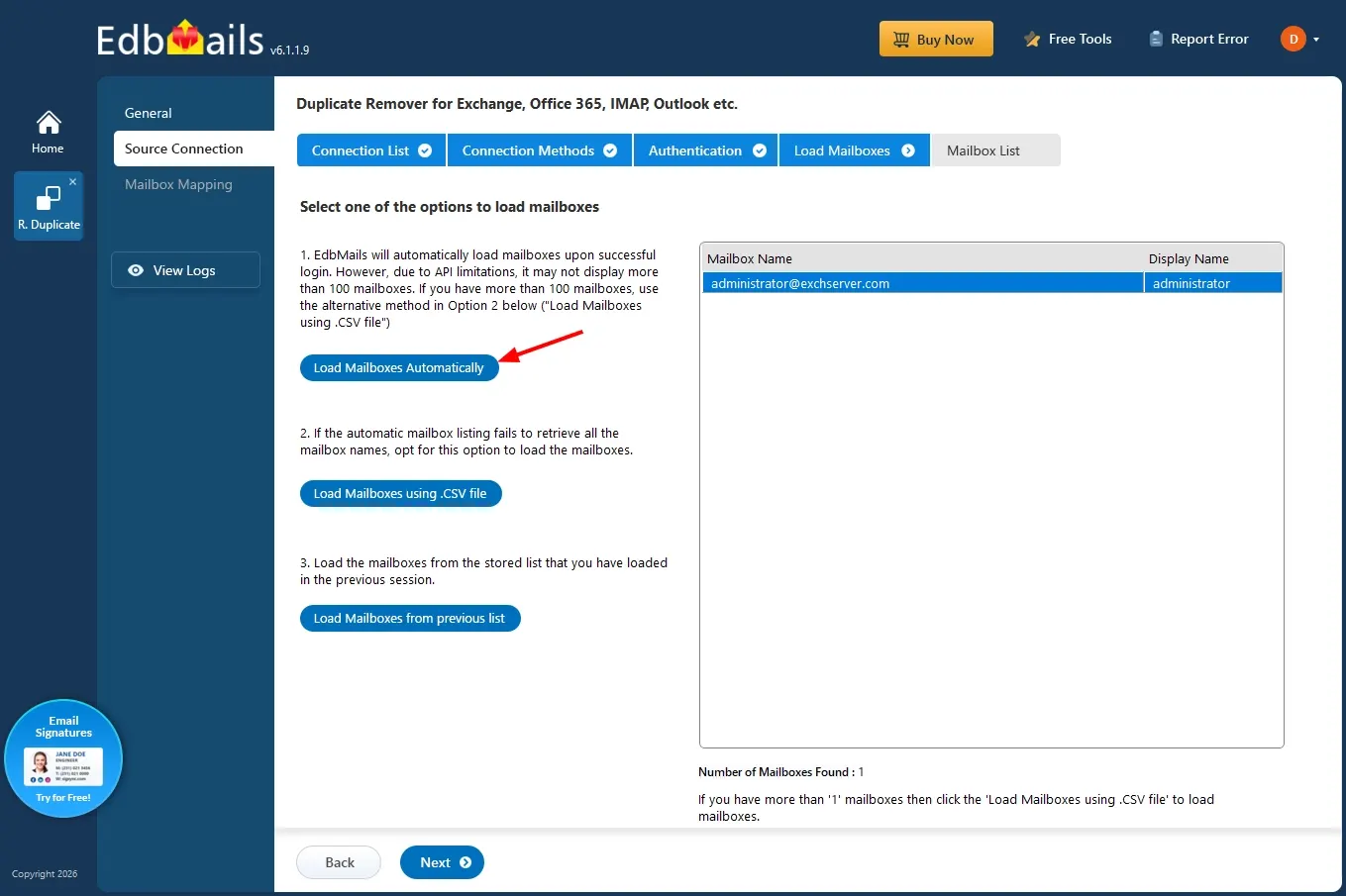
- Select the 'Load Mailboxes Automatically' option to load all the Exchange public folders.
Step 4: Select the public folders
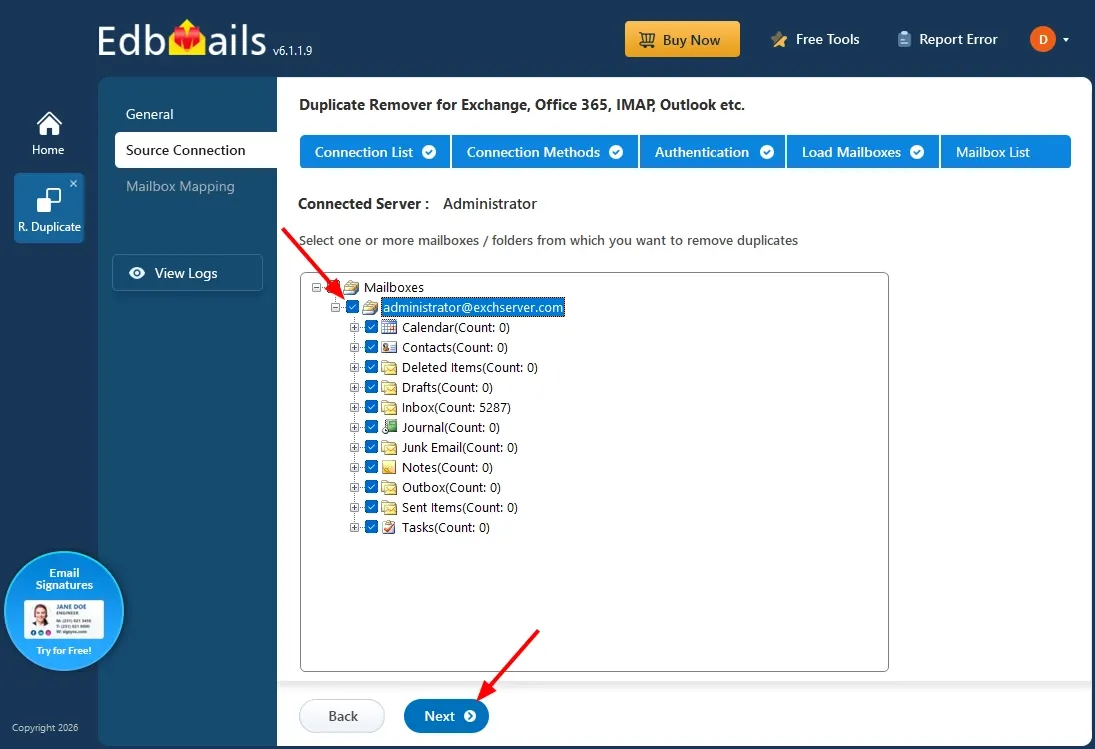
- Expand the public folder tree and choose the folders you want scanned, either individual folders or the full hierarchy, then click 'Next'.
Step 5: Verify and Start Removing Duplicates
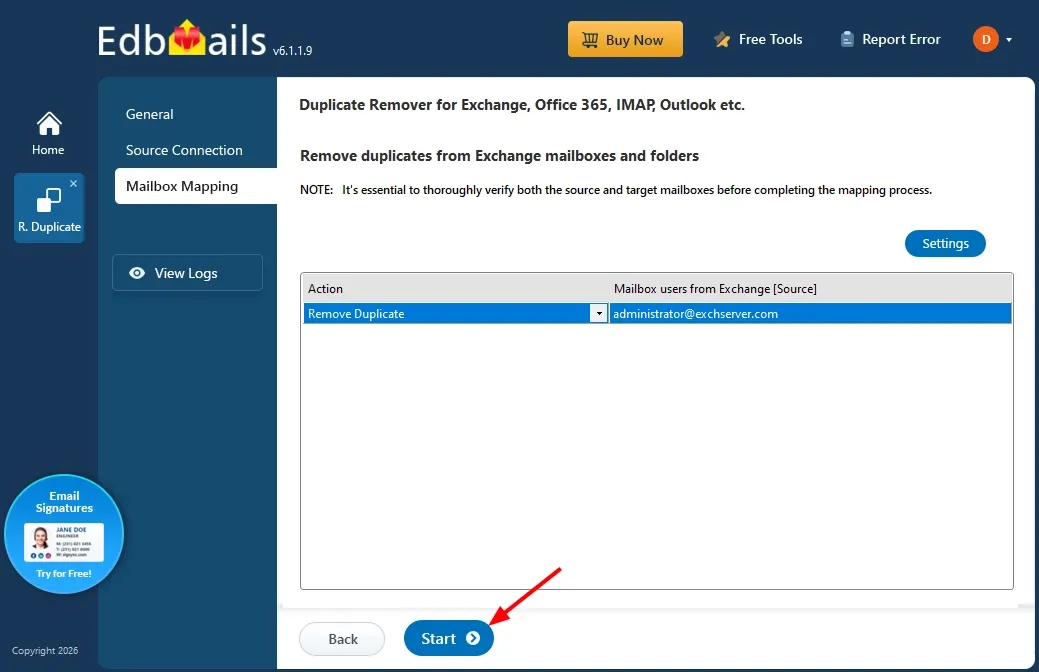
- Confirm that the 'Action' column is set to 'Remove Duplicate' for each selected folder.
- Click 'Start' to begin the duplicate removal process.
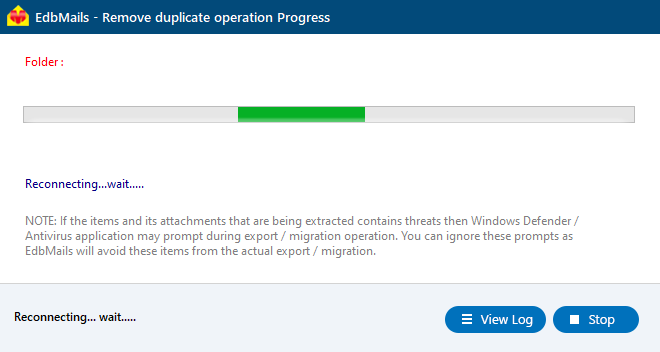
- Monitor progress in real time. EdbMails displays a confirmation message once the job is complete. Then click 'View Log' to view the detailed deduplication report.
- Download and install the EdbMails application on your computer.
Benefits of Using EdbMails for Exchange Public Folder Duplicate Removal
- Removes duplicate emails, contacts, calendar items, and tasks from public folders without altering the folder hierarchy or existing permissions.
- Scans nested sub-folders automatically, so each branch does not need to be processed individually.
- Works across Exchange 2007, 2010, 2013, 2016, and 2019, covering both the legacy public folder database model and the newer public folder mailbox model.
- Frees up storage on the Exchange server that would otherwise be consumed by repeated content.
- Offers three removal modes: Soft Delete, Hard Delete, and Move to Deleted Items.
- Provides a detailed report showing which items were removed and why, along with 24/7 technical support.
Frequently Asked Questions
- Does removing duplicates change the public folder structure or permissions?
No. EdbMails removes only the duplicate items identified by the configured detection criteria. The folder hierarchy, sub-folder structure, and existing permissions remain unchanged.
- Can duplicates be recovered after removal?
Public folders don't have a Recoverable Items folder, so even Soft Delete can't be restored through Recover Deleted Items. Take a PST backup first if you may need the data later.
- Can specific public folders be cleaned instead of the entire hierarchy?
Yes. Individual public folders or branches can be selected during the folder selection step, rather than scanning the entire tree in a single job.
- Does this work on both older and newer public folder models?
Yes. EdbMails supports both the legacy public folder database used in Exchange 2010 and earlier, and the public folder mailbox model used in Exchange 2013 and later.
- What account permissions are required to run a public folder duplicate removal job?
An account with sufficient access to the public folder database or public folder mailbox is required. This is typically an Exchange admin account or an account granted Owner permissions on the public folders.

